
Overview
With the Upgrades (term change) feature, the user can redeem upgrade offers or use My Account to exchange their current subscription for a subscription to another term. You set the parameters of such a change with an "upgrade option" (the legacy upgrade offer flow keeps this information in a dedicated checkout flow instead).
You can also upgrade individual subscriptions directly: via the Piano API or from Subscription details in the Piano Dashboard. Bulk upgrades are available via the Piano API and Action Manager.
A term change (upgrade or downgrade) does not modify the existing source subscription (subscription_from) to a term (term_from) but creates a new subscription (subscription_to) to the target term (term_to). The new subscription starts as soon as it is billed according to the Bill timing setting. If the upgrade is not immediate and the New access begins immediately checkbox is selected, the user receives temporary access to the target resource (resource_to) which is not covered by any subscription and lasts until the target subscription starts. If you enable Prorate billing amount, the user's first payment for the target subscription is prorated according to their previous payment. Find more technical details in Upgrade-related system events below.
Limitations
Terms and accesses
-
Upgrades are supported only for Recurring payment, Scheduled payment, and Dynamic terms. The allowed transitions (source term → target term) are:
-
Recurring payment term → Recurring payment term, Scheduled payment term, or Dynamic term
-
Scheduled payment term → Recurring payment term or Scheduled payment term
-
Dynamic term → Dynamic term only
-
-
A dynamic or scheduled payment term cannot be a target term if it has no active or future periods.
-
The source term and the target term must be different and use the same currency.
-
The target term cannot be restricted to new customers.
-
The user must not already have active access to the resource of the target term. The exceptions are (1) when the target resource is a bundle containing the standard resource already available to the user, and (2) when the access to the resource has been granted.
-
The target payment subscription inherits the auto-renewal setting (ON or OFF) of the source payment subscription, except when the target term is set to Force all new subscriptions to be auto-renewing subscriptions. In this case, the new subscription will have active auto-renewal.
-
When a subscription has a scheduled upgrade, turning auto-renewal off in My Account before the upgrade completes does affect the upgrade itself. In this case, the scheduled upgrade is suspended, and if auto-renewal remains off, the original subscription will expire at the end of its current term. Re-enabling auto-renewal resumes the scheduled upgrade. No email notifications ("Subscription auto renew enabled" resp. "Subscription auto-renew disabled") are triggered during this process.
-
If the target term includes a trial that isn’t restricted to new customers, the new subscription will receive a trial as well.
-
When a shared subscription is being upgraded, the parent user is offered to edit the list of shared accounts according to the number of the additional access tokens in the target term. Bulk upgrades bypass users' response, so if the target subscription allows fewer child accesses than the source one, the list of child accesses is truncated automatically; otherwise, the child accounts are migrated to the new subscription.
-
Bulk upgrades via Action Manager do not allow immediate upgrades and therefore do not cover subscriptions in a grace period.
Payments and proration
-
If the source subscription is in a grace period, it allows only immediate upgrades.
-
If the payment for the target term fails, but the target term has a grace period configured and the upgrade has been via an upgrade offer, the upgrade is executed and the target subscription enters a grace period. Find more in Upgrade-related system events below.
-
Grace-period days do not count toward the proration calculation.
-
Upgrades are not supported by asynchronous payment providers (e.g. Onet).
-
Promo codes do not apply to the upgrade process.
-
A day counts as “used” for proration only after 24 hours have elapsed; partial days are rounded down.
-
If the user has manually renewed their existing subscription before the next billing date, an upgrade will only be possible once the next full billing period has started.
-
Proration can only occur after the original transaction has settled. If the user attempts to upgrade within a few hours of their original purchase, their bank may not have yet approved the transaction. To avoid refunding revenue that is not yet collected, we wait for the settlement of the original transaction before allowing proration.
-
Upgrades with a prorated amount are available even if your payment provider does not support partial refunds or has restricted refund periods (check it in the Edit Business | setrefund menu). The upgrade flow if a payment is not partially refundable is as follows:
-
The access to the source term remains active
-
We make a payment at the end of the current billing cycle (even if the bill timing is set to Immediately)
-
Access to the target term is granted immediately
-
Configuring templates
Before you start configuring your specific upgrade options, it makes sense to ensure that your application templates are ready for work: create one or more upgrade offer templates and edit your My Account templates if they are different from the default version that now includes Upgrades.
Upgrade offer templates
Please note that upgrade/downgrade offers are compatible only with the corresponding upgrade offer templates and can not work with the regular offer templates.
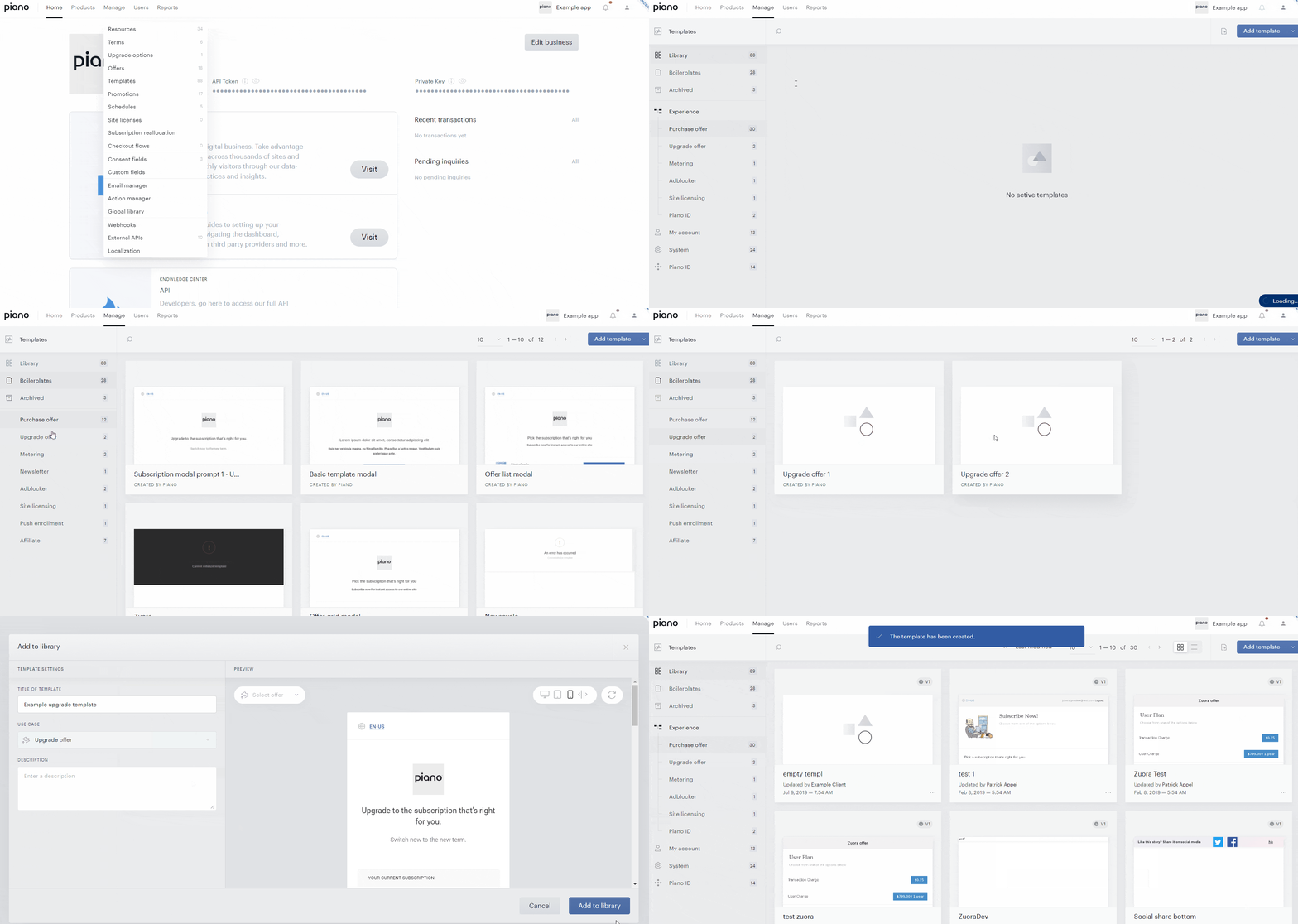
To create an upgrade offer template, go to the template manager (Manage → Templates in the Piano Dashboard), click Boilerplates and select one of the two default Upgrade offer boilerplates. Set a title for your template and click Add to library.
My Account templates
The Upgrades feature is now integrated in the default version of all the Piano templates. However, Piano purposefully does not overwrite your templates so as not to erase any changes you may have made. Therefore, it is likely that your users will not see the opportunity to upgrade in My Account unless you modify your templates.
Specifically, you must modify the My Account Library Components template to include specific lines of code. If you have not made any changes to this template, you can simply click Revert to default on the template, and the necessary code will be automatically included. Otherwise, you will need to add the following code snippets in the locations called out for each.
<!-- At the top of the first <div> in the script with id "/widget/myaccount/partials/library/_library_list_item.shtml" -->
<ul
        ng-if="postponedUpgrades.length"
        class="postponed-upgrades">
        <li ng-repeat="upgrade in postponedUpgrades"
            class="postponed-upgrades__item">
          <t context="checkout.platform">Your subscription to the</t> <b>{{upgrade.termFromName}}</b> <t context="checkout.platform">will be upgraded to the</t> <b>{{upgrade.termToName}}</b> <t context="checkout.platform">on</t> {{upgrade.changeDate}}.</li>
</ul>
<!-- At the top of the td with class "actions" within the script with id "/widget/myaccount/partials/library/_library_list_item.shtml"-->
<button id="change-term-button" ng-if="libraryItem.termChangeOptions.length"
    ng-click="upgrade(libraryItem, libraryItem.termChangeOptions)"
    class="btn btn--blue btn--medium"><t context="checkout.platform">Upgrade</t></button>
<!-- after the script with id "/widget/myaccount/partials/library/_library_list_item.shtml"-->
<script type="text/ng-template" id="/widget/myaccount/partials/library/upgrade_options.shtml">
  <div ng-if="isChooseScreen">
    <span class="section-text">
     <t context="checkout.platform">Choose upgrade option</t>
    </span>

    <ul class="list list--change-option clearboth">
      <li class="list__row list__item--separated"
          ng-repeat="option in options">

        <div class="list__cell list__cell--radiobutton" ng-click="option.changable? optionSelected(option.termChangeOptionId):''">
          <label class="radiobutton" ng-class="{'not-selectable': !option.changable}" >
            <input type="radio" ng-model="selectedOptionId" ng-value="option.termChangeOptionId" ng-disabled="option.changable === false">
            <span class="radiobutton__label">
            </span>
          </label>
        </div>
        <div class="list__cell">
          <div>
              <span class="change-option-title" ng-class="{'change-option-disabled':!option.changable}">{{option.toTermName}}</span>
              <span class="change-option-restriction-message" ng-show="!option.changable">{{option.tooltip}}</span>
          </div>
          <div class="change-option-billing-plan">
            <!-- Switch of BILLING_TIMING -->
            <span ng-if="option.immediateAccess && !option.upgradeWillBeImmediately && option.billingTiming === 0">{{option.billingPlan}}, <t context="checkout.platform">access will begin immediately</t>, <t context="checkout.platform">you will be charged as from now</t></span>
            <span ng-if="option.immediateAccess && !option.upgradeWillBeImmediately && option.billingTiming === 1">{{option.billingPlan}}, <t context="checkout.platform">access will begin immediately</t>, <t ng-if="option.nextBillingDate" context="checkout.platform">you will be charged on</t> {{option.nextBillingDate}}</span>
            <span ng-if="option.immediateAccess && !option.upgradeWillBeImmediately && option.billingTiming === 2">{{option.billingPlan}}, <t context="checkout.platform">access will begin immediately</t>, <t ng-if="option.nextBillingDate" context="checkout.platform">you will be charged on</t> {{option.nextBillingDate}}</span>
            <span ng-if="option.immediateAccess && !option.upgradeWillBeImmediately && option.billingTiming === 3">{{option.billingPlan}}, <t context="checkout.platform">access will begin immediately</t>, <t ng-if="option.nextBillingDate" context="checkout.platform">you will be charged on</t> {{option.nextBillingDate}}</span>
            <span ng-if="!option.immediateAccess && !option.upgradeWillBeImmediately">{{option.billingPlan}}, <t ng-if="option.nextBillingDate" context="checkout.platform">you will be charged on</t> {{option.nextBillingDate}}</span>
            <span ng-if="option.upgradeWillBeImmediately">{{option.billingPlan}}, <t context="checkout.platform">access will begin immediately</t>, <t context="checkout.platform">you will be charged as from now</t></span>
          </div>
          <div class="change-option-description" ng-class="{'change-option-disabled':!option.changable}">
            {{option.description}}
          </div>
        </div>
      </li>
    </ul>

    <div class="my-account-footer">
      <button
        ng-disabled="isUpgradeInProgress"
        ng-click="goBack()"
        class="btn btn--gray btn--large btn--bold my-account-footer__button"><t context="checkout.platform">Back</t></button>
      <button
        ng-disabled="isUpgradeInProgress || !selectedOptionId"
        ng-click="onPick()"
        class="btn btn--blue btn--large btn--bold my-account-footer__button"><t context="checkout.platform">Submit</t></button>
    </div>
  </div>
  <div ng-if="isConfirmScreen">
    <span class="section-text">
     <t context="checkout.platform">Review and confirm the changes to your subscription</t>
    </span>

    <ul
      class="simple-list simple-list--review-and-confirm clearboth">
      <!--Access to current term-->
      <li ng-if="isCurrentTermAccessEndsImmediately(selectedOption)" class="simple-list__item simple-list__item--with-dot"><t context="checkout.platform">Your access to the</t> {{upgradeFrom.termName}} <t context="checkout.platform">will end immediately</t></li>
      <li ng-if="!isCurrentTermAccessEndsImmediately(selectedOption)" class="simple-list__item simple-list__item--with-dot"><t context="checkout.platform">Your access to the</t> {{upgradeFrom.termName}} <t context="checkout.platform">will end on</t> {{selectedOption.nextBillingDate}}</li>

      <!--Access to new term-->
      <li ng-if="selectedOption.immediateAccess || selectedOption.upgradeWillBeImmediately" class="simple-list__item simple-list__item--with-dot"><t context="checkout.platform">Your access to the</t> {{selectedOption.toTermName}} <t context="checkout.platform">will begin immediately</t></li>
      <li ng-if="!(selectedOption.immediateAccess || selectedOption.upgradeWillBeImmediately)" class="simple-list__item simple-list__item--with-dot"><t context="checkout.platform">Your access to the</t> {{selectedOption.toTermName}} <t context="checkout.platform">will begin on</t> {{selectedOption.nextBillingDate}}</li>

      <!--Charged for new term-->
      <li ng-if="isCurrentTermAccessEndsImmediately(selectedOption)" class="simple-list__item simple-list__item--with-dot"><t context="checkout.platform">Your subscription for</t> <b>{{selectedOption.billingPlan}}</b> <t context="checkout.platform">will begin immediately</t></li>
      <li ng-if="!isCurrentTermAccessEndsImmediately(selectedOption)" class="simple-list__item simple-list__item--with-dot"><t context="checkout.platform">You will be charged</t> <b>{{selectedOption.billingPlan}}</b> <t context="checkout.platform">starting from</t> {{selectedOption.nextBillingDate}}</li>

      <!--Prorating new term-->
      <li ng-if="selectedOption.prorateAccess" class="simple-list__item simple-list__item--with-dot"><t arg0="{{selectedOption.prorateRemaining}}" context="checkout.platform">You have <b>{0}</b> remaining from your previous subscription</t></li>
      <li ng-if="selectedOption.prorateAccess" class="simple-list__item simple-list__item--with-dot"><t arg0="{{selectedOption.prorateCharged}}" arg1="{{selectedOption.billingPlan}}" context="checkout.platform">You will be charged <b>{0}</b> today, and <b>{1}</b> for the rest of your subscription term</t></li>
    </ul>

    <div class="my-account-footer">
      <button
        ng-disabled="isUpgradeInProgress"
        ng-click="showPickScreen()"
        class="btn btn--gray btn--large btn--bold my-account-footer__button"><t context="checkout.platform">Back</t></button>
      <button
        ng-disabled="isUpgradeInProgress"
        ng-click="onConfirm()"
        class="btn btn--blue btn--large btn--bold my-account-footer__button"><t context="checkout.platform">Submit</t></button>
    </div>
  </div>
</script>
Note: The two lines beginning with <li ng-if="selectedOption.prorateAccess"> are the snippets that must be added to allow for proration.
<!-- First nested div in 'my-account-widget-scroll="scrollable-content-top-indent"'-->
<div ng-if="isScreen(SCREEN_UPGRADE_OPTIONS)">
    <upgrade-options
    upgrade-from="upgradeFrom"
    on-close="showScreen(SCREEN_SUBSCRIPTIONS)"
    on-success-update="onItemUpgraded()"
    options="upgradeOptions"></upgrade-options>
</div>
<!-- Within the 'Active' library-table in the script with id "/widget/myaccount/partials/library/library_list.shtml" -->
postponed-upgrades="termChangeList"
upgrade-library-item-callback="onUpgrade"
<!-- Within the 'Expired' library-table in the script with id"/widget/myaccount/partials/library/library_list.shtml" -->
postponed-upgrades="termChangeList"
Please reach out to your Piano representative for assistance in this process if needed.
Configuring an upgrade option
Upgrade option settings
When your templates are ready, you can turn to the core concept of Upgrades - "upgrade option" which is a set of parameters defining a term change. Configured on the term level, it states the source term and the target term along with other properties of the upgrade.
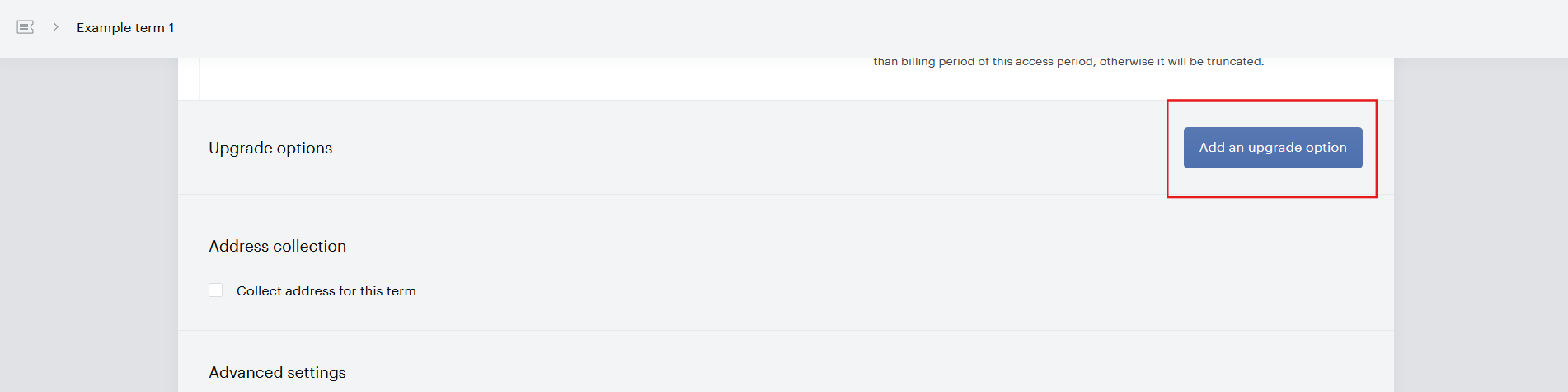
1. Configuring an upgrade option begins when you open the properties of your planned source term, scroll down to the Upgrade options section and click Add an upgrade option.
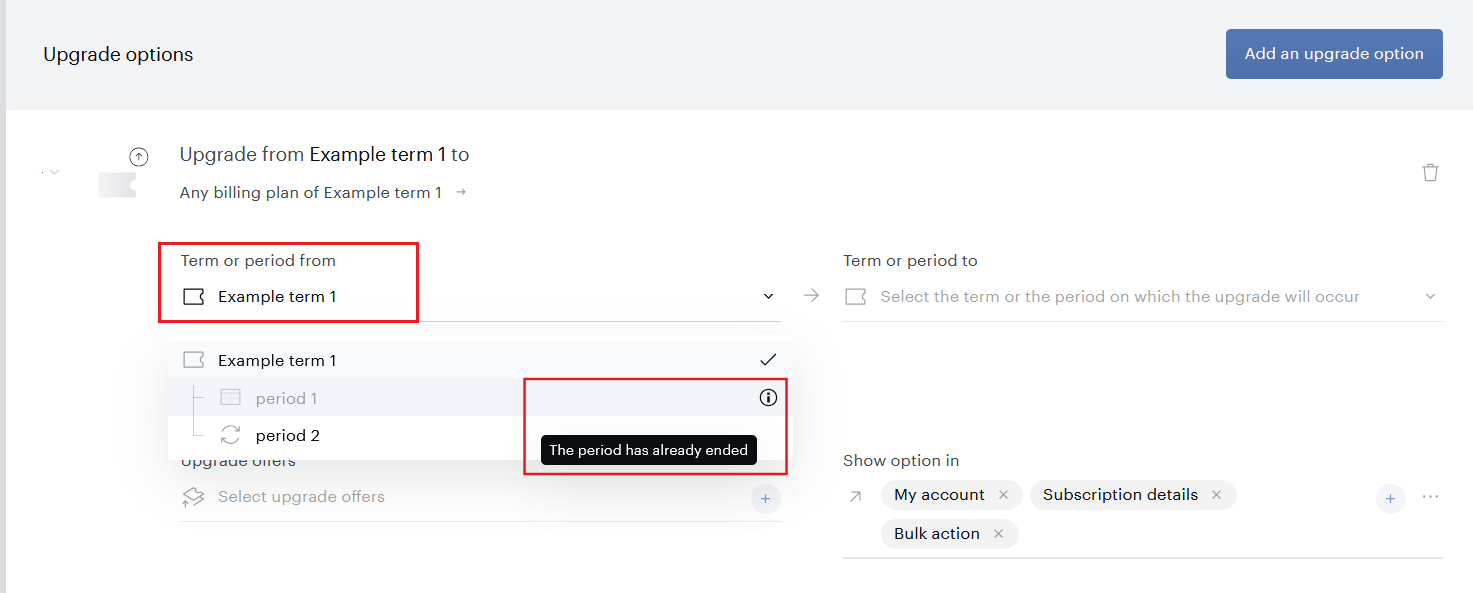
2. Term or period from: When configured, the upgrade option will address all the active users subscribed to this term or period of a dynamic term. As the source term is already selected, this field is inactive. Except for dynamic terms, where you can also select a certain period.
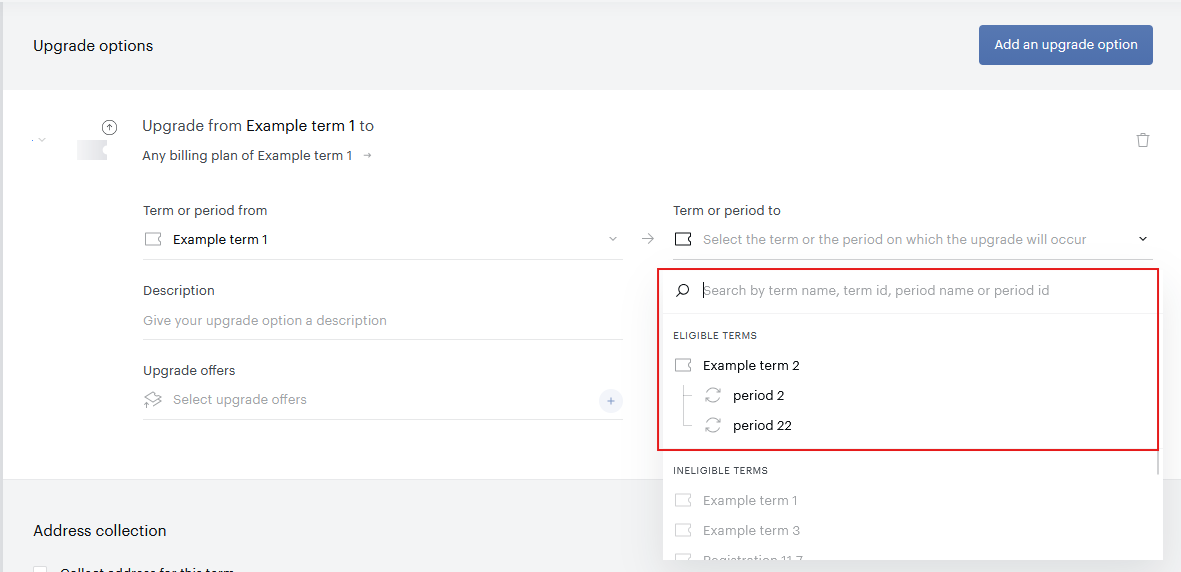
In the menu selecting the source or target term, hover on a disabled list option and then on an (i) tooltip to see why this option can't be used. For example, "Can't upgrade on a term of this type" or "Upgrades within the same term are not available".
3. Term or period to: After the upgrade, the user will get access to this term or period of a dynamic term.
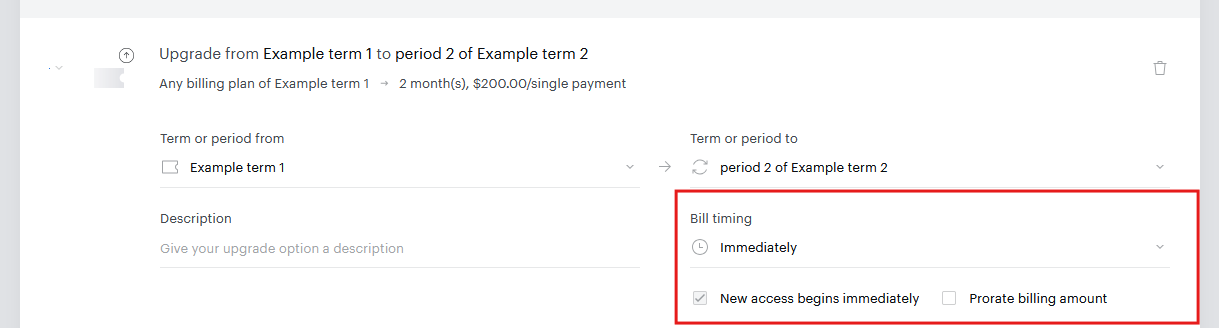
4. After you have selected a valid pair of terms, you can edit a block of additional settings:
4.1. Bill timing:
-
Immediately: Charge the user right after the upgrade is initiated.
-
End of current billing period: Charge when the current billing period of the source term ends.
-
Next sell date (the target term must be a scheduled payment term): Charge on the sell date of the next eligible period of the target term.
-
End of current scheduled period (the source term must be a scheduled payment term): Charge when the current scheduled period of the source term ends.
4.2. New access begins immediately: Whether the user gets access to the resource of the target term immediately after agreeing to upgrade. Technically, a planned target subscription and its access will start after payment. So, selecting this checkbox will provide the user with temporary access while the access under the source subscription is expired and the access under the target subscription has not yet started.
4.3. Prorate billing amount: Designed specifically for immediate upgrades, this setting automatically calculates the unused amount remaining on the user's existing subscription and applies that to their first bill for the new subscription. If the user's new bill is higher than the remaining amount, the user will be charged the difference for their first billing period. If lower, the user will receive their first billing period free and get a refund consistent with the amount remaining on the proration after the funds have been applied to the new subscription.
You can see that the options of the Bill timing dropdown depend on the types in the term pair (e.g. End of current scheduled period is only possible when upgrading a scheduled payment term), while the availability of the checkboxes depends on both the term types and the bill timing (e.g. End of current billing period excludes Prorate billing amount).
5. Enter a Description that the user will see next to the Upgrade button in their My Account (provided that you select to Show option in My Account).
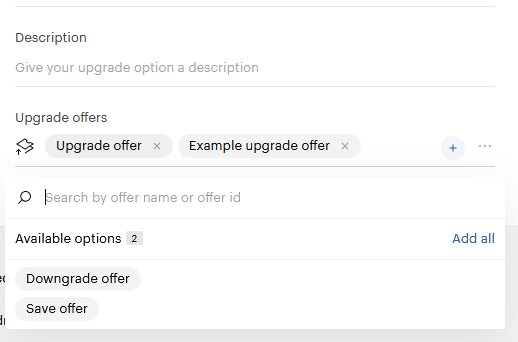
6. Enter the ID(s) or select one or more Upgrade offers that should contain your upgrade option. There are three default options: Upgrade offer, Downgrade offer, and Save offer. You can select your own upgrade offers if you have previously configured them (see below).
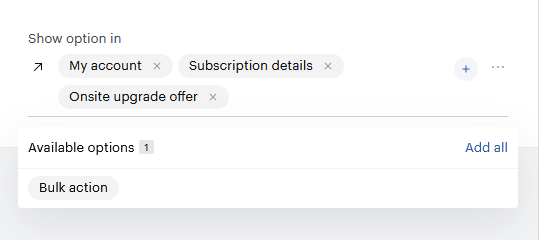
7. The final field is Show option in, where you define the channels your upgrade option will be delivered:
-
My Account: Every active user of the source term will find this upgrade option behind the Upgrade button next to the term in their My Account. If your My Account templates are already tailored for upgrades, it will happen right after you save this upgrade option.
-
Subscription details: Your upgrade option can now be selected as a preset when you upgrade relevant individual subscriptions via Subscription details in the Piano Dashboard.
-
Onsite upgrade offer: This upgrade option can now be added to upgrade offers.
-
Bulk action: This upgrade option can now be selected as a preset when you upgrade users in bulk in Action Manager in the Piano Dashboard.
For details on presenting options in upgrade offers and My Account, and applying changes via Subscription details, Action Manager, and API, see Delivering upgrade options and applying upgrades.
8. When ready, click Save.

Example of the immediate prorated upgrade flow
If the user purchases a yearly subscription for $365 on January 1st, 2021, and 3 days later (on January 4th, 2021) upgrades to a premium yearly subscription for $500 with immediate bill timing and proration enabled, the user will be charged $138 upon the upgrade. The calculation is as follows: y - (x -((x/p)*d)). Where y is the new subscription price, x is the old subscription price, p is the billing period of the subscription in days (e.g. 365 or 366 for an annual subscription or 28, 30, or 31 days for a monthly subscription) and d is the number of days that were already consumed on the old subscription (i.e. days since the subscription start date). So for our example, 500 – (365 - ((365/365)*3))= 138.
In case the user initiates a downgrade with immediate bill timing, i.e. changes from a higher-priced term to a lower-priced term, we initiate a partial refund of the prorated amount back to the user. If your payment provider does not allow partial refunds, the refund amount will be subtracted from the next billing period's subscription price.
As opposed to the upgrade, where we calculate the amount that the user should be charged, if applicable, in case of a downgrade we calculate how much we need to pay back to the end user. There are exceptions where a user is charged in case of a downgrade as well, for example in case this action is initiated not within the first days of the initial subscription.
The formula for this is as follows: {x-((x/p)*d)} - y. Where y is the new subscription price, x is the old subscription price, p is the billing period of the subscription in days (e.g. 365 or 366 for an annual subscription or 28, 30, or 31 days for a monthly subscription) and d is the number of days that were already consumed on the old subscription (i.e. days since the subscription start date).
So if you were to downgrade from a yearly subscription of $185 to a yearly subscription of $100, 3 days after purchase, this would result in a partial refund of {185-((185/365)*3)} - 100= 83.5.
Delivering upgrade options and applying upgrades
Use these delivery channels to present upgrade options to users (Upgrade offers, My Account) or apply term changes directly (Subscription details, Action Manager, API). In Subscription details, Action Manager, and API, you can define the source and target terms and other parameters as you configure the change—no pre-saved upgrade option required. For valid parameter combinations and resulting behavior, see the Upgrade parameter matrix.
Enabling the user to upgrade a subscription via an upgrade offer in the checkout
Configure an upgrade offer as described in the Offers | upgrade offer documentation. When ready, add your upgrade offer to Composer's experiences using the Show offer card.
Enabling the user to upgrade a subscription via My Account
Configuring an upgrade option for My Account
To let your users upgrade their current (source) term in My Account, make sure that:
-
You are using the default My Account templates, or you have updated your customized templates accordingly.
-
You have configured an upgrade option in the properties of your source term and its Show option in field includes My Account.
-
You have defined a description that the user will see in their My Account against this upgrade option.
After you Save the upgrade option, all active subscribers to the source term will see the option in My Account.
User experience in My Account
According to the default Piano templates, the user will see an Upgrade button against their active subscription to the source term if this subscription corresponds to at least one upgrade option.

Having selected to Upgrade, the user clicks one of the upgrade options available for this subscription. The options generally eligible for the source term but outdated, premature, or not suitable for this subscription have an explanatory note near them:
-
You already have access to this resource: When the resource of the target term is already available to the user.
-
Upgrade is not available for subscriptions in the grace period: When the source subscription is in a grace period.
-
Upgrade on this term will be available after [date]: When the next sell date of a scheduled payment target term has not arrived yet.
-
This period has already ended: When the "period_to" of this upgrade option is already over.
-
No future access period configured: When a dynamic target term has no active or future access periods.
-
No future period configured: When a scheduled payment target term has no active or future periods.
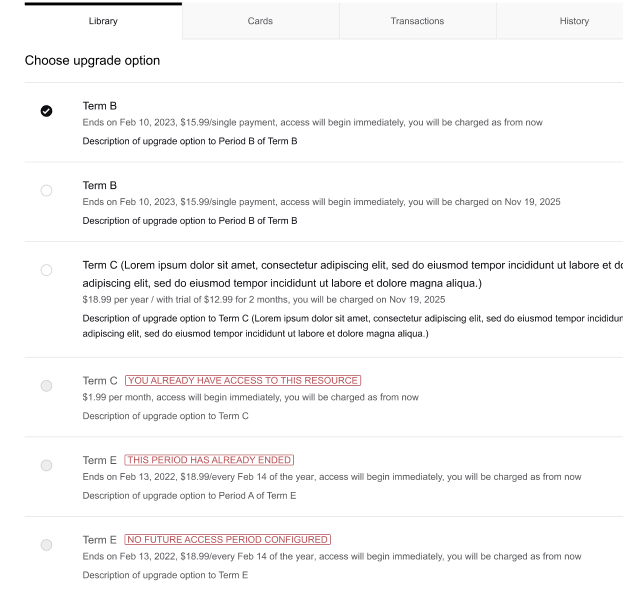
After clicking Submit, the user opens the final confirmation screen summarizing the details of the conversion.
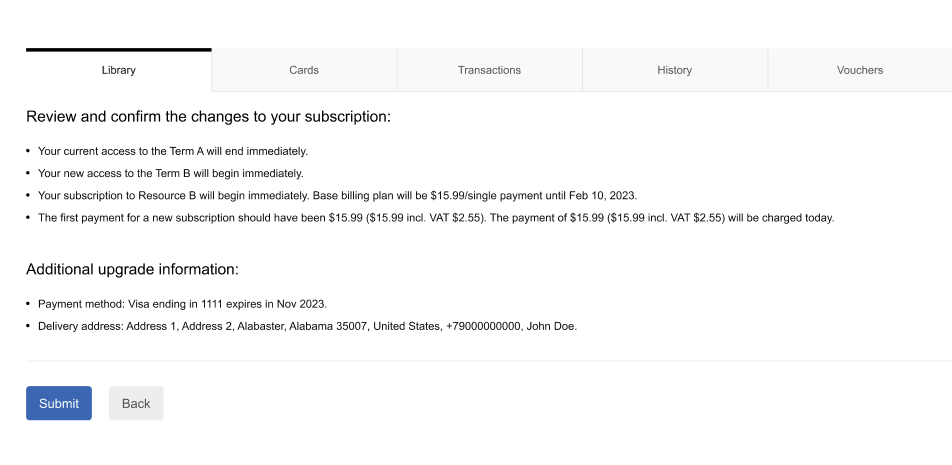
Another Submit finalizes the upgrade. If you have configured the Term change completed or Term change failure emails in Email Manager, those will be sent to the user to provide more detailed information about the transaction and their new access.
Upgrading a subscription via Subscription details in the Piano Dashboard
You can also directly upgrade a user subscription via the Piano Dashboard. Find your user (for example, via Manage → Users → Subscribers → Your user). Open their Subscriptions and select the one you would like to upgrade. If it is possible (see the limitations above), the Subscription details page will contain an Upgrade button.
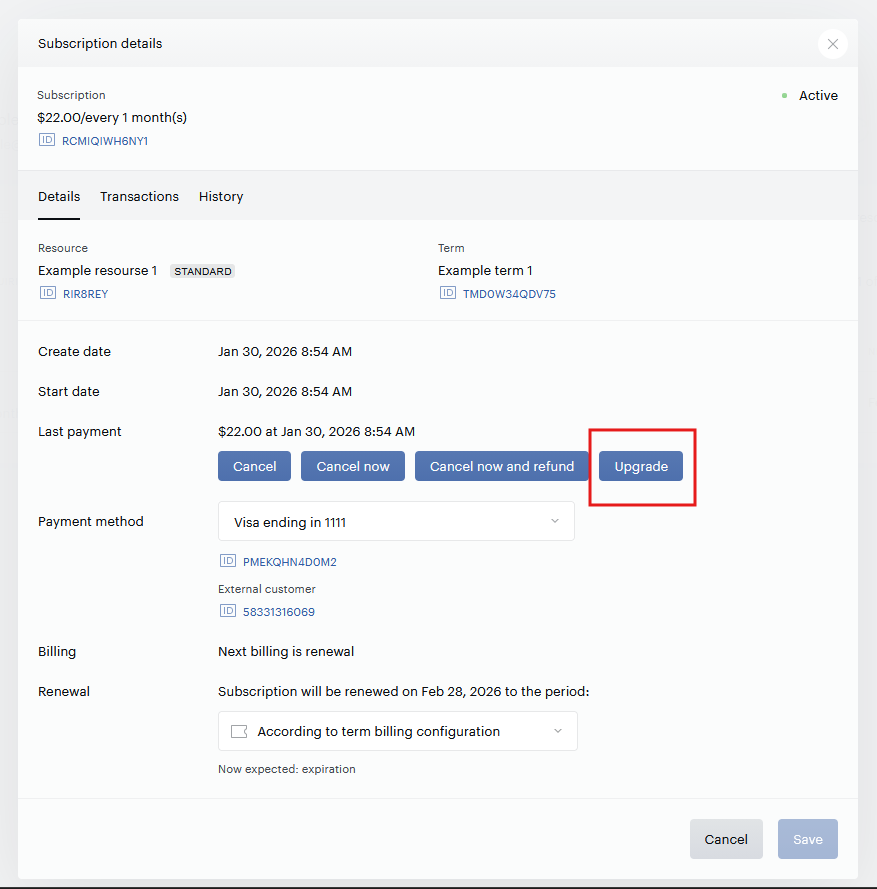
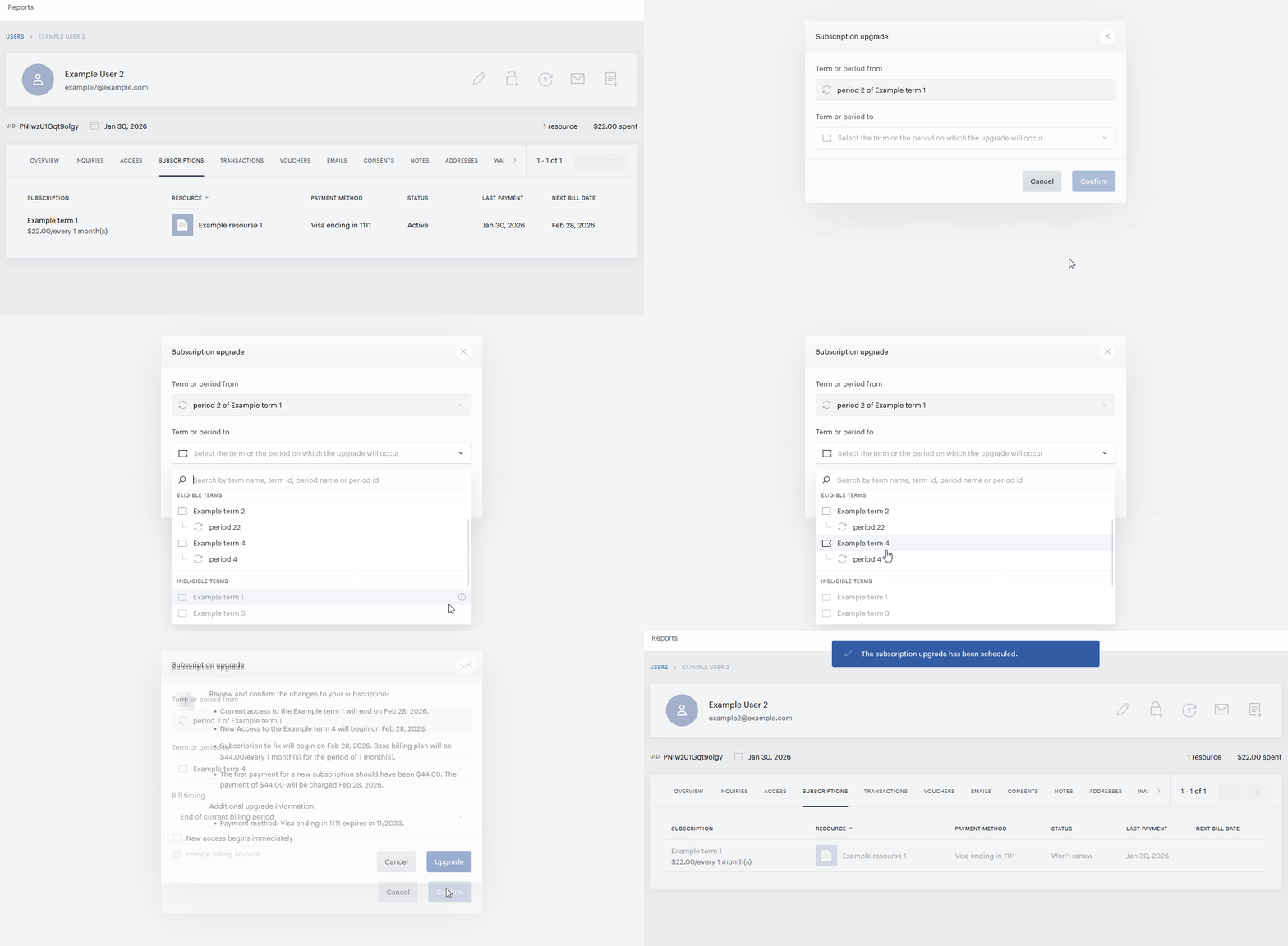
Click Upgrade to open the Subscription upgrade page, where you can type or select the title of your target term from a dropdown which includes:
-
Upgrade options: Presets that you have defined in the properties of the source term
-
Eligible terms: Terms or periods not yet included in the upgrade options but having no restrictions to be a target term for this subscription
-
Ineligible terms: Terms or periods that you cannot upgrade this subscription to; the reason can be viewed under the (i) tooltip.
After selecting your target term you can set the New access begins immediately and Prorate billing amount checkboxes if your term pair allows it. When ready, click Confirm, then check the confirmation screen and Upgrade.
Upgrades can be done only by team members with the Manage terms permission.
Upgrading subscriptions in bulk via Action Manager in the Piano Dashboard
Upgrade user subscriptions in bulk via Action Manager as described in the Action Manager | scheduling bulk subscription upgrade documentation.
Upgrading one or more subscriptions via the Piano API
-
First, call /publisher/term/change/can to check whether the user’s subscription is eligible for upgrades. Many restrictions may not be so obvious.
-
If eligible, upgrade the subscription with /publisher/term/change/do.
-
To check the upgrade status, call /publisher/term/change/getSubscriptionUpgradeStatus.
Subscription upgrades are processed one user at a time. To handle bulk API upgrades, create a script that loops through all subscribers who need upgrading (see an example script here).
You can also use our API (/publisher/export/create/termChangeReportExport) to generate a report of the term changes in your application over a certain period.
Upgrade configurations
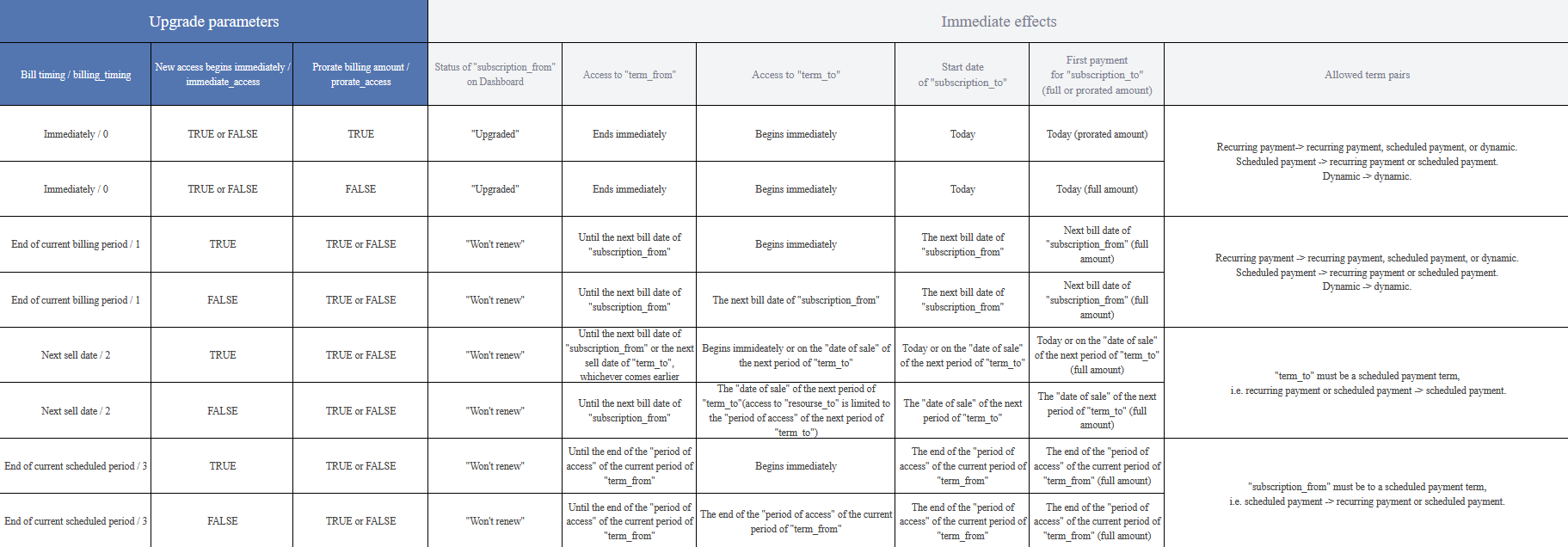
This matrix shows what happens immediately after an upgrade is initiated for each combination of billing_timing, immediate_access, and prorate_access. Slash‑separated values map to the parameters of the /publisher/term/change/do endpoint.
At initiation, the source subscription is typically in Active status. If it is the last period of a scheduled payment term, it appears as Won’t renew. Recurring payment subscriptions with auto‑renewal turned off and subscriptions in a grace period also display as Active. For definitions of subscription statuses, see "How Do Subscription Statuses Work in Piano Management + Billing?"
Immediate upgrades: current access ends right away, the source subscription moves to Upgraded, and a new Active subscription is created for the target term.
Scheduled upgrades: the source subscription remains Won’t renew until the upgrade executes; then the new subscription is created as Active and the source subscription moves to Upgraded.
Click the image to zoom in and then click again to return to the normal view.
Handling pending upgrades
Enabling the user to cancel a subscription scheduled for an upgrade at the end of the current billing period
After redeeming a scheduled upgrade which bill timing is not Immediately, the user cannot manually cancel it in My Account and keep using the existing subscription like before.
The options for the users to cancel their subscription scheduled for an End of current billing period upgrade depend on your settings of the three checkboxes in the Edit business menu of your Piano application.
Checkbox 1. Allow customers cancel and/or refund their own payment subscriptions
Checkbox 2. Allow customers to cancel their own dynamic subscriptions at the end of the billing period
Checkbox 3. Allow customers to suspend upgrades and cancel subscriptions with pending upgrades at the end of the billing period
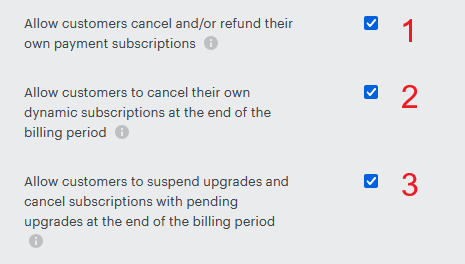
The logic for canceling a scheduled upgrade also depends on the type of the subscription term: whether it is (1) a payment term or (2) a dynamic term.
1. Payment term subscription
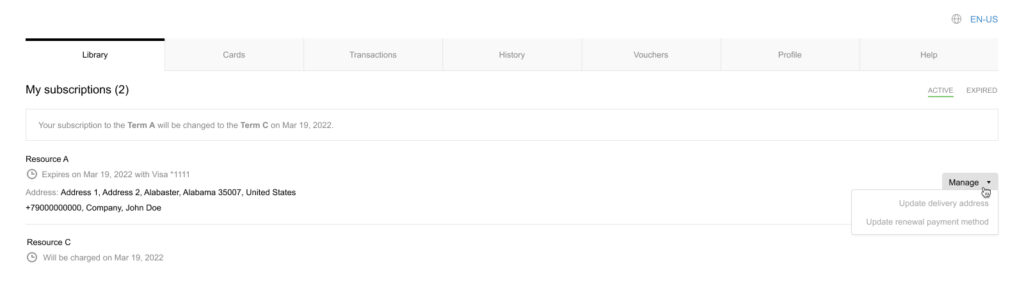
If Checkbox 3 is selected, the user can disable the Auto-renew toggle at any time before the next subscription renewal. At the end of the current billing period, the subscription will expire and the scheduled upgrade will be canceled. If the user turns Auto-renew back on before the end of the current billing period, the subscription will be upgraded and the upgrade will be billed as planned.
If Checkbox 1 is also selected, the user's My Account gets a Cancel Subscription button in the Manage dropdown of their payment subscriptions scheduled for this kind of upgrade. Clicking this button will immediately cancel both the current subscription and access, as well as the pending upgrade.
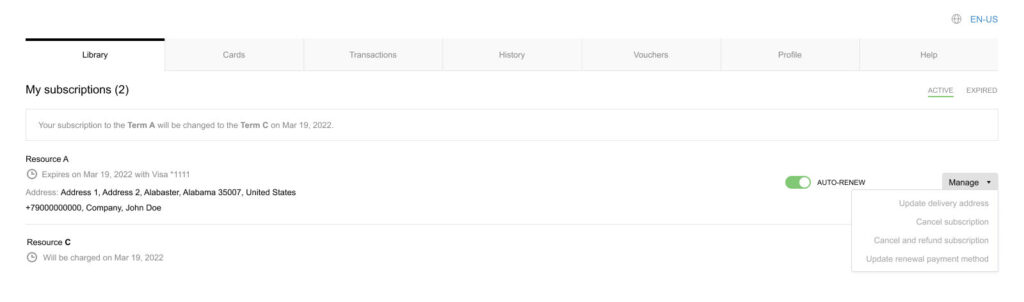
If both Checkbox 1 and Checkbox 3 are disabled, the user will not see the Auto-renew toggle or the Cancel subscription button in My Account while the upgrade is pending. In this case, the upgrade and the payment subscription will proceed according to their configured terms without user intervention.
2. Dynamic term subscription
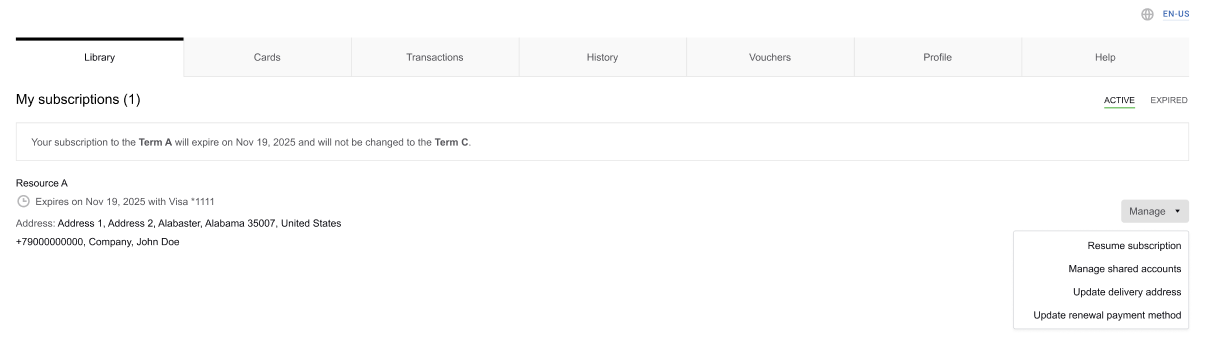
Dynamic subscriptions don't show the Auto-renew toggle in My Account and support only deferred (not immediate) cancelation. Thus, if the user clicks Cancel subscription for a dynamic subscription with a pending upgrade, the access will expire at the end of the billing period and the scheduled upgrade will not take effect.
Checkboxes 2 and 3 must be selected.
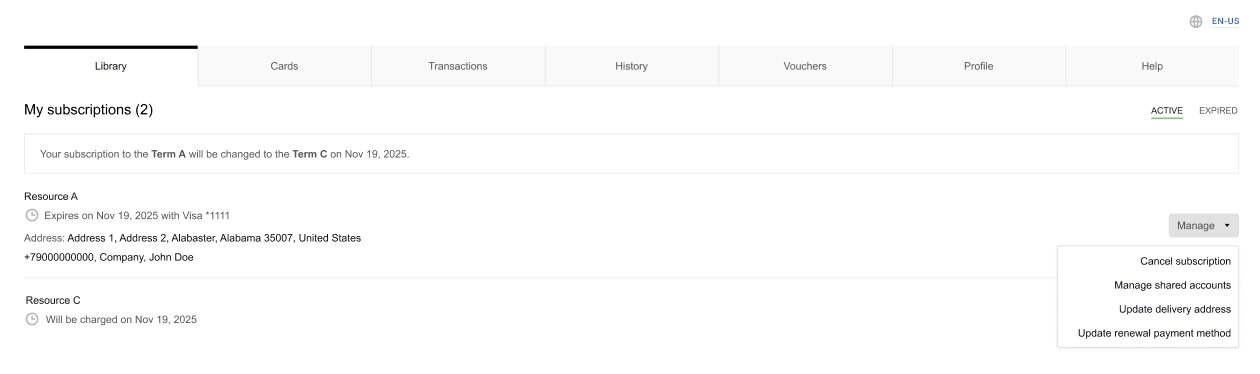
The user can resume the subscription before its current billing period ends by clicking Resume subscription in the Manage dropdown. It will also resume the pending upgrade it had.
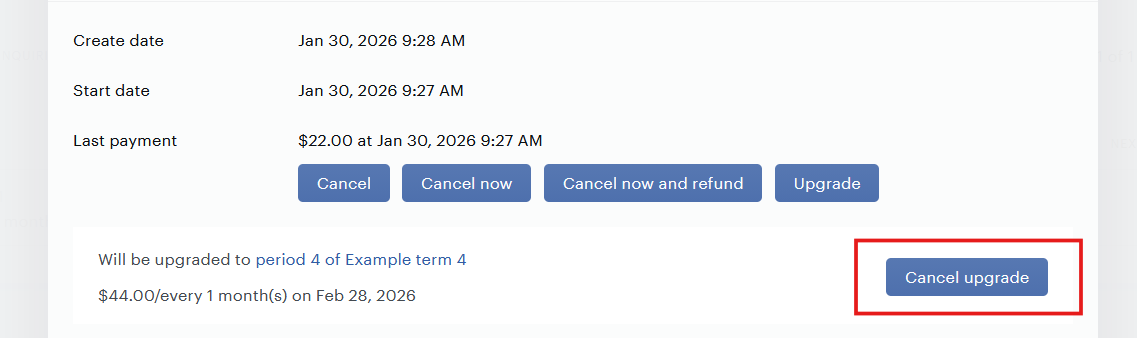
Canceling a pending upgrade via Subscription details in the Piano Dashboard
If a subscription has a pending (not billed immediately) upgrade, you can see in the Piano Dashboard that it turns to Won't renew status and gets a Cancel upgrade button in its Subscription details. If you click that button, the upgrade will be canceled and the subscription will become Active again.
Canceling a pending upgrade via the Piano API
To cancel all the pending upgrades of a subscription, you can use the /publisher/term/change/cancel API endpoint.
Enabling the user to upgrade a subscription that already has a pending upgrade
If the user has a subscription with a scheduled upgrade, they can still initiate a new upgrade for it. The new upgrade - no matter immediate or scheduled - will replace the existing one. It means the user keeps viewing the upgrade options relevant to their current subscription in My Account and upgrade offers until the immediate or the last scheduled upgrade takes effect. Similarly, you can upgrade such subscriptions via API, Action Manager, or Subscription details. This functionality does not apply to the legacy upgrades.
Upgrade-related system events
The term_change webhook type covers the events happening to an upgrade as a system entity. The term_change events are often echoed in subscription-related types, showing how subscriptions are created, updated and ended along the upgrade flow.
Events on an immediate upgrade
A new subscription is created together with the first payment attempt, so the bill timing of the target subscription corresponds to its start date. When you or the user initiates an upgrade with "Bill timing: Immediately", it is executed immediately (term_change.term_change_finished) and a target subscription is created (subscription_created.term_change_finished).
Events on a pending upgrade
When you or the user initiates a scheduled upgrade (bill timing is other than Immediately), a term_change.term_change_scheduled event is triggered. A new subscription is not created yet, but it is an update for the existing source subscription (subscription_updated.term_change_scheduled).
If you now manually cancel your scheduled upgrade via Subscription details, the upgrade will be considered permanently canceled (term_change.term_change_canceled). If the user clicks the Cancel subscription button in My Account (for dynamic subscriptions) or turns off auto-renewal (for payment subscriptions), the upgrade will be considered suspended ("term_change.term_change_suspended") until the end of the current billing period.
If the user clicks Resume subscription (for dynamic subscriptions) or turns auto-renewal back on (for payment subscriptions) before the billing period ends, the upgrade will be resumed (term_change.term_change_resumed).
If a suspended scheduled upgrade has not been resumed by the end of the billing period, the source subscription does not renew and ends, while the upgrade is considered aborted (term_change.term_change_aborted). The event for a successful scheduled upgrade is term_change.term_change_finished.
Events on payment issues and grace period activation
For both immediate and scheduled upgrades, if the payment for the new subscription fails, the term_change.term_change_failure event is triggered. However, if the target term allows a grace period and the upgrade is done via an upgrade offer, the target subscription is still created to enter a grace period (term_change.term_change_grace_period_started). This new subscription exits the grace period (term_change.term_change_grace_period_ended) after a successful payment (term_change.term_change_finished) or the expiration of the grace period time or attempts (term_change.term_change_failure).
Find more in the Webhooks | subscription upgrade document.
Troubleshooting upgrade issues
For all kinds of issues, the first step is to ensure that your upgrade complies with all the Limitations. If none of the above and below reasons apply, please reach out to our Support Team at support@piano.io for more assistance.
Issue 1: The error message "Couldn't make the change" is shown
Make sure your term pair and upgrade settings can be combined within a term-level upgrade option.
Issue 2: An upgrade option is not showing in My Account
If your users cannot view the upgrade options in My Account, make sure that:
-
The My Account Library Components are up-to-date (or reverted back to its default version).
-
You have saved an upgrade option and it has My Account in the Show option in field.
-
The source subscription is still active.
Issue 3: The target term is not available for selection when upgrading via Subscription details
Check the term type compatibility rules described in the Limitations section.
Issue 4: The Upgrade button is missing in Subscription details
This is most likely due to a subscription being in a grace period. You can switch to the history tab and check if there were recent payment failures.
Issue 5: No payment failure emails are sent for immediate upgrades
When an immediate upgrade attempt fails due to payment failure, the resulting behavior depends on how the upgrade was initiated and whether a grace period is configured for the target term.
For immediate upgrades initiated via My Account, Subscription details, or API, grace periods are not supported - even if they are configured in the target term, this setting is ignored. In these cases, if the payment fails, the user will see an error message, and the upgrade flow will not be completed. The user can retry the payment or close the modal; if they close it without completing payment, the subscription is not changed. The original subscription remains active and continues to renew as usual; no new subscription is created, and no failure notifications or emails are sent.
For immediate upgrades via the upgrade offer, the behavior is similar when no grace period is configured. A failed payment will prevent the upgrade from completing, the user will see an error message, and their current subscription remains unchanged, with no email notifications sent. However, if the target term includes a grace period, the upgrade will complete even if the initial payment fails. In this scenario, the original subscription will move to the Upgraded status, and a new subscription will be created and placed into the grace period, and the user will receive the Term change grace period email (or the appropriate email configured through passive churn prevention, if that feature is enabled). Any further payment attempts during the grace period follow the same notification and handling logic as for standard grace period payments after a renewal failure.
It is important to note that the Term change failure email is not sent for immediate upgrade payment failures in any of these cases. That notification is reserved exclusively for failed executions of pending upgrades, and only when passive churn prevention is disabled (otherwise, it is replaced by the email configured in passive churn prevention settings).
Overall, payment failure during an immediate upgrade is treated similarly to a failed purchase attempt. The user sees an error and has the option to retry, but no changes are made to their subscriptions, and no notifications are triggered, unless the upgrade was Onsite and a grace period was configured in the target term.
Issue 6: Upgrade offer does not render (or shows blank)
Check the following:
-
Upgrade option linkage. Ensure the upgrade offer is added in the Upgrade offers field of the relevant upgrade option (at the term level).
-
Composer card type. In Composer, use the Show offer card with the Upgrade/downgrade offer type (not the Legacy upgrade card).
-
Offer selection. In the card, select the same upgrade offer that is linked in the term’s upgrade option.
-
Template selection. Select an Upgrade offer template (from the correct boilerplate family). Leaving the template blank often results in an empty render.
-
Targeting and eligibility. Ensure the offer contains at least one upgrade option that is eligible for the current user; if all options are ineligible, the card may render empty. Confirm targeting/segmentation is correct:
-
The user owns the source term.
-
Page targeting includes the correct URL/variant.
-
Required custom variables are available before Composer runs.
-
-
Pending/scheduled upgrade state. For upgrade‑option‑based offers, a pending upgrade should not block rendering. If the offer is blank, check whether your experience rules or custom code suppress the card for pending states. Note: Legacy checkout‑flow‑based offers may behave differently.
-
Show option in settings. For the upgrade offer to display in the intended context, the term must have the matching channel selected under Show option in within the Upgrade options settings. For Active Churn Prevention flows specifically, Onsite upgrade offer must be selected; without it, the offer won't render in the ACP flow.
-
Checkout flow configuration. Only relevant for the legacy checkout‑flow‑based offer. If you are using a custom checkout flow, ensure it exists and is compatible. Upgrade‑option‑based offers do not require a checkout flow.
-
Billing/proration settings (for sanity checks). While not a rendering blocker, mismatched Bill timing, New access begins immediately, or Prorate billing amount settings can make behavior look unexpected during testing. Verify intended values in both the upgrade option and the card.
Legacy: Checkout-flow-based upgrade offer
Templates for checkout-flow-based upgrade offer
This feature is legacy, which means it is supported only for the applications that already have some Experiences using it. New applications don't have it as an option.
The legacy Upgrade offer flow does not require an upgrade offer template but needs some adjustments of the system templates (checkout and receipt) and My Account library components. To maintain your legacy Upgrade offers, you may need to reproduce them.
System template updates
Checkout
Add this code to the bottom of the template if you don't have it yet:
<div view="upgradeSubscription">
  <div complete-upgrade-component></div>
</div>

<div view="upgradeSharedSubscription">
  <div upgrade-shared-subscription-component></div>
</div>
Receipt
Find a line that contains the default condition ng-switch-default="" and insert the following code right before it:
<div ng-switch-when="UpgradePurchase">
    <div upgrade-purchase-receipt></div>
</div>
Upgrade Components
Please revert this template back to default.
My Account template updates
My Account Library Components
1. Find the comment and replace the code below it (should be 2 list items <li>...</li>) with the following sample:
<li ng-if="isImmediatelyTiming(selectedOption)"
    class="simple-list__item simple-list__item--with-dot">
    <t context="checkout.platform">Your access to the</t> {{upgradeFrom.termName}} <t context="checkout.platform">will end immediately</t>
</li>
<li ng-if="!isImmediatelyTiming(selectedOption)"
    class="simple-list__item simple-list__item--with-dot">
    <t context="checkout.platform">Your access to the</t> {{upgradeFrom.termName}} <t context="checkout.platform">will end on</t> {{selectedOption.subscriptionEndDate | date:'mediumDate'}}
</li>
2. Also replace the code below the comment <!--Access to new term--> with:
<li ng-if="isImmediateAccess(selectedOption)"
    class="simple-list__item simple-list__item--with-dot">
    <t context="checkout.platform">Your access to the</t> {{selectedOption.toTermName}} <t context="checkout.platform">will begin immediately</t>
</li>
<li ng-if="!isImmediateAccess(selectedOption)"
    class="simple-list__item simple-list__item--with-dot">
    <t context="checkout.platform">Your access to the</t> {{selectedOption.toTermName}} <t context="checkout.platform">will begin on</t> {{selectedOption.accessStartDate | date:'mediumDate'}}
</li>
3. Replace all list items (can be 2–5 depending on how long ago the template was created or reverted to default) below this comment <!--Access to new term--> with the code sample:
<li ng-if="isImmediatelyTiming(selectedOption)"
    class="simple-list__item simple-list__item--with-dot">
    <t context="checkout.platform">Your subscription for</t> <b>{{selectedOption.billingPlan}}</b> <t context="checkout.platform">will begin immediately</t>
</li>
<li ng-if="!isImmediatelyTiming(selectedOption)"
    class="simple-list__item simple-list__item--with-dot">
    <t context="checkout.platform">You will be charged</t> <b>{{selectedOption.billingPlan}}</b> <t context="checkout.platform">starting from</t> {{selectedOption.billingDate | date:'mediumDate'}}
</li>
<li ng-if="selectedOption.prorateAccess && selectedOption.prorateRemaining" class="simple-list__item simple-list__item--with-dot"><t arg0="{{selectedOption.prorateRemaining}}" context="checkout.platform">You will be refunded {0} from your current subscription</t></li>
<li ng-if="selectedOption.prorateAccess && selectedOption.prorateCharged" class="simple-list__item simple-list__item--with-dot"><t arg0="{{selectedOption.prorateCharged}}" arg1="{{selectedOption.billingPlan}}" context="checkout.platform">You will be charged <b>{0}</b> today, and <b>{1}</b> for the rest of your subscription term</t></li>
<li class="simple-list__item simple-list__item--with-dot simple-list__item--with-dot-fixed-top"
    ng-if="!isAddressEmpty()">
    <span><t context="checkout.platform">The delivery address for this subscription is:</t></span><br>
    <span ng-if="newAddress.firstName">{{newAddress.firstName}}</span>
    <span ng-if="newAddress.lastName">{{newAddress.lastName}}</span>
    <span ng-if="newAddress.companyName">{{newAddress.companyName}}</span>
    <span ng-if="newAddress.phone">{{newAddress.phone}}</span><br>
    <span ng-if="newAddress.line1 || newAddress.address1">{{newAddress.line1 || newAddress.address1}}</span>
    <span ng-if="newAddress.line2 || newAddress.address2">{{newAddress.line2 || newAddress.address2}}</span><br>
    <span ng-if="newAddress.countryName">{{newAddress.countryName}}</span>
    <span ng-if="newAddress.regionName">{{newAddress.regionName}}</span>
    <span ng-if="newAddress.city">{{newAddress.city}}</span>
    <span ng-if="newAddress.postalCode || newAddress.postal">{{newAddress.postalCode || newAddress.postal}}</span>
</li>
My Account Library Components - Optional*
* If you want to use address collection within the upgrade in My Account, please be sure your code in the My Account Library Components template is updated according to the following.
1. Find the Submit button which has the ng-click="onPick()" attribute. Add another condition to this tag to get this code:
<button
    ng-if="!addressCollectionEnabled"
    ng-disabled="isUpgradeInProgress || !selectedOptionId"
    ng-click="onPick()"
    class="btn btn--blue btn--large btn--bold my-account-footer__button">
    <t context="checkout.platform">Submit</t>
</button>
2. Right after this Submit button insert a Next button code:
<button
    ng-if="addressCollectionEnabled"
    ng-disabled="isUpgradeInProgress || !selectedOptionId"
    ng-click="onAddressCollect()"
    class="btn btn--blue btn--large btn--bold my-account-footer__button">
    <t context="checkout.platform">Next</t>
</button>
3. You will see 2 closing </div> tags right after this Next button you've just added. Please insert this code below them and before the line <div ng-if="isAddressScreen">:
<div ng-if="isAddressScreen">
    <div print-address-form address-list="addressList" countries-list="countriesList"></div>
    <div class="my-account-footer">
        <button
            ng-disabled="isUpgradeInProgress"
            ng-click="showPickScreen()"
            class="btn btn--gray btn--large btn--bold my-account-footer__button">
            <t context="checkout.platform">Back</t>
  	  </button>
        <button
            ng-click="saveNewUserAddress()"
            class="btn btn--blue btn--large btn--bold my-account-footer__button">
            <t context="checkout.platform">Save</t>
  	  </button>
    </div>
</div>
4. Find a Back button soon after the comment <!--Charged for new term--> and replace itsng-click="showPickScreen()" attribute with this oneng-click="addressCollectionEnabled ? showAddressScreen() : showPickScreen()" so that you have this code for the Back button:
<button
    ng-disabled="isUpgradeInProgress"
    ng-click="addressCollectionEnabled ? showAddressScreen() : showPickScreen()"
    class="btn btn--gray btn--large btn--bold my-account-footer__button">
    <t context="checkout.platform">Back</t>
</button>
Enabling the user to upgrade a subscription via a checkout-flow-based upgrade offer
This feature is legacy, which means it is supported only for the applications that already have some Experiences using it. New applications don't have it as an option.
Both checkout-flow- and upgrade-option-based upgrade offers target subscribers to a specific term, and both are configured in Management + Billing and Composer. The legacy version, though, relies on a dedicated checkout flow instead of upgrade options. The procedure consists of three steps.
1. Create a purchase offer (see Offers | purchase offer documentation) that contains the target terms for the user to choose from. Ensure all terms are of the dynamic, recurring payment, or scheduled payment type.
2. Create an upgrade/downgrade checkout flow (see Checkout flows | upgrade flow documentation).
3. In a Composer experience, create a Show offer card for Legacy upgrade/downgrade offer (see Composer Actions documentation). Specify the purchase offer, checkout flow, template, and the source term so that all active subscribers of that term who enter this experience will see the offer.