
Introduction
This process is usually quite complex because it requires you to export user data from your legacy systems and prepare them to be imported to Piano in the correct format. Therefore we have prepared this article that will guide you through this onboarding process for new clients, and give you an overview of how to migrate user passwords and emails, payment methods, subscription billing dates, and other data.
Prerequisites for a migration:
-
Imports file format spreadsheet was provided by Piano (contact your Project Manager if you did not receive it yet)
-
SFTP account was created and shared by Piano (contact your Project Manager if you did not receive it yet)
-
The User management and Payment provider configurations have been completed
-
Items such as Resources, Terms and others have been created*
*Please review the Setup Transfer section on how to migrate items created in your Sandbox to your Production account.
Expected migration process and estimated timeline:
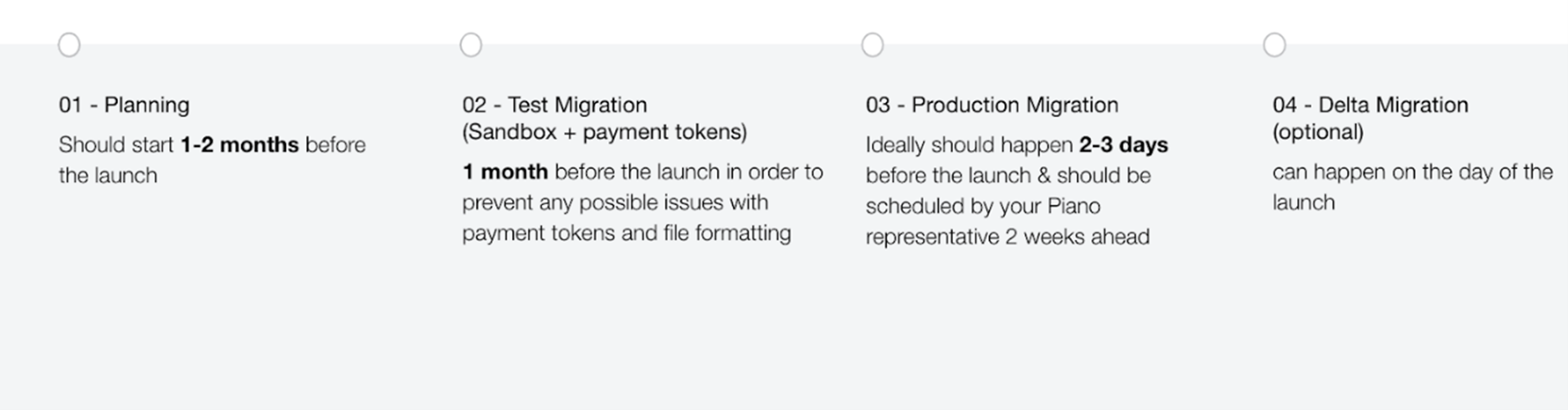
Planning
-
Should start 1-2 months before the launch with your dedicated Project Manager or CSM
-
Client responsibilities:
-
Provides approx. import volumes
-
Provides use cases and types of files to import (users, subscriptions...)
-
Shares planned import schedule for production and delta import (approx. launch date) and selected time slot - 9 AM (GMT/BST) or 10 AM (EST/EDT)
-
Shares any hard deadlines/restrictions (e.g. date of migration from old subscription system)
-
-
Piano responsibilities:
-
Setup SFTP for file sharing
-
Books the planned import dates
-
Review the import volumes, types of files and use cases
-
File format
General file format requirements:
-
Filenames: AID_IMPORTYPE.csv, e.g. uTIyZr2su_users.csv
-
Required file format: .csv (comma-separated values), no other formats are accepted
-
Required file encoding: UTF-8
-
All the columns must be present even if unpopulated
-
Columns that need to be populated are marked red in the spreadsheet shared by your Project manager
-
No other columns or rows should be included
Example file:
user_id,email,first_name,last_name,password,social_accounts
10000001,johndoe@test.com,John,Doe,:MD5:1::d113f1c3f9ed8019288f4e8ddecfb8ec,
Sandbox import
-
Client responsibilities:
-
Provides anonymized or dummy test data for each import file type
-
Responsible for providing the correct data format
-
If any errors are found in the first round of the Sandbox import you can provide data for a second round of the import
-
Responsible for fixing all the errors from the first round (no more than 3 rounds will be performed)
-
Must set up a user management configuration and payment provider in all apps prior to the import
-
For Payment token imports - provides a file with one row for each payment provider to test real token import in Production
-
-
Piano responsibilities:
-
Validates the data
-
If files are valid, Piano runs the Sandbox import (allow 2-3 days lead time from file delivery)
-
Uploads the reports of the import results to SFTP
-
Advises on how to fix any import errors
-
If necessary, a second and third round of a Sandbox import can be performed to import corrected files
-
Reviews and approves the Production import schedule
-
Production import
-
Client responsibilities:
-
Ideally should be done 2-3 days before the launch (Delta import can be done on launch date)
-
Types of files and format should be identical to already performed Sandbox import
-
If incorrect data is provided:
-
if data couldn't be imported - a new import date has to be scheduled (allow 2-3 weeks lead time based on import schedule availability)
-
if incorrect data was imported - already imported or existing subscriptions, custom terms access or payment tokens cannot be updated or cancelled
-
Must set up a user management configuration and payment provider in all apps prior to the import
-
-
-
Piano responsibilities:
-
Validates the data
-
If files are valid, Piano performs one round of Production import on the scheduled date
-
Uploads the reports of import results to the SFTP
-
Delta import
This should be the last import fixing any potential issues from the Production import. There should be only one round of the Delta import.
-
Client responsibilities:
-
Should be scheduled to happen 2-3 days after Production import (so that issues from the Production import can be fixed quickly) - usually on the launch date
-
Types of files and format should be identical to already performed Sandbox and Production import
-
File sizes should be less than 10% of Production import volumes
-
If incorrect data is provided:
-
if data couldn't be imported - a new import date has to be scheduled (allow 2-3 weeks lead time based on import schedule availability)
-
if incorrect data was imported - already imported or existing subscriptions, custom terms accesses or payment tokens cannot be updated or canceled
-
-
-
Piano responsibilities:
-
Validates the data
-
If files are valid, Piano performs one round of Delta import on the scheduled date
-
Uploads the reports of import results to the SFTP
-
Import process limitations
-
Max 500k rows of data can be imported per day during the Production and Delta import phase (bigger volumes should be raised during the planning phase and split into multiple days)
-
Max 5 applications per day (max 500k rows in total across 5 apps), more than 5 apps should be planned for more days
-
Only one round should be performed during Production and Delta import for each app (up to 3 migrations in the Test phase), it is not possible to do recurring test migrations or split migrations into multiple parts
-
The Production and Delta migration date should be scheduled and approved 2-4 weeks in advance based on the Piano team’s bandwidth
-
Sandbox files can only have max of 1000 rows, Sandbox environment cannot be used for performance testing or any large-scale testing
-
Sandbox import files can only contain test data or obfuscated data, the Sandbox import cannot contain real PII user data
-
Only one import should be performed in the Production and Delta phase, up to 3 imports in Sandbox phase
-
The client is responsible for delivering valid files in each step, if invalid data are delivered and do not pass validation, they cannot be imported
SFTP Server
Piano creates an SFTP for you to use when uploading user and subscription data for the migration.
To access the SFTP, use any FTP software (e.g. FileZilla) and set it to connect to the SFTP host (host + username + password will be shared with you separately by your Project Manager).
The Piano team will upload migration report logs to the SFTP.
You are responsible for creating one folder in SFTP for each application you want to import with the name: aid_appName
Each application folder should contain folders:
-
sandbox_1
-
sandbox_2 (if needed)
-
sandbox_3 (if needed)
-
production
-
delta (if needed)
During each import phase you are required to upload the data to the folder corresponding to the given import phase. The Piano team will add a Reports folder to each corresponding folder and upload the reports for each input file, once the import is done.
In the following few chapters, we are going to talk about the individual import file types.
Please note, that this is not an exhaustive list of all import/migration files and their formats. For detailed information and an overview of the import process itself, please reach out to your dedicated contact person at Piano.
User File
The user's file should contain a list of all of your users and their basic information to be imported into Piano's database.
Filename: AID_IMPORTYPE.csv, e.g. uTIyZr2su_users.csv
Required file encoding: CSV file with UTF-8 encoding
Note, that all the columns must be present even if unpopulated and no other columns or rows should be included.
The users.csv column-by-column format should be as follows:
user_id, email, first_name, last_name, password, social_accounts, create_date
|
Column title |
Description |
Required |
|
user_id |
The user ID is an ID corresponding to a particular user. Users must be imported into Piano whether or not you are using Identity Management. The ID should not contain any special characters (+,/,=,*). |
Yes |
|
|
The user's email. |
Yes |
|
first_name |
First name of the user. |
No |
|
last_name |
Last name of the user. |
No |
|
password |
The password import depends on the previous user provider allowing the export of passwords. These passwords can be plain text (base64 encoded) or hashed/encrypted. If they are encrypted, please share the encryption algorithm with your Project Manager to see if it’s supported. For UserRef and Identity Linking user providers, the password value should be: |
Yes |
|
social_accounts |
The user's associated accounts on Facebook, Google, Twitter and/or LinkedIn. If your users don't have social accounts, you can leave this field blank, but should still include the column in the file. |
No |
|
create_date |
The date and time ( |
No |
Except for the password which is migrated on the back end and the create_date, imported user's details will be eventually shown in the personal menu of a user. The create_date will be available in the Piano dashboard under Mine Users.
Subscription File
Prior to the subscription import, you must first create terms for each of your existing subscription plans in the Piano dashboard.*
*Please review the Setup Transfer section on how to migrate items created in your Sandbox to your Production account.
Important: The Sandbox and Production Term IDs are different, so you will need to check if the correct term IDs of the relevant environment are provided in the Subscription file.
The subscriptions file should contain all paid subscriptions in your system that need to be imported into Piano's database. Note that a separate file is needed for each payment provider.
Filename: AID_IMPORTYPE.csv, e.g. uTIyZr2su_subscriptions.csv
Required file encoding: UTF-8
The subscriptions.csv column-by-column format should be as follows:
user_id, term_id, customer_id, start_date, next_billing_date, prev_billing_date, payment_method_token, card_id, custom_billing_plan, auto_renew
|
Column title |
Description |
Required |
|
user_id |
User ID must match the user ID in the user import file (same as in the Users File Format). |
Yes |
|
term_id |
The new Piano term that corresponds to the subscription in your former system. This must be an existing term in the dashboard account. Mapping should be done before export (client must take their own term from their own system and map it to Piano's before the export is done). |
Yes |
|
customer_id |
Customer ID is how we identify your customer in Stripe or Braintree. Not shown on the front end. |
Depends on the selected payment provider |
|
start_date |
Subscription start date. Should be in format MM/dd/YYYY HH:mm. It will be shown in the Subscription details in the Piano dashboard. |
Yes |
|
next_billing_date |
Next billing date. Should be in format MM/dd/YYYY HH:mm. |
Yes |
|
prev_billing_date |
Previous billing date. Should be in format MM/dd/YYYY HH:mm. The value is required for generating reports. |
Yes |
|
payment_method_token |
Payment method token represents the user's payment instrument from the payment provider. The client gives Piano the version from their new payment provider (if applicable). Not shown on the front end.
|
Depends on the selected payment provider and if the tokens are available at the time of the import |
|
card_id |
The ID of the card used to pay for the subscription. |
Depends on the selected payment provider |
|
custom_billing_plan |
If empty, billing plan will be taken from the term configuration. It is preferable that custom billing plans are not used, because the inconsistency between the term billing plan and the custom billing plan will become confusing. |
No |
|
auto_renew |
Indicates whether auto renewal is enabled for the subscription. Can be |
Yes |
Once the Production import is completed, the user's subscriptions will start being renewed in Piano (based on the next billing date provided). You should therefore plan for how you would prevent double-billing users in your old system and Piano.
The most common approach is to:
-
Export user data from the old system
-
Turn off renewals in the old system
-
Postpone the next billing dates in the Piano import files to when export+import is finished
-
Import users to Piano
-
Start running renewals in Piano
Password Import
When users are being migrated from an outside user management system to Identity Management, passwords can only be imported if the current system makes them available.
If passwords cannot be imported, Identity Management recognizes existing users on their first attempt to sign in via their user ID and presents them with a password reset flow.
We currently support the following encryption methods: BCRYPT, DES, DES_ECB, EXT_RSH, LP, HMACSHA512, MD5, MD5CYCLE, PLAIN64, PBKDF2, PBKDF2SHA1, PBKDF2SHA256, PHPASS, TP, SHA1, SHA256, SHA256_RS, SHA256_SALT, SHA512, SHA512_SALT, ARGON2, SHA512STYRIA, SHA256_B64_S
For more information, please contact your Piano Project Manager or Piano Support.
Payment Token Import
If you are keeping the same payment provider as you migrate to Piano, simply integrate your provider by following the instructions found here. The payment tokens included in the Subscription file are all we need to seamlessly move your payments onto our software.
Only under special circumstances do we require a separate Payment Token import file (with a separate file with payment tokens for each payment provider).
For example, if at the time of import you don’t have the payment tokens for your Subscriptions available yet, these can be imported separately at a later point and associated with the imported Subscriptions to allow further billing. Please contact your Project Manager for further details.
If you decide to switch payment providers, contact your Account or Project manager for information on how to complete this process. In general, payment token migrations between two payment providers are done entirely on the payment provider's end by exporting the tokens from the old provider and importing them into the new one.
Other Imports
Piano supports the import of the following data (each data type needs to be provided as a separate CSV file to Piano):
-
users- your existing user data (email, password, user id...)
-
payment subscriptions - existing subscription data (term, next billing date, payment method token)
-
dynamic subscriptions - more details here
-
linked terms and subscriptions
-
external subscriptions - subscriptions from iTunes/Google Play
-
print subscriptions - Print subscriptions confirmation terms only
-
contract users - site license contract users (prerequisite: existing Site license contract)
-
custom terms - other types of access/external subscriptions
-
addresses- delivery addresses for subscriptions
-
custom fields - more details here
-
consents - Piano consent values
-
payment tokens - this file can be used to import payment tokens additionally if they were not available during the subscriptions import (by default they should be included in the subscriptions file and the payment tokens file is not needed)
Please reach out to your Piano Account or Project manager for more information about the exact file format or in case you require a special import type/case.
Setup Transfer
This represents the migration of your Sandbox application setup to Production. During this process, the Piano team can transfer items you already created in your Sandbox application to Production. For example, we can transfer your terms, experiences, or templates. This process is fairly easy and does not require much involvement from your side, you just need to schedule this migration with the Piano team.
Once you complete your application setup in the Sandbox and QA everything. The Piano team will be able to migrate the following types of data for you from Sandbox to Production:
-
Consent fields
-
Custom fields
-
Delivery zones
-
Email templates
-
Experiences
-
External API settings
-
Offers
-
Periods (inside Schedules)
-
Promotions
-
Resources
-
Schedules
-
System templates
-
Offer templates
-
Template Variants
-
Terms
-
Term-specific emails
The remaining items (not mentioned in the list above) cannot be migrated by the Piano team and need to be migrated manually by your team.
For example, Localization PO files can be transferred as described here.
You will also need to set up the User Management (incl. Social Login if applicable) and Payment provider configuration manually.