
Overview
For Piano clients who speak languages other than English, localization simplifies the process of translating the default English source text shown during Piano's checkout process and other customer interactions. Most of this text can also be translated by directly editing the various types of templates and by giving Promotions, Terms, Resources, Custom Fields, and Consents names and descriptions in your chosen language. However, Piano's localization tool makes it much easier to identify and translate source text along with translating some system-critical text not visible within the Piano interface.
Piano's localization tool also enables multi-language support during checkout. By using Piano's language-selector directive in an offer template, users can select their languages of choice from a dropdown at the start of the checkout process. Once a language has been selected, Piano records that selection in our database, and the rest of the checkout process along with all emails sent to that user will automatically be shown in that language using the translations you enter into the localization interface for that language. This allows Piano clients with customers who speak various languages to create a single checkout flow for all customers. More information about language preferences in templates is available here.
The localization of some strings like error messages, My Account history events, copy of confirmation modals and so on can only be translated only by Piano internally. Please reach out to Piano Support in case you come across any strings not available for translation in your Localization dashboard. Note that such strings are shared globally between all clients utilizing the same language, and therefore can only contain a literal translation of the English original string or phrase.
Supported Languages
Here is the current list of available languages:
-
Albanian
-
Arabic
-
Assamese
-
Bengali (Bangla)
-
Catalan
-
Chinese
-
Croatian
-
Danish
-
Dutch
-
English
-
Estonian
-
Finnish
-
French (choice of Canadian or French dialect)
-
German (choice of Austrian or German or Swiss dialect)
-
Greek
-
Gujarati
-
Hebrew
-
Hindi
-
Hungarian
-
Icelandic
-
Italian
-
Japanese
-
Latvian
-
Lithuanian
-
Malayalam
-
Marathi
-
Norwegian (Bokmål)
-
Oriya (Odia)
-
Polish
-
Portuguese (choice of Brazilian or Portuguese dialect)
-
Romanian
-
Russian
-
Serbian
-
Slovak
-
Spanish (choice of Argentinian or Chilean or Colombian or Mexican or Peruvian or Spanish dialect)
-
Swedish
-
Tamil
-
Telugu
-
Ukrainian
-
Urdu
Piano's list of supported languages is expanding rapidly so please ask your Piano representative if you require a language not listed here. It may be in development.
Translating a Language
Localization Home Screen
Once localization has been enabled on your Piano application, you can configure a language by going to Manage→Localization. You will see a screen like this listing all languages that have been enabled:
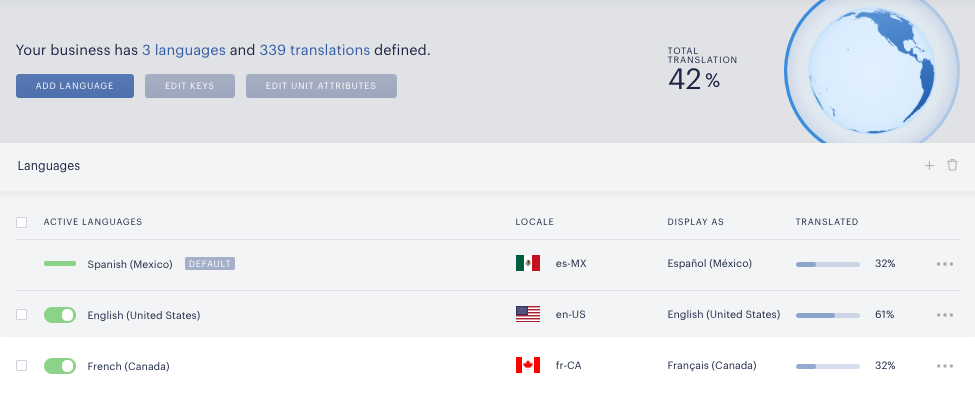
Translation percentage: The translation percentage indicates how much of the source text within Piano has been translated. Piano provides some default translations as a convenience, but you are free to customize all translations. Piano's own source text is in English, but you can add source text of your own in any language you like. The translation percentage for the English language in Piano will be less than 100 percent because localization does not automatically add translations when Piano updates its source text nor does it automatically add translations for the source text you change or add yourself. If an entry is not translated, then the untranslated source text will instead be presented to the user.
Translatable text: Note that localization includes all text within Piano, whether or not that text is currently being exposed to end users. So, for example, localization includes the text of all emails in Email Manager whether or not those emails have been activated. Please note, that it's neccessary to localize each term-specific email separately as well. And it includes all the text within system templates, even though many of those system templates only come into play under certain circumstances. That means you do not need to translate 100% of the text within Piano but should instead focus on translating all text visible during checkout. Note that there are also a few system-critical error messages and billing info not available in localization that Piano translates itself for each language.
Default language: The localization home screen allows you to see and change the default language. When localization is enabled for a site, Piano will determine which language to use based on the preferred language configured in the user's browser settings. If the user's preferred language is not enabled on your Piano application or if Piano is unable to determine the preferred language, the default language will be used.
Configuring a New Language
To add a new language, either click "Add Language" or the + icon in the upper right corner of the localization home screen. When you select a new language or edit an existing language, you will be taken to a screen like this:
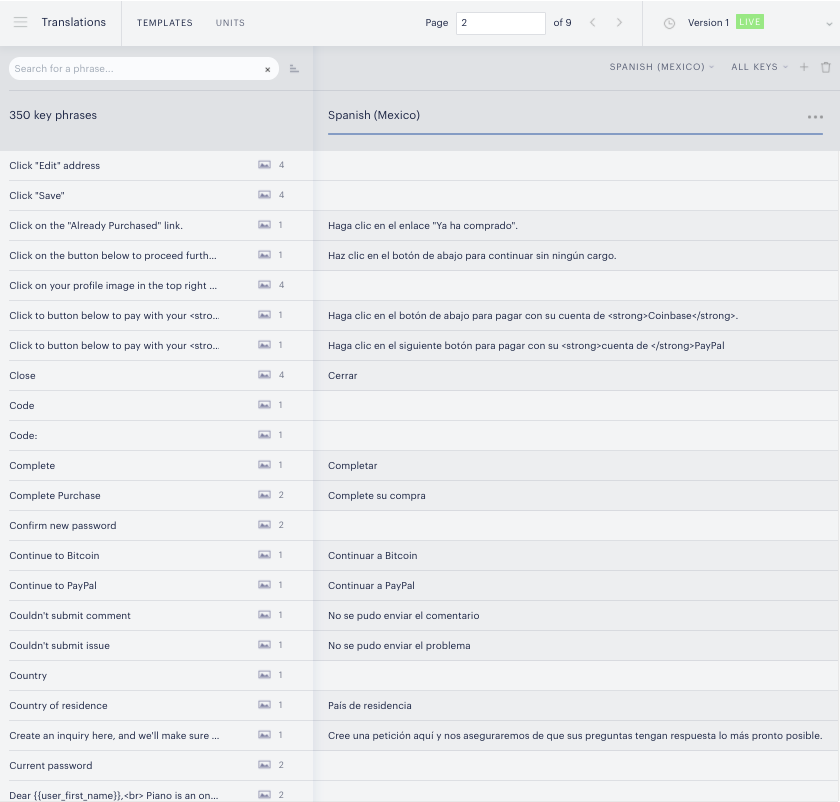
On this page, you will see a list of default source text phrases off the left, default translations, and a number of other settings detailed below.
Key Phrases/Templates: The key phrases listed in the left sidebar are taken from Piano's offer templates, system templates, and notification templates. Any text within a Piano template surrounded by <t> tags is automatically included as a key phrase. So, if you were to add the text <t>This is a key phrase</t> to any offer, system, or notification template, that text would then immediately appear in localization's list of key phrases. However, if you change or delete text or remove the <t> tags from the text in any template, that text will remain in localization's key phrases, but it will be listed as "unreferenced." To the right of each key phrase, you will see an icon with a number next to it. That number indicates the number of times a key phrase appears within Piano's templates.
Please note, that for right-to-left languages, variables must be translated in reverse in the Localization dashboard. So, for example, %d must be translated as d%.
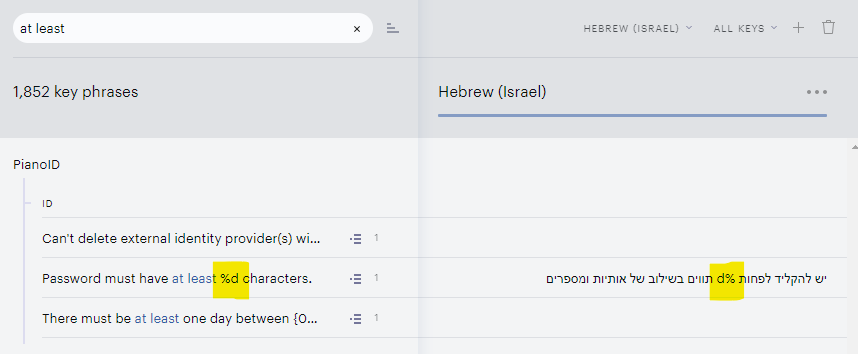
Unit Attributes/Units: By clicking the "Units" tab at the top left of the localization interface, you will be taken to a screen that lists "Unit Attributes" in the left-hand column in the place of "Key Phrases." Unit attributes are the names and descriptions that you have given to resources, terms, and promotions. Also included here are names, text, and error messages of consent fields along with all the text within Identity Management templates (if you have Identity Management enabled). The Identity Management text is grouped under a "Pianos" label in the sidebar. Piano does not provide default translations for any unit attributes.
Date Attributes: In case you'd like to format times and dates differently, please use the list of available values here.
So for example, the date format MMM dd, yyyy can be localized as dd.M.yyyy.
Adding/Editing Translations: To add a new translation or edit a default translation, simply click on the default translation or the blank box directly to the right of the key phrase or unit attribute you want to translate. That will bring up a dialogue box like this:
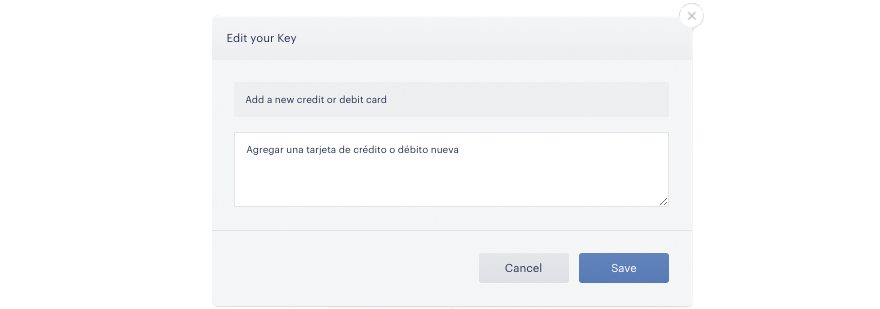
The text above is the source text. The editable text below is the translated text. All you need to do is enter your translation and click "Save." When you return to the Key Phrases or Unit Attributes page, you should then see your new translation next to its key phrase or unit attribute.
Locating key phrases/unit attributes: The total number of key phrases or unit attributes available for a given language are shown just below the search box. You can use that search field to find a particular phrase (note that searches are case-sensitive). You also have the option of paging through all phrases/unit attributes by clicking the page forward and backward buttons located at the top middle of the screen. Clicking those buttons will change the key phrases/unit attributes shown in the left sidebar.
Versioning: After you add a new translation, a message will appear at the top of the localization interface informing you that you have unsaved changes. The message will ask whether you want to save those changes or save them to a new version of the language. If you save as a new version, the previously saved version of the language will remain the active version until you manually switch over to the newer version by clicking "Publish" or switching it to "Live." You can revert to older localization versions any time you see fit.
All Keys/All Unit Attribute Translations vs Unreferenced: In the upper-right corner, if you click the "All Keys" link (on the Key Phrases page) or the All Unit Attribute Translations link (on the Unit Attributes page), you will be given the choice of either showing all phrases/unit attributes or just those that are "unreferenced." If a key phrase or unit attribute is unreferenced that means the text once existed within Piano but no longer does. Piano does not automatically delete unreferenced text from localization because we don't want to delete the associated translation. That means you don't have to retranslate a phrase if you remove that source text from a template and then reinsert it. If you click the trash icon in the upper right corner, you can permanently delete all unreferenced keys or unit attributes. The only way to recover removed unreferenced text is if you're versioning localization and you roll back to an earlier version before the unreferenced text was deleted.
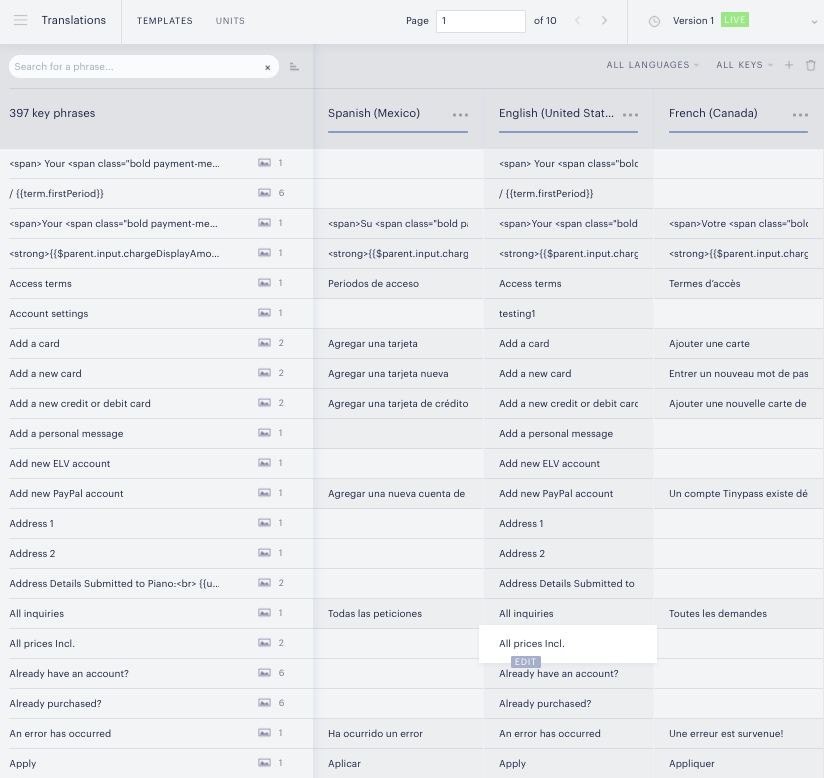
Language/All languages: By clicking the name of the language in the upper right corner, you can switch the language you are translating or view all enabled languages. By clicking all languages, you can provide translations for the same key phrase or unit attribute for multiple languages at the same time. Here's how the interface looks when multiple languages are enabled:
Additional settings
By clicking the ellipsis icon ( 
Download/upload: As an alternative to editing key phrases and unit attributes within the localization tool, you can edit a language's translations using a portable object (po) file. To process po files, you'll need to have software that recognizes the file format. Popular free versions of such software include POeditor for Unix and POEdit for Windows. Once you have software installed that can process po files, you can click the "download" link to get a po file containing the source text, the default translations, and the general context (i.e. where the key/unit is used within Piano). A downloaded po file will contain all changes that you previously added and saved using the localization interface, as well as any empty phrases/keys. Once you've finished editing an external po file, you can upload the edited file by clicking "upload."
During this process, you will see an option to "Ignore blank fields on import" which by default is enabled, and we recommend for this toggle remains active so as not to overwrite existing localized strings with blank values (in case your po file does contain untranslated strings).
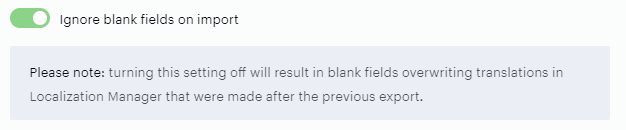
At the same time, empty strings are not considered as translated strings.
As soon as your file finishes uploading, you will see your new translations in the localization interface.
Need to transfer .PO files between applications? See our step-by-step instructions.
Set as default: As mentioned above, you can change the default language shown during checkout. Note that you will not be allowed to delete a language when it is set as your default, but any language (including English) can be deleted when it is not set as the default.
Language settings: The language settings allow you to switch between different dialects of the same language (currently only applicable to Portuguese, which supports both Brazilian and Portuguese dialects).
Delete language: By deleting a language, you permanently delete all of the custom translations you have added for that language. If you add a language back after deleting it, you get Piano's default version of that language. If you want to deactivate a language without undoing your work, simply toggle that language off from the localization home screen.