
Overview
Engage with hundreds or thousands at once. Site licensing will allow members of your team to create a Site license on behalf of a client via the Piano dashboard or API. These licenses will allow any users associated with the contract to redeem access to your site by visiting a landing page and registering. For each site license you would like to sell, you can create a contract in the Piano dashboard. Within that interface, you can specify the resource access provided, the maximum number of users who can redeem, and a landing page/invitation URL for users to follow. You can also upload or manually input a list of emails and define a period of access you would like to enforce for the contract.
Required license
The Site licensing feature requires the following licenses to be enabled on your account:
-
Composer
-
Subscription Management + Billing
If you would like to use a double opt-in flow, you will need a valid Identity Management license.
Implementation
Creating a Licensee
-
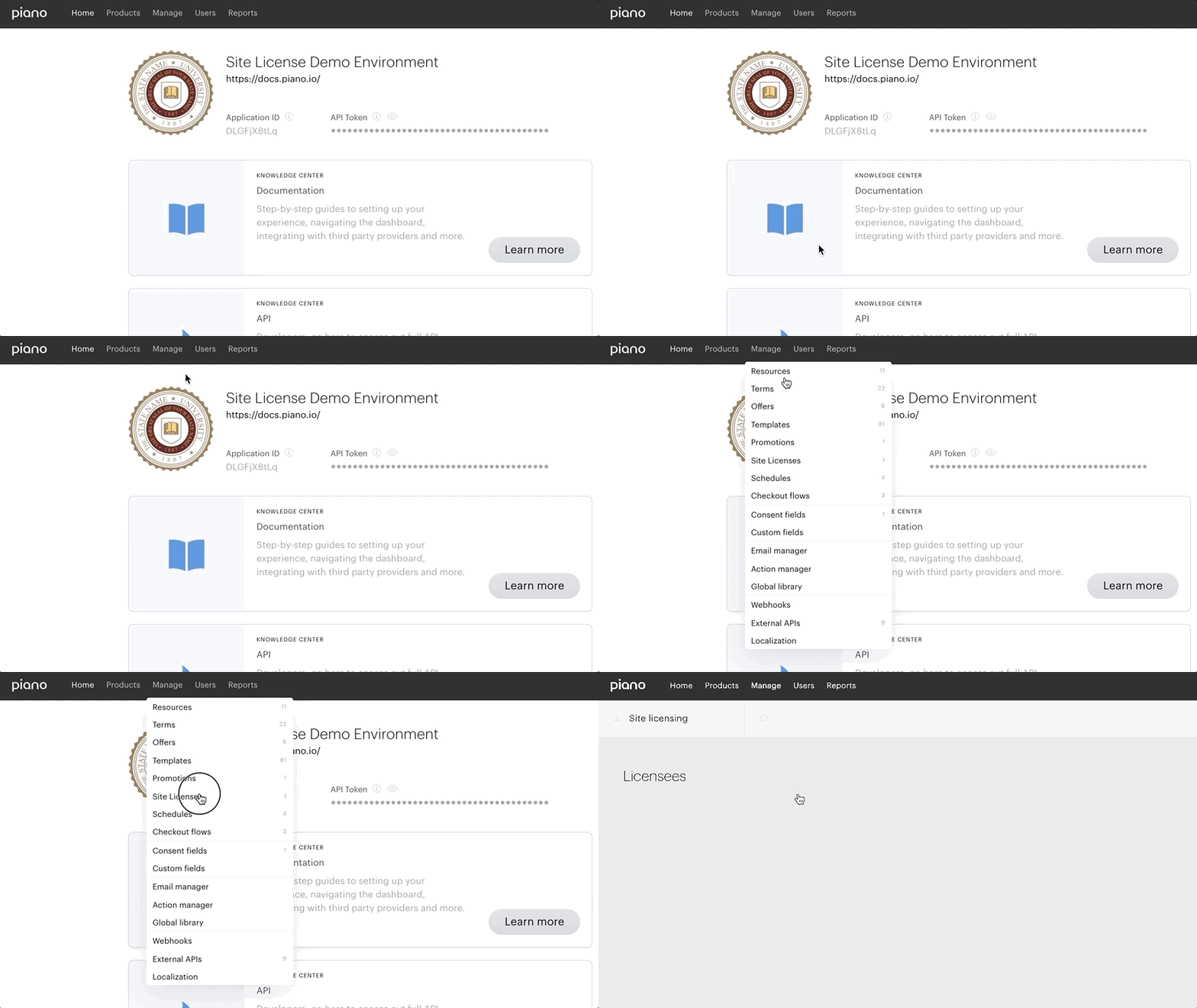
Within the manage dropdown menu, click on Site Licenses.
-
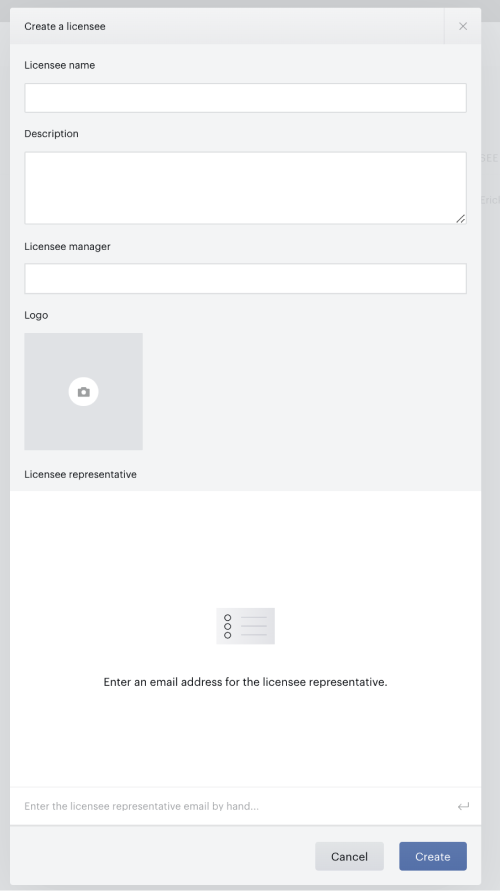
You will be prompted to create a Licensee. "Licensee" is the term for a group that you have a licensing agreement with, such as another company or a university.
The Create a license form has five configurable fields:
-
After filling out the form, click on the blue Create button on the bottom right corner of the form. The new licensee will appear in the Licensees dashboard:

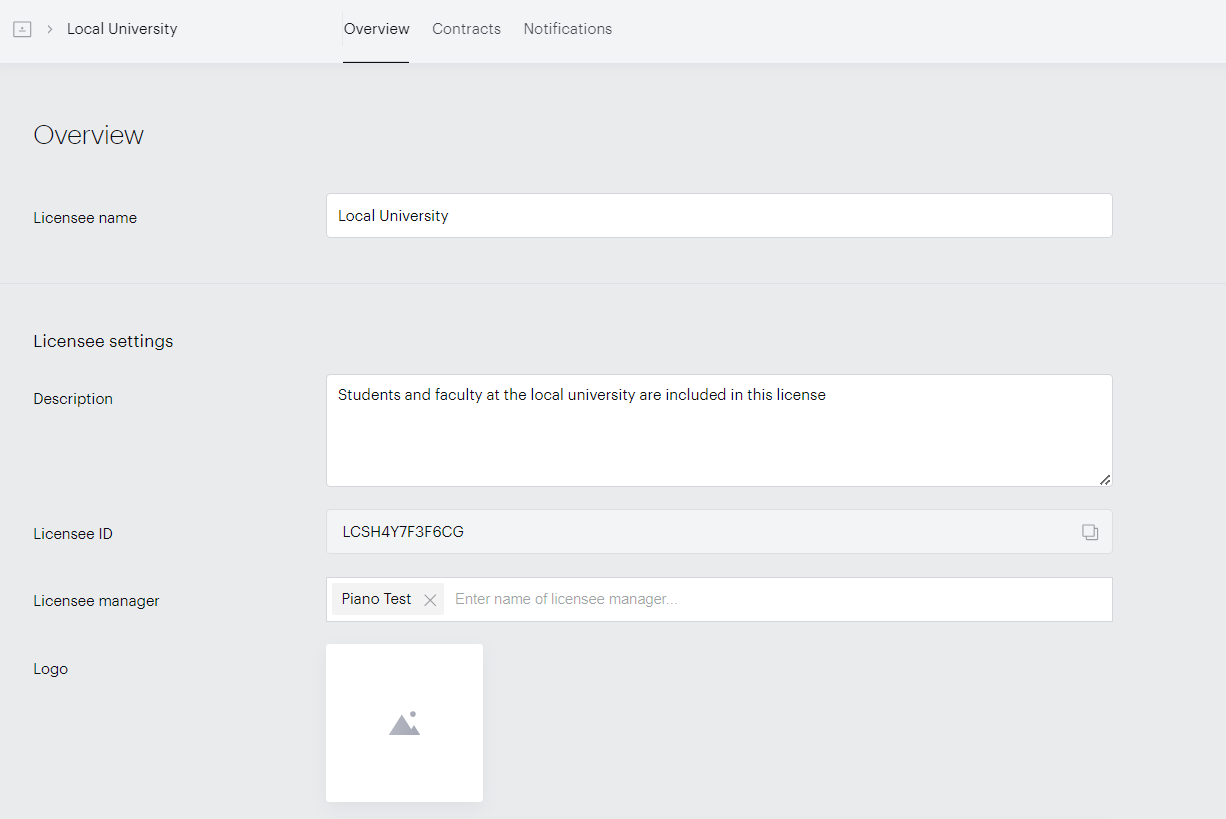
Clicking on the licensee from this menu opens up the licensee overview dashboard:
|
Field |
Description |
|---|---|
|
Licensee name |
This will be displayed to end-users in an email and on-site messaging |
|
Description |
This field is internal and will not be displayed to end-users. |
|
Licensee manager |
This is the person/people from your team who will be responsible for maintaining this licensee and relationship. The Licensee Manager must be a user account that exists in the Team Manager on your application. Otherwise, there will be no option to add them as the Licensee Manager. |
|
Logo |
An image that can be used to represent the logo for the licensee. This allows specific elements to be branded within creatives. |
|
Licensee representative |
This is the person from the licensee group that is responsible for managing the relationship within their organization. This group has elevated permissions to modify licenses within their group. |
Create a contract
A Contract is the name of the specific logic that manages user-access permission to resources. This includes details such as the number of eligible users, the duration of the access, and the resource to which they are given access. Contracts are managed within the Licensee menu.
Please note, that the maximum number of users that are allowed on a site license contract is 200.000 users. Unfortunately, it is not possible to change the resource once active users have been added to the Site license contract. In case you need to change the Resource at any future point, we would recommend to create a new site license contract and then add the users or domains again.
From the Licensee overview dashboard, click on Contracts, and Create new contract:
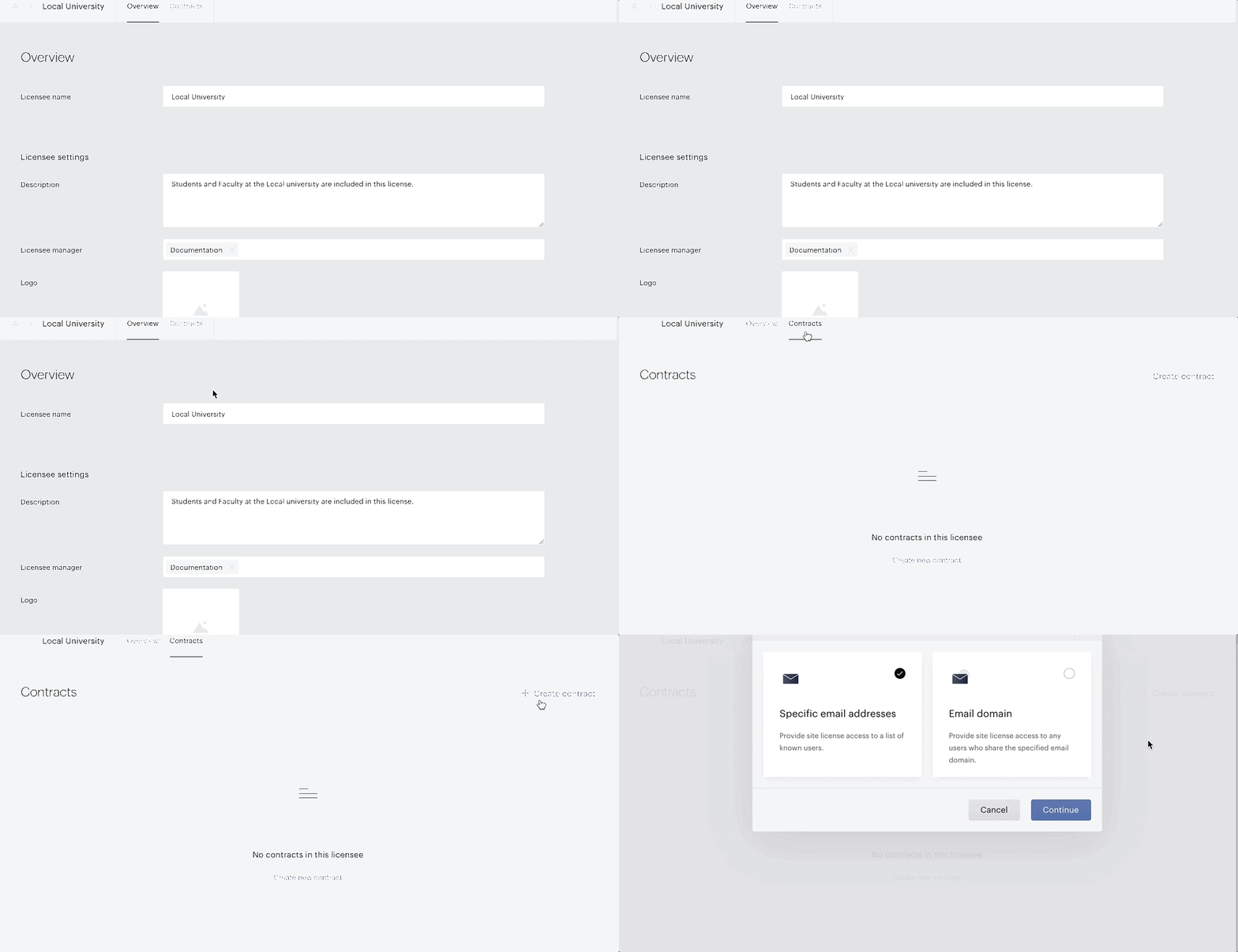
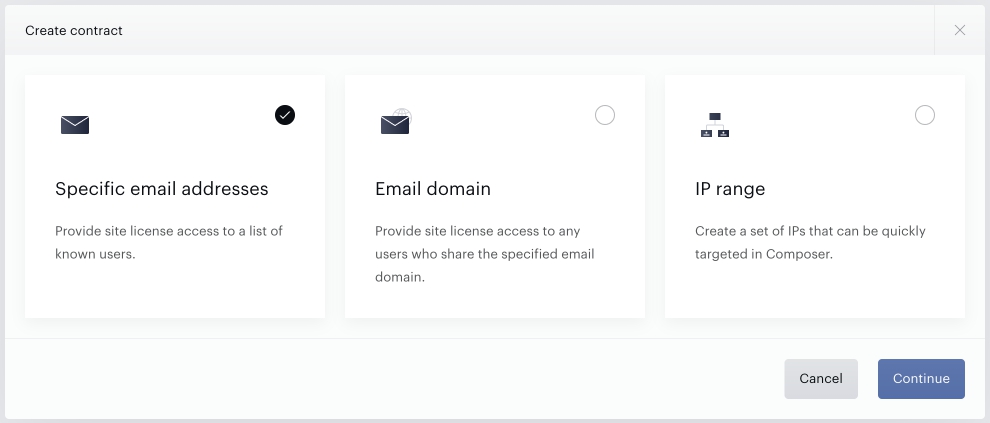
The Create contract modal that appears offers three contract options:
-
Specific email addresses: For this type of contract, you must input or upload a list of email addresses. Any user who registers with one of those email addresses will be eligible to redeem access to your site license.
-
Email domain: For this type of contract, you must input or upload a list of email domains. Any user who registers an email address that uses the appropriate domain (e.g.@piano.io) will be eligible to redeem access to your site license.
-
IP range: For this type of contract, you must input a range of IP addresses. Any user accessing the resource specified in the contract will automatically be granted access based on their IP address, with no additional redemption process or Composer Experience required.
Note that it's not possible to migrate users from one contract to another. You would have to create a new contract under the Site license in question and send a new invite to users.
Create a specific email addresses contract
Selecting Specific email addresses from the Create contract modal will open the Create a specific email addresses contract modal:
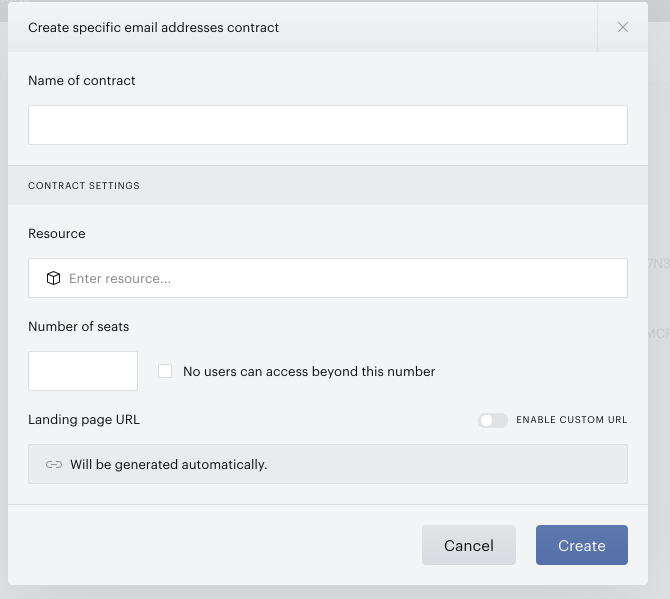
This is where you can provide metadata for the contract you are creating. There are 4 options within this menu:
-
Name of contract: This is the title of the contract and will be displayed to end-users in email and on-site messaging.
-
Resource: The resource that users will gain access to.
-
Number of seats: The number of users who can redeem access through this contract. This number is agreed upon between you and the licensee.
-
No users can access beyond this number: If checked, only the number of users specified above can redeem access. If unchecked, users can still gain access after the number of seats has been consumed. Please note, that the seat limit cannot be lower than the number of active users on the contract.
-
-
Landing page URL: The URL that users will use to redeem access. A URL is generated automatically, but it can be overridden with a custom URL. Note, that we don't support any additional custom dynamic parameters on this URL. The validation of the URL is strict and only works based on the
contractIdparameter and the respective contract ID value.If no active contract is configured for this page, but the Site Licensing template is set to be shown via a Composer Experience, the user will be presented with a dropdown list of your active contracts to select for redemption.
Clicking the Create button after completing the fields will take you to the contracts dashboard:
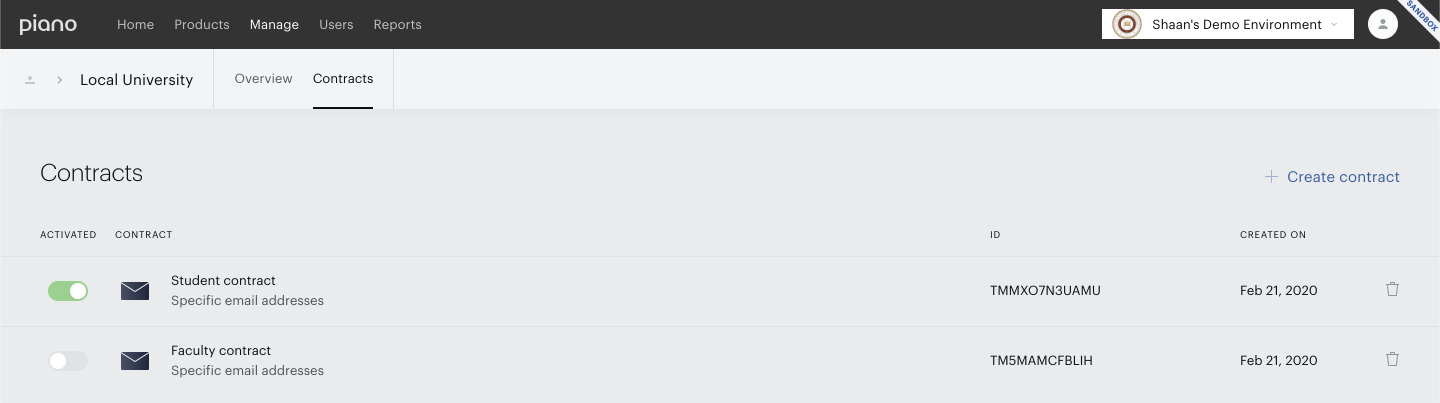
From the contracts dashboard, clicking on a contract will bring you to the contract management menu. Here you can input the users you would like to make eligible for this contract. You can input users manually by clicking Add user, or by using the Attach a file option and uploading a CSV. CSV is the only supported file type:
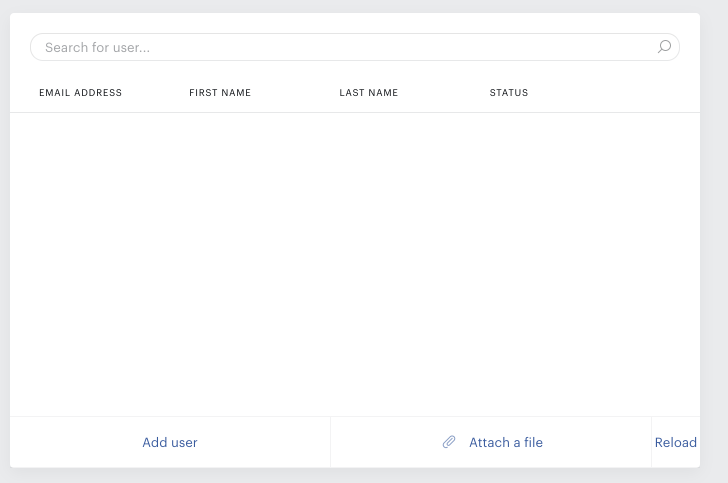
The CSV file needs to include the email, first name, and last name of the user(s) in separate columns. There is no need to add a header; the file should be UTF-8 encoded and the values comma-separated. For example, like this:
example@email.com, Firstname, Lastname example+1@email.com, Test, Tester
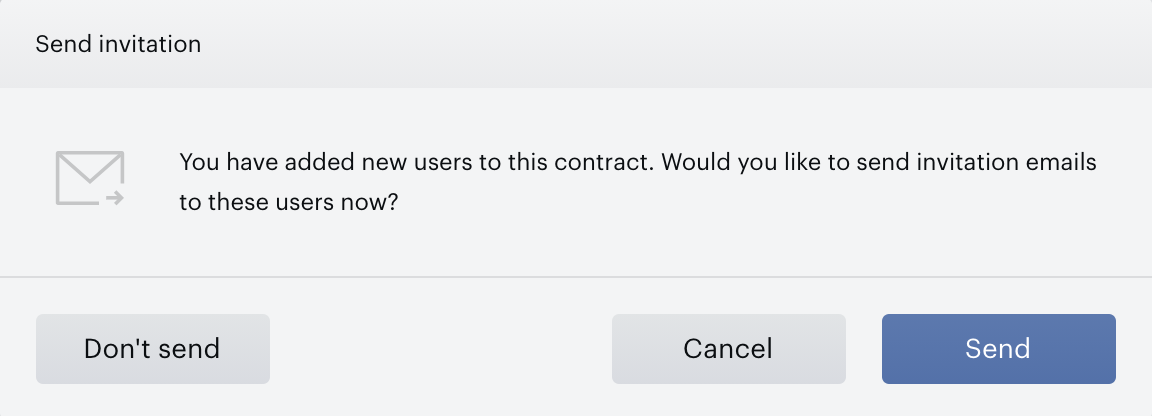
After adding users, the top navigation bar will display a blue Save button. Clicking this will prompt a confirmation dialogue. Pressing Send will immediately send invitation emails out to the users you have added.
You can also invite users manually from the Users module in the same menu:
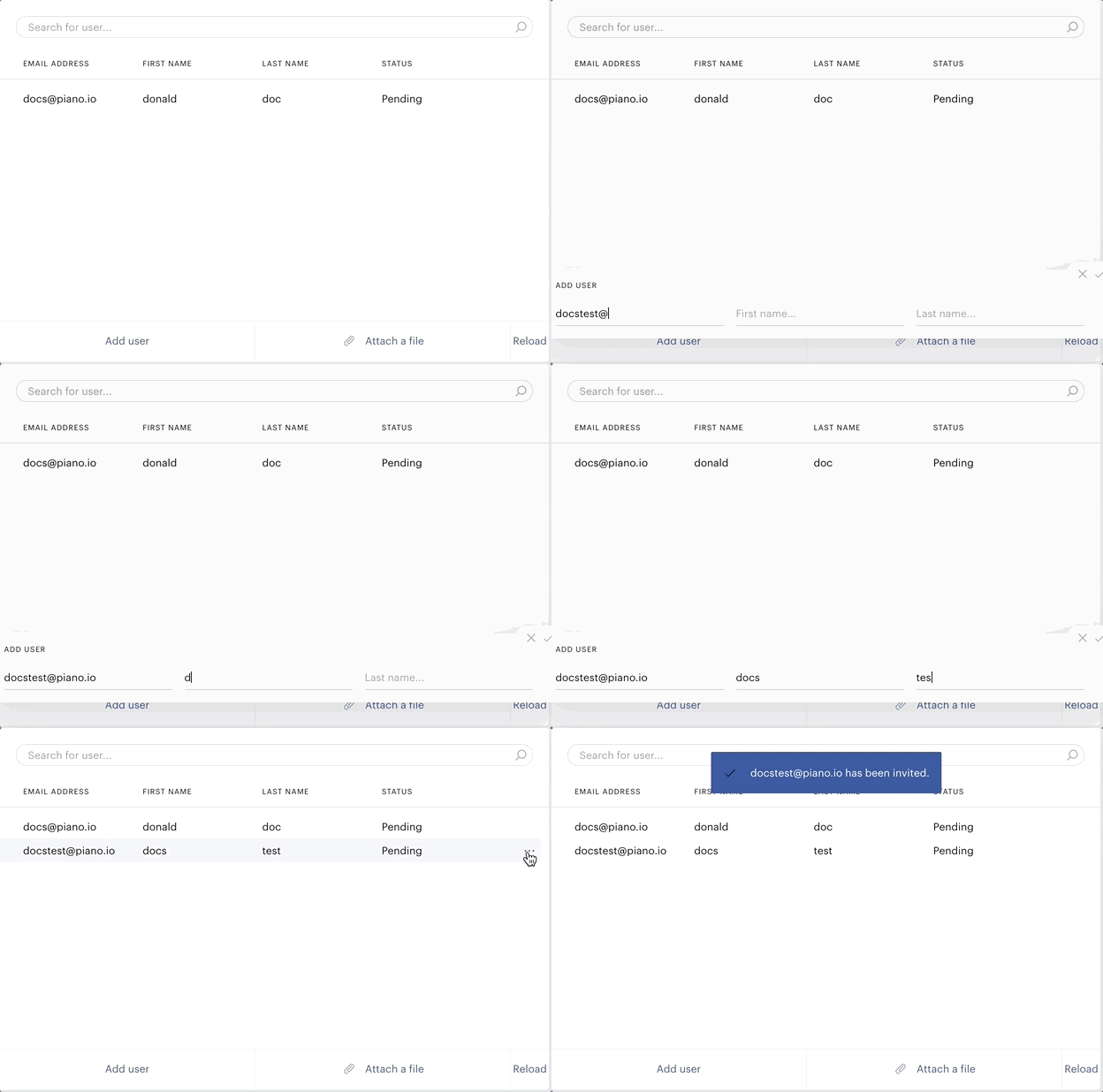
Once users are listed, they will appear with a status:
-
Pending: The User has been invited but has not yet redeemed access.
-
Active: The user has redeemed access
-
Revoked: A member of your team has decided to revoke the user's access.
-
Invalid: The user has an incorrect email.
From this interface, you need to attach a Schedule to the contract:
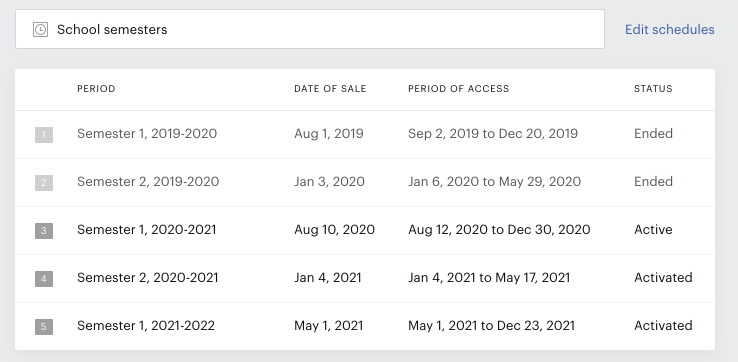
The schedule governs when access will be active or inactive.
It's possible to use the same schedule for multiple contracts - when configuring the contract, you can select any schedule available to be used for that contract, even if it has already been used in another contract.
Each schedule allows a subscription reallocation. Selecting this option triggers an internal task that will, one by one, update each subscription on a Site License to follow the new schedule. That job is scheduled immediately but runs once per hour. Depending on the number of Site License users, the run itself can take several hours.
In addition, please note that you can’t re-trigger the reallocation until the previous one is done - the corresponding button will be disabled.
Subscriptions that are created for a Site license contract are treated the same as any other paid subscriptions. So, all emails that are available for regular payment subscriptions can be sent for Site Licenses. There are also a few unique Site License email notifications described here.
Create an email domain contract
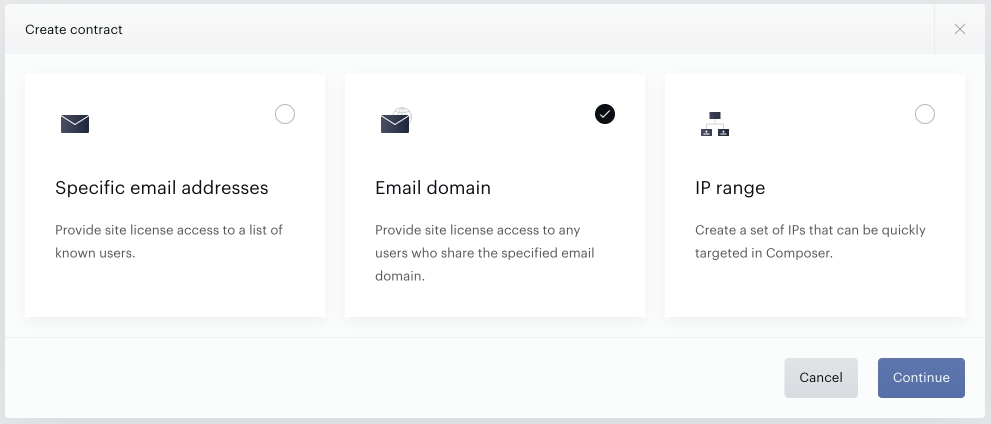
Selecting Email domain from the Create contract modal will open the Create email domain contract modal:
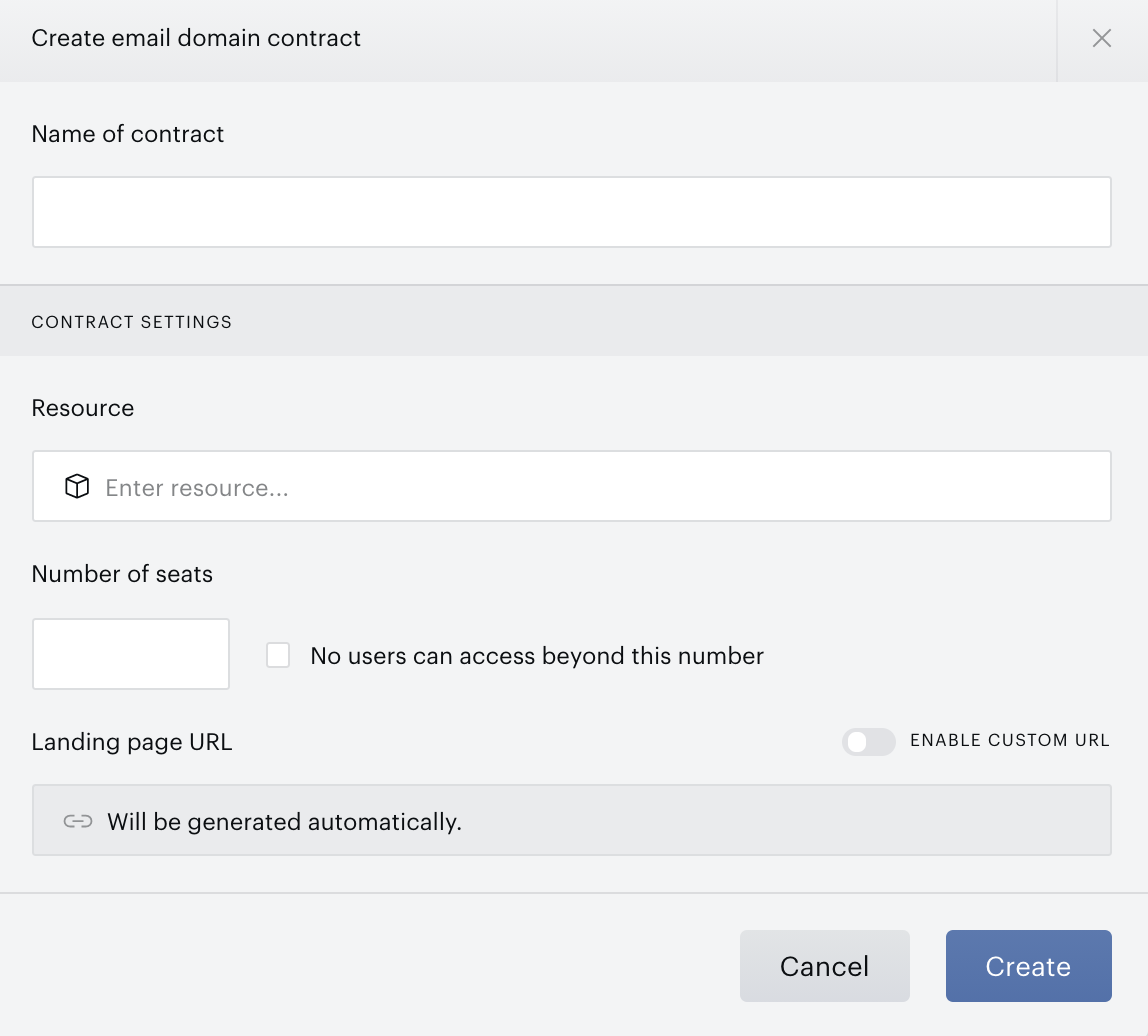
This is where you can provide metadata for the contract you are creating. There are 4 options within this menu:
-
Name of contract: This is the title of the contract and will be displayed to end-users in email and on-site messaging.
-
Resource: The resource that users will gain access to.
-
Number of seats: The number of users who can redeem access through this contract. This number is agreed upon between you and the licensee.
-
No users can access beyond this number: If checked, only the number of users specified above can redeem access. If unchecked, users can still gain access after the number of seats has been consumed. Please note, that the seat limit cannot be lower than the number of active users on the contract.
-
-
Landing page URL: The URL that users will use to redeem access. A URL is generated automatically, but it can be overridden with a custom URL.
If no active contract is configured for this page, but the Site Licensing template is set to be shown via a Composer Experience, the user will be presented with a dropdown list of your active contracts to select for redemption.
Clicking the Create button after completing the fields will take you to the contracts dashboard. From here, you can add the domains you wish to grant access to. You can also use an asterisk (*) as a wildcard character.
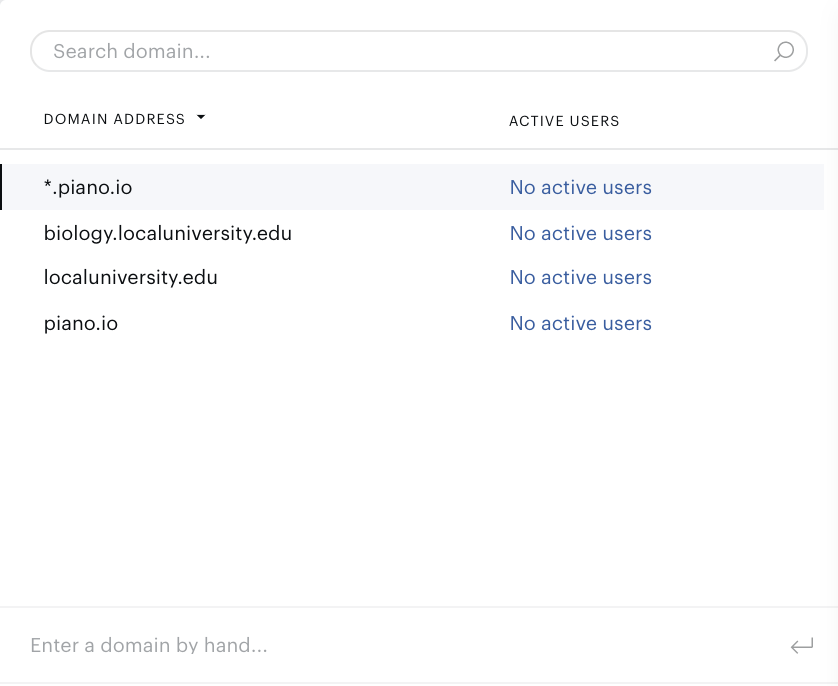
From this interface, you need to attach a Schedule to the contract:
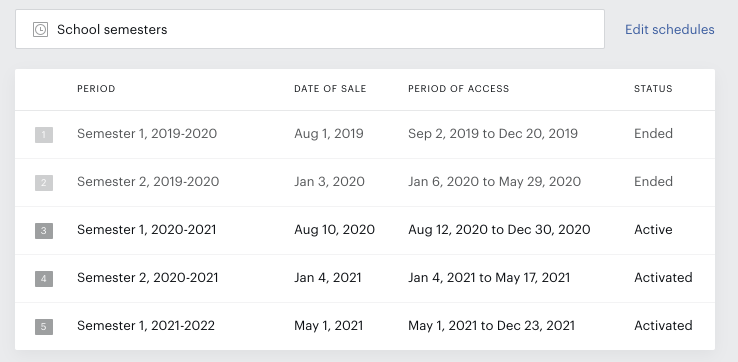
The schedule governs when access will be active or inactive.
Each schedule allows a subscription reallocation. Selecting this option triggers an internal task that will one by one update each subscription on a Site License to follow the new schedule. That job is scheduled immediately but runs once per hour. Depending on the number of Site License users, the run itself can take several hours.
In addition, please note that you can’t re-trigger the reallocation until the previous one is done - the corresponding button will be disabled.
Subscriptions that are created for a Site license contract are treated the same as any other paid subscriptions. So, all emails that are available for regular payment subscriptions can be sent for Site Licenses. There are also a few unique Site License email notifications described here.
Create an IP range contract
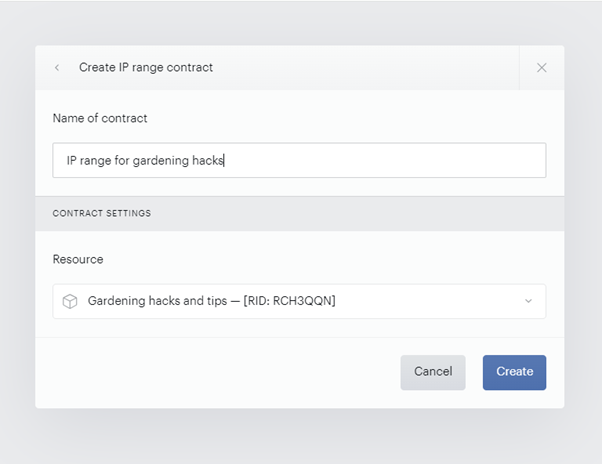
To create an IP range contract, select the IP Range option from the "Create Contract" button in the top right corner and click "Continue".
-
Name of contract: This is the title of the contract.
-
Resource: The resource that users will gain access to.
Click the Create button after filling in the required fields. This action will take you to the Contracts dashboard, where you can view contract details, activate the contract, and continue to add IP ranges after clicking on the IP Range contract itself.
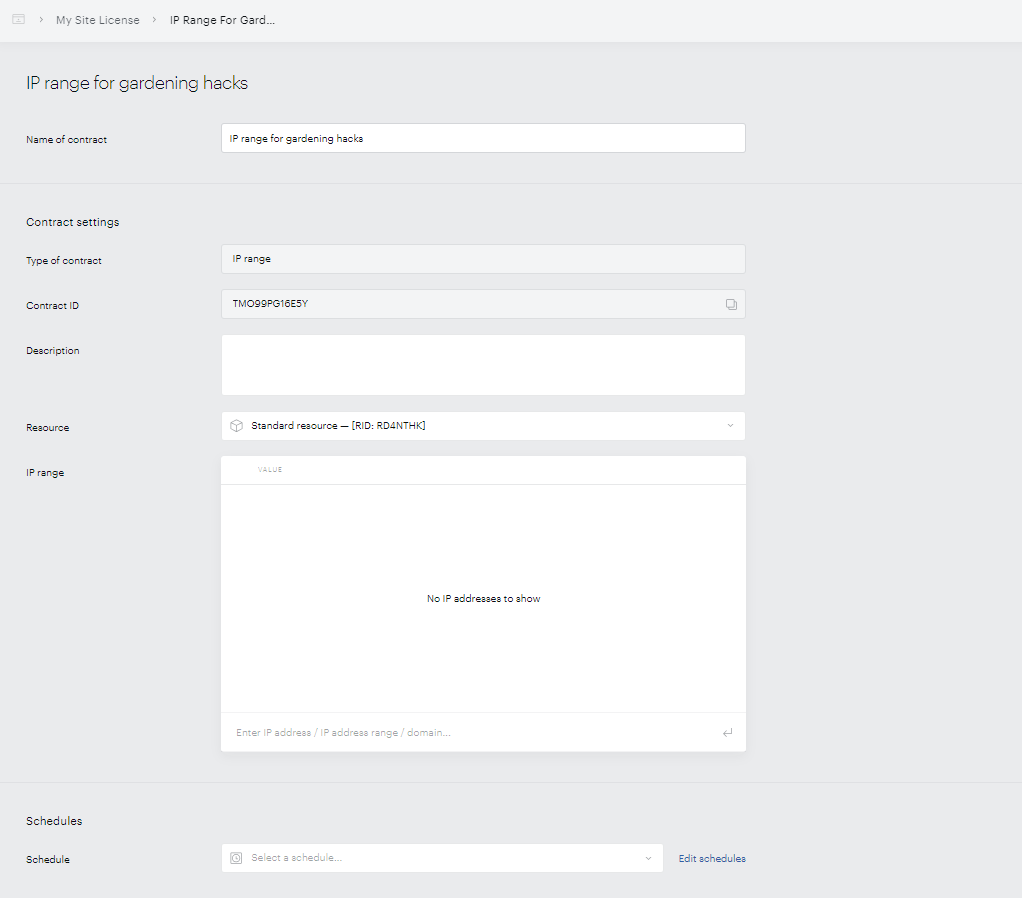
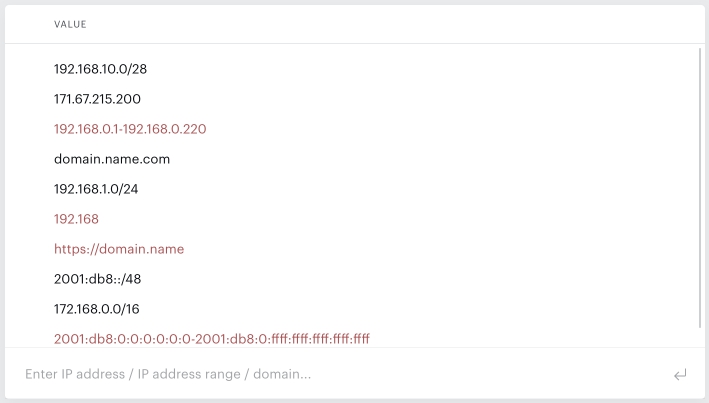
IP ranges can be added individually. The form accepts DNS names as well as IP addresses and ranges in CIDR notation. For example, 192.168.0.1/24. Ranges like 192.168.0.1 - 192.168.0.255 are not supported. The form is compatible with both IPv4 and IPv6 addresses. If an invalid name or address is entered, it will be highlighted in red and flagged as incorrect. Invalid entries will remain in the form but will not be processed.
Also from the same interface, you need to attach a Schedule to the contract. The schedule determines when access under the contract is active or inactive.
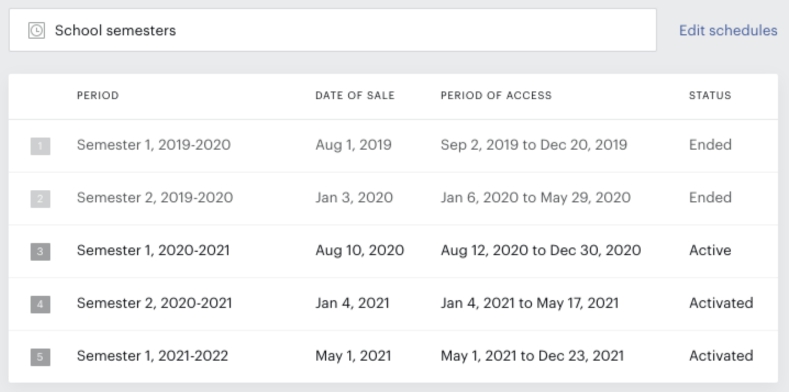
Each schedule allows for a subscription reallocation. This means the subscriptions under the IP range site license will be updated to follow the new schedule. The reallocation task is initiated immediately, but runs on an hourly basis. Depending on the number of users under the site license, the process may take several hours to complete. Until the reallocation is complete, the re-trigger option will be disabled.
IP range contracts differ from email-specific or domain-specific contracts in that they do not require user registration or active user access.
Instead, Composer uses the customer's IP address to determine access. If a customer's IP address matches an IP range specified in the contract, Composer will treat that customer as having active access, just like a registered user. This means they will not encounter paywalls, and the Composer experience's targeting rules will apply accordingly.
For IP range contracts, the /access/check and /access/list endpoints do not return access information. This is expected behavior, as these endpoints check for access entities, which are not created for IP range contracts as:
-
There is no redemption step or user subscription/access creation for IP range contract users.
-
Anonymous users are supported.
Access checks for IP range contracts are handled by Composer by:
-
Verifying if a user's IP matches any IP range specified in the contract.
-
Allowing further access if there is a match, enabling the user to access resources as if they were registered with active access.
Monitoring and Targeting Users from IP Ranges
To deliver specific messaging (e.g., welcome messages) to IP range contract users, you can create Composer experiences that specifically target users by their IP address. Targeting options for end-users on an IP range license include those who "Have access to" the specified resource and have a login status of "Unregistered or logged out." This allows you to show personalized templates to users within a designated IP range.
As IP range users are essentially anonymous users, you can use the experienceExecute callback to extract and log contract information, such as the contract name and contract ID. For example, like this:
tp.push(["addHandler", "experienceExecute", function(e) {
    var events = e.result.events;
    for (let i = 0; i < events.length; i++) {
        if (events[i].eventType === "experienceExecute") {
            var accessList = events[i].eventExecutionContext.accessList;
            if (accessList.length > 0) {
                console.log('Name of Contract: ' + accessList[0].resourceName);
                console.log('Contract ID: ' + accessList[0].termId);
            }
            break;
        }
    }
}]);
Similarly, you can implement page view meters and non-site action cards to monitor user interactions and gauge usage by IP-based users. This can be done directly in Composer Experiences by targeting specific IP addresses or ranges within User segments, and then viewing the details in Composer reports.
Create a Composer experience
For specific email addresses and email domain contracts, you must also ensure that the Site Licensing Landing Page template is being displayed on the pages you have indicated in each contract. You can do this with Composer or on-site JavaScript.
Follow these steps:
-
Create a new Experience in Composer
-
Target a specific contract URL, e.g., https://example.com/?contractId=TMDCG98M5MM2 or target all contract URLs by using a wildcard, e.g., https://example.com/?contractId=* under the Experience's Effective pages card
-
Use a Show Template action card and show the template Site Licensing Landing Page
For IP range contracts - there's no need to set up a separate Composer experience. Users will be provided access automatically based on their IP address and the resource specified in the contract settings. If the user's IP address matches the contract configuration, they will bypass the paywall and be treated as having active access, just like a registered user with active access to the given resource.
Please note that site licensing based on IP ranges is not compatible with Edge Experiences, as access validation in these scenarios occurs at the CDN edge.
Redeeming access
Once a user receives their invitation for your Site license, they must navigate to the landing page URL specified during the Contract creation.
This URL is generated automatically and based on your website's URL, but it can be overridden by switching the toggle Enable custom URL. This custom landing page URL can be configured in the Edit Business section.
The invitation email contains a link to this page.
When a user arrives at the landing page, they will have the opportunity to register and redeem access if they are eligible:
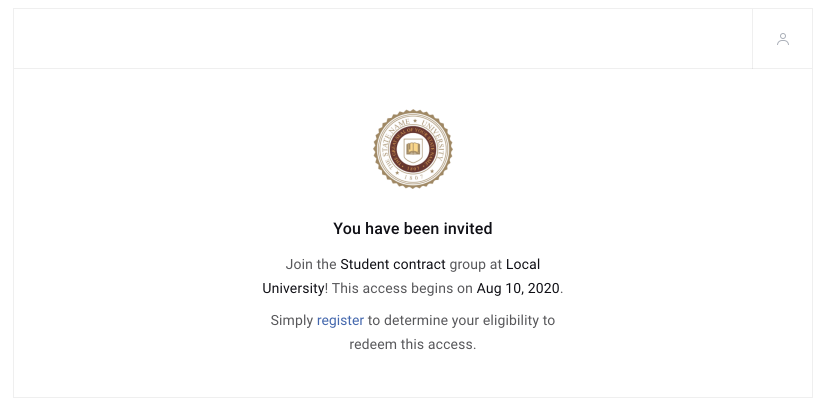
If a user is already signed in when they arrive at the landing page, they are automatically granted access and are shown a confirmation:
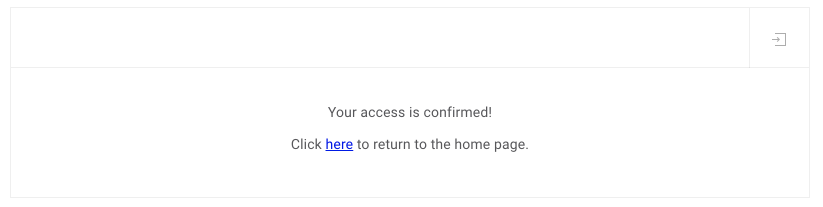
If a user already has access to the content via an existing subscription, they are prompted to cancel their existing subscription, then redeem access:
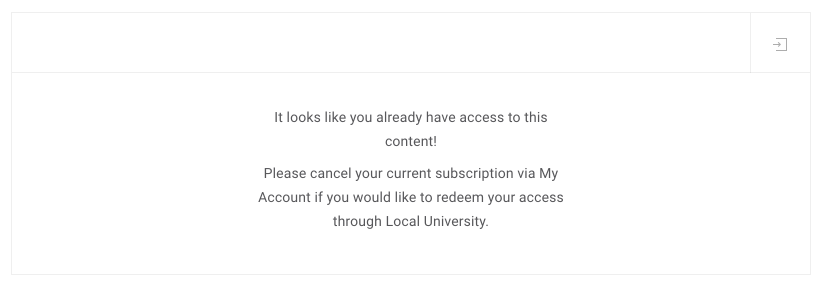
If a user has already redeemed their site license access and returns to this page, they are reminded that they have already successfully activated their access:
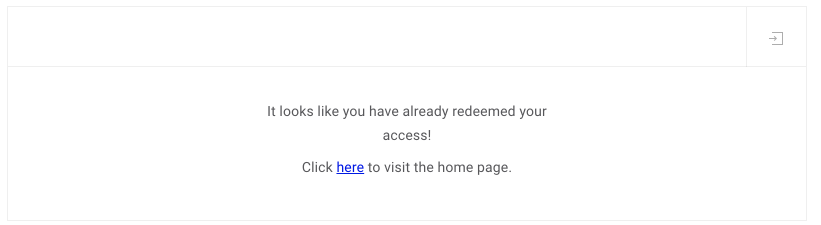
After the user registers and is validated, they are granted access to the appropriate resources on your site.
Please note that in case a GDPR deletion or erasure request for a user is completed, their data and account will be removed from any associated Site License contracts.
To maintain continuous access for your Site License users, you would just need to keep an eye on the schedule and make sure there is always a new period available in the linked schedule so that subscriptions will not expire. If there is no "next" period in the schedule, subscriptions will remain in a "Won’t renew" state with no next billing date.
Once you create the next period in the schedule, all subscriptions will be updated to the status "Active" with a next billing date set to the end date of the period.
My Account Template changes
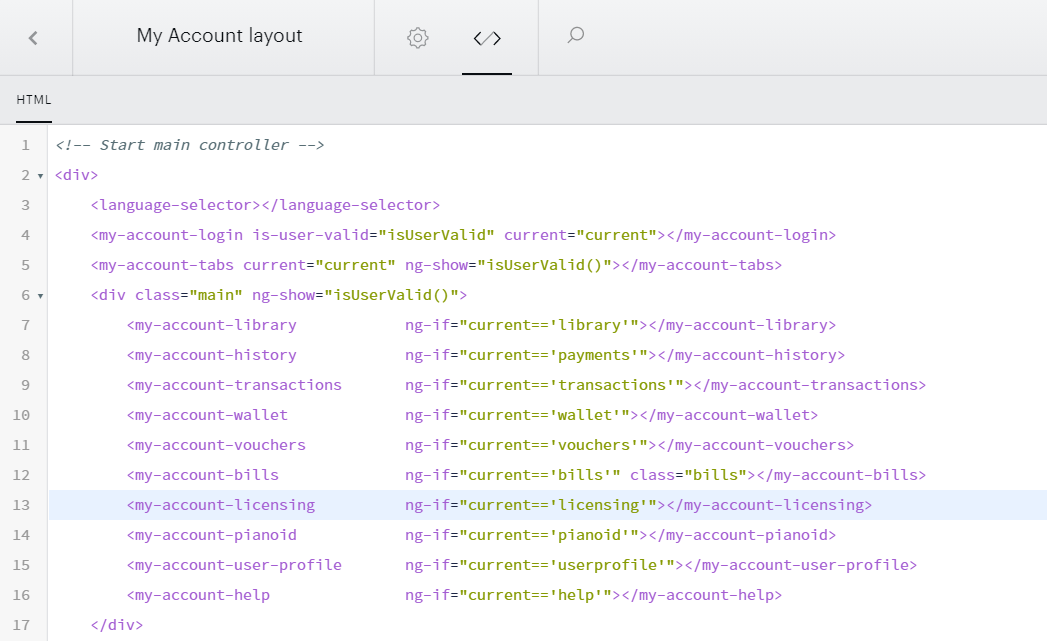
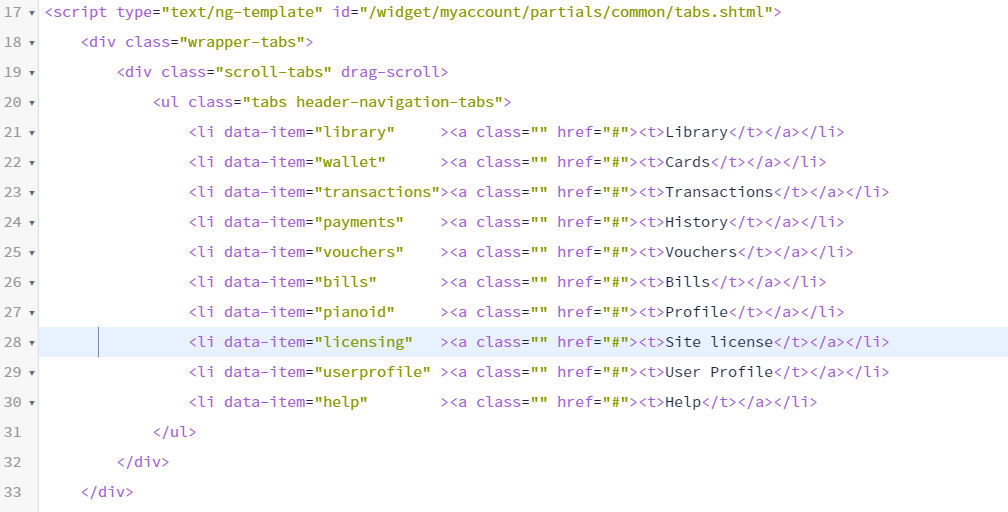
In order to be able to view the Site Licensing tab in My Account, you might need to edit the following templates:
My Account Layout
Please add the following code snippet to the template's code:
<my-account-licensing ng-if="current=='licensing'"></my-account-licensing >
My Account Common Components
Please add the following code snippet to the template's code. If you'd like to change the name of the tab that's going to display to users in the My Account section, you can change the copy for Site license.
<li data-item="licensing" ><a class="" href="#"><t>Site license</t></a></li>
Site License Notifications
Notifications allow you to view information about important updates and events as they relate to your Site license contracts.
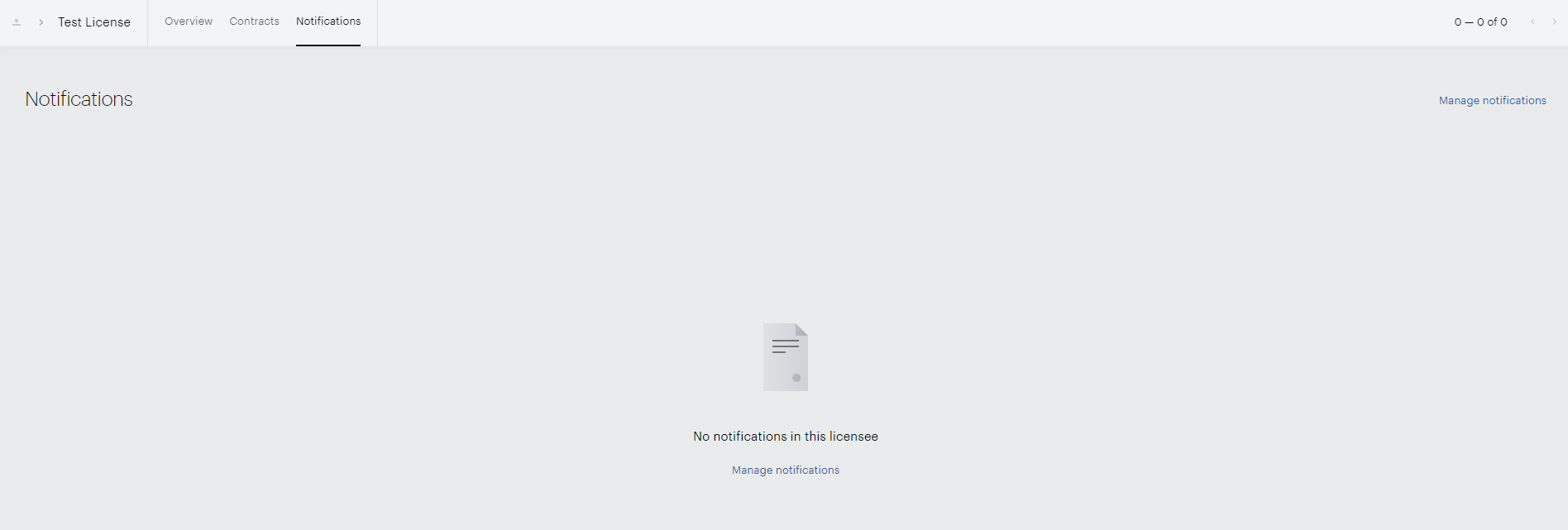
To add a notification, navigate to the Notifications tab under a Site license, select the option Manage notifications, and choose +Add notification.
Notifications are configured with the following parameters:
|
Number of occupied seats |
exceeds |
[X] |
% of total capacity |
|
drops below |
|||
|
reaches capacity |
- |
- |
|
|
Period of access |
will expire in |
[X] |
days |
|
expired |
[X] |
days ago |
|
|
expires |
- |
- |
|
|
Date of sale |
will occur |
[X] |
days |
|
occurred |
[X] |
days ago |
|
|
occurs |
- |
- |
You are now able to select one or multiple Contract(s) of the Site License for which you'd like to set up the notification, the trigger, and the event for the notification, and define the day value "X" prior to or after which the notification is sent, alternatively, the percentage exceeded or reached.
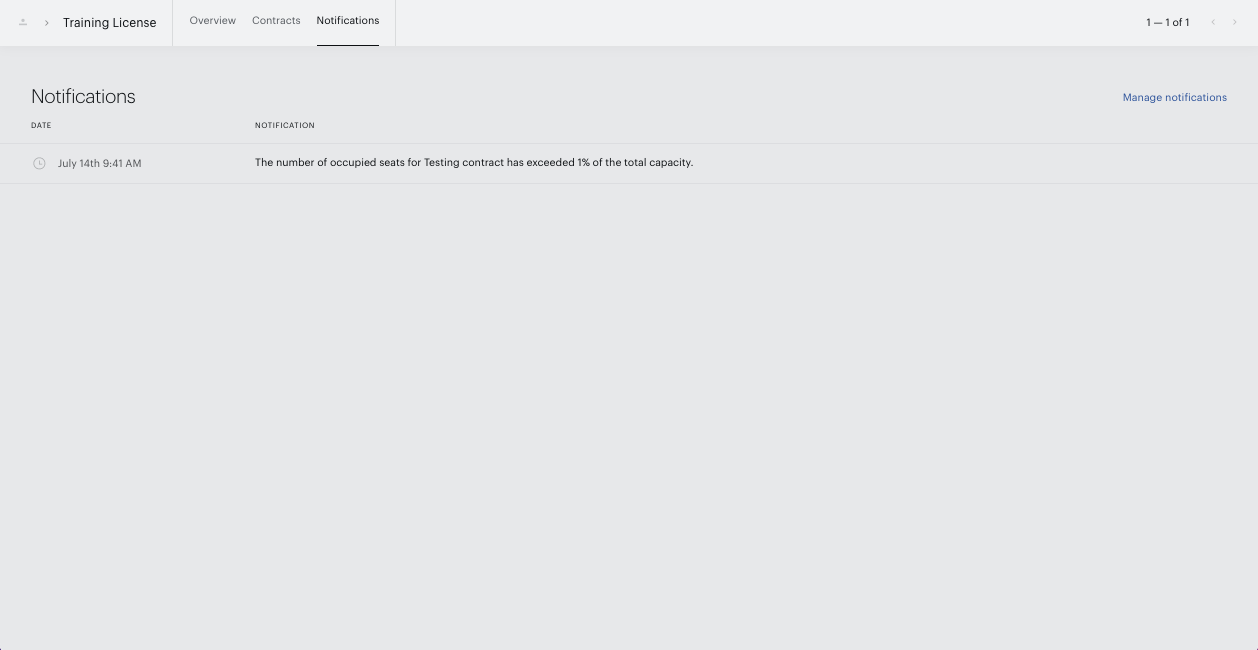
Once a notification is configured and subsequently sent, you will be able to view it in the Piano dashboard's UI under the Notifications tab.
There will be no email notification sent to the Site Licensee Managers or Representatives.
Administrative Options
Piano does not manage the billing process of the license; this needs to be handled on your end through invoices or any other methods. Any users on a Site license will be automatically renewed as long as the schedule has a period that they can be renewed on.
Once you add a new period to your schedule, the access of redeemed users will automatically be activated within a short time period.
Licensee representative view
The Licensee representative has a different view in My Account from a standard user. Here, under the tab Site License, they are able to manage their contracts and make modifications to the user list for the contract they are responsible for.
Specific email addresses view
For Specific email address contracts, Licensee representatives are able to see and manage users of the selected contract. If needed, new users can be added via the +Add user option at the bottom of the screen: 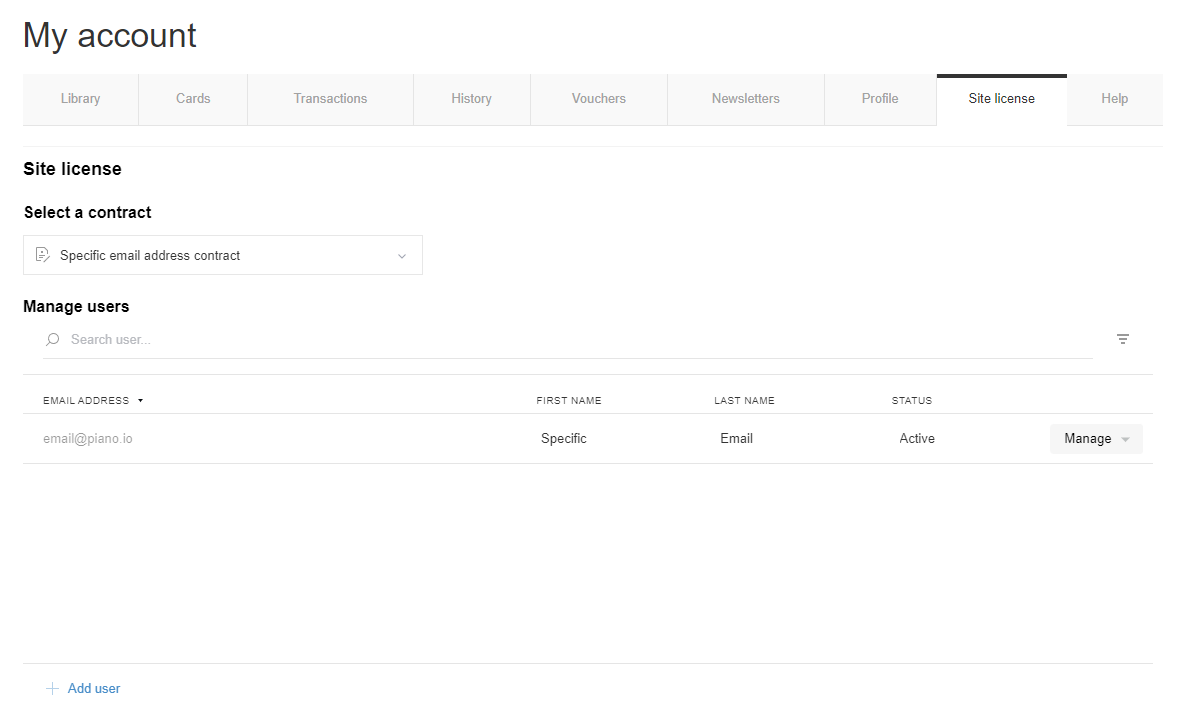
If you'd like to manage a specific user, you are able to click on the Manage drop-down menu and select any of the available options:
-
Edit - after selecting this option, you are able to change the user's first and last name
-
Invite - selecting this will trigger the Site License: Invitation email notification for a Pending user
-
Restore - for a Revoked user, you will be able to re-activate their access by selecting this option. Restored users will receive a new invitation email and they will need to manually redeem their access again
-
Revoke - selecting this will revoke the user's access but the user will remain in the list of this contract (now with the status Revoked instead of Active/Pending)
-
Revoke and remove - this option will revoke the user's access as well as remove them from the specific email address contract altogether
Email domain view
For Email domain contracts, Licensee representatives are able to see and manage users of the selected contract as well as domains. If needed, a new domain can be added via the +Add domain option at the bottom of the screen: 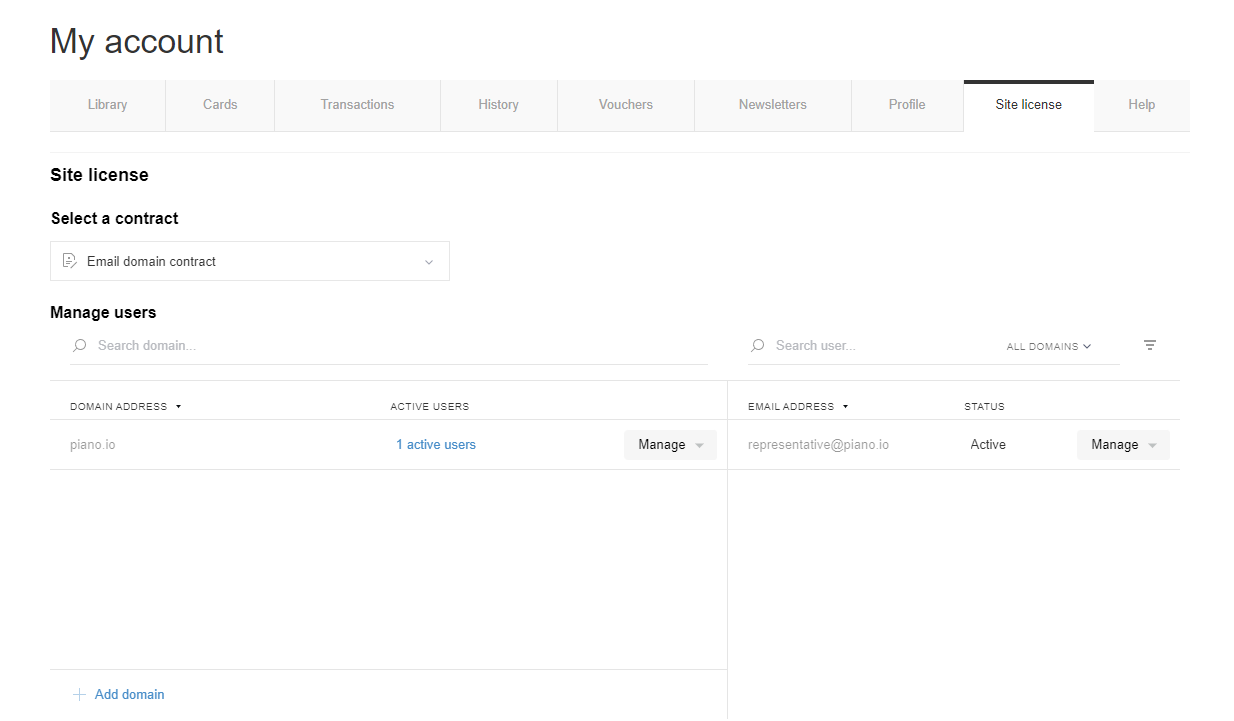
For users that have redeemed an email domain contract, you will be able to manage their access by utilizing the options:
-
Revoke - selecting this revokes the user's access
-
Revoke and remove - this option will revoke the user's access as well as remove them from the email domain contract altogether
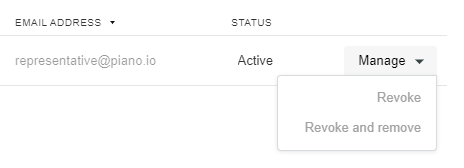
You can also Revoke and remove domains. Note that this action will revoke access for any active contract users with this email domain.

Piano Dashboard
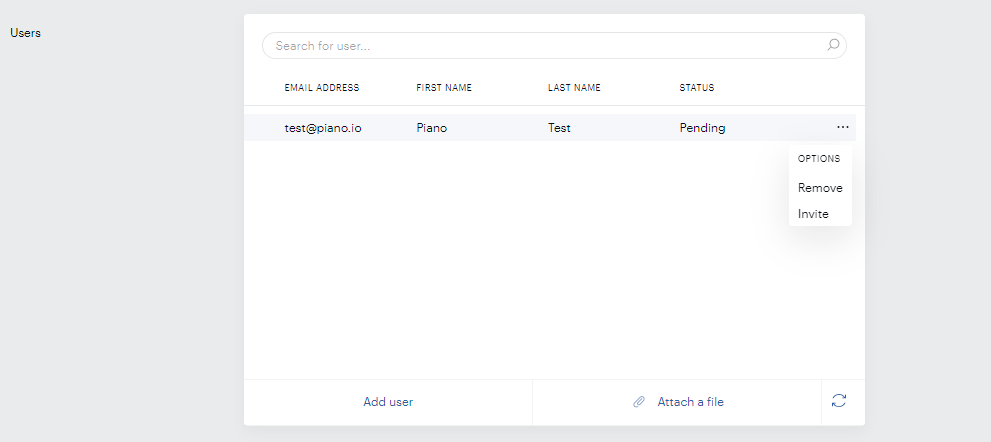
You are able to invite or remove users to Contracts also via the Piano dashboard under Manage → Site Licenses → Contracts in the section Users after clicking on the ellipsis menu next to the relevant user record.
Please note, that a user will retain their access even if their original email address that has been added to a contract is updated to an email address with another domain.
In the Site License Contract overview in the Piano dashboard, the original email address will continue to be visible (which was added initially when the user was invited to the Contract).
To maintain continuous access for your Site License users, you would just need to keep an eye on the schedule and make sure there is always a new period available in the linked schedule so that subscriptions will not expire. If there is no "next" period in the schedule, subscriptions will remain in a "Won’t renew" state with no next billing date.
Once you create the next period in the schedule, all subscriptions will be updated to the status "Active" with the next billing date set to the end date of the period. This means that when a site license expires, the users associated with that license will lose access to the resources provided by the license. Their subscriptions will remain in a "Won't renew" state, and their access will expire.
API
You can manage Site Licenses via API and add new users as described here.
This API endpoint can be used to create a new contract for a license: /publisher/licensing/contract/create
This API endpoint can be used to deactivate an existing contract: /publisher/licensing/contract/deactivate
This API endpoint can be used to list contracts for a license: /publisher/licensing/contract/list
This API endpoint will show you information about the contract (e.g., seat number): /publisher/licensing/contract/get
Here's an API endpoint you can use to list users for a given domain of a given email domain contract: /publisher/licensing/contractDomain/contractUser/list
This API endpoint can be used to list users for a specific email address contract: /publisher/licensing/contractUser/list
And this API endpoint allows you to add IP ranges (in CIDR format) to an existing IP range contract: /publisher/licensing/contractIpRange/create
Email notifications
As part of the Site Licensing feature, we have introduced five new email templates:
-
Site license: Invitation - sent when a user has been added to a specific email address's contract, or upon manual re-invitation either from the Piano dashboard or from the Licensee representative in My account.
-
Site license: Access expired- sent when a user's access to their site license concludes.
-
Site license: Access redeemed - sent when a user successfully redeems their site license access.
-
Site license: Access revoked - sent when a user's access has been revoked, either by the licensee representative or by you from the Piano dashboard.
-
Site license: invitation revoked - sent when a user's invitation to join a Site license has been revoked, provided that the user has not already redeemed this access.
We strongly recommend enabling the Invitation email template.
From a system perspective, any subscription under the Site license is treated as a regular subscription, so there will be a number of things happening on renewal:
If a new period is configured, the user will get an:
-
"X days until access ends" email IF it is enabled
-
"X days until auto-renewal" email IF it is enabled and the auto-renew toggle is turned on
-
"X days until subscription ends" email IF enabled and the auto-renew toggle is turned off
If a new period is NOT configured, the user will get an:
-
"X days until access ends" email IF it is enabled, as the subscription in this case will be in a special state and will not have a next billing date.
In both cases, there is one more specific notification for Site Licenses that is sent at the moment of access expiration: Site license: Access Expired (if enabled).