
Making settings in the client's Google Ad Manager (GAM) account is an obligatory step for those who want to integrate Piano Audience and GAM for the purpose of, for example, exporting segments to GAM, importing data from GAM log files, and importing marketing campaigns data from GAM.
To complete the GAM account configuration the following should be done:
Open network settings
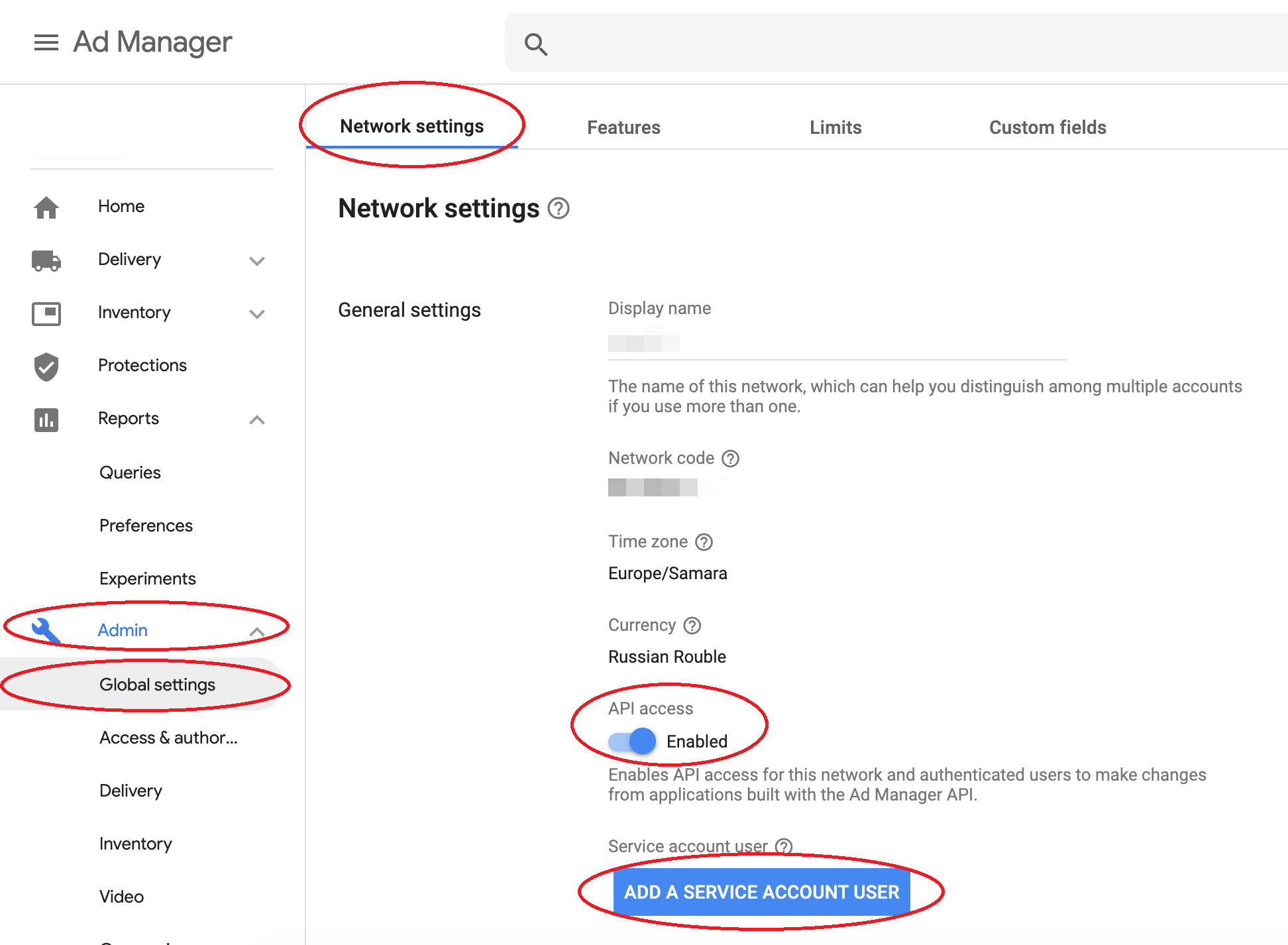
In Google Ad Manager, select the Admin role in the left-side navigation bar and select its Global Settings. In the Network settings tab of the main screen, select the API access checkbox and click Add a service account user. Record the Google Ad Manager Network ID (you'll need it when configuring Piano Audience).
The API toggle is only available when GAM's language is English. This is a known bug that may be still unsolved by Google. If you don't see API access and you are running Ad Manager with a different language setting than "English", switch to English to see this button. Once API access is enabled, you can switch back to your local language.
Create a service account user
Fill in the service account user form:
-
Name: Cxense DMP
-
Email (confirm email): cxense-dfp-api@cxense-dmp-252818.iam.gserviceaccount.com
-
Role: Administrator. Instead of role “Administrator” it is possible to add the following permissions:
-
View all orders and line items
-
View creatives
-
View ad units, placements, key-values, and labels
-
View my orders and line items
-
View mobile apps
-
View companies and contacts
-
Create and view reports
-
Edit ad units, placements, and key-values
-
Edit key-values values
-
Click Save. After completing your connection, make sure to enable Segment Reporting in Google Ad Manager. You can do it as follows: Inventory→Key-values→CxSegments→Select Include values in reporting→ Save.