Safari setup is required only for legacy Safari browsers, version 15 and older. Modern Safari browsers, version 16 and later, support standard web push notifications and do not require a separate Safari certificate or any additional setup.
The push notification setup process for legacy Safari browsers is slightly different from that of all other browsers. To send push notifications on Safari version 15 and older, you must upload a Web Push Certificate (.p12 certificate) to the ESP Dashboard. This requires creating a unique Push ID and generating a .p12 certificate, which can only be done with an active paid Apple Developer subscription.
If you do not have an Apple Developer subscription, contact your account manager for assistance with generating the required .p12 certificate.
How to create a .p12 certificate
1. Create a Certificate Request:
-
Open the Keychain Access app.
-
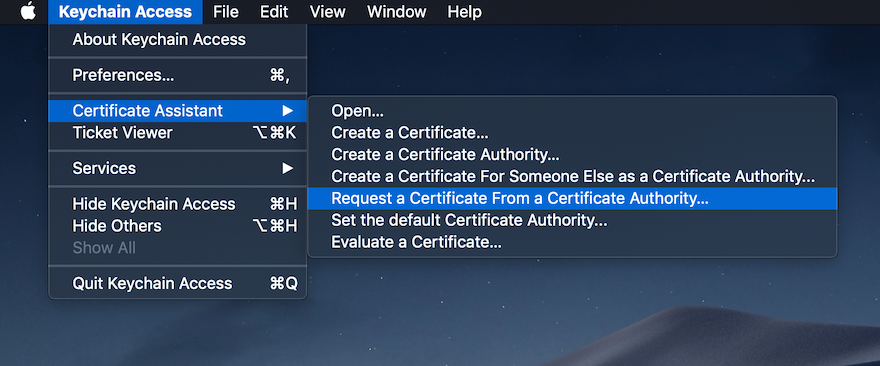
Click on Keychain Access → Certificate Assistant → Request a Certificate From a Certificate Authority.
-
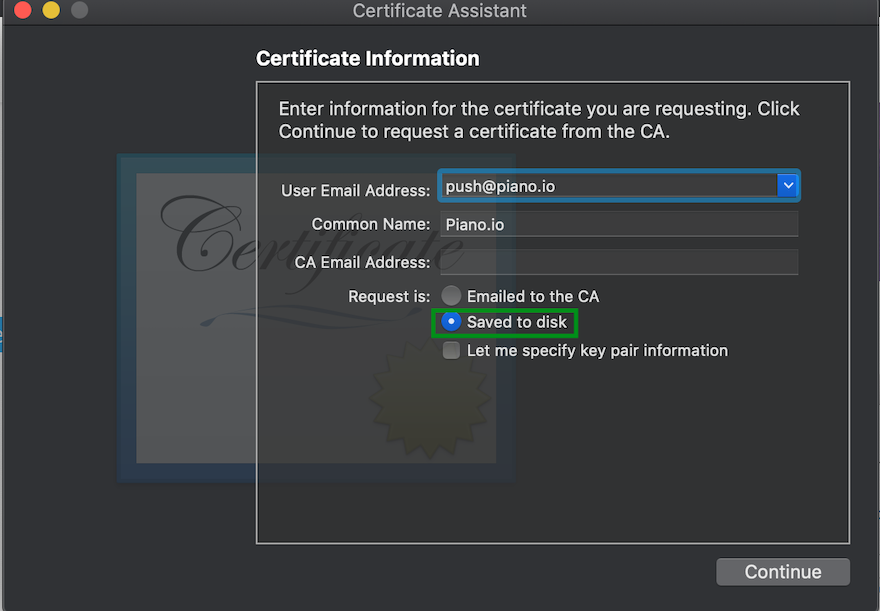
Enter a user email address and common name, select the Saved to disk radio button, and click the Continue button.
-
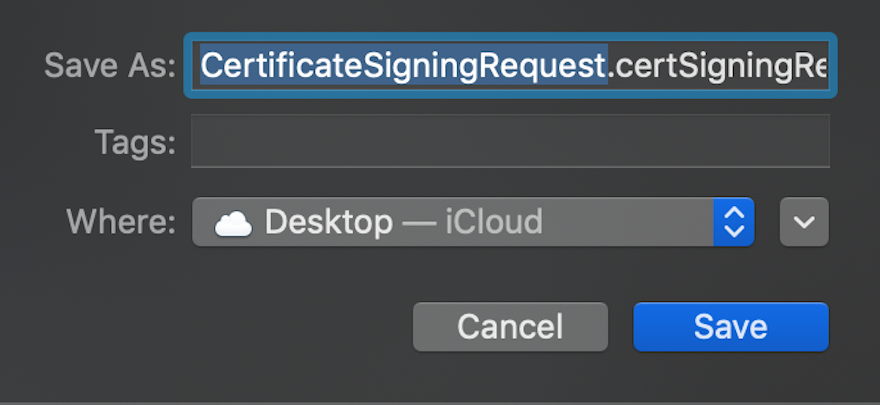
Give the Certificate Signing Request a name. You will use this later to create the certificate itself.
2. Establish a Website Push ID for Apple Push Notification Service:
-
Sign in to the Apple Developer account.
-
In the Developer Console, click on Identifiers → click on Register an App ID → select Website Push IDs from the Register a New Identifier list → click the Continue button.
-
Enter a Description and Identifier → click the Continue button → if everything is correct, click Register.
3. Generate a Web Push Certificate:
-
Go to the Certificates section → click '+' → select Website Push ID Certificate → click the Continue button.
-
On the next page, select the Website Push ID that you previously created → click the Continue button.
-
On the following screen, indicate the path to the Certificate Signing Request file that you saved to disk → click the Continue button.
-
On the next page, download your Web Push Certificate (it will be used to send notifications to your subscribers on Safari) → find the certificate on your disk → click on the certificate and install it via the Keychain Access app.
-
After the certificate is installed, you need to export it. To do this, select the Certificates section in the Keychain Access app → click on the Website Push ID → from the drop-down list, select the Export option → save the certificate in Personal Information Exchange (.p12) format.
-
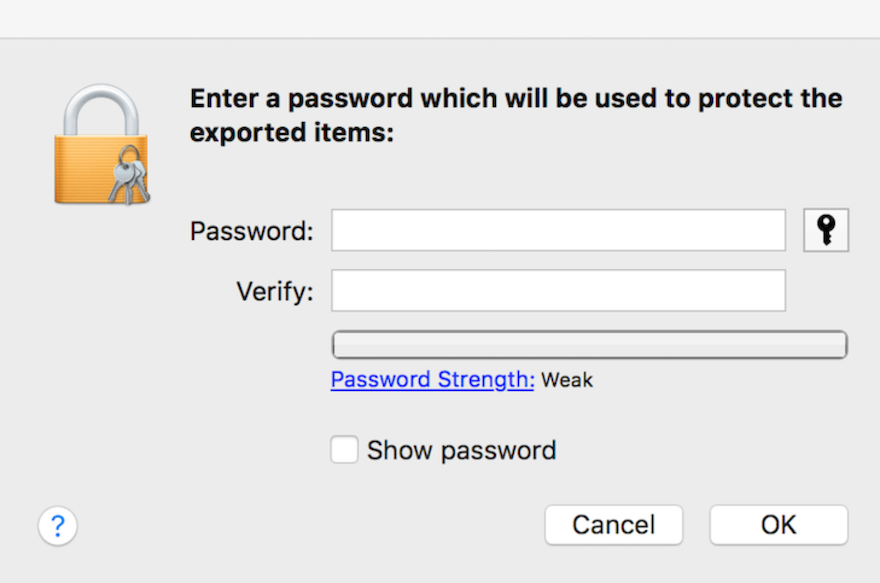
In the modal window, you will be asked to enter a password. Please add one to protect your certificate.
-
In the window that appears, click the Allow button → enter your Mac password → export the certificate to your Mac.
4. Upload the Certificate to the Piano ESP Dashboard:
-
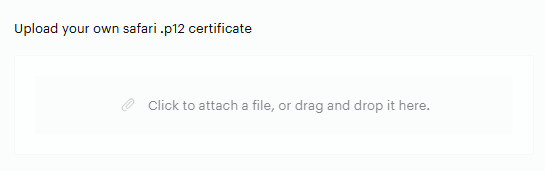
Navigate to the web push campaign settings and attach the .p12 certificate.
-
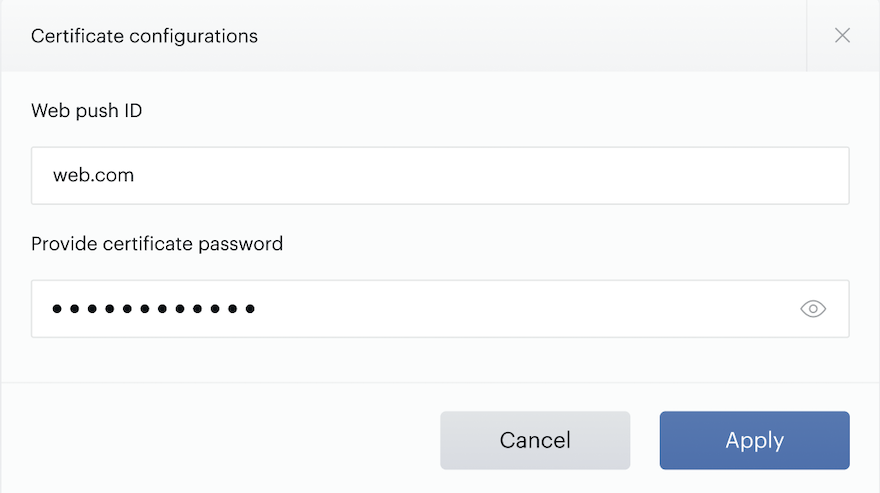
In the window that appears, enter the Website Push ID and certificate password → click Apply.