
Please have a look at the following points in order to successfully start configuring Push notifications.
-
Please make sure that the main integration code of our SDK is installed on all pages (if you are a Composer customer you need to make sure that the Composer SDK contains part of the ESP integration code)
-
The service worker file is located in the top-level directory of your website (as described in the following instructions in Point 4.)
-
You start collecting users' permissions to receive push notifications (if you are a Composer customer instructions are here)
-
If your website contains the SDK of another push provider, you need to remove the old one and install Piano ESP SDK, since sending push campaigns can only work from one service
-
If you previously used the services of another push provider and want to re-subscribe users who have already allowed notifications on your site, you need to migrate the list of these users to the ESP. Moreover, if they have already been signed up, then the browser prompt to receive notifications will not be displayed to them
To launch your first push notification campaign you should:
-
Go to the Web push section and click on the Create campaign button.
Enter campaign name (internal use only) and select type: Recurring, One-time, or Breaking news then click Submit. This will bring you to the push campaign creation wizard.
-
At the General step of the wizard click on the Get started button. You will be forwarded to the Web push integration section where you could specify the main settings to start the push notification sending from your domain.
-
Indicate the correct link on your website in the Site URL input and attach the Default site icon.
-
At the Configure service worker part of the setup click on Download ESP service worker and upload this .js file into the top-level directory of your website.
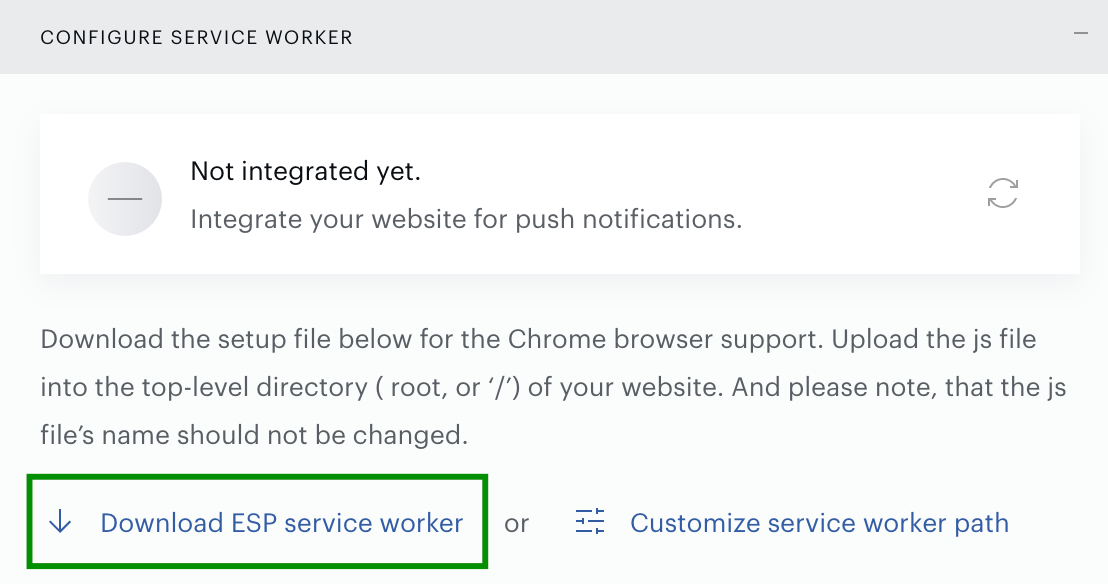
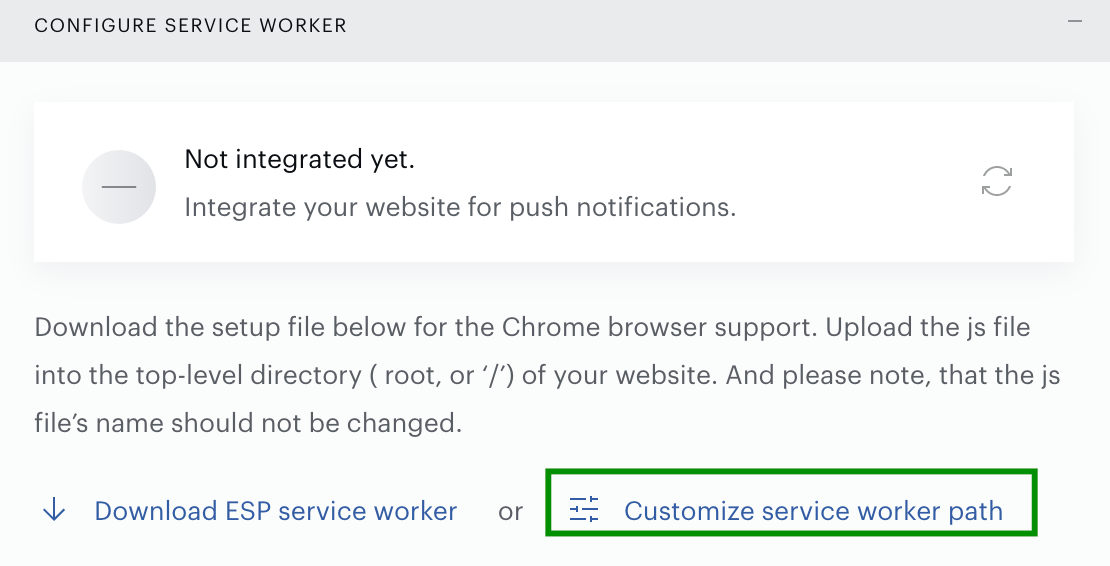
And copy and paste this code into your custom .js file:importScripts('https://esp.piano.io/esp-service-worker.js');All available ESP Base URLs are listed here.
And indicate a custom service worker path here:
-
After we match the indicated site URL with the service worker file located on your website - the push notification campaign launch can be performed and the status of your integration would be successful:
-
As launching Push notifications on Safari is different from all other browsers we put separate instructions for it here.
-
After all steps of the Web push integration are successfully completed please indicate a Push expiration time and UTM tags.