Overview
Use the Users tab of Accounts Management to manage app users (employees of your company actually using the AM application):
-
Check who has a Piano account.
-
Add app users.
-
Disable app users (e.g. employees who has left the company).
-
Assign admin role to app users.
-
Assign features to app users (e.g. API users).
-
Check who has access to a specific site group.
-
Allow app users to access site groups.
-
Remove app users from site groups.
The list of app users provides the following functionality:
-
Filters.
-
Creating and modifying users.
-
Bulk operations.
Filters
There are several filters designed to help find data quickly:
-
Use “All roles” to filter app users according to their roles (Regular or Admin).
-
Use “Any statuses” to filter app users according to their current status (Active or Disabled).
-
Use “All features” to filter app users according to the specific features available for the app user (API access, Persisted Queries)
-
Use “All site groups” to find app users by access to site groups of the customer.
Search bar. Start printing an account name to find an app user in a list.
The list is sortable by column. Click the column title to sort data.
Creating app users
Use the Add user button to create a new app user:
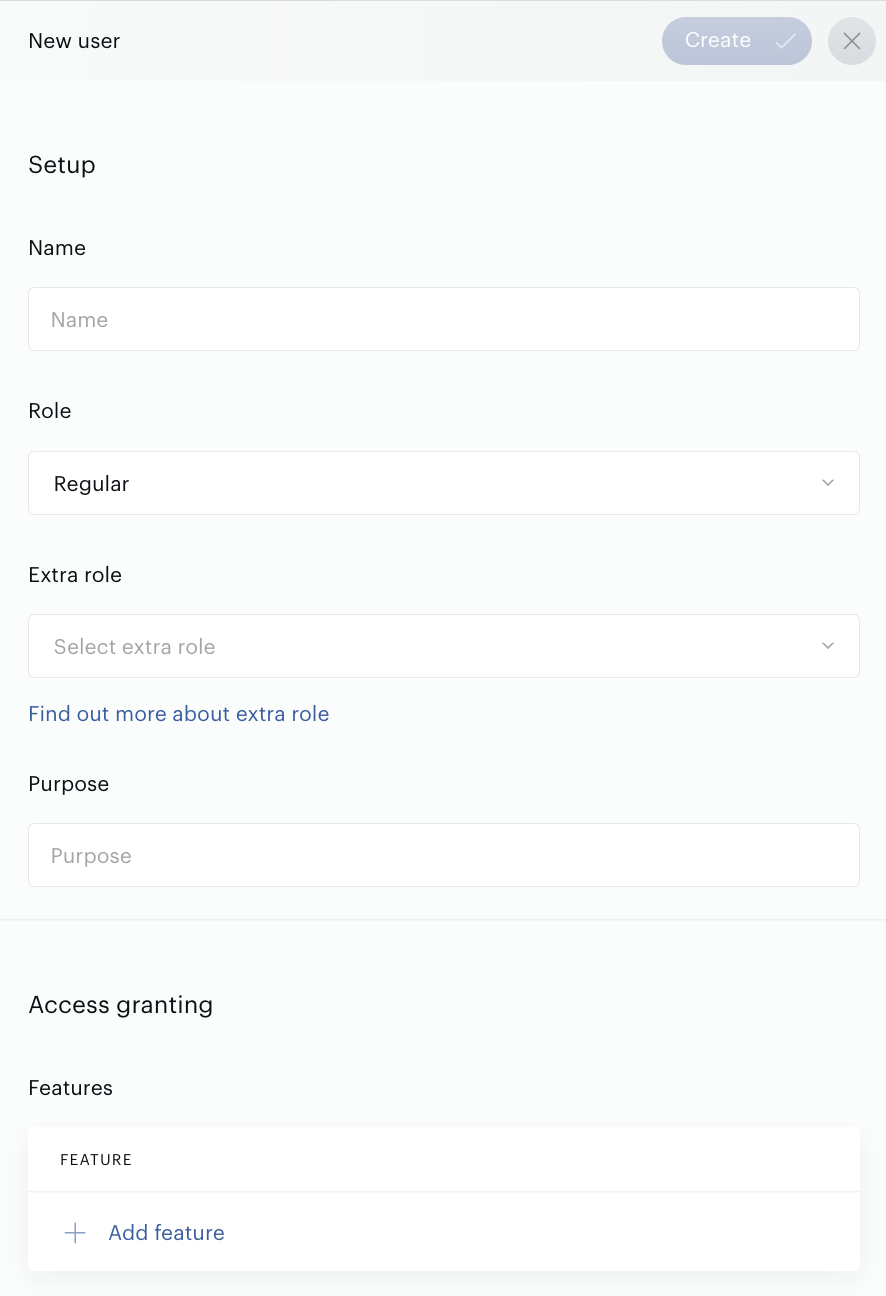
The “Regular” role gives an app user permission to all functionality within Piano Audience, except those specific for admins.
If an app user should have UI restrictions, the Extra role parameter can be selected.
Fill in all the required parameters and click Create.
Modifying app users
Click the link with the app user name to open the edit form:
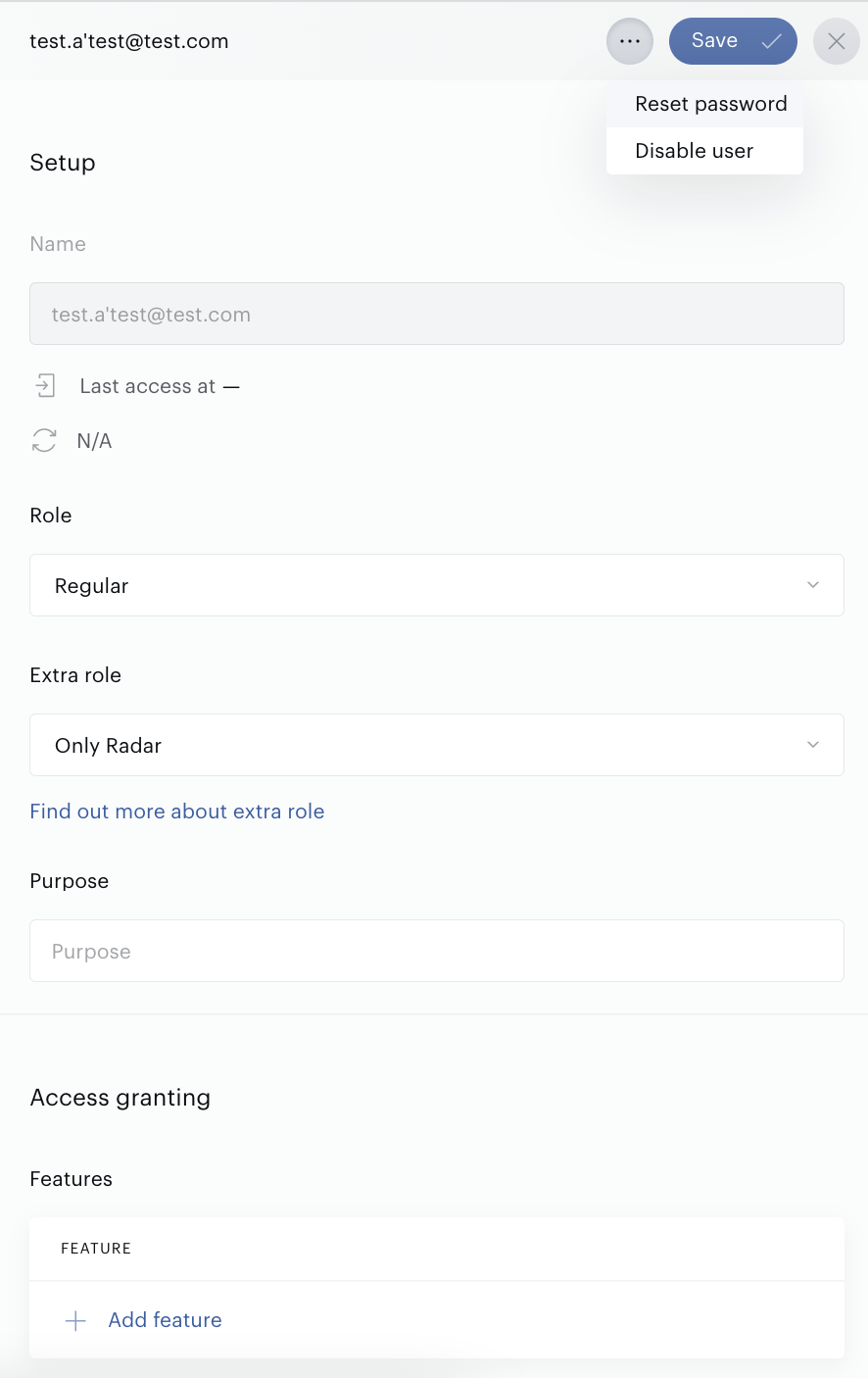
Use the bolder]More[/bolder] icon ("...") next to Save to reset the password or disable this user.
Don't forget to click the Save button to save changes.
Bulk operations
There are a few bulk operations. Their main goal is to enable simultaneous management of multiple app users and thus save time.
Select at least one app user on the list (using the checkboxes next to names) and follow one of the following operations:
-
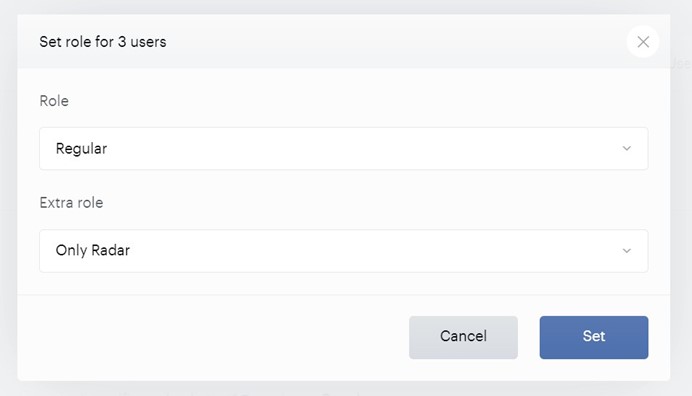
Set role: allows admin to assign roles to app users.
-
Add/remove site groups: allows admin to manage site groups access for app users.
-
Disable users and Enable users: allow admin to deactivate and activate app users respectively.
In setting role, you can select between Admin and Regular. For Regular users, you can also define an optional Extra role.
Note that if Regular app users have an Extra role and they should become Admin, you can just select Admin role and save changes. The users' Extra roles will be deleted automatically.