
Overview
The Data source feature provides you with a centralized tool to define and manage the structure of files you plan to import into our Piano platforms such as Audience, CDP. By configuring these structures in advance, you can streamline data ingestion, reduce the risk of errors, and ensure consistency across your datasets. Whether working with simple User IDs or detailed User profiles, the feature allows creating, editing, and duplicating data structures to fit a variety of use cases - enabling smooth, reliable integration of data into the platform.
Data Sources list
Navigate to Audience→Accounts management. Go to the Data sources tab.

The table view provides access to all Data Sources for a client and includes two main types - templates and custom Data Sources. Templates are pre-created Data Sources shared across all clients and cannot be edited. You can use them as-is or create your own custom Data Sources based on them.
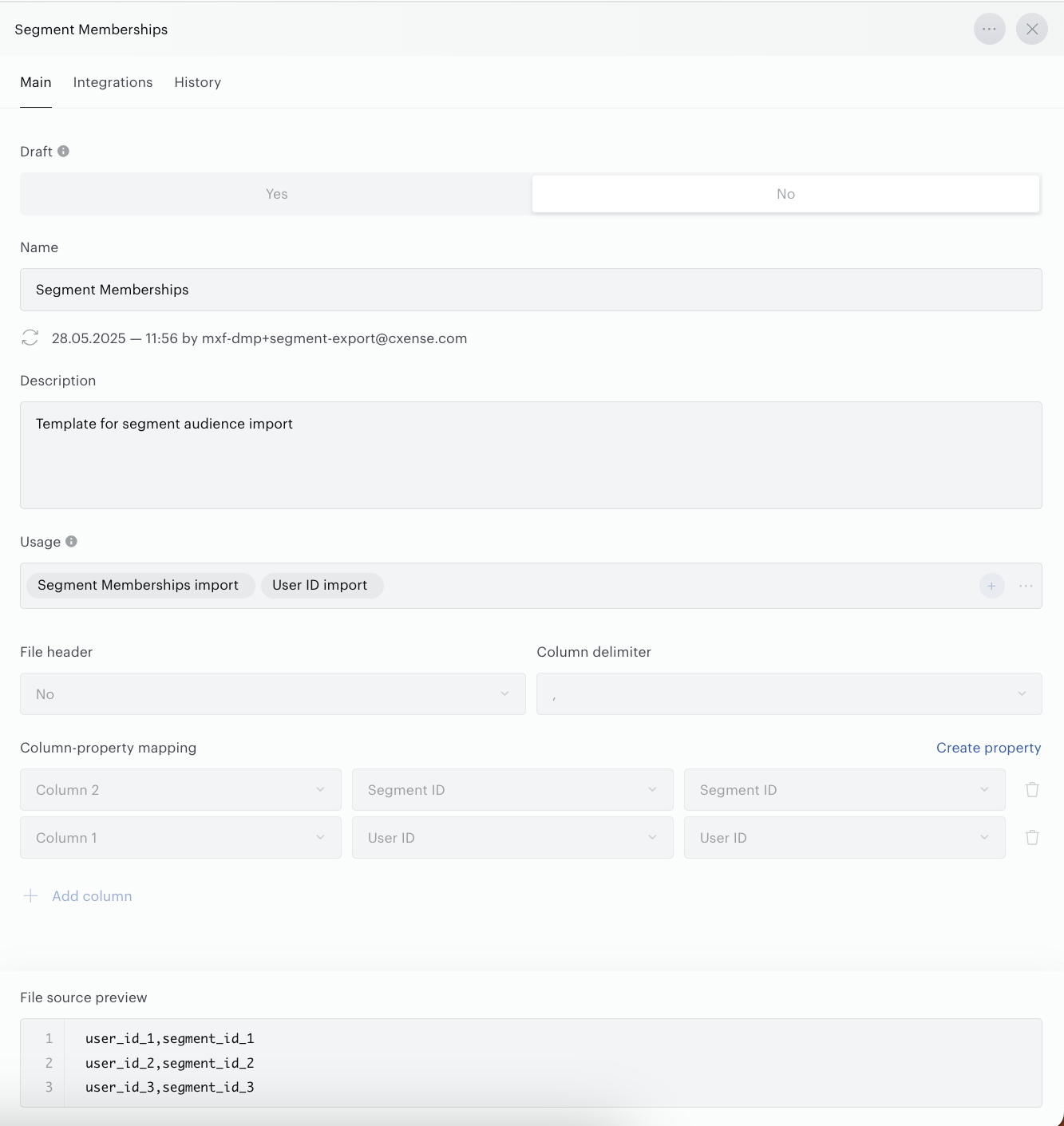
In addition to the list of Data Sources, the table view offers search, filtering, and sorting features for quick access to the desired entity.
When editing Data Sources, keep in mind that any changes made in one place will affect all connections where this Data Source is used. Green and gray indicators next to a Data Source name let you know whether the Data Source is currently used in any connections (green) or not (gray).
Creating Data Source
Prerequisites
To create Data source, you need access to the Piano Audience, and appropriate permissions to work in Accounts management application.
Steps to Create a Data Source
Creating a Data source[bolder] allows you to create (configure) structure of files and use them in different import connections within the [bolder]Piano Audience→Connectivity, for example, File import. Follow these steps to configure and save a Data source for use in your connections.
Navigate to Audience→Accounts management. In the Piano Audience interface, go to the Data sources tab and hit Create.
Configure Basic settings
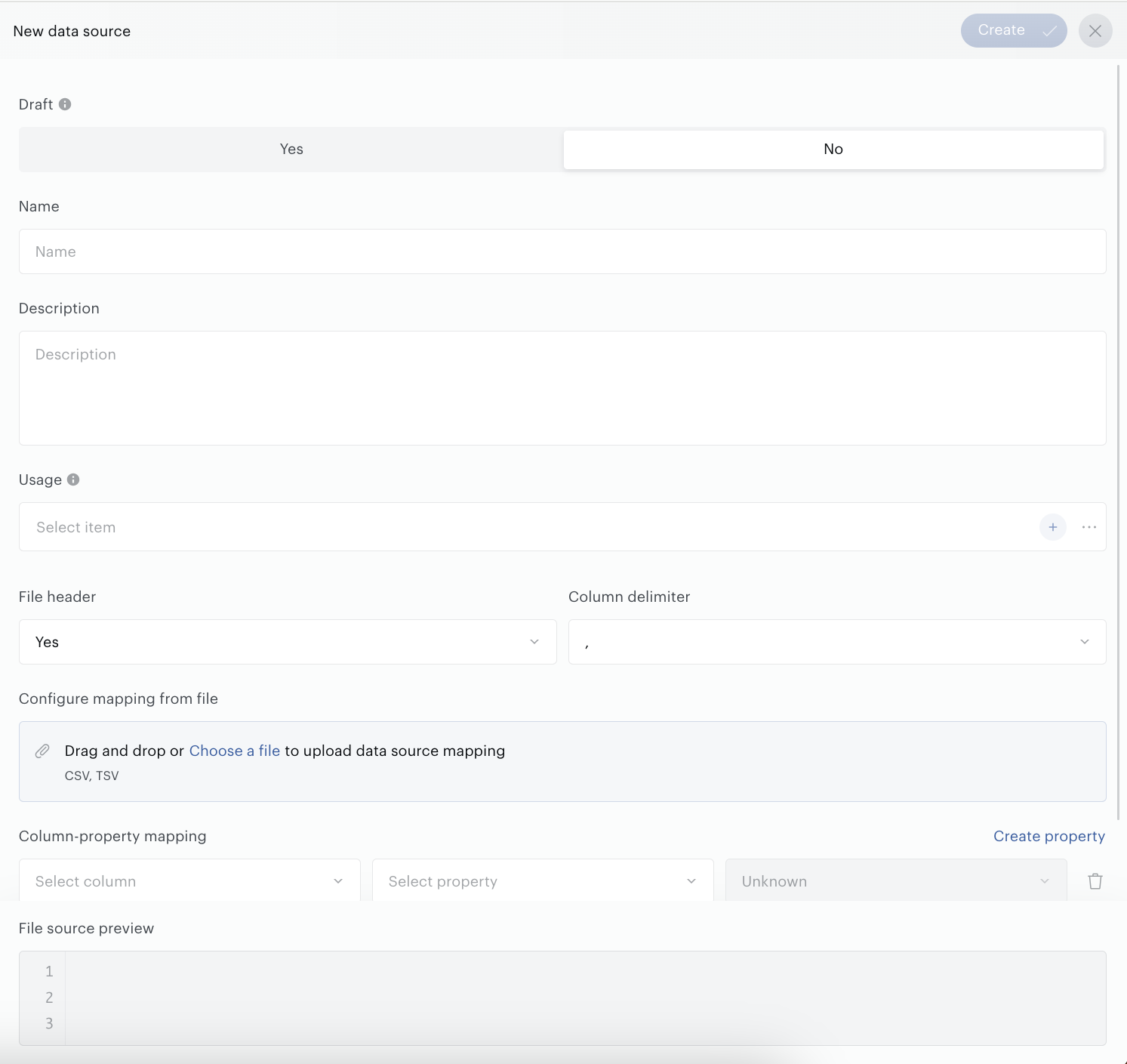
Set the following parameters:
-
Data source’s name (up to 250 characters), obligatory.
-
Description (up to 250 characters), not obligatory
-
Usage. Select at least one usage option from the list. By choosing a usage option, you are essentially indicating where this data source is intended to be used. Below, you will find a description of the supported usage options.
-
-
Segment import. Select this option if you are creating a data source for use in a File import connection with the purpose of creating External segments.
-
User ID import. Select this option if you are creating a data source for use in a CSV import connection or File import connection with a purpose of updating segments’ audiences. It is assumed that the file does NOT contain Segment ID data and typically consists of a column with User IDs.
-
Segment Memberships import. Select this option if you are creating a data source for use in a File import connection with a purpose of updating segments’ audiences.This should be File import connection where you import the relation of User IDs & Segments. File does contain Segment IDs in addition to User IDs.
-
User profile data import. Select this option if you are creating a data source for use in a User profile data import connection.
-
-
File header. By selecting one of the options, you indicate whether your file contains column headers or not. If your file contains column headers, you can use the automatic mapping feature, which matches column names to property names. A detailed description of the process is provided below.
-
Column delimiter. You must also choose one of the available column delimiters for the file.
Configure mapping
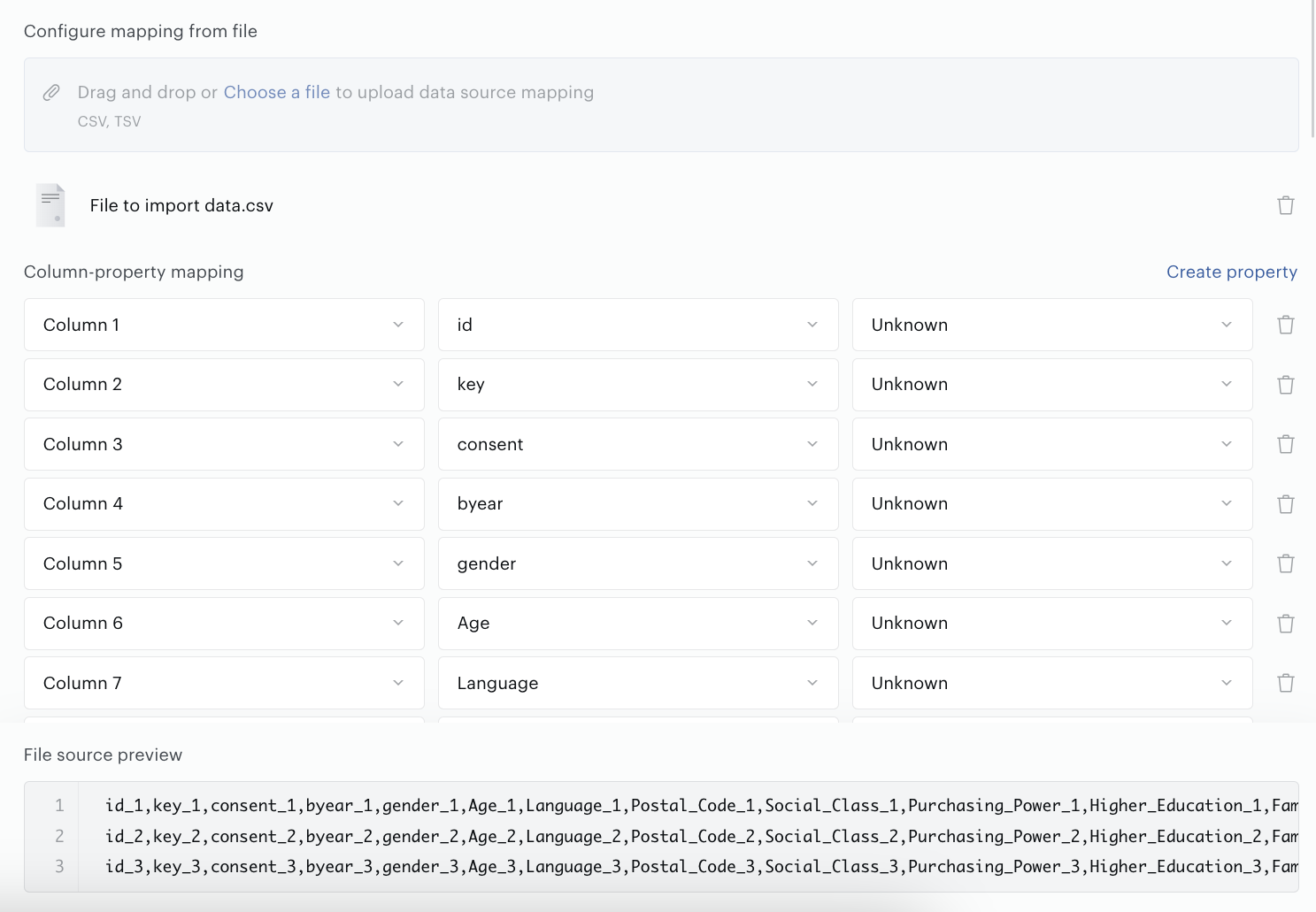
There are two supported ways to create a mapping (to define which data from which columns should be imported):
-
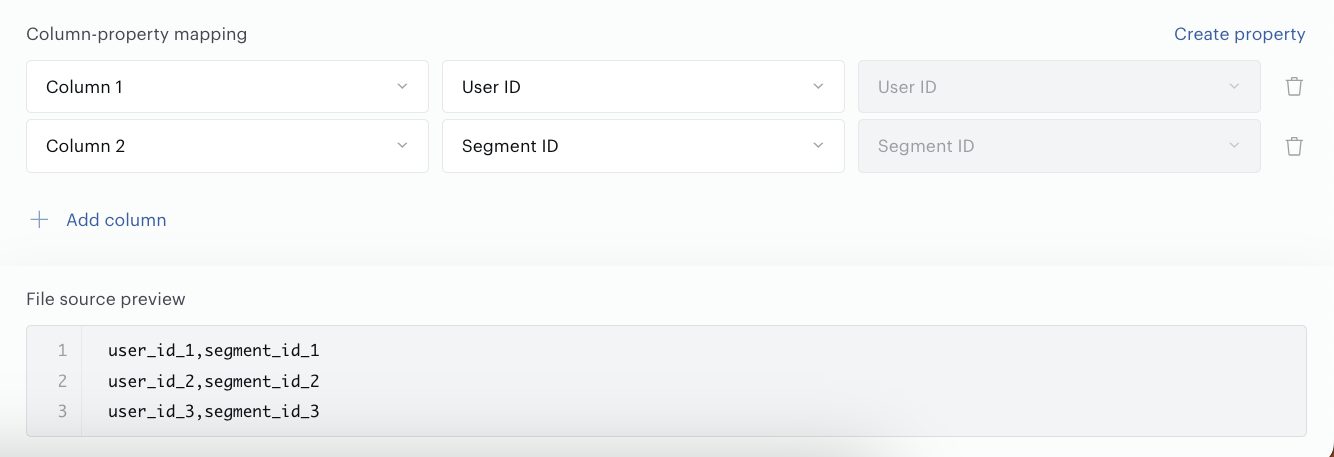
Manual configuration – you manually select a column number from the file and map it to an attribute (property). This is convenient if your file contains only a small number of columns or if it does not include column headers.
-
Automatic configuration – suitable for files with a large number of columns. This option requires that your files have column headers.
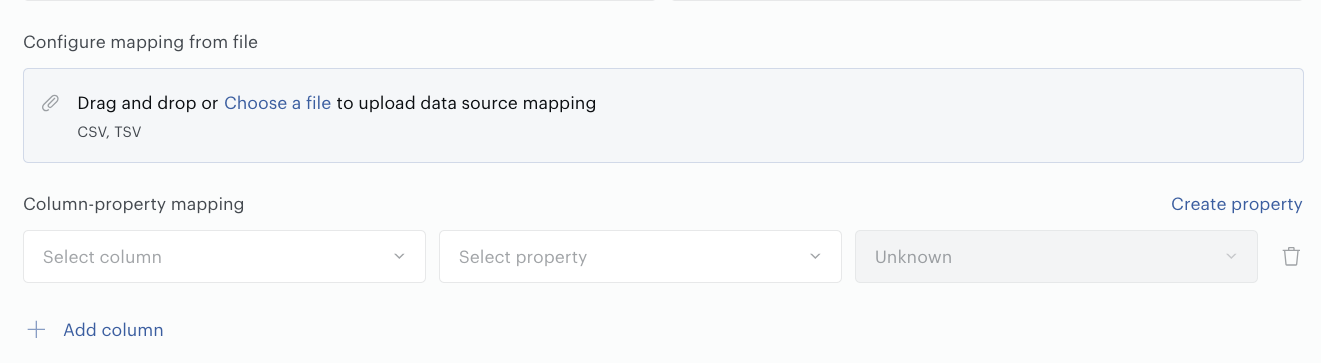
In the simplest case, to create a mapping automatically, it is enough to have a file, with the mandatory requirement that the columns have headers. How does the platform generate the mapping in this case? It reads the column names and compares them with existing Properties based on name matching. If some properties cannot be matched, the system will suggest properties that will be created automatically when saving changes (or creating) the data source. In this case, the name of the property being created will exactly match the name of the column in your file.
Important: the system will suggest a data type based on the data in your file and will also fill in the expected attributes for which the property will be created. This is never a 100% guarantee of correctly auto-determining the data type or other parameters, so you must review the suggested data and adjust the data types and other property parameters if needed. Changes can be made both before creating the properties and after they have been created.
Draft
Use the Draft parameter and set it to Yes in the following cases: when you have not finished configuring the Data Source and want to avoid losing your progress, or when you do not want even a fully configured Data Source to be available for use in connections. In all other cases set it to No. Configured data sources will be available for usage in the corresponded connections.
