Placements is a specific functionality of Accounts Management that can be very useful for customers working with Campaign reporting.
Its main purpose is to allow customers to improve the visualization of the Placements section in the Overview report: by displaying only meaningful sites/sections, using human-readable names instead of real URLs, or presenting more compact report views.
With all parameters set, you will be able to download and print reports with user-friendly data without including figures of about 0% (being not very informative anyway).
Selecting sites
The main sources of the stats are log files from ad servers and tags according to the connection settings.
-
In Piano Audience, click the profile icon next to the account login in the top-right corner of the page
-
Select Accounts management.
-
In the Accounts management window, click the Placements tab.
The following major functions are available in the tab:
-
Create/update sites
-
Hide/show sites
-
Bulk operations
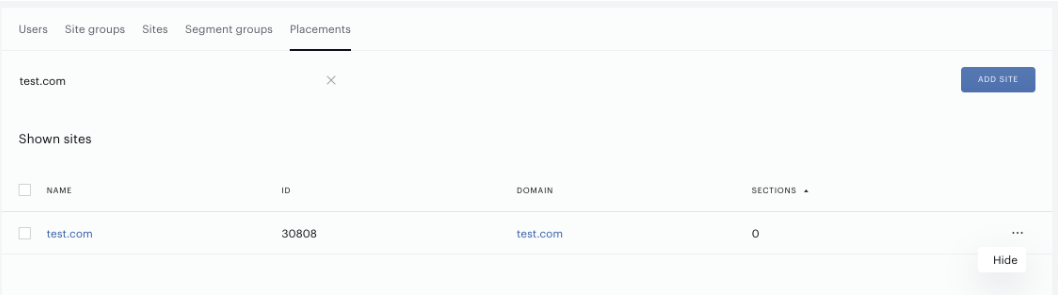
Also, you can use the search bar to find a site quickly. Just start typing its name, ID, or domain.
Click the column name to sort sites.
Use the Hide or Show context menu items to hide/show a site on the list.
Creating sites
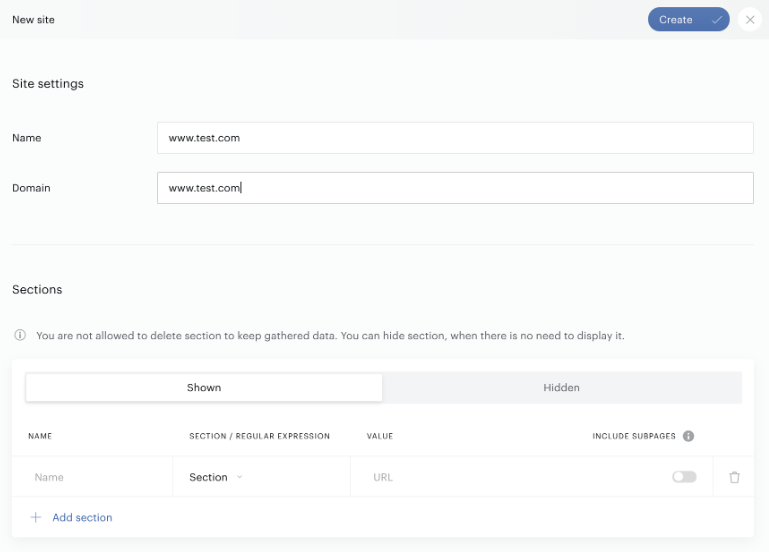
To create a new site/section, click Add site.
Fill in the form:
-
Name: to be shown in the Placements section of the Overview report.
-
Domain: site URL.
-
Sections: add one or more if needed; read more below.
The name and domain values can be equal. It makes sense to create a new user-friendly name instead of the real URL if the URL looks strange or too long, or consists of letters and numbers. It's up to you to decide.
It doesn't make sense to create sites if they are not used in your marketing campaigns.
Don't forget to save all changes. Click the Create button.
Sections
If you collect stats not only from the home page, you can create one or more sections (a subpage or multiple subpages as one section) for the current site. Also, you can hide visible sections.
Enter the following parameters:
-
Name: to be shown in the Placements section in the Overview report.
-
Section: the URL of the site subpage, for example, www.domain.com/about.
-
Regular expression: use this option if you want to collect stats (calculable by expression) from some specific pages; for example, something like:
(www)\.(domain\.com).*(\/cnt\/).*
-
Value: depends on the previous option. It can be just a URL or regular expression code.
-
Include subpages: selected if needed. When you select this parameter, considered subpages will include all the subpages under the domain, for example
www.domain.com/*
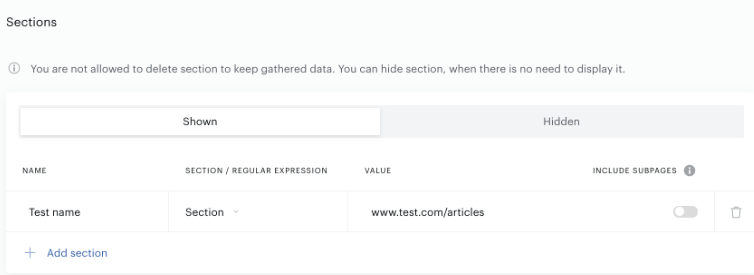
Use the Add section button to add a new section of the site if needed.
Use the Shown-Hidden toggle to switch between visible and hidden sections.

Modifying sites
If you want to update a site/section, click its name on the list. The edit form will appear:
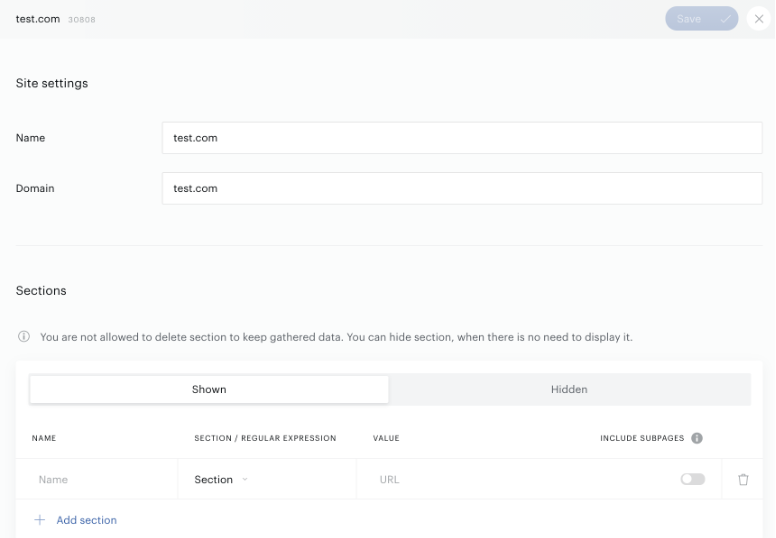
Don't forget to click Save in the top right corner of the page to confirm changes.
Bulk operations
The tab offers a couple of bulk functions. Select one, two, or more sites using the checkboxes next to the site names; a panel with buttons will appear:
If you want to hide one or more sites at the same time:
-
Select their names from the list.
-
Click Hide at the bottom of the page.
-
Click Hide in the pop-up dialog.
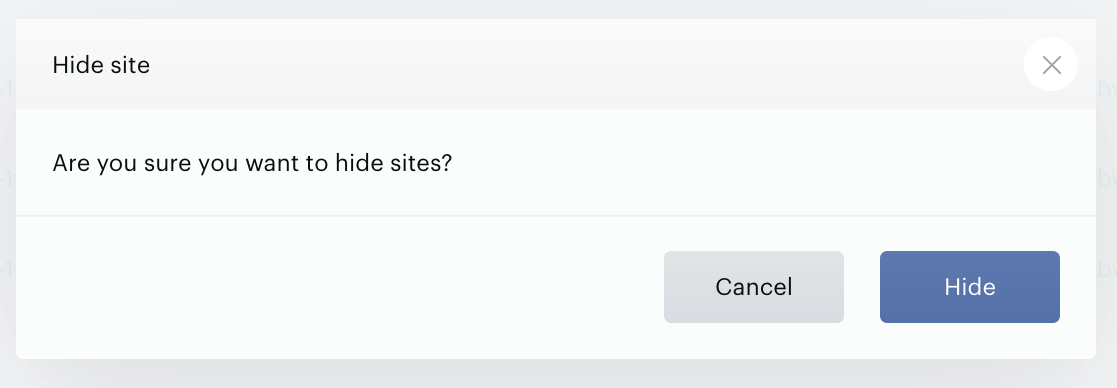
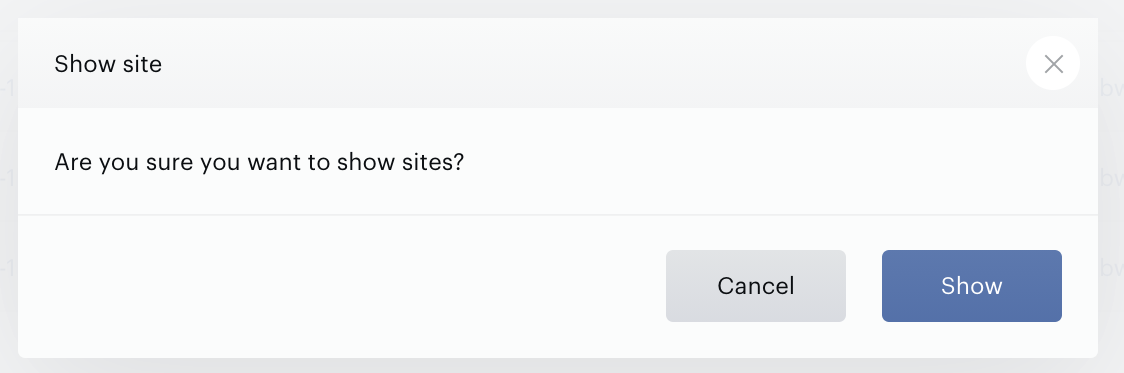
To show one or more sites at the same time, do the same with the Show button.