
Overview
As an integral part of the Data Source feature, a Property is an entity that allows you to define (configure) the attributes of segments, users, and user profiles. This intermediate entity enables you to assign custom names different from the attribute names used in platforms like Piano Audience or CDP, thereby allowing, for example, for automatic mapping without making changes to the files or the column names within them.
Properties list
Navigate to Audience→Accounts management. Go to the Properties tab.
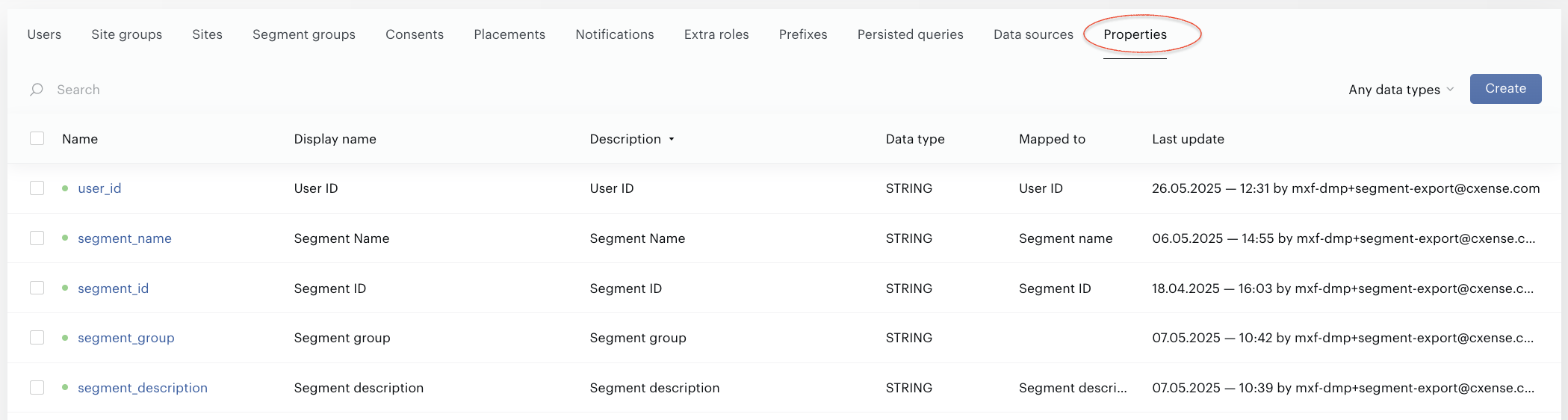
The table contains two types of properties:
-
Predefined properties – these cannot be modified or deleted. They are available to all clients without exception and include properties such as Segment name, Segment ID, Segment description, etc.
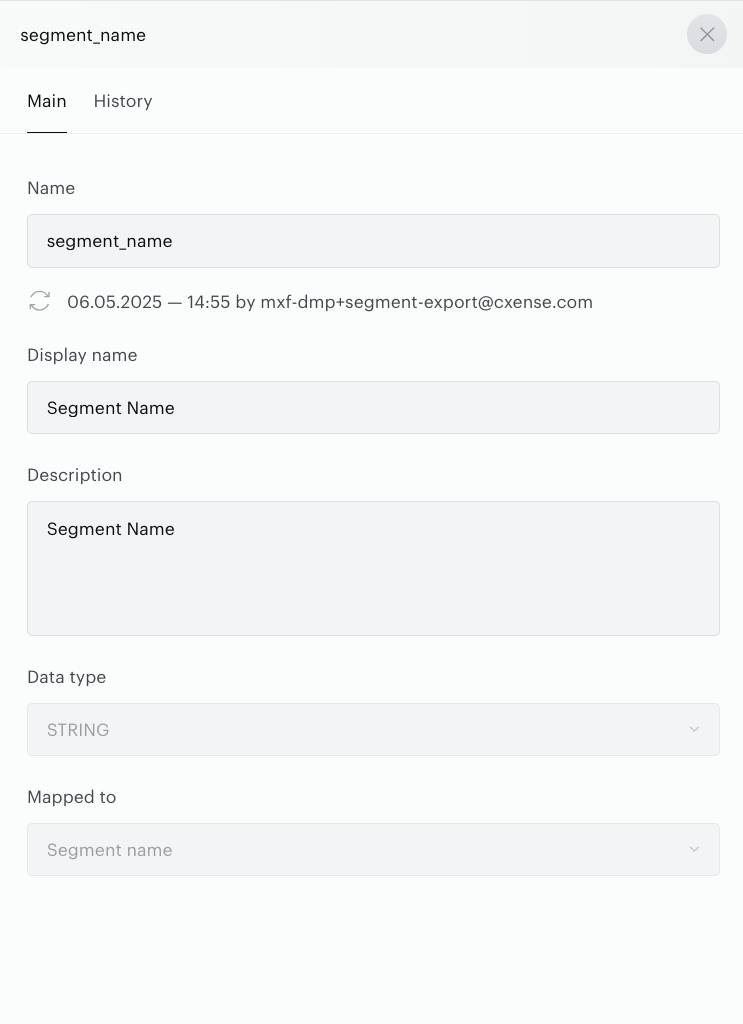
-
Custom properties – these are created by clients for import needs. They can be any properties (attributes), such as age, gender, email, subscription status, etc.
In addition, the table provides options for sorting data within the columns, filtering, and searching data.
Creating Properties
Prerequisites
To create Property, you need access to the Piano Audience, and appropriate permissions to work in Accounts management application.
Steps to Create a Property
Creating Properties allows you to have a list of attributes that can be used to define a mapping - specifying which data is contained in each column of the file, or in other words, which attributes should be updated with the data from the corresponding file column. Follow these steps to configure and save a Properties for use in your Data sources.
Navigate to Audience →Accounts management. In the Piano Audience interface, go to the Properties tab and hit Create.
Configure Basic settings
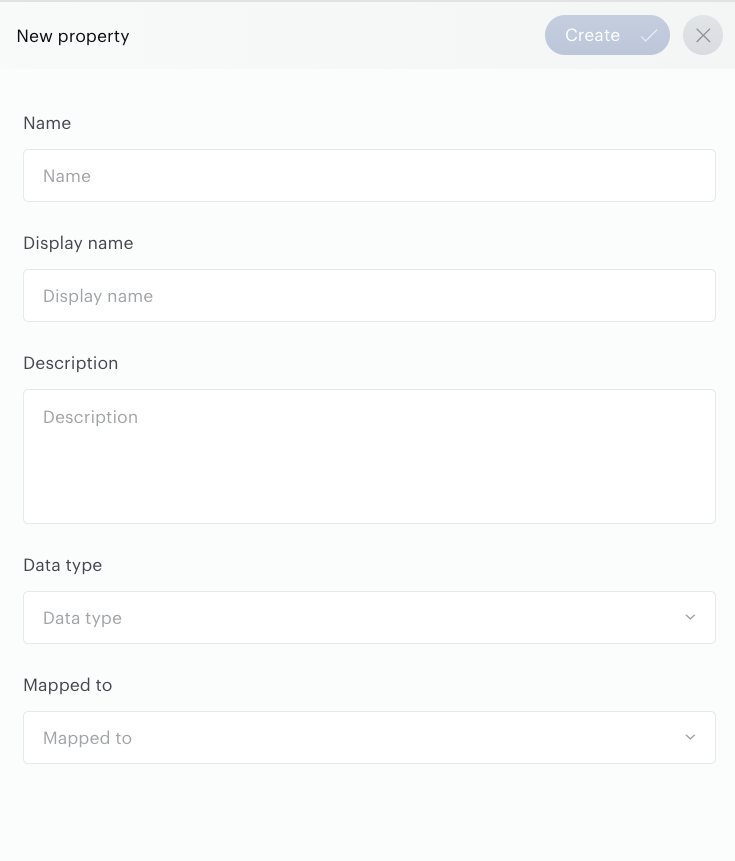
Set the following parameters:
-
Property name (up to 250 characters), obligatory.
-
Display name
-
Description (up to 250 characters), not obligatory
-
Data type. Select one option from the list. The choice of data type does not so much define the actual data type itself, but rather serves to distinguish one attribute from another when attributes have identical or similar names. This is particularly relevant for importing User profile data into the CDP, where fields may share the same names. In such cases, they can be differentiated from one another by their data type.
-
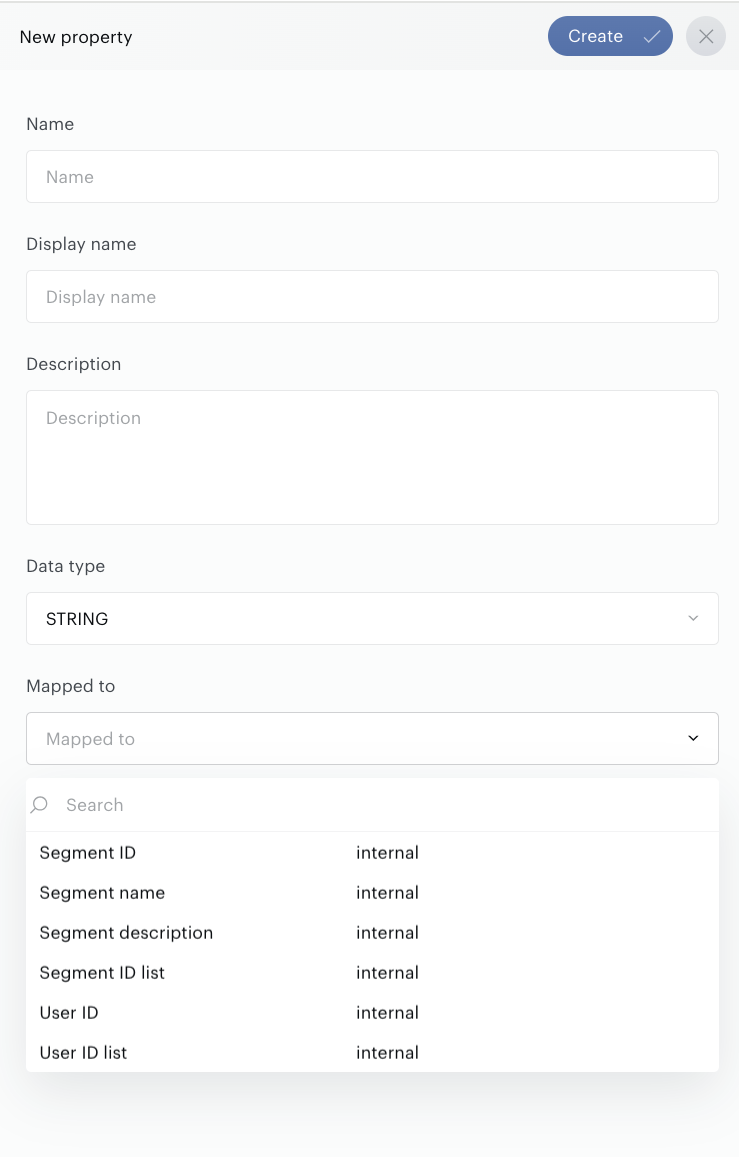
Mapped to. By selecting a value from the dropdown list, you define which specific attribute the given Property represents. Currently, the following attributes - and therefore property types - are supported:
-
Internal (such as User ID, Segment ID, Segment name, and similar), which are used for creating Data Sources for File Import connection;
-
and other attribute categories, such as Data and Identifier, which are used for creating Data Sources for User profile data import connection.
-
If one of the columns in your file contains multiple values (for example, a file structure like <User ID; Segment ID, Segment ID...Segment ID>), you can use the User ID list or Segment ID list options.
Properties can be created either manually or automatically during mapping creation. The mapping process works by comparing property names and their Data types with the column names and column contents in the file. If matches are found, the properties are mapped to the corresponding columns. If no matches are found, values will be pre-filled, and upon saving changes (creating the data source), the properties will be created automatically.
What should you pay attention to? Matching names, data types, and other parameters does not provide a 100% guarantee of correct identification of data types or mapping properties to the appropriate attribute (available in the Mapped to selector). In such cases, you need to review the properties and make adjustments, selecting the correct data types and attributes from the Mapped to selector manually.
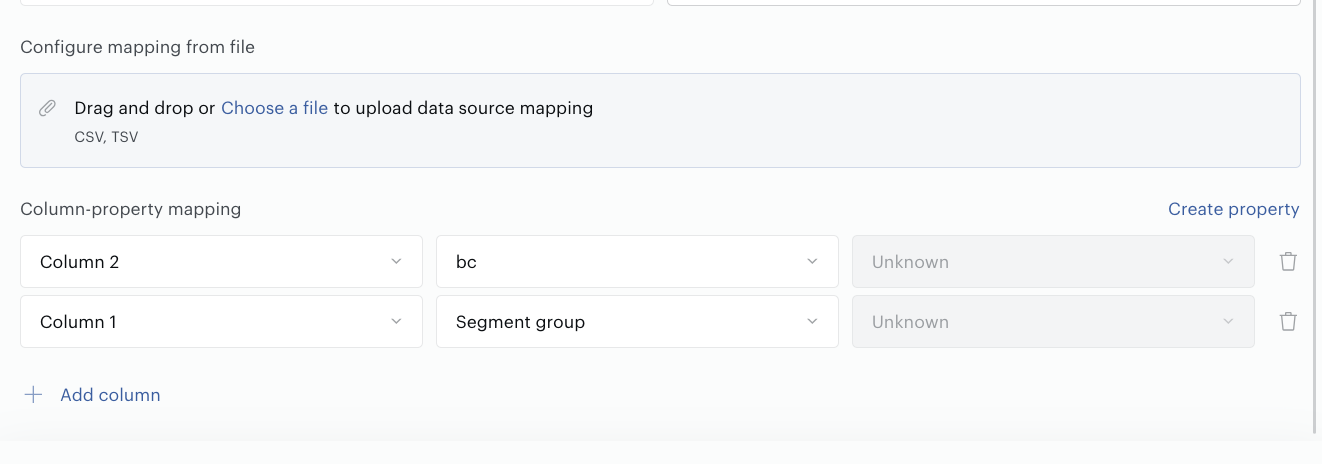
If a property in the Data Source mapping remains with undefined settings (displayed as Unknown), then when using such a data source, the columns mapped to these incompletely configured properties will simply be ignored and not imported.