
The Accounts management application provides app users with information about the customer and users; it also allows them to manage users.
Regular users do not have access to this application. An app user has to be in the Customer Admin role.
Items like fields, icons, and buttons are displayed in the UI depending on the user's role.
To open the application:
-
Log in to Piano Audience.
-
Click on the drop-down Audience menu in the top left corner of the page.
-
Select the Accounts management menu item.
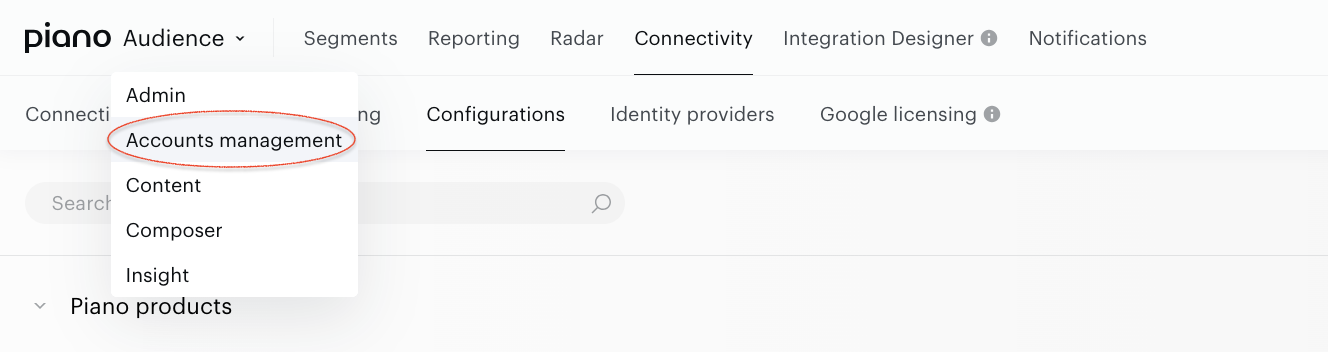
The Accounts management application will appear.
By default, the following customer information is available:
-
Customer name.
-
Customer ID. This ID can be copied by clicking on the icon next to the ID.
-
All available customer prefixes.
-
LTS (Long Term Storage) duration.
-
Available Piano products.
-
Uploaded customer logo (can be managed only by a Piano admin).
-
Optional: Segment limit (how many Full usage segments can be created across all site groups)
The main functions are available on separate tabs:
-
The Users tab allows managing app users’ accounts, their roles, and access to features.
-
The Sites and Site groups tabs allow managing the customer's sites and site groups.
-
The Segment groups tab provides the opportunity to manage custom and standard segment groups of the customer.
-
The Consents tab provides consent class management functionality.
-
The Placements tab is suitable for customers using Campaign reporting who are willing to improve the visualization of the Placements section in the Overview report.
-
The Notifications tab provides the functionality that allows app users to subscribe to events and get event notifications through emails.
-
The Extra roles tab provides the list of available extra roles and Role Builder functionality that allows managing extra roles.
-
The Prefixes tab provides access to the Prefix Builder.
-
The Persisted queries tab allows you to edit or add persisted queries.