
On the Segment Groups tab of Accounts management, you can manage your groups: drag and drop segments to order them within your segment groups, upload images for your segments and delete empty groups.
Viewing segment groups
First of all, select the site group using the drop-down field at the top right.

The list of the available segment groups will be shown then.
Deleting segment groups
You can delete only empty custom groups.
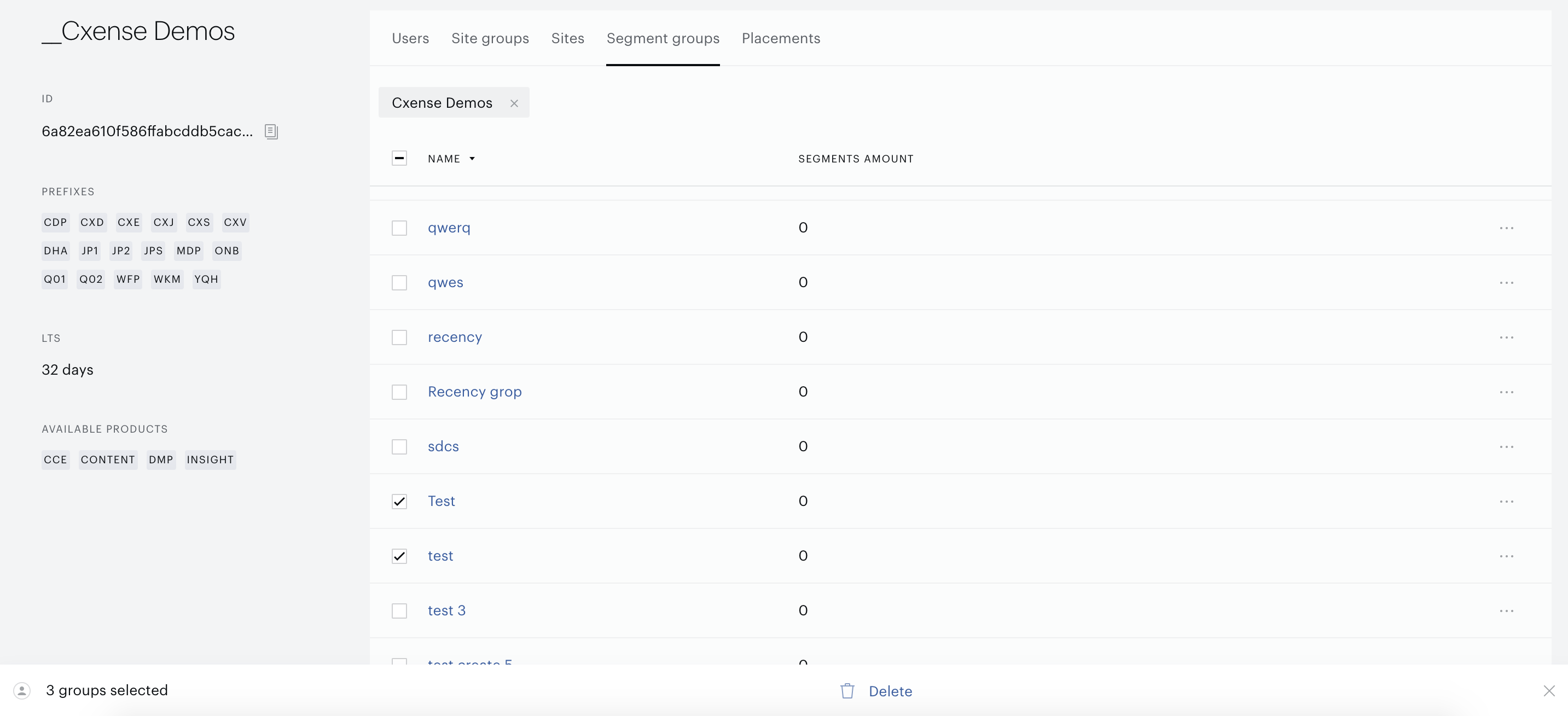
To delete an empty custom segment group, use the Delete context menu item or select a group using the checkbox next to the group name and click Delete at the bottom of the page.
You can select more than one segment group or delete them at the same time.
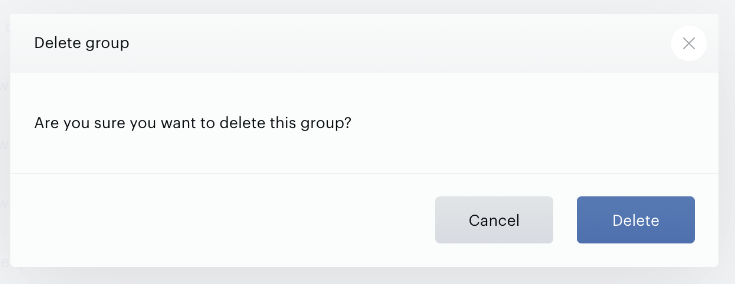
Click Delete on the pop-up form if you are ready to delete selected group(s).
Sorting segments
By default, Audience sorts segments within segment groups by ID or name. This default sort order isn't suitable for all cases. For example, when we talk about custom segments with specific names that can't be sorted automatically. Only people understand how they should be sorted correctly.
If you want to have good-looking reports, it makes sense to define the following settings for the segments within the segment groups.
The sort order settings are saved per site group.
That's why it is very important to define these settings carefully.
-
Go to the "Segment groups" tab
-
Press the name of the segment group in a list
-
Sort segments using the drag-n-drop approach
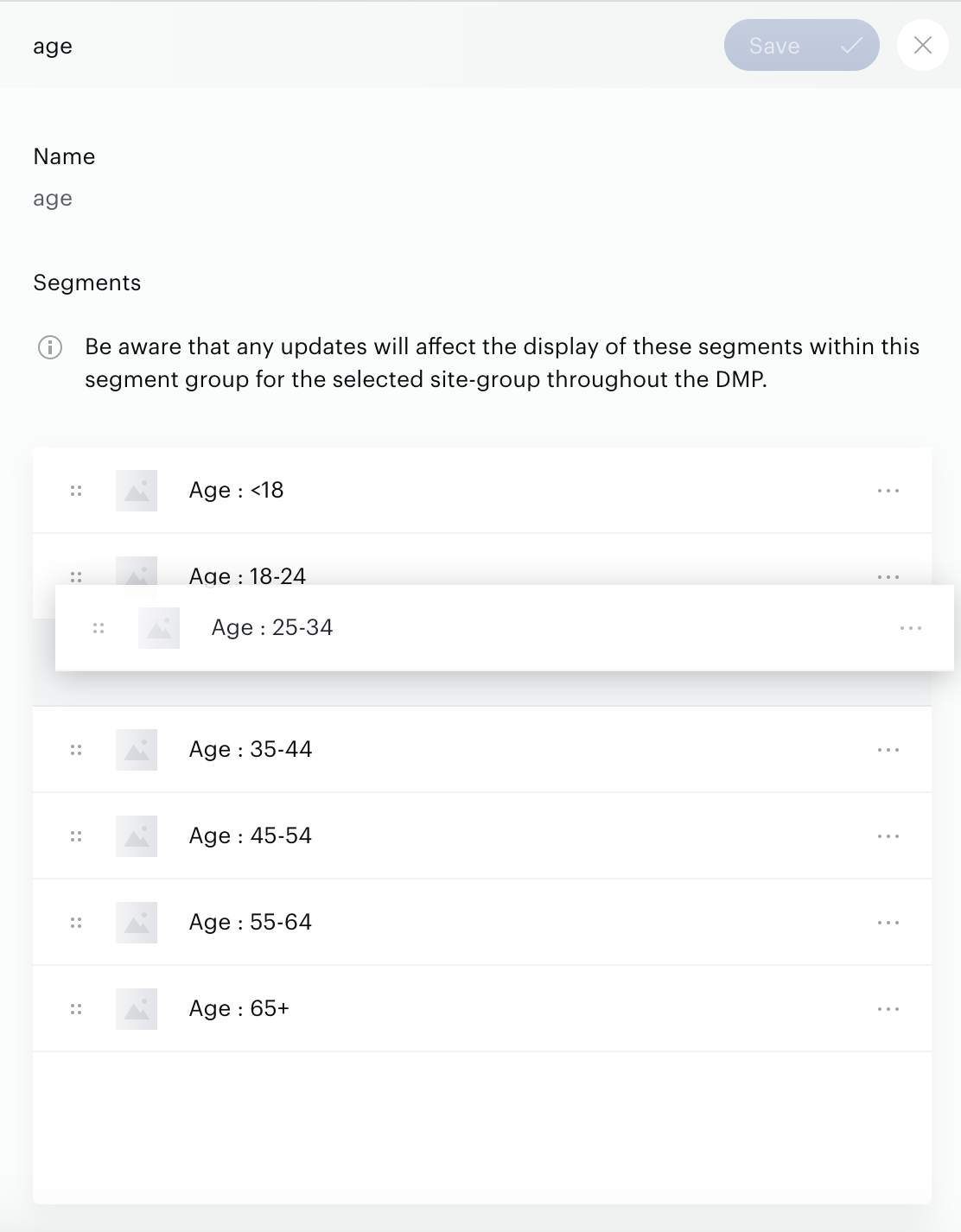
Don't forget to save the changes. Click the Save button.
Images
Relatively new functionality allowing the upload of images for segments. So far, these images are shown in Audience Insight Report (Audience→Campaigns functionality).
To upload images:
-
Open the Segment groups tab.
-
Select the name of the segment group on the list.
-
Use the Set new image context menu item to select and upload an image for the segment.
We support the most popular image formats: jpg, jpeg, png.
Predefined images
Some predefined images for interest segments are available for all customers.
These images were created for the following list of 29 IAB Interest segments:
-
Automotive fans
-
Book & Literature fans
-
Business & Finance fans
-
Career fans
-
Education fans
-
Event & Attraction fans
-
Family & Relationship fans
-
Fine Art fans
-
Food & Drink fans
-
Healthy Living fans
-
Hobbies & Interests fans
-
Home & Garden fans
-
Medical Health fans
-
Movies fans
-
Music & Audio fans
-
News & Politics fans
-
Personal Finance fans
-
Pop Culture fans
-
Real Estate fans
-
Religion & Spirituality fans
-
Pets fans
-
Science fans
-
Shopping fans
-
Sports fans
-
Style & Fashion fans
-
Technology & Computing fans
-
Television fans
-
Travel fans
-
Video Gaming fans
We recommend using predefined interest segments instead of custom images. However, if needed, you can upload your own images using the same Set new image menu item.