
Overview
The File import connection in Piano Audience (accessible via Connectivity) enables the transfer of segment data from sources like S3 or SFTP. This connection allows you to create new External segments and/or update the memberships for existing ones. You can import data using CSV or TSV files, regardless of file structure or naming conventions.
This guide provides instructions for setting up a connection to import User IDs from all files within a specific folder. These files do not contain columns for External segment IDs, and the segments in the Audience→Segments section may or may not already exist.
For other use cases, please refer to the detailed instructions in the linked document.
Create File import connection
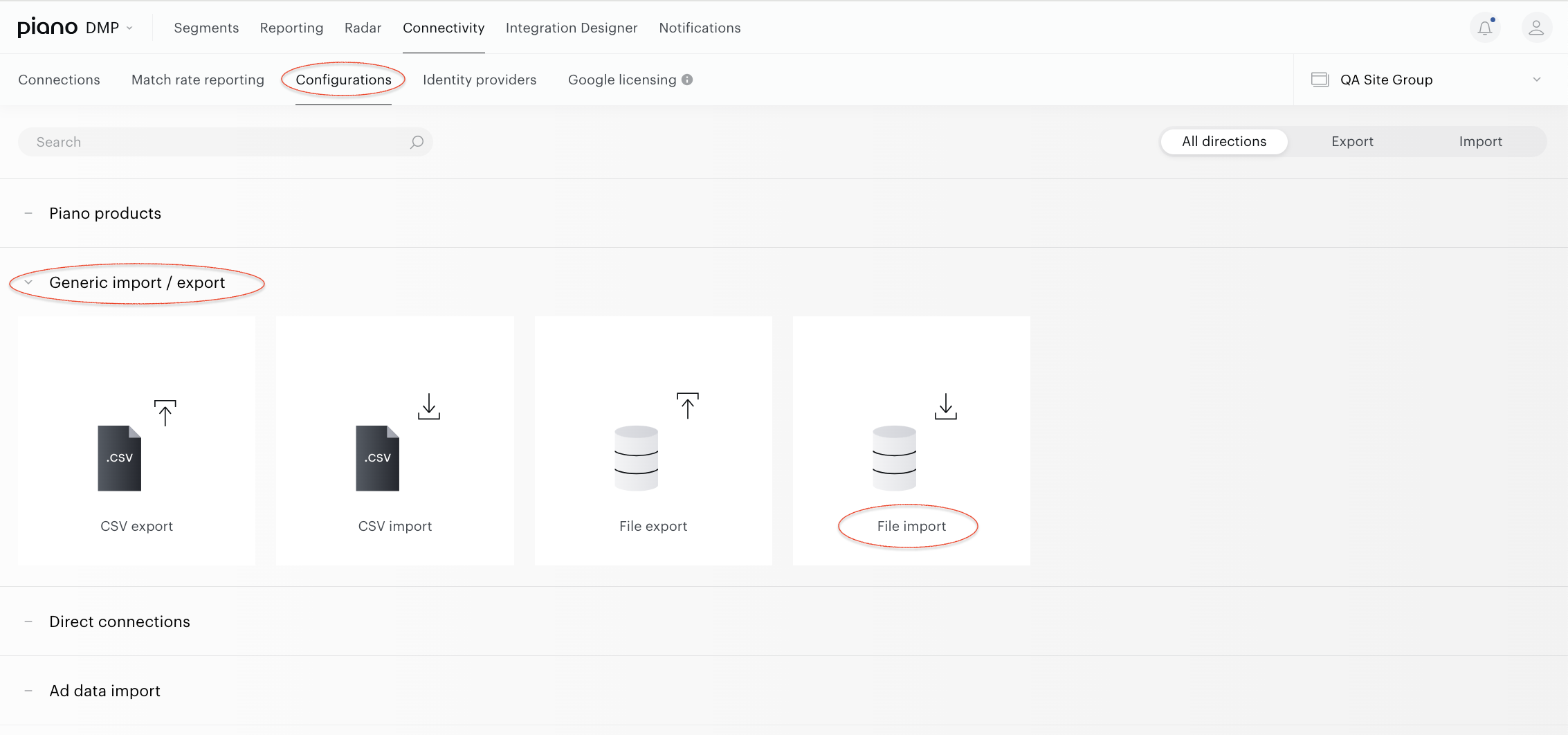
From the Piano Audience home page, go to the Connectivity→Configurations→File import tile and click the Configure button.
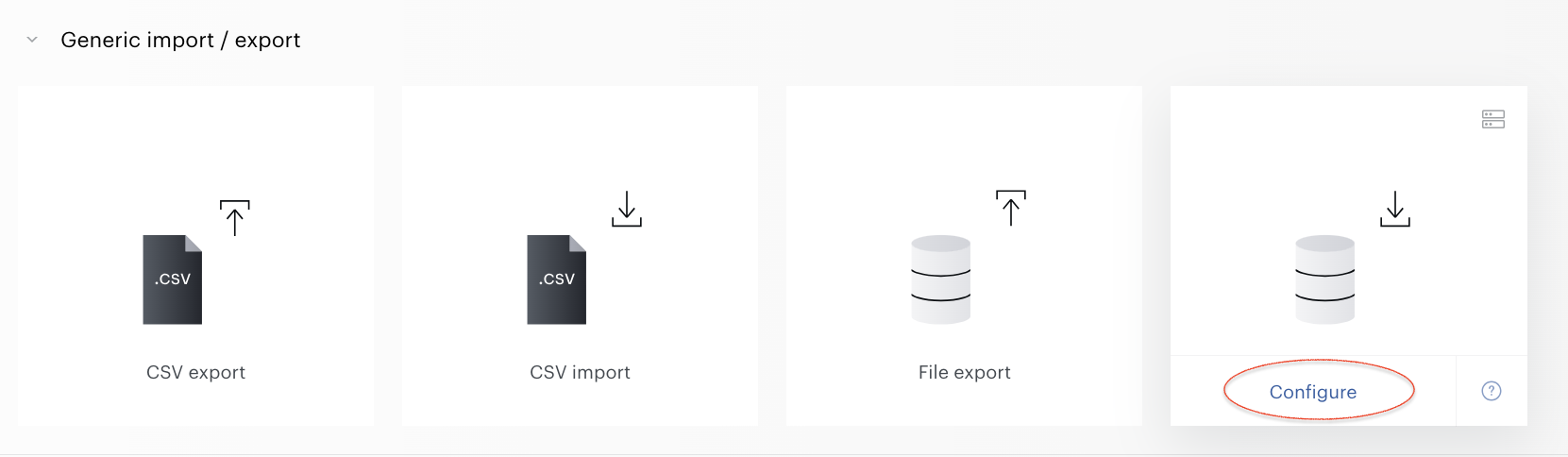
To create connection for the case mentioned above you must configure the following sections:
-
Configure connection
-
Configure data import → Segment memberships
-
Import frequency
-
Activate
Configure connection
In the Connection form, fill in all obligatory parameters to connect to the storage.
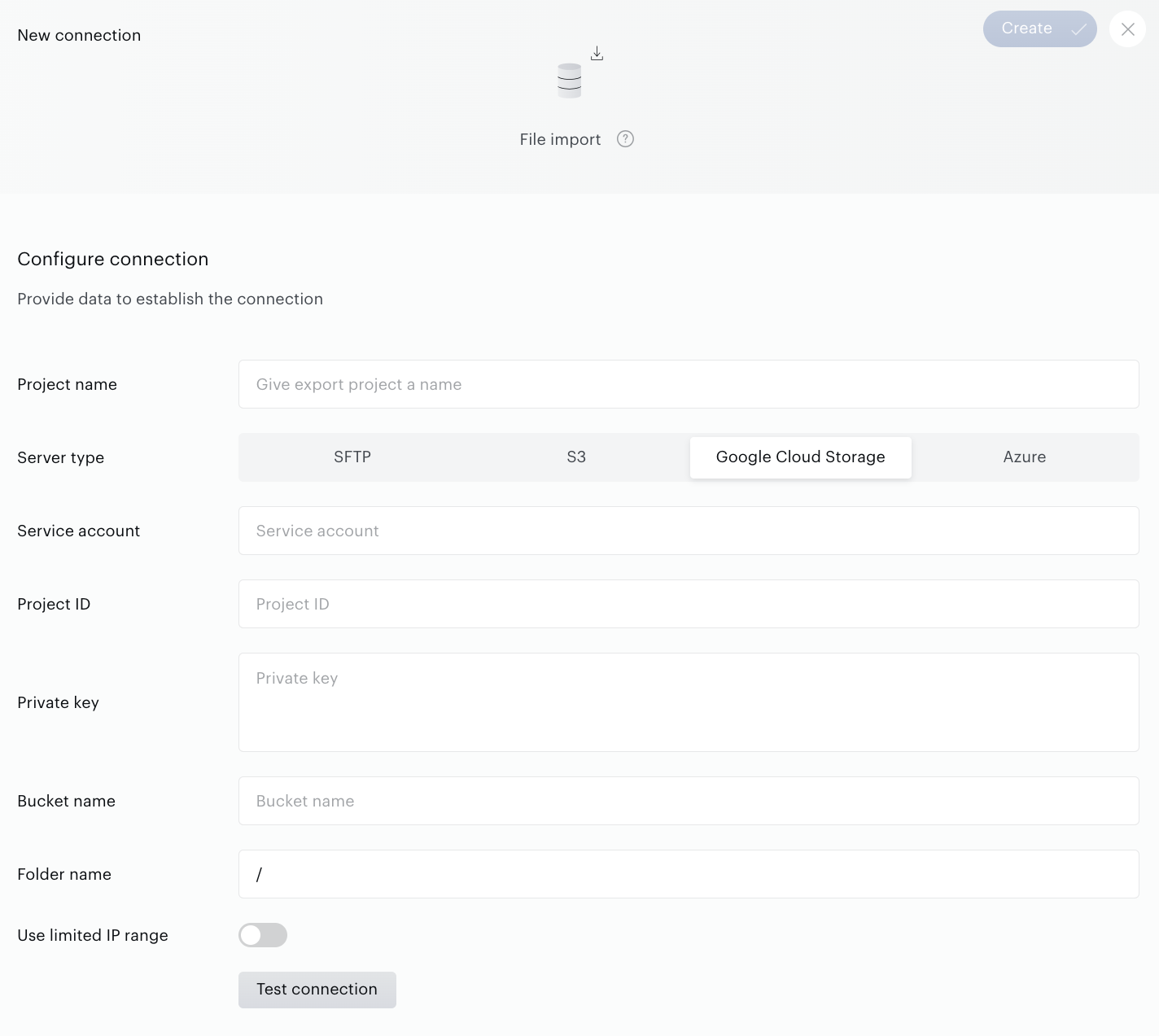
Click the Test connection button and wait for the positive result. If everything works correctly, you will get a corresponding notification. Go to the next configuration step.
Configure data import
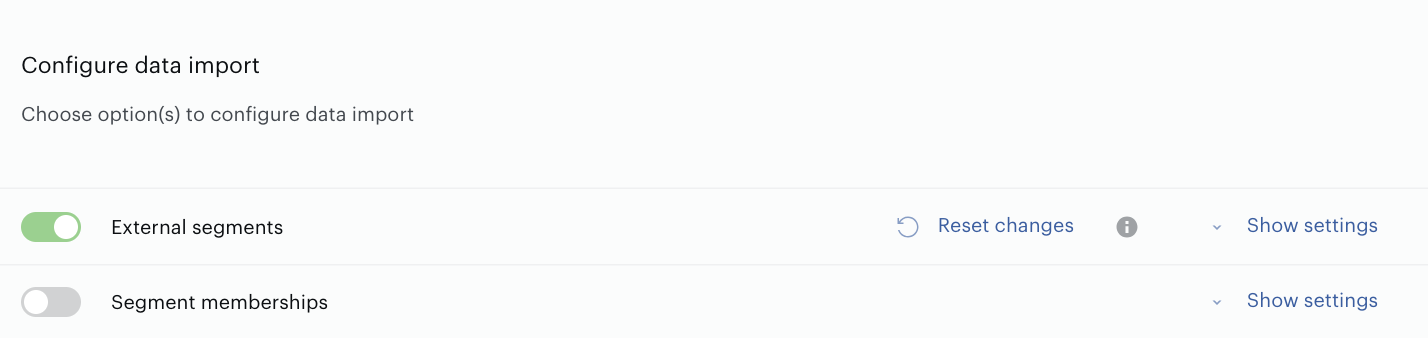
Skip configuration of the External segments section and go to the Segment memberships.
Configuring Segments memberships, you must define the following parameters:
-
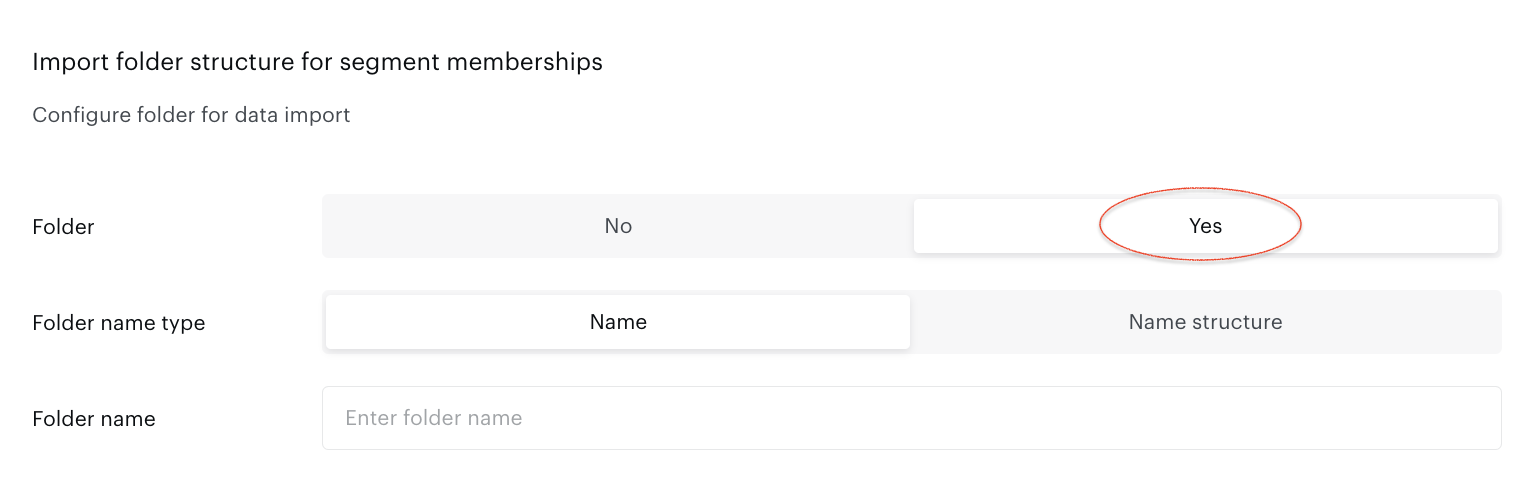
Import folder structure for segment memberships. Fill in the Folder name:
-
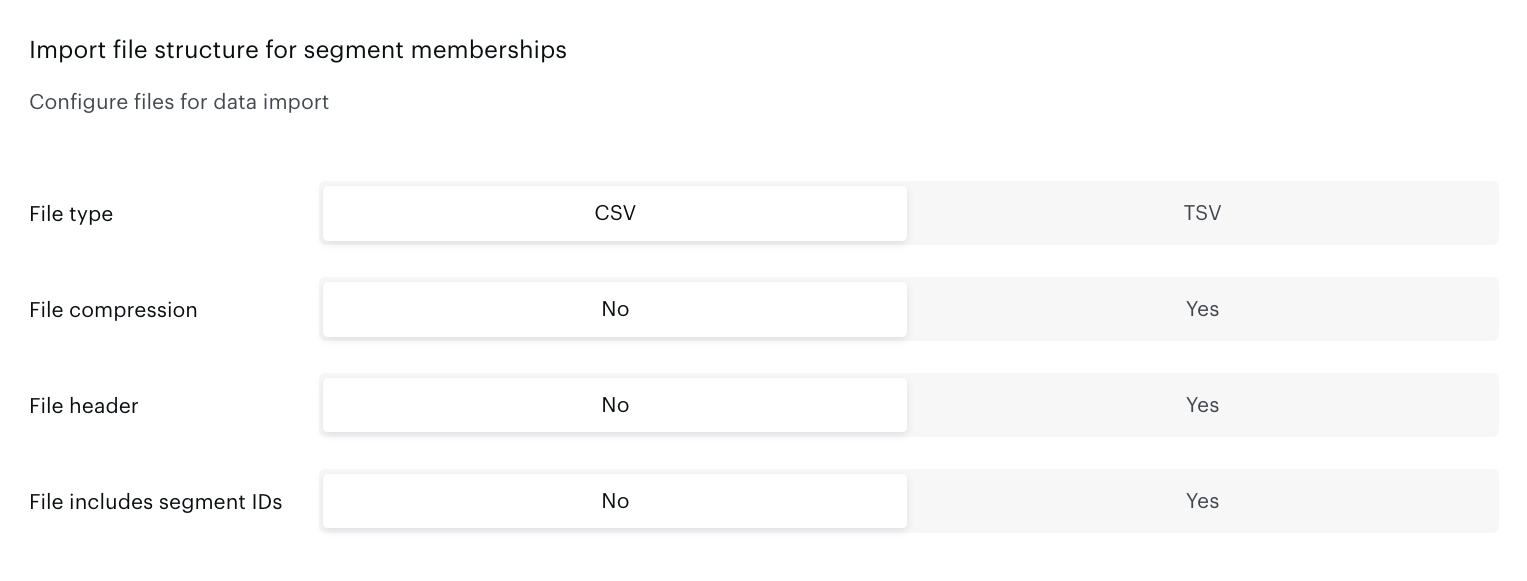
Import file structure for segment memberships. Configure main files parameters such as File type, File compression, if your files include header or not, and if your files include segment IDs; in this case set up the last parameter as No:
-
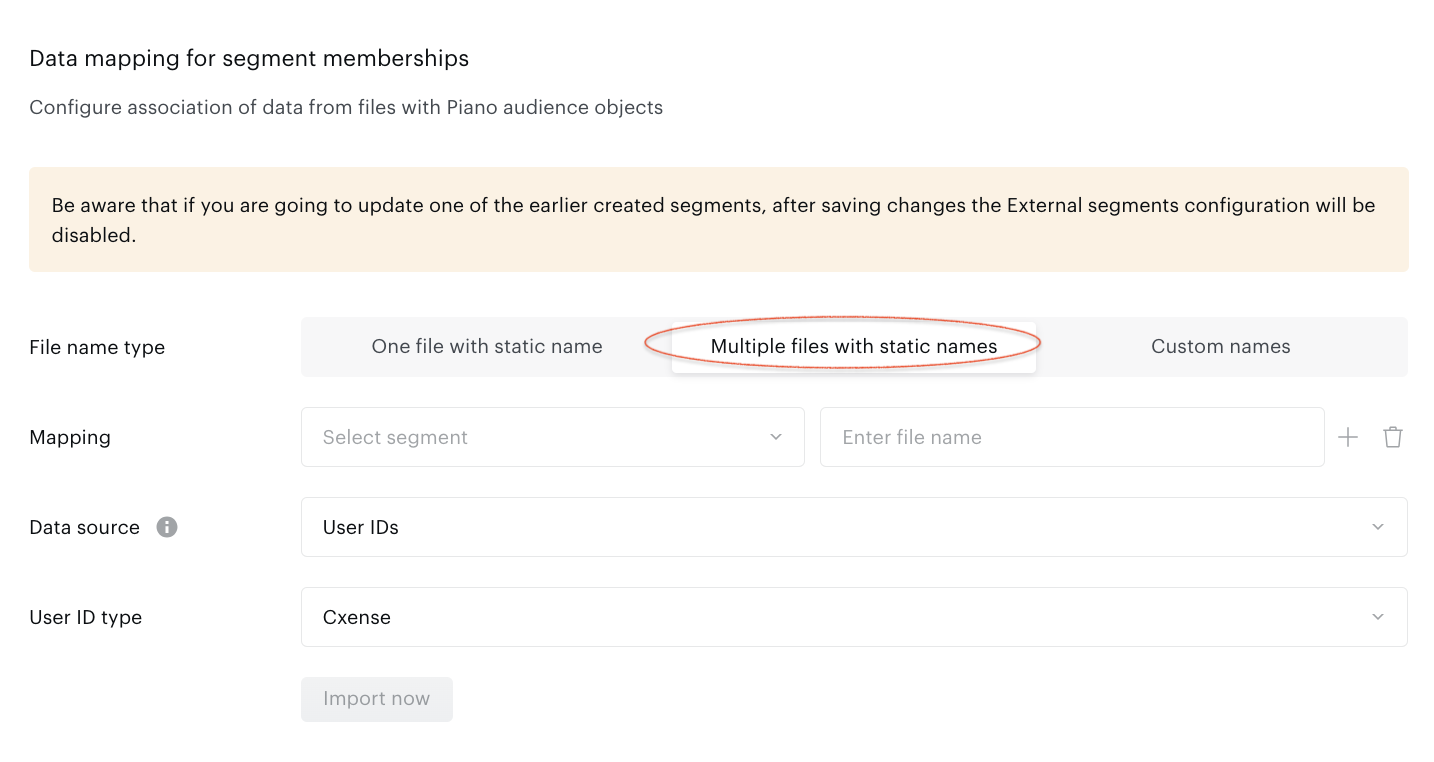
Data mapping for segment memberships. This feature enables the configuration of data linkage between files and pre-existing segments. It facilitates the identification of which segments need updating with User IDs sourced from specified files within a designated folder.
-
-
Select Multiple files with static names option.
-
Mapping Configuration:
-
You may opt to leave the Mapping section blank if your intent is to create new External segments and import User IDs from files located in a specified folder. The system will automatically generate the mapping upon data import.
-
For importing User IDs into already existing External segments, manually select the segments and assign the corresponding file names to them.
-
-
Data source. Parameter defines <file columns-attributes> mapping configuration. Select one of the available items. Obligatory.
-
User ID Type selection:
-
You must select the type of User ID. This step is mandatory for the process.
-
-
If your connection was created before the introduction of the Data Source feature, you can keep your connection as is, and it will continue to work.
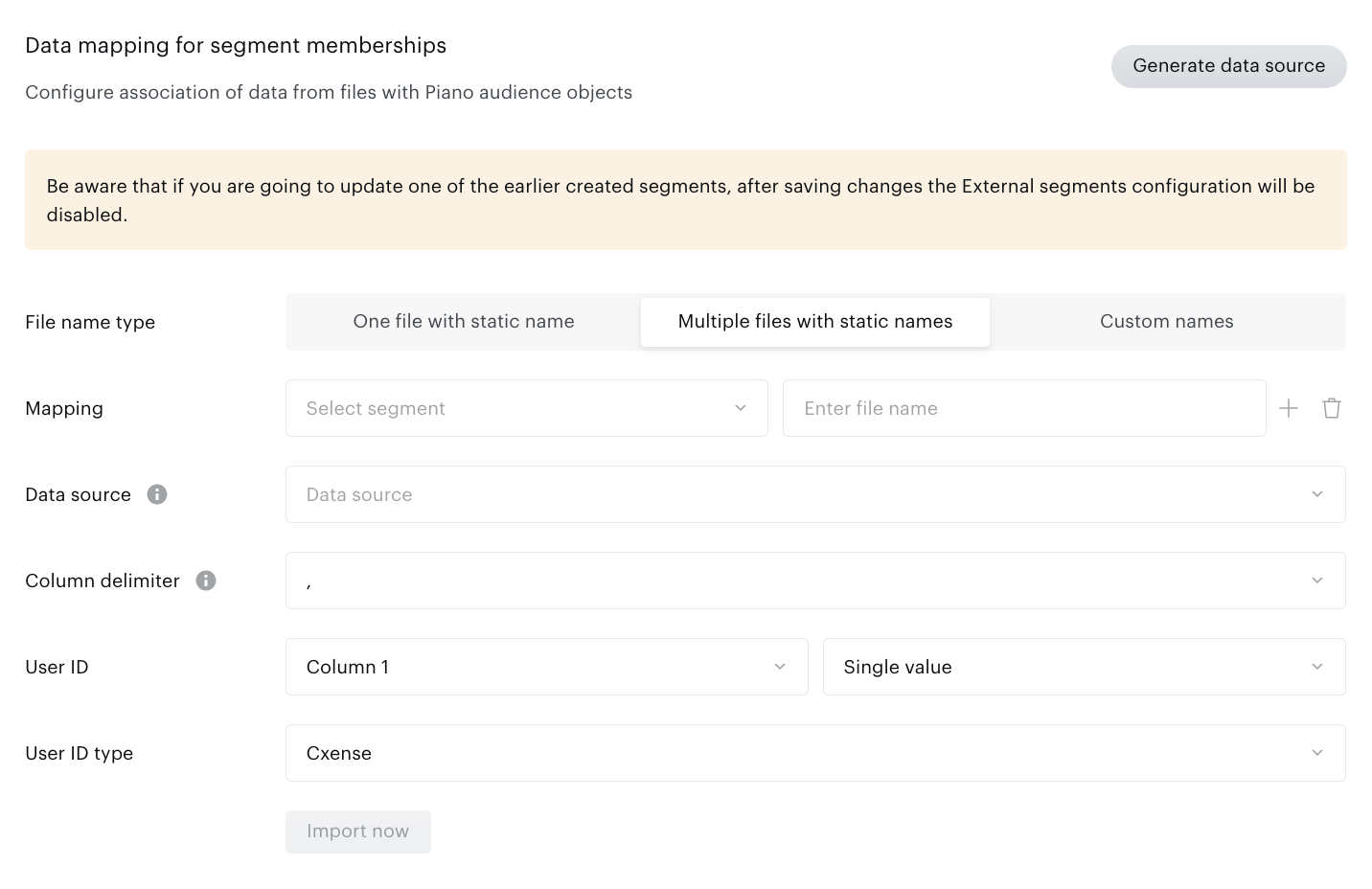
However, you can also switch to using a Data Source. Once you select a Data Source and save the changes, a number of fields will no longer be available in the File Import connection.
For ease of transition to using Data Sources, the customer admin has the option to automatically create a Data Source based on your existing connection. Simply click the button Generate data source, then select the automatically created Data Source, and save the changes.
-
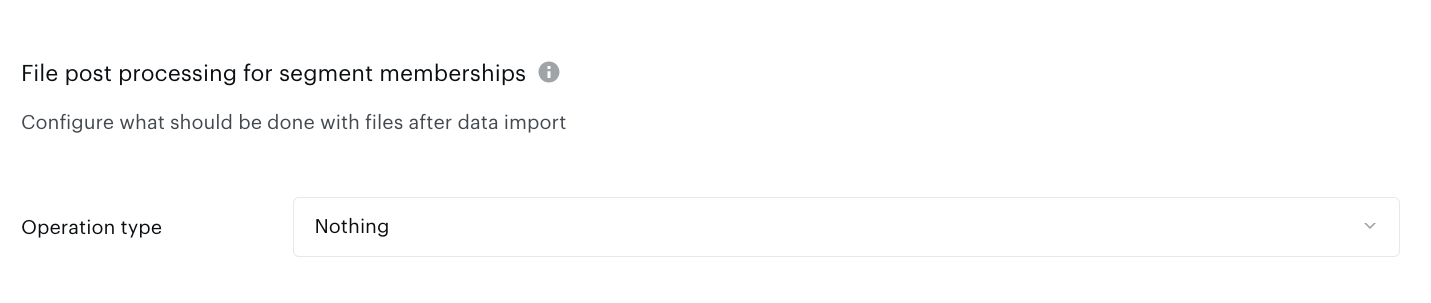
File post processing for segment memberships. Select what should be done with files after data import.
Import frequency
You can select one of the options to configure the Import frequency:
-
Once - the file(s) will be imported once at a particular time.
-
Daily (default) - the file(s) will be imported daily at fixed times after the Start import after time.
-
Weekly - the file(s) will be imported once a week on the selected weekday at fixed times.
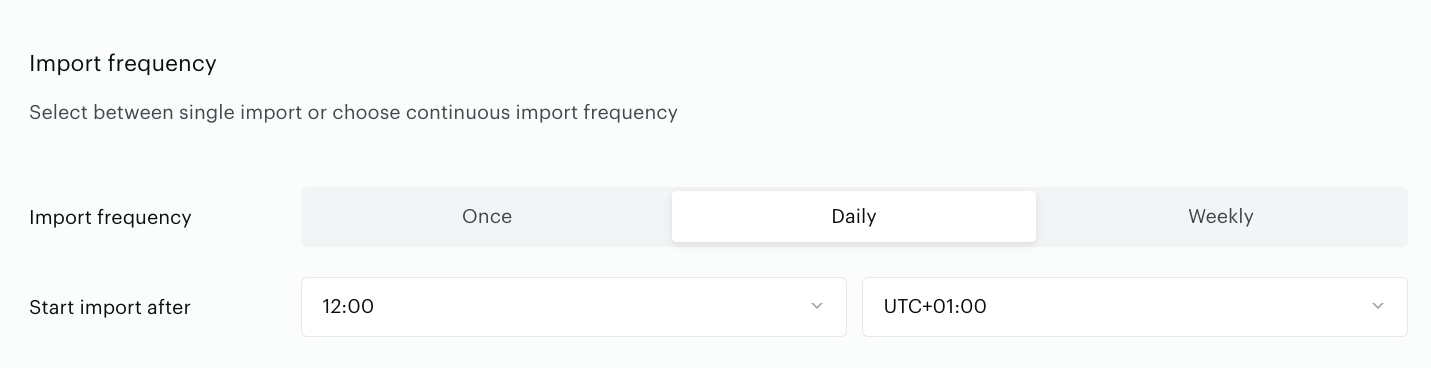
It is highly recommended to set the start time of the importing process (Start import after parameter) not earlier than the data export to file storage ends.
Activate
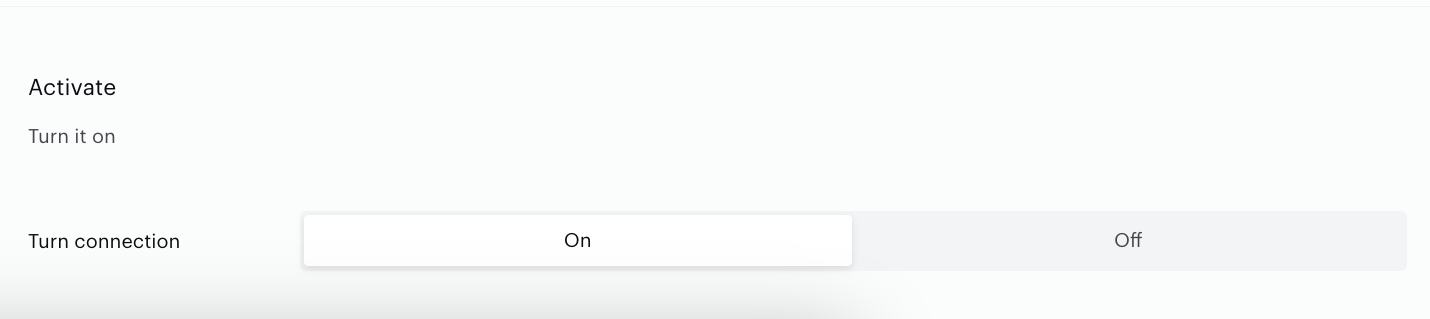
The last step involves activating the connection. In the Activate section, you can either set up a scheduled data transfer by turning the connection on, or you can keep the created configuration inactive by setting the connection to off.
When you are ready, click Create or Save in the top right corner of the page.
Limitations and Restrictions
When managing multiple files, the following requirements must be adhered to:
-
All files within the folder must be of the same format, either CSV or TSV.
-
Files should have a consistent structure, including matching column headers, delimiters, and column order.
-
Avoid mixing files with several types of data; each file must contain User IDs.
-
If you do not intend to update certain segments (or all of them), ensure those files are removed from the folder beforehand.
-
File names will be used as the names for the new External segments, so it is advisable to choose descriptive names for easier identification. However, you can manually update segment names later if needed.