
User Segment Card
Within Composer, eligible applications have an distinguished Segment users card interface. When you click on Add a resource... within the Has no access to and Has access to sections of the card, you will be presented with a dropdown that includes resources for all applications in your organization.
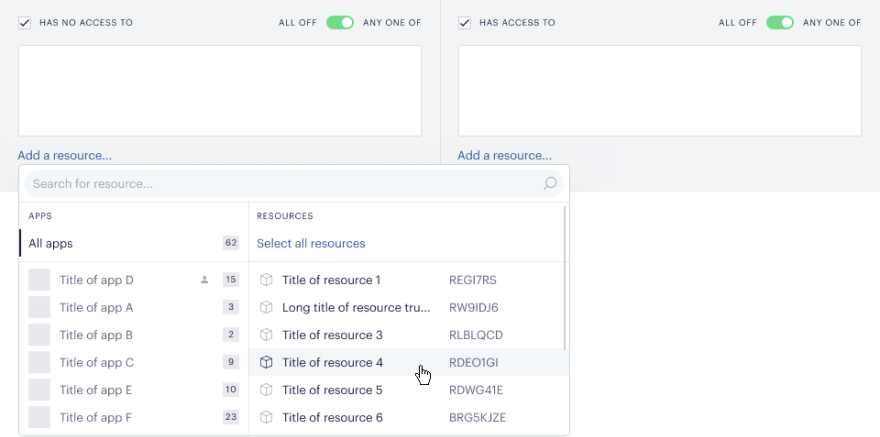
Within this modified dropdown, you are presented with each of your organization's applications on the lefthand side and the corresponding resources on the right.
Apps
By default, you are initially presented with resources across all applications in your organizations. The local application – the one you are currently logged in to – is listed immediately below the All apps option, followed by the rest of your applications. Beside each application is a small box that lists how many resources fall within that application.
Resources
For the selected application, each contained resource and corresponding RID is listed. Selecting a resource will remove it from this list and move it to the box of selected resources. You can choose to Select all resources, which will move all resources in the scope of the selected application to the list of chosen resources.
Search
If you are looking for a specific resource or application, you can use the search bar at the top of the dropdown. You can enter an application name, application ID, resource name, or resource ID, and matching results will be displayed. The search does not distinguish between upper-case and lower-case letters. The search is also dynamic, so results will be updated as you enter your string.
API
/access/list
The /access/list API endpoint contains an optional parameter cross_app. This boolean defaults to FALSE if no value is entered manually. If you enter TRUE for this parameter, the API call will return the user's resource accesses across all applications in the organization along with the application ID for each resource.