
Global Templates allow the management and creation of cross-property templates from one interface so that clients are not required to switch between dozens of applications to make changes.
Note, that the features Global Mode and Global Templates are not connected, so it's possible to utilize Global Templates without Global Mode being set up.
How to create Global Templates
Configure Global Template permissions
Only users with global admin privileges can make changes to, and deploy templates, from the global interface. Granting global admin privileges is done through the Team Manager. Global admin has been added as a setting to the permissions drop-down, in the team manager:
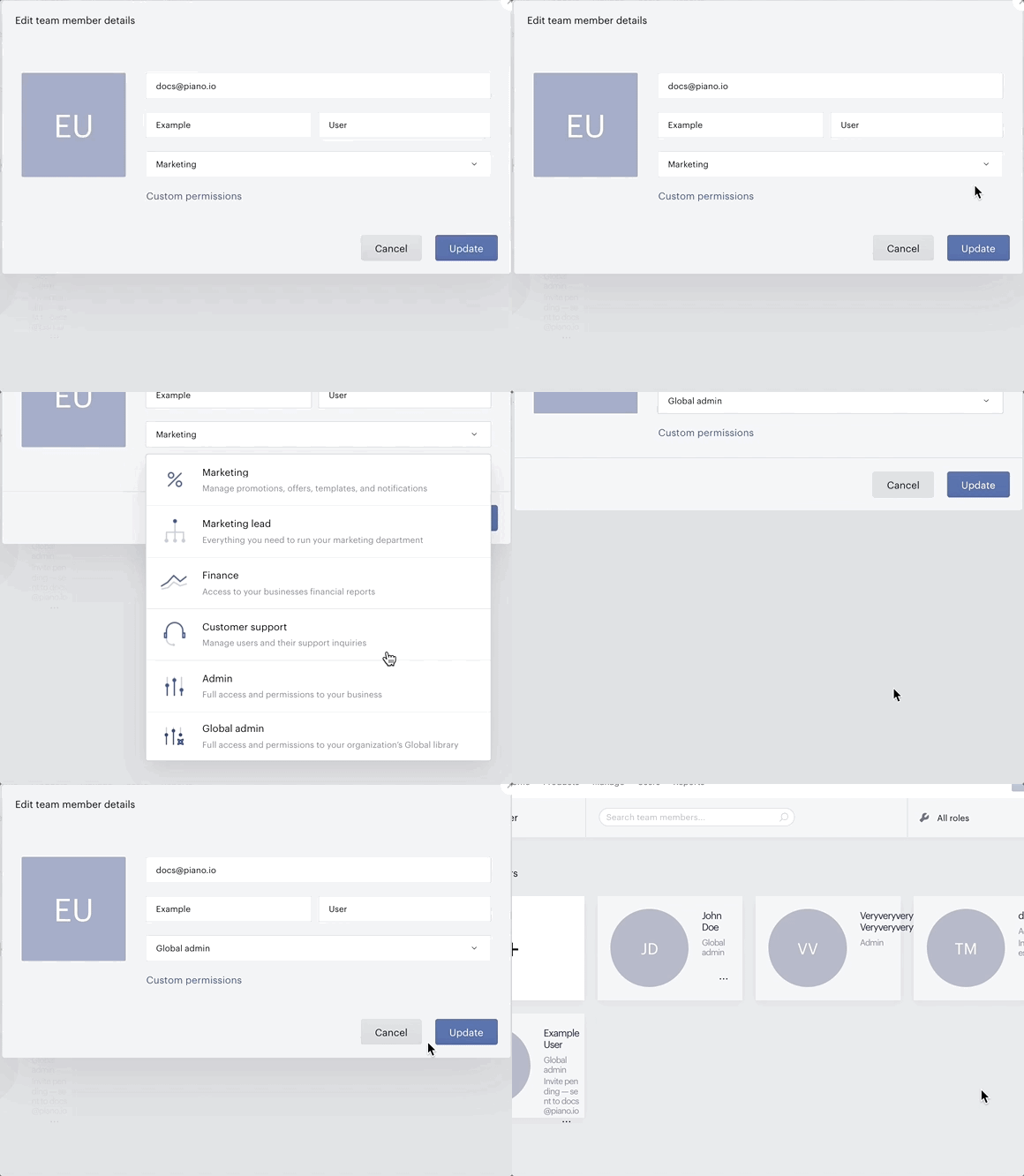
Granting global admin privileges to a user gives them administrative access to all of the applications within your Piano account automatically.
Making an existing template global
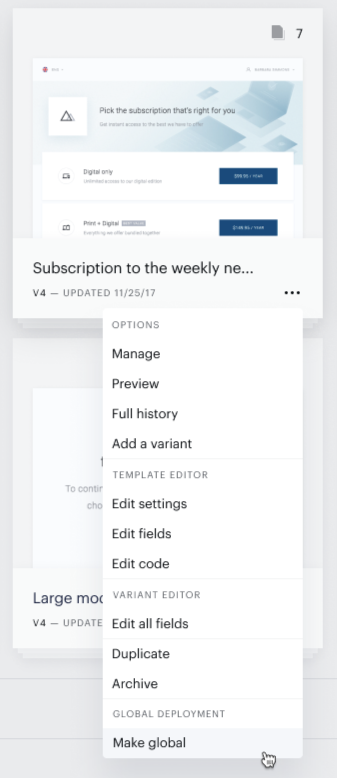
A user with global admin permissions will be able to make any Experience template global by clicking the Make global button within the menu dropdown for that template. This feature only affects Experience templates. My Account and Identity Management templates are out of scope. To make a template global, navigate to the templates dashboard from the Manage drop-down menu. Clicking on the More Information ellipsis will bring up the options menu. In the options menu, there is a new category titled Global deployment, under that category you have the option to make this template global.
Clicking the Make global button will prompt a confirmation modal to appear:
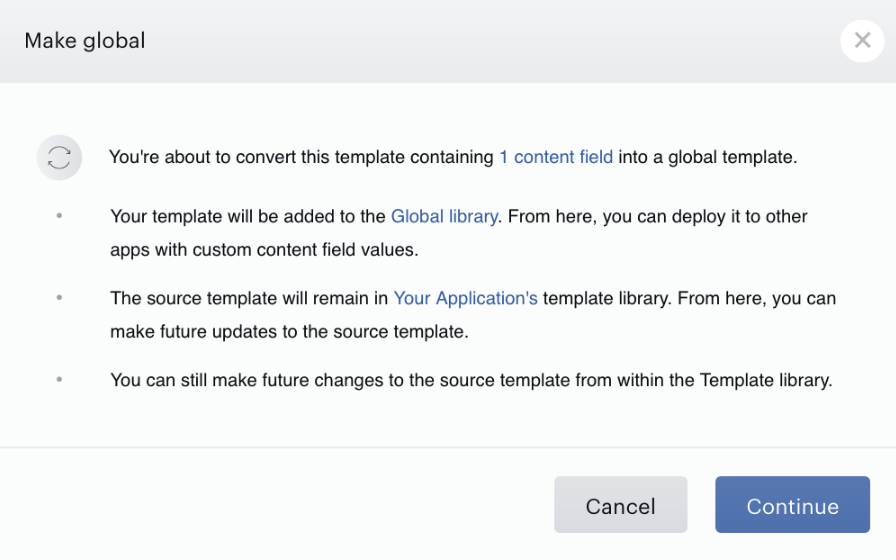
Confirming the dialogue by clicking Continue will exit the modal and return you to the templates dashboard. The template card will have a new interface, and an icon will appear in the top left corner of the template card.
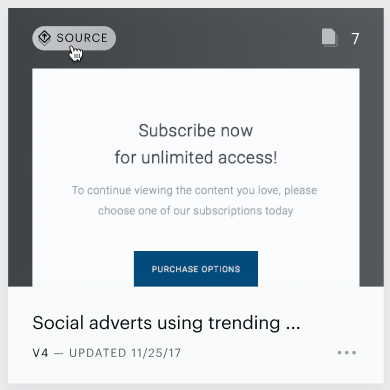
The Source icon notes that this template is available globally from the Global Library.
The Global Template Library
The Global Template Library is available from the Manage dropdown menu under Global Library. The Global Library is where all globally available objects are centrally managed. From the Global Library, you can see all templates and experiences, they can be deployed to your applications, archived, reviewed, and edited. The Global Library is divided into two categories: Experiences and Templates.
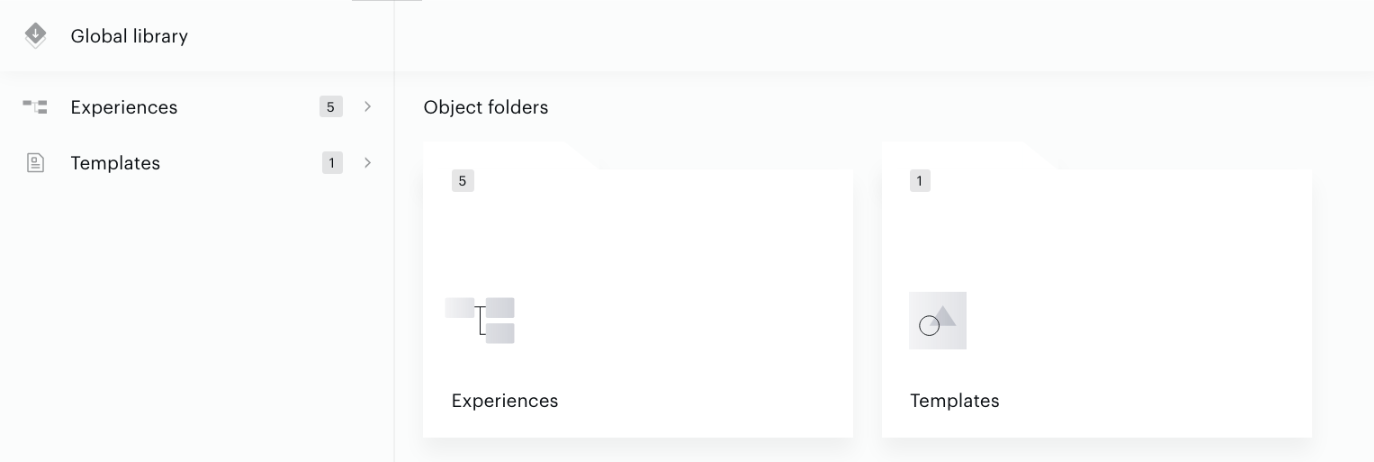
Clicking the Templates folder will open the Global Template Library:
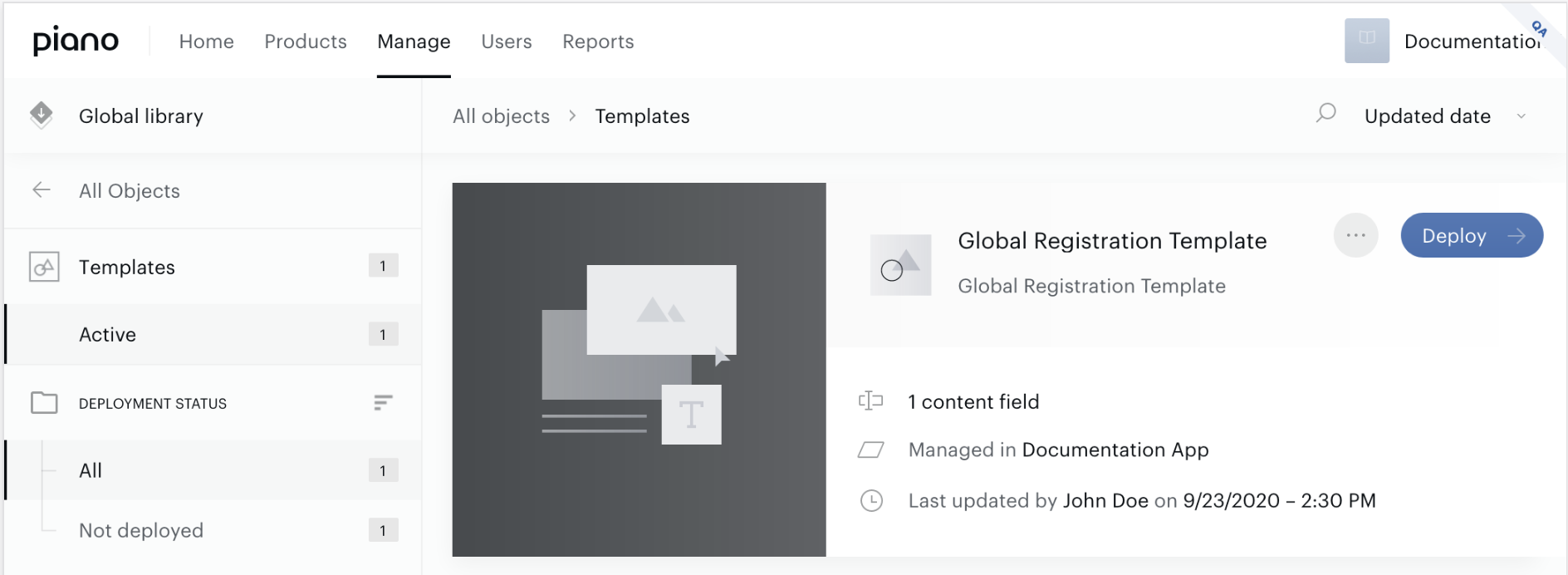
This interface can be accessed from any application by a user that has global permissions.
Deploying Global Templates
Deploying Global Templates from the Global Template menu makes your template available from every application you have configured with Piano. To deploy a template from the Global Template Library click on the blue Deploy button, to start the deployment process:
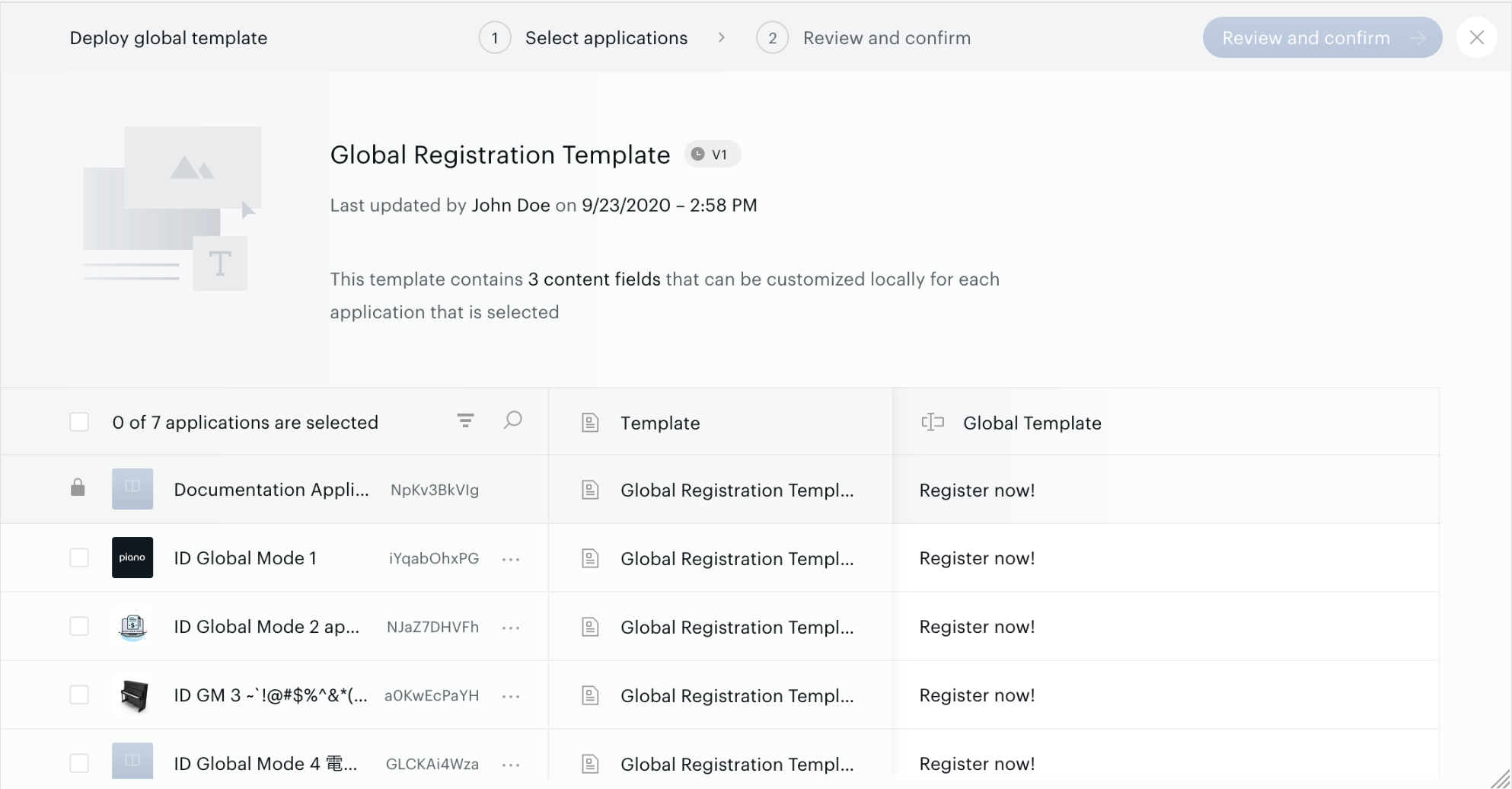
From this menu, you have the opportunity to select what applications you wish to deploy the template to. The maximum possible amount of displayed applications is 999.
You can make adjustments to the content fields of the template variants for each application from this interface. But it's currently not possible to deploy variants - all variants would need to be added manually into the inherited templates.
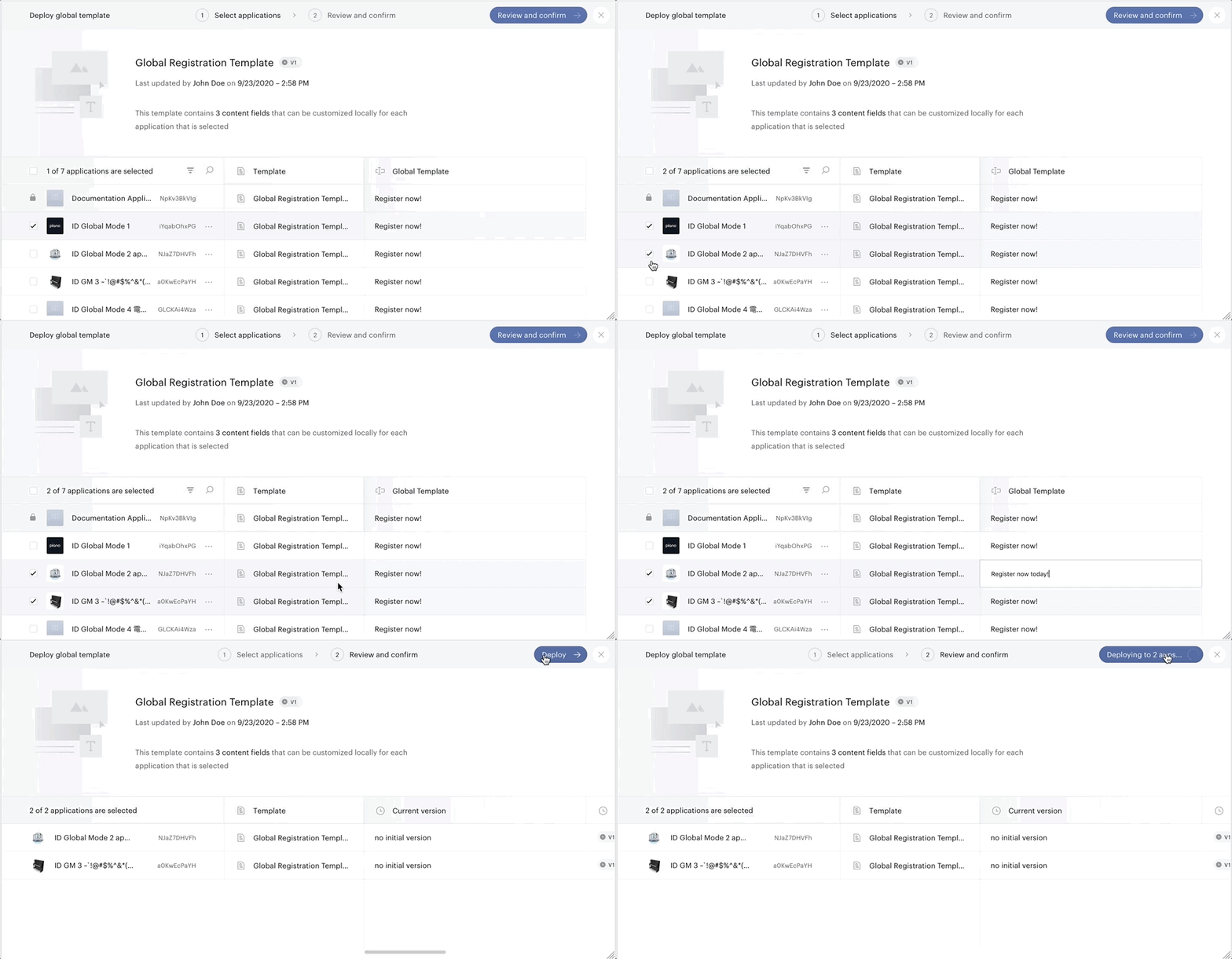
You are not able to deploy to the source application where the template originated from. Once you click the Deploy button, a confirmation dialogue will appear, here you can verify that you are deploying the template to the correct applications. Depending on the number of applications selected this process may take several seconds. Do not exit this window without confirming that each application has been successfully deployed. Once finished, the deployment screen will display Deployment completed:
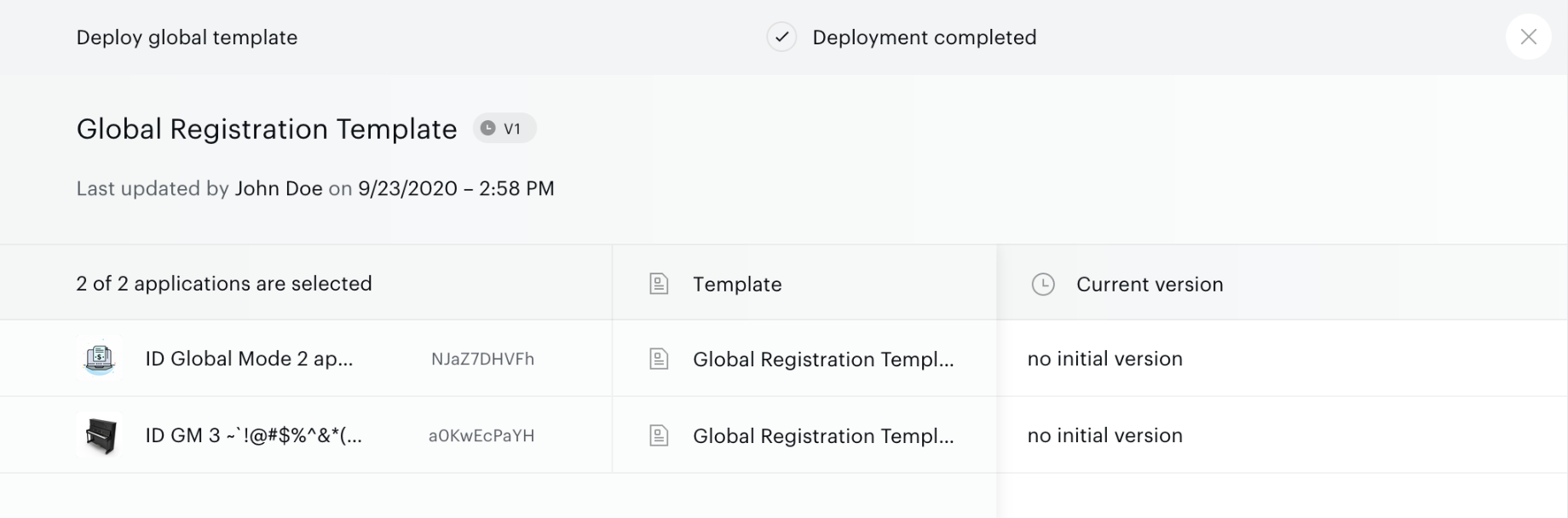
The selected applications have now inherited the template.
Please note that if you update a global template, you will be redirected back to the local templates manager of the application that is the Global Source for that template. Those changes would need to be redeployed once they are made. If you delete a content field from a global template, its heir will show such a field disabled. The field will be removed upon deployment.
Inherited Templates
Once a template has been deployed to one or more applications, that template appears within those applications' Template Library. A global template is styled differently indicating that it was inherited from the Global Library:
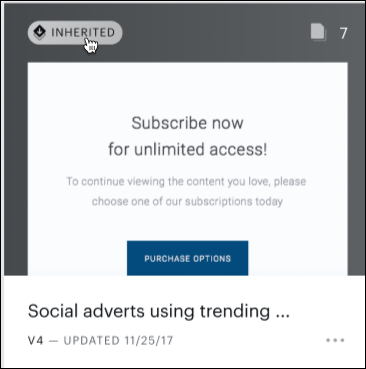
There are a limited number of actions that can be performed on inherited templates:
-
Archive: Archiving an inherited template archives it only for that specific application. Note, that it's not possible to restore an archived variant for an inherited template. Only for the global (source) template, you are able to restore an archived variant.
-
Edit content fields: The content field values for that specific application can be modified. No other content field values can be viewed or modified.
-
Duplicate: Create a modifiable copy within the current application. This new copy will not be present within the global Library.
Editing code, names, and descriptions, or adding and removing content fields are not available actions on an inherited experience.