
In cases where you encounter an error message that can only be reproduced locally, it is helpful to provide our Piano Support at support@piano.io with a HAR file to allow further debugging.
HAR (HTTP Archive Format), is a JSON-formatted archive file format for the logging of a web browser's interaction with a site.
If you encounter issues with Composer or any Experience, please append ?xpdebug to the URL of the website and refresh the page before saving the HAR file as per the steps below. This will add additional debug messages to the file that are especially useful for troubleshooting.
Chrome
For Chrome, this file can be obtained as follows:
-
Open Google Chrome and go to the Piano dashboard
-
Look for the Vertical ellipsis button (three dots) and select More Tools → Developer Tools.
-
From the panel opened, select the Network tab.
-
Look for a round Record button in the upper left corner of the tab, and make sure it is red. If it is grey, click it once to start recording.
-
Check the box Preserve log.
-
Click the Clear button to clear out any existing logs from the Network tab.
-
Reproduce the issue that you are experiencing, while the network requests are being recorded.
-
Once you have reproduced the issue, in Chrome, click Export HAR to download. Then save the file to your computer: Save as HAR with Content.

-
Attach your HAR file to your Piano Support ticket.
Firefox
For Firefox, this file can be obtained as follows:
-
Open Firefox and go to the page where you are experiencing trouble.
-
Select the Firefox menu (three horizontal parallel lines) at the top-right of your browser window, then select More Tools → Web Developer Tools
-
The Developer Network Tools opens as a docked panel at the side or bottom of Firefox. Click the Network tab.
-
The recording autostarts when you start performing actions in the browser.
-
Once you have reproduced the issue and you see that all of the actions have been generated in the Developer Network Panel (should just take a few seconds), right-click anywhere under the File column, and click on Save all as HAR.
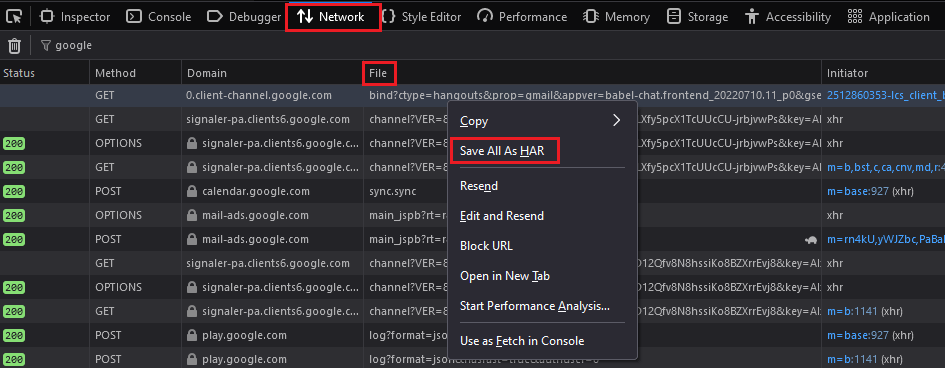
-
Save the HAR file somewhere on your computer.
-
Attach your HAR file to your Piano Support ticket.
Safari
For Safari, this file can be obtained as follows:
-
Open the Develop menu* and select Show Web Inspector.
-
Click the Network tab and complete the activity that is causing issues.
-
Click the Export icon on the far right of the network tab and save the HAR file.
-
Attach your HAR file to your Piano Support ticket.
*Before generating the HAR file, make sure you can see the Develop menu in Safari. If it is not there, follow the instructions here.

Edge
For Edge, this file can be obtained as follows:
-
Open the Developer tools after pressing F12.
-
Go to the Network tab.
-
Reproduce the issue.
-
Export the captured traffic as a HAR file after clicking on the Download icon and save it to your computer.
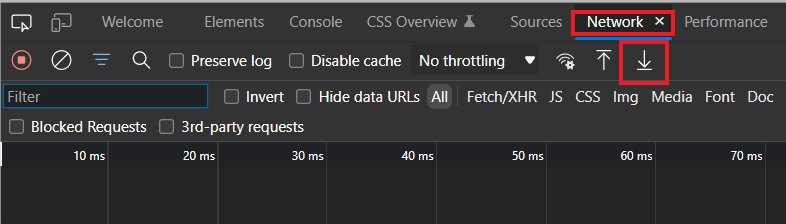
-
Attach your HAR file to your Piano Support ticket.
Difference Between a HAR File and an x-request-id
-
HAR File (HTTP Archive File): A HAR file is a log of network requests and responses generated by a web browser. It contains detailed information about each request made during a browsing session, including headers, timings, payloads, and responses. It’s commonly used to debug performance issues, failed requests, and page loading times. A HAR file provides a broad picture of everything happening during a user’s session.
-
X-Request-ID: The
x-request-idis a unique identifier generated by a web application for a single request. This ID is often returned in the headers of a response, allowing developers to trace that specific request through logs on the backend. It's particularly useful when identifying and debugging issues related to individual requests.