
Introduction
In this article we have compiled instructions on how to find the most important Piano application identifiers that will help our Support team to investigate any reported issues and answer your questions in a speedy manner.
These identifiers are unique for your Piano application and it's very important to provide these in your Support ticket, since you might have multiple Term, Resource or Experience IDs created, and trying to pinpoint the correct identifier without it explicitly provided might prolong the resolution time for your issue or query.
How to find your AID
An application is a Piano account. Every application has a unique Application ID (AID) associated with it.
Based on your environment - Production or Sandbox, the Piano dashboard URLs are as follows:
Sandbox
US Production
EU Production
https://dashboard-eu.piano.io/
AP Production
https://dashboard-ap.piano.io/
AU Production
https://dashboard-au.piano.io/
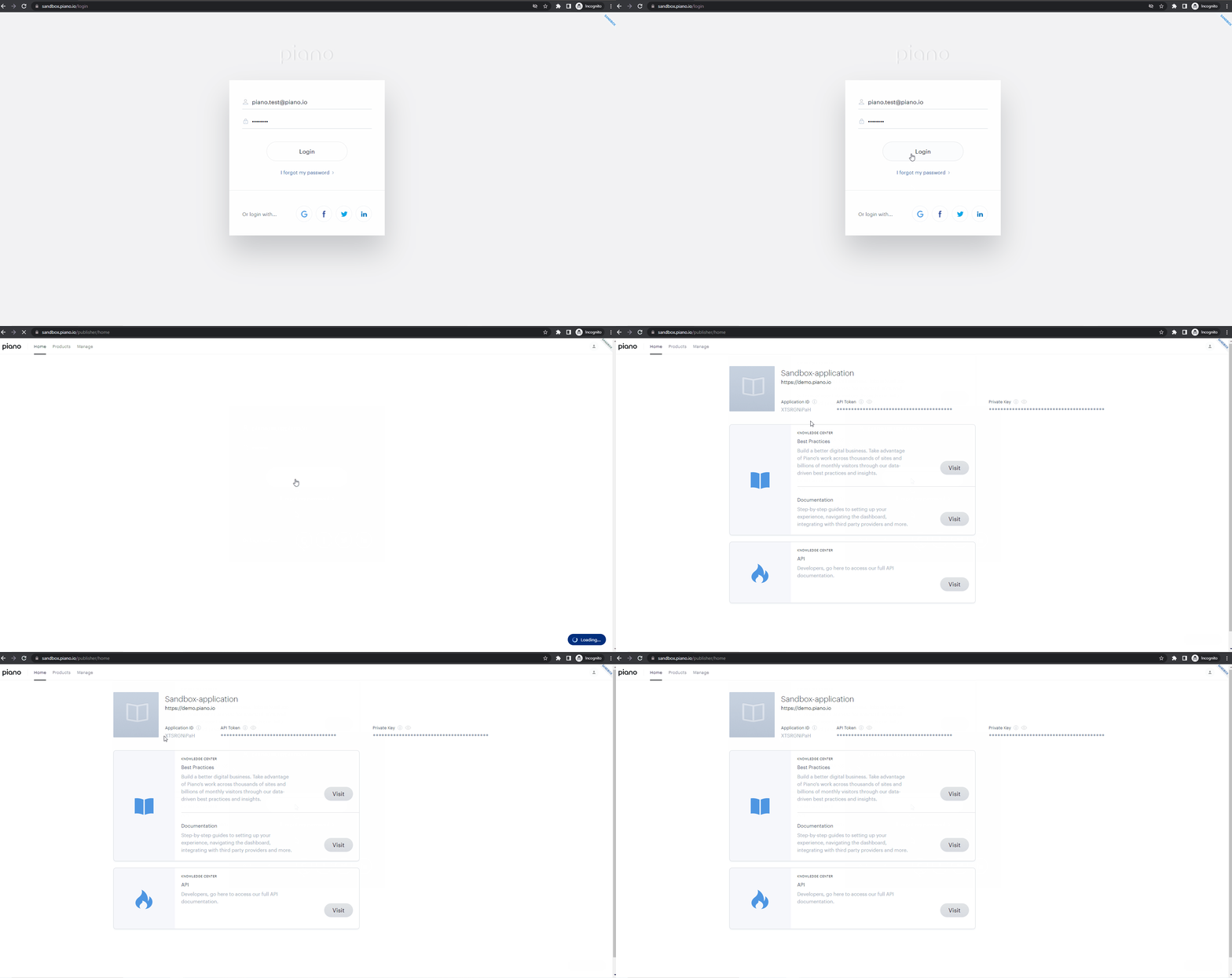
To locate your AID:
-
Log in at the respective URL above with your email and password
-
On the homepage of the Piano dashboard, you will see a 10-digit alphanumeric string, that represents your unique Application ID (AID) for your given Piano application
How to find your Site Group ID
In order to look into issues related to DMP segments, you can share the Site Group ID to help narrow down the investigation.
For DMP clients, this ID is available once you visit the DMP dashboard at https://segments.cxense.com/ and log in, directly from the URL as the value for the parameter siteGroupId. For example, in the case of this URL your Site Group ID would be 4756160117246112345:
https://segments.cxense.com/#?siteGroupId=4756160117246112345
How to find your ESP Site ID
The ESP Site ID is an essential identifier for clients utilising Piano ESP for newsletters, opt-in forms or push notifications.
You can easily find your ESP Site ID after logging in to your Piano dashboard and navigating to Products → ESP.
The ESP Site ID will be available in the browser's URL as the value for the parameter siteID. In the below example your Site ID would be 123:
https://esp.piano.io/#/?siteId=123&lang=en
How to find a Resource ID
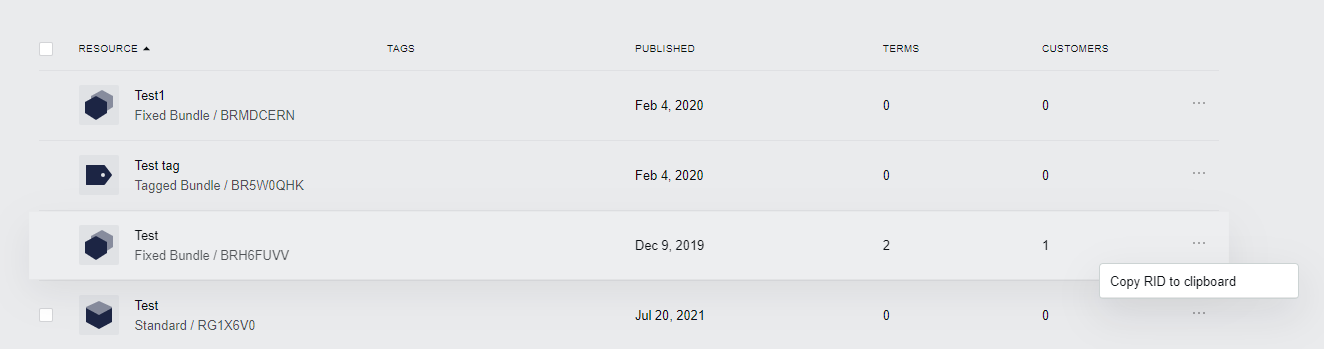
To get the Resource ID for any of the resources created in your Piano application, please go to the menu Manage and select Resources.

There, you'll be able to click on the ellipsis menu next to the Resource you'd like to report an issue or inquire about, and select Copy RID to clipboard to copy the Resource ID (RID).
How to find a Term ID
To get the Term ID for any of the terms created in your Piano application, please go to the menu Manage and select Terms.

There, you'll be able to click on the ellipsis menu next to the term you'd like to report an issue or inquire about and select Copy ID to clipboard to copy the Term ID.

How to find an Offer ID
To get the Offer ID for any of the offers created in your Piano application, please go to the menu Manage and select Offers.

There, you'll be able to click on the ellipsis menu next to the offer you'd like to report an issue or inquire about and select Copy ID to clipboard to copy the Offer ID.

How to find a Template ID
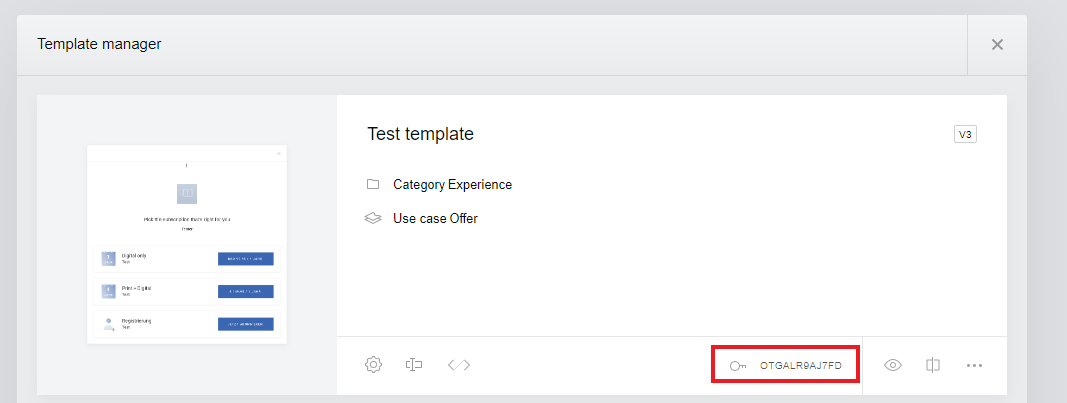
To get the Template ID for any of the templates created in your Piano application, please go to the menu Manage and select Templates.

There, you'll be able to click on any of your templates (Experience, System, My Account or Identity Management) you'd like to report an issue or inquire about, and click on the ID of the template to copy it to your clipboard.
How to find an Experience ID
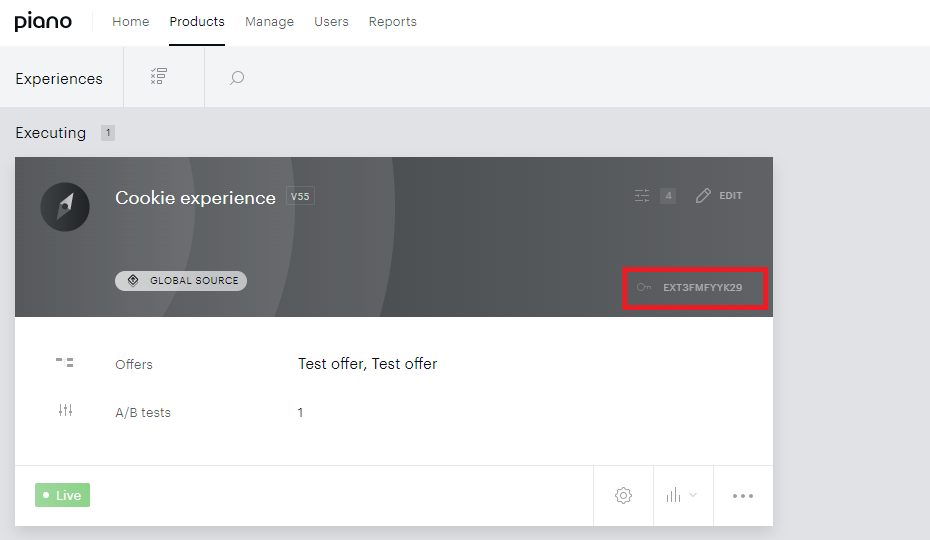
To get the Experience ID for any of the Composer experiences created in your Piano application, please go to the menu Products and select Composer.
There, you'll be able to find any of your experiences (either by scrolling through them or using the search option through the magnifying glass icon in the top bar) that you'd like to report an issue or inquire about and click on the ID of the Experience to copy it to your clipboard.
How to find a Widget ID
If you are using Content recommendations, each Content recommendation you create has a unique Widget ID.
This ID can be located in the settings of the Content recommendation in the Content dashboard, accessible via the Piano dashboard under Products → Content.
In case this option is not available in your applications, please contact your Piano Account Representative if the Composer 1x rollout has been completed for your AID.
Once you navigate to the Content dashboard and open any Content recommendation, on the upper right-hand side of the screen after clicking on the gear icon to view the Advanced module settings:
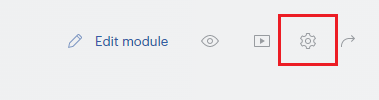
You will be able to view your Widget ID for this specific Content recommendation and copy it into your Support ticket.