
Every resource, at the outset, is simply a number in Piano's database. Think of a resource as a social security number for an offer you are creating. It’s only valuable when it’s paired with additional information and functionality. Resources gain specificity, and utility when you connect them to particular terms and offers.
Types of Resources
Standard Resource: Most Piano clients use standard resources exclusively. Standard resources can encompass any type or quantity of content, and they will be the only type of resource you need unless you want to bundle access to resources of different types under a single term. Even if you're using bundled resources, you'll need to create standard resources in order to bundle them together.
Fixed Bundle Resource: Fixed bundle resources can be useful when you want to group together resources that make sense both separately and as a package. One common use-case is a combined print and digital subscription bundle. By hitting the “add” button at the bottom of a fixed bundle resource page, you can group together individually created standard resources for print and digital offerings, unifying the combined offer. You’re then free to price this fixed bundle resource however you see fit. Bundles have their own terms and offers. The limit of resources that are displayed in a fixed bundle is 300.
Tagged Bundle Resource: Tagged resources are rare, but for the clients who need to dynamically change content included within a particular resource, they can be invaluable. One use-case would be a publisher selling research reports both on an individual and all-access basis. Through tagging the standard resources for the new individual reports, those reports could automatically be included under the tagged bundle resource associated with the all-access subscription. Standard resources can belong to more than one bundled resource at a time. If two tagged bundles share the same tag, both will collect standard resources with that tag but will ignore each other.
Creating Resources
Resources can be created via the dashboard menu under Manage → Resources → New. After you've selected the type of resource you're creating, there are a number of fields you'll want to fill out:
Title or Name (Required): The name of your resource allows you to easily identify different resources within your Piano application and the name your give your resource can be dynamically inserted into Piano's email templates by placing the variable {{resource_name}} into the text of those emails (e.g. "Thanks for your purchase of {{resource_name}}!").
Resource URL (optional): As with the resource name, for standard resources the resource URL can be inserted into Piano emails by using the {{resource_url}} variable within those emails. However, for bundled resources, the URL field is not used as a variable within Piano emails because a bundled resource is a group of standard resources that each have unique content characteristics and associated URLs. Therefore, unless you have an internal reason for populating this field, it most often makes sense to leave it empty for resource bundles.
Description (optional): This field is only used for your own reference within your Piano application.
Cover Image (optional): A custom cover image replaces the standard geometrical image on all resource pages and can be displayed to customers during checkout. If you do not select a custom cover image, the business logo uploaded to your application will instead be used during the checkout process. The recommended size for a custom cover image is 400x400 pixels. If you upload an image larger than that, you'll be asked to crop it. We do not recommend that you upload an image smaller than 400x400 pixels because the image will be stretched to fit and the resolution will suffer.
Resource ID (RID) (required): The Resource ID (RID) is the field that matters most when you’re creating a resource. A RID uniquely identifies a resource within our system. When users buy access to one of your resources, they are effectively purchasing that RID. It becomes associated with their accounts for the access period you set. We then allow or deny access based upon their possession of that RID. The RID is randomly generated, but you are free to change it up until your resource gets its first customer. After that point, the RID remains fixed. The maximum length of the RID is 255 characters (in UTF-8 format - we recommend using characters from the Latin alphabet).
Publish Date (automatic): You can change the publish date of your resources, but this information is not logically associated with any other element within Piano's system nor is it exposed to end users in any way. The only purpose of this field is to allow you to sort your resource list by date.
External ID (optional): This field is suitable for storing fixed identifiers that map to external systems. This can be particularly useful for integrations where resources in Piano need to be linked to corresponding entities in another system.
To enable the External ID field for a production application, you may need to contact Piano support if it is not already visible.
Tags (optional): Tags allow you to add standard resources to tagged bundles. As you start typing, you can see a list of the tags that currently exist within your application. To remove a standard resource from a tagged bundle, you can simply delete the associated tag(s). These resource tags are not related to the pages' tags you might set using the Effective Pages card in Composer.
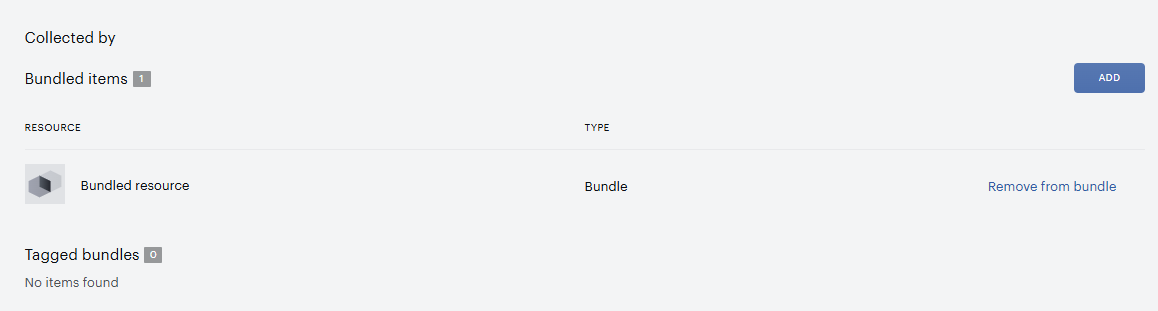
Fixed bundle: To add a standard resource to an existing fixed bundle, simply click "Add" next to Bundled items at the bottom of the standard resource page and select the fixed bundle of your choice. If necessary, you can remove your standard resource from this bundle by clicking "Remove from bundle." To include a resource in multiple fixed bundles, repeat the procedure above.
After each time you make changes to a resource page, be sure to click Save in the upper-right corner.
If needed, you are also able to delete resources. But this is only possible for resources without any conversions and which are not linked to any active terms.
Note, that the Resources view in the Piano dashboard under Manage → Resources will show only the first 500 (alphabetically ordered) items.