
Scheduling a bulk subscription upgrade
Bulk upgrades follow the general upgrade limitations. The only differences are that bulk upgrades (1) do not support immediate upgrades and therefore do not cover subscriptions in a grace period, and (2) can Include canceled subscriptions if the relevant checkbox is selected.
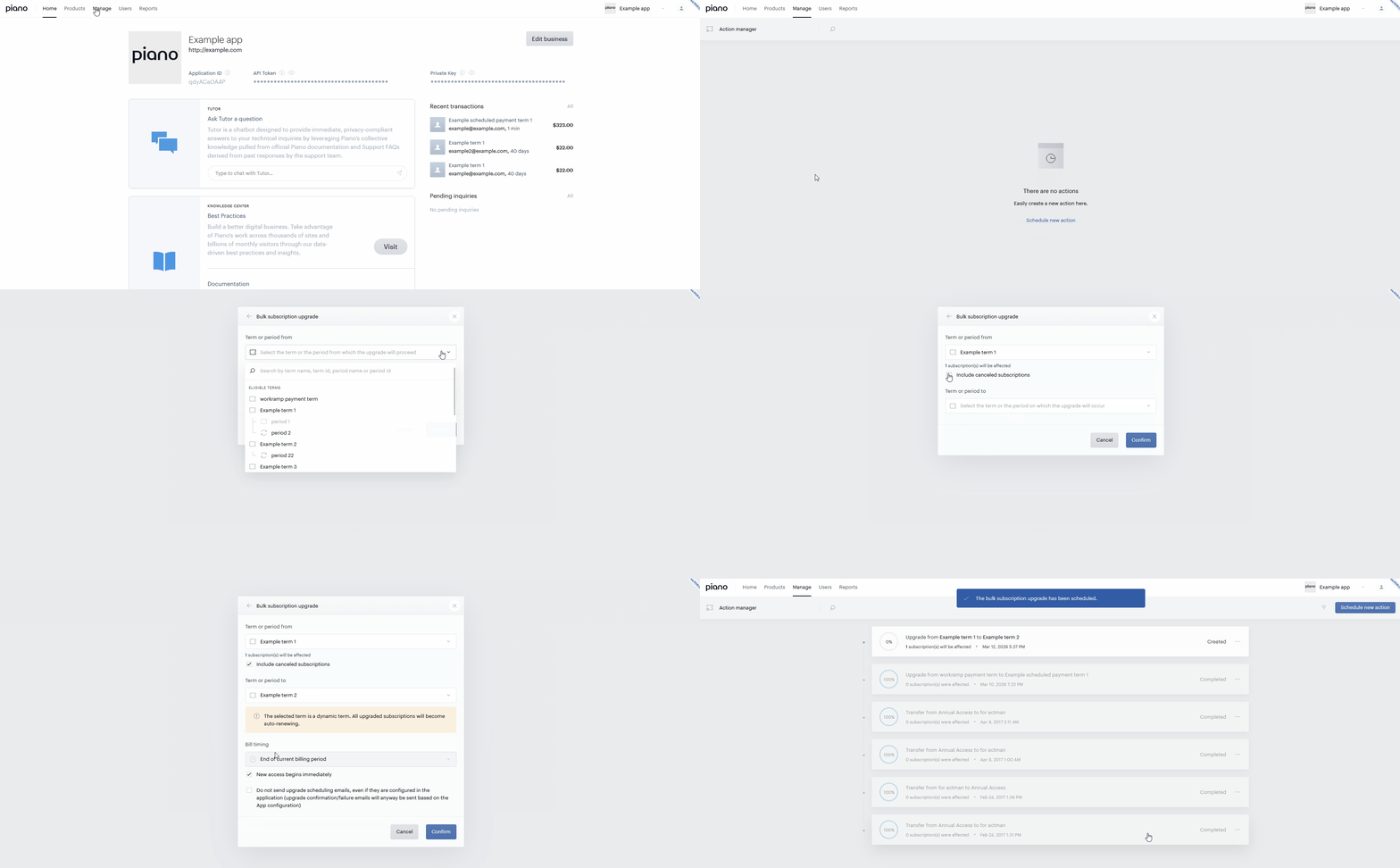
To schedule a bulk upgrade, start in the dashboard at Manage → Action Manager, then click Schedule new action.
-
In the Bulk subscription upgrade window, select the source term or period (Term or period from). The UI displays the number of subscriptions that match.
-
(Optional) Select Include canceled subscriptions to also include:
-
Recurring/scheduled payment subscriptions with auto‑renewal turned off (status in Subscription details: Active)
-
Dynamic subscriptions with deferred cancellation scheduled (status in Subscription details: Won't renew)
-
If the Include canceled subscriptions checkbox is selected and the target term is dynamic or has Force all new subscriptions to be auto‑renewing subscriptions enabled, the new subscription will be Active even if the source subscription was set to end (deferred cancellation) or had auto‑renewal off. If the checkbox is not selected, only active source subscriptions without extra conditions are upgraded.
-
Choose the target (Term or period to) from preconfigured upgrade options and other eligible terms. To see a specific upgrade option here, it must have the same Term or period from, include Bulk action in Show option in, and have Bill timing not set to Immediately.
-
Select Bill timing for your bulk upgrade (options available depend on the source/target types).
-
(Optional) Select New access begins immediately to grant temporary access until the upgrade is executed and the new subscription starts. To prevent sending a Term change scheduled email, select Do not send upgrade scheduling emails, even if they are configured in the application (confirmation/failure emails are still sent based on your application settings).
-
Click Confirm. The action is created and appears in the scheduled actions list.
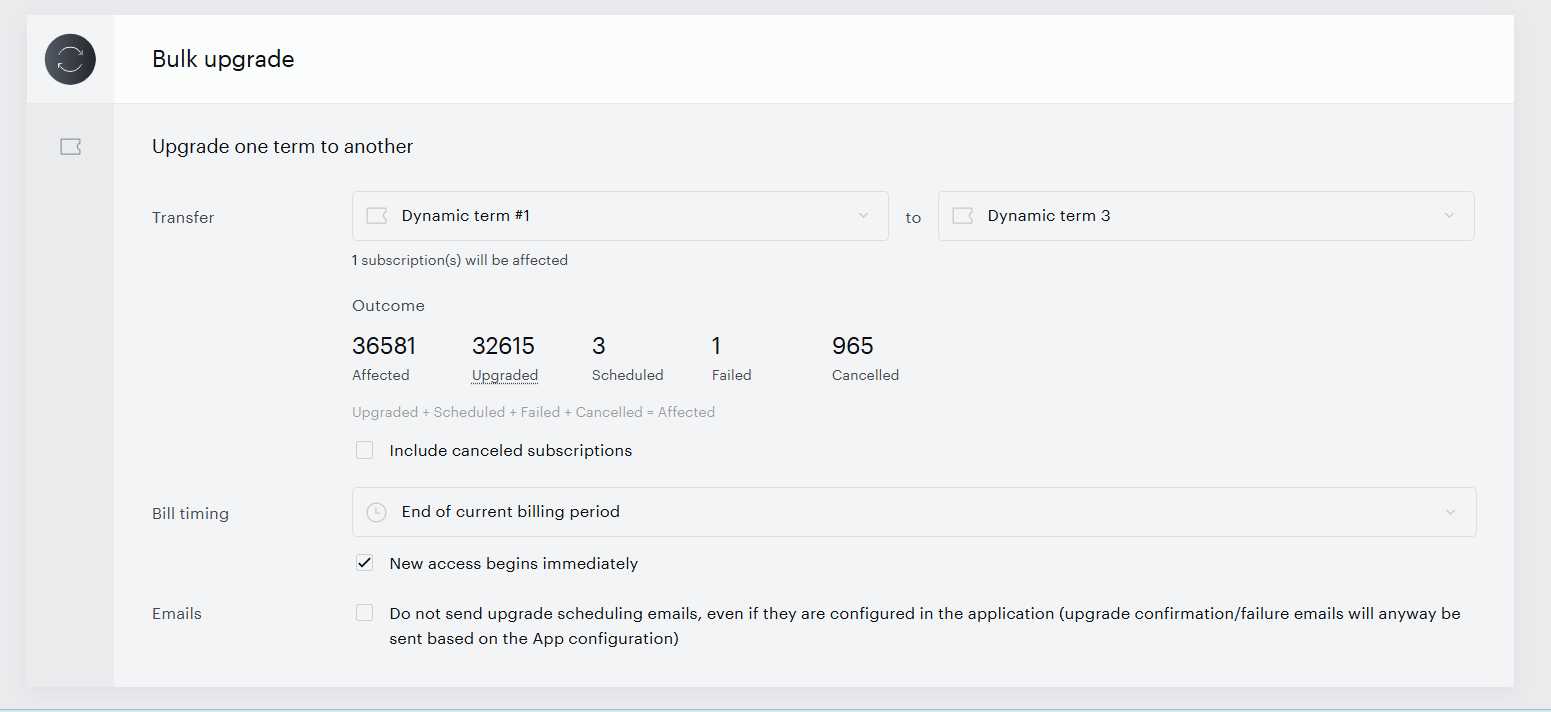
Select actions in the list to view their details, including the progress/outcome statistics: how many subscriptions are affected, upgraded, scheduled, failed, or cancelled.
Managing actions
Each scheduled action has a status:
-
Created: The action is created; planning has not started.
-
Scheduling: Planning has started but is not complete.
-
Scheduled: Planning is complete. For each subscription, an upgrade is either scheduled or skipped. No upgrades have been executed yet.
-
In progress: At least one upgrade has executed; the progress bar begins to move.
-
Completed: All upgrades have executed, regardless of outcome.
-
Stopped: The action was manually stopped; no further upgrades will be executed.
Action menu (ellipsis …)
-
View details: Open the action overview and progress.
-
Stop action: Abort any remaining scheduled upgrades. You can also prevent upgrade‑cancellation emails from being sent to affected users.
When you stop an action:
-
If an upgrade was not yet scheduled for a subscription, nothing changes.
-
If an upgrade was scheduled but not executed, it is canceled and the subscription returns to its prior state.
-
If an upgrade has already executed, it is not reverted.
After a bulk upgrade executes, the Subscriptions section in a user profile shows the target term. The Access section continues to show the current (source) access until the next renewal, when it updates to reflect the target term. Note: In Sandbox, auto‑renewals are not processed.
Direct term transfer (deprecated)
This option has been deprecated on February 1st, 2024.Please note that despite the deprecation of the Direct transfer feature, all pending scheduled actions will still be processed.
It required, that the new term must have the same resource, be of the same term type, and have the same billing plan as the original. That means, for instance, that you weren't able to transfer a customer from a registration term to a payment term or from a monthly subscription to an annual subscription. If a payment term has a trial offer, the payment term you transferred your customers to had to also include a trial offer of the exact same length.
Please note, that the following applied:
-
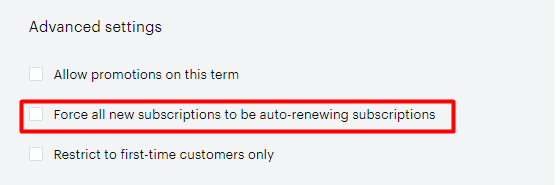
The payment renewal status of each user is preserved after the Action manager process. The exception is if the new term has the "Force all new subscriptions to be auto-renewing subscriptions" setting enabled in the settings, then the transferred subscription will have auto-renew ENABLED regardless of the previous setting.
-
Users that have a term upgrade pending will be skipped from the Action Manager transfer (even if both the term upgrade and Action Manager task reference the same term).