
Overview
To get started, click on the Manage tab and select Promotions from the dropdown. From there, you can produce promo codes that:
-
Give a percentage discount
-
Deduct a fixed amount
-
Unlock a special term
The Promotions page will list all promotions that you currently have set as active, with the option to view upcoming and expired promotions. Clicking the New button in the top right corner will let you create a new promotion. Once you’ve named your promotion, the promotions wizard, pictured below, will guide you through the essential setup steps.
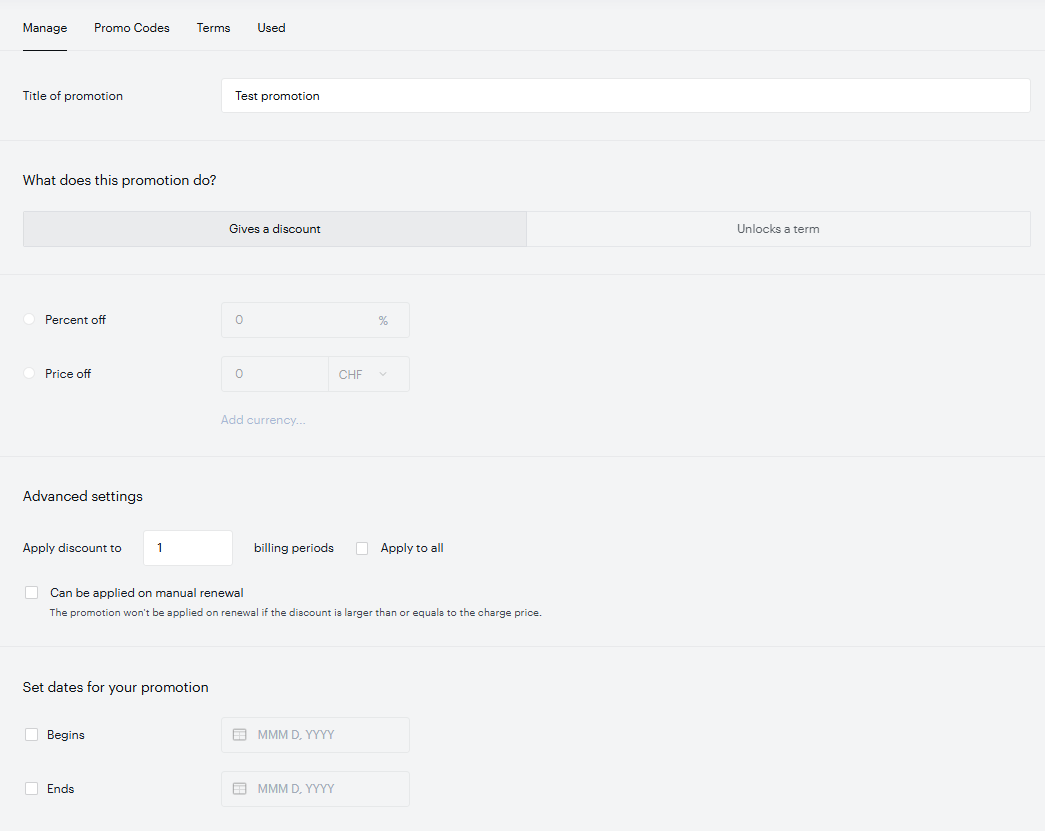
Please note, that the promotion type cannot be edited after a promo code has been used.
Creating a promotion
The first choice you will be presented with after naming your promotion is between "Gives a discount" and "Unlocks a term."
Gives a discount: This option applies a discount to selected term prices. Choose the discount type: a percentage (Percent off) or a fixed amount (Price off). You can grant free access by setting a price-off discount equal to the term price. If you set the percent discount to 100%, you can apply it only to the first billing period. When a promotion provides a discount, checkout displays the original price crossed out and the new price highlighted.
If a promo code grants 100% price off on a fixed-time term, the user does not need to enter a payment method. For subscription terms, a payment method is required even if the first billing period is 100% off.
A "fixed-time term" here means a term with a single billing occurrence: no renewal and no scheduled future charges. A term with a fixed access end date but a Scheduled billing plan (which preserves future billing periods) does not qualify as a fixed-time term. Gift Terms with a Scheduled billing plan always require a payment method at checkout, regardless of the promo discount, including 100% off, because future billing periods remain scheduled.
Currency-specific discounts: Price reductions can be customized for each currency you accept. This means you won’t have to reduce your subscription by $1 off the price in the US but less attractive sums like €0.89 in Europe or £0.85 in the UK — instead you can set it to be $1 off in the US, €1 off in Europe, and £1 in the UK. You can also choose whether or not to apply a promotion at all for select currencies. If the discount is active for a specific currency, its field is editable. If a currency is not active, you'll see a "Discount won't be applied to terms in X currency" message. To enable a disabled currency, click the + next to the currency field. To disable a currency, click the trash bin icon next to the currency (this will only disable the currency, not delete it). If you have only one currency enabled on your account, you will not be able to define the price-off until clicking the + icon next to that currency. In the example below, no discount would apply to customers using Canadian dollars, but US customers would get $1 off and UK customers would get £1 off.

Unlocks a term: Unlocking a term is a slightly different approach. Rather than modifying the price of terms that a customer can already see, this type of promotion allows customers to access special terms that they could not have accessed without the code. For example, you may charge $9.99 per month for a subscription to your premium site, but you want students to be able to pay $30 for an entire year. Promotions that unlock a term can do just that. For this type of promotion, the promo code box will appear within the offer template. A user will need to enter a promo code before seeing the exact details of the term they are unlocking. This is different than promotions that provide a discount, where a promo code box instead appears on the checkout screen.
If the same term is included in both a promotion that provides a discount and a promotion that unlocks a term (each with different promotion codes), the "Unlock a Term" promotion will override any other promotion configuration. To avoid confusion and ensure a seamless user experience, avoid including the same term in both "Unlock a Term" promotions and discount-based promotions.
Apply discount to: This variable allows you to apply a discount to a set amount of billing periods for a user as long as the term exists, even if the promotion has expired.
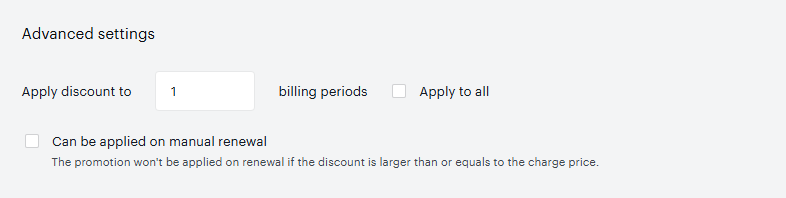
Apply to all: If this box is checked the discount will be applied for every future billing period for the user so long as the term exists, even if the promotion has expired.
Can be applied on manual renewal: By default, promotions are only allowed for users purchasing a term for the first time. However, if this box is checked, promo codes that give a discount can also be entered by customers MANUALLY renewing a term for a new billing period. These customers can apply the promo code before their subscriptions lapse by viewing an offer template that includes the term. Please have a look here for more information.
The promotion will not be applied on renewal if the discount is greater than or equal to the charge amount.
Note, that Piano currently does not support the use of promo codes during the upgrade process, this includes applying discounts or unlocking specific terms. However, you can still offer a discounted upgrade by creating a dedicated term with the reduced price and making it available as an upgrade option to users.
Set dates for your promotion: You have the ability to set dates for any promotion you create.
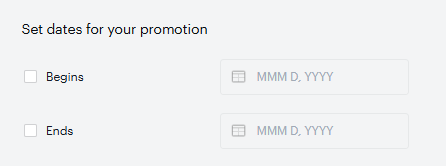
You can set a start date, an end date, both or neither, so that your customers are only redeeming your promotions exactly when you want them to do so. If only "Begins" is defined, the promotion will start on the specified date and run indefinitely. If only "Ends" is defined, the promotion will be active immediately and run up to the specified date. If neither date is selected, the promotion will be active immediately and run indefinitely.
Generating promo codes
The second step in creating a promotion is deciding if you would like to create a fixed or unlimited number of promo codes that can be redeemed. To generate your promo codes click the Promo Codes tab.
Note, that Piano's promo codes are case-insensitive.
Unlimited: Should you choose unlimited, you will set only one promo code through the entry form pictured below. You can choose your own code or use one that is randomly generated by Piano's system.
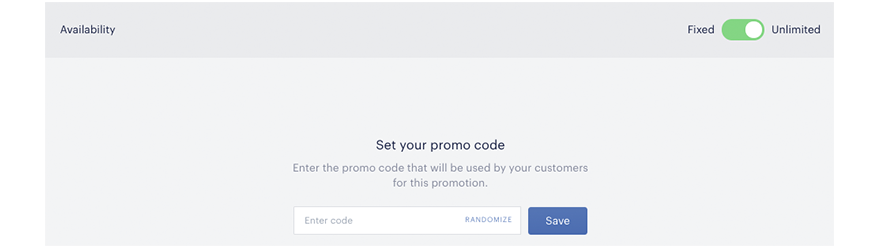
Fixed: Choosing a fixed number of promo codes allows you to control the reach of your promotion.With fixed promo codes, a user has 30 minutes to complete the transaction once the promo code is entered. After that point, the promo code can be used by another customer. This is useful when you're running a promotion where the first X number of users to redeem a promo code get a special deal. You can choose the number of fixed codes manually, or if you have a group of customers for whom you would like to generate unique codes, you can upload a .csv or .txt file with their email addresses. The quantity of promo codes will update automatically to match the number of email addresses in your list.
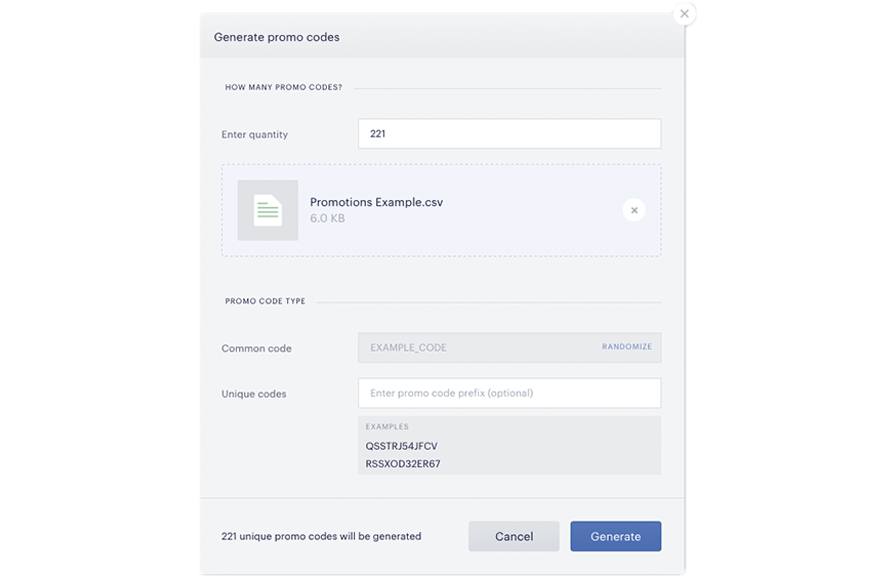
Promo code type: When creating a fixed number of promo codes, you will need to specify in the quantity field the number of promo codes to be created and then click on the "Common code" or "Unique codes" text to create promo codes of that type. If you choose "Common code," you will be left with that quantity of identical codes; if you choose "Unique codes," you will instead have that quantity of individualized codes. You also have the option to choose a promo code prefix for "Unique codes." Note that if you switch the promo code toggle to "Unlimited" and click "Save" any "Unique codes" previously created for the promotion will be lost.
Adding terms to promotions
The last step is to select the term or terms to which this promotion will apply by clicking the Terms tab on the promotion and clicking Add terms. If you do not see any terms available to add, you have likely neglected to enable promotions on the terms you want to discount or unlock. To fix this, navigate to Manage → terms → (select a term) → check “allow promotions on this term.” If you have a promotion that provides a discount and do not specify its term(s), the promotion will be applied to all terms that have "Allow promotions on this term" enabled. For a promotion that unlocks terms, you must specify the terms it applies to.
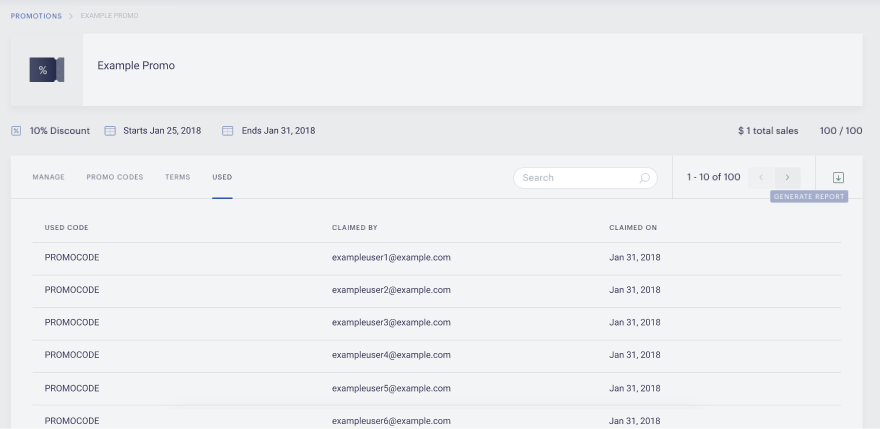
Once you’ve added your terms and saved the changes, you’re all set. When the period you have set for your promotion arrives, your promo codes will be live and your customers can take full advantage of them. Within each promotion, you can track the codes that have been redeemed by clicking the Used tab.
Within this tab, you can not only view the codes that have been redeemed, but you can also export that list as a .csv for your own records. To do this, simply click on the Generate Report icon at the top right of your screen. This will initiate the creation of a report that lists the promo code used, the user who redeemed it, and the time of redemption for each instance of the code.
Note that you can have multiple promotions related to a single term, but a customer cannot have two promotions applied to the same term at the same time. If a customer has an active promotion (say a discount applied to all billing periods) and that user enters a promo code of another promotion for the same term, the new promotion will become active and the former promotion will be cancelled.
In case the user redeems a promo code for a term with a free trial, we mark the promo code as reserved until the trial is over and the next billing period has started. Once this is the case, the promo code will be marked as claimed. We also mark a promo code with the status reserved for a period of 30 minutes after the user has entered the promo code in the respective field during checkout.
Once at least one promo code from a promotion has been redeemed, the promotion cannot be deleted from the Piano dashboard. Additionally, once a promotion has generated at least one conversion, it can no longer be edited too. To make changes, a new promotion must be created.
Note, that there is no order in which the available promo codes are sorted, they appear in random order.