
Overview
An offer is a collection you present to users.
-
Purchase offer: a group of terms that users can buy. You can mix term types (Registration, Recurring payment, Scheduled payment, Dynamic) in a single offer.
-
Upgrade offer: a group of upgrade options that let users upgrade or downgrade an existing subscription.
The configuration flows have much in common, with differences in a few details and parameters. For configuring upgrade options and upgrade‑offer templates, see the Upgrades documentation.
Configuring a purchase offer
-
In the Piano Dashboard, go to Manage → Offers and click New, then choose Purchase offer.
-
Enter a name and click Create (an empty offer is created).
-
Click Add, select one or more terms, and click Add again. The selected terms appear in the purchase offer. To see which offers a term belongs to, open the Offers tab in the term.
-
If you are not a Composer user, you can trigger a purchase offer with JavaScript. If you are, go to Products → Composer and add a Show offer card to your experience.
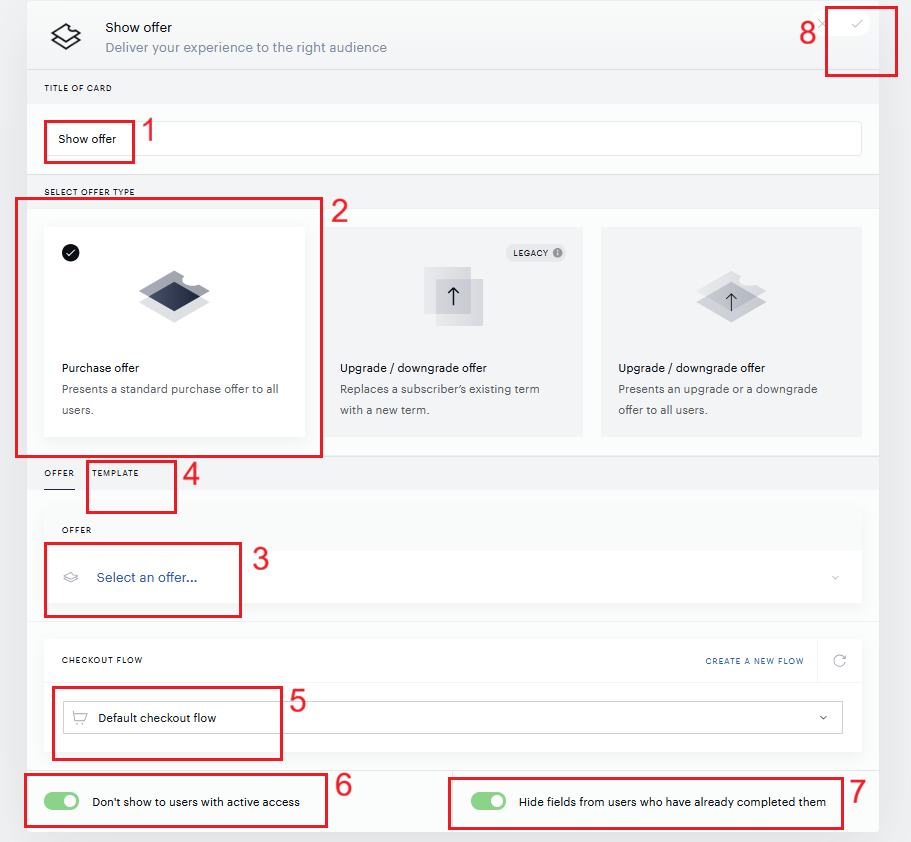
In the card, set:-
Card name: enter a name
-
Offer type: Purchase offer
-
Offer: select your purchase offer from the dropdown
-
Template tab: select a purchase‑offer template
-
Checkout flow: select a flow (Default checkout flow is preselected)
-
Don’t show to users with active access: when ON, the card is hidden for users who already have access to at least one resource in the offer (default: ON)
-
Hide fields from users who have already completed them (only for applications using Identity Management as a user provider): when ON, previously provided fields in the checkout form are not shown again (default: ON)
-
Save changes
-
Configuring an upgrade/downgrade offer
Prerequisite: Configure upgrade options at the term level (see Upgrades).
-
In the Piano Dashboard, go to Manage → Offers and click New, then choose Upgrade/downgrade offer.
-
Enter a name and click Create (an empty offer is created).
-
Click Add, select one or more upgrade options that are allowed for upgrade offers (i.e., include Upgrade offer in Show option in), and click Add again. The selected upgrade options appear in the upgrade offer.
You can also add the upgrade offer to an upgrade option from the term’s Upgrade offers field. -
In Composer, add a Show offer card to your experience.
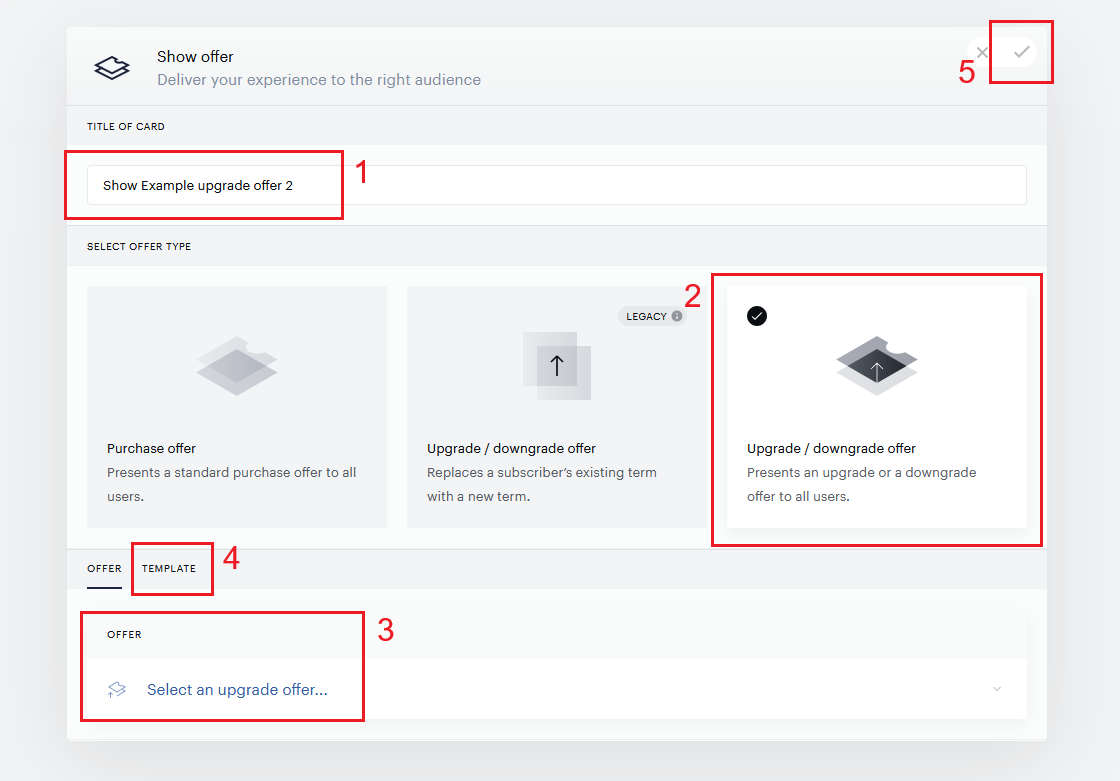
In the card, set:-
Card name: enter a name
-
Offer type: Upgrade/downgrade offer
-
Offer: select your upgrade offer
-
Template tab: select an upgrade‑offer template
-
Save changes.
-
 Deleting an offer
You can delete an offer that is not in use. Before deleting, confirm it is not referenced by:
-
Any active Composer experience
-
Custom JavaScript or SDK code that triggers the offer