Overview
Upgrade options originally existed as part of term configuration. A separate configuration section is designed to improve manageability of a significant number of upgrade options created in the system.
Important! For a limited time, upgrade options will be available for configuration in both places - the new section and term configuration. Options created in any of the UI will automatically appear in the other section. Deprecation of the term-level configuration will be announced separately.
Configuring upgrade/downgrade options
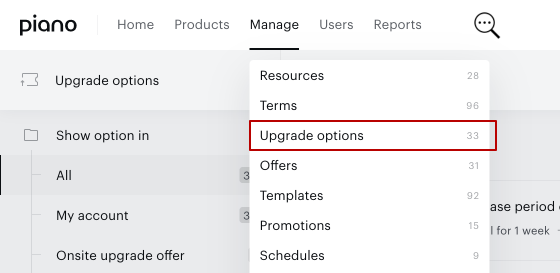
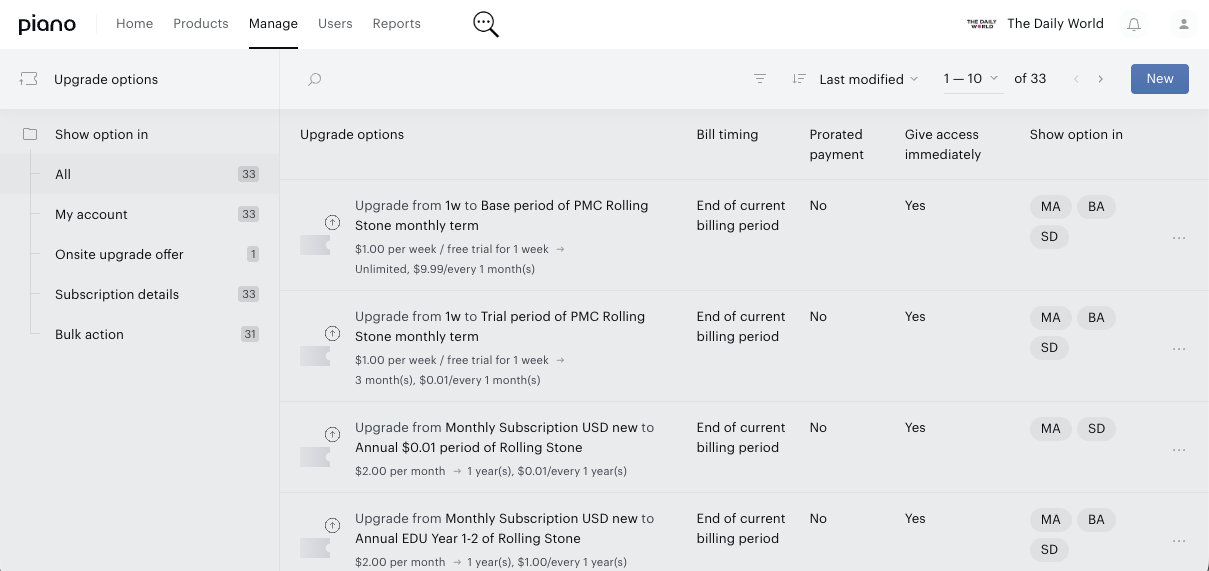
To create a new upgrade option, you will need to navigate to the new ‘Upgrade options’ section of the Subscriptions dashboard and click on the ‘New’ button in the top-right corner.
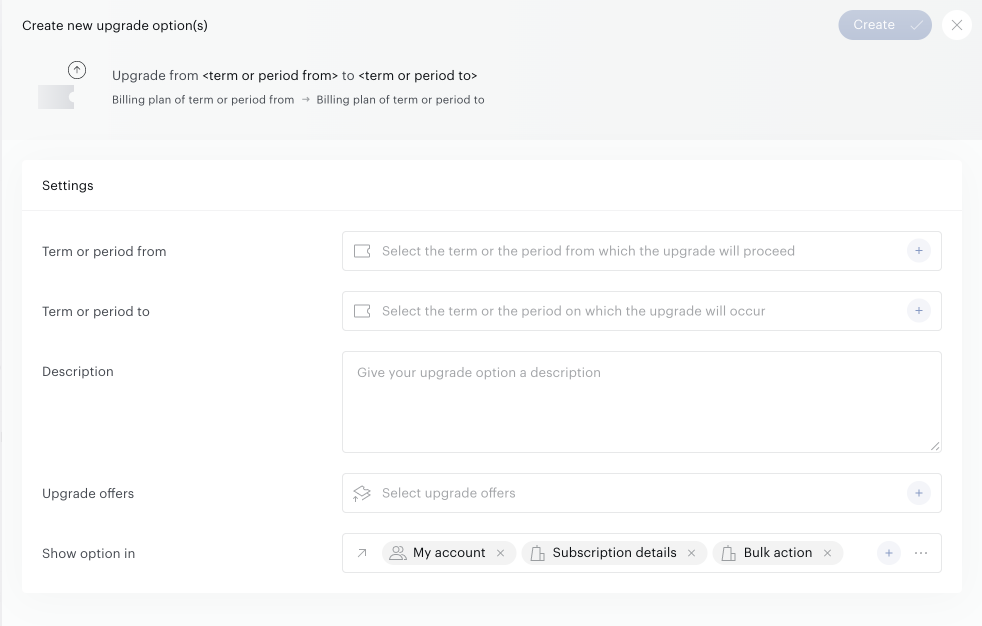
A new creation pop-over will emerge. In order to create a new option, you will need to provide:
-
Term or period from - a term or a specific access period of the dynamic term for which you are configuring this upgrade option.
-
Term or period to - a term or a specific access period of the dynamic term where an end-user will be upgraded when using this option.
-
Description - additional text field with the information that will be shown in the second line in the offer containing this upgrade option.
-
Upgrade offers - defines in which offer this option will be shown.
-
Show option in - defines where the upgrade option is available to subscribers and your team. You can select one or more locations:
-
My Account
-
Subscription details (in the Piano dashboard)
-
Onsite upgrade offer
-
Bulk action: upgrades performed from the Action manager.
-
This pop-over supports creation of multiple upgrade options at the same time, as every selector in this form is a multi-select element. But there are a few creation/editing rules:
-
When you select multiple source terms/periods, the destination term/period is limited to one.
-
And vice versa, when you select multiple destination terms/periods, there can be only one source term/period configured.
-
The overall limit for multiple source/destination terms/periods in a single operation is set to 100.
-
“Bulk action” option cannot be selected along with the “Immediately” billing timing, as all upgrades available in action manager can be performed at the end of the subscriptions' billing cycles.
-
When the “Upgrade offer” field is not empty, the “Show option in” field must contain the “Onsite upgrade offer” option. To use upgrade offers, you must select onsite upgrade offers as one of the locations to display this option.
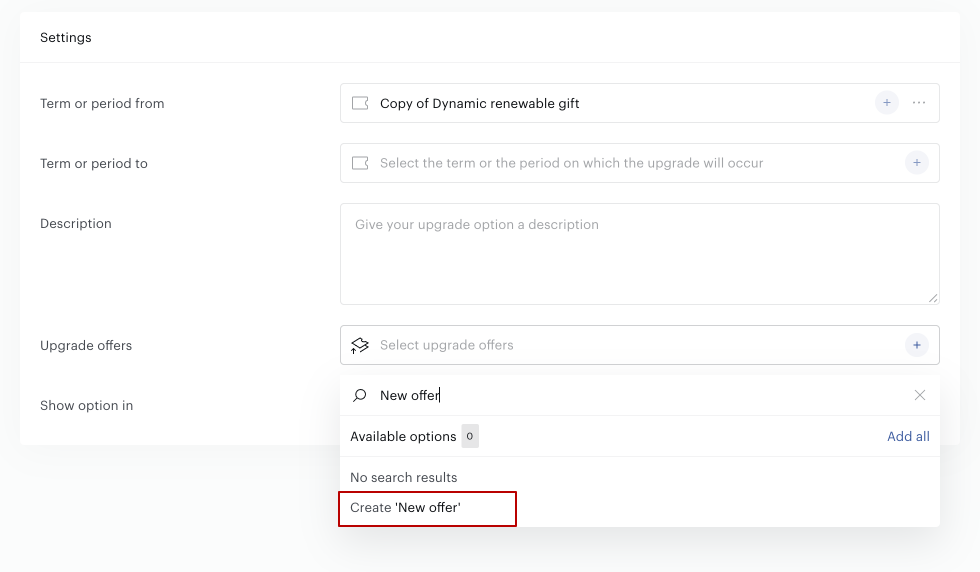
‘Upgrade offers’ selector also supports creation of new upgrade/downgrade offers right in the upgrade option creation flow. You need to start typing the offer name right in the search box and then click on the Create button in the search list.
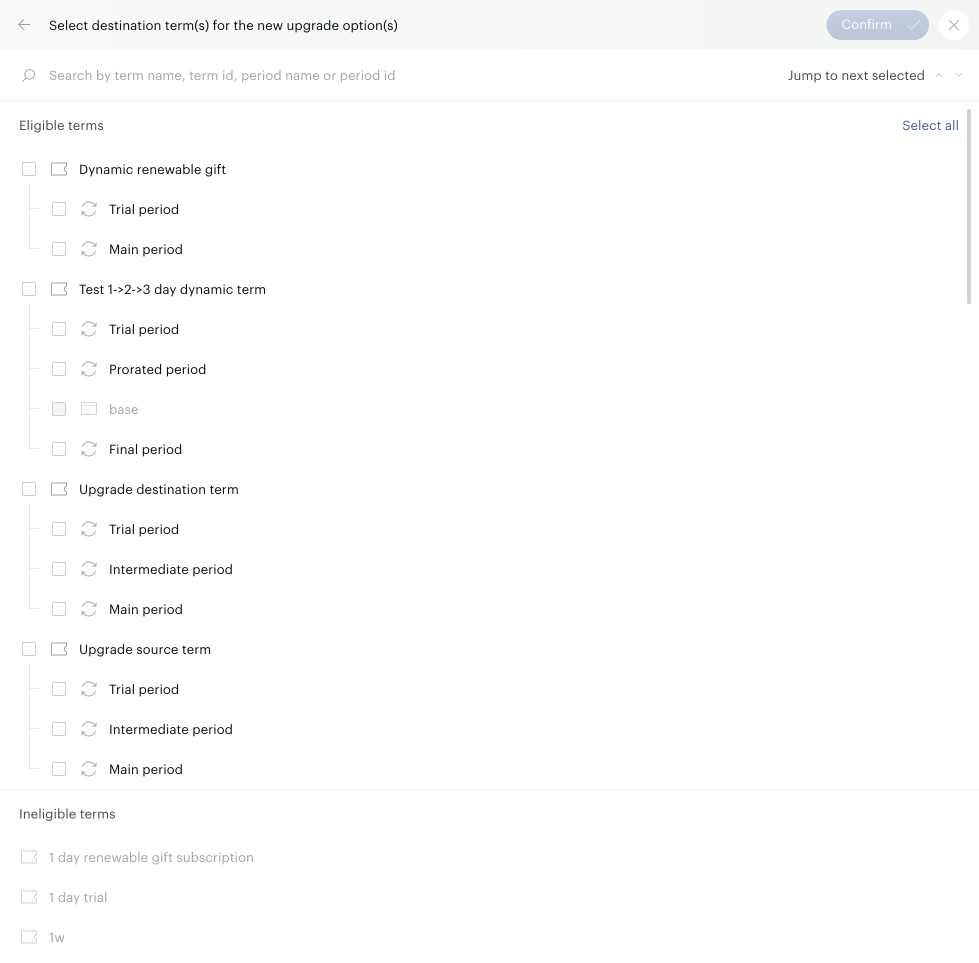
Configuration pop-over has a number of filters that are regulated by upgrade options creation rules. Once a source term/period is selected, the number of eligible destination terms/periods will be limited depending on what source was selected.
Managing upgrade/downgrade options
Clicking on a configured upgrade/downgrade option will allow you to edit its details.
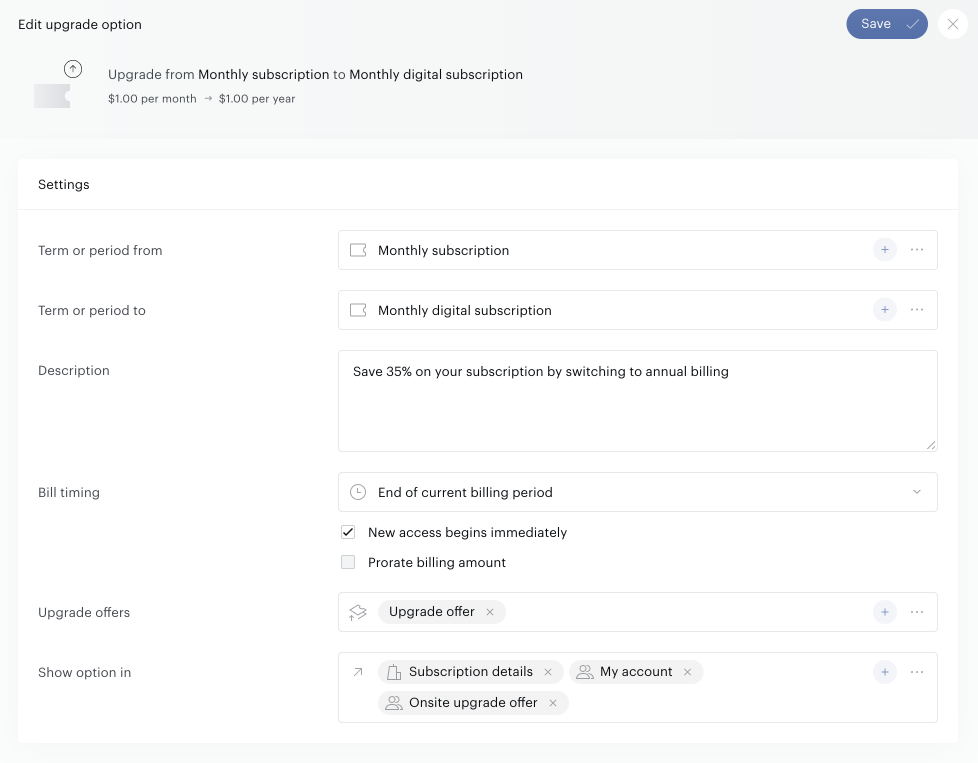
The Edit upgrade option page opens with a summary of the option at the top, showing the source and target terms and their prices. The settings are listed below. Click Save in the top right corner to apply your changes, or close the page to leave without saving.
Upgrade/downgrade options filtering
New sections provide flexible filtering abilities in order to quickly filter out the necessary group of upgrade options and manage them.
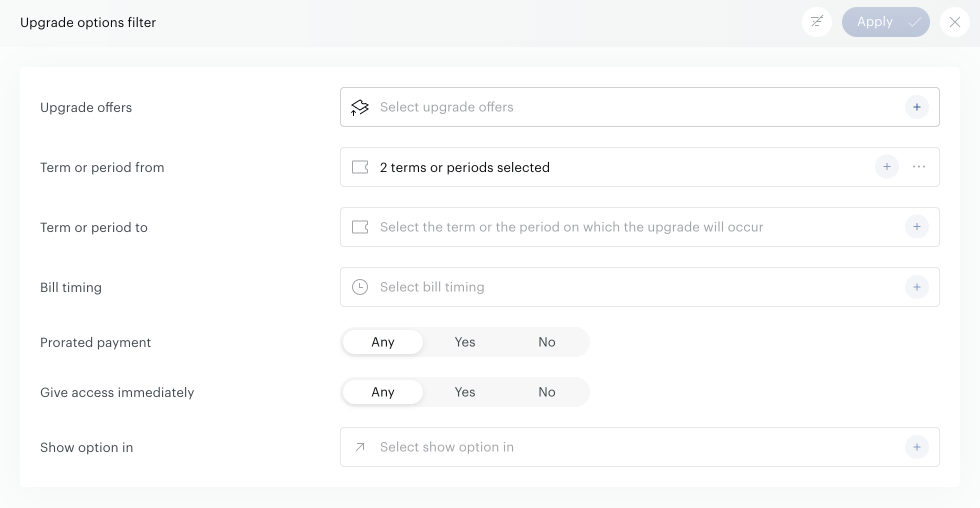
Where all parameters are multi-selectors.
Archiving/unarchiving upgrade options
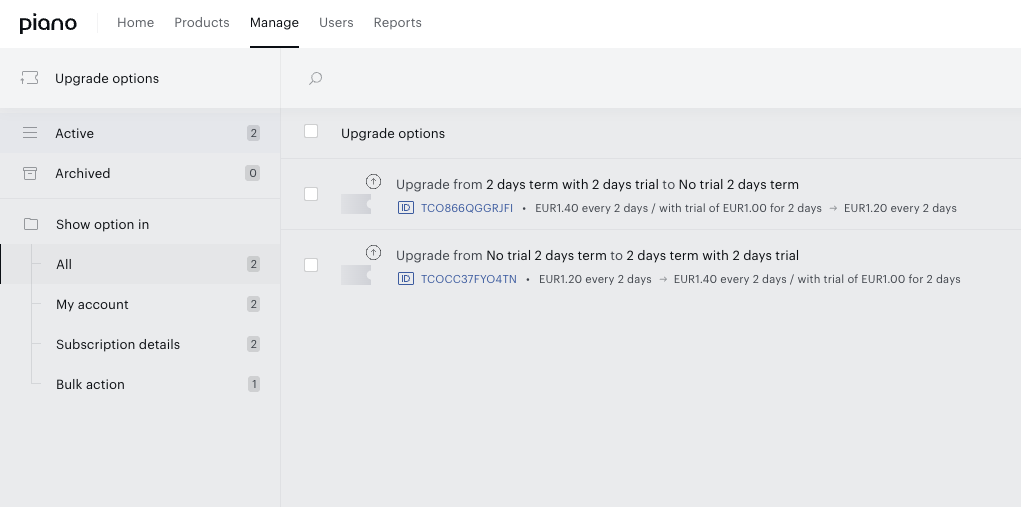
Archiving an upgrade option hides it from all selectors across the dashboard, so that it will be impossible to introduce any new configurations with this option.
At the same time option remains completely editable and operational. If it is already selected in some offer - the offer will keep showing it to end-users and they will be able to upgrade. The only limitation is that upon configuration this upgrade option will not be visible anymore.
Unarchiving an option will return it back to active section and thus make it eligible for configurations again.
Deleting upgrade options in bulk
-
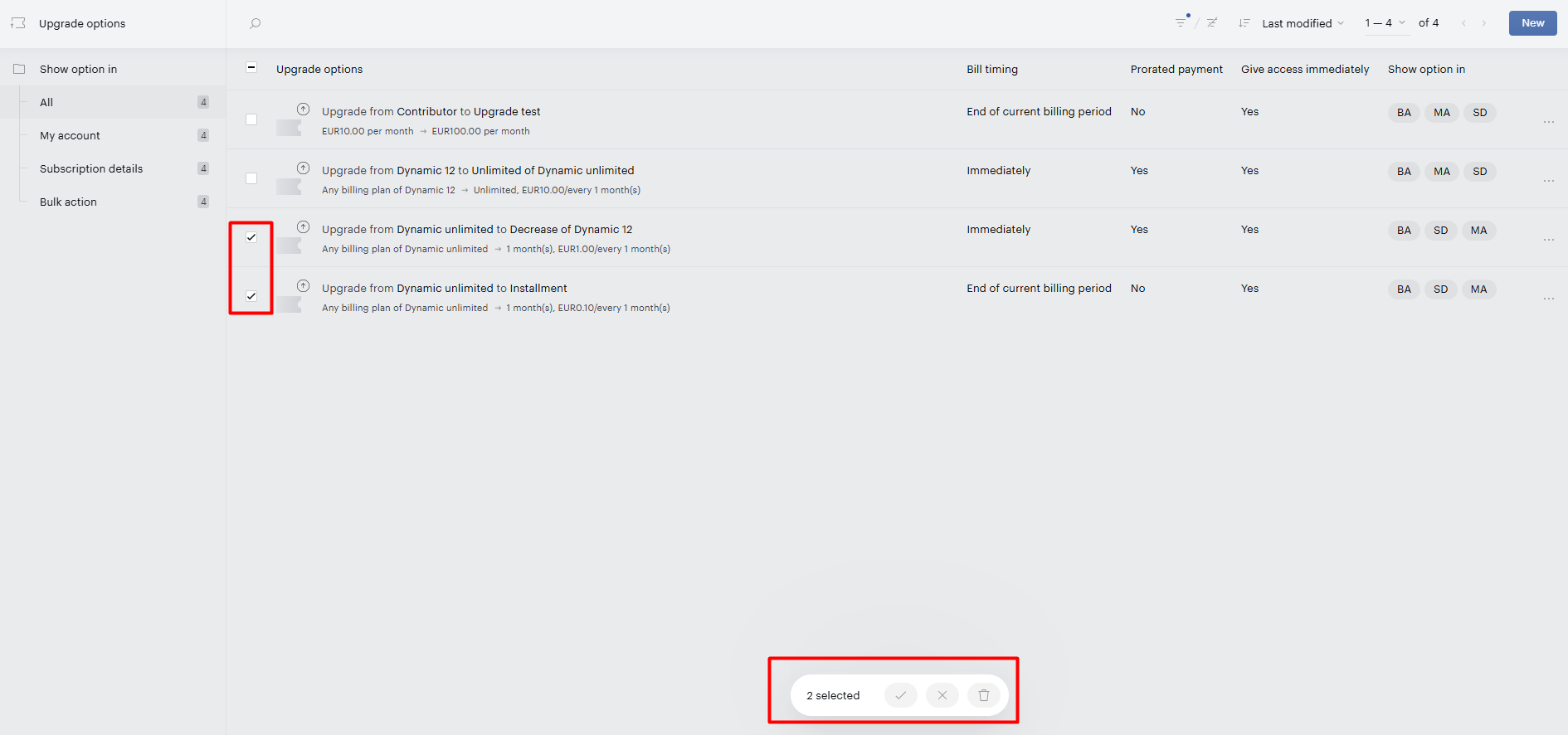
Select the checkbox next to each upgrade option you want to remove. A toolbar at the bottom shows how many options are selected.
-
Hovering over the trash icon on the right expands the action to show Delete selected, and clicking it deletes the selection.
-
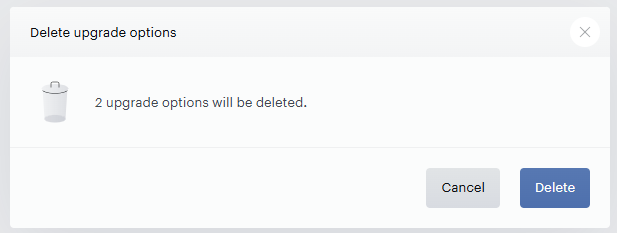
Confirm deletion of the selected upgrade options by clicking the Delete button.