
Overview
Allows brokers to customise the text of the Cxense Advertising application. These customisations typically fall within two scenarios:
-
Branding changes: These are usually minor changes such as changing occurrences of Cxense Advertising to another brand name or changing a term or phrase used in Cxense Advertising to something that better suits the brokers business.
-
Translation changes: These can be minor changes such as changing some words from English to American English or quite major such as changing all text in the application to another non English language.
When additional language resources have been added, Cxense Advertising attempts to display the resources that best match the users selected locale. Users are able to select a locale in the User Preferences page from a range of language + country options, for example English (United States). Administrators are able to add resources for either a language + country option or a more general language only option, for example Chinese is a language only locale and Chinese (Hong Kong) is a language + country locale.
Cxense Advertising attempts to locate resources using the follow steps until a match is found:
-
Attempt to find a match using an exact match of the user's locale (language + country) against the brokers resources.
-
Attempt to find a match using the language component of the user's locale (language only) against the brokers resources.
-
Attempt to find a match using an exact match of the user's locale (language + country) against the system resources.
-
Attempt to find a match using the language component of the user's locale (language only) against the system resources.
-
No matches found, use the system default resource (English).
This fall-back mechanism makes Cxense Advertising quite flexible and greatly simplifies the localization process.
The Manage Translation Resources page
The Manage Translation Resources page allows users with SYSTEM ADMINISTRATOR privileges to download the complete set of text resources used by the system, customise the text and then upload the resources as a new language.
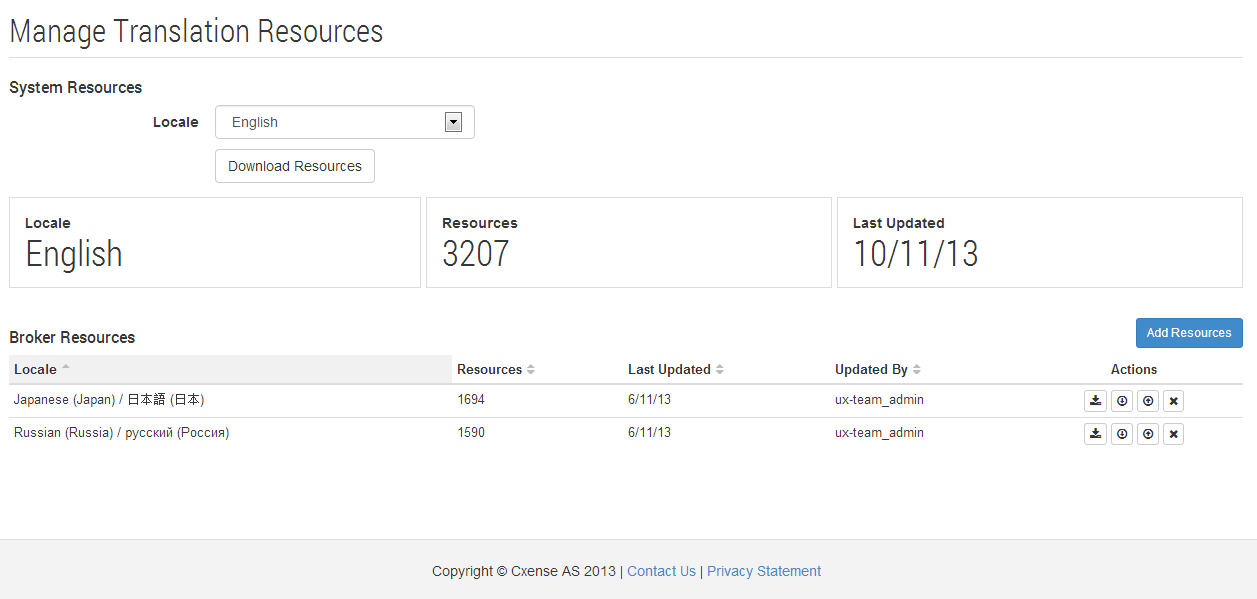
System Resources section
This section provides details on the current system resources being used by the system as well as allowing the current system resources to be downloaded. The default system resources are in English, but cXense is able to provide system support for additional languages (currently this is limited to Japanese only).
-
System Version: The version number of Cxense Advertising currently in production.
-
Locale: The default locale being used by the system, this will remain as English.
-
Resources: The total number of resource lines in the default system resources.
-
Last Updated: Displays the date the system resources were last modified.
-
Download Resources: Allows the current system resources to be downloaded. The local selector allows brokers to choose what language they would like the system resources to be downloaded as.
Broker Resources section
This section lists all current resources for the broker and allows management of these resource bundles, as well as allowing for new resources to be added.
-
Resource List: The list of the brokers current resource bundles.
-
Locale: Shows the locale of the resource bundle, this can be language or language + country.
-
Resources: Shows the number of entries in this resource bundle.
-
Last Update: The date this resource bundle was last modified.
-
Updated By: The user whom last modified the resource bundle.
-
Actions: Allows management of the current resource bundle. See below for further details.
-
-
Add Resources: Allows a new resource file to be uploaded for a new locale.
Resource Management Actions

Download Differences: This action will download a resource file that contains all the resource entries from the system resources collection that do not exist for the selected resource bundle. This action becomes disabled when the locales resources contains all the entries for the system. This file can be edited and uploaded, allowing missing entries to be added.

Download Resources: This action will download a resource file that contains all the resources currently defined for the selected resource bundle. This file can be edited and uploaded allowing existing entries to be overridden with corrections/adjustments.

Upload Resources: This action allows resource files to be uploaded into the system and added/merged into the selected resource bundle.

Delete Resources: This action will delete the selected resource bundle from the system.
The Resource Upload page
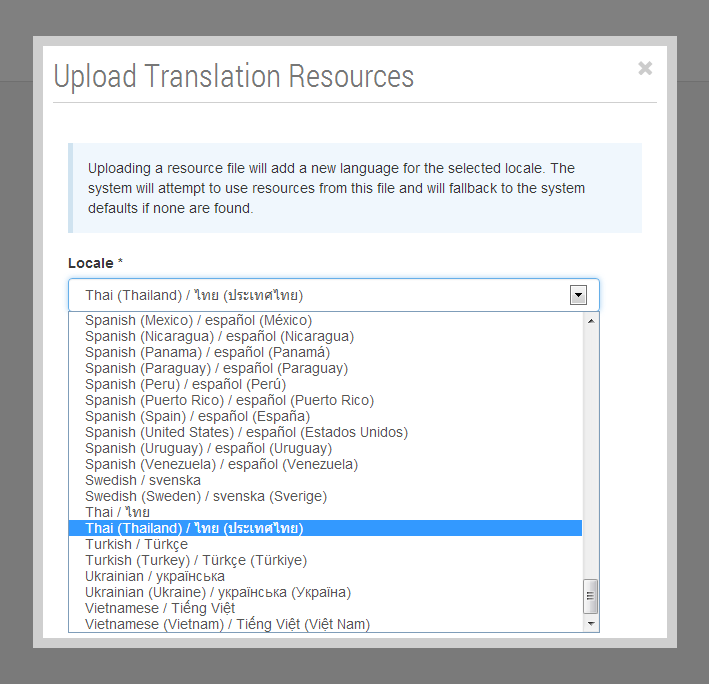
The Resource Upload page is shown when a user selects Add Resources or Upload Resources from the Manage Translation Resources page.
-
Locale: When adding new resources, the Locale selector is enabled and it lists the available language and language + country locale options. When modifying an existing resource bundle, the Locale selector shows the locale of the selected resources and is disabled.
-
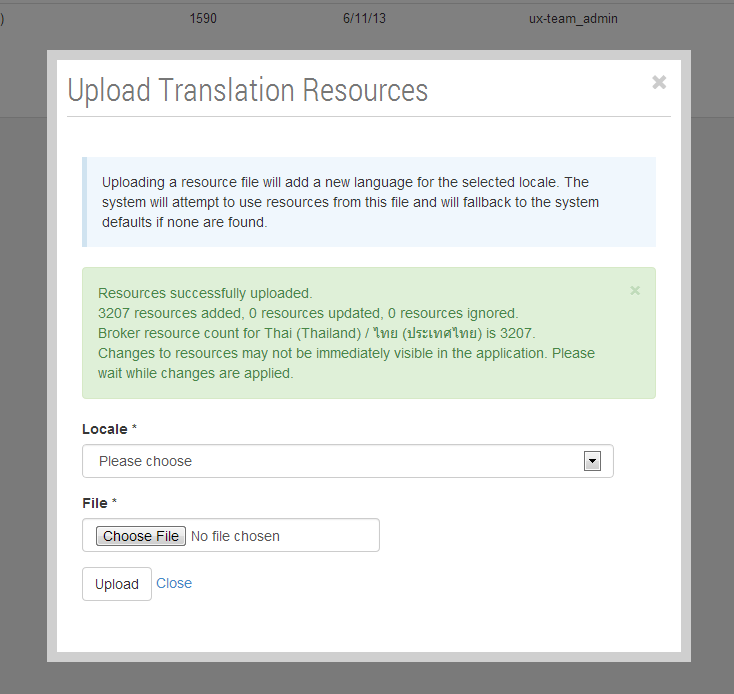
Choose File: This button allows the operator to select a file from their local file system for upload.
-
Upload: This button will upload and insert/merge resources into the system.
After the upload completes, a message will be displayed showing the number of resource entries added, updated or ignored along with the new number of entries in the resource bundle.
Resource files
Resources are downloaded and uploaded in tab delimited or separated files with no text qualifier. They are encoded using UTF-16 and hence can contain text in any language. These files can be opened and edited in spreadsheet software such as Microsoft Excel or Open Office Calc. When uploading a file, the system will accept UTF-8 or UTF-16 encoded files.
If editing resources in Microsoft Excel and saving the changes to a new file, be sure to save it using the "Unicode Text" option. This option will save the file as a UTF16 tab delimited/separated file.
The files contain two columns:
-
Key: This is a descriptive identifier of the resource. Typically indicates where the resource is used.
-
Value: This is the message that is displayed in Cxense Advertising and all text that is not within placeholder characters (namely "${}" excluding the quotes) can be modified as required.
Only the second column, the resource value, should be edited. Any entries that have a unrecognised Key will be ignored during upload.
When translating the resource value it is important that all values within placeholder characters (namely "${}" excluding the quotes) remain unchanged. Otherwise placeholder substitution will not function correctly and the Cxense Advertising UI will display incorrect messaging.
Example Scenarios
Providing Chinese support including regional support for Hong Kong.
Resources for non-English languages will typically try to translate all resources in the system so the end user is never shown text in English. As there are a number of countries that use Chinese as their language, a complete set of resources should be added using the language only locale of Chinese. If there are any resources that should be overridden for particular Chinese speaking countries then smaller resource sub sets can be used as required.
To add Chinese translations:
-
Download the current system resources file using the Download Resources button.
-
Edit this file and translate the values into Chinese.
-
Upload the translated file using the Add Resources button, selecting Chinese as the locale.
At this stage, any user that selects a Chinese speaking country as their locale will be presented with these translations.
To maintain these resources, periodically check if the Download Differences Action is enabled. If so, simply download the list of missing translations, translate and upload using the Upload Resources Action.
There may be certain text that should be displayed differently for users from Hong Kong. This can be achieved by providing an override file for a specific language + country locale.
To add a override translations for Hong Kong:
-
Create a list of resources that require overriding in a tab delimited/separated file and translate as required.
-
Upload the translated file using the Add Resources button, selecting Chinese (Hong Kong) as the locale.
When a user with Chinese (Hong Kong) as their selected locale is presented with text, Cxense Advertising will look for a translation from the Chinese (Hong Kong) resources first and will then fall back to the Chinese resources if none is found, falling back to the system default English text as a last resort.
This file can be downloaded, modified and uploaded again when required using the Download Resources and Upload Resources Actions.
Providing US English support.
As Cxense Advertising uses English as the default language, there are a number of words that may require American spelling. This can be achieved by creating an override file of resources that require different spelling to the system default resources.
To add a override translations for US English:
-
Create a list of resources that require overriding in a tab delimited/seperated file and modify spelling as required.
-
Upload the file using the Add Resources button, selecting English (United States) as the locale.
When a user with English (United States) as their selected locale is presented with text, Cxense Advertising will look for a translation from the English (United States) resources first and will then fall back system default English resources if none is found.
This file can be downloaded, modified and uploaded again when required using the Download Resources and Upload Resources Actions.