
Media Plans provide Enhanced Multi-Campaign Bookings and Campaign Management for Conventional Display Advertising (CPM Advertising Model)
Getting There
You can create Media Plans within any Advertising Folders. Simply click on the Advertising Tab to Create or access Media Plans.
Media Plans - At a Glance
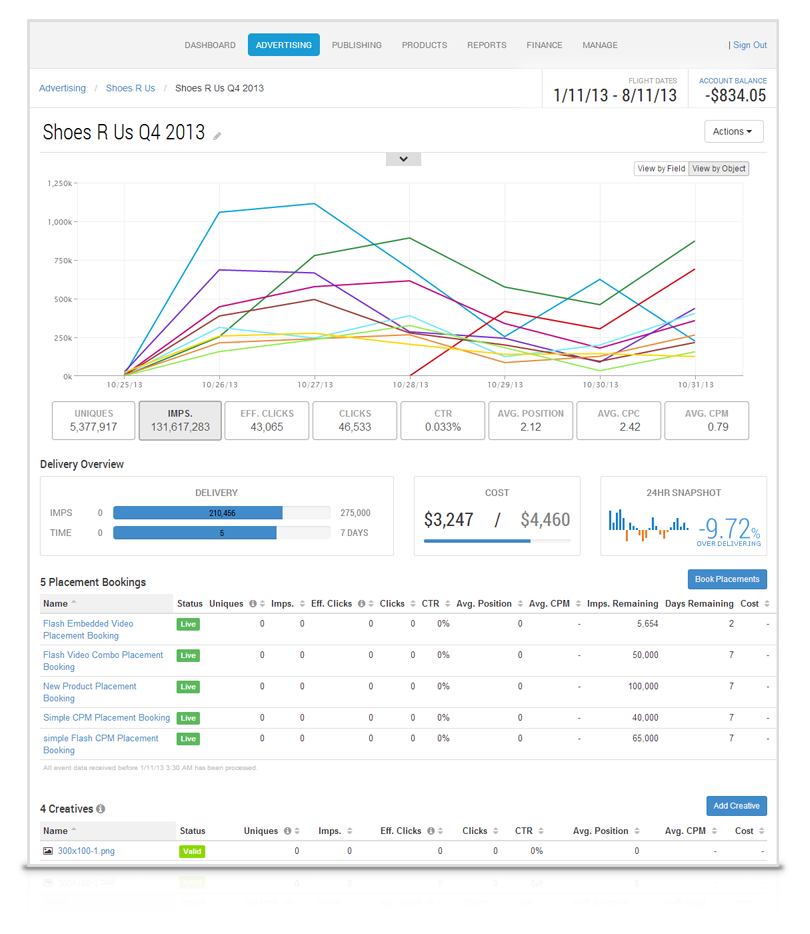
Media Plans empower Ad Ops Teams and Account Managers alike by reducing the workload to setup and mange multiple campaigns for large advertising executions. Book exclusive Audience Placements and entire Network exposure Placements within the same Media Plan, and manage them as one. This is also a great way to quickly test new Advertising Customers against different audience segments to define the target audiences for better ROI on more substantial bookings.
The Media Plan view provides oversight across all placement bookings via:
-
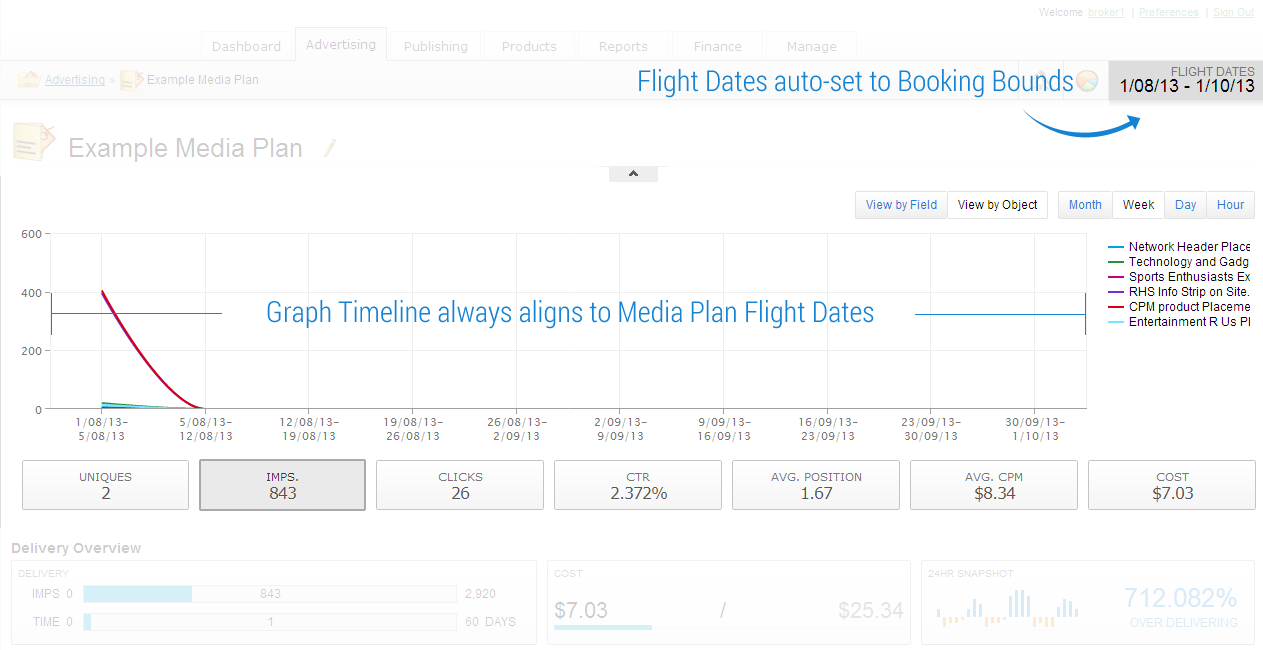
Graph view - auto calibrated to your flight dates
-
Impressions over time - Watch and compare your delivery of impressions throughout the flight
-
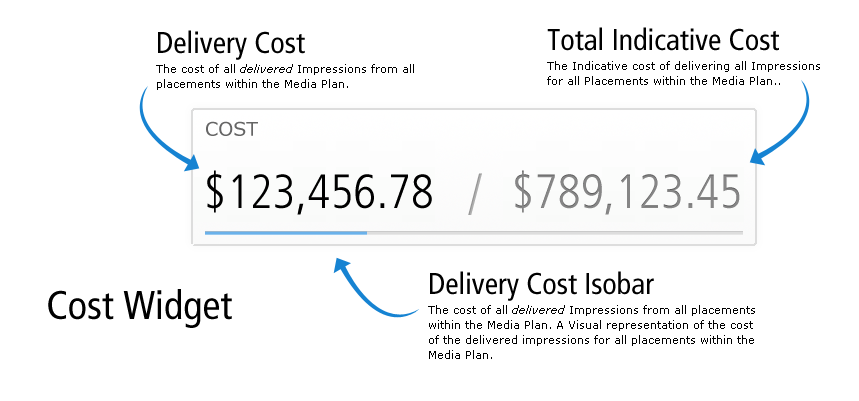
Current Cost vs Total Cost - Continually compare your current spend against the total Cost of your Placement Bookings
-
24 hour snapshot of actual vs expected delivery performance across all Placement bookings at a glance
-
Inline smoothing and priority options - Take action on your insights with the inline tools to modify smoothing and priority for each Placement Booking.
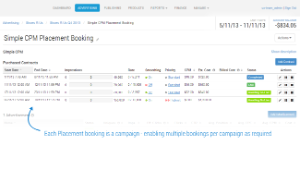
Each Placement booking utilizes campaign functionality, thereby also providing multiple bookings (contracts) functionality as per usual, and of course per-booking priority and smoothing options.
Visual Guide
|
|
|
|
|
|
|
|
|
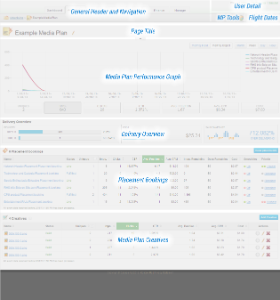
Media Plan Components
Delivery Graph
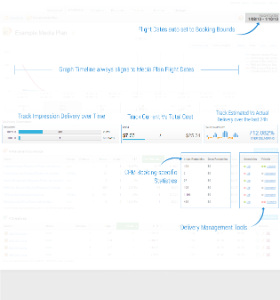
The Graph within the Media Plan page is automatically adjusted to span the flight dates of your Media Plan, usually, this will be the Flight dates you set when booking the Placements, however you can at any stage add further placements, or make rebookings on current placements (within the campaign page). If you have book a very long media plan, say multiple months, you can also click and drag within the graph to zoom into particular times or statistics.
Delivery Overview
Delivery
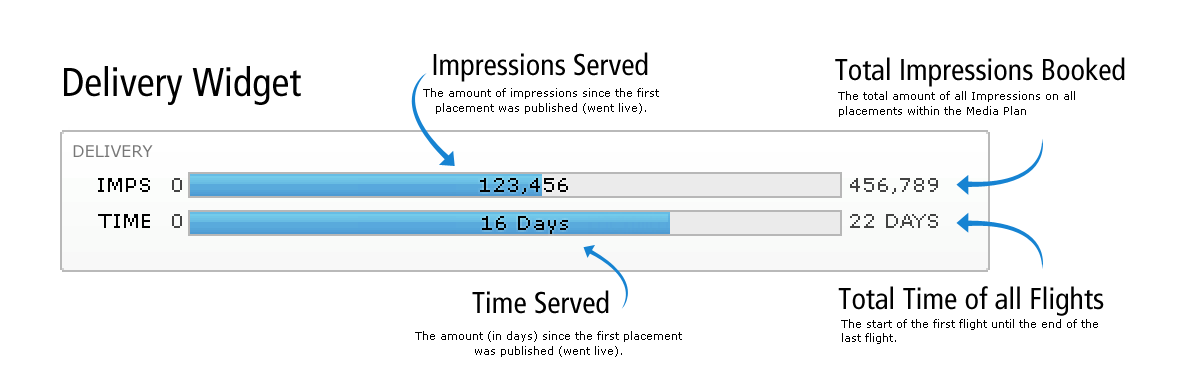
This widgets prodvides a dynamic isobar of impressions and time, starting from 0 at the left, and the maximum settings to the right. At a glance, you can compare the overall delivery of the entire media plan bookings by observing a negligible difference in isobar width. If the Media plan's bookings are all Smoothed and Standard Priority, the two isobars will grow to their respective maximum values around the same time. If Smoothing or Priority on one or more bookings is set to Off or Highest respectively on one or more bookings, the Impressions isobar will almost always grow at a faster rate (Over Delivery).
Cost
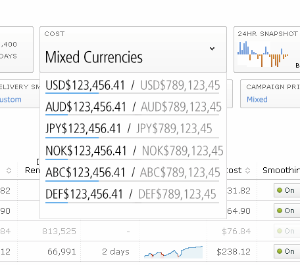
The Cost widget provides an overview of the aggregated Costs of all placement bookings. The Total booking amount of the Media plan is to the right, with the current costs from delivery on the left. If you have purchased Placement bookings with multiple currncies, the costs are split per currency in an expandable component.
If you book placements with multiple currencies, your Cost widget will provide a per-currency breakdown to highlight costs per currency.
24hr Snapshot
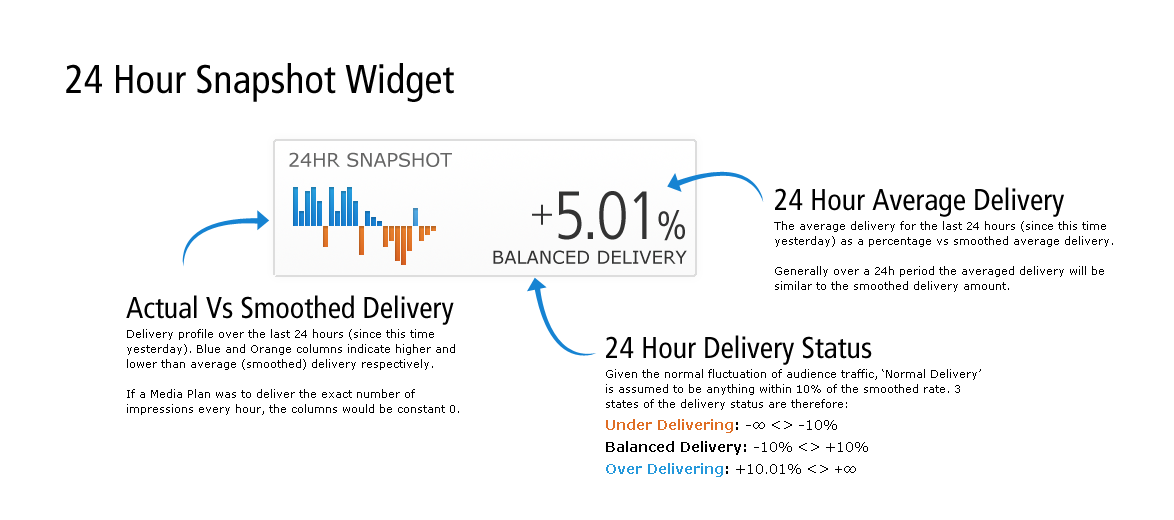
The 24hr snapshot widget provides a comparative value of delivery trend within the previous 24hrs, compared with the calculated average to deliver all Impressions over the booked time. A Bar Graph also provides a visual reference to compare current delivery with expected delivery, whereby the height of each bar is the variance from the expected smoothed delivery rate calculated by all impressions over all time.
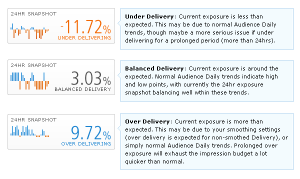
Visual examples of different delivery statuses.
Placement Bookings
Booking a Placement:
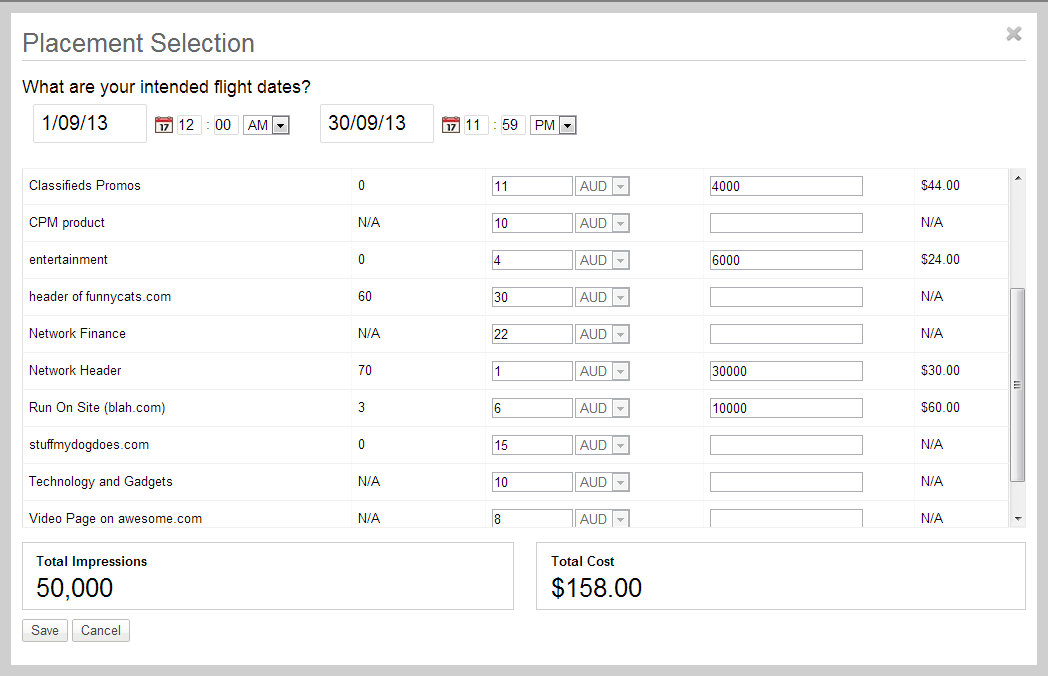
When a campaign is booked to be shown within a placement, it is termed a placement booking. You can click on any placement booking to see the resulting Campaign Contracts that have been booked. Here you can also make additional bookings as required. The Placement Booking table has additional columns specific to CPM Management - namely Remaining Impressions, and Remaining Time. These columns provide feedback on the current delivery for each Placement booking. If you are underdelivering on any booking, you can use either the inline Smoothing or Priority functions to expedite Impression delivery.
Resulting Placement Bookings:

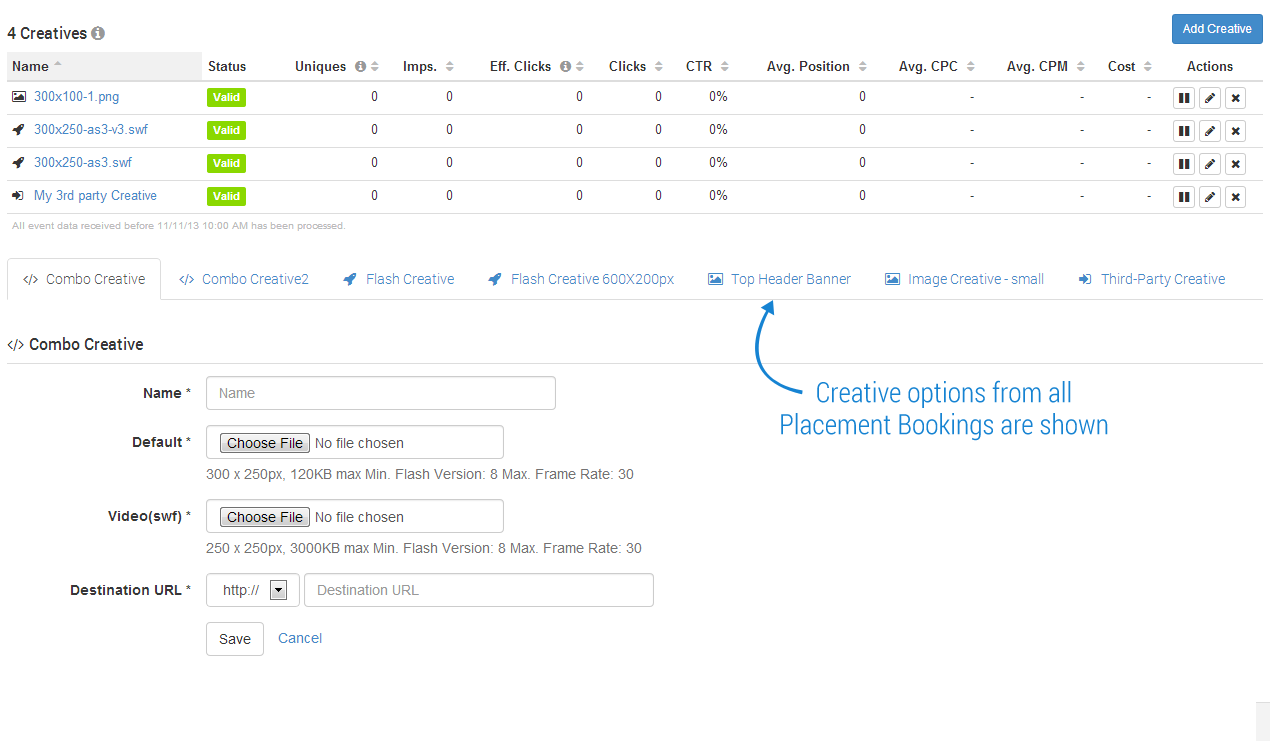
Creatives
Creatives for Media Plans are managed within a single location to simplify Creative Management. If you create multiple Placement Bookings, you may need to add multiple Creatives as specified by each placement.
Working with Media Plans
We suggest the following usage guidelines to get the most from your media plans;
The Audience of your Media Plan have high and low periods of content consumption which varies greatly throughout the day - we all need sleep after all. The Delivery widget will always display the contrast between a 'perfectly smoothed' delivery (it assumes consistently constant traffic throughout the entire day) vs the delivery in the past 24hrs. You may observe large highs and lows in the 24h delivery percentage - this is the result of the system offsetting the traffic variation between high and low traffic periods.
Media Plans can become quite cumbersome if you continually book, cancel, delete, and rebook placements within the same Media Plan. Try to Book once, letting the bookings complete, then book a new Media Plan, not edit the old one. This way, the Delivery Overview is most useful, and easiest to interpret. Use the same flight dates when booking new placements/subsequent contracts, this will keep the delivery overview succinct, and promote at-a-glance interpretation of the Media Plan performance.
The Delivery Overview widgets are calculated using the totals from all placement bookings. This includes cancelled bookings, booking for different flight dates that may have run in the past, or are awaiting go live in the future. Due to this, the widget calculations may not be as informative when individual campaign contracts been added and edited along with the initial placement bookings.