
1. Create a new application
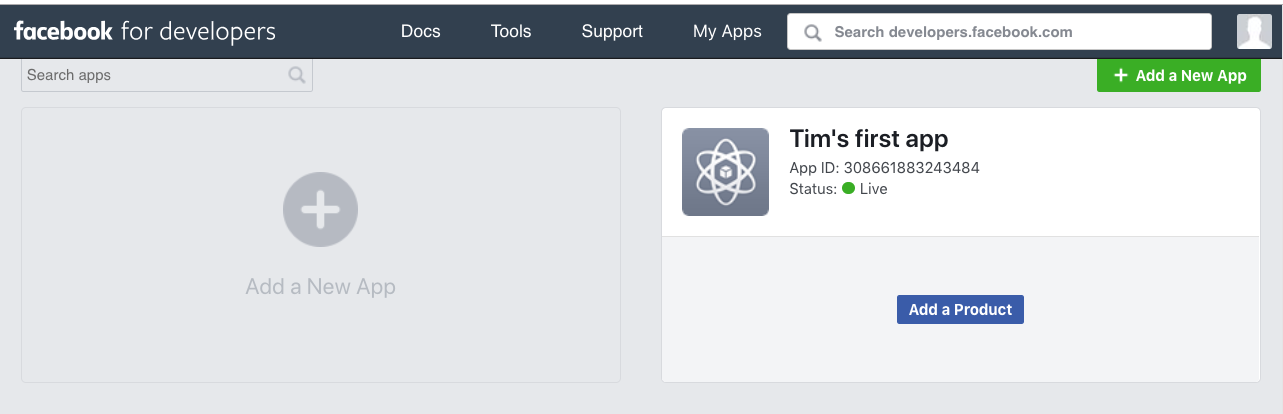
Please make sure that you have admin access privileges before creating a new application on Facebook. Access to the developer portal can be done through Facebook.com → Manage apps or directly by clicking on this URL. Creating a new application can be done in two ways: Select the Add a New App or hovers the mouse over to My Apps navigation menu and select Create New App to open the Create a New App ID modal.
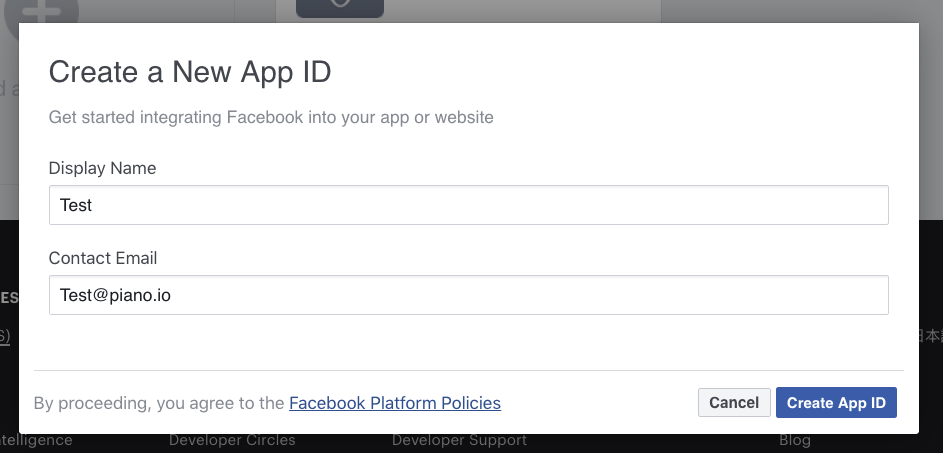
Enter a Display Name and Contact Email for the new application, and select Create App ID. Facebook will prompt a reCAPTCHA security check to authenticate the access. Upon successful submission, you will redirect into the newly created App for configuration settings.
2. Add a Facebook Login product
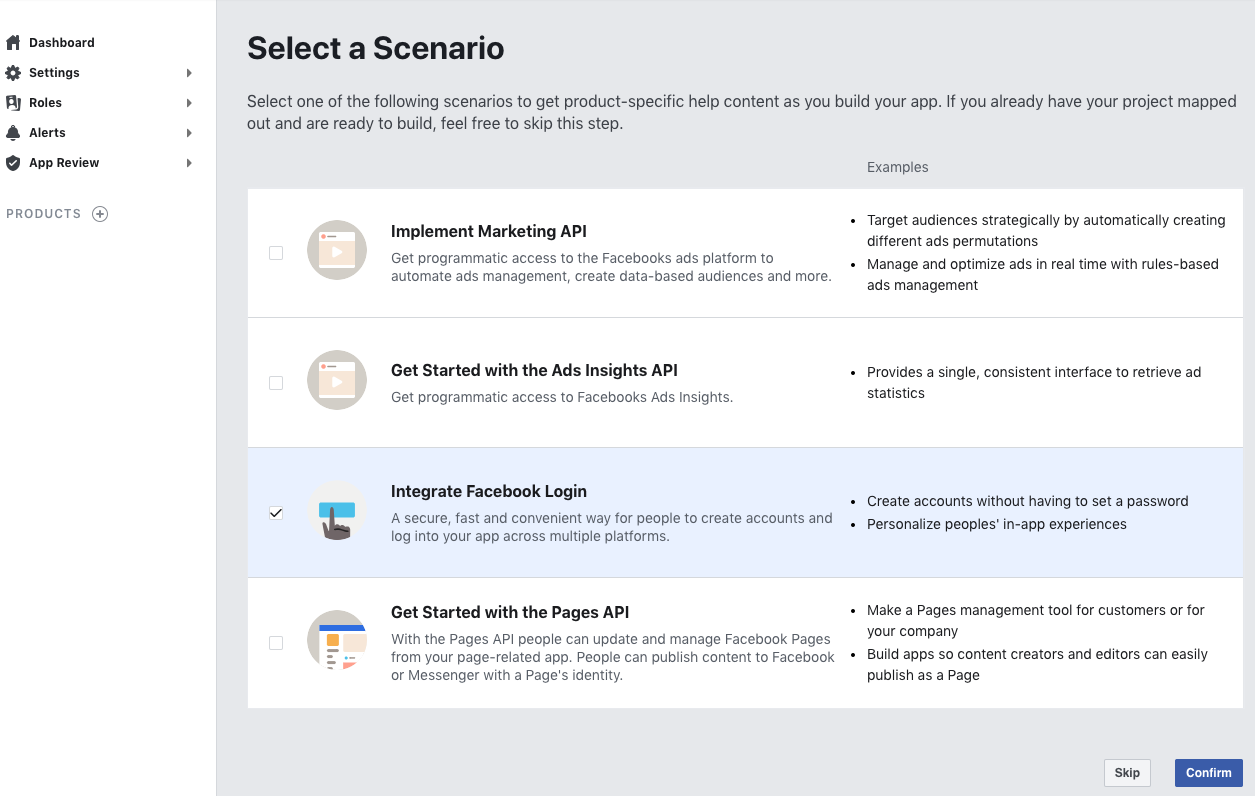
Next you will need to integrate with Facebook Login. There are two ways to accomplish this: Select the option Integrate Facebook Login on the scenario wizard or select the Products plus icon on the left navigation menu. Selecting Integrate Facebook Login opens the basic application settings, adds Facebook Login and Webhooks products on the left navigation menu. Expand the Facebook Login under Products for more options and select Quickstart.
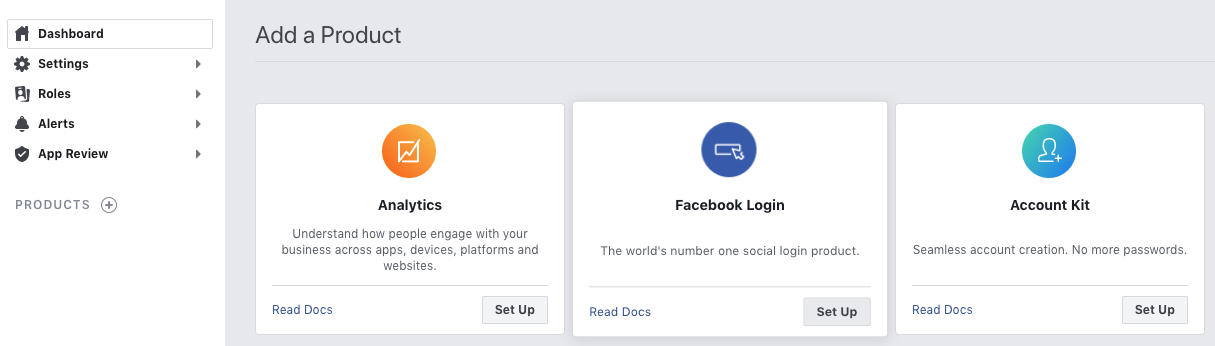
Selecting the Products plus icon takes you to the Add a Product section. Select Set Up on Facebook Login to open the Quickstart wizard.
Please note, that only basic Facebook Login is supported. We currently don't offer a social login integration for accounts using Facebook login for Business.
3. Quickstart configurations
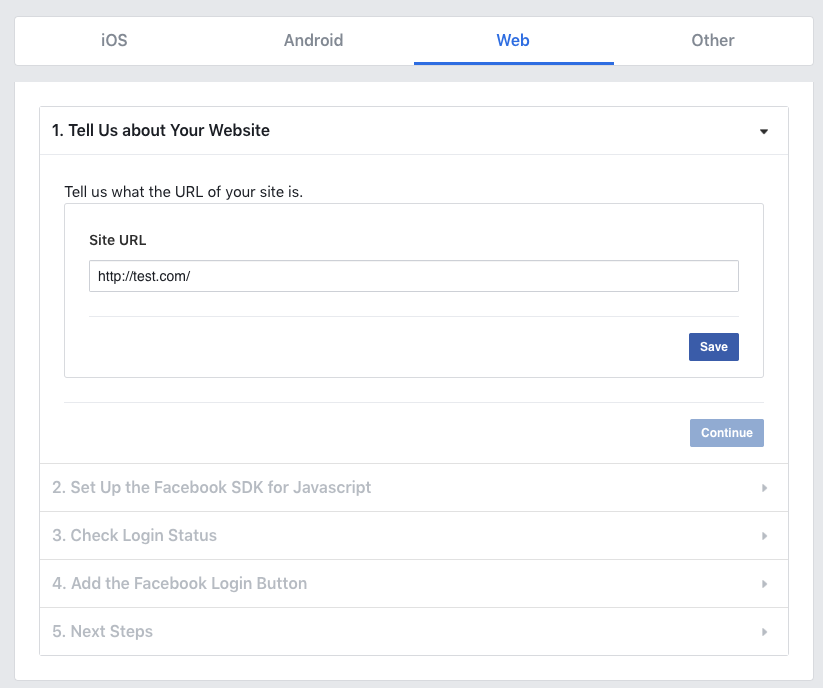
The Quickstart wizard will guide you through the necessary steps to get your application ready for Facebook login. To get started, select Web. Insert the test or production URL (https://your.site.url) that the Facebook login occurs and select save. Continue through all the necessary steps to complete this wizard.
4. Settings configurations
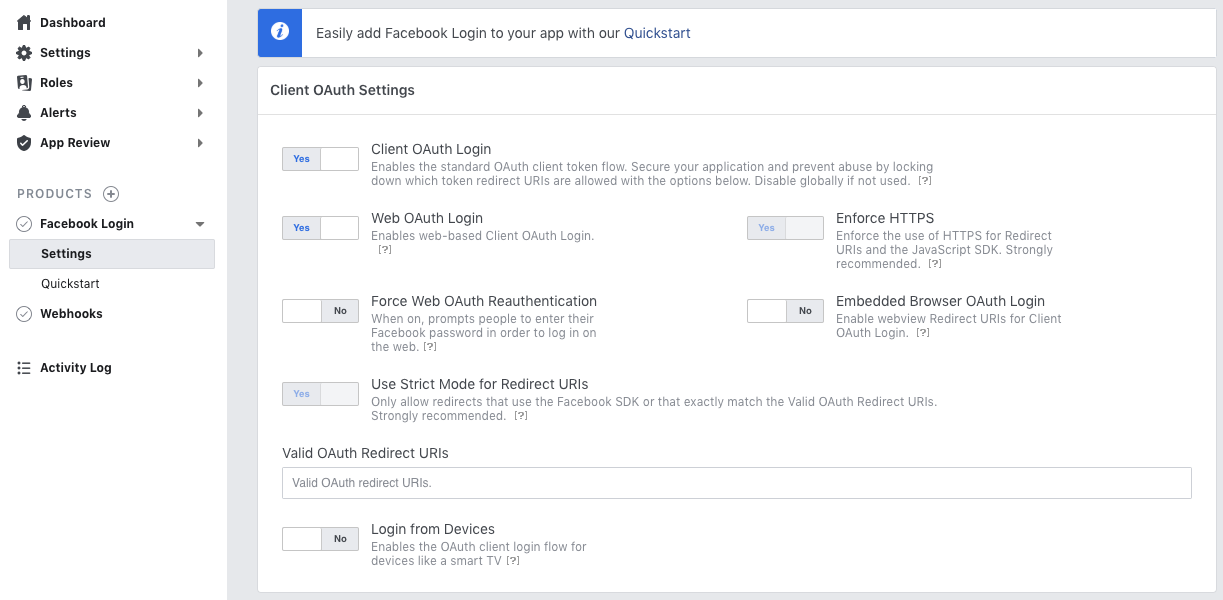
Select the Settings option under Facebook Login once you have completed the Quickstart guide. Add Piano's callback URL to the Valid OAuth Redirect URIs field and save the change. Piano's callback URLs are:
-
Sandbox: https://sandbox.piano.io/id/api/v1/identity/login/social/callback
-
US Production: https://id.piano.io/id/api/v1/identity/login/social/callback (a list of base URLs for other locales is available here)
5. Application basic settings
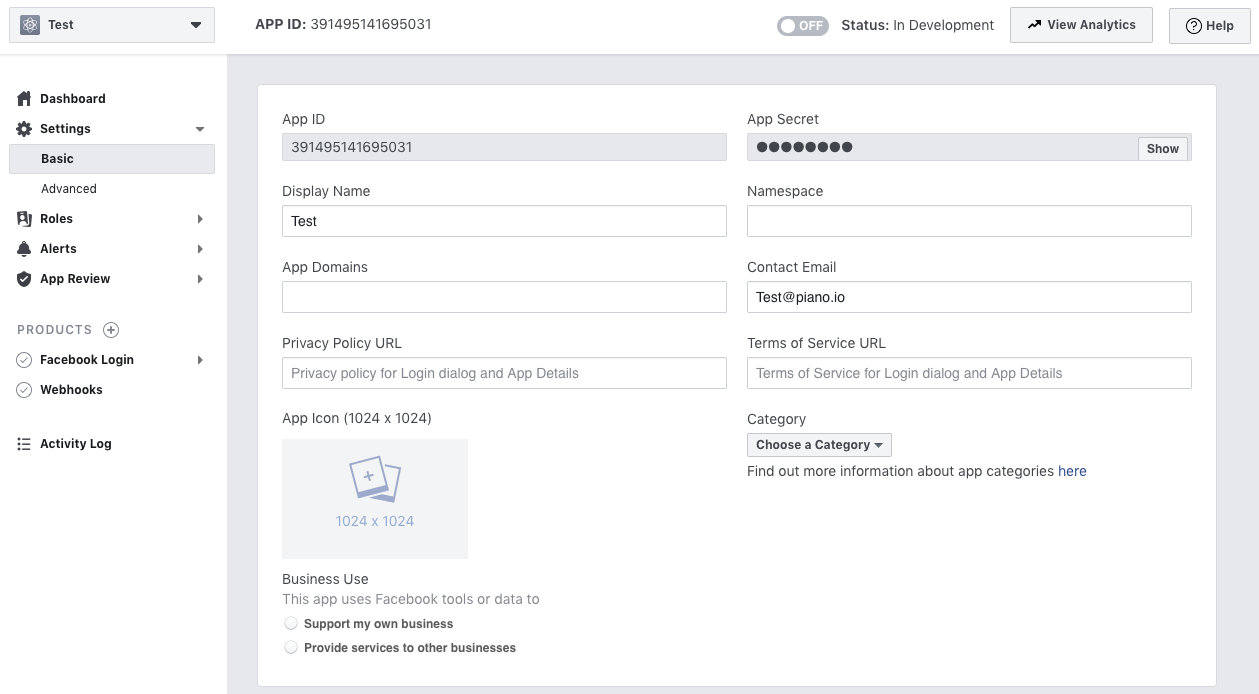
Finally, the Privacy Policy URL is needed to complete the linking of the Facebook login. To add the URL, select Settings → Basic. Save the changes and make the application public by setting the toggle button next to Status to ON.
Please note, that in your Piano application you need to configure your website's URL as a Redirect URI as explained in this documentation.
If you see the below error message, you need to add your website URL and your environment's Identity Management origin URL to the Valid OAuth Redirect URIs in your Facebook app.
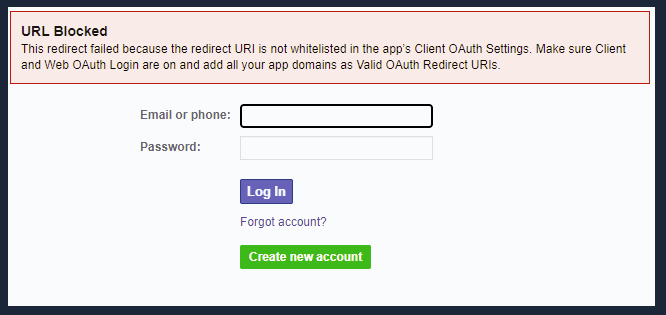
The Identity Management origin URLs are as follows:
Production
US dashboard - https://id.piano.io
AU dashboard - https://id-au.piano.io
AP dashboard - https://id-ap.piano.io
EU dashboard - https://id-eu.piano.io
Sandbox
6. User experience
For social logins through Facebook, but also other social media options available, the following behavior applies. If a user registers for the first time with social login, Piano links their social account with a Piano account and they will never have to use a regular password.
But if a user registers a Piano account with a regular password, and then in the future chooses to login with a social account, Piano will need the user to log in one time with their regular password in order to link the two accounts (the social and regular Piano account). There's no way to link the two accounts without asking the user to log in one time with their regular password.
The user data shared via the social login is only what's needed to create their Piano account:
-
First Name (if applicable)
-
Last Name (if applicable)
-
Email
This is the only user data we collect (apart from the user's encrypted passwords) and save in our Identity Management database.
7. Facebook social login for Android SDK
In order to set up social login for your app using the Android SDK, please follow steps 4 to 7 outlined in this documentation.
Note, that since we use Facebook SDK version 11.2.0, step 4 will be simpler (see note at the beginning of this step in the above link).