
Requirements
To add credentials for Sign In with Apple, you must have an active Apple Developer account.
Within your Developer account, you will use the identifiers given to you to configure Sign In with Apple in Identity Management.
To enable Sign In with Apple on the web, in mobile browsers, and in non-iOS apps, you will need these keys from your developer console:
-
Team ID
-
Services ID
-
Bundle ID (App ID in terms of Identity Management)
-
Key ID
-
Private key (App Secret in terms of Identity Management)
If you have already launched an app with the iOS App Store, you already have a team ID, services ID, bundle ID, and private key. You will use those existing keys for this enablement.
Enable Sign In with Apple
To enable Sign In with Apple and retrieve your credentials, navigate to your app's Apple Developer console. After you register your application with Apple here, you will be issued an Apple application ID and secret.
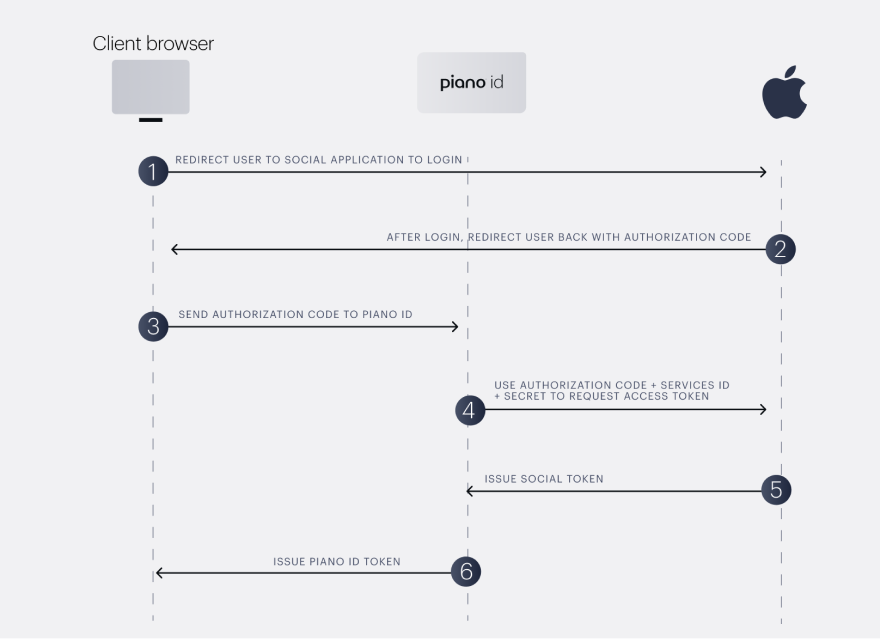
This flow describes how Apple communicates between an application and the client browser:
Team ID
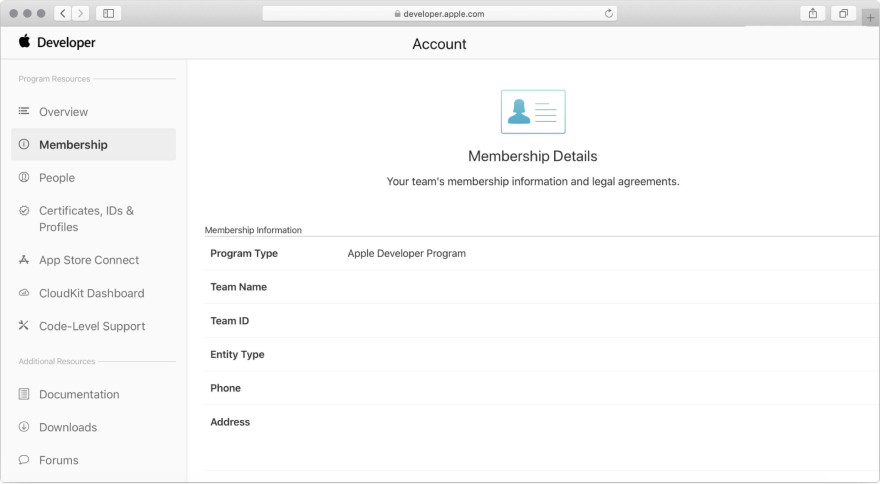
In your Developer account, navigate to the Membership page. In the panel, you will find your team ID. Copy it down, so you can enter it into Identity Management later. The team ID verifies you as the development owner of the application.
App ID and Services ID
The Services ID allows you to use Apple services, such as Sign In with Apple, in web browsers, and non-iOS apps. The App ID in the Identity Management form stands for Apple's bundle ID which allows you to use Apple services in iOS apps.
Navigate to the Certificates, IDs, & Profiles menu and choose Identifiers to access your services ID and bundle ID. Click on the + icon and check Enable Sign In with Apple and click Configure.
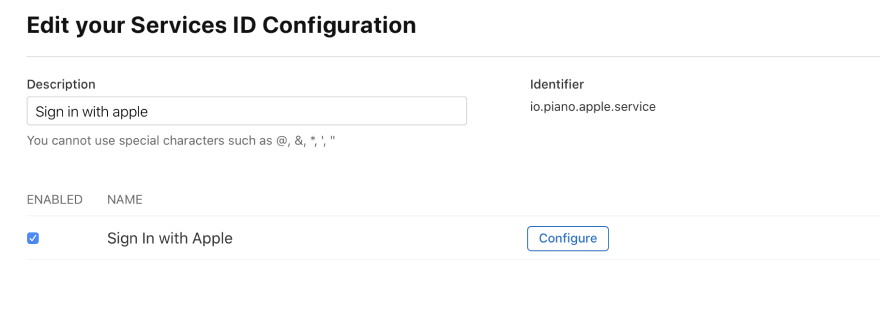
Please note, that the identifier should have a unique value. Replacing io.piano in the above example with <your_domain_extension.<your_domain_name> should be adequate unless you're already using that identifier for another purpose.
Follow Apple's instructions to enable Sign in with Apple. They will prompt you to input your domain and callback URL (Redirection URL in the Identity Management form). Your domain is your website's URL, ex. publisher.com.
Sign-in with Apple is supported by Oauth 2.0, and redirects are handled the same way as other Oauth 2.0 flows in Identity Management. You will need to register to redirect URIs in Identity Management as described here.
The redirect URL can be configured under Apple developer → Certificates, Identifiers & Profiles → Identifier → Sign In with Apple → Configure → Website URLs → Return URLs.
Based on your application's dashboard region, you should use the following URLs:
-
US dashboard - https://id.piano.io/id/api/v1/identity/login/social/callback/apple and https://id.tinypass.com/id/api/v1/identity/login/social/callback/apple
-
AU dashboard - https://id-au.piano.io/id/api/v1/identity/login/social/callback/apple
-
AP dashboard - https://id-ap.piano.io/id/api/v1/identity/login/social/callback/apple
-
EU dashboard - https://id-eu.piano.io/id/api/v1/identity/login/social/callback/apple
-
Sandbox dashboard - https://sandbox.tinypass.com/id/api/v1/identity/login/social/callback/apple
Apple will require you to verify your domain, but they do not require verification of the callback URL.
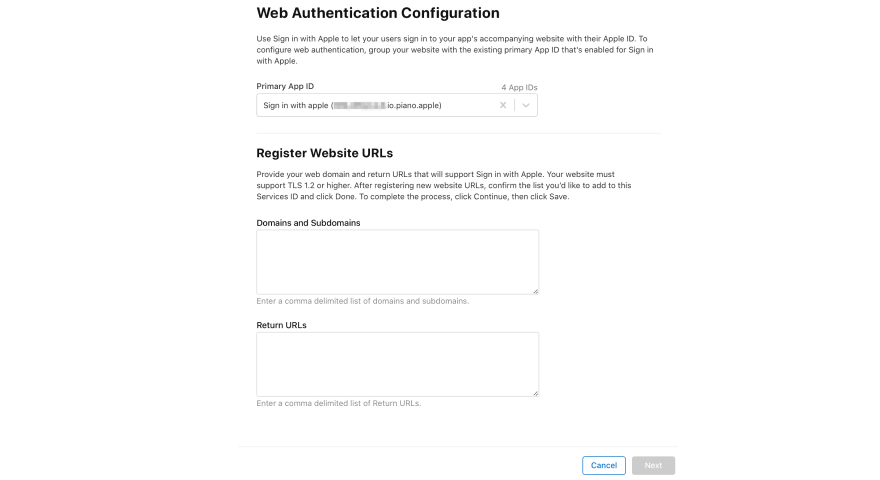
Complete Apple's configuration steps and save your responses. Copy down the Services ID and Bundle ID.
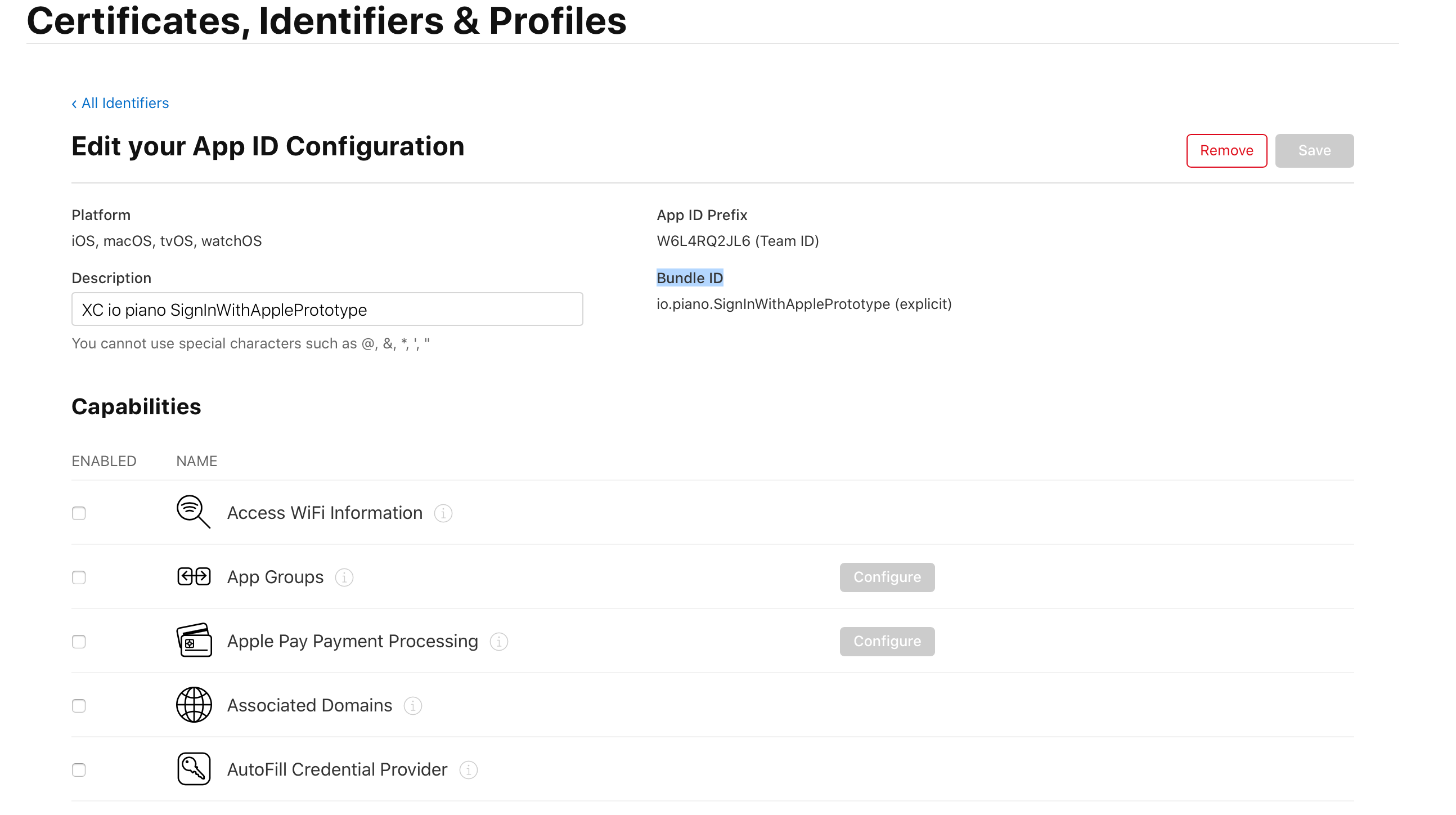
Private Key and Key ID
The App Secret in the Identity Management form is a private key from Apple. Access it by returning to the Certificates, IDs, & Profiles menu and choosing Keys.
Check Sign In with Apple and click Configure. Follow Apple's instructions to enable Sign In with Apple.
Inside the Configure modal, you will see your Key ID. Copy it down. Also, there will be an option to download the private key. Do so, and copy down the value.
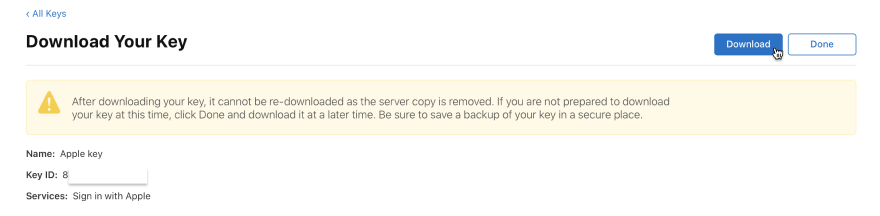
The downloaded private key will be a small text file that looks similar to this:
-----BEGIN PRIVATE KEY-----
MIIBIjANBgkqhkiG9w0BAQEFAAOCAQ8AMIIBCgKCAQEAgTnrMeRhufSAauLykB4NBR1nMcupTyY/ D6epHYrXKC7ho26J/P+i0TpoNaI+yTZB06LPjxhyUa2eXshqRUqHtxtsqxA2oqxb6I43bzJ5nuM6s1 GZEvnwW9NNE095CoNWP7YYsB0+tknLBTDHwroogK8ko7q56tNR7hdliCxh2fqJIE2L9D/4OREg7 wye+DG5 /onS9uwtb3FdxVgQIDAQAB
-----END PRIVATE KEY-----
When configuring Sign In with Apple for social login, you must copy the entire file, including the lines ----BEGIN PRIVATE KEY---- and ----END PRIVATE KEY----.
Configure Sign In with Apple in Identity Management
You should be able to configure the Apple login for Identity Management under Edit Business → User provider → Identity Management configuration → Other login methods → Apple.
More information about this is available here.
Enter your bundle ID (to the Apple App ID field), private key (to the Apple App Secret field), key ID, services ID, team ID, and callback URL (to the Apple Redirect URL field). These should be identical to the credentials you entered in the Apple console.
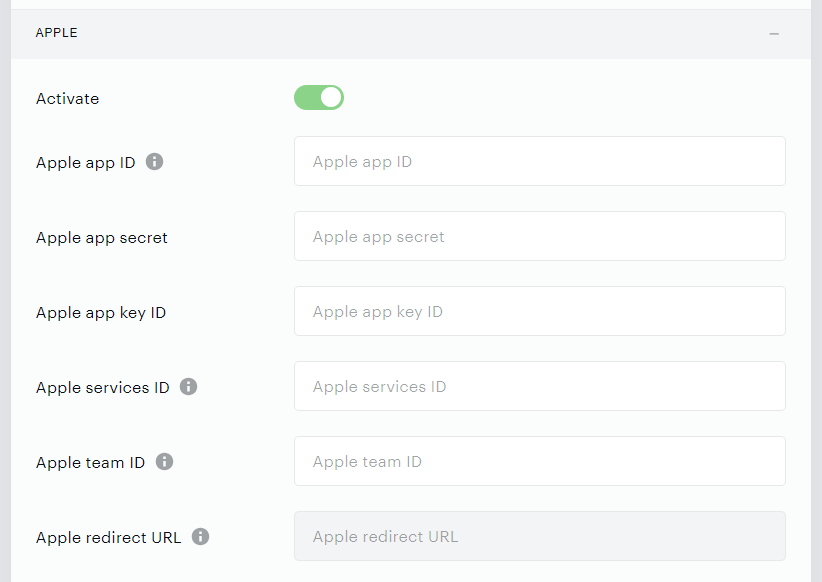
Do not forget to add the Apple Redirect URL to the list of authorized Redirect URIs as described here.
Users can view Sign In with Apple as an option on the Piano ID login page and Piano ID register page templates in case these contain the following code:
<div showIfSocialAuthAvailable class="social-wrapper">
 <div class="social-buttons-wrapper-login">
 <social-sign-in></social-sign-in>
 </div>
</div>
There are no further updates necessary.
The Sign In with Apple buttons appear on Identity Management templates as outlined by Apple's development guide. Following Identity Management's aesthetic standard of social providers, the Sign In with Apple button is logo-only.
When Sign In with Apple is correctly enabled, the Apple icon will appear beside your other social icons in the login and registration templates.
End-User experience
End-users can sign in or register through Apple ID on Apple desktop browsers and mobile devices.
The end user's name, email address, and unique ID are sent to Identity Management. If the end-user has two-factor authentication turned on, they will have to enable two-step verification using an existing Apple device. If end-users have two-factor authentication turned on and they verify their identity, they can opt out of it the next time by selecting Trust this browser.
End-users can also use Touch ID or Face ID to sign in. Users can also add Sign In with Apple as a sign-in method through the My Account section.
Configure Sign in with Apple for Email Communication
When integrating Social Login with Apple into your application, it's crucial to configure the "Email source domain" on the Apple Developer page. This setting is vital because if your end-users opt for Apple's private email relay service, it will not function correctly unless the email sender's domain is properly registered. Failure to do so may result in email delivery issues, with Piano unable to send emails to your users.
Below, we will provide step-by-step guidance on how to configure Sign In with Apple for Email Communication.
Configuration Steps on the Apple Developer Page
-
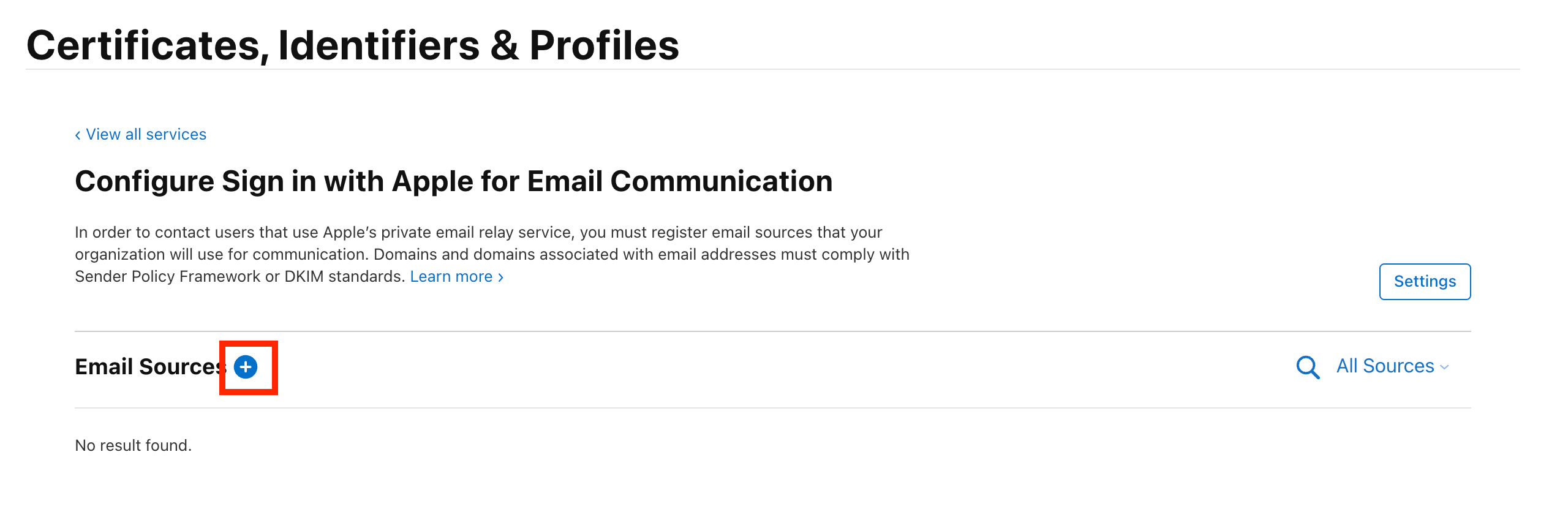
To ensure that Sign In with Apple works smoothly for email communication, navigate to the Configure Sign In with Apple for Email Communication page under the Services section in your Apple Developer's account, and select Configure:
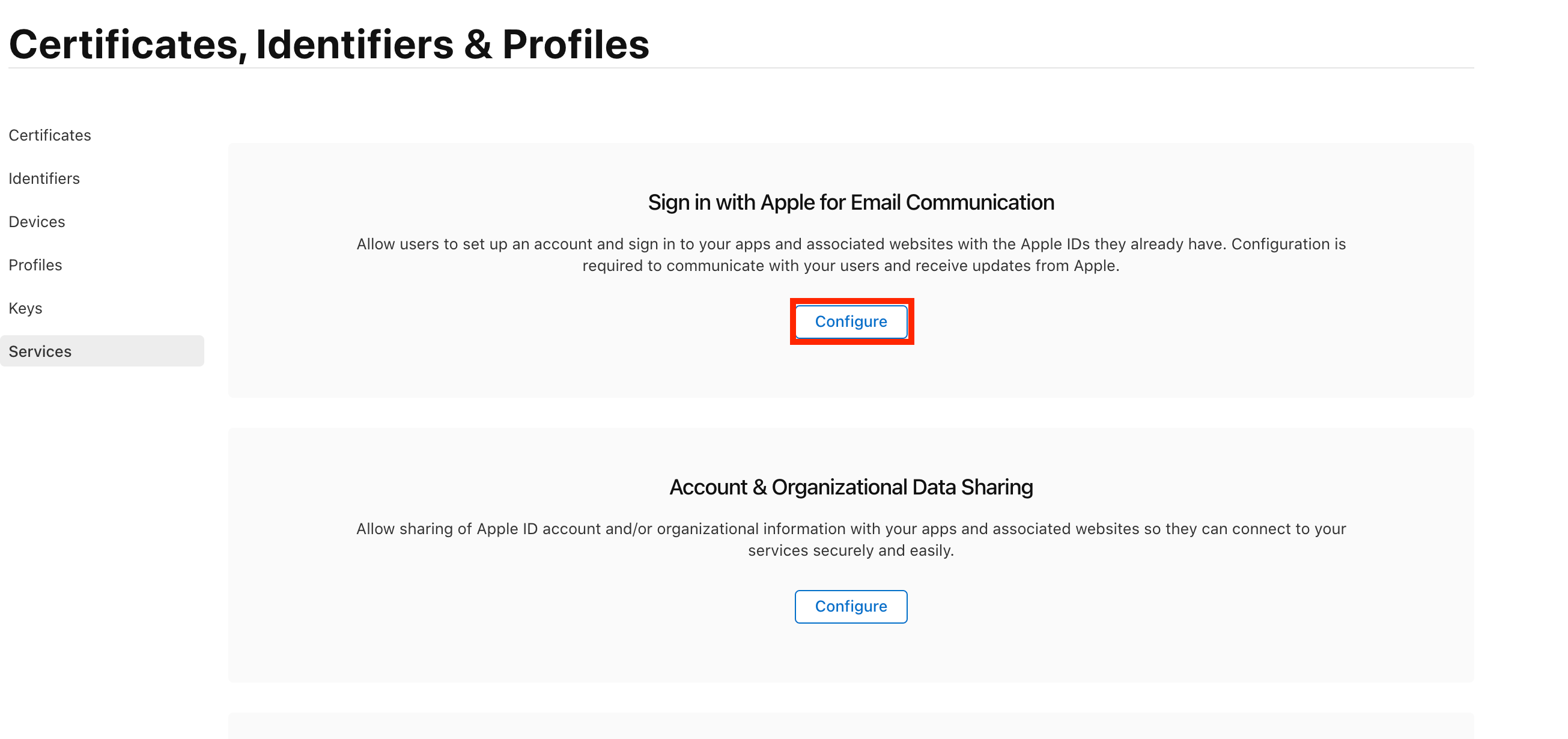
-
Now proceed to add an Email Source by clicking the "+" symbol as shown below:
-
You need to add the Piano AWS SES* domain corresponding to your application's environment. If necessary, you may need to add an additional domain for Piano ESP emails.
*The domains are:
-
AP dashboard: ap-northeast-1.amazonses.com
-
AU dashboard: ap-southeast-2.amazonses.com
-
EU dashboard: eu-central-1.amazonses.com
-
US dashboard: amazonses.com
-
If you notice any email bounces before you have set up the correct sender's domain in Apple, the user's email address may be placed on the AWS SES suppression list. In this case, please reach out to Piano Support, so they can initiate the removal of the affected email addresses from the list.