
Create a new LinkedIn application
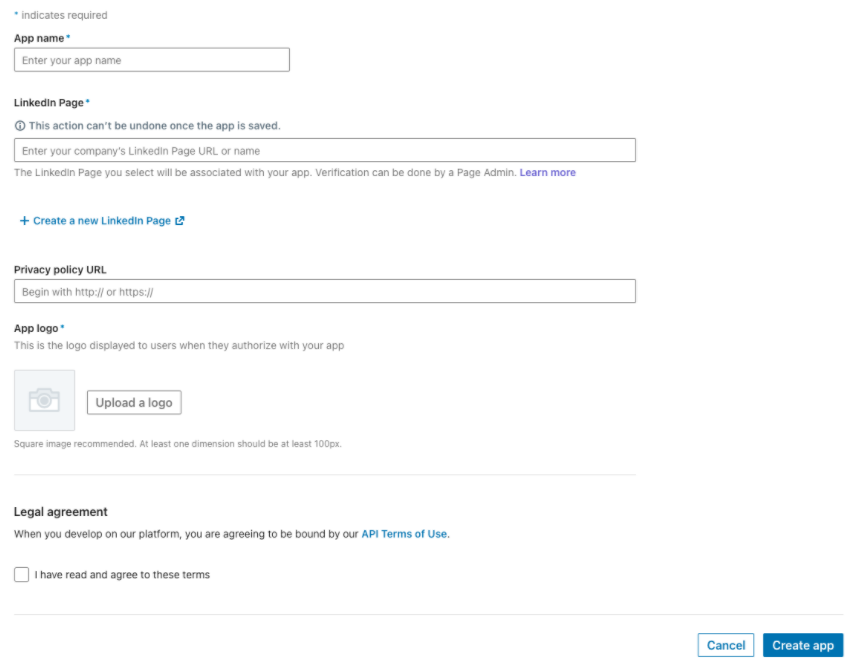
The first step to configure Social sign-in for Identity Management via LinkedIn is to create an app at https://www.linkedin.com/secure/developer.
To do so, you will need a LinkedIn Company Page that you will associate with the application.
Settings configuration
Please follow the steps below, to complete your LinkedIn settings configuration.
1. After your LinkedIn app is created, please navigate to the Auth view.
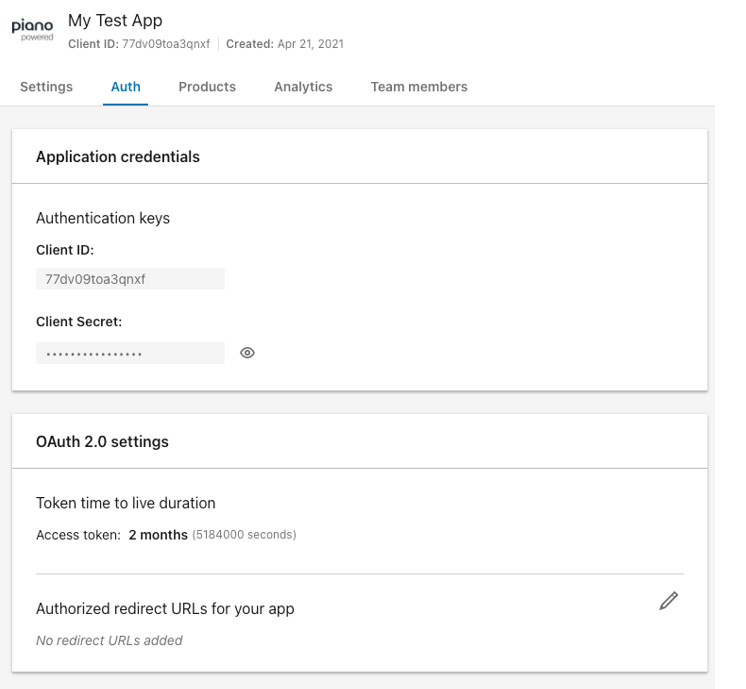
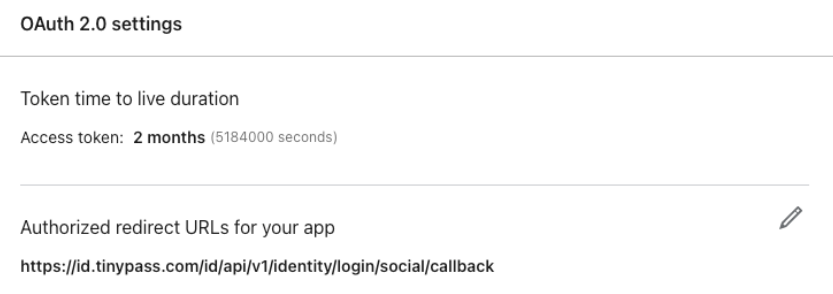
2. Add https://id.tinypass.com/id/api/v1/identity/login/social/callback into the Authorised redirect URLs for your app in section OAuth 2.0 settings.
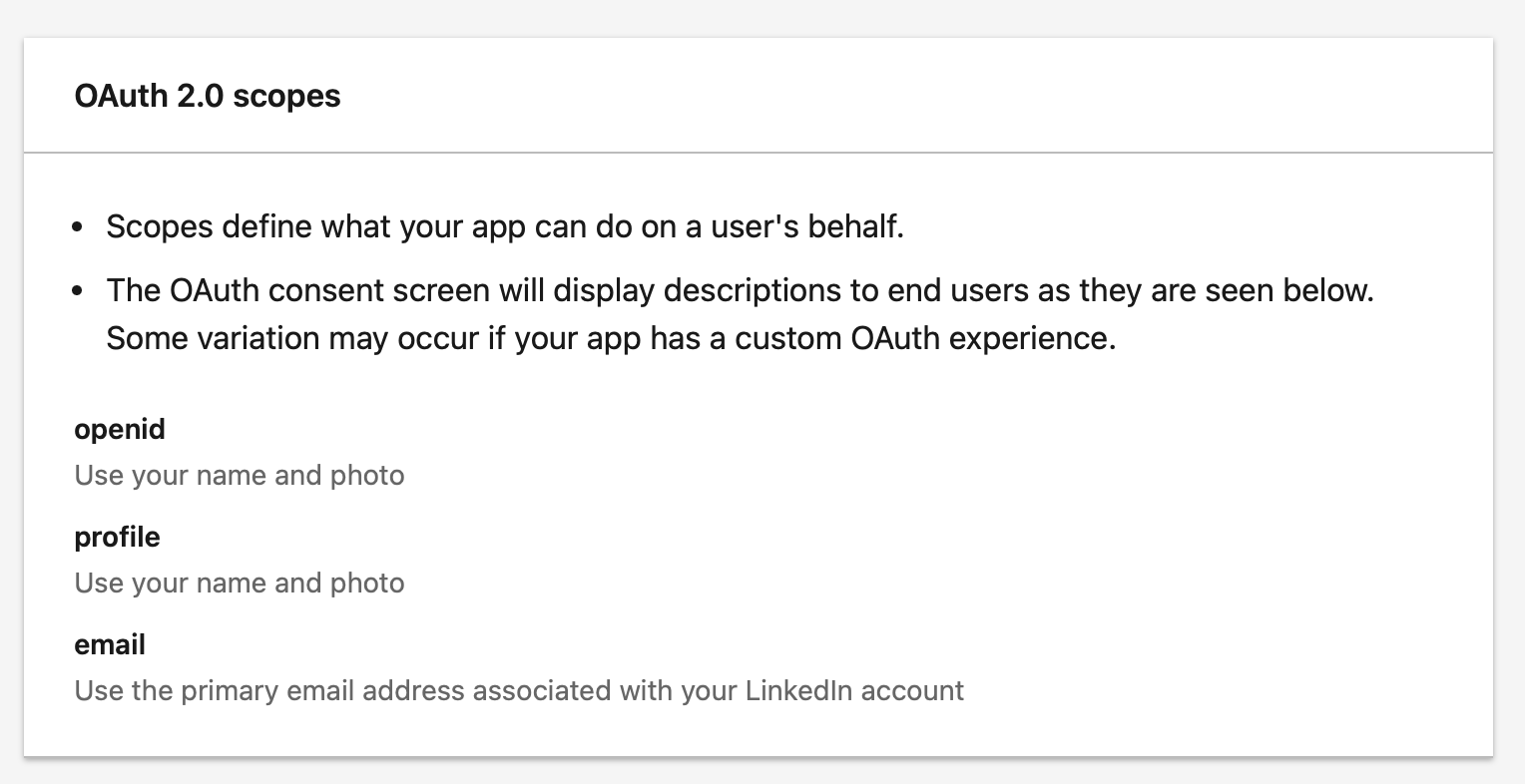
3. Piano has transitioned to using the OAuth2 protocol for LinkedIn authentication, with default scopes set to openid, profile, and email. To ensure proper functionality, you need to activate these scopes in the OAuth 2.0 scopes section on your LinkedIn developer account.
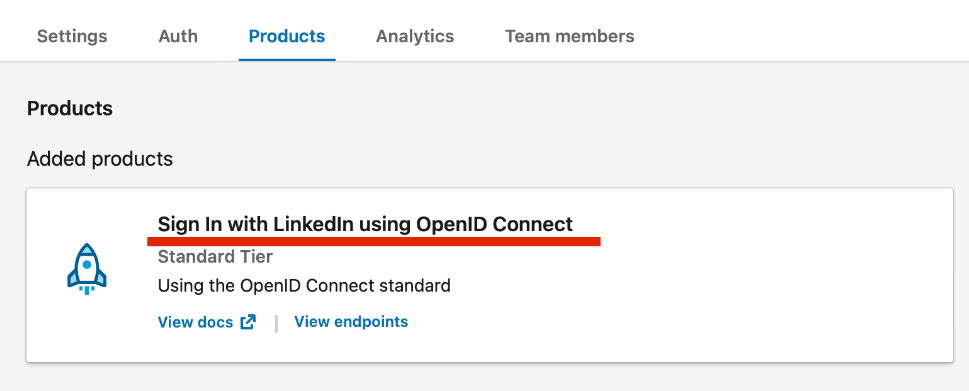
4. Afterward, please navigate to the Products view and select the Sign In with LinkedIn using OpenID Connect option:
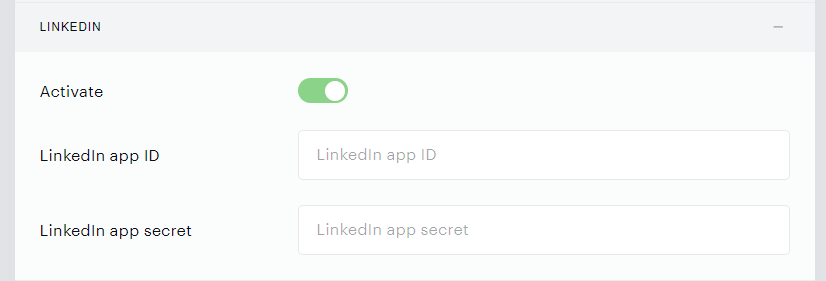
5. Copy your Client ID and Client Secret and insert into the LinkedIn section in the Identity Management social login configuration panel under Edit Business → User Provider → Identity Management → Other login methods tab.
Following the above instructions will make the LinkedIn Social login button appear in your Identity Management login and register screens.