
Create a new Project
If you don't have a project yet in your Google developer's console, please create one under the following link: https://console.developers.google.com/
To do so, click on Create button on the Credentials widget in the bottom right corner.
Obtain your Google credentials
After you’ve set up a new project, click the Create credentials button on the credentials widget:

And select OAuth client ID from the dropdown.
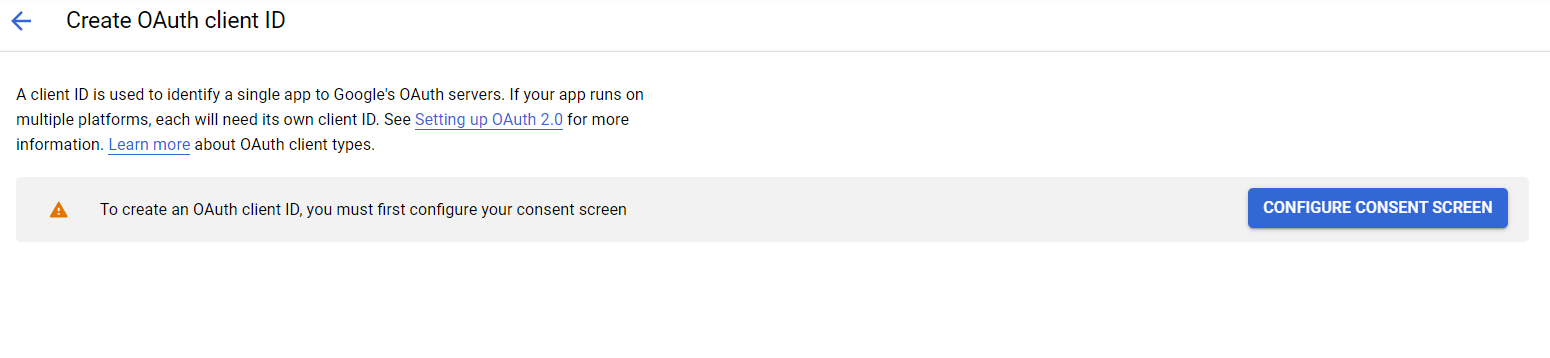
On the next page click Configure consent screen (if you have already set this up, skip to this section).
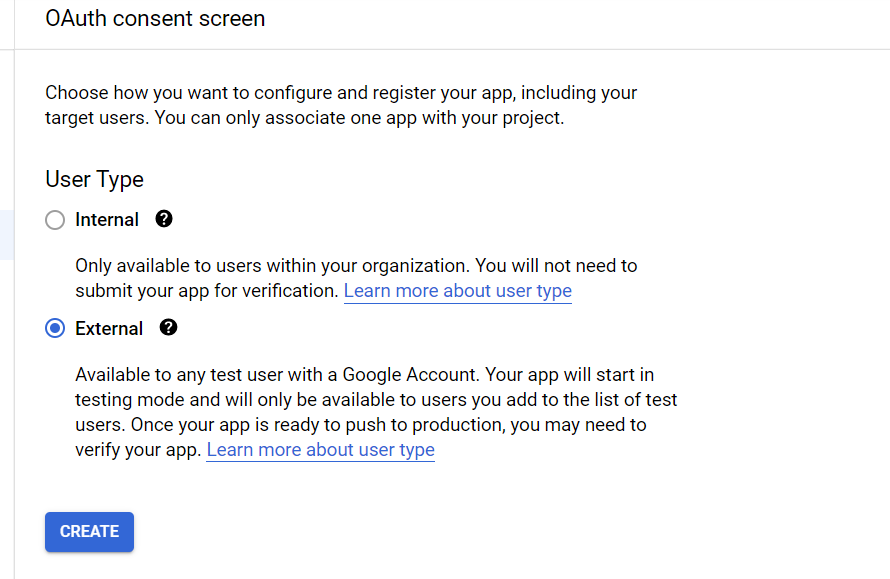
On the OAuth consent screen configuration page, you will need to select External as the User Type and click the Create button.
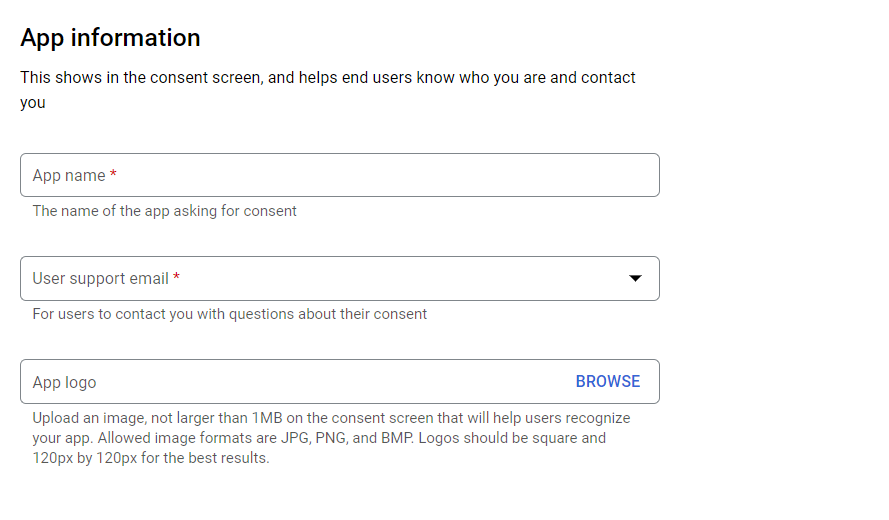
Now input the App name (typically your business or site name) and your support email in the mandatory fields. A logo is recommended, but it is not required.
Further down, you will need to select the Authorized domains.
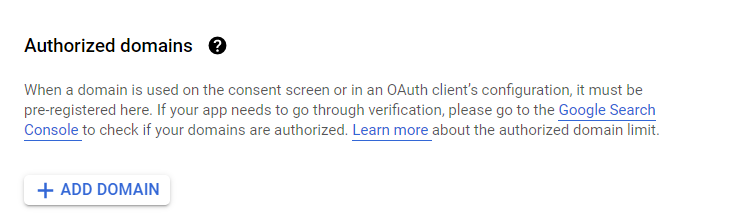
Once you enter that URL into the field, add an email into the Developer contact information section and click Save and Continue.
If needed, add or remove Scopes or Test users and save.
Once done, return to the Credentials widget, click Create credentials button, choose OAuth client ID and select the Application type Web application.
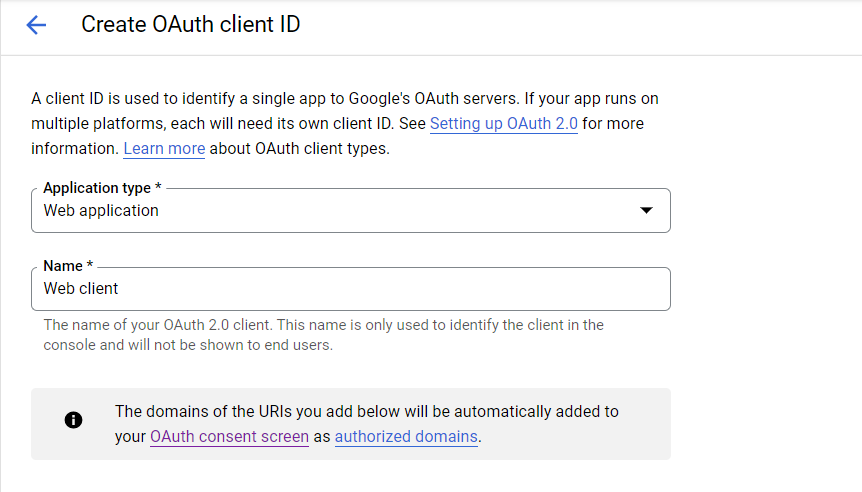
Add a Name (typically your business or site name).
In the section Authorized redirect URIs click Add URI and input your Identity Management social callback URL into the field.
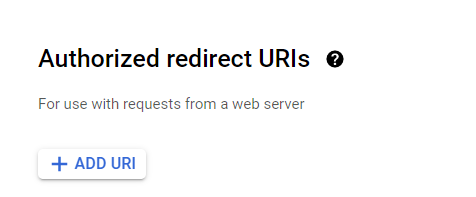
The social callback URL can be obtained from the Identity Management configuration screen after you’ve enabled the social sign under Edit Business → User Provider. It'll look something like this:

If you are testing your integration in the Sandbox environment, make sure that the redirect URI you use in Google's Authorized redirect URIs corresponds to your Sandbox environment URL; not the Production URL.
The Authorized Redirect URI must be configured identically in both the Google Console and your Identity Management configuration. A mismatch between these two values will result in errors. For example like: Error on get authorization Link for GOOGLE
If you're using a whitelabled domain, you'll need to include the URL like this:
https://yourwebsite.com/id/api/v1/identity/login/social/callback
Once you click Save, a screen will automatically appear containing the Client ID and Client secret.

Please note, that in your Piano application, you need to configure your website's URL as a Redirect URI as explained in this documentation.
Identity Management Google social login settings
You will need to enter these values into your Identity Management configuration under Edit Business → User Provider → Identity Management.
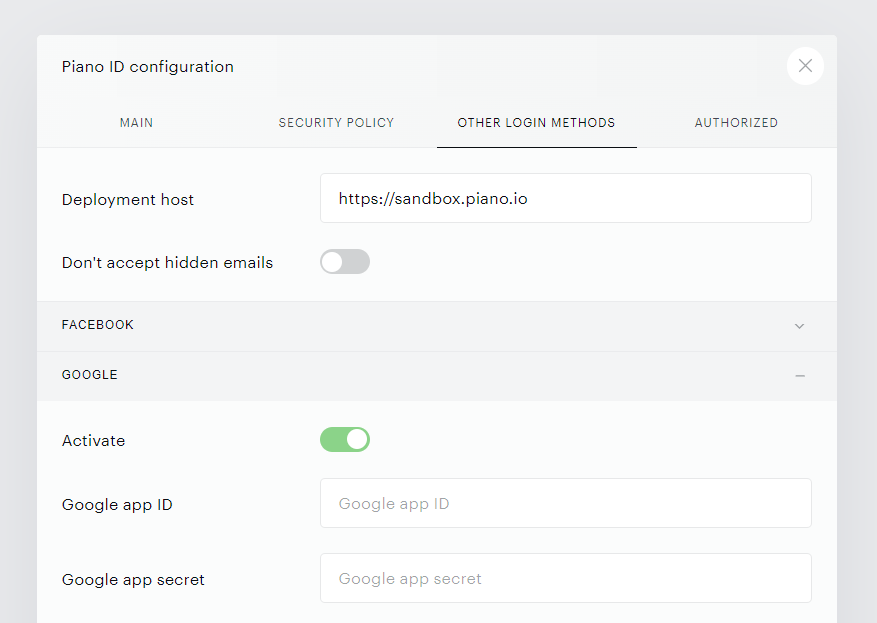
Put the value from the Client ID in the Google App ID field, and the Client secret in the Google App Secret field.
The user data shared via the social login is only what's needed to create their Piano account:
-
First Name (if applicable)
-
Last Name (if applicable)
-
Email
This is the only user data we collect (apart from the user's encrypted passwords) and save in our Identity Management database.
Google social login for Android SDK
In order to configure Google social login also for your mobile app using the Android SDK, please follow the steps outlined below.
-
Create a web client in the Google Console as described in this section.
-
Run
./gradlew signingReportinside your app's project folder for getting certificate hashes. Pay attention to the variant (especially for debug/release) and copy the correct SHA1 hash:
-
Create an Android client in the Google Console with your package and SHA1 hash from the previous step.
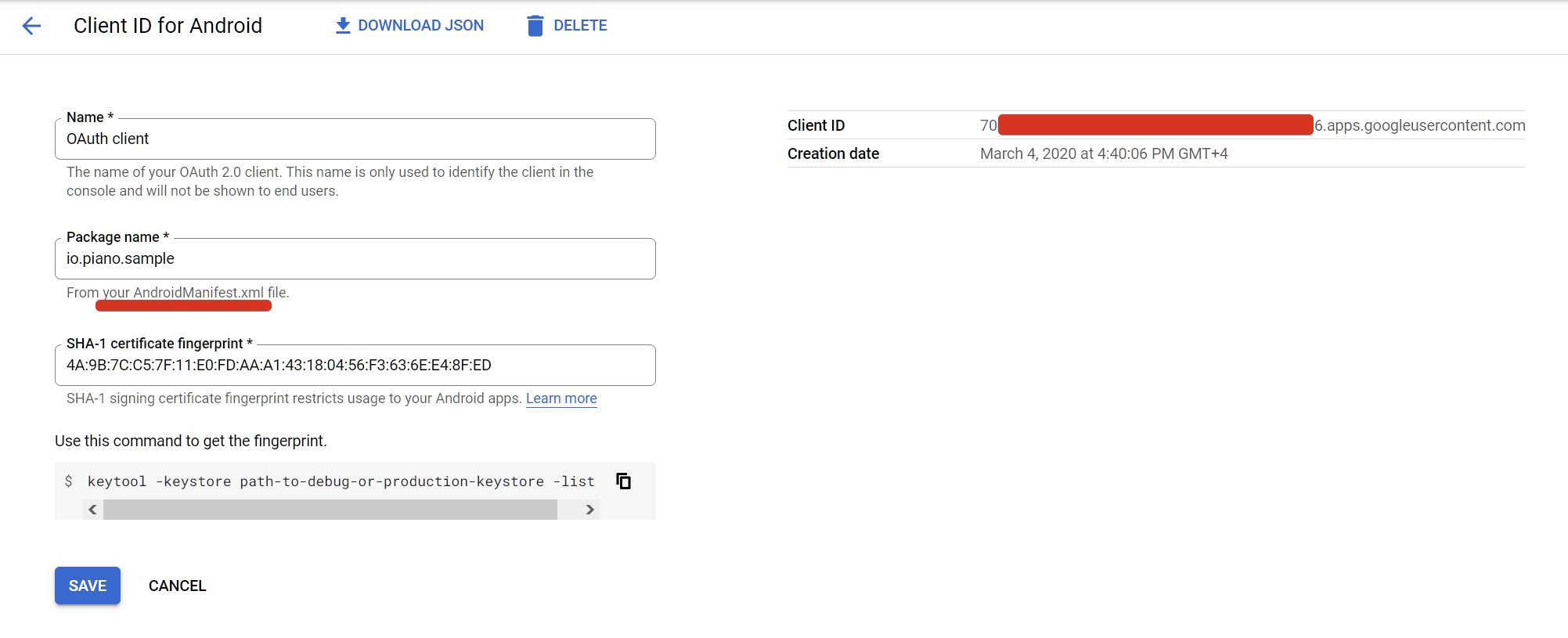
Note: If you have a special package name for variant, you should put it here instead of the general one.Important: You don't need to add this Android client ID into the Piano dashboard and you don't need to put JSON from Google for auth via Identity Management.
Limitations
Please note that Google login does not work in web-view in-app browsers due to Google's policy established in 2021. When users attempt to use Google Sign-In within third-party apps using web-view browsers, they will encounter the error "403: disallowed_useragent". This restriction is detailed in Google's disallowed_useragent policy.
This also means that Google's social login is currently not supported via the LinkedIn or Threads apps.
Both the LinkedIn and Threads apps open Identity Management within an in-app browser. Identity Management relies on the web version of Google Sign-In, which only works in supported browsers and validates the user agent. Since in-app browsers use a different user agent, Google cannot process the request, and the user is therefore unable to complete the login.
Please note that currently, the "One-tap Sign-in/Sign-up" functionality isn’t supported by Piano. Alternatively, you can implement this on your side using our /publisher/token API (and the appropriate API to register new users).
If you decide to use this API, please reach out to Piano Support at support@piano.io as this feature needs to be enabled on your account.
A downside is, that Global Mode SSO is not supported for the custom implementation of Google One-tap using the /publisher/token API.