
My Account Initialization
Enabling the My Account component is as easy as adding a few lines of JavaScript. Here's an example:
// Get the tp object
tp = window["tp"] || [];
tp.push(["init", function() {
    tp.myaccount.show({
        displayMode: "inline",
        containerSelector: "#my-account"
    });
}]);
Display mode will always be inline and the My Account will resize automatically based on the device's display size.
For containerSelector, you can use any element ID or class that exists in the HTML of your page as a container for the My Account component. For example, to use a <div id="my-account"></div> element as a container, you would enter #my-account as the containerSelector value as shown in the example above. If you instead wanted to use a class like <div class="useraccount"></div> as a container, you'd use .useraccount for containerSelector. Piano supports all selectors supported by JQuery.
Using the loginRequired Callback
Users need to be logged in to view their accounts. If you are using Identity Management or Gigya for user management, you do not need to configure anything for the login request to appear. If the user is not logged in, for these pre-integrated user management solutions we will initialize the callback for login that was configured during integration.
For all other user management providers, you will need to use the loginRequired callback to redirect anonymous users to your own custom login/registration page or initialize your login/registration modal. For more information on how this is done, see our guide on user management integration.
My Account Customization
Here's is an example of how the My Account component can look:
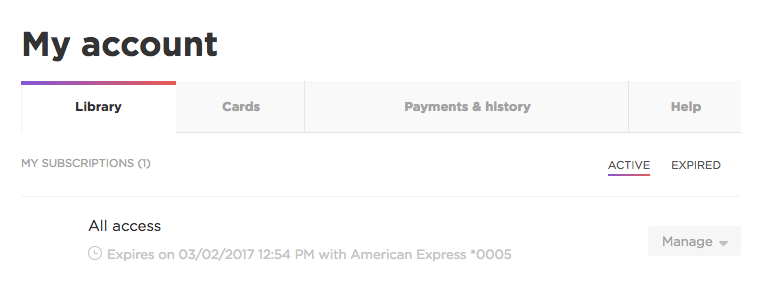
We recommend only making minor adjustments to the style and wording of the My Account component. This customization can be done by modifying four Piano templates:
-
My Account Common Components: Includes the basic functionality of the My Account component.
-
My Account Help Components: Includes the elements of the My Account "Help" tab. Please note, that this tab needs to be enabled by a Piano representative in order to be visible. You can reach out to our Support team at support@piano.io to enable it for you in case it's not showing in your My Account component.
-
My Account Voucher Components: Includes the elements of the My Account "Vouchers" tab (where information on gifts given and received is stored).
-
My Account Style: Controls the CSS of the My Account component.
These templates can be access by going to Manage → Templates → My Account. As with the System templates, we recommend only changing colors, fonts, and text. In order to ensure proper functioning, the overall HTML layout should remain static.
My Account Common Components
We recommend only changing text within this template. In the My Account Common Components template you may want to change the text of the "Vouchers" tab to instead read "Gifts" or the "Help" tab to read "Customer Assistance" or "Library" to read "General." Those kinds of changes are all easily made by modifying the code within this section of the My Account Common Components template:
<script type="text/ng-template" id="/widget/myaccount/partials/common/tabs.shtml">
    <div class="wrapper-tabs">
        <div class="scroll-tabs" drag-scroll>
            <ul class="tabs header-navigation-tabs">
                <li data-item="library"     ><a class="" href="#"><t>Library</t></a></li>
                <li data-item="wallet"      ><a class="" href="#"><t>Cards</t></a></li>
                <li data-item="transactions"><a class="" href="#"><t>Transactions</t></a></li>
                <li data-item="payments"    ><a class="" href="#"><t>History</t></a></li>
                <li data-item="vouchers"    ><a class="" href="#"><t>Vouchers</t></a></li>
                <li data-item="bills"       ><a class="" href="#"><t>Bills</t></a></li>
                <li data-item="pianoid-newsletters"><a class="" href="#"><t>Newsletters</t></a></li>
                <li data-item="pianoid"     ><a class="" href="#"><t>Profile</t></a></li>
                <li data-item="licensing"   ><a class="" href="#"><t>Site license</t></a></li>
                <li data-item="userprofile" ><a class="" href="#"><t>User Profile</t></a></li>
                <li data-item="help"        ><a class="" href="#"><t>Help</t></a></li>
            </ul>
        </div>
    </div>
</script>
Note that you should only change the text bounded by <t></t> tags. The data-item names should remain as they are by default so Piano can associate the correct tab header with the correct content.
Please note, that it's not possible to add additional tabs (with custom content). In such use cases, you would need to create a separate section above or below the <div> of the My Account.
My Account Help Components
We recommend only changing text within this template. There are multiple components in this template that are identified with script tags. Some of these components contain default customer service messages that you may want to customize. For example, the component below contains code related to submitted customer service inquiries; there is a default "Waiting for publisher response..." message that appears when an inquiry has been submitted but not yet responded to that you may want to change:
<script type="text/ng-template" id="/widget/myaccount/partials/help/item.shtml">
<span class="section-text link uppercase" ng-click="onViewAllClick()"><span class="arrow"></span><t>All inquiries</t></span>
<span class="inquiry-state-name heading" ng-class="{green: inquiry.state == 'ACTIVE'}">{{inquiry.stateLabel}}</span>
<div my-account-widget-scroll>
<blockquote class="help-inquiry-reason">{{inquiry.reason}}</blockquote>
<div class="ng-hide" error-section errors="errors" heading="{{'Couldn\'t submit comment' | t}}"></div>
<div class="table-conversation">
<table class="table">
<tbody>
<tr class="ng-hide" ng-show="!conversationPossibilty">
<td class="avatar">
</td>
<td class="message">
</td>
</tr>
<tr class="ng-hide response-form" ng-show="conversationPossibilty">
<td class="avatar">
<div class="media-object"><img ng-src="{{inquiry.user.imageUrl}}"></div>
</td>
<td class="message">
<div class="response" sourceindex="0">
<div class="control-group">
<textarea ng-model="message" rows="5" class="input-block-level"
placeholder="{{'Enter a response' | t}}" sourceindex="1"></textarea>
</div>
<div class="form-inline form-small submit-block">
<div class="control-group pull-left">
<button class="btn btn-green btn-wide" id="grant-access"
ng-click="onCreateMessage()"><t>Submit</t></button>
</div>
</div>
</div>
</td>
</tr>
<tr ng-show="inquiry.state=='ACTIVE' && !conversationPossibilty">
<td colspan="2">
<div class="bubble left">
<div class="media-object"><img ng-src="{{comment.authorUrl}}"></div>
<div class="message">
<t>Waiting for publisher response...</t>
</div>
</div>
</td>
</tr>
<tr ng-repeat="comment in comments" class="comment">
<td colspan="2">
<div class="bubble right">
<div class="media-object"><img ng-src="{{comment.authorUrl}}"></div>
<div class="message">
<h3>{{comment.author}} <span
class="timestamp">{{comment.stamp| date: 'short'}}</span>
</h3>
<span class="help-inquiry-reason-in-comment" ng-bind-html="comment.text"></span>
</div>
</div>
</td>
</tr>
<tr class="comment cehck">
<td colspan="2">
<div class="bubble right">
<div class="media-object"><img ng-src="{{inquiry.user.imageUrl}}"></div>
<div class="message">
<h3>{{inquiry.user.name}} <span
class="timestamp">{{inquiry.stamp| date: 'short'}}</span></h3>
<span class="help-inquiry-reason-in-comment" ng-bind-html="inquiry.reason"></span>
</div>
</div>
</td>
</tr>
</tbody>
</table>
</div>
<div class="inquiry-details">
<div class="module app-avatar">
<img ng-if="payment.resourceImageUrl" ng-src="{{payment.resourceImageUrl}}">
</div>
<div class="module">
<b>{{payment.resourceName | tc:'resource.name'}}</b>
</div>
<div class="module">
<div class="title"><b><t>Access terms</t></b></div>
{{payment.accessTerms}}
</div>
<div class="module">
<div class="title"><b><t>Payment source</t></b></div>
{{payment.paymentMethodDisplayName}}
</div>
</div>
</div>
</script>
By default, the help component section will look like this:
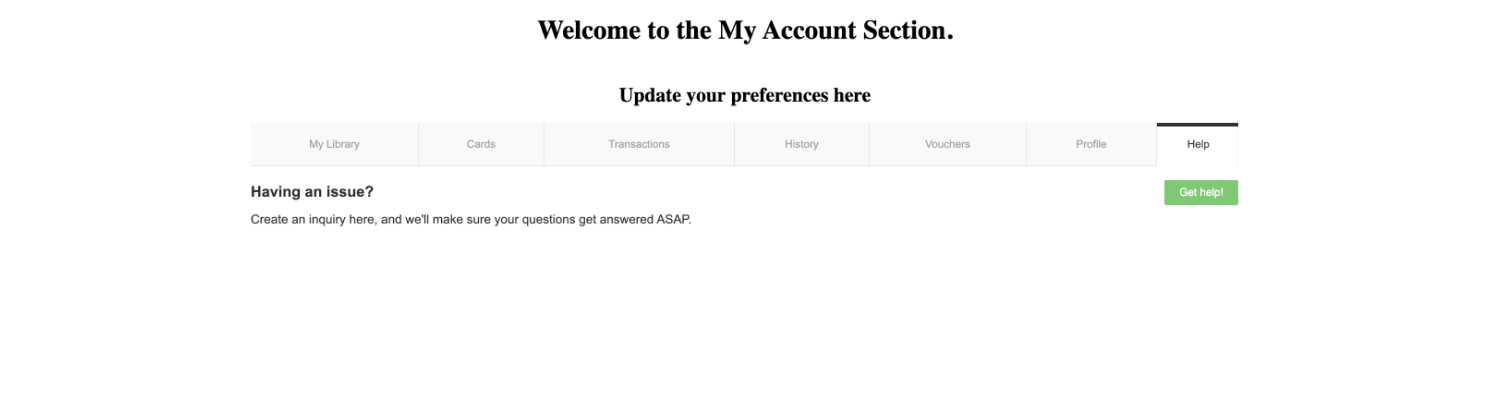
This next component is where a user can see a list of all inquiries created. The component also has a button for creating a new inquiry. By default, the text associated with that button reads "Create an inquiry here, and we'll make sure your questions get answered ASAP" but you're free to change it:
<script type="text/ng-template" id="/widget/myaccount/partials/help/list.shtml">
    <div ng-show="inquires.length == 0" class="title-block first pull-left">
        <h2 class="title"><t>Having an issue?</t></h2>
        <div class="heading-comment"><t>Create an inquiry here, and we'll make sure your questions get answered ASAP.</t></div>
    </div>
    <span ng-show="inquires.length > 0" class="section-text uppercase"><t>Inquiries</t> ({{inquires.length}})</span>
    <button class="btn btn-green btn-add-card pull-right" ng-click="createInquiry()"><t>Get help!</t></button>

    <div ng-show="inquires.length > 0"
         class="table-container" my-account-widget-scroll >
        <table class="vanilla-table">
            <tbody>
            <tr ng-repeat="inquiry in inquires" ng-click="onInquiryClick(inquiry)" class="inquiry">
                <td class="logo">
                    <img height="50"
                         ng-src="{{inquiry.app.logo || '../images2/media-placeholder-tile.png'}}" />
                </td>
                <td class="inquiry-info">
                    <div><strong>{{inquiry.app.name}}</strong></div>
                    <div class="inquiry-reson">{{inquiry.reason | limitTo: 100}}...</div>
                </td>
                <td class="inquiry-state uppercase">
                    <span class="inquiry-state-name" ng-class="{green: inquiry.state == 'ACTIVE'}">{{inquiry.stateLabel}}</span>
                </td>
                <td class="inquiry-date">{{inquiry.stamp |date:'short'}}</td>
            </tr>
            </tbody>
        </table>
    </div>
</script>
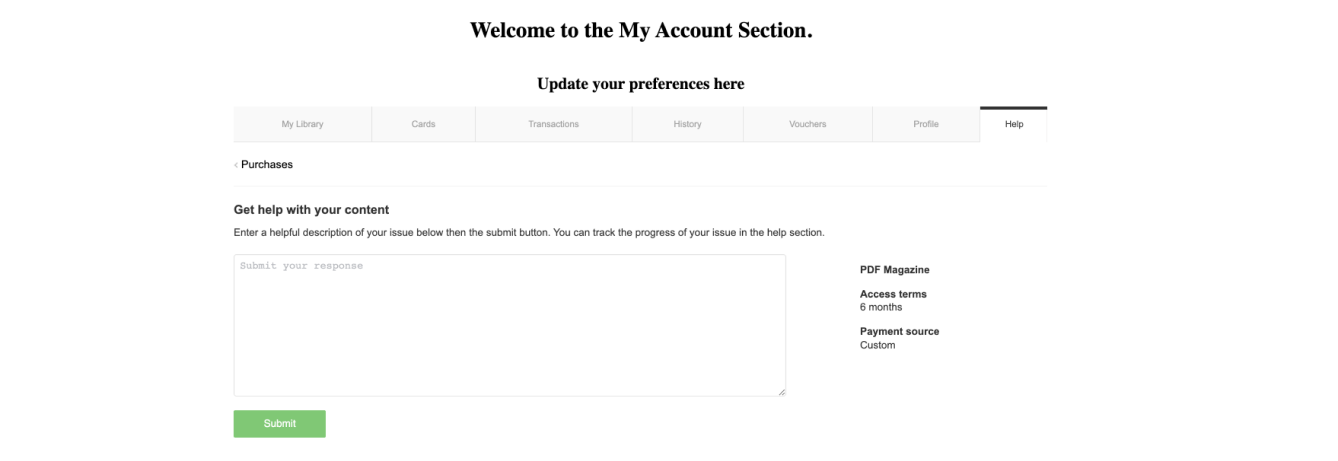
This next component controls the text next to the box where users can input their inquiries. By default the text reads "Enter a helpful description of your issue below then <hit></hit> the submit button. You can track the progress of your issue in the help section" but you're free to change the copy (the <hit></hit> code within the text simply generates a button users can click):
<script type="text/ng-template" id="/widget/myaccount/partials/help/new.shtml">
    <span class="section-text link uppercase" ng-click="goBack()"><span class="arrow"></span><t>Purchases</t></span>

    <div error-section
         errors="formErrors"
         heading="{{'Couldn\'t submit issue' | t}}"></div>

    <div my-account-widget-scroll>
        <div class="title-block">
            <h2 class="title"><t>Get help with your content</t></h2>
            <div ng-show="payment" class="heading-comment"><t>Enter a helpful description of your issue below then <hit></hit> the submit button. You can track the progress of your issue in the help section.</t></div>
        </div>
        <div ng-show="payment">
            <div class="table-conversation">
                <table class="table">
                    <tbody>
                    <tr>
                        <td class="message">
                            <div class="response">
                                <div class="control-group">
                                    <textarea ng-model="inquiryText" rows="5" class="input-block-level high"
                                              placeholder="{{'Enter a respond' | t}}"></textarea>
                                </div>
                                <div class="form-inline form-small submit-block">
                                    <div class="control-group pull-left">
                                        <button class="btn btn-green btn-wide" id="grant-access"
                                                ng-click="submit()"><t>Submit</t></button>
                                    </div>
                                </div>
                            </div>
                        </td>
                    </tr>
                    </tbody>
                </table>
            </div>
            <div class="inquiry-details">
                <div class="module app-avatar">
                    <img ng-if="payment.resourceImageUrl" ng-src="{{payment.resourceImageUrl}}">
                </div>
                <div class="module">
                    <b>{{payment.resourceName | tc:'resource.name'}}</b>
                </div>
                <div class="module">
                    <div class="title"><b><t>Access terms</t></b></div>
                    {{payment.accessTerms}}
                </div>
                <div class="module">
                    <div class="title"><b><t>Payment source</t></b></div>
                    {{payment.paymentMethodDisplayName}}
                </div>
            </div>

        </div>
    </div>
</script>
By default, the component will look like this:
The final component in this help template allows the user to select the purchase to create an inquiry for. If a user doesn't have any purchases, it'll show a message that includes a Piano support email address; we recommend that you replace Piano's email with your own customer service email address:
<script type="text/ng-template" id="/widget/myaccount/partials/help/selectResource.shtml">
    <span class="section-text link uppercase" ng-click="goBack()"><span class="arrow"></span><t>All inquiries</t></span>

    <div error-section
         errors="formErrors"
         heading="{{'Couldn\'t submit issue' | t}}"></div>
    <div my-account-widget-scroll>
        <div class="title-block">
            <h2 class="title"><t>Get help with your content</t></h2>
            <div ng-show="purchases.length > 0" class="heading-comment"><t>Select the purchase you need help with from the list below.  If you don't see it here or you need general support, please contact <a href="mailto:support@piano.io">support@piano.io</a>.</t></div>
            <div ng-show="purchases.length == 0" class="heading-comment"><t>Looks like you don't have any purchases to open an inquiry for.  If you need general support, please contact <a href="mailto:support@piano.io">support@piano.io</a>.</t></div>
        </div>

        <table ng-show="purchases.length > 0" class="vanilla-table">
            <tbody>
            <tr ng-repeat="purchase in purchases">
                <td class="logo">
                    <img ng-if="purchase.resourceImage" ng-src="{{purchase.resourceImage}}">
                </td>
                <td class="title">
                    <div class="resource-title">{{purchase.resourceName | tc:'resource.name'}}</div>
                    <div class="expiration-date">
                        <div class="clock"></div> <t>Expires</t> {{purchase.dateInSeconds | tpDate:purchase.dateFormat}}
                    </div>
                </td>
                <td class="actions">
                    <button ng-click="selectResource(purchase.id)" class="btn btn-green btn-small btn-wide btn-arrow"><t>Help</t> <span class="arrow"></span></button>
                </td>
            </tr>
            </tbody>
        </table>
    </div>
</script>
My Account Voucher Components
We recommend only changing text within this template. Though Piano calls this tab vouchers, it currently only contains information about gifts given and received. A common change made by clients is replacing all mentions of "vouchers" with "gifts." "My vouchers" in this section would become "My Gifts" or "Gifts Given and Received":
<span class="section-text uppercase"><t context="checkout.platform">My vouchers</t> ({{vouchers.length}})</span>
Here too, "Voucher details" would become "Gift details":
<t context="checkout.platform">Voucher details</t>
My Account Style
The My Account Style template controls the CSS for the My Account component. This template is blank by default and you should feel free to use it to customize the fonts and colors of the My Account component so it fits the style of your website. You may also want to use CSS to hide certain HTML elements. Most clients choose to style the My Account component as a landing page but it can also be implemented as a smaller widget on your site.
The Library Model
Information contained within the Library tab of My Account. Here is the structure of the Library model:
{
    appImage(string): Application logo,
    appName(string): Application name,
    autoRenew(boolean): Whether the term is auto-renewing,
    autoRenewChangeEnabled(boolean): Whether auto-renewing might be enabled/disabled manually,
    billingPlanModel: {}, // Same as for offer templates (Terms model)
    cancelAndRefundEnabled(boolean): Whether the term might be cancelled and refunded,
    cancelEnabled(boolean): Whether the term might be cancelled,
    card: Payment method object {
        billingZipCode(string): Billing zip code for tax,
        cardholder(string): Cardholder's name if enabled,
        ccPubId(string): User payment info, saved card ID,
        ccid(number): Saved card ID,
        countryCode(string): Code of the country of purchase for tax,
        displayColor(string): Card color used in the Consumer Dashboard,
        expiration(string): Card expiration date,
        expired(boolean): Whether the card is expired,
        extPaymentId(string): External payment provider ID,
        lastFour(string): Last four numbers of the card,
        name(string): Payment method name,
        nickname(string): Login name for the payment method (e.g. an email for PayPal),
        paymentType(string): Payment method type,
        postalCode(string): Postal code specified by a user,
        removeActionEnabled(boolean): Whether the payment method can be deleted,
        residenceCountryCode(string): Residence country code for tax,
        source(number): Payment provider ID,
        viewable(boolean): Whether the payment method is viewable in the list
    },
    expirationDate(number): Date of the next payment in seconds,
    expirationMsg(string): Message for the subscription renewal,
    external(boolean): Whether the bought term type is external,
    id(string): Library item ID,
    provider(string): External verification provider,
    refundEnabled(boolean): Whether the term refund is enabled,
    renewNowEnabled(boolean): Whether the user may renew the term at any given moment,
    resourceImage(string): Resource image,
    resourceName(string): The term resource name,
    startDate(string): The start date of the fixed-time access, granted access, subscription or gift,
    termChangeOptions(array): Term change options,
    termName(string): The term name,
    trial(boolean): Whether the term current plan is trial,
    type(string): Access type,
    updatePaymentMethodEnabled(boolean): Whether payment method might be edited
}
Here is an example:
{
    "appImage": "",
    "appName": "The Times",
    "autoRenew": true,
    "autoRenewChangeEnabled": true,
    "billingPlanModel": {},
    "cancelAndRefundEnabled": true,
    "cancelEnabled": true,
    "card": {
        "billingZipCode": "123456",
        "cardholder": null,
        "ccPubId": "PMV5B9SV7Y5I",
        "ccid": 143307,
        "countryCode": "GE",
        "displayColor": null,
        "expiration": "12/2025",
        "expired": false,
        "extPaymentId": "5tbgf7",
        "lastFour": "1111",
        "name": "Visa",
        "nickname": null,
        "paymentType": "Visa",
        "postalCode": "012345",
        "removeActionEnabled": false,
        "residenceCountryCode": null,
        "source": 4,
        "viewable": true
    },
    "expirationDate": 1538315161,
    "expirationMsg": "Subscription renews on 09/30/2018 9:46 AM",
    "external": false,
    "id": "RC2Z5LOGDHJY",
    "provider": null,
    "refundEnabled": false,
    "renewNowEnabled": false,
    "resourceImage": null,
    "resourceName": "Premium Access",
    "startDate": "2021-05-05T09:26:13-0400",
    "termChangeOptions": [],
    "termName": "Monthly Subscription",
    "trial": false,
    "type": "sub",
    "updatePaymentMethodEnabled": true
}
The Wallet Model
Information contained within the Wallet tab of My Account. Here is the structure of the Wallet model:
{
    cards: array of cards {
        ccid(number): Stored credit card ID,
        ccPubId(string): Stored credit card string ID,
        expiration(string): Credit card expiration date: month and year,
        expired(boolean): Whether the credit card is expired,
        viewable(boolean): Whether the credit card is visible,
        paymentType(string): The type of credit card: Visa, MasterCard, etc.,
        subscriptionCount(number): The active subscription count,
        paymentCount(number): The amount of payments,
        source(number): Payment source,
        totalSpent: {
            currency: number
        },
        lastFour(string): Last four digits of credit card,
        name(string): Name of card, can be changed in consumer dashboard,
        postalCode(string): Credit card postal code used for tax calculation,
        residenceCountryCode(string): Country of residence, used for tax calculation,
        billingZipCode(string): Billing zip code, used for tax calculation,
        countryCode(string): Country code, used for tax calculation
    }
}
Here is an example:
{
    "cards": [
        {
            "ccid": 60581,
            "ccPubId": "PMEXM5L4IKS9",
            "expiration": "11/2022",
            "expired": false,
            "viewable": true,
            "paymentType": "Visa",
            "onlyCard": true,
            "subscriptionCount": 1,
            "paymentCount": 1,
            "source": 4,
            "totalSpent": {
                "USD": 5.99
            },
            "lastFour": "1111",
            "name": "Visa",
            "defaultCard": false,
            "postalCode": "123132",
            "residenceCountryCode": null,
            "billingZipCode": "20147",
            "countryCode": "US",
            "displayColor": null,
            "removeActionEnabled": false,
            "cardholder": null,
            "extPaymentId": "kmyy7x"
        }
    ]
}
The Payment Model
Information contained within the Payment tab of My Account. Here is the structure of the Payment model:
{
    "models": {
        "events": [
            {
                "date"(string): "2018-09-26T09:48:23.000+0000",
                "raw"(string): Message text,
                "lId"(string): Public ID of the referenced object,
                "lType"(string): Type of referenced object: purchase, gift_received, access, sub, or inquiry,
                "appImage"(string): App image logo URL,
                "data"(object): Object of variables used to create the raw message
            }
        ]
    }
}
Here's an example:
{
    "models": {
        "events": [
            {
                "date": "2018-09-26T09:48:23.000+0000",
                "raw": "You purchased Resource_4 for $5.99 using your Visa ending in 1111.",
                "lId": "UPTMPJVGCD9M",
                "lType": "purchase",
                "appImage": null,
                "data": {
                    "subscription_billing_details": "<table class='billing-plan'><tr><th style='padding-right: 10px; white-space: nowrap;'>Date</th><th style='padding-right: 10px;' class='duration'>Duration</th><th class='billing'>Billing</th></tr><tr><td style='padding-right: 10px; white-space: nowrap;' class='date'>Today</td><td style='padding-right: 10px;' class='duration'>monthly until cancelled</td><td class='billing'>$5.99 per month</td></tr></table>",
                    "EVENT_TYPE": "new_purchase",
                    "sys_user_name": "mm@mm.mm2",
                    "access_period": "1 month, 18 hours, 11 minutes and 35 seconds",
                    "sys_business_details": "NA",
                    "sys_subscription_amount_src": "$5.99",
                    "rid": "R3HHBM4",
                    "subscription_id": "RCV2PJ27E7CT",
                    "sys_business_name": "MF_pythonApp_mode_2_gigya",
                    "sys_publisher_marketing_documentation_url": "https://docs.piano.io",
                    "sys_payment_amount_src": "$5.99",
                    "sys_x_days_until_subscription_end": 3,
                    "payment_datetime": "Wednesday, September 26, 2018 1:48 PM",
                    "sys_payment_datetime": "Wednesday, September 26, 2018 1:48 PM",
                    "sys_dashboard_marketing_url": "http://localhost:9000",
                    "business_url": "http://test.test",
                    "sys_x_days_after_subscription_start": 3,
                    "sys_user_has_password": true,
                    "create_date": "Sep 26, 2018",
                    "sys_deposit_source": "BrainTree",
                    "sys_user_email": "mm@mm.mm2",
                    "sys_payment_method_name": "Visa ending in 1111",
                    "business_name": "MF_pythonApp_mode_2_gigya",
                    "sys_publisher_inquiries_url": "http://localhost:9000/publisher/inquiries",
                    "resource_url": "http://test.test",
                    "sys_aid": "0niEDZ1Ltm",
                    "user_email": "mm@mm.mm2",
                    "sys_is_subscription": true,
                    "is_voucher_purchase": false,
                    "sys_dashboard_url": "http://localhost:9000/member",
                    "payment_amount": "$5.99",
                    "sys_x_days_after_subscription_end": 3,
                    "sys_amount": "$5.99",
                    "sys_payment_date": "Wednesday, September 26, 2018",
                    "sys_x_days_after_auto_renewal": 3,
                    "access_expiration_date": "Oct 27, 2018",
                    "current_date": "Wednesday, September 26, 2018",
                    "sys_subscription_has_trial": false,
                    "sys_current_datetime": "Wednesday, September 26, 2018 2:57 PM",
                    "sys_is_initiated_by_publisher": false,
                    "sys_subscription_amount": "$5.99",
                    "sys_payment_amount": "$5.99",
                    "aid": "0niEDZ1Ltm",
                    "sys_support_email": "testmail_3801@test.test",
                    "sys_subscription_billing_details": "<table class='billing-plan'><tr><th style='padding-right: 10px; white-space: nowrap;'>Date</th><th style='padding-right: 10px;' class='duration'>Duration</th><th class='billing'>Billing</th></tr><tr><td style='padding-right: 10px; white-space: nowrap;' class='date'>Today</td><td style='padding-right: 10px;' class='duration'>monthly until cancelled</td><td class='billing'>$5.99 per month</td></tr></table>",
                    "sys_developers_documentation_link": "http://docs.piano.io/",
                    "sys_access_expiration_date": "Oct 27, 2018",
                    "sys_business_url": "http://test.test",
                    "sys_user_is_first_purchase": true,
                    "sys_purchase_term": "Resource_4",
                    "sys_subscription_id": "RCV2PJ27E7CT",
                    "user_first_name": "m1111111345",
                    "sys_resource_name": "Resource_4",
                    "sys_user": "m1111111345 23m222",
                    "sys_is_initiated_by_admin": false,
                    "payment_id": "UPTMPJVGCD9M",
                    "sys_user_first_name": "m1111111345",
                    "sys_subscription_start_date": "September 26, 2018 1:48PM",
                    "sys_subscription_billing_period": "1 month",
                    "sys_is_initiated_by_user": true,
                    "sys_subscription_next_billing_date": "Friday, October 26, 2018",
                    "sys_current_date": "Wednesday, September 26, 2018",
                    "sys_user_id": 518991,
                    "sys_force_to_change_password": false,
                    "sys_resource_url": "http://test.test",
                    "sys_rid": "R3HHBM4",
                    "sys_deposit_id": "UD5BLYC7J62W",
                    "support_email": "testmail_3801@test.test",
                    "sys_is_voucher_purchase": false,
                    "sys_deposit_internal_id": 120283,
                    "sys_deposit_amount": 5.99,
                    "sys_user_last_name": "23m222",
                    "sys_payment_id": "UPTMPJVGCD9M",
                    "resource_name": "Resource_4",
                    "purchase_term": "Resource_4",
                    "sys_x_days_until_auto_renewal": 3,
                    "user": "m1111111345 23m222"
                }
            }
        ]
    }
}