
Use Cases
External service terms are used to inform Piano of events that occur through an external API, such as a mobile application. This allows Piano to manage your subscriptions and transactions even when they were processed elsewhere.
So, for example, say a user buys a movie as an in-app purchase (IAP). Your intention is to allow this user to access the resource (watch the movie) from any other device (desktop, Roku, tablet, etc). The original access provider (e.g. Apple, Google, PayPal) has its own billing service, with the access periods and other details defined. An external service term allows Piano to retrieve that information from the access provider using an API call. When the user then goes to watch that movie on the native web, where Piano is protecting the resource, Piano can verify the user's entitlements and give the user access to that movie.
API Configuration
Available API providers currently include:
-
CDS
-
Apple iTunes
-
Google Play
-
PSC Provider
-
PayPal Subscriptions
To configure your API, click Manage → External APIs. Next, click "New" at the top right corner of the screen or edit an existing API you have previously configured. If you don't have this option available in your Piano dashboard, please reach out to Piano Support at support@piano.io for enablement.
Populate the resulting window with appropriate information about the API you are setting up. For all available APIs, you will need to create a title and description for your API and select the provider of the API from the dropdown menu (viewed by clicking the pre-filled box). The title and description are used to help you more easily locate and identify your API configurations in the future and will not be shown to the end user. It's possible to create multiple API configurations of the same type if needed.
Each individual API has different requirements for the remaining fields, which you will need to complete based on the nature of your system. A description for each of these additional fields is provided below along with a screenshot.
Apple iTunes
Piano supports two versions of Apple App Store (iTunes) server notifications for handling external terms: Version 1 and Version 2.
This page describes how to configure Notifications Version 1, which is supported by default.
Notifications Version 2 is also available but requires manual activation by Piano Support. Please refer to the dedicated documentation for Version 2 if you planning to use it.
Configuring Piano
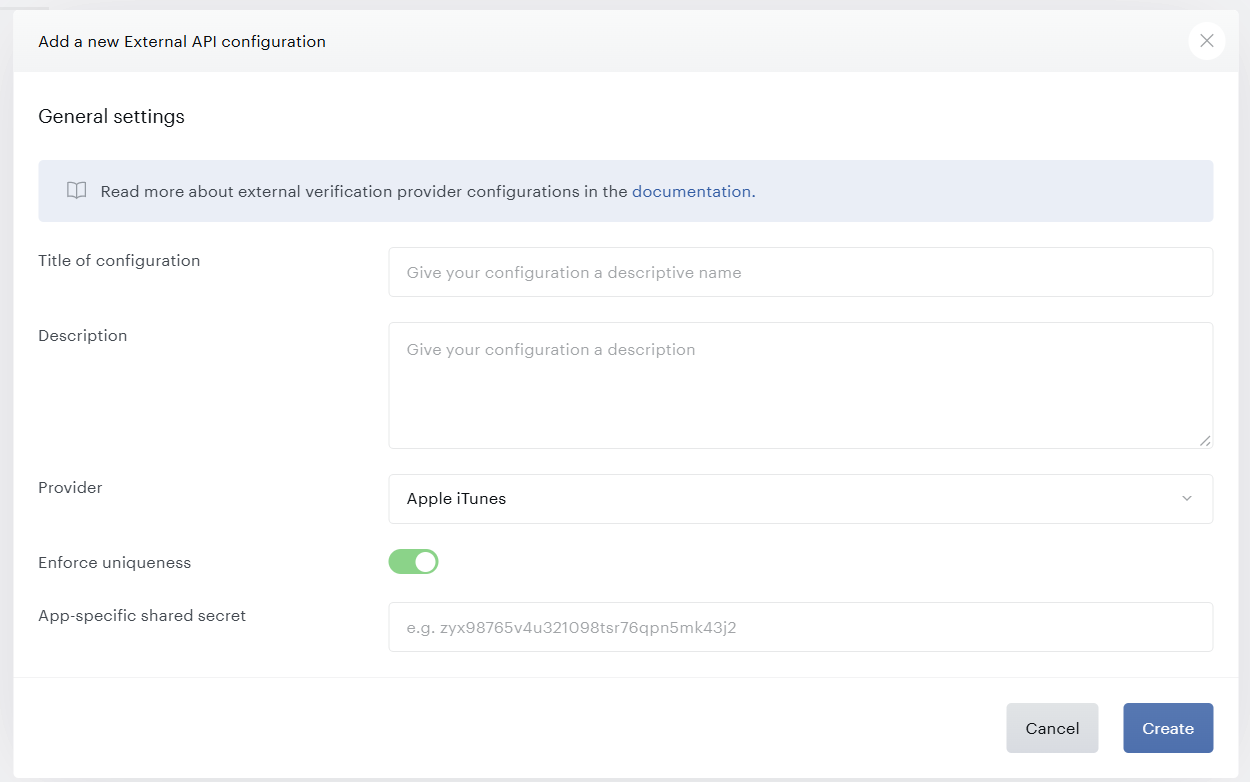
Enforce uniqueness: Enforce uniqueness ensures that when a user makes a purchase that purchase can be redeemed only by that user. This ensures that resources are not shared or stolen without your permission.
App-specific shared secret: Enter the secret or password associated with your iTunes external API for verification purposes.
After clicking "Create," you will be taken to an overview of this API that includes all of the information you just provided.
Configuring App Store
Configure App Store server notifications in your account as per this guide.
The URL to add is:
https://api.piano.io/api/v3/externalVerification/apple/notification?aid=<aid>
(where <aid> is your application ID).
The base URL for the API endpoint needs to be adjusted in case your application is not located on the US dashboard as follows:
https://api-au.piano.io/api/v3 (Australia)
https://api-ap.piano.io/api/v3 (Asia-Pacific)
https://api-eu.piano.io/api/v3 (Europe)
Please ensure that you have the correct version enabled by following the steps below:
-
From My Apps, select your app.
-
In the sidebar under General, click App Information.
-
Scroll down to General Information, then go to App Store Server Notifications.
-
Next to the URL you want to edit, click Edit (Production and/or Sandbox if configured)
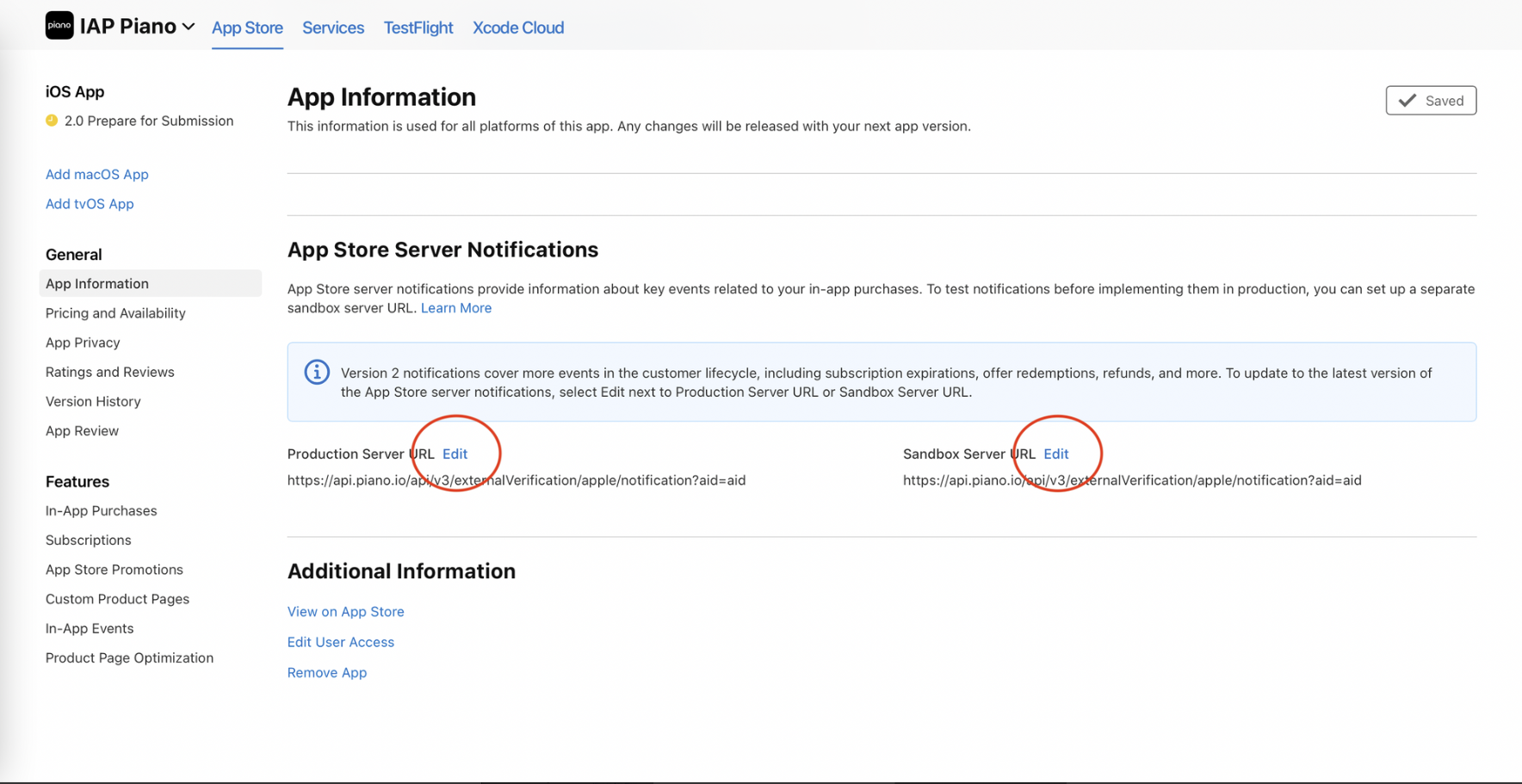
-
Select Version 1 Notification
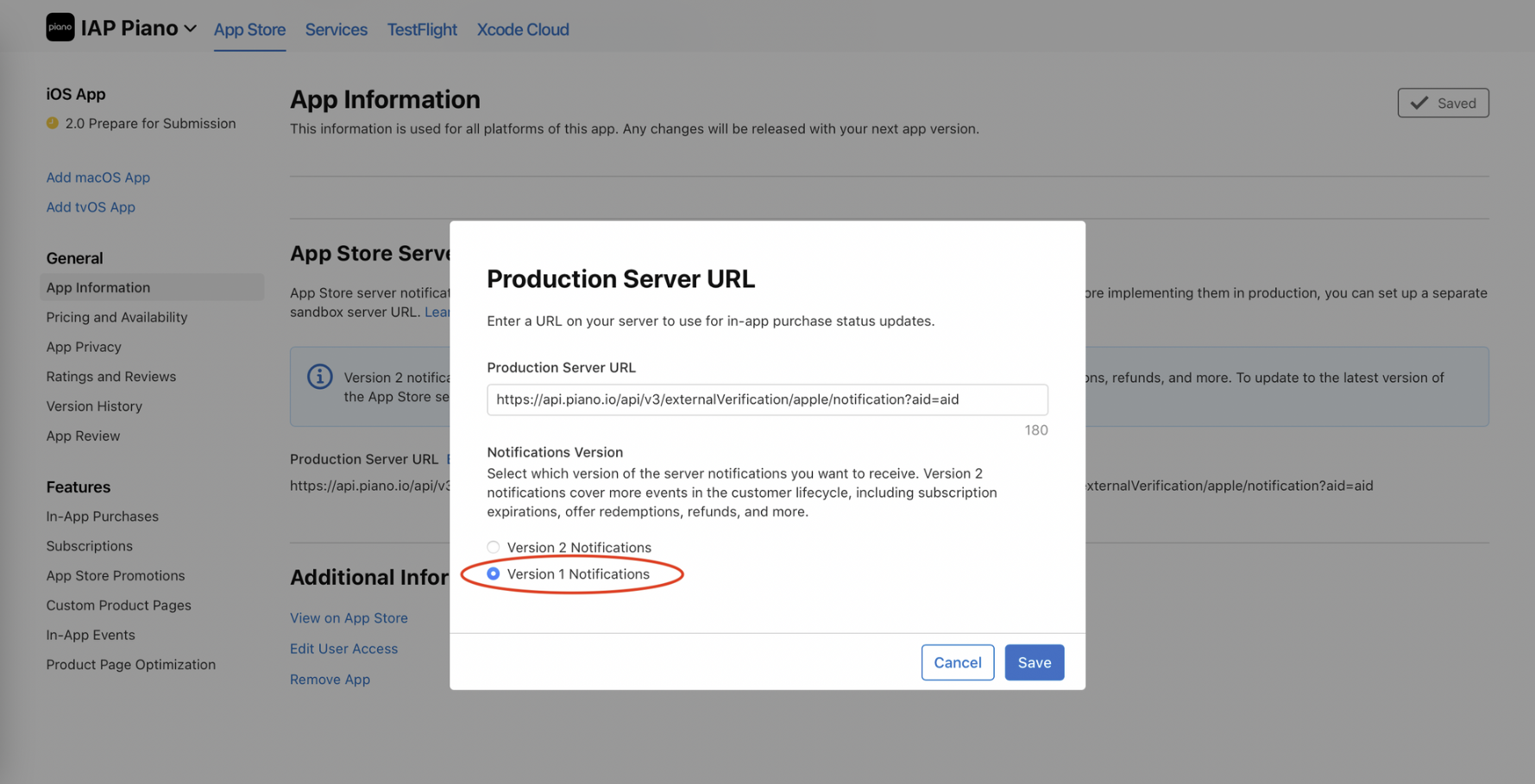
-
Click Save
CDS
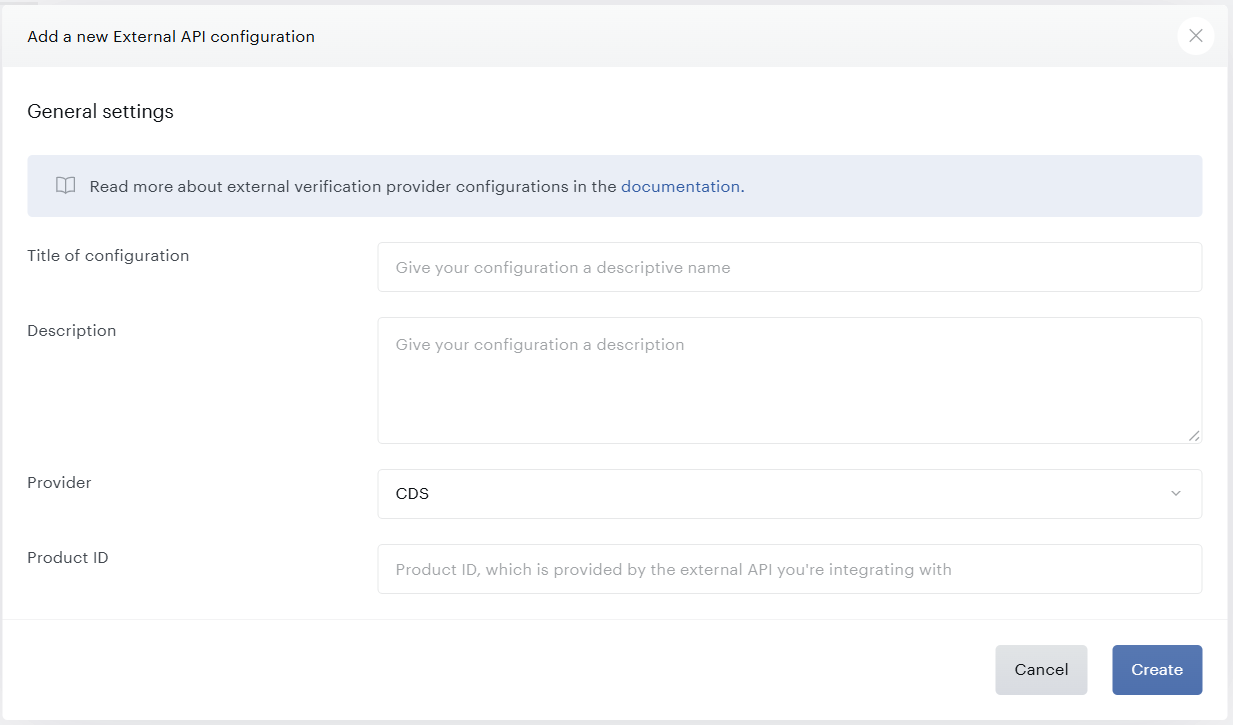
Product ID: Enter the unique identification of your API, which allows Piano to locate and communicate with that API.
After clicking "Create," you will be taken to an overview of this API that includes all of the information you just provided as well as a section below entitled "Fields." The "Fields" section is where you add prompts for the information you need from the consumer such as name, address, and contact information. Click "Add" to create a new field, and populate the resulting screen with the appropriate information. Normally, the only field you should add is "accountNumber" in order to verify the user's identity.
Note: The CDS integration will fail to validate against CDS, even if all settings have been completed unless the client asks CDS Support to authorize the integration and for Piano to have access.
Print Subscription Confirmation
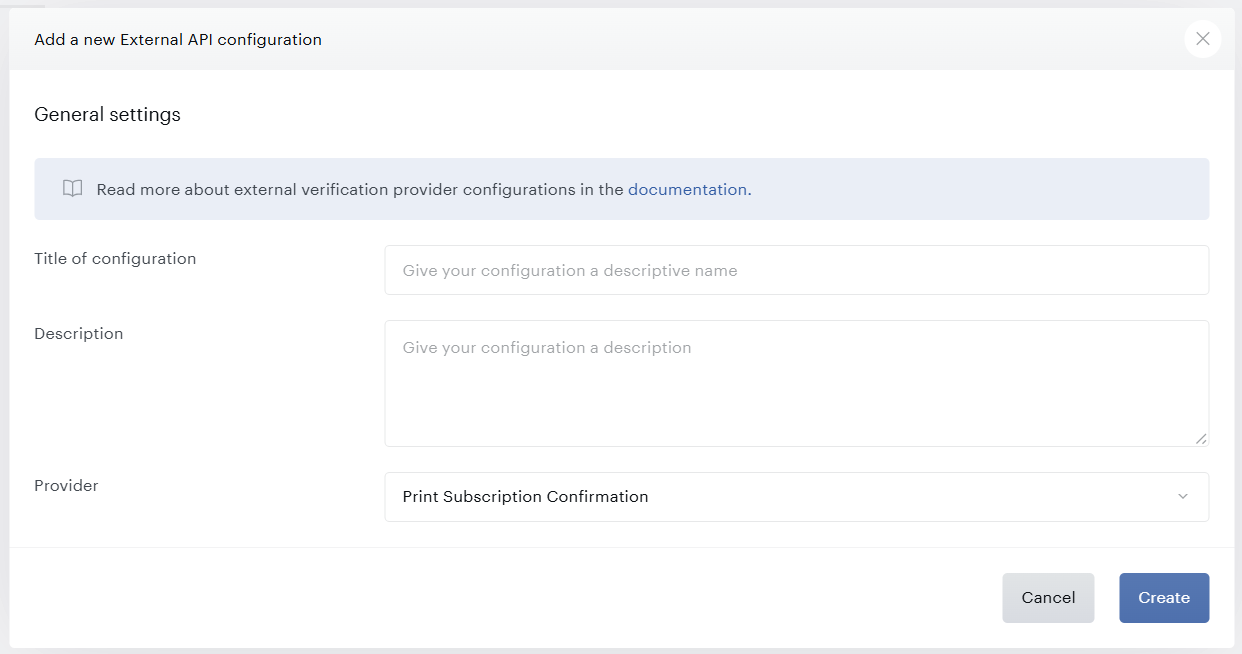
All PSC fields are covered by the general API configuration directions. After clicking "Create," you will be taken to an overview of this API that includes all of the information you just provided as well as a section below entitled "Fields." The "Fields" section is pre-populated for Print Subscription Confirmation, and due to the nature of PSC, fields cannot be added, edited, or removed.
Google Play
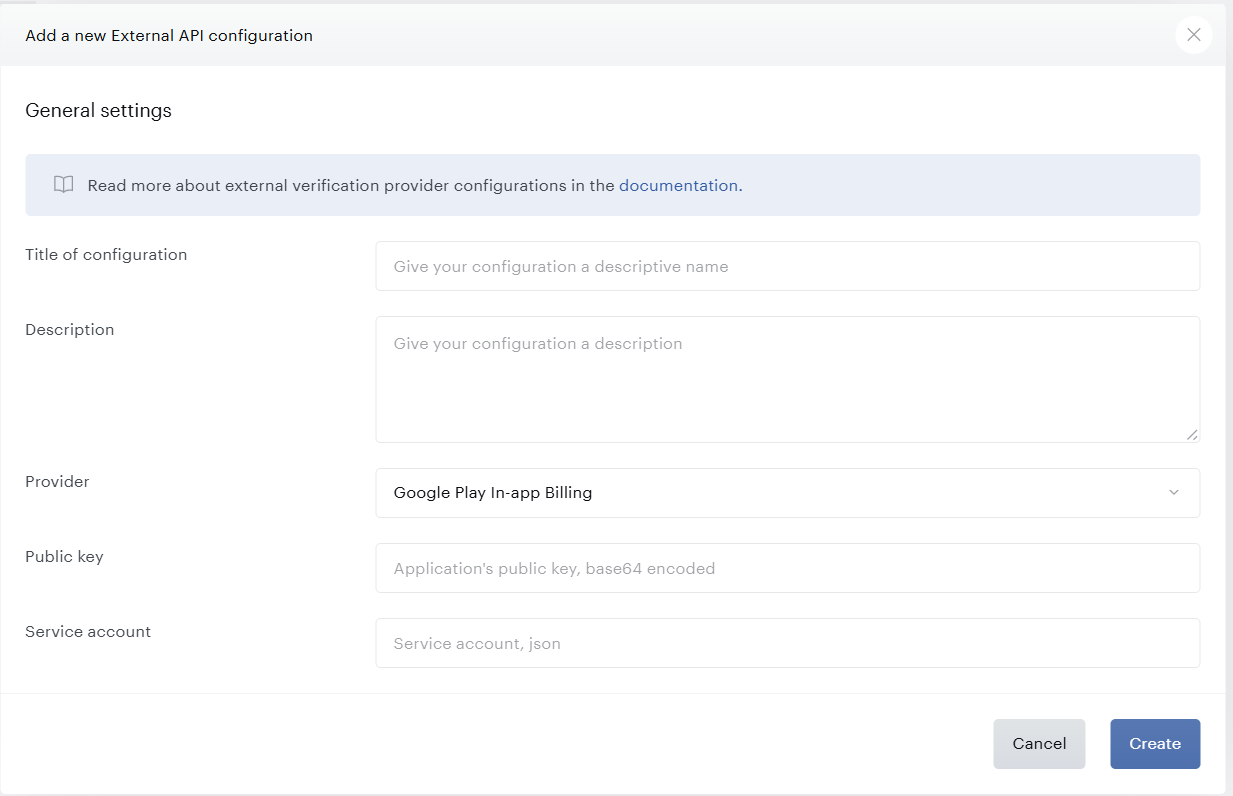
Public key: This is your license key in Google Play. Google has instructions on how to locate this key here.
Service account: Enter the information for the service account associated with your Google project by downloading the Service Account JSON key from the Google Cloud Console, then copying the full contents of the downloaded JSON file and pasting it into the input box in the Piano dashboard.
Note: By default, enforce uniqueness is set to true and this ensures that when a user makes a purchase that purchase can be redeemed only by that user.
Piano does not support the verification of Google Play digital consumables for Android in-app purchases.
Subscribe with Google
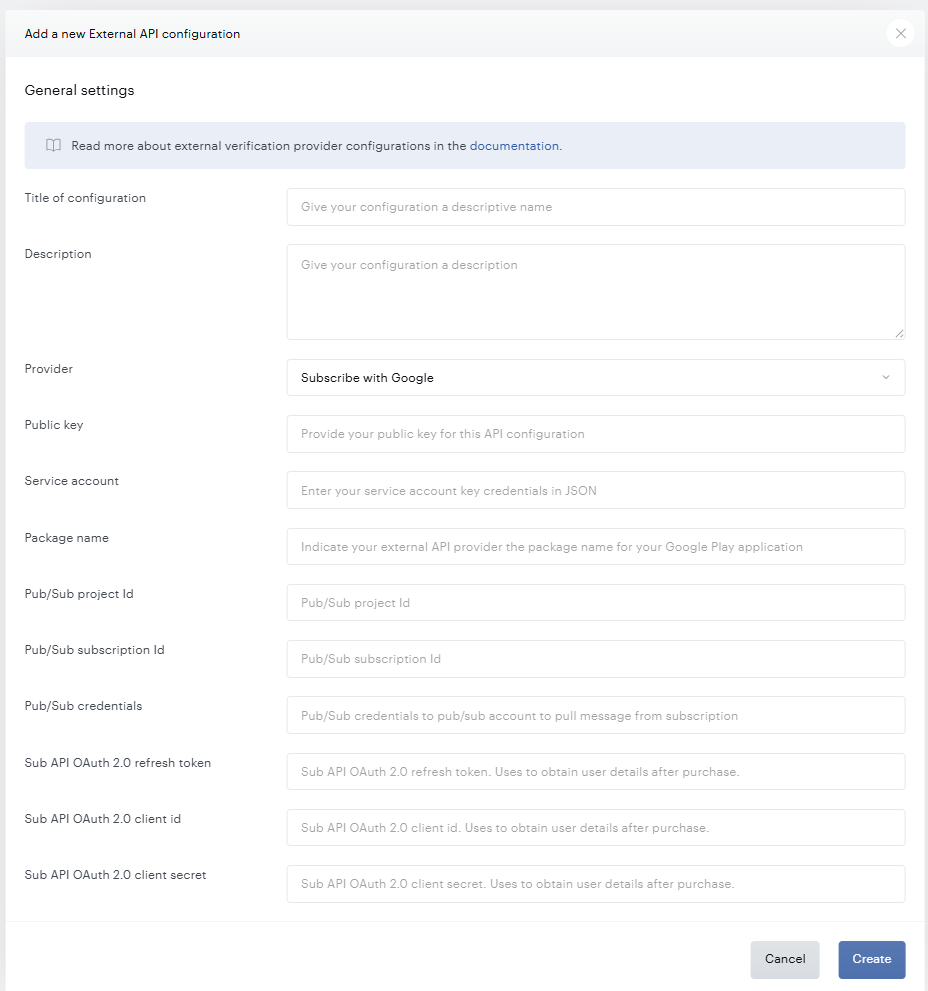
Piano's integration with Subscribe with Google offers users the ability to conduct checkout through Google from within your site. Users who Subscribe with Google will see your content prioritized in relevant Google searches, and they will enjoy access to your content through Google News without a paywall. Users without an account for your site will see instant account creation upon Subscribing with Google (ID only). Contact a Piano representative if you would like to enable Subscribe with Google for your application and learn more about the fee.
Under this link, you can find more details about the configuration fields and the integration itself.
PayPal Subscription
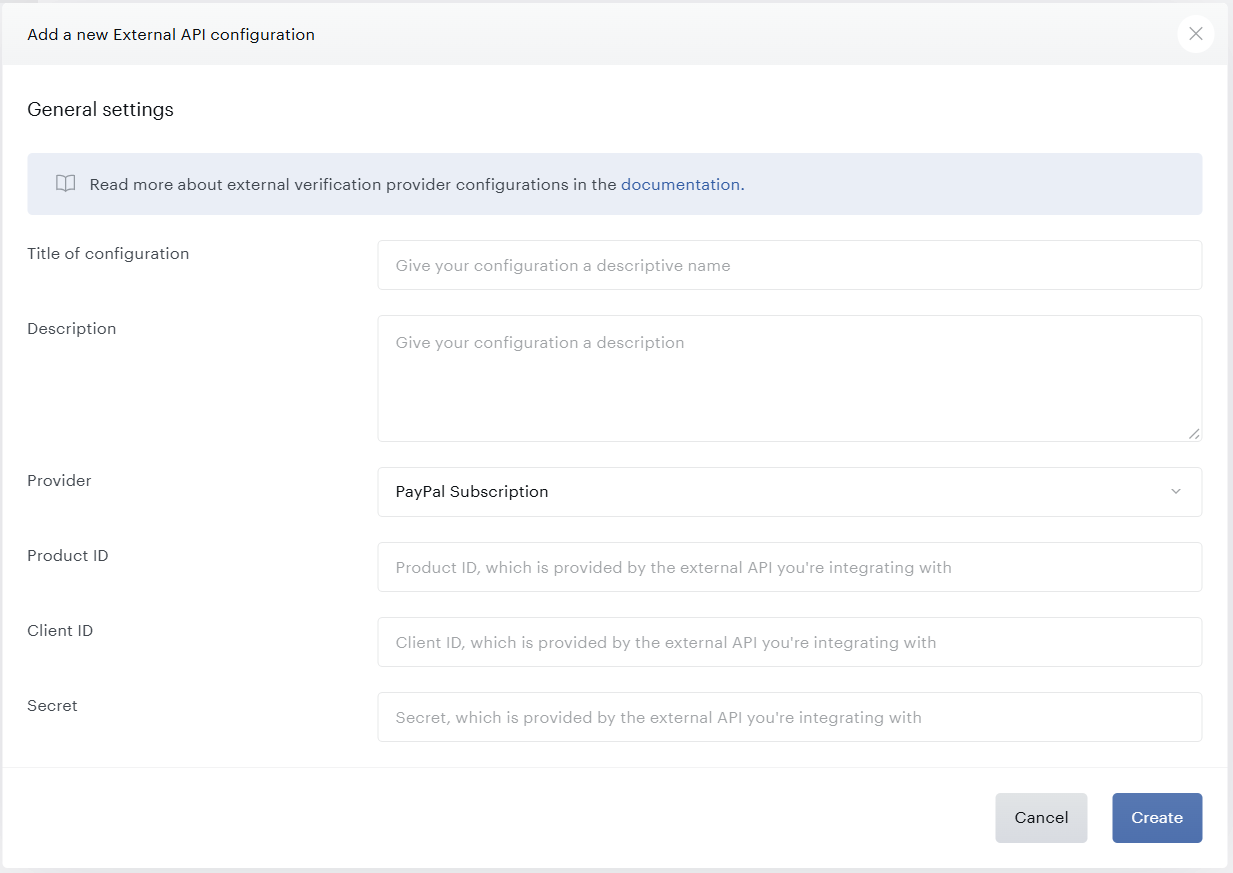
Title: Name of your configuration.
Description: A description of your configuration.
Product ID: The ID of your PayPal Subscription ID Product created via API.
Client ID: Available in your PayPal account’s dashboard.
Secret: Available in your PayPal account’s dashboard.
External Service Term Configuration
General Configuration
Once you have configured the API itself, you can create an External Term that links with this API. To do this, start by clicking Manage→Terms.
Click “New” at the top right corner of the screen and select “External Service” from the presented options, which will cue the following screen:
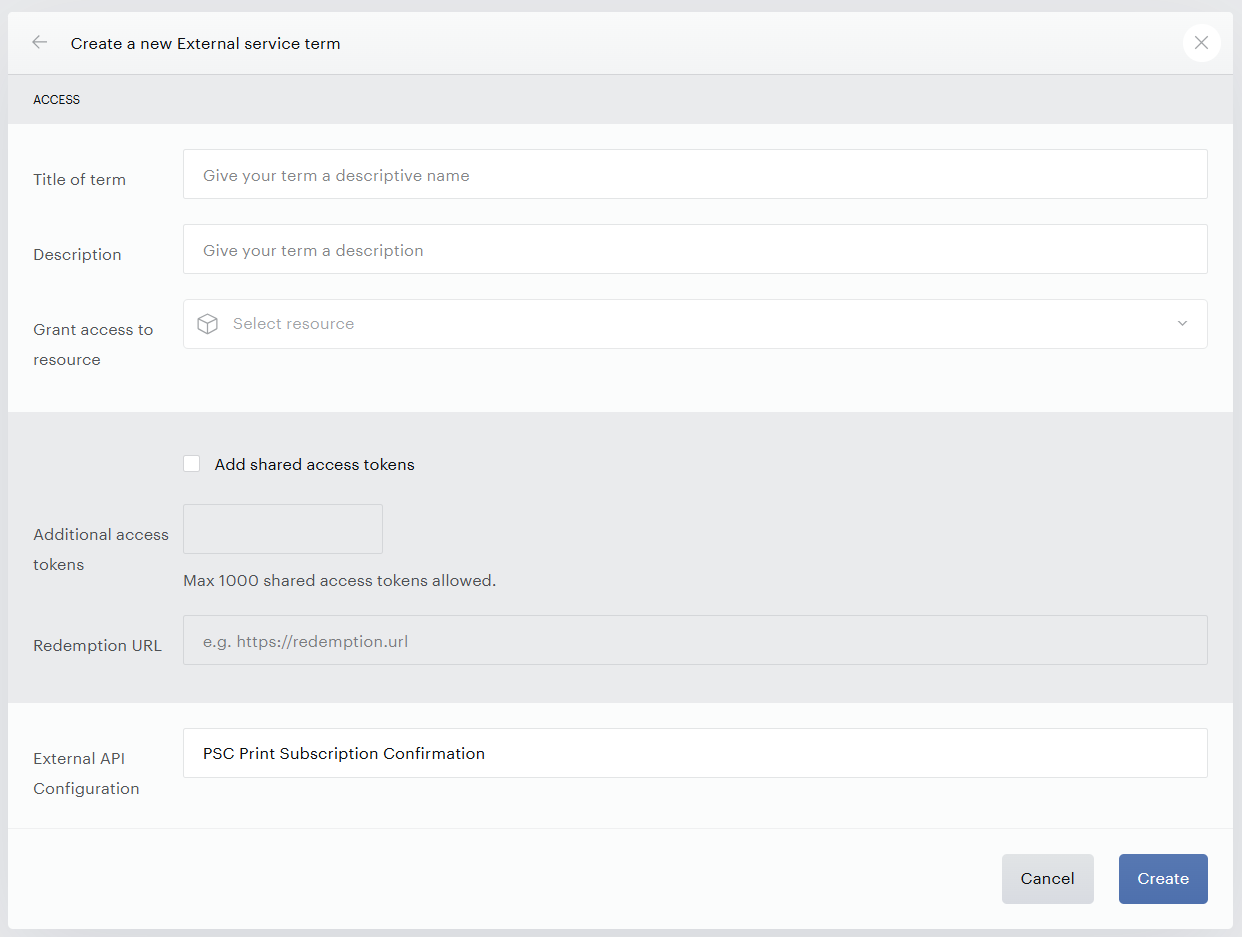
The fields you will need to populate:
Name or Title: Provide a term name of your choosing. This name is exposed to end users for the following APIs if presented in an offer: CDS and Print Subscription Confirmation.
Term names can contain up to 100 characters. If you enter a name longer than 100 characters, the term is still created, but the name is automatically truncated to the first 100 characters.
Description: You can provide an optional description for this term so that you can indicate the nature of this particular term. The user can see this description for CDS and Print Subscription Confirmation, but will not see it in the other APIs.
Resource: Select the resource you would like to offer in your term by selecting it from the drop-down list or searching for it. See here for more information on how to create resources.
Add shared access tokens: This enables you to use the Shared Subscriptions feature.
External API Configuration: Here you will select the previously configured API.
Click "Create" once you have specified the above information to your satisfaction. After you create an external verification term, there are additional options that can be configured specifically to that API. Most API external term configuration screens will resemble the following:
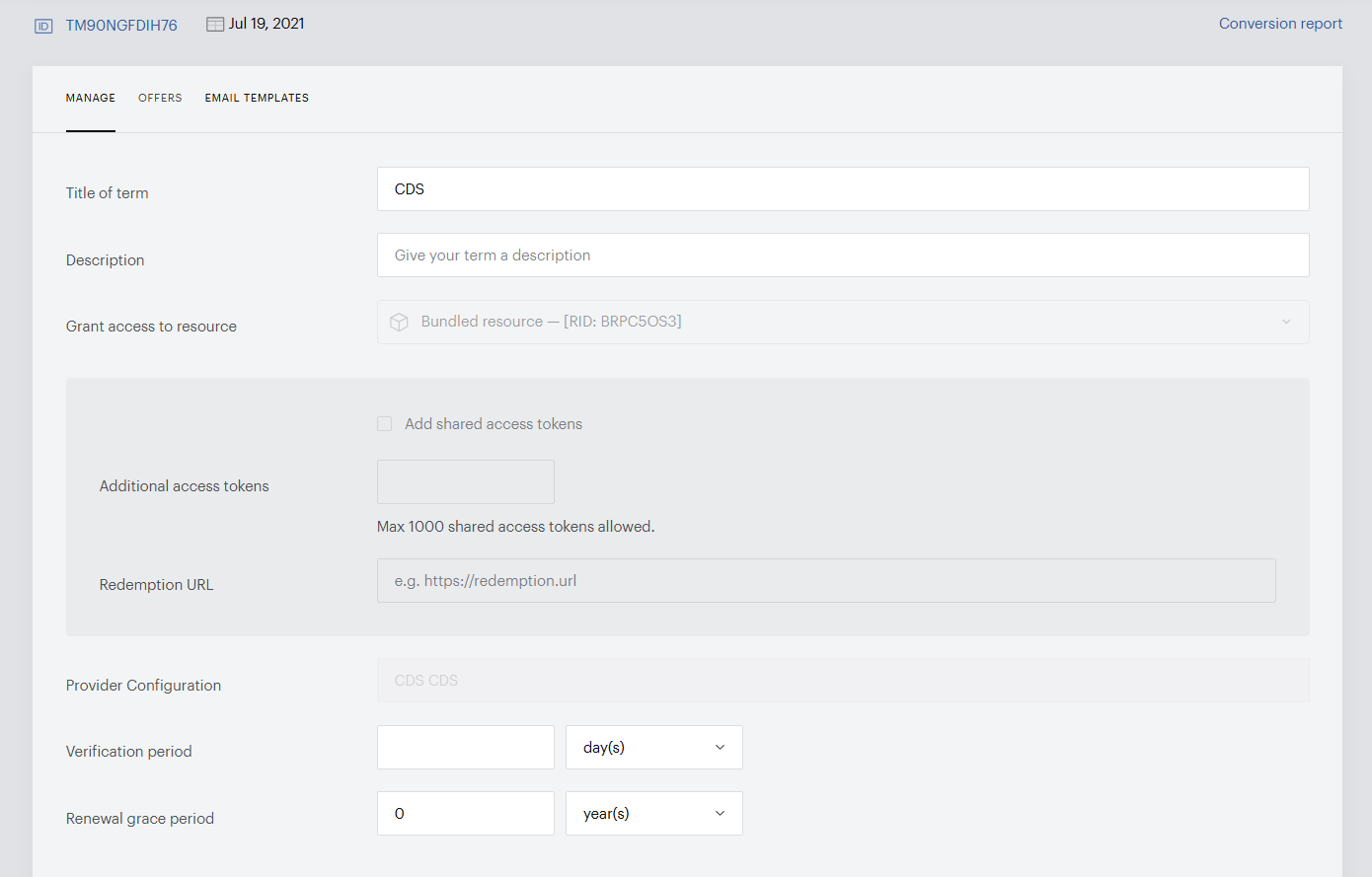
Verification period: The verification period specifies how often Piano will communicate with the external API to determine the status of a user's access. The verification period pertains to all APIs.
Please note that API calls to external systems cost money. But we don't recommend leaving this field empty when using CDS, PSC, and PayPal, as it would provide users with endless access. We do not grant endless access for Apple iTunes, Google Play, and SwG in case of an empty "Verification" field: the access end date will be fetched from their API response.
In case the user's access in an external system has not been updated yet and the next billing date has passed, we skip the renewal and verification process. The subscription and access on our side will be expired if the access end date is 2 days or more in past.
Renewal grace period: The grace period is how long the user will maintain access to their subscription if the API verification fails. For Print Subscription Confirmation APIs, the grace period is fixed at 8 days. The grace period pertains to all APIs except Google Play.
Apple In-App Purchases
Piano does support the verification of non-consumable, auto-renewable subscription, and non-renewing subscription types of in-app purchases.
Consumable in-app purchases are not supported.
For IAPs within an Apple application, there are three main ways that Piano can check and grant access during receipt validation:
-
Grant access due to the purchase of the app itself (fixed-time)
-
Grant access due to purchase inside of the app (fixed-time)
-
Grant access due to subscribing inside of the app (subscription)
In each of these cases, you must configure the term accordingly.
Piano does not support Apple’s Family Sharing feature. While the App Store may allow family sharing at the platform level, Piano ignores all shared access notifications from Apple. Instead, Piano offers a separate shared access model through the use of shared access tokens. With this setup, users can subscribe to a term that allows access sharing, but they must log in to their My Account page and manually add child accounts.
Purchase of the App
To grant access as a result of the purchase of the app, slide the toggle to NON IN-APP.
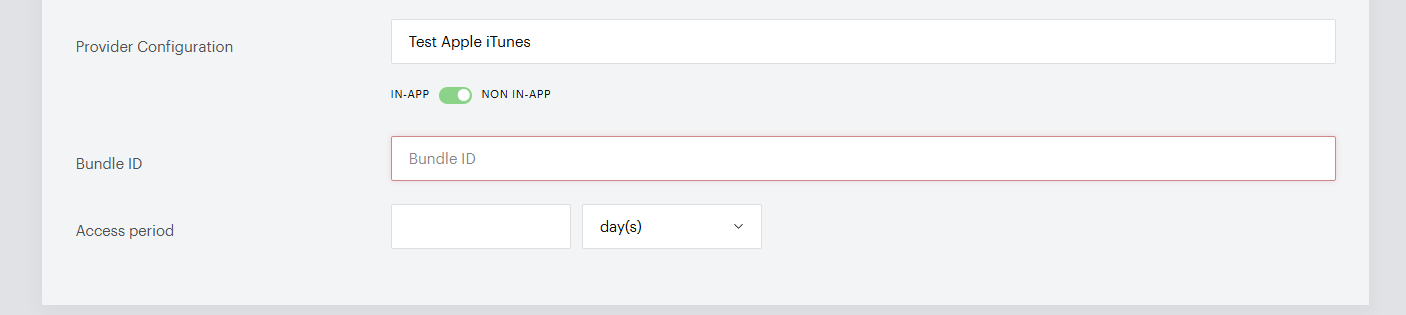
This will reveal the two fields you need to configure: Bundle ID and Access period. For anyone who purchases the app, after you submit the receipt to Piano, we will inspect the receipt to ensure that the receipt contains the configured bundle_id property and grant that user the specified access period.
Purchase Inside the App (fixed-time)
If you want to grant access for a fixed period of time to a user who makes a purchase inside of your app, you can configure Piano to look for a specific product_id inside of the receipt and grant access for a set period of time. In this case, slide the toggle to IN-APP and the secondary toggle to FIXED TIME.
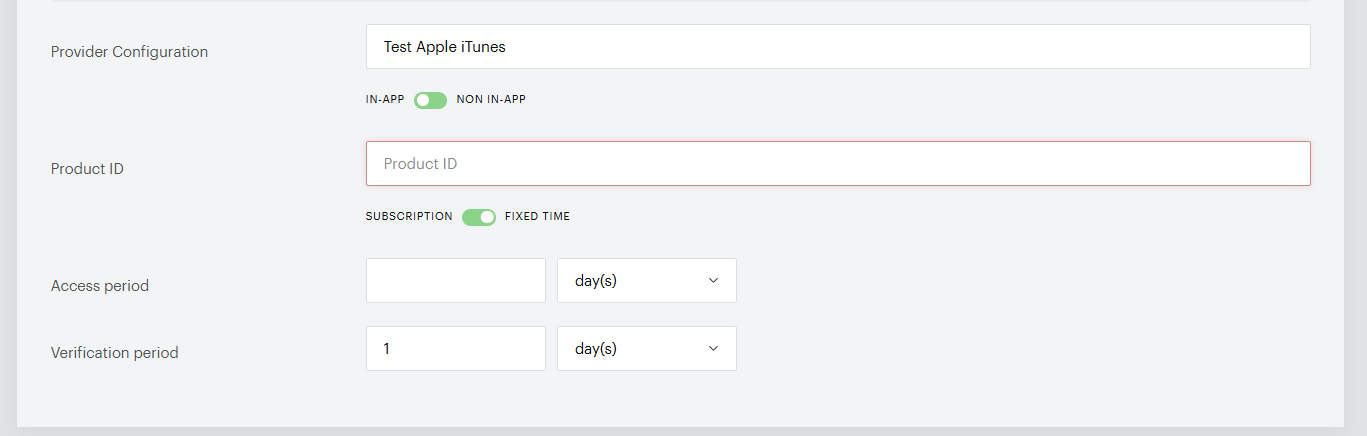
This will reveal the Product ID and Access period fields that Piano will use. For anyone who purchases the app, after you submit the receipt to Piano, we will inspect the receipt to ensure that the receipt contains the configured product_id property and grant that user the specified access period. You can get this Product ID from your Apple Dashboard.
A subscription will not be created in this case, and Piano will not perform any recurring checks to ensure the user is still an active subscriber.
You may leave the Access period field blank and update the access length via API if needed.
Subscribing Inside the App (subscription)
If you want to grant access as a result of an in-app subscription, slide the toggle to IN-APP and the secondary toggle to SUBSCRIPTION.
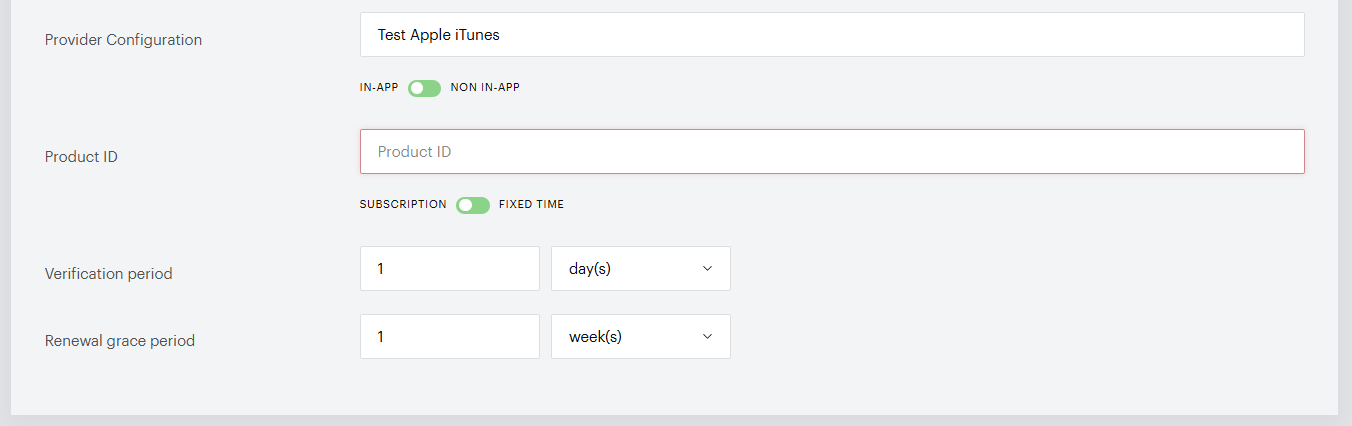
This will reveal the Verification period and Grace period fields.
In this case, after you submit the receipt to Piano, we will inspect to receipt to ensure that the receipt has the specified product_id and expire_date, as per Apple's specifications. This ensures that the user has purchased an auto-renewing subscription inside of the app. Piano will create a subscription that matches the in-app subscription that has been created. Access will be granted until the expire_date on the subscription.
The Verification period is the period of time that will lapse in between times that Piano checks the IAP provider. Typically this process is anywhere between 1 day and 7 days. On this schedule, Piano will query the IAP provider to see if the subscription is still valid. In the case of Apple, if there is a cancelation_date in the receipt, we will treat this as a canceled subscription.
On the day after the associated access is meant to expire, if Piano has not determined that the user has renewed their subscription, we will apply the first day of the grace period. Piano will move the next verification date one day forward and grant additional access for one day. This mimics the grace period logic of payment terms.
For the duration of the grace period, Piano will continue to check the IAP provider and - assuming the user hasn't renewed inside of the app - grant one additional day of access. After the grace period is over, if the user still hasn't renewed, the subscription is set to end and the subscription_auto_renewed_failure webhook is sent.
Receipts
Receiving the Receipt
To get the iOS receipt from the app itself, execute this code after a successful purchase:
NSURL *receiptURL = [[NSBundle mainBundle] appStoreReceiptURL];
NSData *receipt = [NSData dataWithContentsOfURL:receiptURL];
Piano expects the Grand Unified Receipt, not the individual iOS-6 style receipts.
Submitting the Receipt
iOS
To submit the iOS receipt, you can use the generated libraries or you can submit the raw request via the command line.
You can perform this action using cURL with the following syntax:
curl -X POST -d @term-conversion.json https://sandbox.tinypass.com/api/v3/publisher/conversion/external/create
where term-conversion.json contains the following data:
check_validity=true&uid=1284736193&api_token=YOUR_API_TOKEN&aid=YOUR_AID&term_id=TMLFS01D7IRE&fields={"receiptData":"<base64-encoded, encrypted receipt>"}
The params above are defined here:
-
aid: Your application ID -
termId: The ID of the external term for which the conversion will be created -
uid: The user ID for whom this conversion will be associated -
fields: A JSON object that includes the desired receipt data -
check_validity: This parameter of/publisher/conversion/external/createshould always be set to true (it isfalseby default) so that Piano can verify EVT subscriptions on Apple's side. Ifcheck_validity=false, we do not validate the submitted receipts and we cannot guarantee that receipts will be stored and processed correctly. In such cases this will be the client’s responsibility.
Note: In the Sandbox environment, the Enforce uniqueness setting and check_validity parameter are ignored. Invalid receipts are permitted, and a single receipt can be used multiple times.
To make sure the API is executed correctly, you need to be passing the api_token value in the URL params.
Everything else should be passed in the Body of the request with the header Content-Type: application/x-www-form-urlencoded. Please see an example below:
curl --location --request POST 'https://sandbox.tinypass.com/api/v3/publisher/conversion/external/create?api_token=xxx' \
--header 'Content-Type: application/x-www-form-urlencoded' \
--data-urlencode 'aid=xxx' \
--data-urlencode 'uid=xxx' \
--data-urlencode 'term_id=xxx' \
--data-urlencode 'fields={"receiptData":"xxx"}' \
--data-urlencode 'check_validity=true'
Note: If you are using curl, ensure that you have URL-encoded the base64-encoded receipt prior to submission. Otherwise, any + characters will be treated as spaces and the receipt will be considered invalid. You can find more information about the endpoint here.
The access will remain active for an unlimited time period, unless the access_to parameter is specified or the term has a fixed access period. In such a case, the expiration date will be set based on the access period length, and the subscription access will expire at that time. Please note that it's not possible to link the user's Piano UID with a specific Apple ID.
Android
Below are some examples of how the receipt should be submitted for Google Play in-app purchases on Android.
Kotlin:
val termConversion = pianoClient.publisherConversionExternalApi
    .externalVerificationCreate(
        pianoClient.aid,
        term.termId,
        user.uid,
        """
        {
            "INAPP_DATA_SIGNATURE": "String containing the signature of the purchase data that was signed with the private key of the developer. The data signature uses the RSASSA-PKCS1-v1_5 scheme",
            "INAPP_PURCHASE_DATA": {
                "autoRenewing": "...",
                "packageName": "...",
                "productId": "...",
                "purchaseToken": "...",
                "orderId": "..."
            }
        }
        """,
        checkValidity, // nullable
        accessTo // nullable
    )
Java:
io.piano.android.api.publisher.model.TermConversion termConversion = pianoClient
    .getPublisherConversionExternalApi()
    .externalVerificationCreate(
        pianoClient.getAid(),
        term.getTermId(),
        user.getUid(),
        """
        {
            "INAPP_DATA_SIGNATURE": "String containing the signature of the purchase data that was signed with the private key of the developer. The data signature uses the RSASSA-PKCS1-v1_5 scheme",
            "INAPP_PURCHASE_DATA": {
                "autoRenewing": "...",
                "packageName": "...",
                "productId": "...",
                "purchaseToken": "...",
                "orderId": "..."
            }
        }
        """,
        checkValidity, // nullable
        accessTo // nullable
    );
curl:
curl --location --request POST 'https://api.piano.io/api/v3/publisher/conversion/external/create' \
    --header 'api_token: <piano api token>' \
    --header 'Content-Type: application/x-www-form-urlencoded' \
    --header 'Cookie: <string>' \
    --data-urlencode 'check_validity=true' \
    --data-urlencode 'uid=<piano uid>' \
    --data-urlencode 'aid=<piano aid>' \
    --data-urlencode 'term_id=<piano term id>' \
    --data-urlencode 'fields={
        "INAPP_DATA_SIGNATURE": "<string>",
        "INAPP_PURCHASE_DATA": {
            "autoRenewing": <bool>,
            "packageName": "<string>",
            "productId": "<string>",
            "purchaseToken": "<string>",
            "orderId": "<string>"
        }
    }'
The Google Play receipt data itself may also look as follows:
{
  "INAPP_PURCHASE_DATA": "{\"orderId\":\"<order_id>\",\"packageName\":\" \",\"productId\":\"<ID>\",\"purchaseTime\":1604088796061,\"purchaseState\":0,\"purchaseToken\":\"<token>\",\"autoRenewing\":true,\"acknowledged\":false}",
  "RESPONSE_CODE": 0,
  "INAPP_DATA_SIGNATURE": "<SIGNATURE>"
}
The parameter RESPONSE_CODE is not required.
The INAPP_DATA_SIGNATURE is required only if you have a special parameter in the receipt that has the value signature_required:true.
Please note, that we do not have a way of validating Sandbox receipts in the Production environment.
PayPal
In order to validate a PayPal subscription, you would pass the subscription ID as follows in the fields parameter in your call to the Piano API endpoints /publisher/conversion/external/create or /conversion/external/create.
{"subscriptionId": "<ID>"}
Dashboard Updates
There are a few updates that are made in the My Account component and publisher dashboard for in-app subscriptions. These updates are made primarily because most of the administrative functions are not available for in-app subscriptions.
My Account
In the My Account component, the subscriptions that IAP users have will be different than regular subscriptions where Piano handles the billing.
-
If the user has an active or expired iOS subscription, clicks on the Cards tab, and has no credit cards, Piano will display an informational message: “If you are attempting to add a credit card for your in-app subscription, please login to your account on your device”
-
The cancel/refund option will not be available for in-app subscriptions
-
The expiration date of a fixed-time subscription will be the actual expiration date from the in-app purchase. For unlimited access, users will see an "Unlimited access" note.
-
Because Piano does not know whether auto-renew is enabled or disabled, we will use consolidated messaging describing the status of the subscription: “Your subscription is valid through Month Day, Year”
-
Turning on and off auto-renew will not be available
Publisher Dashboard
Some customer care functionality will be disabled in the Subscription Management + Billing Dashboard for users who completed an IAP.
-
The Cards tab will be empty unless the user adds a credit card through the My Account component on the desktop
-
Customer care will not be able to cancel, cancel and refund, change the payment method, toggle auto-renew, or update the next bill date for iOS subscriptions
In a user's subscription details, IAP will be identified as an “External” term. In the subscriptions section of a user profile, IAP will be identified by both the “External” term type, in this case, iOS, and the In-app Payment method. The history section of a user profile will show IAPs, but will not list any transaction details. It will merely show the date on which a subscription was renewed in-app.
In case the user has an active subscription and expired access (for several hours, for example) and you call the /publisher/conversion/external/create API, we prolong the user's access on the active subscription.
Subscription Management + Billing Reports
The New Sales and Subscriptions report will be updated to include IAP subscriptions. From the dropdown in the New Sales report, you will be able to choose more than one term to display as well as group the iOS terms only.
Revenue for IAP subscriptions will be zero.
In the Subscriptions report, IAP subscriptions will be included in total new, growth, canceled, and expired.
In-app subscribers will appear in the subscriptions log. Piano will update the Charge Count in the subscription log whenever the access expiration is detected to have changed in the IAP receipt, which will allow publishers to track the number of renewals.
IAP transactions will not appear in the transaction log. As transactions will not appear in the Piano system, IAP will not be included in the revenue recognition report.