
Yes, except for native properties. How you do it depends on what you rename and where the new name should appear:
|
What you rename |
Method |
Where the new name applies |
|---|---|---|
|
A metric |
Create a custom metric with the new name |
Everywhere you use the custom metric |
|
A custom property |
Edit its label in Data Management |
Everywhere |
|
A property or metric on a board |
Add a mapping rule in the board settings |
That board only |
|
A native property |
Not possible |
Not applicable |
For example, if your editorial team prefers "Article views" to "Page views", create a custom metric called "Article views" for your reports, or rename Page views on a single board to speak their vocabulary.
Metrics
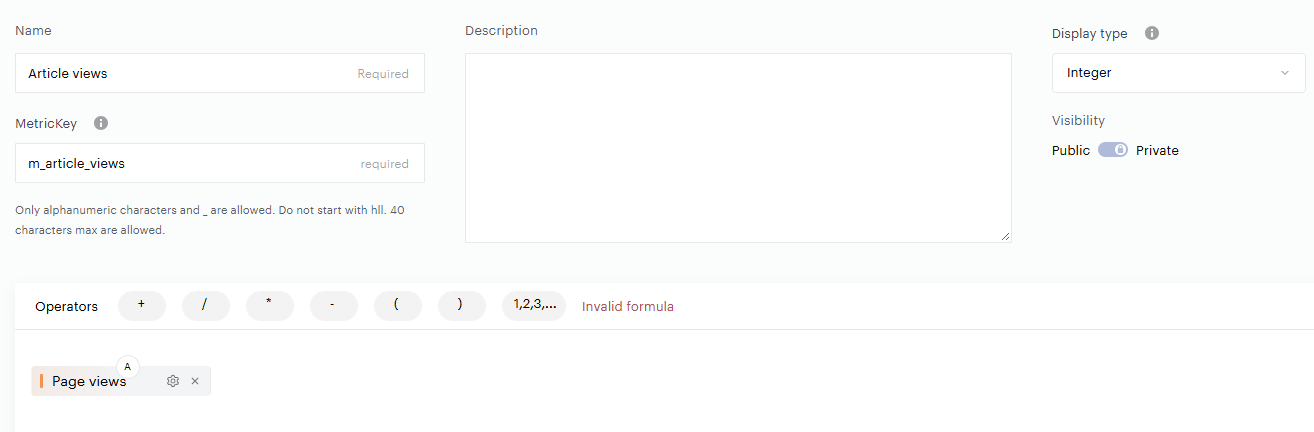
To rename a metric, create a custom metric based on the native one, with the name you want. The value doesn't change.
-
From the Library, create a new Custom metric.
-
Base it on the native metric and give it the new name.
Properties
Piano Analytics has two kinds of properties:
-
Native properties: the default properties of Piano Analytics, recognizable by a dedicated icon in the interface. You can't rename them.
-
Custom properties: properties created by a user in your organization. You can edit their label.
To change the label of a custom property:
-
In Data Management, go to the property you want to rename.
-
Edit its display name.
-
Click Save.
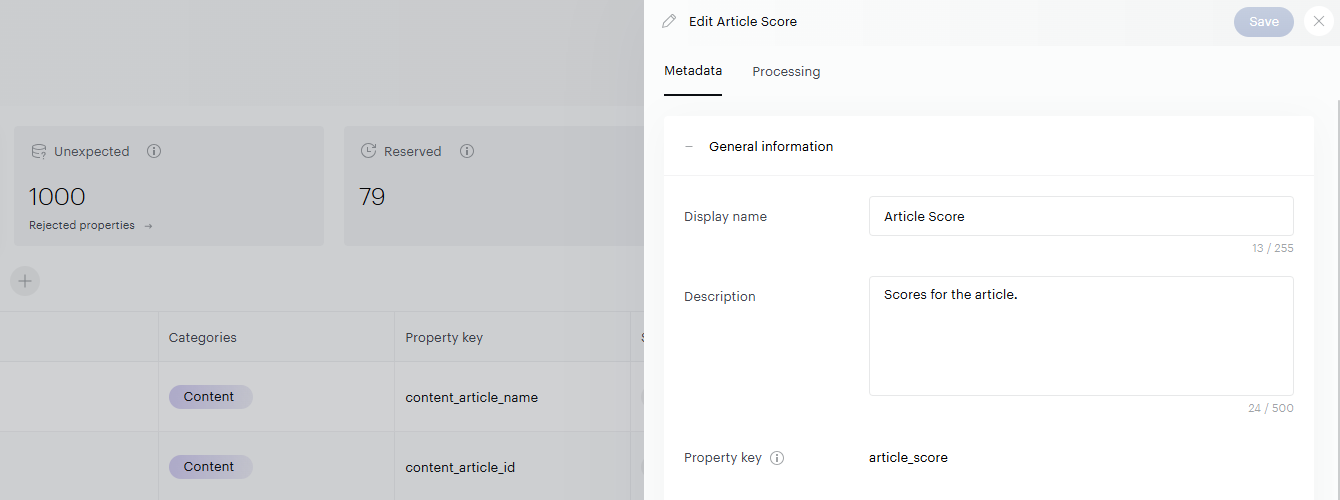
You can't edit the property key, because it's unique.
Boards
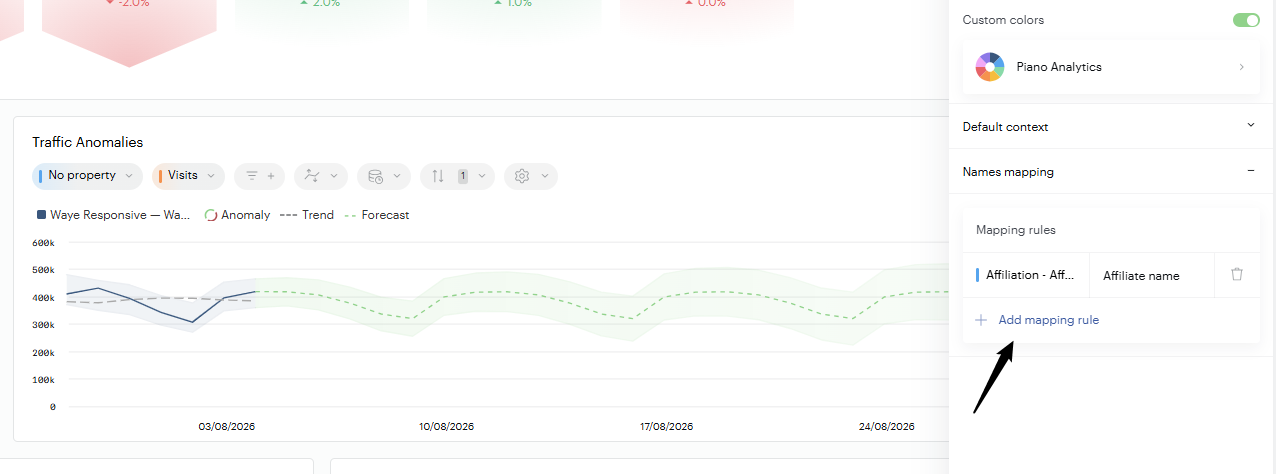
To use different names on a single board, for example for an audience of marketers or executives, add mapping rules in the board settings. This works for native and custom properties and metrics, and it doesn't change the data or the original names in the data model.
-
Open the board in edit mode, then open the Board settings and expand the Names mapping section.
-
Under Mapping rules, click Add mapping rule.
-
Select the property or metric you want to rename, then enter the name to display.
-
Save the board.
To remove a custom name, click the trash icon next to its mapping rule. Once saved, the name applies across the board: in tiles, filters, the customization drawer and fullscreen view.
If you open a tile in Data Query, it shows the original names, not the custom ones.