
A payment term grants access to a resource in exchange for payment. Configure it as a recurring subscription, which is the usual case, or as a single payment granting access for a fixed period or permanently.
Creating a Payment Term
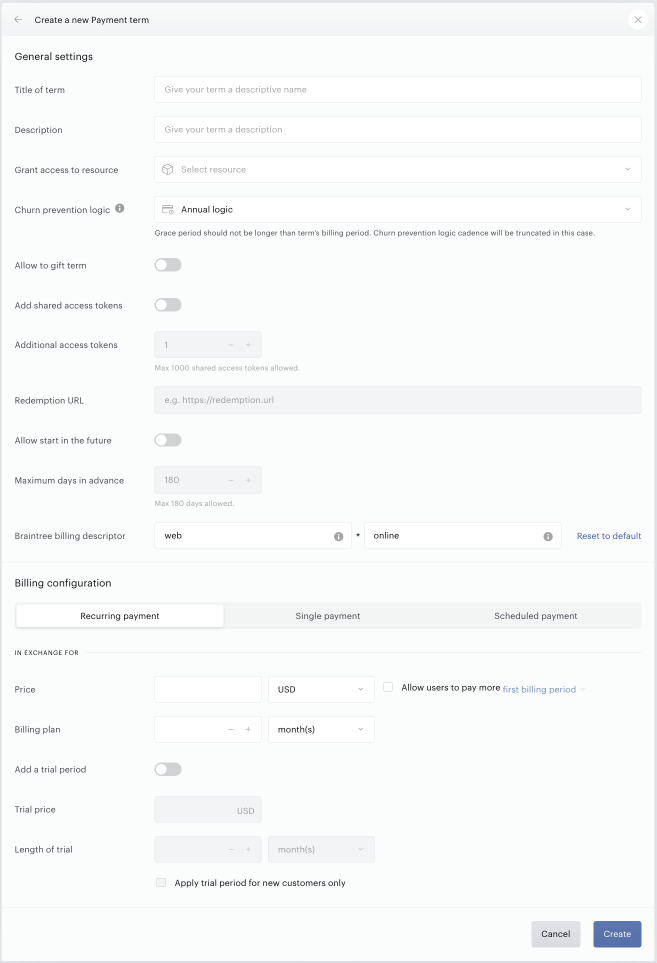
First, click on Manage → Terms from the menu in the upper right of your screen. Then click on "New" at the top right and select "Payment" from the presented options. This screen will appear:
Access
The first fields you will fill out when creating a payment term specify and describe the content you are gating access to. They include:
Title of term: Provide a term name of your choosing. This name can be exposed to end users so it should be representative of the service you are offering.
Term names can contain up to 100 characters. If you enter a name longer than 100 characters, the term is still created, but the name is automatically truncated to the first 100 characters.
Description: You can provide an optional description for this term specifying what the user may expect if he or she purchases this term. Again, this description can be exposed to end users during purchase if you so choose.
Grant Access to Resource: Select the resource you would like to offer in your term by selecting it from the drop-down list or searching for it. See here for more information on how to create resources.
Allow to gift term: Allows configuring a term to be purchased as a gift for someone else.
Add shared access tokens: Allows the use of the Shared Subscriptions feature.
Billing Configuration
When creating a payment term, you have the option to configure it as a recurring subscription or a one-time single payment.
Alternatively, scenarios involving tiered billing plans or event-based subscriptions can often be addressed using dynamic terms - for example, through the setup outlined here.
Please note that any single billing period, a billing plan, trial, or access period, can run for up to 3 years. For more details, see Billing periods and the 3-year guideline.
Please note that once any users have converted on the term, some term settings (such as billing plan, price, or trial period) can no longer be edited and are greyed out. In such cases, if any changes are required, you would need to create a new term with the updated settings.
Recurring payment
Payment terms are most commonly configured as recurring payments. These renewing payments create a stable source of revenue that automatically recur on a billing plan you specify.
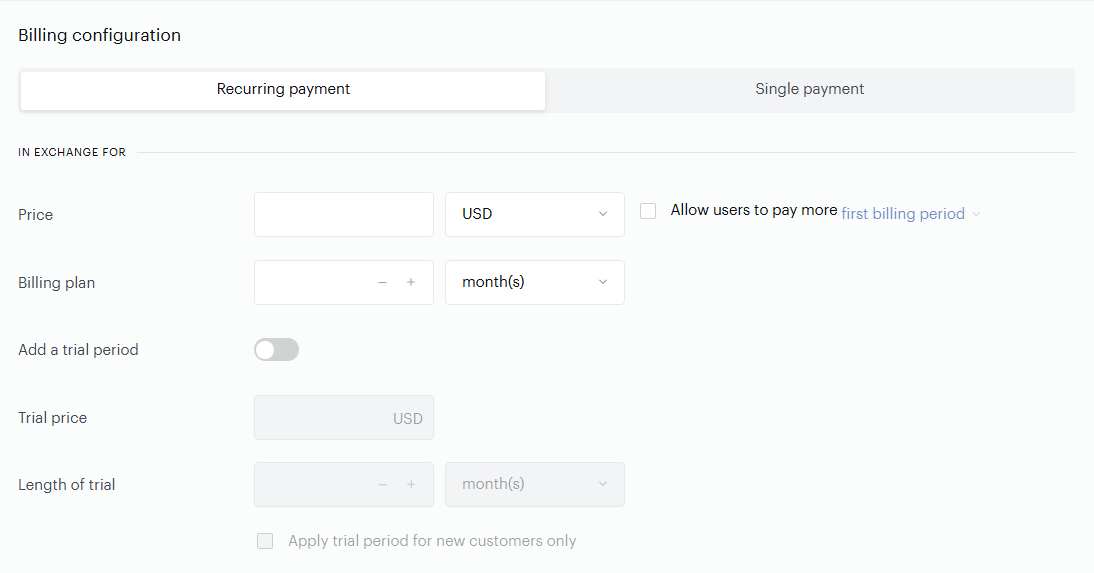
Price: the price that users must pay to access this resource. This price is charged in accordance with the billing plan.
Please note that the price may contain a maximum of 16 digits (4 out of them after the decimal point). So the maximum price input is 999999999999.9999 (12 integers and 4 fractions) for any currency.
Allow users to pay more: Check this box if you want to give users the option to exceed the price you set in the offer. This can be an effective tactic for NPR-style pay-what-you-want pledge drives when users are emotionally invested in the success of your business. Users will not be allowed to pay less than the price you set.
The following configurations are available for this feature:
First billing period - Once a higher price is paid, users will be charged said price upon first payment, after which subsequent payments will fall back to the original term price until the subscription is canceled
All billing periods - Once a higher price is paid, end-users will be charged said price every billing period
This setting is incompatible with the Allow promotions on this term checkbox and vice versa. This means that users won't be able to apply a promo code and utilize the pay more feature at the same time.
Billing plan: Select when your customers will be billed. You can customize billing periods for the term by days, weeks, months, and years. More information about the logic for payment renewals is available here.
Add a trial period: If you click this box, you will be able to configure a trial period on this payment term.
Trial price: The price you would like to charge customers during the trial period (for example, you would enter 0 to give your customers a free trial). Note that the trial period price is a one-time payment not governed by the billing plan. All paid trial periods will be billed one time, at the start of the trial, regardless of the length of the trial. For example, if you were creating a monthly payment term normally priced at $9.99 that has a three-month trial price of $2.99, that $2.99 payment will be charged once for the entire three-month trial at the start of the trial rather than each month during the trial period. In other words, the trial price covers the entire length of the trial period. The full subscription price, in the above case for 4 months, would be $12.99. If a user were to turn off the auto-renewal during their trial, the subscription and access expire at the end of the trial period without any further charges.
Length of trial: The duration of the said trial in increments of days, weeks, months, or years.
Apply trial period for new customers only: If this box is checked, only new customers will be allowed to take advantage of the trial period. New customers are defined as customers who have never had monetary transactions with your site in the past.
Once all details have been finalized, click “Create".
Single payment
Unlike recurring payments, the single payment billing configuration does not automatically renew. It might be used to sell one-off research reports, movies, and songs, or to provide access to a limited-time paid offering.
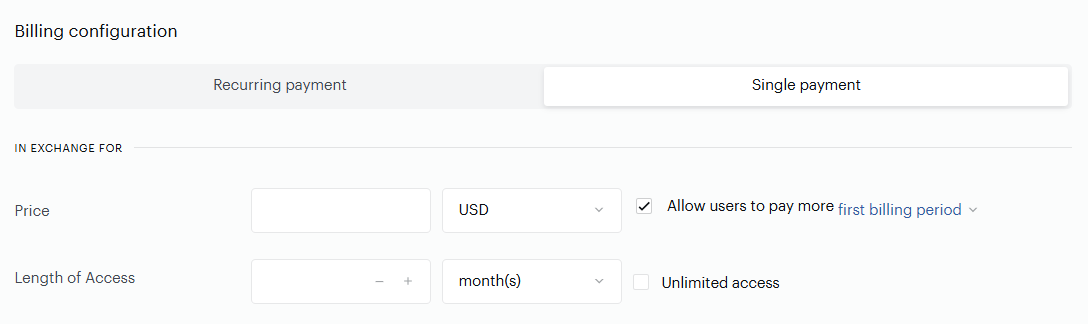
As with recurring payments, you will specify the price and decide whether to enable users to pay above that price. After that, you will set a fixed length of access in days, weeks, months, or years. After this access period is over, the term will expire.
If you want access to never expire, you can check the “Unlimited access” checkbox to grant access to the term from the moment of purchase onward. This feature can be useful, for example, if users are purchasing an ebook or film, and you want those users to have ongoing access to that resource.
Once all details have been finalized, click “Create".
All single payment terms have a "Remember my card for future payments" checkbox at checkout. In case a user does not check this box, their payment method information won't be saved and is not available in the dashboard or reports.
Manage
You have now created your term. You may add further features to your term using the “Manage” tab.
Upgrade options
You can configure upgrade options for your term that will appear for subscribers to this term in their My Account screen. This will allow your users to quickly upgrade their subscriptions in only a few clicks. To learn more about the configuration options for upgrades, please follow this link.
Advanced Settings
Allow promotions on this term: Checking this box makes your term eligible for all existing promotions and all future promotions (unless said promotions are limited to specific terms). If you have allowed users to pay more and they have selected to do so, promotions will not apply (as it is assumed that if a user elects to pay more, they will not use a promotion).
This setting is incompatible with the Allow users to pay more checkbox and vice versa. This means that users won't be able to apply a promo code and utilize the pay more feature at the same time.
Force all new subscriptions to be auto-renewing subscriptions: This will make it so that a user cannot disable auto-renewal, thus removing the relevant auto-renewal checkbox at checkout.
Restrict to first-time customers only: A first-time customer is one who has never converted on any payment terms and did not have any successfully processed transaction. Devices do not matter — it is measured by account history. If users have registered without a payment conversion (e.g. converted on a registration, external or custom term), did have only a verification payment (used in case of free trial/promo purchases to verify the payment method), their payment is pending* or disputed (see here for more information about this payment status), or they've received a refund - they can still purchase terms if you’ve selected this checkbox. The same applies to users that have been granted free access.
*Used for asynchronous payment providers, when we wait for the payment webhook before the payment is either marked as completed or failed.
Manual renewal: This is referred to as the "time period that customers can manually renew their subscription prior to the next bill date" and is relevant for users who have switched their subscription from auto to manual renewal in MyAccount. Now, even before their current billing period ends, they can renew their subscription. It can be done by clicking the term in an offer or by editing the subscription in My Account a number of X days/weeks/months/years before their current billing period elapses. If you set X to zero, manual renewal will not be available.
Grace period: Piano allows you to implement a Grace period, as a tool to decrease customer churn rate related to payment failures. Grace Periods can not be applied to customers who have canceled or stopped auto-renewals. In case you have set a Grace period with the value 0, our system undertakes a maximum of 3 charge attempts in case of a payment failure on the day of the subscription renewal. The number of attempts can not be changed. The payment retry logic supposes that, during the grace period, charges will be attempted in 5-day increments, up to a maximum of six attempts over a 30-day period, with the final attempt happening on the 30th day. If the grace period is not a multiple of 5 or is longer than 30 days, the final retry will occur on the final day of the grace period.
You can instruct a user to update their card during the Grace period, and upon the next payment attempt, we will try to charge the updated card. After the end of the Grace period, you will need to direct the user to make a new subscription purchase as an expired subscription can't be renewed.
Note that if you are utilizing the Passive Churn Prevention feature, the grace period is configured not on the term-level but under Manage → Churn prevention.
Offers
Within the “Offers” tab, you can see all of the offers that you have that contain this term.
Email Templates
Within the “Email Templates” tab, you can find all term-specific email templates. See here for more information on configuring email notifications.
Different emails will be sent based on the term's billing configuration - any users purchasing Subscription terms will be sent subscription-related emails, whereas fixed-time purchases will be sent access-related emails.