
To streamline workflow, SocialFlow has added columns to the Listen tab. Adding Retweets, Mentions, and Custom columns next to your live stream will help you manage all of your social media updates in one place.
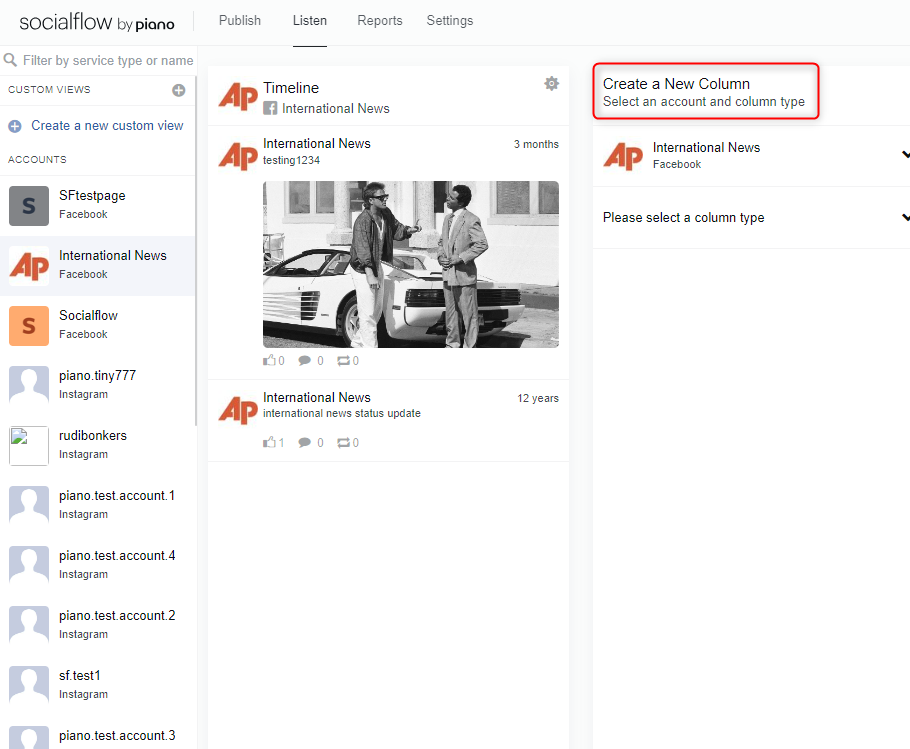
The listen column will have default views for the applications added to your SocialFlow account.
Note - You can use the Custom View option to create additional views for any social service added to your SocialFlow account.
In any view, you will see a column labeled Create a New Column. From here you can add columns to the views.
Note - Listen view columns are limited to 10.
Columns you can add:
For Twitter:
-
List: This column allows you to add columns from your existing Twitter Lists
-
Live Stream: This option will create a live stream of your Twitter timeline
-
Search: Allows you to create a column for custom search terms
-
Mentions: Displays all mentions of your handle or social account
-
Retweets: Displays all Retweets of your content
-
Direct Messages: Displays your Direct Message inbox
-
Expired: Allows you to view tweets that expired from your Publishing queue
For Facebook:
-
Timeline: This option will create a live stream of your Facebook timeline
-
Page Search: Allows you to create a column for a specific Facebook page
-
Unpublished Page Posts: This is a list of your posts you have not published
-
Expired: Allows you to view messages that expired from your Publishing queue
For LinkedIn:
-
Timeline: Creates a column of your published messages
-
Company: Creates a column of a Company's LinkedIn page
-
Expired: Allows you to view messages that expired from your Publishing queue
For Instagram:
-
Timeline: Creates a column of your published photos
-
Hashtag Search: Creates a column for hashtag search results
-
User Search: Creates a column for user search results
For Pinterest:
-
Boards: Creates a column for one of your existing boards
-
Pins By Domain: Creates a column using the pin domains