
The Compose Box can be opened from any tab in Socialflow, just look for this icon:

Once opened, the Compose box allows you to create new posts and tweets manually and offers many of the same features as when publishing directly to the social networks. Here we will cover all of the available features.
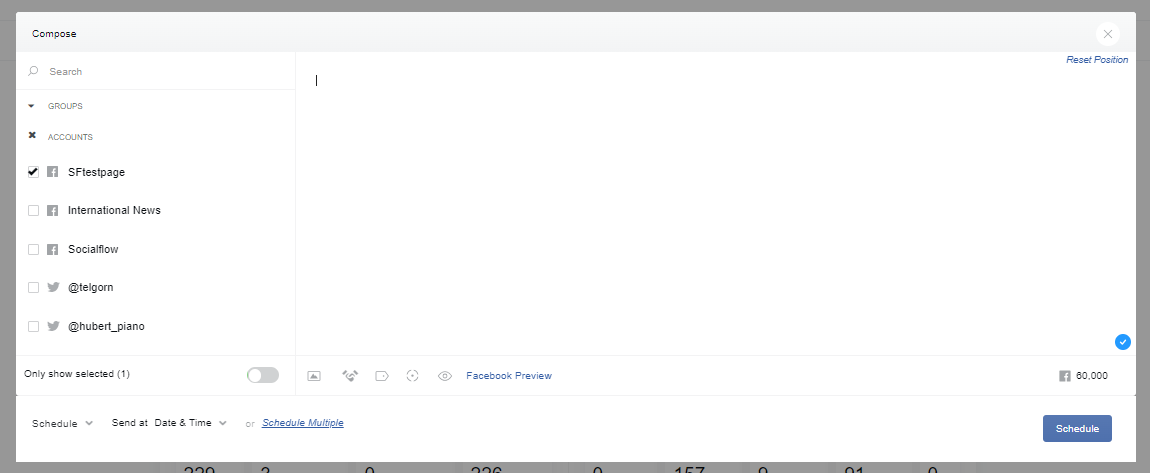
First, notice that on the left you have a list of all of your available social accounts. You can multi-select social accounts here by individual or group to create the same content for more than one account at a time.
*Note: Twitter/X has a rule against selecting multiple X accounts at a time, however you can select multple Facebook pages or Linkedin pages, etc. Or a combination of Facebook and Linkedin and so on.
As you select different social networks, you will see different buttons and icons grey out or disappear, since not all features are available for all social networks.
Second, make sure you that any time you enter a URL into the Compose box, you enter the full version including "http://..."
Once you enter the link, you’ll see buttons appear for Tracking Tags and Shorten Links.
The Tracking Tags feature allows you to append Google Analytics tracking tags or other service tags to the end of this one link.
Our platform also provides account settings for your handle(s) that can ensure you have general tracking tags appended to all of your links automatically, and you do not need to add them in Compose unless you wish to override those tracking tags or place additional tracking tags on a special URL.
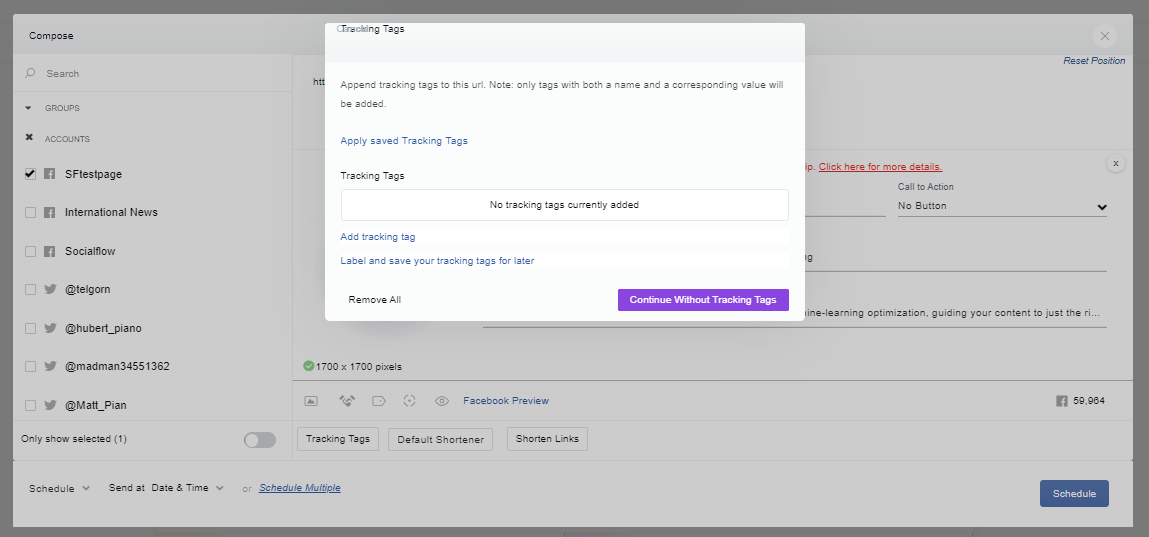
The “Shorten Links” button allows you to see the short link before you publish. However, our system will automatically shorten any link entered with “http://” at the beginning, so clicking “Shorten Links” is an extra step that is not necessary. You may use this option if you want to preview the short link or switch the short link domain with another one you have installed in Socialflow.
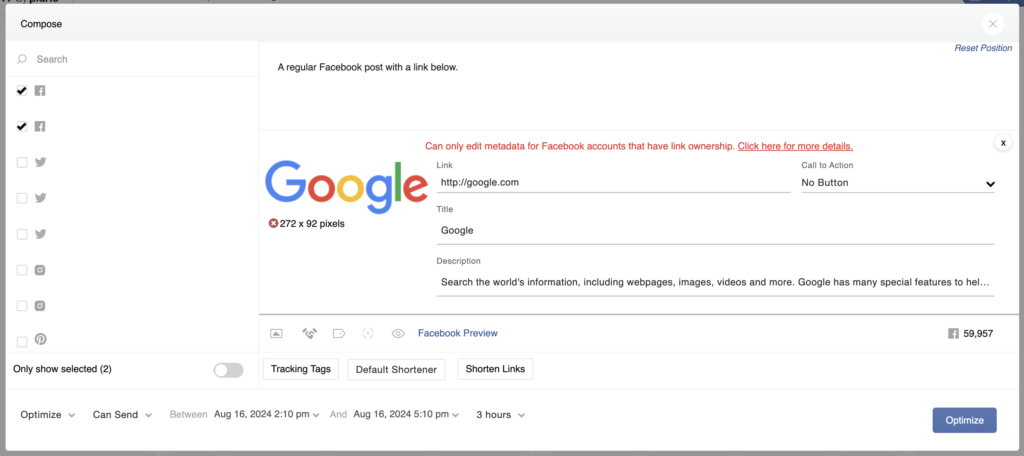
For Facebook, you can remove the URL from the post copy at the top of the Compose box after we've pulled in the link information below, like this:
For more details on Compose functions specific to each social network, please view the following:
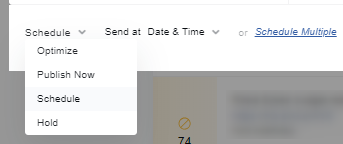
Lastly, let’s take a look at the Publishing Options.
-
Optimize
-
Publish Now
-
Schedule
-
Hold
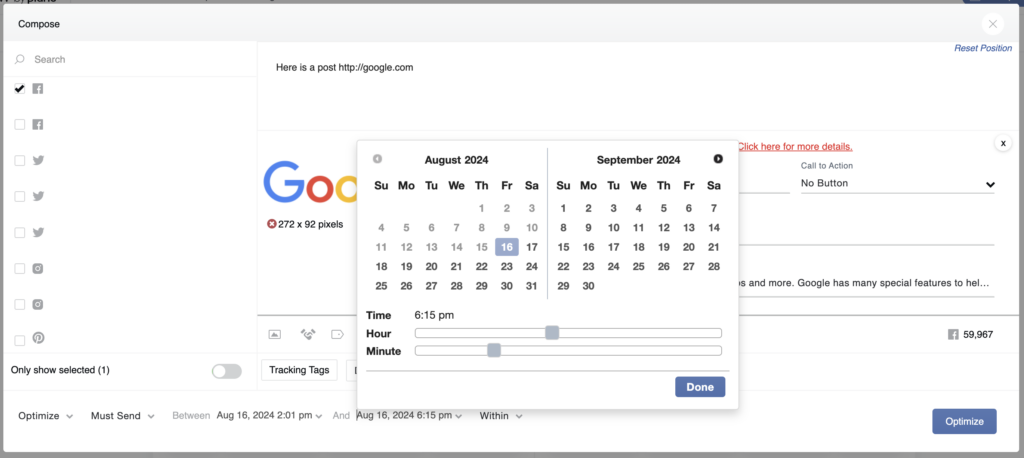
Optimize - this means that Socialflow’s algorithm will determine the exact timing for publishing the post based on your audience’s availability and engagement behavior. However, you can enter a window of time in which you would prefer to publish the post (e.g., between 2pm and 6pm).
You can also set a priority level on the message in the form of Can Send or Must Send.
-
Can Send - this is considered low priority. Our system will look for the best time to publish the message, but in the event that we don’t see an optimal time or if you have too many messages competing to send, the system may choose to expire this lower priority message and send a more relevant message instead for better engagement.
-
Must Send - this is considered high priority. Our system will look for the optimal time, but even if no optimal time is available in the window, our system will make sure the message is published by the end of the time window, no matter what.
Note: There is a risk any time you set multiple messages to Must Send where they could potentially send at the same time. For example, if 3 posts are all set to Must Send by 5pm, all of them could be sent out at exactly 5pm if there are too many messages for the day and not enough time to spread them all out. You will want to be sure to stagger the end of the time windows by at least a few minutes.
Publish Now - this publishes content immediately.
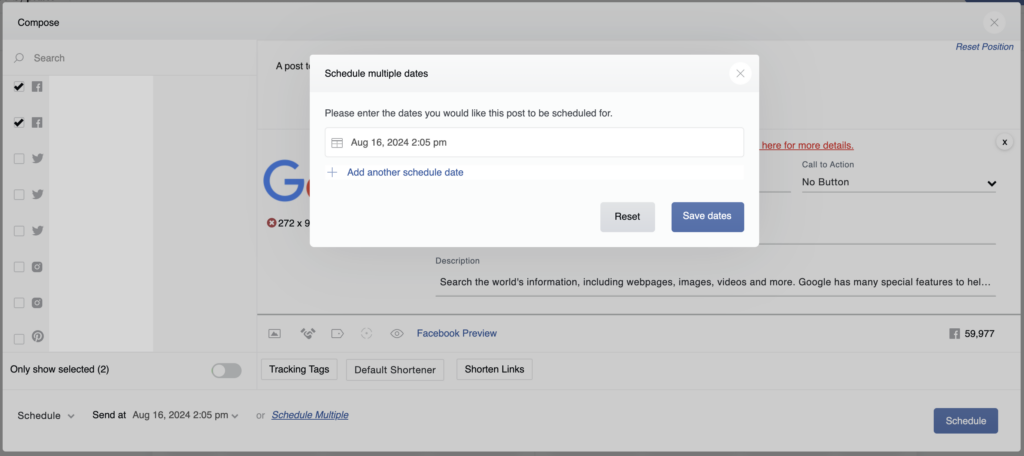
Schedule - allows you to schedule content for an exact day and time just like any other publishing tool. We also offer Schedule Multiple, allowing you to schedule the same post for multiple dates and times in one window.
Hold - this status essentially creates a draft message. It will sit in your queue and wait for you to Edit the item and switch it from Hold to Optimize, Schedule or Publish Now. This is useful if you don’t have all the assets ready for the message or if you need someone else on your team to review the message before it goes out.