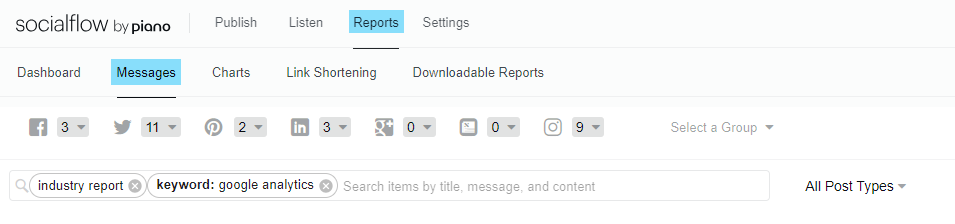
Enhanced Search offers ways to find specific content so you can more easily find, recycle, or delete your posts. This feature is available above the Messages Published column on the Publish page, as well as on the Reports / Messages page.
What criteria can Enhanced Search use to find my posts?
Enhanced Search can search against the following criteria:
-
Post Message
-
Post Title
-
Post Description
-
Link (ie, link to the content)
-
Post Editor (email address of Post Editor)
-
Post Publisher (email address of the user who published the post)
-
Post Creator (email address of the user who created the post)
-
Label
-
Post Type (video, link, or text posts)
-
Published Status
-
IAB Content Category (Category of linked-to content as per IAB categorization)
-
MediaTopics Category (Category of linked-to content as per MediaTopics categorization)
-
Keywords (keywords from the linked-to content)
-
Service Message ID
If you don’t choose a specific search option (ie, post title, label, etc), you can simply hit return and by default, you will search against terms in the Post Message, Post Title, Post Description and Keywords.
How can I choose which options to search against?
As you type in the search box, suggested search options will be intelligently shown.
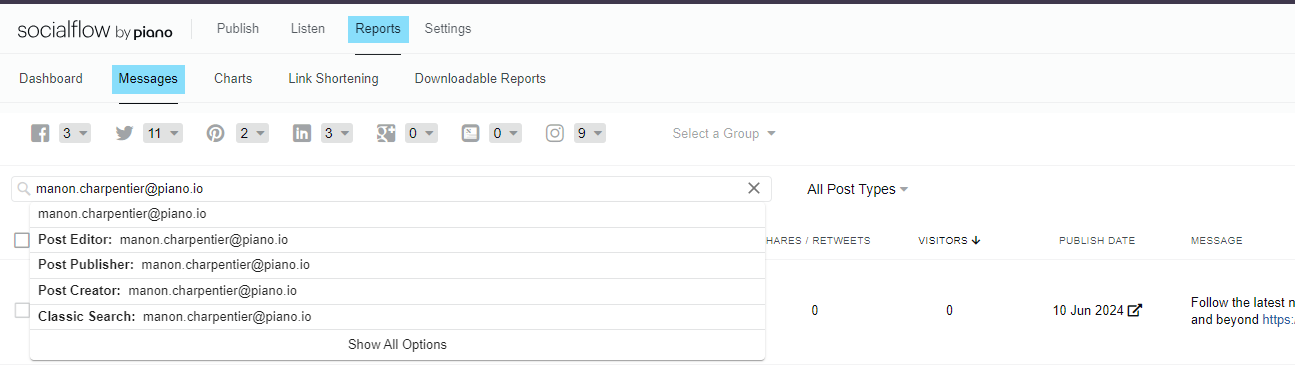
For example, if you type an email address, the search types that use emails (Post Editor, Post Publisher and Post Creator) will appear. Click on the particular option you’re interested in, and the search will run accordingly.
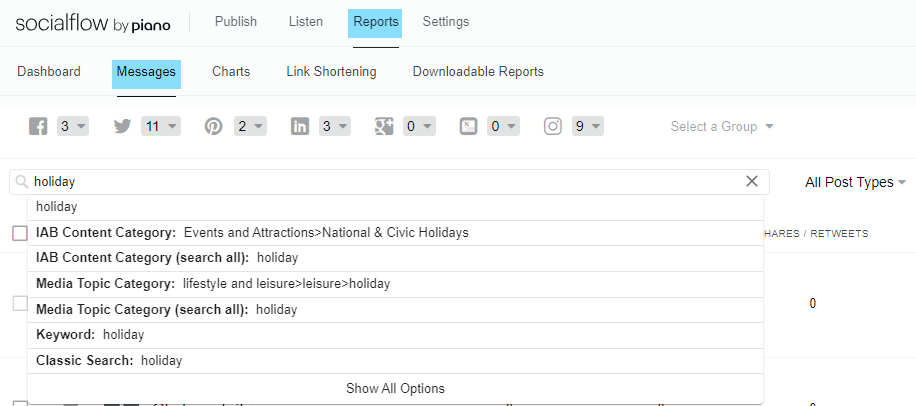
Or if you type a word that is part of a content category, those categories that include that term will appear below for you to refine your search. Click on the category of interest and all the posts in that category will be returned.
If you don’t see the option you’d like, press Show All Options and all potential search options will be made available for you to choose. Conversely, if there are too many possibilities, click on Show Matched Options and only matched options will appear.
Can I use NOT in my searches?
Sometimes you want to find all the posts that do not contain a particular search term. Enhanced search enables this capability as well.
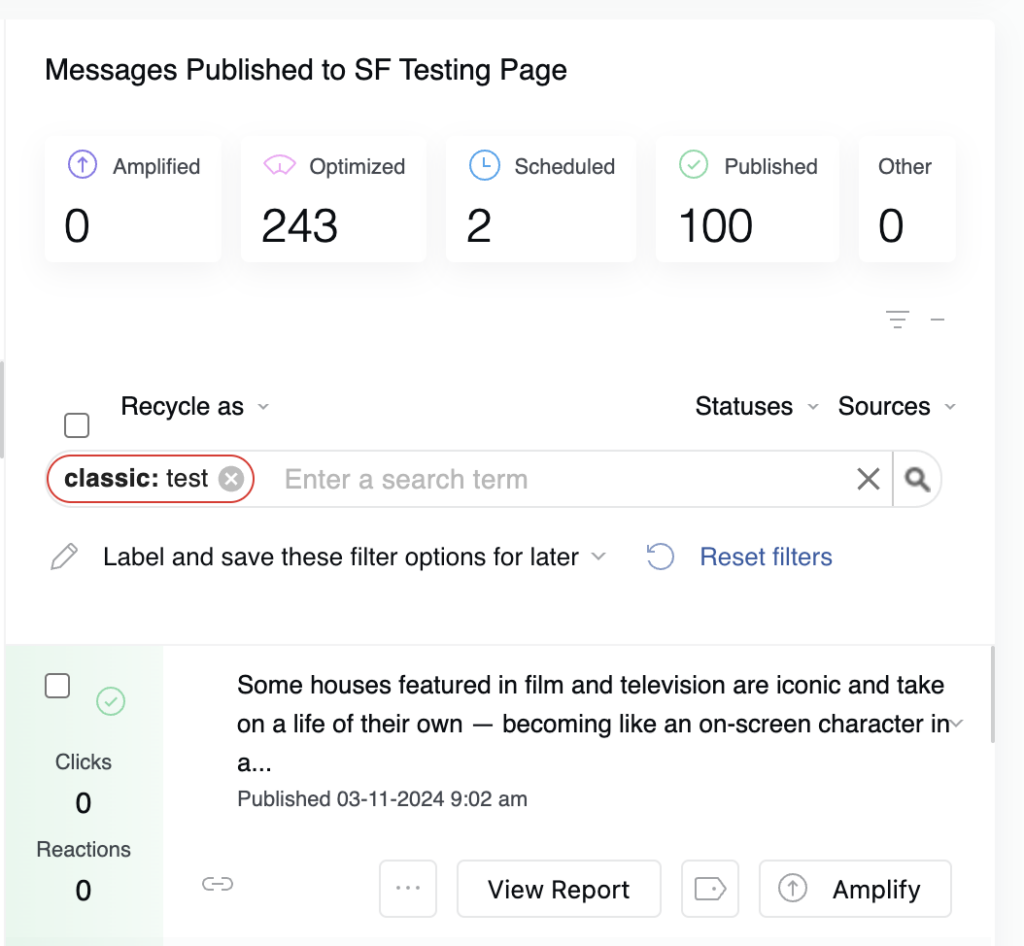
To use this behavior, simply type "Not" and then select the search type. Here's an example from the Publish page, looking at recent posts in the Messages Published column:
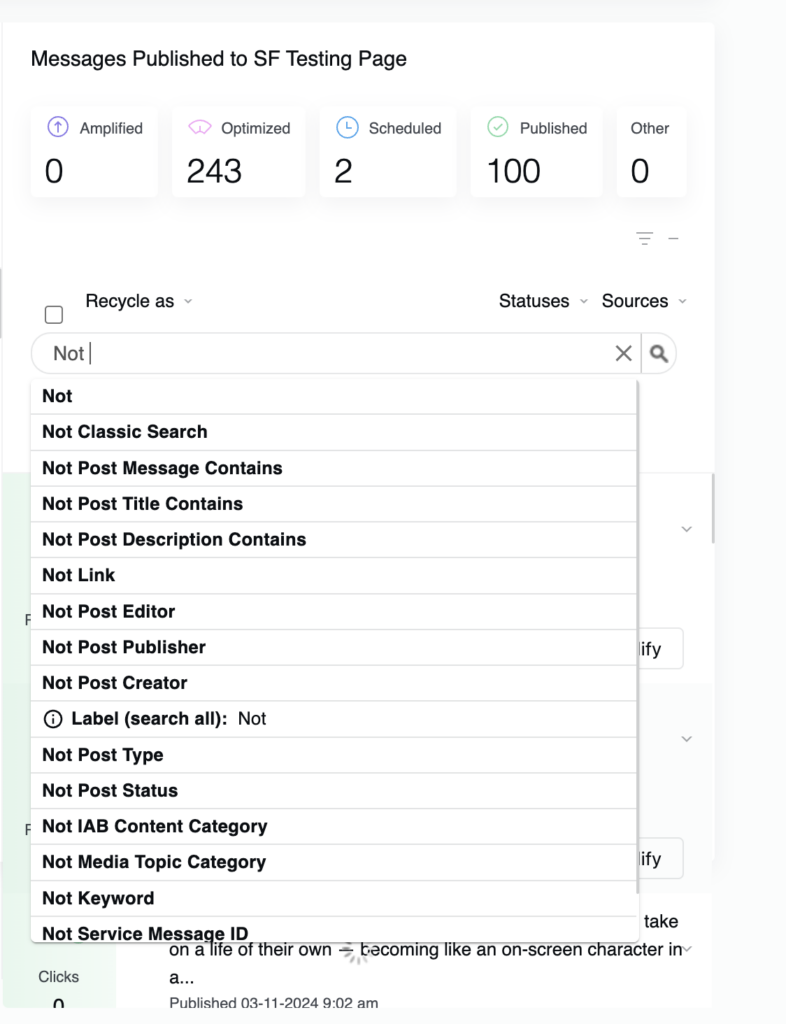
If you have already entered a search and now want to see the not results, just hold down the shift button and click on the search circle or chiclet. It will turn red to indicate that it is for posts that are NOT in the specified search.
How can I create a complex search?
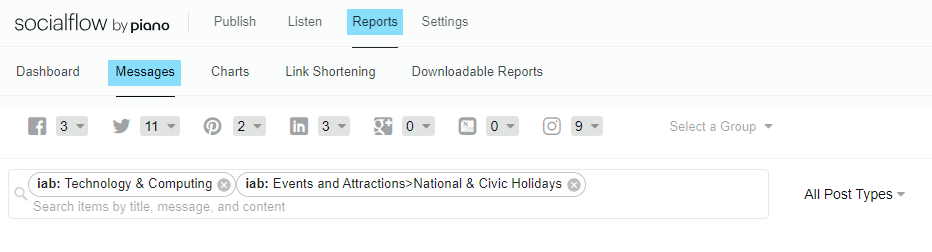
Enhanced search can manage most complex search requests. In creating those, it’s important to know the default behaviors. If you search two different terms within a particular search criteria, the search will look for posts that are either criteria. This is equivalent to an OR in Boolean searches.
In other words, if you search for two different IAB Categories at the same time, you will see results from posts that have either of those categories. In this case, the search is for a Technology & Computing category OR the National & Civic Holidays category.
On the other hand, if you search among different search options, the default will be AND behavior. For example, this search would result in all the posts that have “industry report” in the Post Message AND have “Google Analytics” as a keyword.