
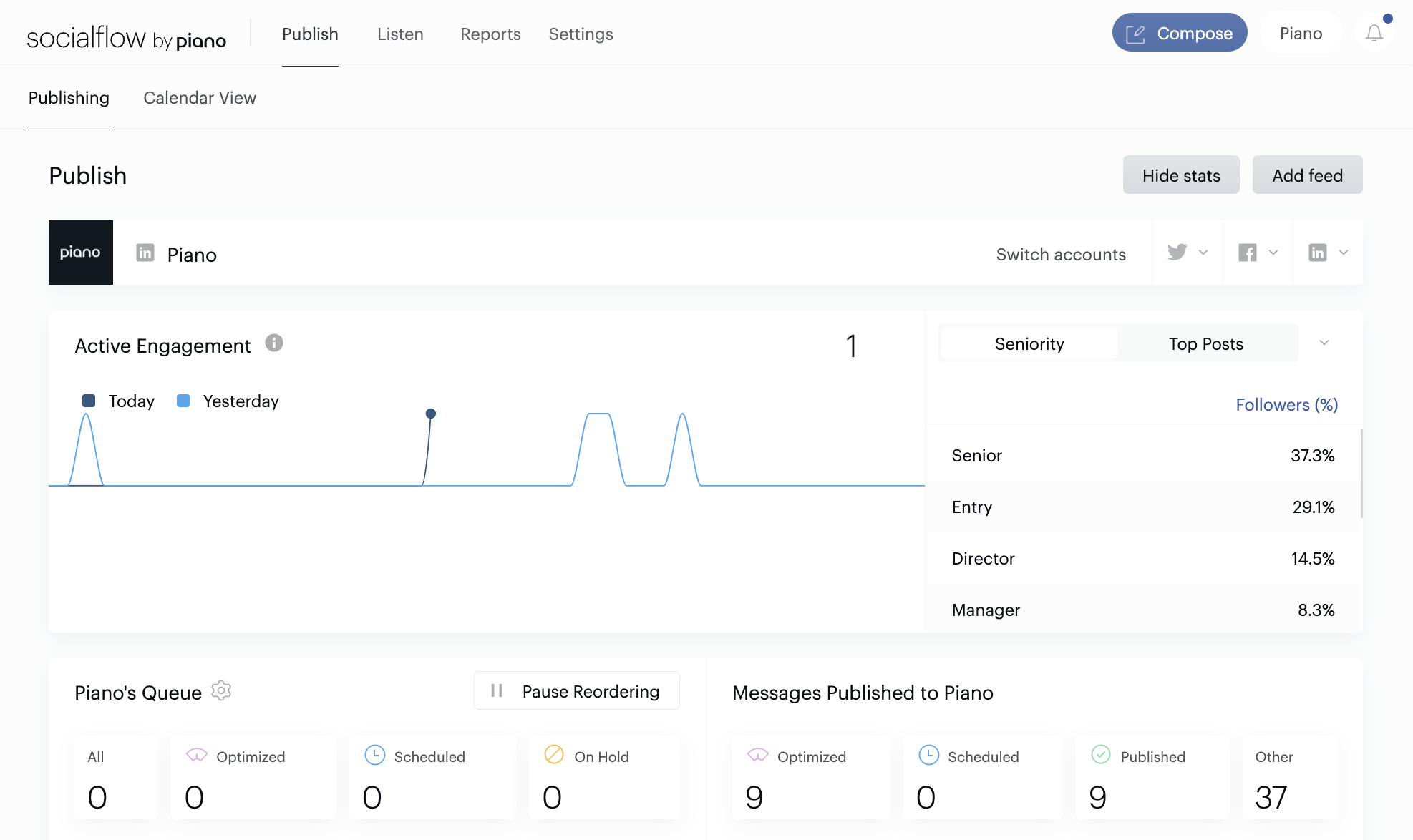
Socialflow has four main tabs along the top navigation bar: Publish, Listen, Reports, andSettings. When you first log in, you’ll land on Publish.
Viewing Your Social Accounts
Click on the social icons on the upper right of the Publish page to toggle between your socialaccounts and view content and data specific to each handle.
Key Data Points
Socialflow tracks a lot of data, but there are a few key data points we display on the PublishPage.
-
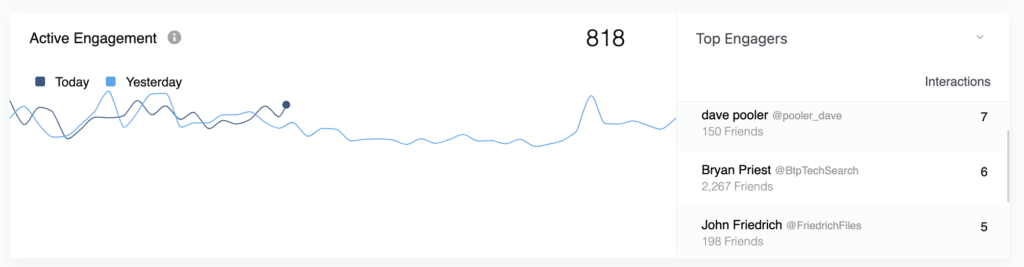
The Active Engagement section tracks the number of active engagers in real-time today (the blue line) vs. yesterday's active engagers (the gray line).
-
Top Engagers: Shows who is interacting most frequently with your content.
Active Audience data is generated differently depending on the platform. Let’s break down what it means for each of your social channels.
Active Engagement for 𝕏
Your total Active Audience on 𝕏 is:
-
Anyone who clicked on one of your trib.al or bit.ly shortened links in the past and then recently clicked on another link shortened with one of those services (doesn't have to be your link).
-
Someone who retweeted or favorited your content, or mentioned your handle.
Top Engagers are people who have engaged with your tweets the most, in order of occurrencewith most listed at the top. You can click on the account name to see their 𝕏 profile.
Active Engagement for Facebook
Your total Active Audience for Facebook is:
-
Someone who clicked on one of your trib.al or bit.ly shortened links in the past and then recently clicked on another link shortened with one of those services (it doesn't have to be your link).
-
Someone who commented on, liked or shared your content, posted on your wall, or liked or mentioned your page.
Facebook Top Engagers are your most active fans from the past few days.
Interactions include comments, post likes and shares. Facebook will display Top Posts as well as the number of comments on each.
Pro Tip: You can hide the key data points at the top of the Publish page, including theActive Audience to give you a bigger view of the queue and timeline. Just click the “HideStats” button above the social network icons.
Your Content Queue: What is it?
Your queue is a list or holding tank for all of your potential social media content that you wouldlike to publish.
This gives Socialflow the ability to analyze your messages. We use the real-time data we have about your fans and followers, so that our algorithm can rank the messages displaying the most relevant content at the top. Each item gets a score between 0-100 to show you how relevant we think it is at that moment. The score will change throughout the day depending on how engaged your audience is and what topics are getting the most attention.
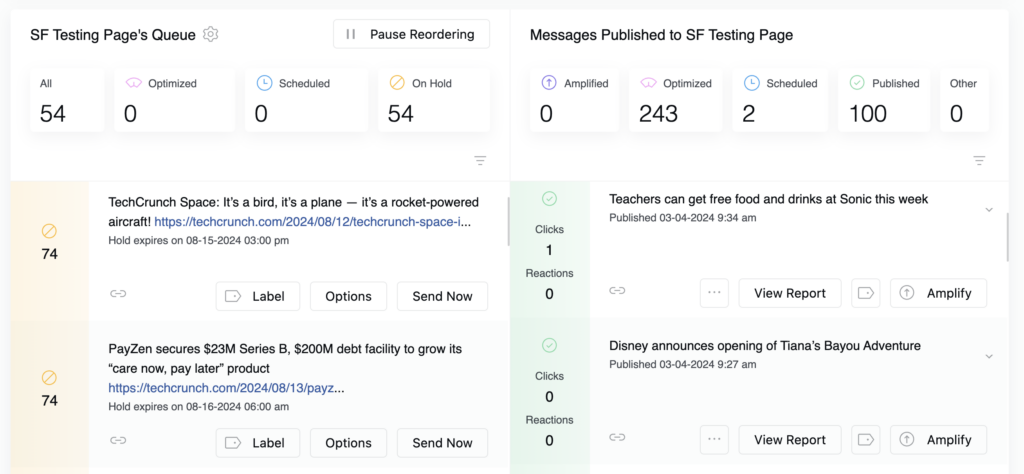
Queue: List of unpublished messages on the left side.
Attention Score: The numbers in the left column, next to your content in the queue represent our real time evaluation of your content. This score ranges from 1 to 100 and is based on current topical relevance and the activity level among your fans or followers.
Label: You can add labels to messages before or after they publish to organize your content into categories. This is helpful for searching and reporting. The label button also allows you to manage existing labels.
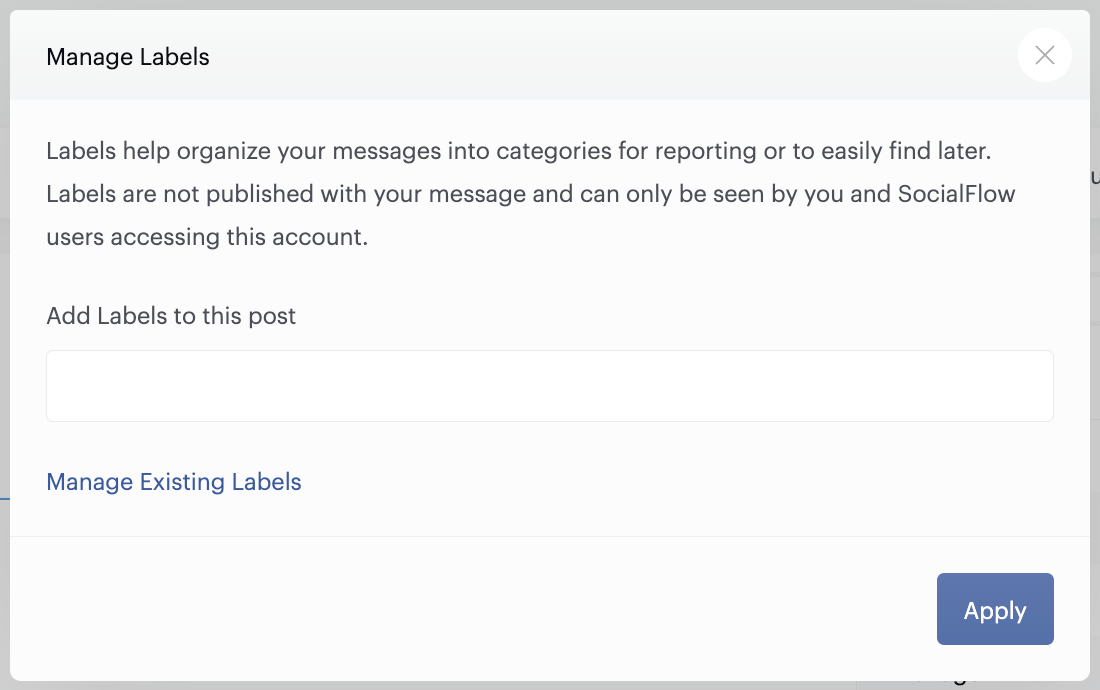
Note: Labels are purely internal, your fans and followers will never see them.
Messages Published to Socialflow: A timeline of messages that have gone live in the right hand column, the most recent at the top. Here you’ll see a snapshot of metrics such as Clicks and Likes or Retweets and a link to a more detailed report.
View Report: You can view a report specific for each message you publish. Depending on the channel, it will include data such as: Link clicks, Retweets (w. Downloadable list of handles), Favorites, Click performance by location, as well as basic information about publish time and date.
Calendar View
The Publish Page has a sub page or tab, called the Calendar View.
The Calendar view is a great way to see how your content is spread out across the day or the week so you can plan ahead. You can sort by weekly or daily, by social account, scheduled or optimized, and the content source meaning the RSS feed or manual content as well as post type such as image or video.
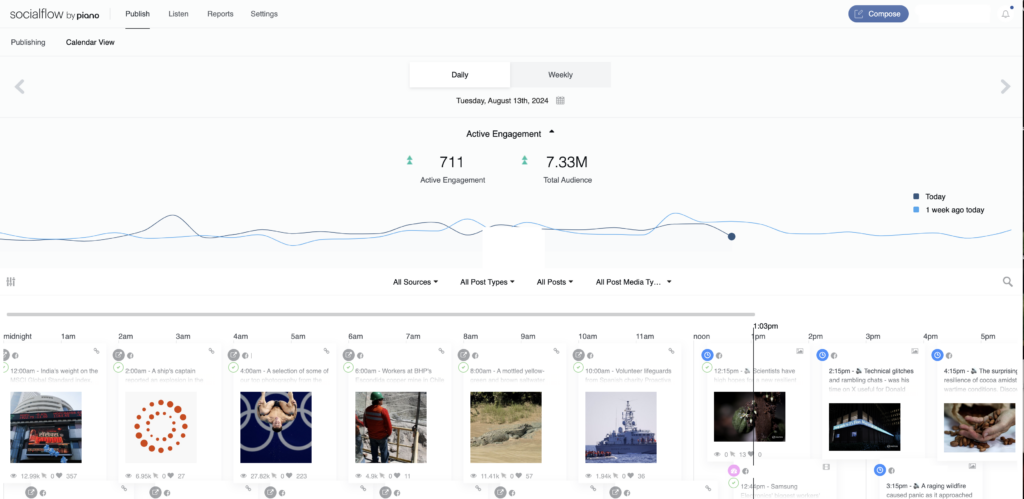
You can view upcoming content (not yet published) as well as already published content, or just one or the other.
You can create new content, edit upcoming content, and recycle or reuse already published content, all while viewing your calendar.