
As an admin, you can edit the settings of individual social accounts. When on the Publish page for your social account, click on the gear above the queue to jump into the Account Settings page.

Active Content Sources
This section allows you to manage the content sources associated with this account. You can read more on managing Content Sources in our Adding Content Feed article.
Link Shortener
This section gives you a snapshot of the link shorteners. Here you will also have the option to add an existing shortener or add a new link shortener.

Add Link Shortener will direct you to the Link Shortener settings. From this page, you can choose to 'Add Link Shortener'.
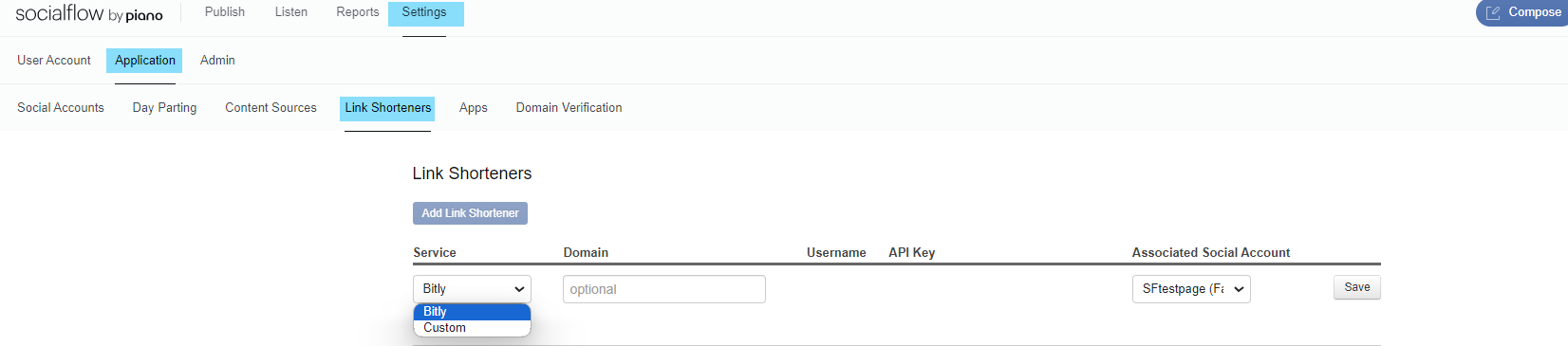
Service - Allows you to use a default link-shortening service
Domain - Allows you to set a custom domain for your shortener
Username - This is your username on the link-shortening service
API Key - If you are using a service, you will need to provide the API Key
Note: If using bit.ly service, you can find your API Key in the 'Account Settings'
Associated Social Account - This drop-down will let you choose which account will use the selected shortener
Make sure that you click "Save" after adding the details.
Messages
Limit Duplication:
This setting stops duplicate content from importing to SocialFlow via content sources. To avoid unintentional duplicate stories coming into the queue, SocialFlow will filter duplicates by link, title, or either option. This function can also be turned off.
Notes:
-
This option is designed for content sources only (automated content). It will not filter out duplicate content that is user-generated.
-
If you remove a content source and re-add the same content source, all pre-existing content will be filtered out according to the settings in this option. If you’d like to see all content imported again, please turn off the duplication option prior to re-adding the content source.
Convert all link posts to image posts (Twitter only):
This option allows the compose box to scrape the link for an image to include with a social message on Twitter. If this is enabled, we will scrape an image when posting the message and add it to the post. When this function is disabled, SocialFlow will not scrape for images. Twitter will use any available Twitter cards. You can read more about Twitter cards here.
Publishing Limits
This setting works the same as setting publishing limits from the Settings page. You can read more about publishing limits in our Setting Publishing Limits article.
Tracking Tags
You can set unique tracking tags per social account under SocialFlow. All links published through SocialFlow per account will automatically have set tags appended once clicked on, to work with Google Analytics or Omniture.
Google Analytics - The key field is pre-populated and all you need to do is add values for each field you would like to use.
Omniture - The key and value fields are left blank, allowing you to set your own individual tags as needed. You can also click on the +Add to include additional tags.