
There are two ways you can enable 2-Factor Authentication in SocialFlow.
Using your Gmail account:
This setup assumes you have already activated Google 2-Factor Authentication in your Google domain settings. If you have not done this yet, please contact your administrator.
-
Log into SocialFlow with your existing credentials.
-
To set up Google 2-Factor Authentication, navigate to Settings → User Account.
-
Find the "Google" logo near the bottom of the page and click on it.

-
If you aren't signed into a Google account, you will be prompted to do so. If you are signed into multiple accounts, you will be prompted to choose which account you would like to use.
Once this is complete, you will have enabled signing in with Google sign-in to your SocialFlow account. -
Next, disable your SocialFlow credentials. This will force Google 2-Factor to be the only way to log into SocialFlow.
To do so, find the "Allow SocialFlow Credentials" box and change it from "Allowed" to "Disabled."

-
Your existing SocialFlow credentials will no longer be valid.
To test that your new setup works, sign out of SocialFlow and then:
-
Click "Sign In" in the upper right-hand corner.
-
On this attempt to enter your SocialFlow credentials, they should not work. If they do function and allow you to sign in, ensure that Step 5 was done correctly.
-
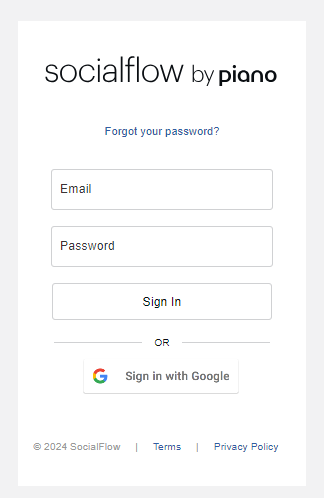
Click the "Google" text directly below the credentials box.
-
If you are still logged into your linked Google mail account, you will then be logged into SocialFlow.
If you are not currently logged into your Google Mail account, you will be prompted to do so.
Using SocialFlow's 2-Factor Authentication:
Before attempting to do the following steps, it is critical that you ensure that the time on your phone is set to the correct time. 2-Factor Authentication requires two things to be successful - a pin and a timestamp. If the time on your phone does not match up with the real time (i.e., you set your phone ahead 10 minutes to wake up on time each morning), you will not be able to set up 2-Factor Authentication successfully.
First, log into SocialFlow and head to your Settings page.
On this page, find the option for "2-Step Verification with Mobile App" and click "Enable."

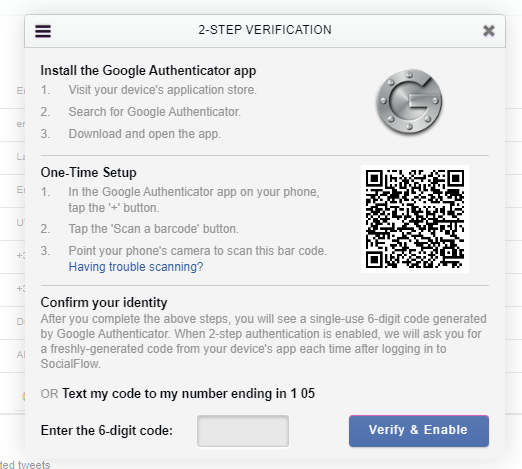
Enter your password and you will be brought to this prompt. Follow all instructions on this prompt and click "Verify and Enable."
You'll then be given a set of backup codes. Print these out and keep them in a safe place. These can be used when you forget your phone and need to log into the platform.