
The Downloadable Reports section is where you can pull in-depth reporting for social accounts. In this section, you can generate and export reports into Excel files, allowing you to review and produce charts as needed.
First, navigate to the section by going to Reports → Downloadable Reports.
To generate an organic downloadable report, click ‘Create Report' to open up your options.
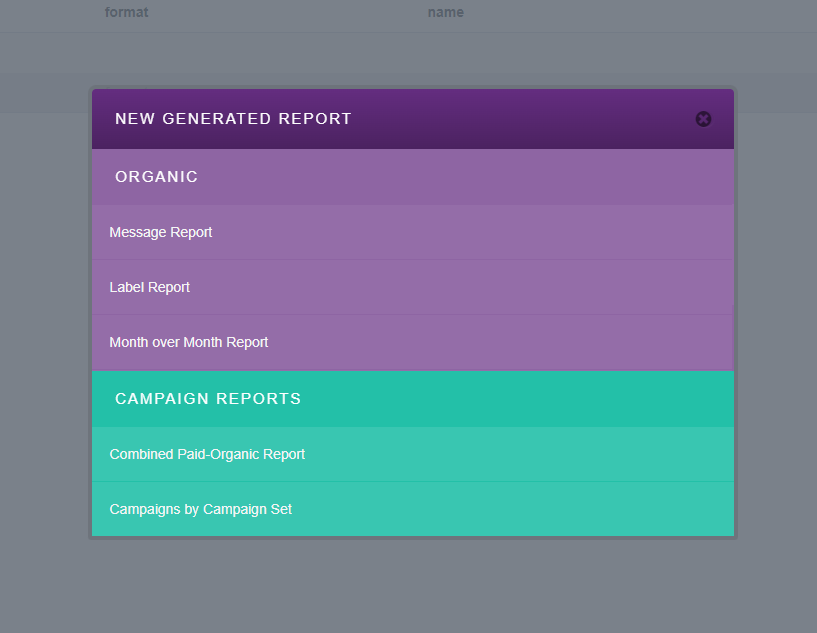
The first two report options are message-based, providing you with all of the messages published for your social accounts and all of the metrics we offer through our platform, including our click data, engagement numbers, Facebook video stats, targeting, and more.
The final three reports are time-based, providing you with the totals and averages per metrics available through SocialFlow. We have reports available in monthly, weekly, and daily intervals. Each interval also displays the percentage change from the previous interval.
Message Report – pull all messages published per social account
-
Select all of the social accounts you’d like to pull the reports for.
-
Set your timeframe.
-
Give it a name (optional).
-
Check off ‘Include External Messages’ if you’d like to see all content, including messages published outside of SocialFlow.
Note: External messages will not include SocialFlow click data.
-
Generate XLS report.
Label Report – pull all messages associated with labels created in SocialFlow
-
Select all of the labels you’d like to pull the reports for.
-
Set your timeframe.
-
Give it a name (optional).
-
Generate XLS report.
Month over Month/Week over Week/Day over Day Reports
-
Select all of the social accounts you’d like to pull the reports for.
-
Set your timeframe.
-
Give it a name (optional).
-
Generate XLS report.
After each request, a new line item will show up at the top of the list. You can track the progress of the report generation, and upon completion, you can click on the X to download the report to your computer.
