
Queue Search
You are able to search content within the publishing queue and message published columns. The queue search can be found by going to the Publish page and clicking the + Filter sign located on top of either column.
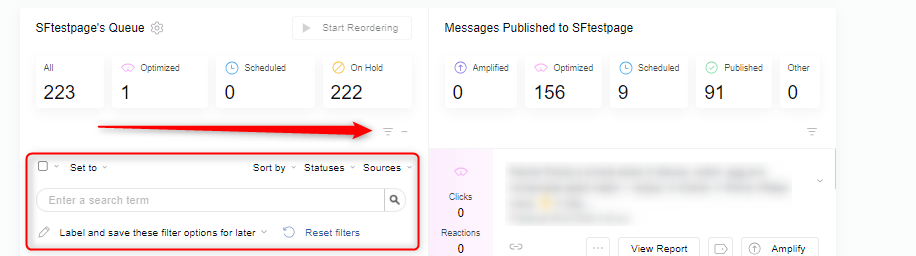
To use the queue search simply click into the search box, enter your search term, and click the search icon.
Search bar - will search all content available in the queue by a particular keyword or phrase
Notes for searching the queue:
-
If you have a narrowed queue (for example: viewing only specific sources, or content with specific settings), the search only works against items found that match that sorting function.
-
To get back to viewing all items click the X next to the search icon.
-
Queue search takes boolean operators: AND, OR, NOT.
-
Note - these words must be capitalized to get the search results you desire.
-
-
To search for recycled content items type this into the search box (without the quotation marks) "is:recycled"
-
To search for labeled content items type this into the search box (without the quotation marks or brackets) "label:[label]"
Using the Queue Filters
In the Queue column, click the + icon next to Filter. Here you will find a variety of drop-down menus that will sort and filter your queue.
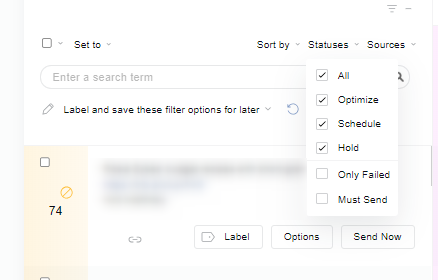
Check Box - Will allow you to bulk select messages by type (Optimized, Scheduled, Hold)
Sort By - Will allow you to sort by various chronological orders
Statuses - Will group the content based on how it is set to be sent out (i.e., optimize, schedule, or hold)
Sources - Will show which content source the content came from
Label and Save these filter options for later - This will create a dropdown option to quickly select the view in the future
Note: The last saved filter view will load by default
Reset Filters - This will remove any applied filters