
Day Parting is an advanced version of our regular Publishing Limits, allowing you to create different rules for different times of the day and week, whereas Publishing Limits only allow a general set of rules that apply all day, every day.
Note: You can see more about the regular Publishing Limits in our Publishing Limits Video Tutorial.
A few important notes on how Day Parting works:
-
Socialflow's Day Parting system only affects posts that are published via Socialflow. If you are posting directly via a social network's interface or through another software, your Day Parting schedule won't have any effect on those posts.
-
All posts, including Optimized Must Send/Can Send, Publish Now and Scheduled are considered when calculating the number and frequency of messages so that the system can adhere to the Day Parting rules.
-
For example: if you have a Max of 10 Messages for a 2-hour window of time, and you send 3 messages manually from the queue as Publish Now, and enter 4 as must send into the queue for that same 2-hour window, you now only have room for 3 optimized can sends or 3 scheduled messages to send during that 2-hour window.
-
-
When there are no Day Parting windows filled in on the Schedules tab, the social account will default back to regular Publishing Limits for the Social Account.
-
If you haven't specified any Publishing Limits, the social account will use whatever settings are applied to the individual messages.
How to configure Day Parting:
First, create a rule set.
-
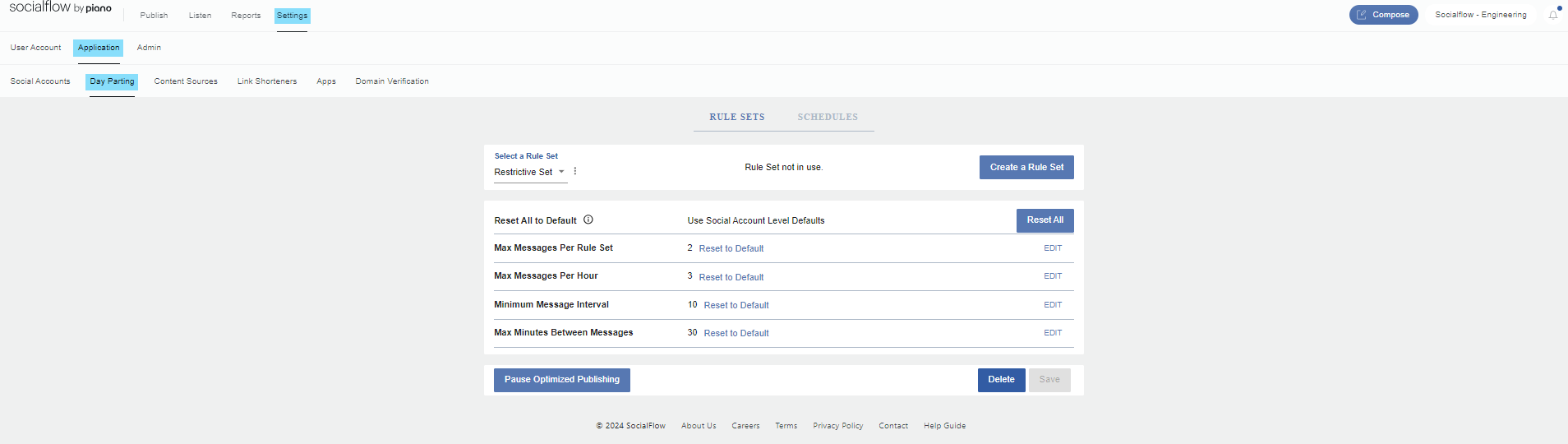
Navigate to Settings / Application / Day Parting
-
Click on Rule Sets in the center of the page.
-
Click on the Create a Rule Set button
-
Give the Rule Set a name on the upper left
-
Then enter values for any or all of the following rules:
-
Max Messages Per Ruleset
-
Max Messages Per Hour
-
Minimum Message Interval
-
Max Minutes Between Messages
-
-
Click Save on the lower right
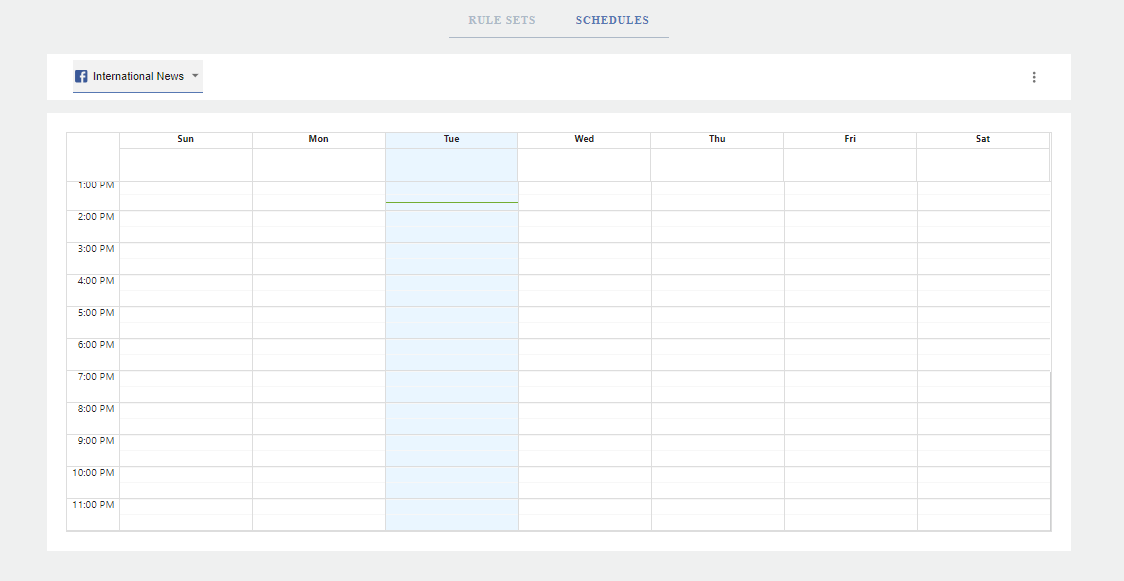
Once the Rule Set has been created, click over to Schedules and select the social account on the upper left.
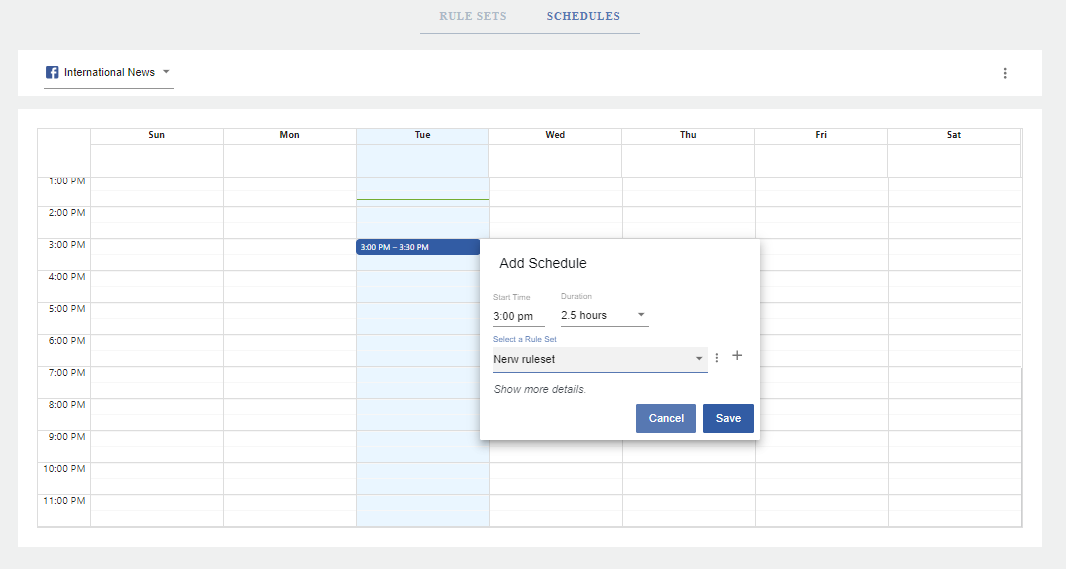
Click a start time on the calendar and fill in the details in the rule set pop up module, including how long these rules should apply. If you are applying a rule set to the entire day, you can click the top of any day column to apply it to the full day.
Note: For a more in-depth look at Day Parting, watch our Day Parting Tutorial Video.
FAQ's
How do I edit/delete a rule set?
To Edit or Delete a rule set you first need to select it from the rule set dropdown menu in the upper left:
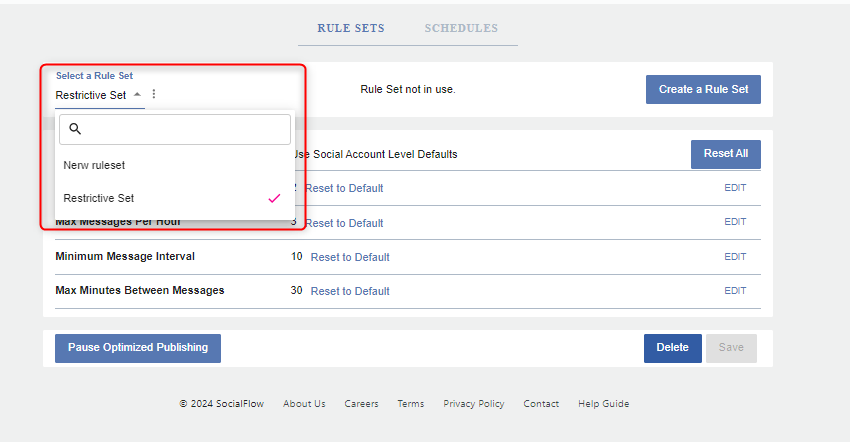
After the rule set is selected you will have the option to edit any cadence settings and the option to delete the rule set as well.
Why can't I delete a rule set?
If you are unable to delete a ruleset, it is likely due to the rule set being used on another account. You are not able to delete rule sets that are being used by an account you do not have access to.
Can I pause rule sets that affect Optimized messages without pausing all of my rule sets?
If you want to prevent all optimized posts from publishing, click "Pause Optimized Publishing." Then you'll probably want to name the rule set with a clear label (i.e. "Hold Optimized Publishing" or "Out to Lunch"). Note: that any messages set to Optimized Must Send, Publish Now, or Scheduled will still go out at the time they need to.
How do I know which users can manage Day Parting rule sets?
Any user with permission to edit settings at a social account level can create, delete, or edit rule sets for those accounts as long as they are not being used by a social account they do not have access to.
What if a major event, or holiday, requires me to change the day parting rules for a specific week?
You cannot create Day Parting rule sets for specific future dates. If there is a major event or holiday, that needs a different rule set for the week, that change would have to be made the week of.
Feel free to email support@piano.io, or your Client Success Manager with any questions.