
Boilerplate library
To view the boilerplates library, click the Boilerplates in the side bar.
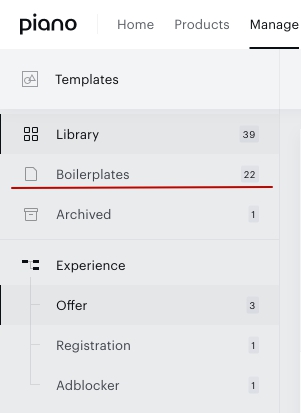
Using boilerplates in your template library
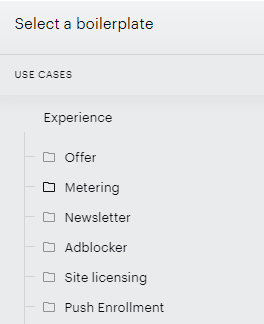
On the left-hand side of the boilerplates library, you can jump to different boilerplate use cases by clicking on the use case title. The available options among others include Offer, Metering, Newsletter, Adblocker, and Site Licensing.
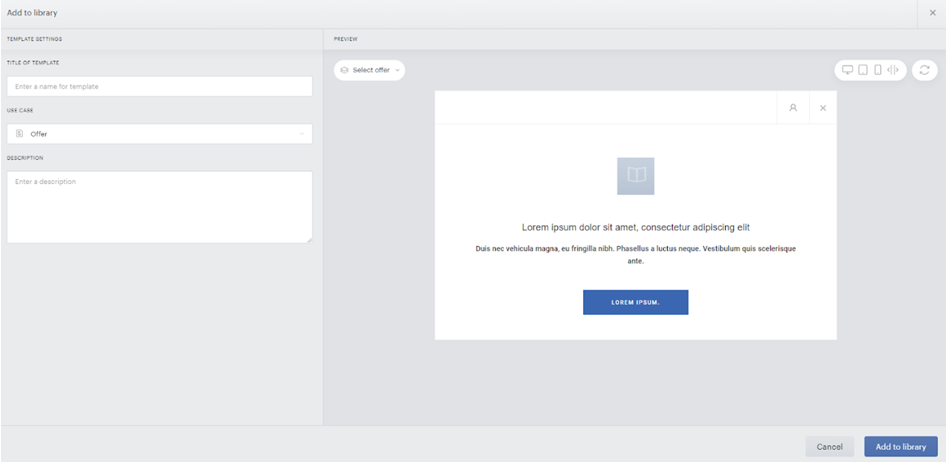
Click on a boilerplate to add it to your template library. You'll see a preview of the boilerplate and you can select an offer to preview. Enter in the title, use case, and description for the boilerplate. Then, click Add to library.
You can also add a boilerplate by clicking on the arrow next to Add template and selecting Boilerplate template. This will open the boilerplate selector. From here, select a use case from the available options.
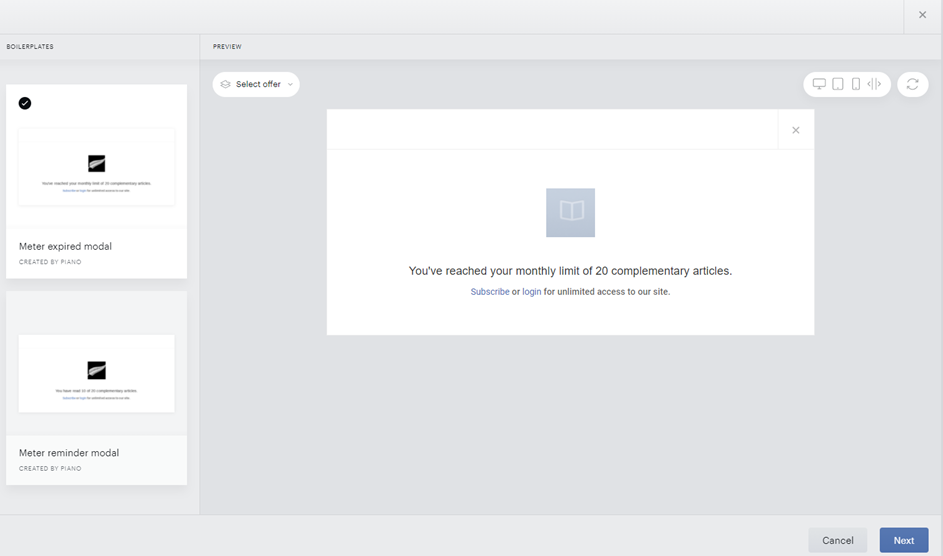
Preview the boilerplates, select the one you'd like to use, then click Next.
Click on a boilerplate to add it to your template library. You'll see a preview of the boilerplate and you can select an offer to preview. Enter in the title, use case, and description for the boilerplate. Then, click Add to library.
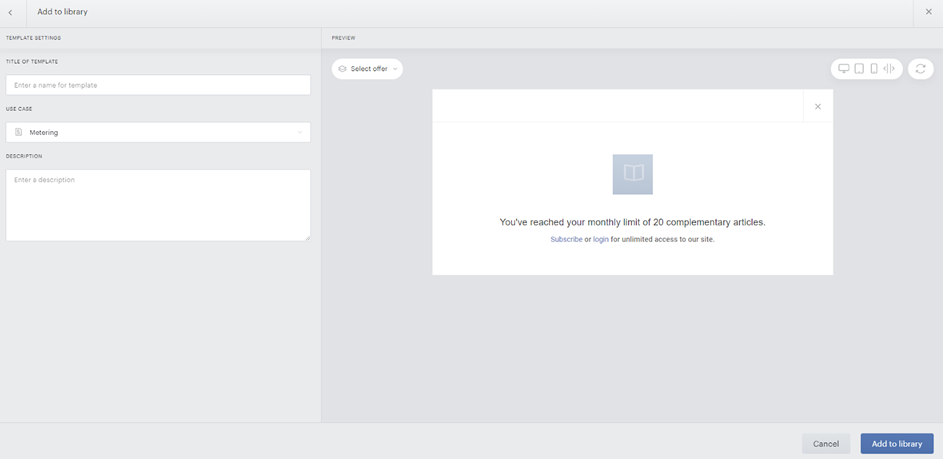
Customizing boilerplates
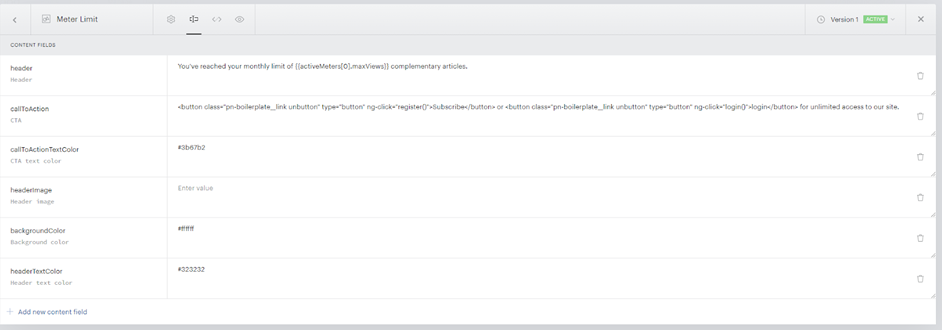
Once you've added a boilerplate to your template library, you can customize it to your liking. Remember, boilerplates come with default text, images, and colors that are immediately configurable via an included set of content fields. Open the template manager to begin.
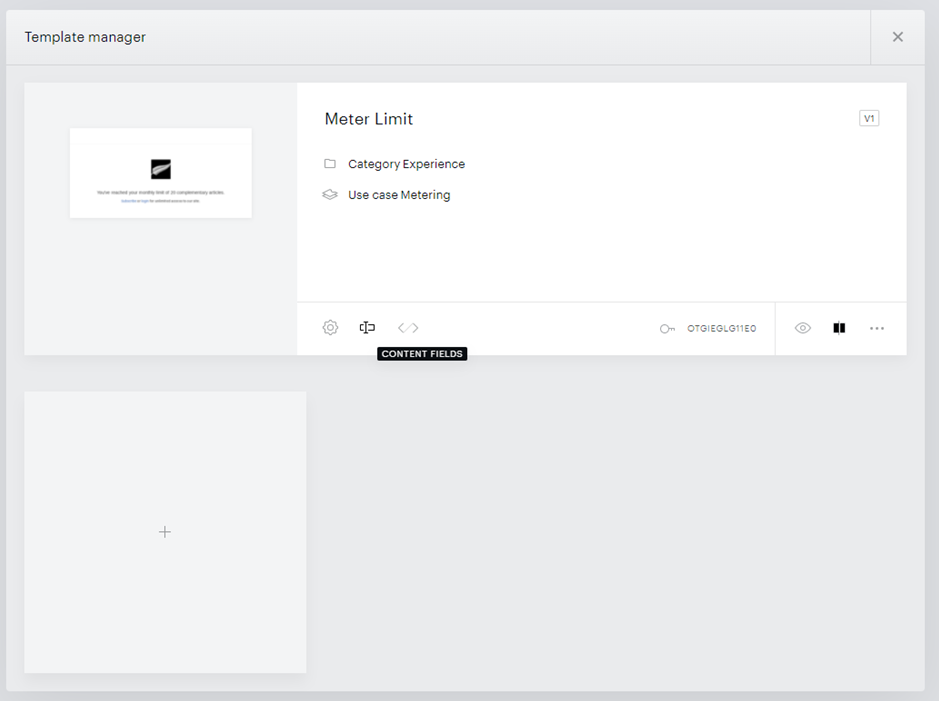
Select the Content fields tab ( 
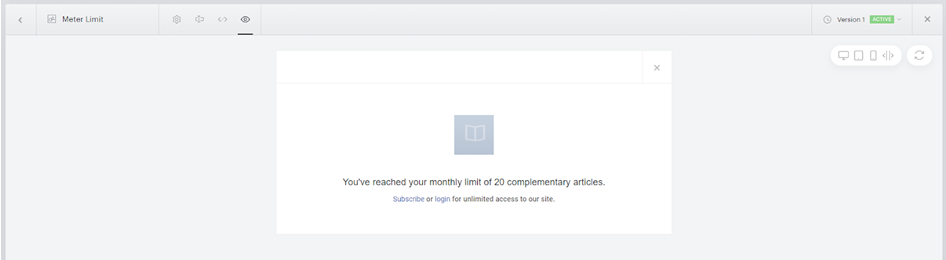
Preview your changes by clicking the Preview template icon. More information about this functionality is available here.
You can also utilize the split-screen preview option that allows you to view edits in a preview window, right next to the HTML or CSS code in real-time.