
Subscribing an existing user
User and payment terms must exist before creating the subscription. To create a new subscription for a user, go to Users → All users. Click the subscribe user button (silhouette with plus sign) shown here:

This will trigger the Apply Terms Wizard that will guide you through the process of subscribing the user in a new modal.
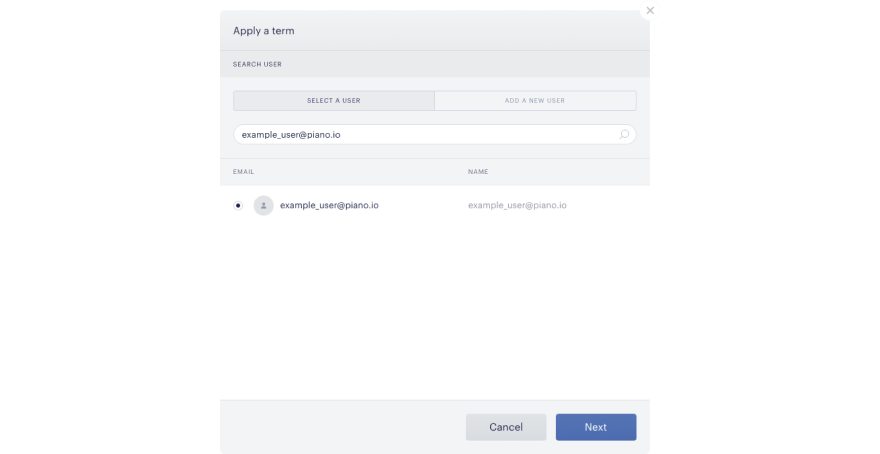
If you are creating a subscription for an existing user, click on the Select a user tab. Type in the user’s name or email address, select the desired result from the list, and then click Next:
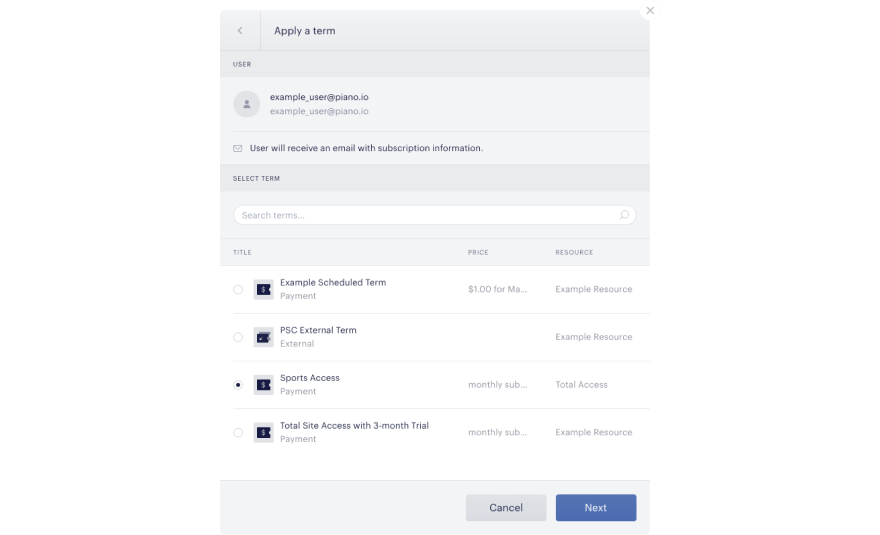
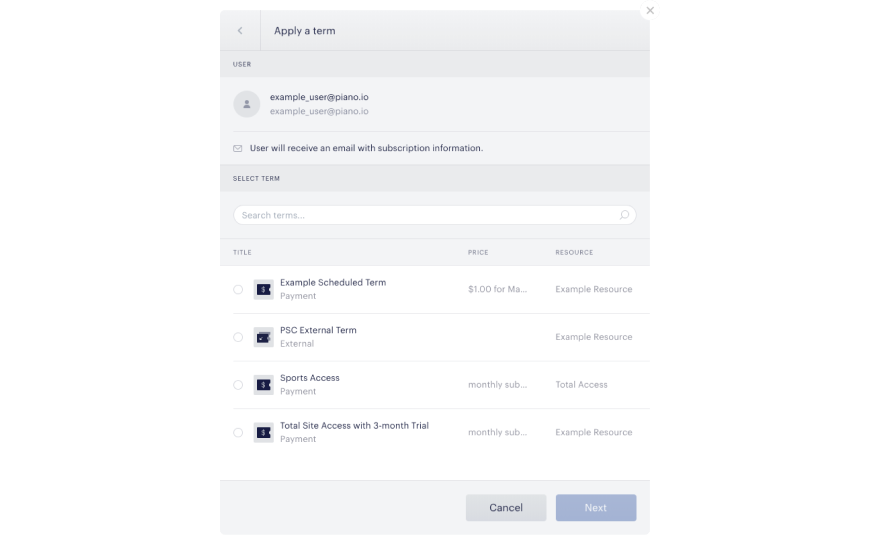
You will then see a list of payment and external PSC terms that you can subscribe the user to. Other term types are not supported in this flow.
Below we will talk further about subscribing a user to a payment term. For external terms see the section here.
Choose the desired term from the list, and then click Next
Finally, you will be shown a modal that provides details on the subscription, and you will be prompted to enter the payment information for the user. Note that you might also be asked to provide the user's country for tax purposes depending on the configuration of your application.
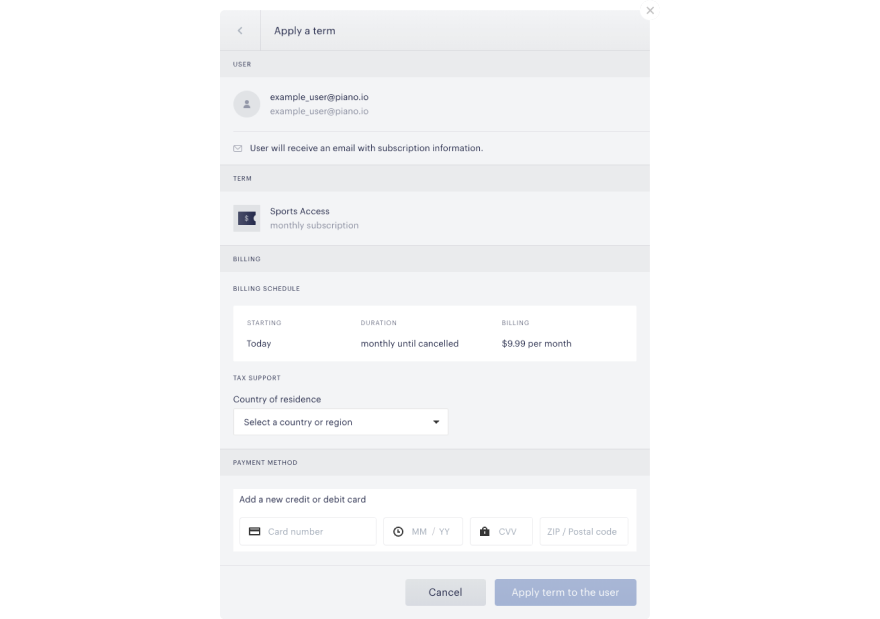
Once you have applied the term, the user will receive an email containing their subscription information and they will instantly have access to the appropriate resources.
Adding and subscribing a new user
Identity Management clients have the option of adding a new user in addition to creating a subscription for an existing user. Note that the following applies only to Identity Management clients. If you are adding a new user, click on the Add a new user tab. Enter the new user’s email address and then click Next. Search for and select the desired term, then click Next. Enter in the proper tax support information (country, state or province, and zip code) and add the payment method. If you are adding a new user, you will have to add in a new credit card. Click Apply term to the user to apply the term to the user you selected. See the screenshots above for visual aid.
Once the term has been applied via the Apply Terms Wizard, the user will receive an email with the new subscription information and will have access to the appropriate resources.
Running a PSC check on a new or existing user
A user with a print subscription who wants to get complimentary digital access may call in and ask your customer support representative to apply the external PSC term to the user on their behalf. To create a new subscription for a user, go to Users → All users. Then, click on the Subscribe a user button.

From here, you may search for an existing user or add a new user. To search for an existing user, make sure the Select a user tab is selected and enter in the user’s email address. Select the correct email address from the list of results and then click Next.
To add a new user, make sure the Add a new user tab is selected and enter in the user’s email address, then click Next.
Please note that if you are not using Subscription Management + Billing or ID, you will have to enter the user into their own user management system first.
Once you have selected an existing user or added a new user, you will be asked to apply an external PSC term for the user. Select the digital confirmation for external PSC term, then click Next.
You will be brought to the PSC check page. Fill out the required fields including first and last name, home address, and phone number, and then click Complete.
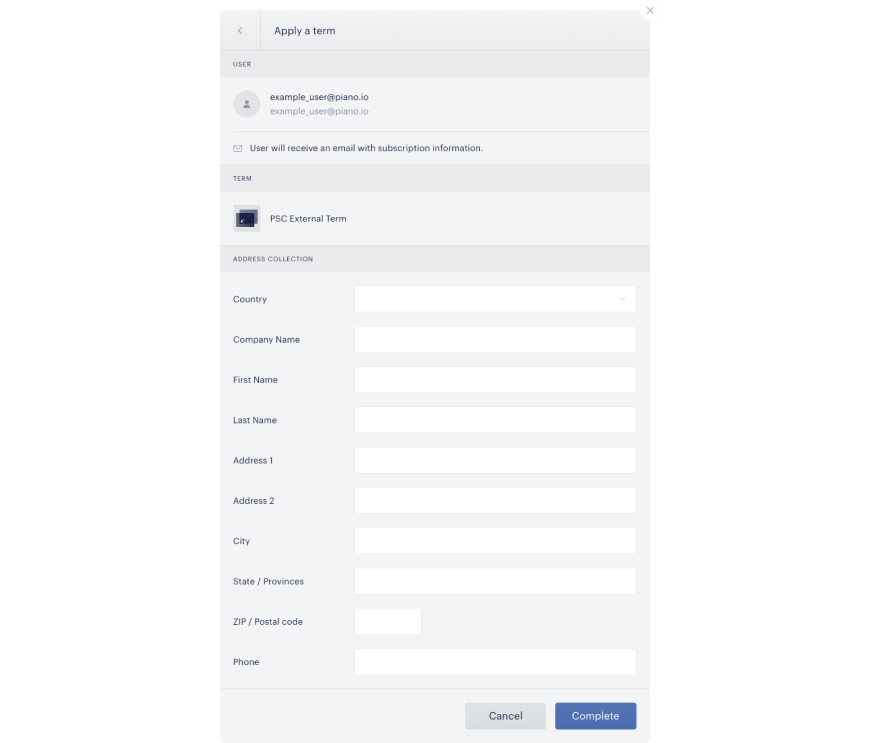
You will then receive a confirmation that the external PSC term has been successfully applied to the user. All users will automatically receive access until the next PSC check, at which point the entered data will be compared with the data in your PSC file. Users whose data do not match will lose access and users whose data does match will be granted continuous access.