
Overview
When a user purchases a Shared subscription, that user becomes the parent account for the subscription, meaning they have full insight into the billing, access, and subscription management details. Immediately following the purchase, the parent account is prompted to list any child accounts that they might wish to share their access with. Child accounts do not see the details of a subscription – all transaction history, billing information, and shared account details are hidden from their view.
A user invited to redeem a Shared subscription may enter their email address in any upper- or lowercase combination. The redemption process is not case-sensitive.
Shared subscriptions are available for any user provider.
Configuration
Terms
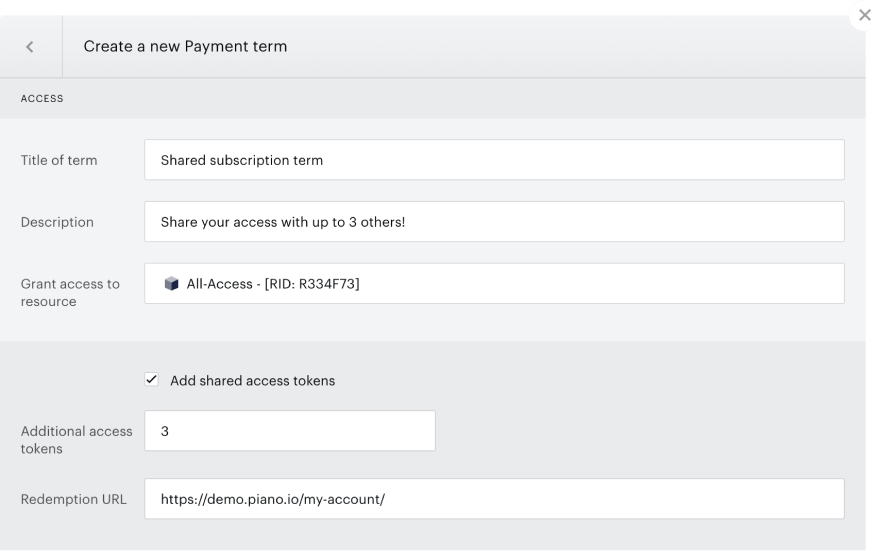
The number of shared accounts that can be added to a subscription is set at the Term level. Underneath where you specify the Resource associated with the Term, you will find the option to specify the number of shared accounts that can be added to a subscription to that term.
Note that this feature is configurable for Payment, Dynamic, Gift and External term types but cannot be combined with renewable gifting.
-
Additional access tokens: This is how many users not including the parent account can be named on the shared subscription. If you choose not to add any shared access tokens, the subscription will be limited only to the purchaser of the term.
-
Redemption URL: When child accounts are named on a shared subscription, they receive an invitation email that contains a link to the Redemption URL. This URL must point to a page that runs a Show Offer card, as the redemption modal will only appear if an offer is displayed on the page when the user clicks the invitation link. When you are adding shared tokens to a gift term, the redemption URL will be the same as the URL the recipient (parent account) uses to redeem.
Terms with existing subscribers cannot be modified to add shared access. Instead, users can upgrade their subscriptions to shared subscriptions. Upgrades can be managed through various methods, including the Piano dashboard, My Account, API, on-site flows, and bulk upgrades via Action Manager. For interactive upgrades initiated by users, a form will be provided to update the list of shared accounts. In non-interactive upgrades, the list of shared accounts will be automatically transferred or truncated if the new subscription has fewer shared account tokens than the original.
In case you enable print address collection on a shared subscription term, only the parent's account address will be collected during checkout and is automatically inherited by the child accounts.
Templates
There are four templates affected by this feature:
-
System → Shared subscription components
-
System → Checkout
-
System → Checkout components
-
My Account → My Account Library Components
The changes that must be made to each are outlined below. As always, we recommend reverting to default if possible. Otherwise, we recommend utilizing our Compare code feature to compare your setup with the default code to verify that you have included the necessary components.
Shared subscription components
This template includes logic for naming child accounts post-purchase by the parent account as well as the redemption logic for a user who follows an invitation email. Because this template is newly introduced in this feature, it is pre-populated with all of the necessary code. If you are new client - no action is required on your part. If you are already a Piano customer and used shared access with payment term before, and now are looking to configure shared access for dynamic terms - you will need to revert this template to the default version, as it was completely re-worked for dynamic terms.
Checkout
Simply include the following at the end of your template
<div view="sharedSubscription">
    <div shared-subscription-component></div>
</div>

<div view="redeemSharedSubscription">
    <div redeem-shared-subscription-component></div>
</div>
Checkout components
Look for the component that starts with id="/widget/checkout/component/partials/purchase-receipt-component.html" and add the below code after the last span class of the component:
    <span class="bold resource-name">
        {{selectedTerm.resource.name | tc:'resource.name'}}<span ng-hide="input.sharedAccounts.length > 0">.</span>
    </span>
    <span ng-show="input.sharedAccounts.length > 0"><t context="checkout.platform" arg0="{{input.sharedAccounts.length}}">for you and up to {0} users.</t></span>
    <br/>
    <span><t><span ng-if="isChargingTerm(selectedTerm)">Your <span class="bold payment-method">{{getSelectedPaymentMethodName()}}<span ng-if="isAccountPostfixShown()"> account</span></span> has been charged.</span> An email confirmation has been sent to
            <a class="mail" href="javascript:void(0);">{{user.email}}</a></t></span>
    <div ng-show="input.sharedAccounts.length > 0">
        <t context="checkout.platform">You can modify your shared subscription membership at any time.</t>
    </div>
Note: This will replace some code that likely already exists in your template. Refer to the class names to find those lines in your existing template and replace them accordingly. Please also adjust the copy of the provided code as needed to meet your brand.
For existing Piano customers who are looking to use access sharing with dynamic terms there are few changes that have to be made to the template in addition to that:
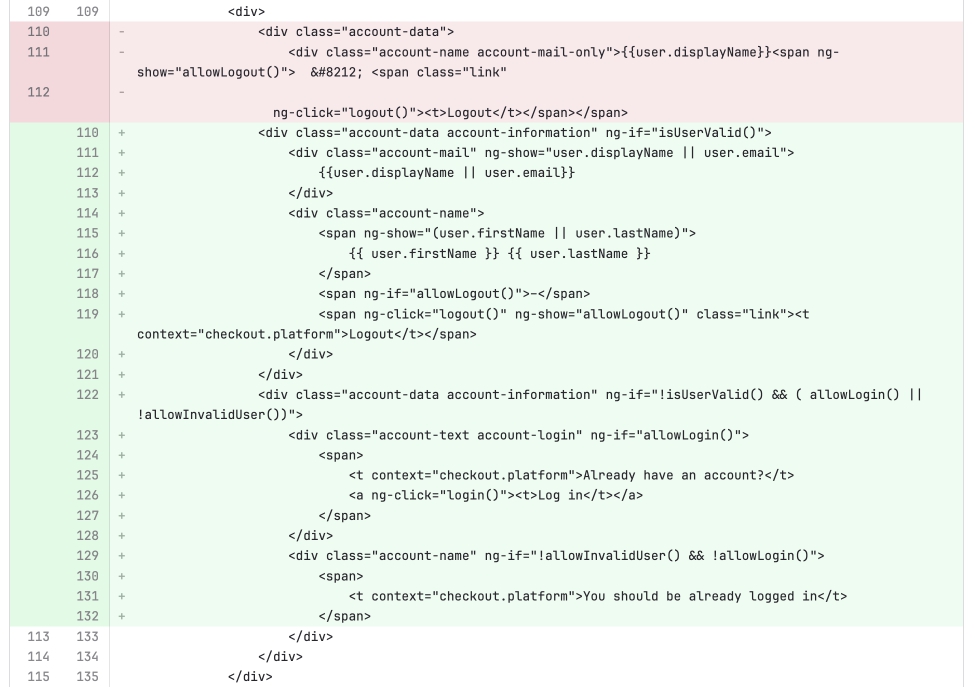
<div class="account-data account-information" ng-if="isUserValid()">
<div class="account-mail" ng-show="user.displayName || user.email">
{{user.displayName || user.email}}
</div>
<div class="account-name">
<span ng-show="(user.firstName || user.lastName)">
{{ user.firstName }} {{ user.lastName }}
</span>
<span ng-if="allowLogout()">–</span>
<span ng-click="logout()" ng-show="allowLogout()" class="link"><t context="checkout.platform">Logout</t></span>
</div>
</div>
<div class="account-data account-information" ng-if="!isUserValid() && ( allowLogin() || !allowInvalidUser())">
<div class="account-text account-login" ng-if="allowLogin()">
<span>
<t context="checkout.platform">Already have an account?</t>
<a ng-click="login()"><t>Log in</t></a>
</span>
</div>
<div class="account-name" ng-if="!allowInvalidUser() && !allowLogin()">
<span>
<t context="checkout.platform">You should be already logged in</t>
</span>
</div>
</div>
My Account Library Components
Add the following in the script with id="/widget/myaccount/partials/library/_library_list_item.shtml" within the first div:
<ul
        ng-if="sharedAccessList.length"
        class="shared-access-list">
        <li ng-repeat="sharedAccess in sharedAccessList"
            class="shared-access-list__item">
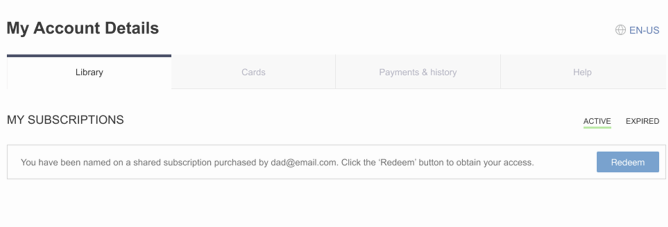
            <t context="checkout.platform" arg0="{{sharedAccess.parentEmail}}">You have been named on a shared subscription purchased by <b>{0}</b>. Click the ‘Redeem’ button to obtain your access.</t>
            <button id="redeem-shared-access-button"
                    ng-click="redeemSharedAccess(sharedAccess)"
                    class="btn btn--blue btn--medium pull-right"><t context="checkout.platform">Redeem</t></button>
        </li>
      </ul>
You will also need to input the below:
ng-class="{'mobile-show': libraryItem.autoRenewChangeEnabled && !libraryItem.renewNowEnabled && !libraryItem.cancelEnabled && !libraryItem.refundEnabled && !libraryItem.cancelAndRefundEnabled && !libraryItem.updatePaymentMethodEnabled && !libraryItem.sharedSubscription && !libraryItem.sharedAccountLimit}"
ng-show="libraryItem.autoRenewChangeEnabled || libraryItem.renewNowEnabled || libraryItem.cancelEnabled || libraryItem.cancelAndRefundEnabled || libraryItem.updatePaymentMethodEnabled || libraryItem.sharedSubscription || libraryItem.sharedAccountLimit">
This will replace nearly identical code that you can find by searching your code for ng-class="{'mobile-show': libraryItem.autoRenewChangeEnabled
Add these two tp-menu-items amidst the others you can search for in your template:
<tp-menu-item ng-if="libraryItem.sharedAccountLimit" ng-click="manageSharedAccounts(libraryItem)">
    <t context="checkout.platform">Manage shared accounts</t>
</tp-menu-item>
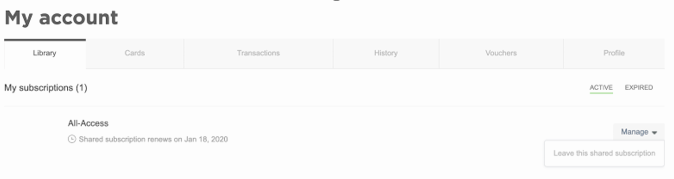
<tp-menu-item ng-click="leaveFromParentSubscription(libraryItem)" ng-show="libraryItem.sharedSubscription">
    <span>
        <t context="checkout.platform">Leave this shared subscription</t>
    </span>
</tp-menu-item>
Add the following to the library-table under the tab for active subscriptions.
manage-shared-accounts-callback="manageSharedAccounts"
leave-from-parent-subscription-callback="leaveFromParentSubscription"
redeem-shared-access-callback="redeemSharedAccess"
shared-access-list="sharedAccessList"
And add the following to the other library-table in the template:
redeem-shared-access-callback="redeemSharedAccess"
shared-access-list="sharedAccessList"
Finally, add the below to the end of the template:
<script type="text/ng-template" id="/widget/myaccount/partials/library/_library_item_leave_shared_subscription_confirm.shtml">
<div class="modal-content">
<t context="checkout.platform">Would you like to leave from this shared subscription?</t>
</div>
<div class="action-panel">
<a href="javascript:void(0)" class="button green" ng-click="confirm()"><t context="checkout.platform">Yes</t></a>
<a href="javascript:void(0)" class="button gray button-cancel" ng-click="close()"><t context="checkout.platform">No</t></a>
</div>
</script>
<script type="text/ng-template" id="/widget/myaccount/partials/library/_library_item_shared_accounts.shtml">
<div shared-subscription-component shared-accounts-config="saConfig"></div>
</script>
<script type="text/ng-template" id="/widget/checkout/component/partials/shared-subscription-component.html">
<div class="modal-content">
<h1 class="ss__h1 ss__h1--mb25"><t context="checkout.platform">Manage your shared accounts</t></h1>
<div ng-if="errors.length > 0" error-section errors="errors"></div>
<div class="" ng-show="storage.users.length > 0">
<div class="ss__border--top ss__border--bottom ss__indent" ng-class="{'ss__editable__row--last': (storage.users.length === (storage.editableUserIndex+1)) && (storage.users.length === ($index+1)) && isEditingFormShown()}" ng-repeat="user in storage.users">
<div class="ss__user-info-wrapper ss__row" ng-show="storage.user.email !== user.email">
<div class="ss__flex-row--left-column">
{{user.email}}
<span ng-if="user.completeName.length">
-
<span class="ss__color--grey">{{user.completeName}}</span>
</span>
<div class="ss-redeemed-on" ng-if="user.redeemed">
<t context="checkout.platform" arg0="{{user.redeemed | date:'MMM d, y h:mm a'}}">Redeemed on {0}</t>
</div>
</div>
<div class="ss__flex-row--right-column">
<button type="button" class="ss__row-button ss__row-button--send" ng-click="resendEmail(user)" ng-hide="user.userId !== null || isReadonly === true" ng-disabled="storage.showForm === true || isResendEmailInProcess === true" title="{{'Resend email' | tc:'checkout.platform'}}"><t context="checkout.platform">Resend email</t></button>
<button type="button" class="ss__row-button ss__row-button--edit" ng-click="editUser(user, $index)" ng-hide="isReadonly === true" ng-disabled="storage.showForm === true" title="{{'Edit account' | tc:'checkout.platform'}}"><t context="checkout.platform">Edit</t></button>
<button type="button" class="ss__row-button ss__row-button--delete" ng-click="deleteUser(user)" ng-hide="isReadonly === true" ng-disabled="storage.showForm === true" title="{{'Delete account' | tc:'checkout.platform'}}"><t context="checkout.platform">Delete user</t></button>
</div>
</div>
<div ng-if="storage.user.email === user.email">
<div shared-subscription-form-component storage="storage"></div>
</div>
</div>
</div>
<div class="ss__single-form" ng-if="!isUsersExists() || (isEditingFormShown() && !isEditingUser())" shared-subscription-form-component storage="storage"></div>
<div class="user-control" ng-class="{'no-user-control': isEditingFormShown() && storage.sharedAccountsLimit > 0 && isUsersExists()}" ng-hide="isReadonly === true">
<div ng-if="!isUsersExists()"><t context="checkout.platform" arg0="{{storage.sharedAccountsLimit}}">You can add up to {0} shared accounts</t></div>
<button class="ss__add-shared-account" ng-show="canAddUser()" ng-click="addUser()"><t context="checkout.platform" arg0="{{storage.sharedAccountsLimit}}">Add shared account <span class="ss__add-shared-account--limit">({0} more)</span></t></button>
<span class="ss__color--grey" ng-show="storage.sharedAccountsLimit === 0"><t context="checkout.platform">You have reached your shared accounts limit</t></span>
<span class="ss__color--grey" ng-show="storage.sharedAccountsDifference > 0"><t context="checkout.platform" arg0="{{storage.sharedAccountsDifference}}">Please, remove {0} accounts to proceed</t></span>
</div>
<div class="user-control" ng-show="isReadonly === true">
<span class="ss__color--grey"><t context="checkout.platform">All accounts will be removed.</t></span>
</div>
</div>
<div class="action-panel">
<div ng-show="!isUsersExists() && !isFormDirty()">
<button type="button" ng-click="next()" class="button green" ng-disabled="isNextButtonDisabled || (storage.sharedAccountsDifference > 0 && isReadonly === false)">
<t context="checkout.platform">Save</t>
</button>
</div>
<div ng-show="isUsersExists() || (!isUsersExists() && isFormDirty())">
<button type="button" ng-click="next()" class="button green" ng-disabled="isFormDirty() || isEditingFormShown() || isNextButtonDisabled || (storage.sharedAccountsDifference > 0 && isReadonly === false)">
<t context="checkout.platform">Save</t>
</button>
</div>
</div>
</script>
<script type="text/ng-template" id="/widget/checkout/component/partials/shared-subscription-form-component.html">
<form name="manageSharedUserForm" class="ss__form">
<div class="ss__row">
<div class="ss__row-right-column">
<button type="button" class="ss__row-button ss__row-button--cancel" ng-disabled="storage.users.length === 0" ng-click="cancelEditingUser()"><t context="checkout.platform">Cancel</t></button>
<button type="button" class="ss__row-button ss__row-button--apply" ng-disabled="storage.isFormDirty !== true" ng-click="validateUser()"><t context="checkout.platform">Apply</t></button>
</div>
<div class="ss__row-left-column">
<input type="text"
id="ss-user-email"
class="ss__row-input regular-border"
name="email"
ng-model="user.email"
ng-keydown="onKeyDown($event)"
ng-change="checkIsFormValid()"
placeholder="{{'Email...' | tc:'checkout.platform'}}"
autocomplete="off"
auto-focus
required />
</div>
</div>
<div class="ss__row">
<div class="ss__row-left-column">
<div class="ss__row-left-column__first-half">
<input type="text"
class="ss__row-input regular-border"
ng-model="user.firstName"
name="firstName"
ng-keydown="onKeyDown($event)"
ng-change="checkIsFormValid()"
placeholder="{{'First name (Optional)...' | tc:'checkout.platform'}}"
autocomplete="no-autocomplete" />
</div>
<div class="ss__row-right-column__second-half">
<input type="text"
class="ss__row-input regular-border"
ng-model="user.lastName"
name="lastName"
ng-keydown="onKeyDown($event)"
ng-change="checkIsFormValid()"
placeholder="{{'Last name (Optional)...' | tc:'checkout.platform'}}"
autocomplete="no-autocomplete" />
</div>
</div>
</div>
</form>
</script>
For existing Piano customers who are looking to use access sharing with dynamic terms these four scripts have to be reverted to default versions in addition in order for the feature to work properly:
-
<script type="text/ng-template" id="/widget/myaccount/partials/library/_library_list_item.shtml"> -
<script type="text/ng-template" id="/widget/myaccount/partials/library/_library_item_leave_shared_subscription_confirm.shtml"> -
<script type="text/ng-template" id="/widget/checkout/component/partials/shared-subscription-component.html"> -
<script type="text/ng-template" id="/widget/checkout/component/partials/shared-subscription-form-component.html">
My Account Style
If you are using custom CSS for your My Account section, in some cases, you might encounter issues with the Manage Shared accounts option not fitting into the My Account Library tab.
If this occurs, you can add the CSS below to the My Account Style template:
.modal {
    max-height: 90%;
    overflow: scroll;
}
Email manager
There are six new email templates introduced to Email Manager as a part of this feature that serve to notify either parent or child accounts about recent developments to their subscription. These emails and their descriptions are listed below:
-
Shared subscription: A child left: This email is sent to the parent account when a child account voluntarily leaves the shared subscription.
-
Shared subscription: Cancellation: This email is sent to all child accounts when a parent account cancels the shared subscription.
-
Shared subscription: Invitation: Sent to a child account who does not yet have an account, inviting them to register and redeem access to the shared subscription.
-
Shared subscription: Leaving a subscription: This email is sent to a child account as a confirmation after they have voluntarily left a shared subscription.
-
Shared subscription: Notification: Sent to a child account when access is granted. If the child is already registered, this email is sent immediately and access is granted automatically. If the child did not have an account at the time it was invited, this email is sent after they register and redeem the invitation.
-
Shared subscription: Revocation: This email is sent to a child account when they have been forcibly removed from a shared subscription by the parent or via the Piano dashboard.
We highly recommend you enable all of these emails in your application, though the most essential is the Invitation email. More details about the notification can be found here.
In addition to the above, the X Days until access ends email is also sent to child accounts of shared subscriptions.
Shared subscription checkout and redemption flow
The Shared subscription checkout has the same flow as the standard offer checkout, with the addition of a step that allows denominating the shared account users. Subscribers may decide to skip this step and designate child accounts in My Account.
So the checkout flow would be something like the below:
-
A user will be able to select the Shared subscription payment term in an offer:
-
As a next step, if not logged in already, a user will be able to register an account and continue to the payment screen:
-
Once the purchase is successfully processed, the user will see an additional screen at the end of the checkout flow that allows selecting child accounts for the shared subscriptions (the maximum number is based on the shared token count defined in the settings of the Payment term described here).
-
A user is able to skip this step by selecting the option I'll do this later and add any child accounts later via My Account under the Library tab by selecting the option Manage shared accounts.
When a child account is named (either via the checkout flow or in My Account), they are instantly sent an invitation that allows them to register and redeem their access. If the account is already registered, no action is needed - access is given immediately. Here is an example of how the redemption flow looks like:
-
The child account receives an email with an activation link:
-
Now when the user clicks (or copies) the activation link, they will be redirected to the redemption URL (configurable via the Shared subscription payment term settings as described here).
-
On this page, the user is shown a modal asking them to confirm the redemption of the shared access. Please note, that on this URL you need to have an Experience with a Show Offer card running so that the redemption modal is triggered.
-
Anonymous users will be asked to either sign in or create an account, and afterwards will receive a confirmation message that the shared access has been successfully activated.
A child account user that is logged into My Account can also redeem the shared subscription access directly from there after clicking on the Redeem button:
If needed, a child account can also leave the shared subscription and revoke their access via My Account:
Under this link, you can find information about the Gift shared subscription flow.
Piano dashboard
Mine users
When you select a term with shared access tokens in Mine users, you will subsequently be able to select the account type for which you would like to mine: parent accounts, child accounts, or all users. The results of the query will return only users who converted as the type you have specified.
User profile
The parent account's profile will be the subscription host – in the parent account profile, you will be able to find the subscription and make any modifications to it, including managing the child accounts.
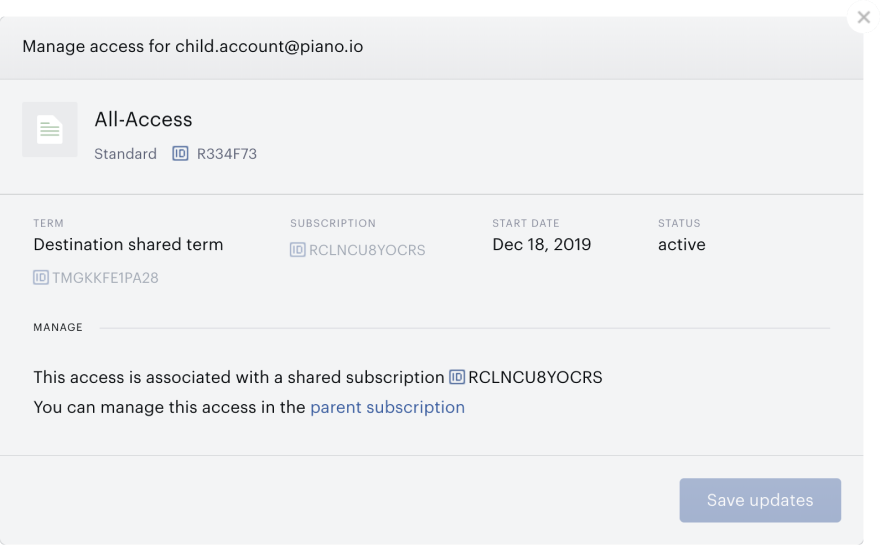
The child account's profile will not indicate that they hold any subscriptions, but they will of course have an access listed. Upon clicking into that access, you will see that it can be managed via the parent account's subscriptions along with a link to navigate there:
Reports
You can find more reporting about Shared subscriptions in the Subscription Management + Billing Conversion report.

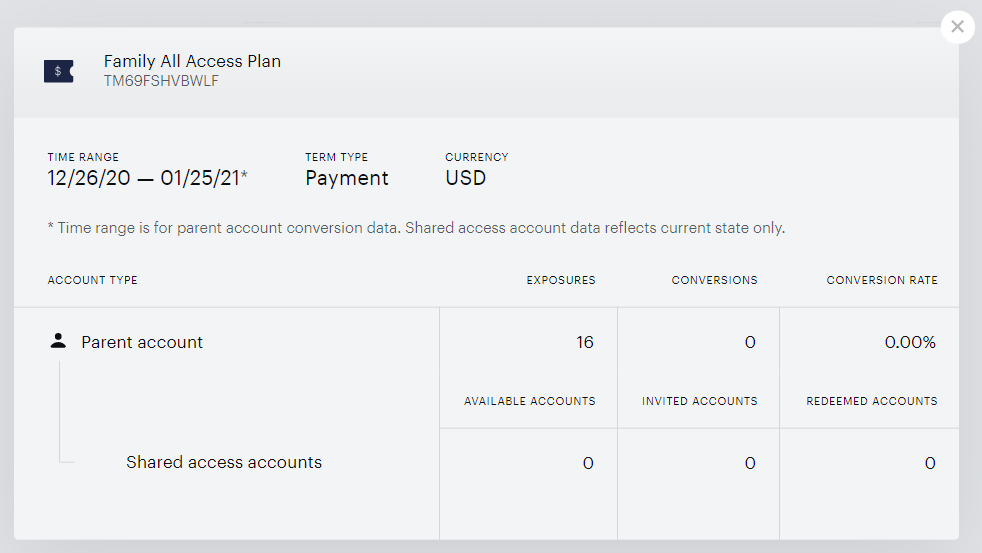
All terms that have shared subscriptions set up will be labeled as Shared.
Once you click on this label, you will be able to see even more details. For example:
If you download the Subscription Management + Billing Conversion report as a CSV file, you'll be able to view further details in the conversions by Term type report in the columns:
G - Shared access accounts available: shows the number of accounts left in the Shared subscription based on the term settings
H - Shared access accounts invited: shows the number of Shared subscription accounts invited
I - Shared access accounts redeemed: shows the number of Shared subscription accounts that were invited and have redeemed access
You can also view the users who already redeemed their shared access in the Access Report.
Shared Subscription API
Removing a Shared Subscription User via API
In some cases, child users may need to be removed from a shared subscription, either because they chose to leave, or because the parent user (or a publisher) revoked their access. Piano provides two API endpoints to simulate these actions programmatically, each with slightly different behaviors, and notifications.
1. Endpoint: /publisher/subscription/share/user/remove
Simulates the child user voluntarily leaving a shared subscription, as if they had clicked “Leave Subscription” in My Account.
This action revokes access for the child user and removes them from the shared subscription. Both the parent and child users are notified by email: Shared subscription: A child left is sent to the parent, and Shared subscription: Leaving a subscription is sent to the child. Relevant events (e.g., webhooks and history logs) are triggered, indicating that the child opted to leave. The associated child user account remains active.
2. Endpoint: /publisher/subscription/share/revoke
Simulates the parent user (or publisher on their behalf) removing a child user from a shared subscription, similarly to the subscription management interface in My Account or Publisher Dashboard.
This action removes the associated child user from the shared subscription. If the child user has registered and redeemed access, that access is revoked, and the child user is notified (email Shared subscription: Revocation). If not, the removal happens silently. The child user account, if it exists, is not deleted. Events such as webhooks and history logs reflect that the parent initiated the removal.
Key Differences
While both endpoints remove a child user from a shared subscription, the difference lies in who the action simulates:
-
/publisher/subscription/share/user/removereflects a voluntary action by the child, triggering notifications to both parties.
-
/publisher/subscription/share/revokereflects a removal initiated by the parent user or publisher, with notifications being sent only to the child user.
The API method for handling shared subscription invites is described here.