
Overview
Product sharing allows brokers to increase the reach between advertising networks. Through product sharing, advertising inventory is exposed between networks. By exposing a product to another network for assignment to an AdSpace, we expose additional inventory for purchase in the originating system.
A Product sharing arrangement is set up between two broker networks. The brokers determine how and when they are going to enter into an arrangement and utilise the Cxense Advertising front-end in order to facilitate this. The commercial arrangements between the two broker networks are not handled by Cxense Advertising.
The sharing agreement makes a Product from one network available to another so that it can be associated with Feeds in another network. The shared product is NOT able to be associated with any Campaigns within the target network. For details on how to expose a Product across networks, see the information below.
Setting up a sharing arrangement
A Product sharing arrangement is created through a 2-step process. The initial steps of the setup must be done outside Cxense Advertising due to privacy concerns. We do not expose any details of what broker networks there are in the system for obvious reasons.
-
Determine what Product is required to be shared between networks.
-
Broker 2 (the broker who accepts the shared Product in their network) gets their sharing ID (see below on how to do this) and manually gives it to Broker 1 through email or some other form.
-
Broker 1 (the broker wishing to share a Product) logs in and initiates the sharing arrangement. (see below) .
-
Broker 2 accepts the sharing arrangement.
-
Broker 2 associates the Product with Feeds. This is done as per normal. A shared Product and an ordinary Product are treated the same way in this regard.
These steps are all that is required to start serving ads in the target network.
Finding the Sharing ID
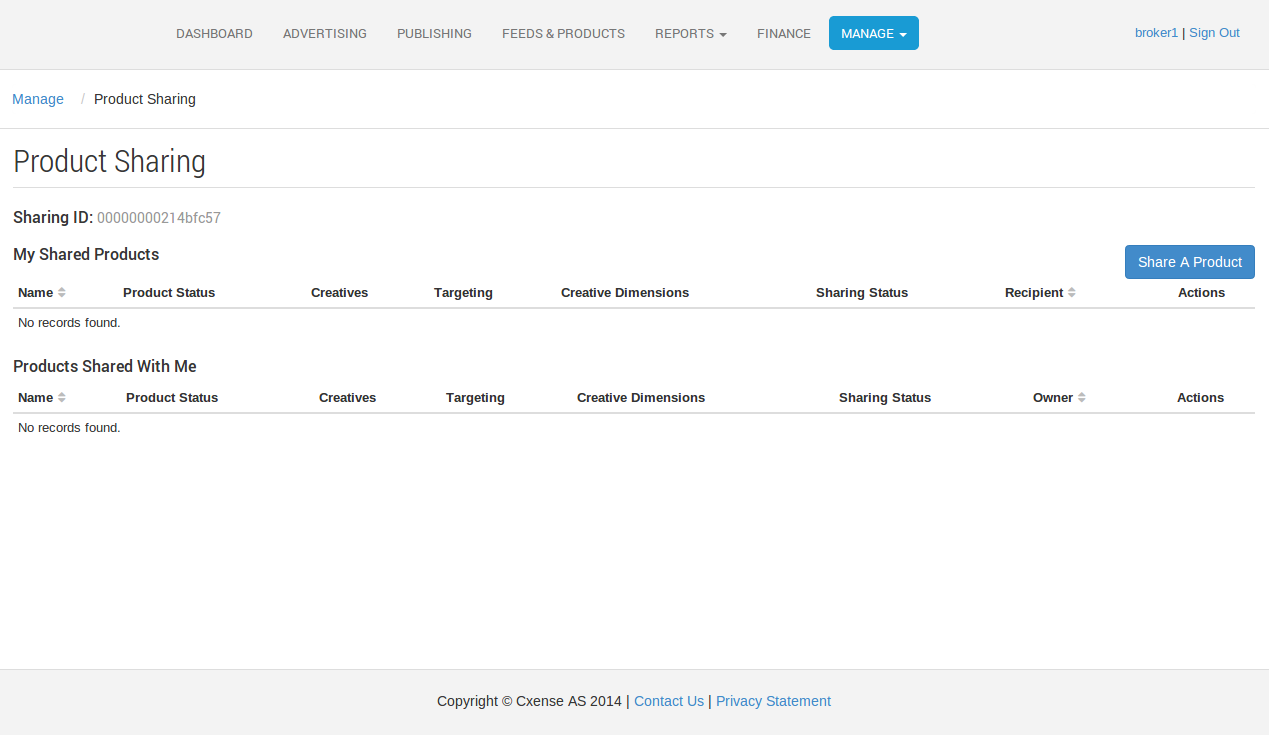
Your sharing Id is located under the heading of the Product Sharing page. You get there via the manage tab and by clicking the "Product Sharing" like. This is an example of what you will see:
Sharing a Product with another network
1. Navigate to "Product Sharing" via the manage tab.
2. Click "Share A Product", which shows you the current list of products that can be shared.
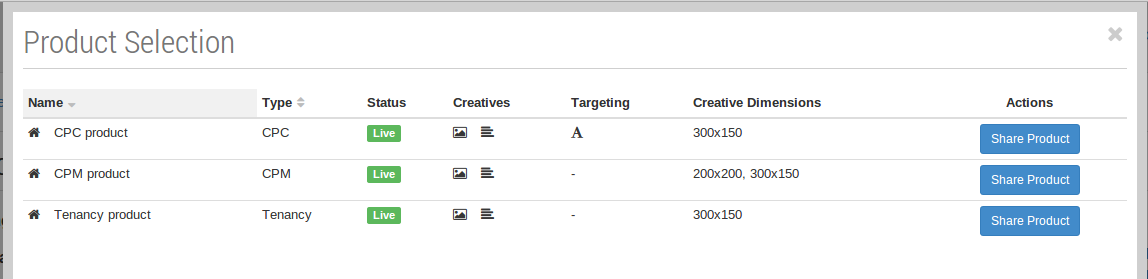
3. Select the product to be shared.
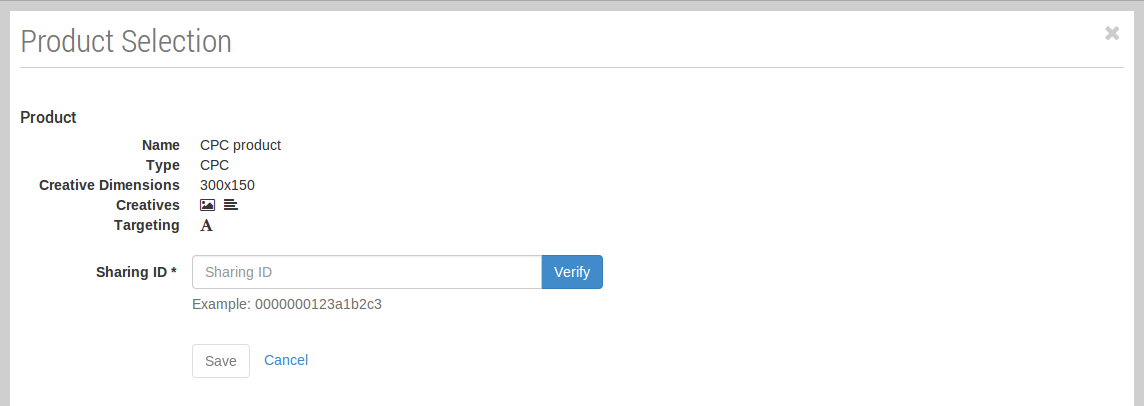
4. Verify that the sharing id entered is valid by clicking on the "Verify" button. If a green message is displayed, like the one below, everything is ready to be saved. The verification message will show you which network owns the entered sharing ID.
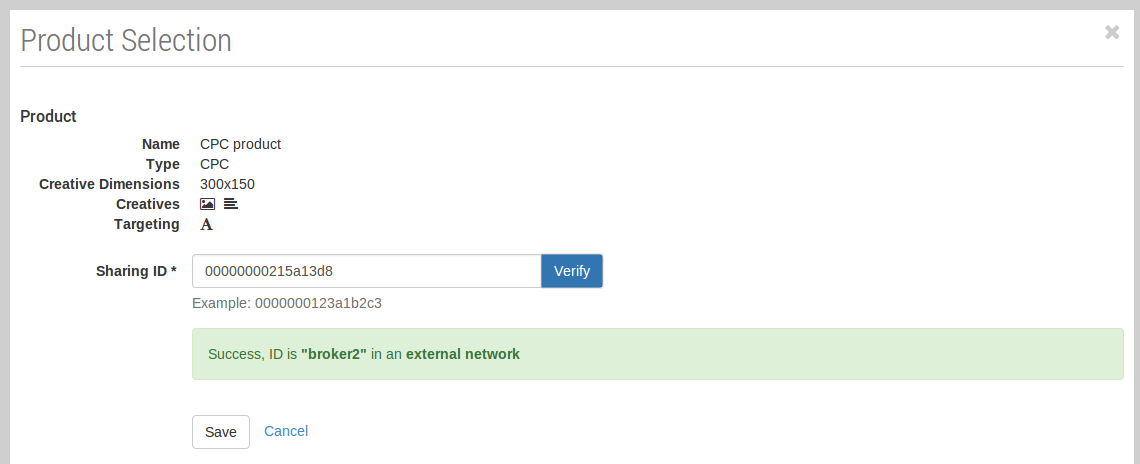
5. Click "Save". The page will show a pending state for the Product sharing arrangement.
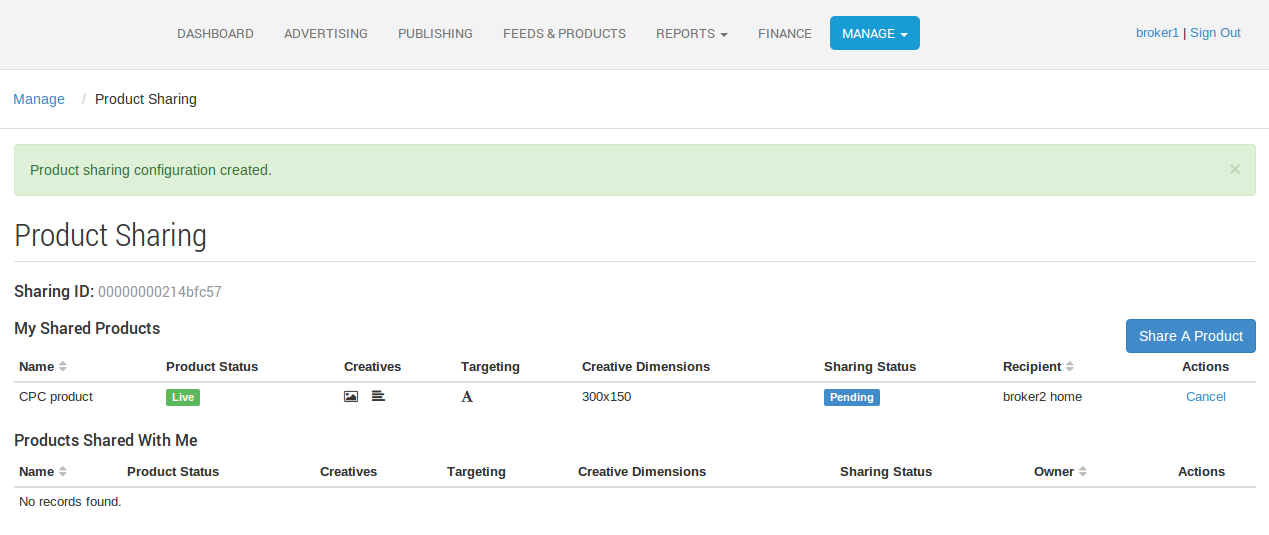
Accepting a sharing arrangement
When another broker has initiated a sharing arrangement, the pending request must be accepted before it is made available in the target network. To do this you must:
1. Navigate to "Product Sharing" via the manage tab.
2. Find the sharing arrangement in the "Products Shared With Me" table. See below for an example of a pending request. The table shows the Owner of the product along with other details for the sharing arrangement.
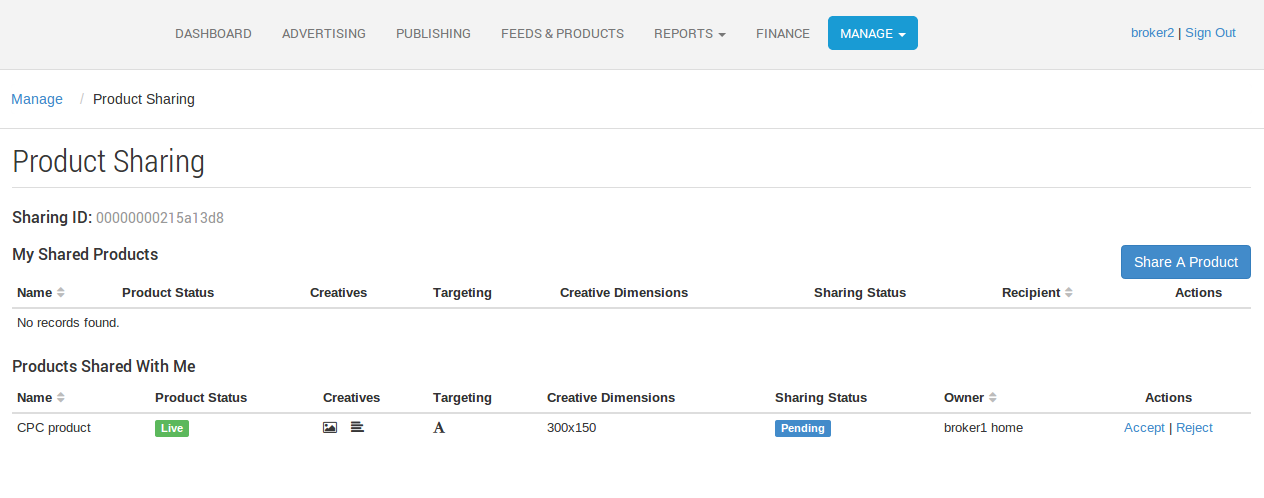
3. In the "Actions" column, click "Accept". The example below shows the result of the sharing arrangement having been accepted.
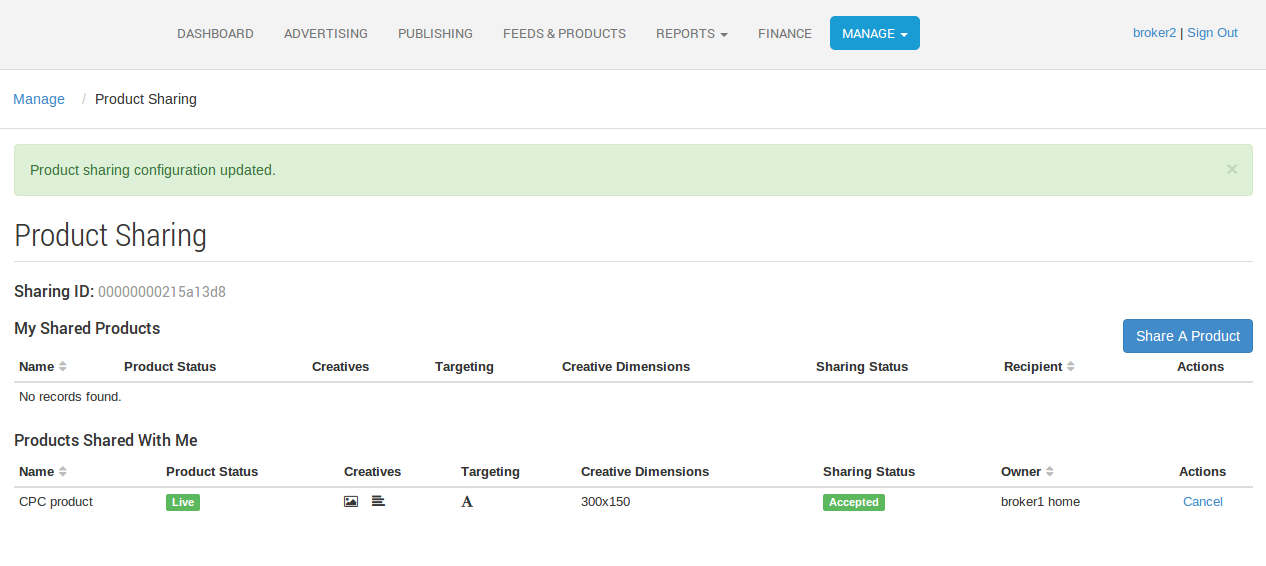
4. This step will also result in the originating broker's "My Shared Products" table being updated to reflect the accepted status of the sharing arrangement. Here's what this looks like:
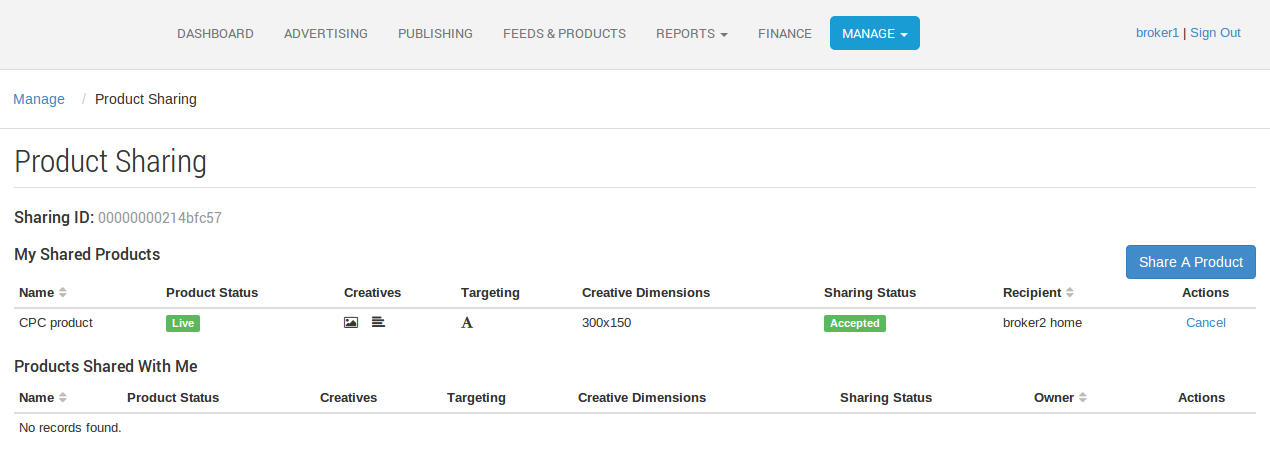
Cancelling a sharing arrangement
If for some reason a sharing arrangement needs to be cancelled, this can be done by either side.
-
Navigate to "Product Sharing" via the manage tab.
-
Find the sharing arrangement in either the "My Shared Products" or "Product Shared With Me" table. This depends on which side of the arrangement is wanting to cease the sharing arrangement.
-
In the "Actions" column, click "Cancel"
The sharing arrangement is then cancelled. From the target perspective this makes the Product disappear from their network. Any feeds that have been associated with the shared Product will no longer serve ads for that product. The arrangement can be re-initiated at any point, however the originator of the request will need to begin the process again.
How to tell when a sharing arrangement is working
For the broker originating the sharing arrangement, they will need to navigate through to the Product Sharing page, which is found in the Management section of the Cxense Advertising user interface. This will show all current sharing arrangements that the broker has set up. In the "My Shared Products" table, the "Sharing Status" column should show "Accepted" for there to be a sharing arrangement that's currently operational.
For the broker that has accepted a shared Product, there are a couple of other things to check. First of all, they would go to the same Product sharing page. They would look in the "Products Shared With Me" table for the shared product details and confirm that there is a shared and accepted arrangement there for the Product in question.
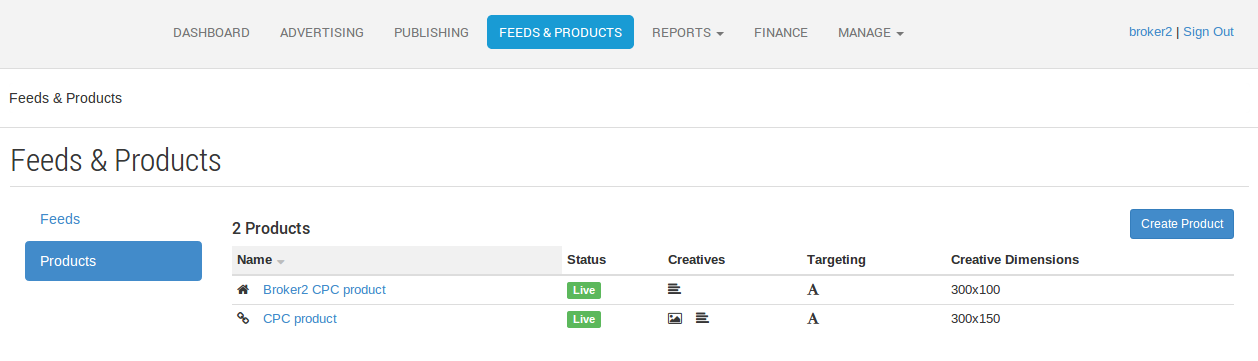
The second thing able to be checked is that the product is now able to be seen in the Feeds & Products section of the interface. This show all Products set up in the system. There are 3 icons that are used to indicate the origin of a Product. Here's what they mean:

|
Managed within your network: These products have been created within your workspace. |

|
Available within your network: These products are owned by a parent workspace. |

|
Shared by an external network: This will indicate a product being made available through a sharing arrangement. |
The example below shows a table containing Products that are owned by or shared with the target network.
Revenue Share
Revenue Share for shared products can be used to track costs and revenue. See Revenue Share Concepts.
However, please note:
-
The Broker Admin Fee is calculated for the Broker who runs the Advertisers network.
-
The Product Admin Fee is calculated for the owner of the shared product in the Advertiser network.
-
The Publisher Earn is calculated for the Publisher who uses the shared product.
-
The Broker Earn is calculated for the Broker who runs the Publisher network.
Revenue share example for shared products
The following example outlines the behaviour when serving ads across networks. The terms outlined in our Revenue Share Concepts page are relevant to this example.
-
Broker 1 set-up
-
Broker currency = AUD
-
Exchange Rate Feed = US Federal Reserve Bank
-
Broker Admin Fee = 10%
-
Publisher Revenue Share = 60%
-
CPMProduct
-
1000 USD CPM
-
No Setup Fee
-
Product Admin Fee = 20%
-
-
Advertiser Account
-
Currency = NOK
-
-
Campaign that has purchased 10 impressions against the CPMProduct and is ready to serve ads
-
-
Broker 2 set-up
-
Broker currency = EUR
-
Exchange Rate Feed = European Central Bank
-
Feed - that has been associated with the shared CPMProduct from Broker 1
-
AdSpace
-
Publisher Account
-
Currency = SEK
-
-
To simplify the example we will assume that all 10 impressions for the Broker 1 campaign are served on the AdSpace owned by Broker 2. There is no overage for the impressions served.
This would give us the following (all values calculated in the product currency of USD):
|
Name |
Calculation |
Numerical Calculation |
Result (USD) |
|---|---|---|---|
|
Advertiser Value |
Price per impression x Total Impressions |
1 x 10 |
10.00 |
|
Admin Fee |
Advertiser Value x System Admin Fee |
10 x 10% |
1.00 |
|
Product Admin Fee |
(Advertiser Value - Admin Fee) x Product Admin Fee |
(10 - 1) x 20% |
1.80 |
|
Net Amount
|
Advertiser Value - Admin Fee - Product Admin Fee |
10 - 1 - 1.80 |
7.20 |
|
Publisher Earn |
Net Amount x Publisher Revenue Share |
7.20 x 60% |
4.32 |
|
Broker Earn |
Net Amount - Publisher Earn |
7.20 - 4.32 |
2.88 |
If Broker 1 then viewed the Product Publishing Performance for the CPMProduct with a currency preference of USD they would see the numbers for USD as shown in the table below. Alternatively they could alter their preference to AUD. In this case currency conversion would take place using the exchange rate feed for their set up (US Federal Reserve Bank) for the calculations. The table shows the values that would be seen if the exchange rate for 1 USD to AUD was 1.08.
That describes the numbers from the side of Broker 1. What happens for Broker 2 and how much can he expect to see against his AdSpace for serving the impressions for Broker 1?
The system will at the time of allocating impression events log the events and calculate cost based on a conversion to the target Broker currency (in this example EUR). The Exchange Rate Feed of the target Broker is used for the conversion value (European Central Bank). The table below shows the results if the exchange rate for 1 USD to EUR was 0.71669.
|
|
Currency |
Advertiser Value |
Admin Fee |
Product Admin Fee |
Publisher Earn |
Broker Earn |
|---|---|---|---|---|---|---|
|
Broker 1 |
USD |
10.00 |
1.00 |
1.80 |
4.32 |
2.88 |
|
Broker 1 (alternate) |
AUD (USD x 1.08) |
10.80 |
1.08 |
1.94 |
4.67 |
3.11 |
|
Broker 2 |
EUR (USD x 0.71669) |
7.17 |
0.72 |
1.29 |
3.10 |
2.06 |
Impacts to account balances
Once the contract is complete a transaction will be written for the advertising account associated with the campaign holding the contract. In the example above a 10.00 USD (advertiser value) transaction will be written to the account transaction history. At the time of the transaction being written currency conversion is again performed to convert the transaction amount into the account currency (NOK). For this example and an exchange rate of 1 USD to NOK of 5.9444 the balance of the account would show as 59.44 NOK.
At present there is no functionality to update the values held against the publishing account. We will be building this functionality out in the time to come.