
The Template interaction touchpoint groups all Experiences starting with the user’s action in one of Piano’s templates.
Template/form events become available within the particular Experience type so that you can create branches based on users’ actions within the template or form. You can track events such as the user dismissing the template or create your own custom events.
Active Churn Prevention is one of the key use cases for Template interaction Experiences.
Feature Enablement
To enable the Active Churn Prevention feature in your "My Account" integration, follow these steps:
-
Enable Active churn prevention in your "My Account" integration using the
activateTemplateInteractionflag. -
Select the new "Template interaction" experience and create your active churn prevention flow.
For existing integrations, it should suffice to add the line activateTemplateInteraction: true to your My Account script.
For example like this:
tp.push(["init", function() {
    tp.myaccount.show({
        displayMode: "inline",
        containerSelector: "#my-account",
        activateTemplateInteraction: true
    });
}]);
In most cases, this involves updating your website's code, which is something your developers will need to do.
Experience Configuration
Once the Template interaction touchpoint is selected under Products → Composer → Compose:
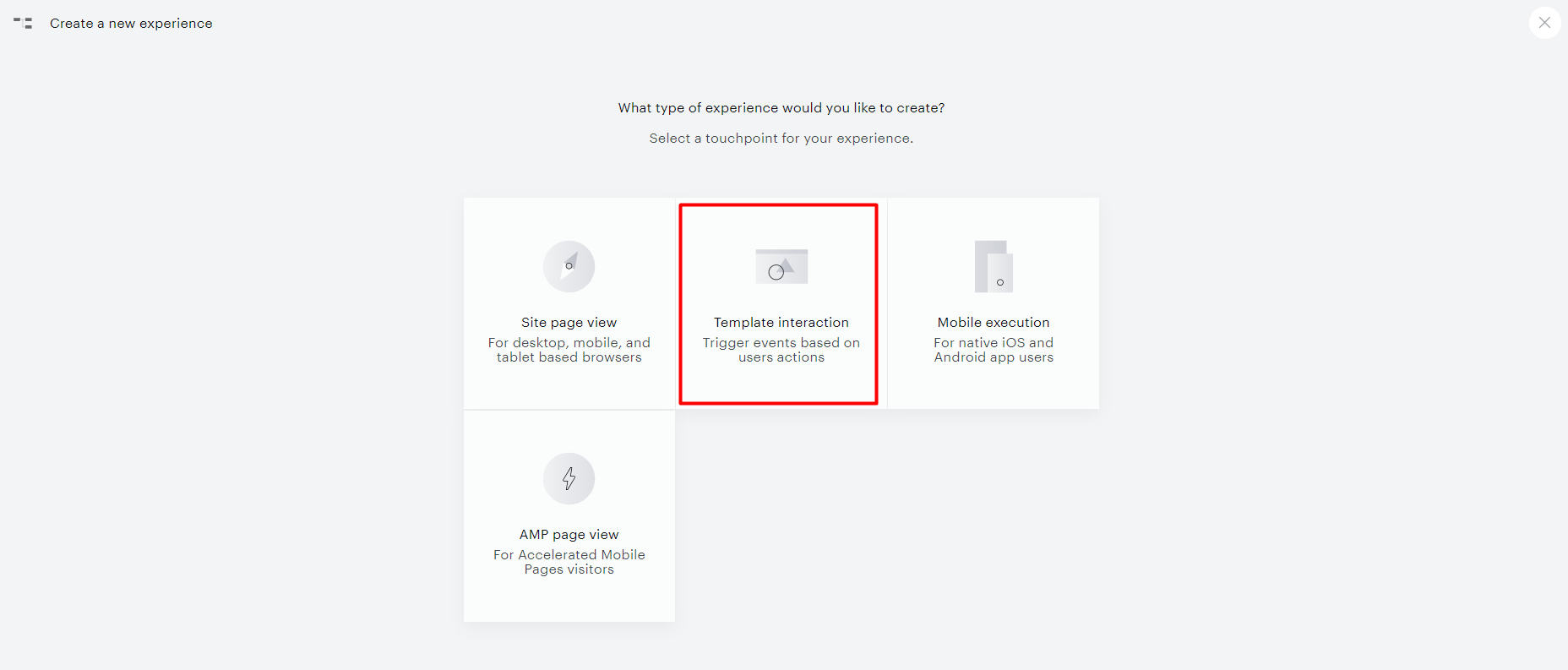
You are invited to set up your Experience settings and define:
-
Experience name: give your Experience a distinct name to easily identify it among others.
-
Experience description: optional, describe your Experience use case or include any description relevant to you.
-
Template: the Piano template where your experience starts; My Account is the only and default option at the moment.
-
Triggers: user-caused events in My Account indicating active churn: Auto-renewal disabled for auto-renewal deactivation and Subscription cancellation attempt for subscription cancellation*. You can select one or both.
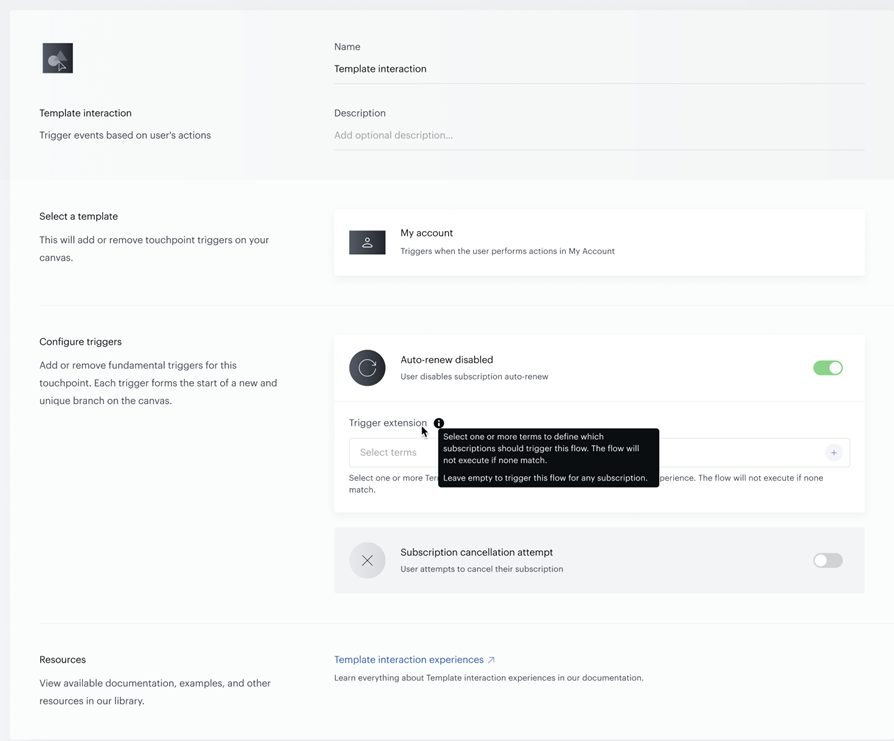
*The toggle for switching off the auto-renewal is not displayed for dynamic subscriptions in My Account. However, the Active Churn Prevention flow will work for users who have a dynamic plan if they click Manage → Cancel subscription. So if you are using dynamic terms for your subscriptions - you should select the "Subscription cancellation attempt" trigger in the Template interaction Experience and build an Active Churn Prevention flow for this scenario. As a result, when end-users click on the "Cancel subscription" button on the My Account page, the Active Churn Prevention flow will be available for them.
Once the triggers are configured, click Create in the top right to open the canvas with the interaction and the trigger(s) you have selected.

Trigger Extension
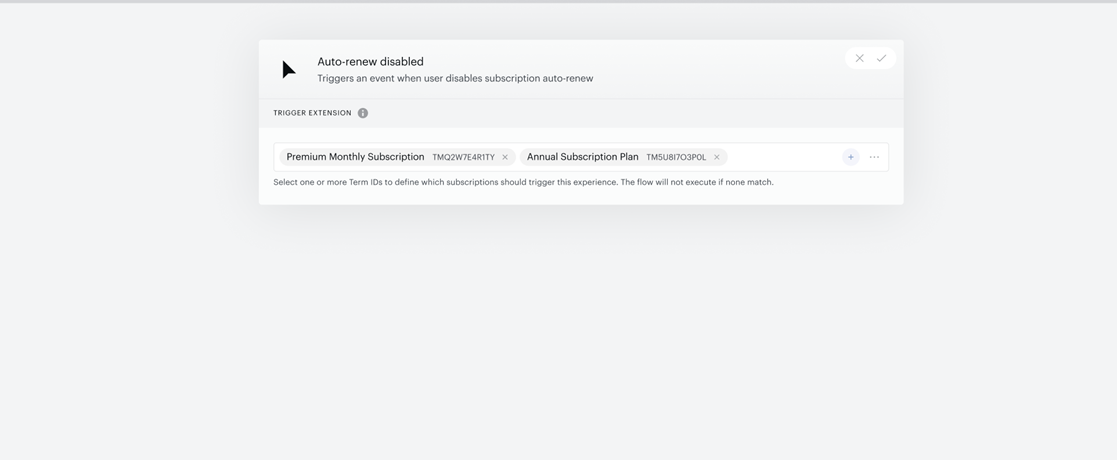
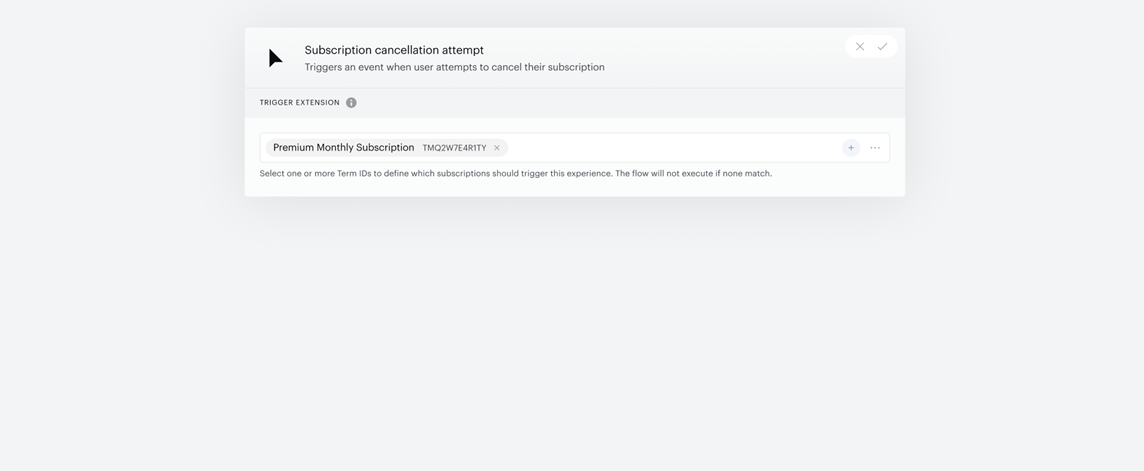
The Trigger Extension field, allows you to refine when the Active Churn Prevention flow is activated based on the specific subscription term the user currently has access to. This is done through a multi-select dropdown where you can choose one or more Term IDs for each trigger type.
The Active Churn Prevention flow will only be triggered if the user's action (cancel or disable auto-renew) involves one of the selected Term IDs. If the action relates to a different term, the flow will not trigger at all.
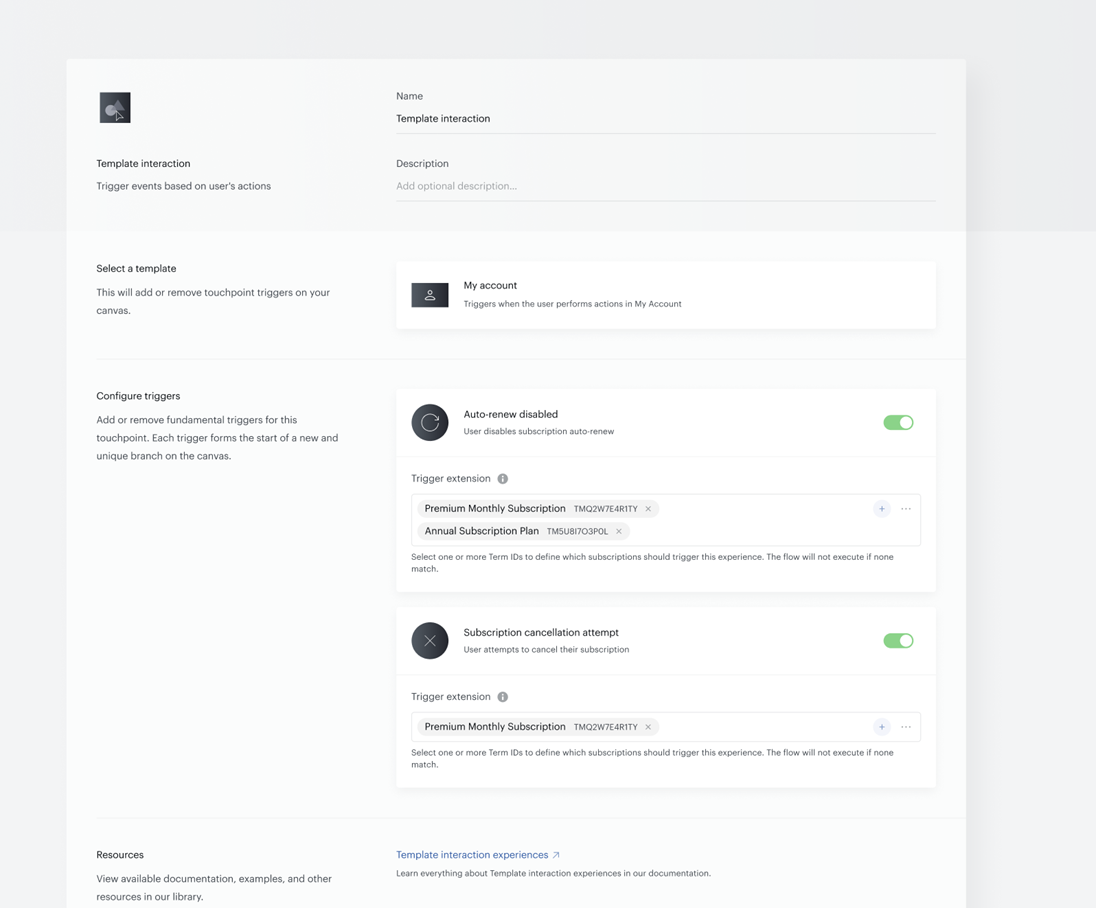
If left empty, the flow will be triggered for all subscriptions.
This is different from Term ID segmentation in the User Segment card, which controls how the experience displays once it’s triggered, the Trigger Extension determines whether it should be triggered in the first place.
Managing Existing Experiences
For Experiences created prior to the introduction of the Trigger Extension setting, the option will appear directly within the experience canvas for easy access and configuration.
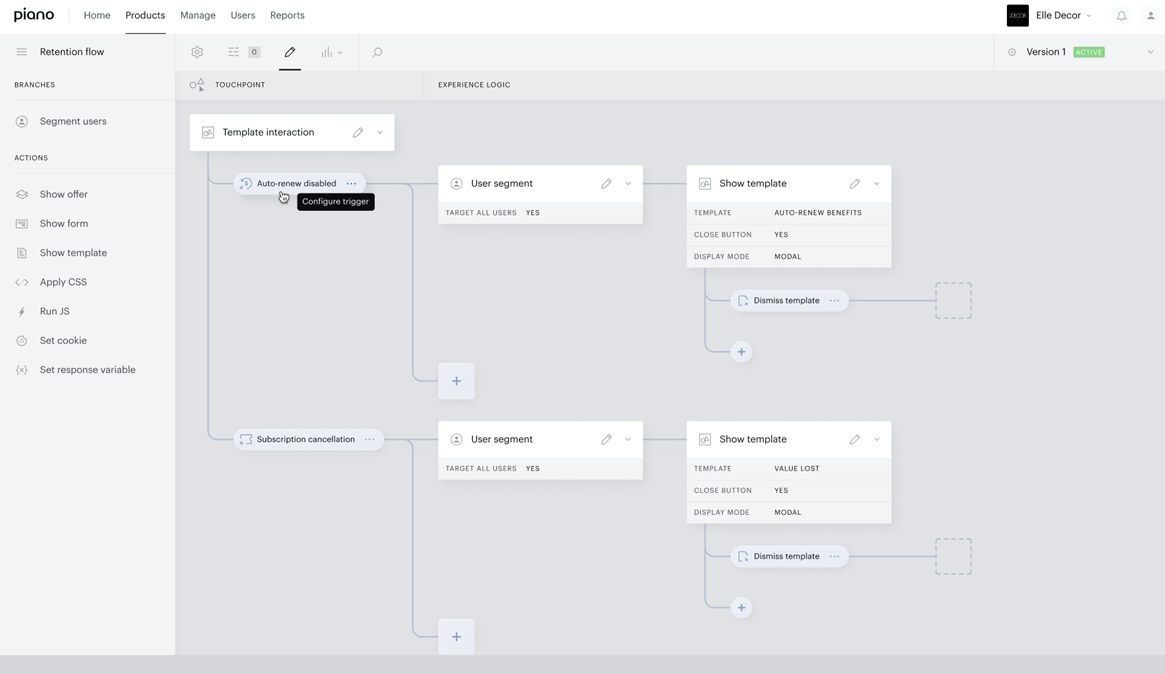
Auto-renew disabled:
Subscription cancellation attempt:
To ensure Trigger Extension works seamlessly with your existing Experience, you’ll only need to make light adjustments. Please note, there is no need to create separate experiences for each subscription term.
You can manage multiple term-specific flows within a single experience using branches. Here’s how it works (example):
-
Configure Trigger Extensions:
In the Auto-renew disabled trigger, select the relevant Term IDs (e.g., Term A and Term B) using the new Trigger Extension setting.
-
Add a User Segment Card:
As usual, insert a segment card after the trigger. Only if you want to set up different flows for Term A and Term B you should:
-
For Term A: select Term A in the segment card settings, and configure the journey specific to Term A.
-
For Term B: create a second branch under the same segment card, select Term B, and define the journey for Term B.
-
Note: If you want the same flow to apply to both Term A and Term B, simply select both terms in the User Segment card and configure a single shared branch.
-
-
Repeat for Subscription cancellation attempt trigger:
If needed, apply the same logic to the Subscription cancellation attempt trigger: Configure the Trigger extension and then select different Term IDs in User Segment card and defining unique flows accordingly.
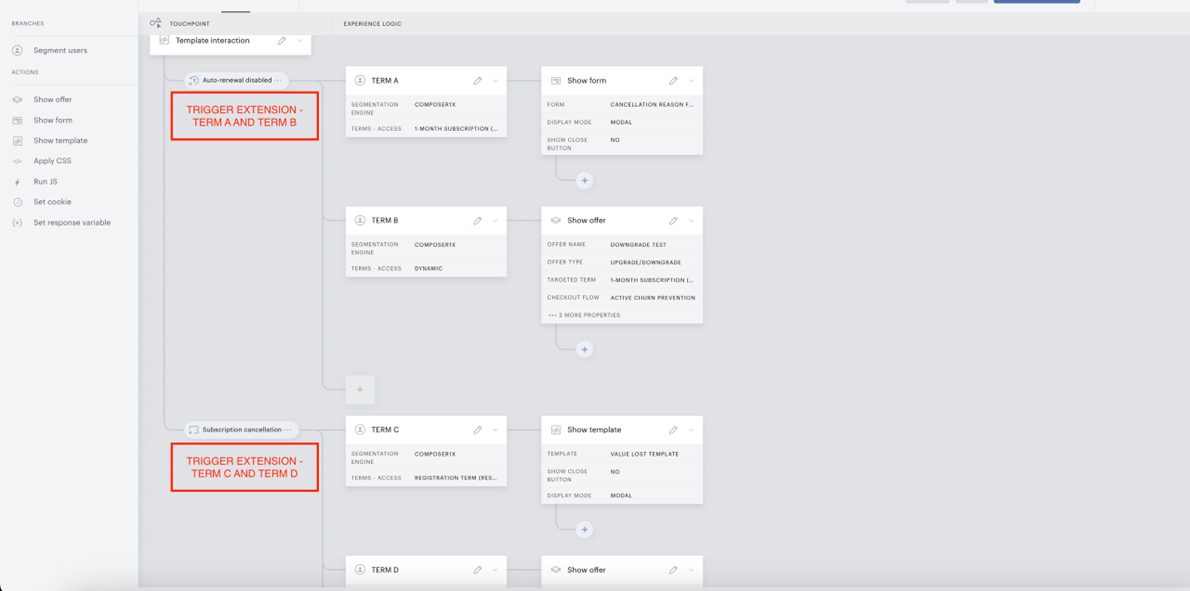
You can always select or deselect the Experience triggers at any point later in time when editing the Experience's Template interaction card:
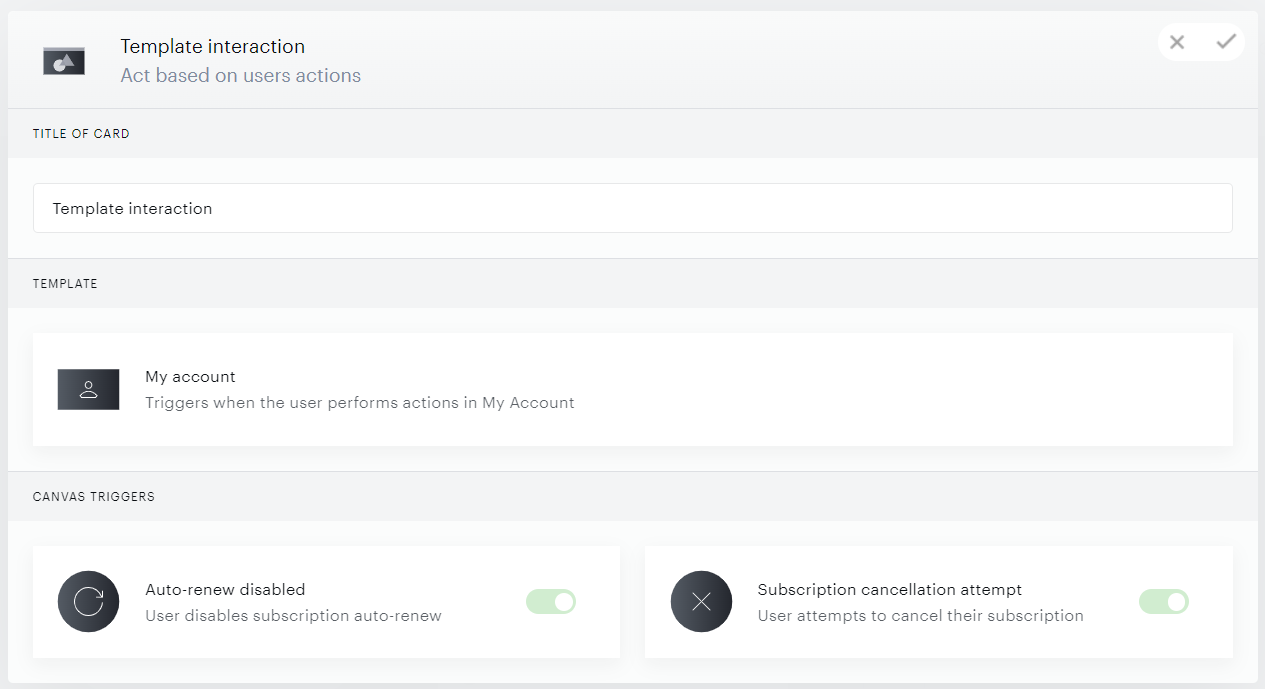
If a branch with a trigger contains at least one card (e.g., "User segment"), the branch cannot be disabled via the "Template Interaction" card. The cards will need to be removed first from the branch before the trigger can be disabled. See the section here for more configuration use cases.
For optimal results with Active Churn Prevention, we recommend using targeted User Segment card criteria based on the subscription term and resource. This ensures that the right users receive the most relevant offers. Leveraging the Upgrade and Downgrade offers available in the Show Offer card can further enhance retention by presenting tailored incentives that align with user behavior.
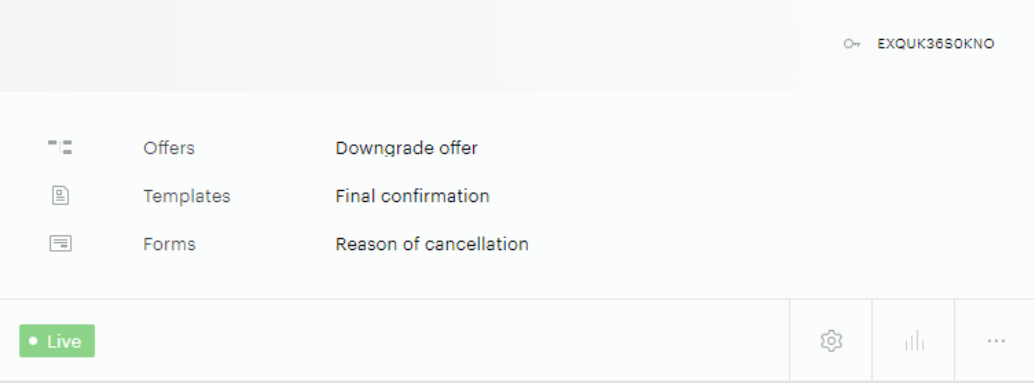
The newly created Experience will also be available in the Experience Manager overview, where the selected Offers, Templates, and Forms will be visible in a convenient Tile view preview, facilitating improved management and visual representation. You can also easily change the status of the Experience as needed.
Special Action Cards
Now that the user’s intention to churn is noticed, besides showing a special offer or setting a variable, you can choose actions designed specifically for this case: showing a template (based on the new boilerplates Lost Value - Churn Prevention and Final confirmation), and/or a custom form with a custom list of cancellation reasons. You can also track the user’s behavior on these templates/forms via template events and define the further churn prevention flow.
"Events" cards available in other Experiences such as Pageview meter, delay-cards like Timer and Scroll depth, or Interaction cards, as well as A/B tests are not available in the canvas of Template Interaction Experiences.
"User segment" cards can be added only before the first action card in the branch, but parallel segmentation, allowing multiple custom sub-segments within the same branch, is available.
Show template
Besides the standard templates, the Show template action card now can accommodate templates based on the below boilerplates:
-
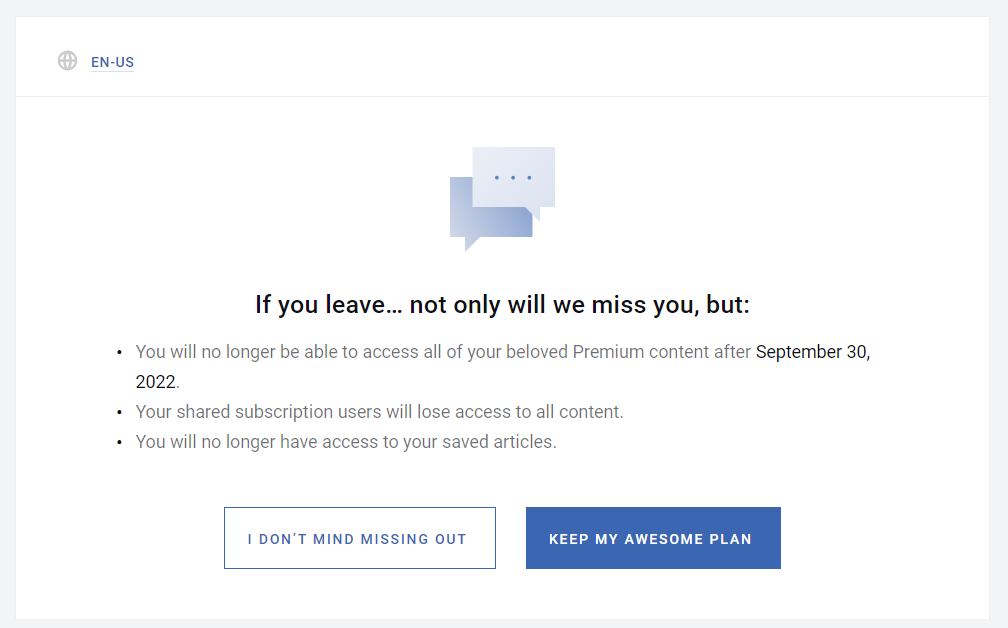
Lost Value - Churn Prevention which sets up customizable messaging and showcases the benefits to be lost upon cancellation.
-
Final Confirmation which requests the user to confirm their decision to cancel their subscription or disable auto-renew.
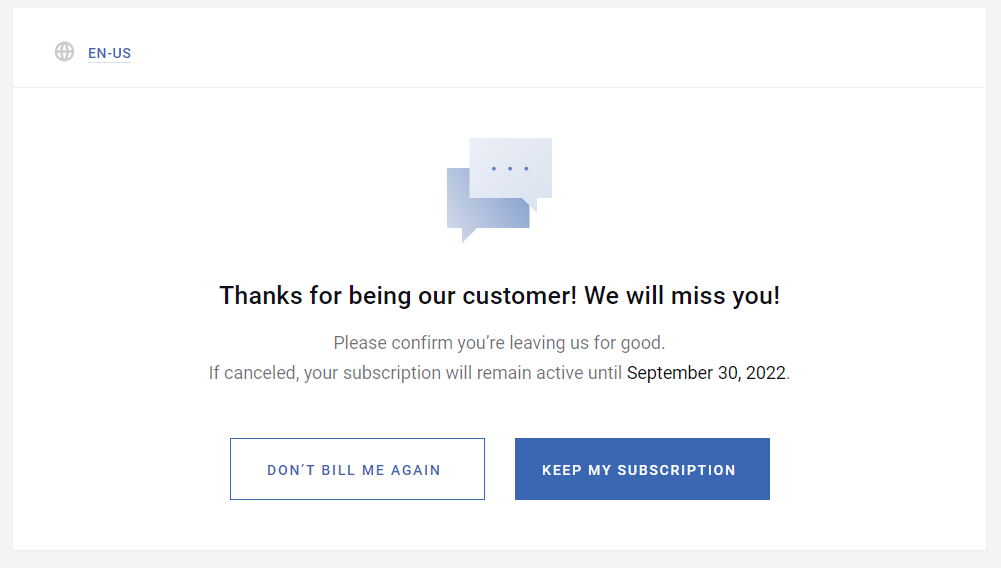
If you customize the button text (e.g., “Keep my subscription” or “Don’t bill me again”), make sure each label is correctly mapped to its corresponding external event. Mismatched labels can trigger the wrong actions. If unexpected behavior occurs, reverting to the default boilerplate can help resolve the issue.
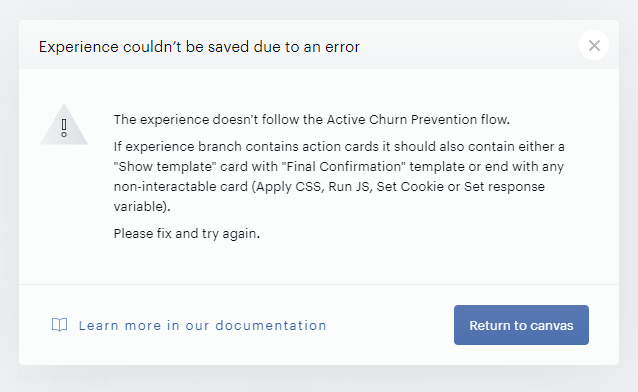
If an Experience branch contains action cards - it should also contain either a Show template card with a "Final Confirmation" template or end with any non-interactable (Apply CSS, Run JS, Set cookie, or Set response variable) card.
If your Experience doesn’t meet this requirement, you will see the following warning when you try to save it:
To ensure your customized template is recognized as a "Final Confirmation" template, it needs to include the following line:
<div churn-prevention-template>
Both "Lost Value" and "Final Confirmation" boilerplate-based templates are exclusively accessible in Show Template cards.
Manual close button behavior for Show template cards
The "Allow user to close modal" checkbox is not available for the Show template action cards. Therefore, modals won’t have the default "close" icon. Publishers can manually add this feature to the template if necessary.
If a close button is added manually to a Show template card, it must be explicitly mapped to a trigger. Show template cards are non-dismissible by design; the absence of a default close icon ensures that leaving the flow is an intentional, tracked action rather than an inadvertent one. A manually added close button that is not wired to any trigger will still fire the template's dismiss event. This activates the Safety mechanism described below: the flow is treated as abandoned, and the subscription is canceled (or auto-renewal disabled) immediately, without proceeding to any further steps such as a reason form or a Final Confirmation template.
To add a close button without triggering unintended cancellation, use one of the following approaches:
-
Wire the button to a Custom event that advances the flow, for example:
<button external-event="acp-next-step">Continue</button>This routes the click to the next card in the branch (for example, a reason form or the Final Confirmation template) instead of ending the flow with a cancellation.
-
Wire the button to explicitly retain the subscription:
<button external-event="acp-retain-subscription">Keep my subscription</button>This closes the template and keeps the subscription active, with no cancellation performed.
-
Add an explicit "Dismiss template" trigger to the card and route its branch to a Final Confirmation template or another card of your choosing, rather than leaving the branch empty.
-
If none of the above applies, remove the manual close button entirely. This preserves the card's intended non-dismissible behavior and avoids the issue.
Please note that you will first need to save a new template from the boilerplate(s) under Manage → Templates → Boilerplate template before being able to select it in the Show template cards.
After this card is added, your Experience forks based on the end user’s action on the displayed template defined in Template events.
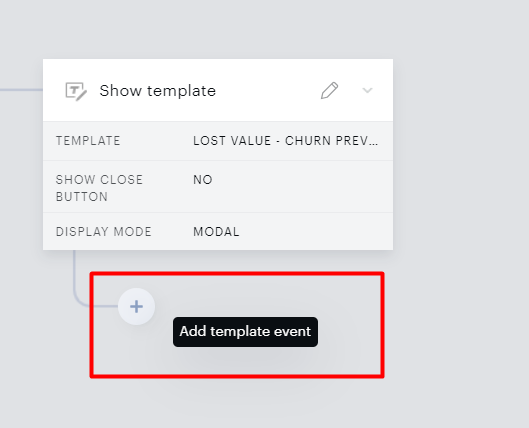
Show offer
The toggles "Don't show to users with active access" and "Hide fields from users who have already completed them" are not available, and it's not possible to define a template delay.
But the "Allow user to close modal" checkbox is available and turned on by default.
For upgrade or downgrade flows, configure the correct offer type (Save offer or Upgrade offer) on the user's current subscription term for the selected event. For upgrade offers specifically, the term must also have Onsite upgrade offer selected under Show option in the Upgrade options settings; without it, the offer won't display in the ACP flow.
Template event
There are two Template events available: Dismiss template and Custom events:
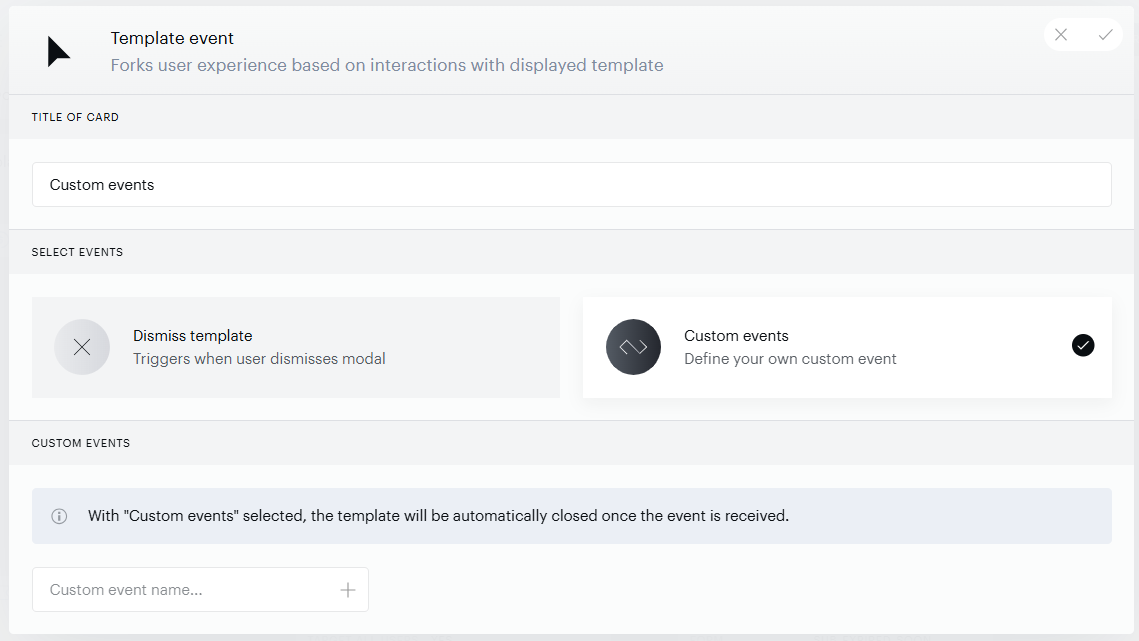
Dismiss Template
Triggers in case of the template/offer being closed, either by clicking on the default close icon or an element with the ng-click="close()" attribute.
You cannot specify more than one "Dismiss template" trigger under a single action card.
Custom Events
Triggers in case of clicking on an element with a defined external event.
For example:
<button external-event="submit-event">Submit</button>
In this case, the "submit-event" name should be specified in the “Custom events” section of the trigger:
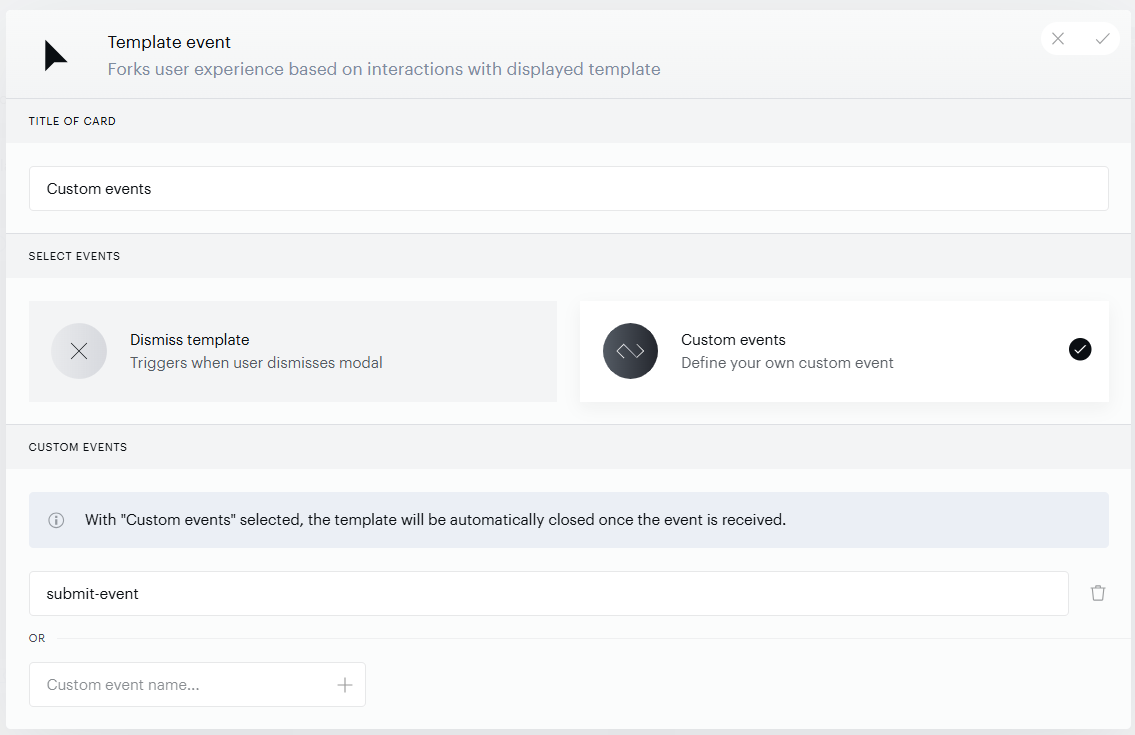
There is a maximum of 10 events that can be specified. Duplicates are not allowed, and the validation is case-sensitive.
In the default code of the Lost value and Final confirmation boilerplate templates you can see some reserved external events in the acpEvents namespace, e.g. external-event="{{acpEvents.nextStep}}" or external-event="{{acpEvents.retainSubscription}}". Here is the list of their values, which you can use in the "Custom events" section:
-
Clicking on an element with the "acpEvents.retainSubscription" external-event value will stop the Active Churn Prevention flow. The subscription remains active. Custom events value:
acp-retain-subscription -
Clicking on an element with the "acpEvents.cancelSubscription" external-event will cancel the subscription. Custom events value:
acp-cancel-subscription -
Any element with the "acpEvents.nextStep" external-event can be used as a "Custom event" trigger. For example, use cases, please review the section here. Custom events value:
acp-next-step(see below as an example)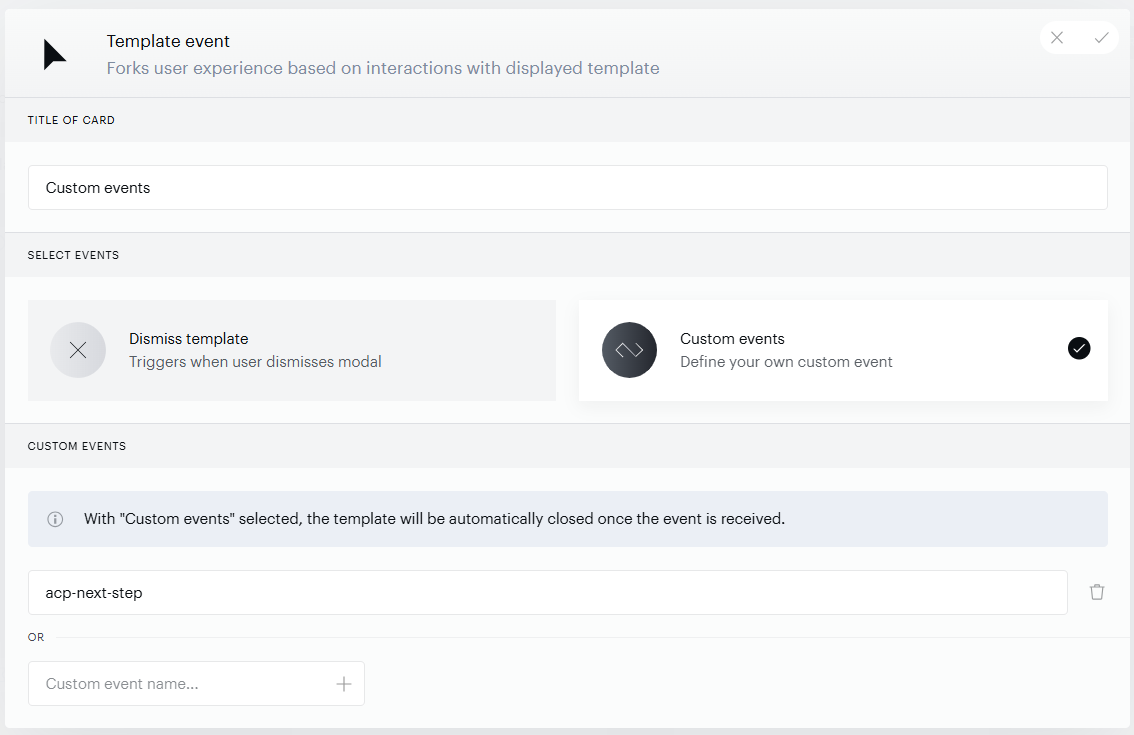
-
Clicking on an element with the "acpEvents.close" external-event closes the template, and triggers the “Dismiss template” branch. Custom events value:
acp-close
To ensure the page refreshes when the acp-retain-subscription event is triggered (for example after the user clicks "Keep my subscription" in the boilerplate template), add the following code snippet to your Composer integration script:
tp.push(["addHandler", "checkoutCustomEvent", function(event){
  switch(event.eventName) {
    case "acp-retain-subscription":
      location.reload();
      break;
  }
}]);
Once the specified custom event is received, the template will automatically close.
This applies both to modal and inline templates, and even non-dismissible modals will be closed.
Show form
The Show form action card allows you to select a Custom form that is shown to users, to gather feedback on why the user was going to cancel their subscription. This custom form can be created under Manage → Custom Fields, and in it, you can include any custom fields you have previously created. After selecting a form, you are invited to specify form events foreseeing the users’ actions with the form. The flow will branch out depending on whether the user dismissed or submitted the form or what value they chose for a specific form field.
This action card is available only in applications using Identity Management and Identity Linking user-provider integrations.
The "Allow user to close modal" checkbox is not available, and thus modals won’t have the default "close" icon. Publishers can manually add this feature to the template if necessary.
After this card is added, your Experience forks based on the end user’s action on the displayed template defined in Form events.
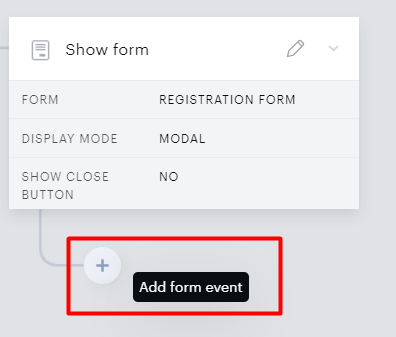
Form event
Form Events are available as a trigger for "Show Form" cards. There are 3 types available.
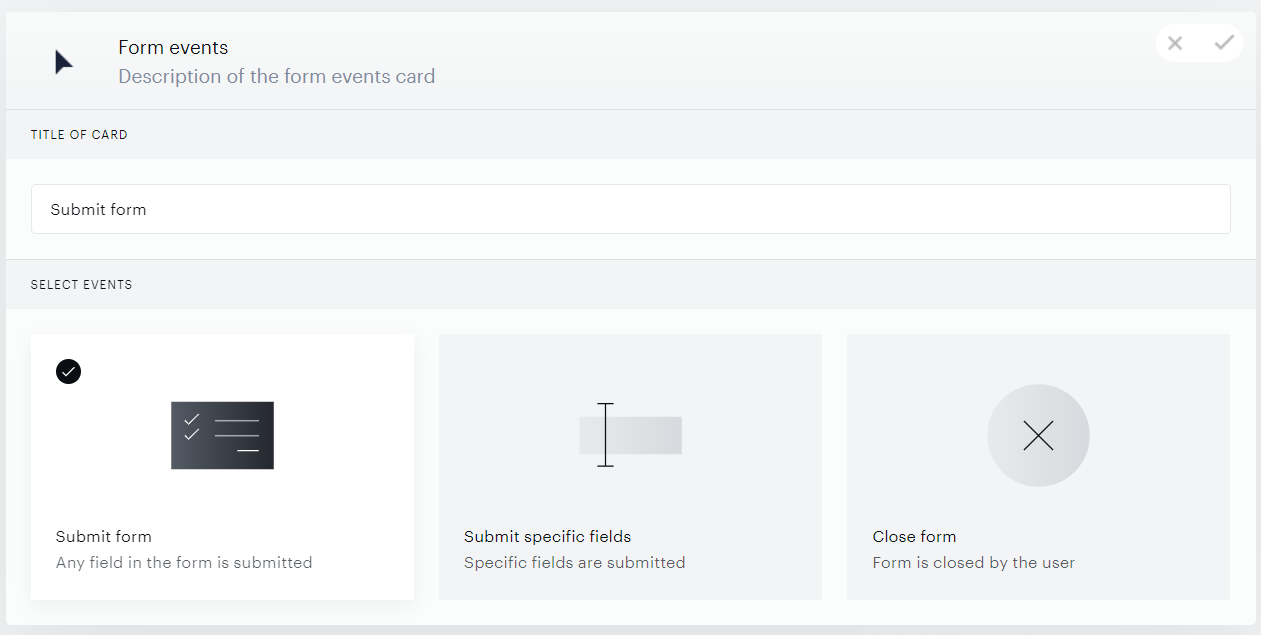
Submit Form
Triggers in case of the form submission with ANY fields. You cannot specify more than one "Submit form" trigger under a single Show form card.
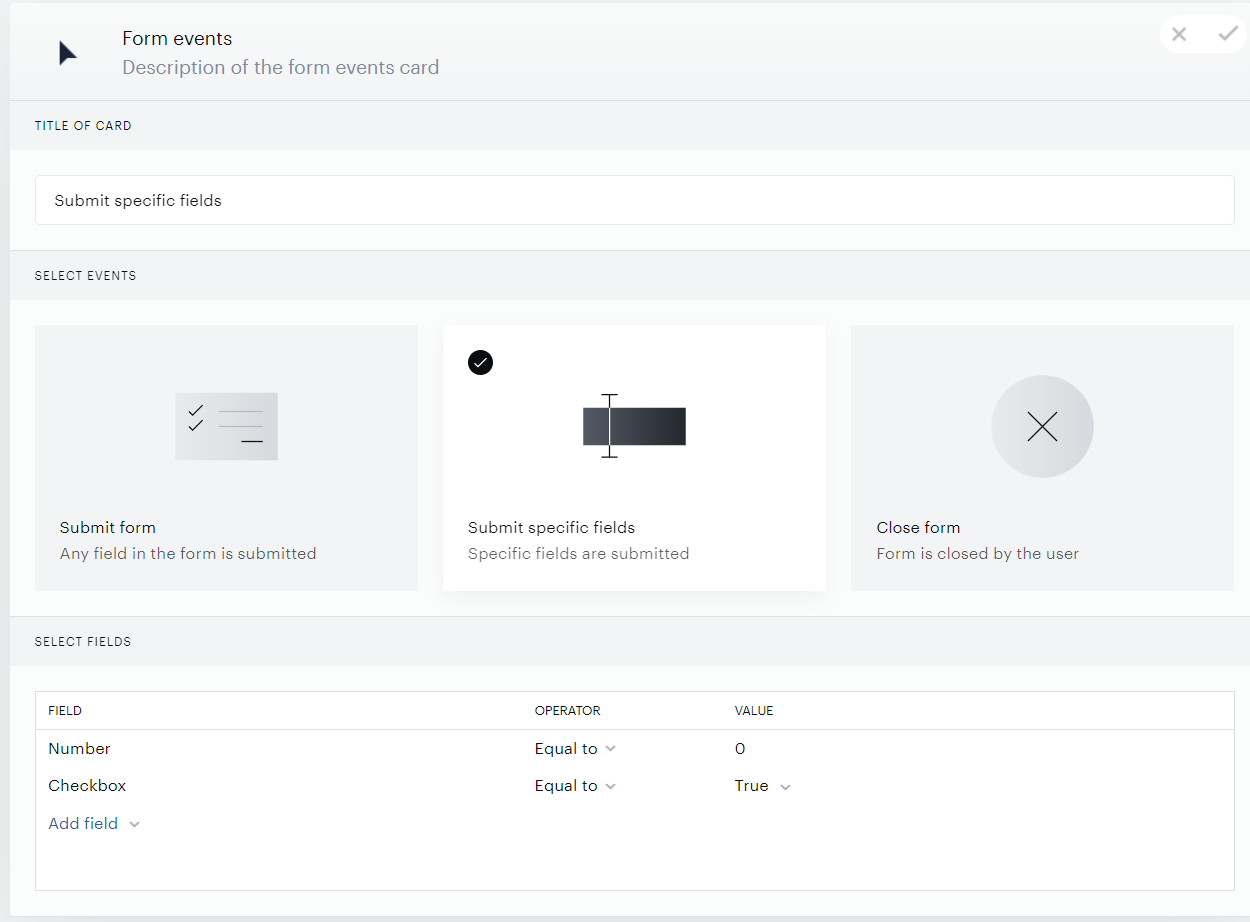
Submit Specific Fields
Triggers in case of a form submission with specific field values.
The logic, in this case, is similar to that described here. In case more than one field is specified, the trigger executes only when all of them are passed in a single submission.
For example, in the below case, the event will only be triggered if the Custom form is submitted with both values - a "0" for the "Number" Custom field and the "Checkbox" field ticked:
Make sure that the selected fields are correctly mapped to their corresponding actions. If an expected action, such as an Upgrade offer, does not appear upon submission of the specified field(s), review the action mappings to ensure the template or event is properly configured for the intended scenario.
Close Form
Triggers in case the form is closed, typically by clicking on the “Skip” button.
You cannot specify more than one "Close form" trigger under a single Show form card.
Action Exclusivity Manager
Show action cards from Template Interaction Experiences are not supported in the Action Exclusivity Manager. Publishers cannot open the Action Exclusivity Manager via the canvas of this Experience type and cannot add Show action cards to the Action Exclusivity Manager via their settings, as it works in other Experiences.
Therefore, it is not recommended to have more than one active Template Interaction Experience with Show action cards.
Experience Scenarios
The following configurations provide guidance on setting up an Active Churn Prevention (ACP) flow using Piano's templates. Keep in mind that these configurations are advisory, allowing flexibility for customization based on your specific needs.
Simple "Lost Value" and "Final Confirmation" Template Sequence
This flow initiates when end users click on the "Cancel" or "Cancel and refund" button in My Account.
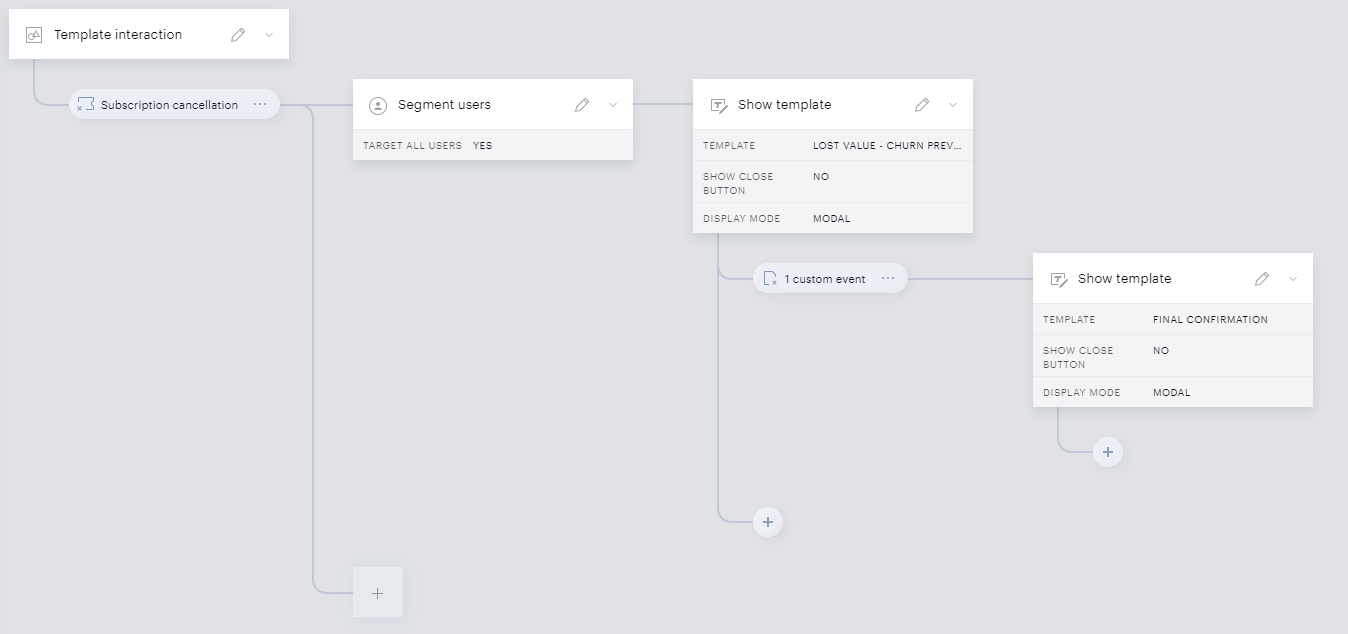
This configuration guides end users through a flow from the "Lost value" template to the "Final confirmation" template, triggered by specific user interactions.
Flow overview:
-
Lost Value template display branch:
-
Include a "Show template" card based on the "Lost Value - Churn prevention" template.
-
Add a "Template event" card with the following settings:
-
Custom event:
acp-next-step.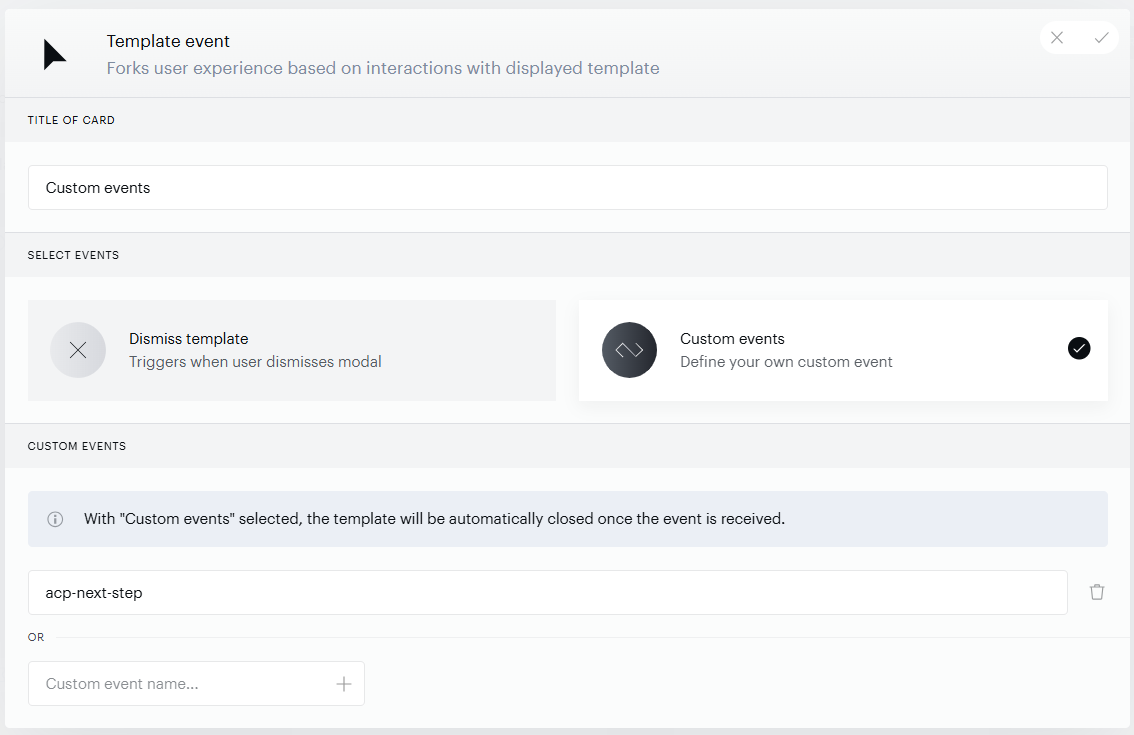
-
-
-
User Interaction:
-
Users clicking on "Cancel" or "Cancel and refund" initiate the ACP flow.
-
If the user clicks on "Keep my awesome plan," the template closes, and the subscription remains active.
-
Clicking "I don't mind missing out" closes the "Lost Value" template and displays the "Final Confirmation" template.
-
If on the new screen, the user clicks on "Keep my subscription" the template closes, and the subscription remains active.
-
If a user selects "Don't bill me again", the template is closed, and the subscription is canceled (or canceled and refunded).
-
Advanced "Lost Value" and "Final Confirmation" Template Sequence (with Form and Downgrade Offer)
This flow initiates when end users click on the "Cancel" or "Cancel and refund" button in My Account.
This configuration involves a more comprehensive flow that includes a form and a downgrade offer, allowing for a nuanced interaction.
Flow Overview:
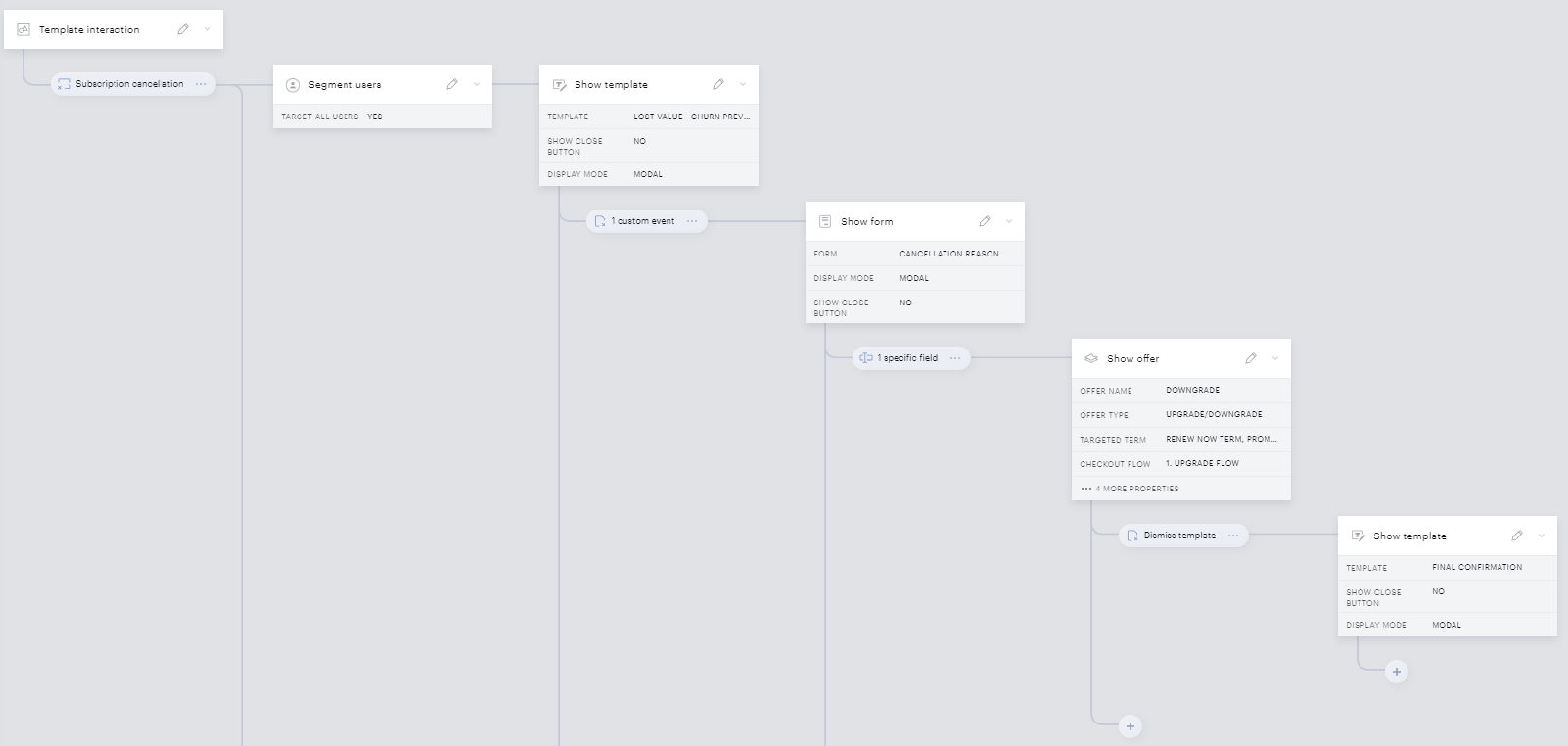
Configuration:
-
Lost Value template:
-
Include a "Show template" card based on the "Lost Value - Churn prevention" template.
-
Add a "Template event" card with the following settings:
-
Custom event:
acp-next-step.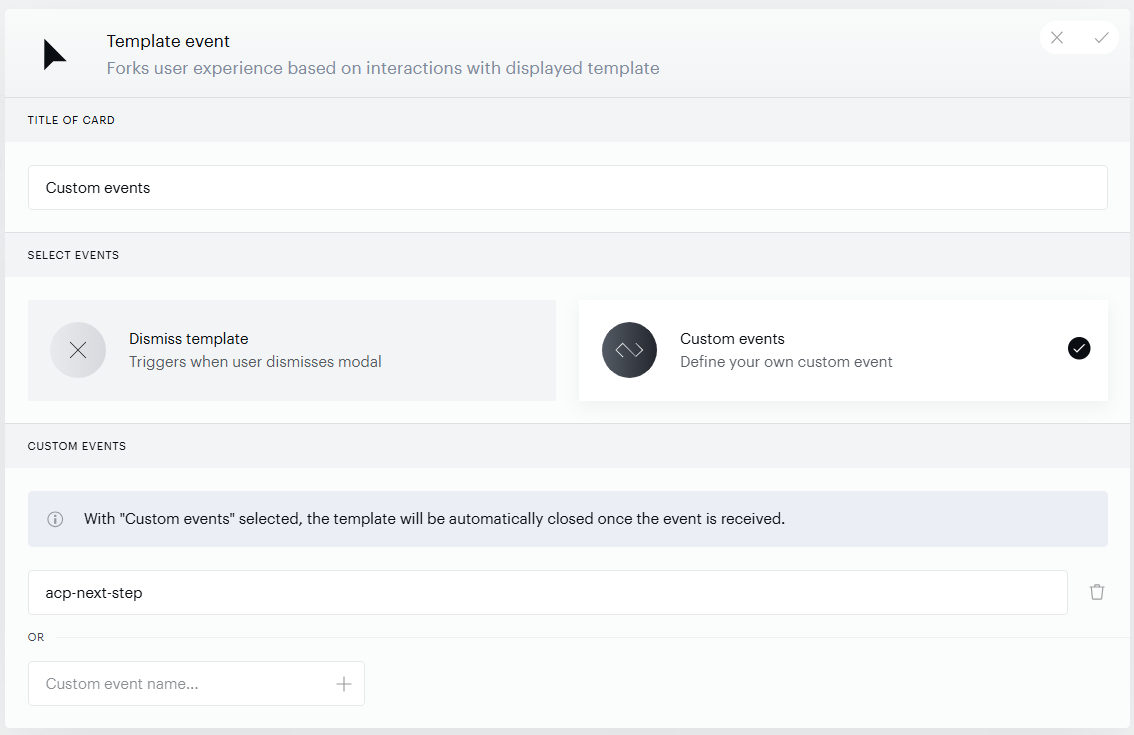
-
-
-
Custom Form card:
-
Include a "Show form" card that serves to collect the "Cancellation reason".
-
Example of the form:
-
Name - "Cancellation reason"
-
Custom Fields included in the form:
"Single-select list" field - “Why do you want to cancel your subscription?”. Possible values: "It’s expensive", "I’m not interested anymore","Other reason", etc.
"Text" field - "Other reason". You might set it to be shown when the "Other reason" value is selected in the previous field. It can be done via the field settings available in the custom form.
-
-
-
Form Events card:
-
Include a "Form events" card that triggers when the selected reason is "It’s expensive".
-
-
Downgrade Subscription Offer:
-
Include a "Show offer" card as a closable offer based on a "Downgrade offer". More details are explained here.
-
-
Template Event "Dismiss Template" card:
-
The "Template event" card dismisses the offer template.
-
-
Final Confirmation template:
-
Include a "Show template" card with a modal based on the "Final Confirmation" template.
-
User flow:
-
The Lost value template is displayed.
-
When the user clicks on the "Keep my awesome plan" button, the template is closed, and the subscription remains active.
-
If a user clicks on the "I don't mind missing out" button, the “Lost value” template is closed, and the custom "Cancellation reason" form is displayed.
-
If the user clicks on the "Skip" button, the form is closed, and the subscription canceled.
-
If the user submits the form with an "Other reason" response - the form is closed, and the subscription canceled.
-
If the user submits the form with an "It’s expensive" response - the form is closed, and a Downgrade offer is displayed.
-
If the user selects a downgrade term, completes the checkout, and clicks "close" on the receipt screen - the page reloads. Since the subscription has been downgraded already, no additional actions are executed.
-
If the user closes the offer on any other screen before the downgrade has happened, the ACP flow will continue and the "Final confirmation" template will be displayed.
-
If the user clicks on the "Keep my subscription" button, the template is closed, and the subscription remains active.
-
If the user clicks on the "Don't bill me again button", the template is closed, and the subscription is canceled.
-
-
-
-
Important notes:
-
"Template interaction" Experiences execute as many times as the end user wants. For example:
-
The user clicks on the "Auto-renew" toggle to disable the automatic subscription renewal.
-
The ACP flow is activated, and all triggers execute.
-
-
The user decides to keep the toggle enabled and the subscription renewal active.
-
Then, without page reload, the user triggers the disabling again.
-
The ACP flow will be activated and all triggers execute again.
-
-
-
In the case of the "Downgrade offer" flow the publisher should keep in mind, that if the end user doesn’t have an active subscription to the targeted term, the offer won’t be displayed, and the ACP flow will be over on this step. It will be considered a continuation of the initial action, so the subscription will be canceled without any additional templates shown.
-
If the publisher specifies 2 or more overlapping event triggers under the same card they all will be executed if the conditions meet. For example:
-
"Show form" card with 2 trigger events:
-
Submit form
-
Submit specific fields
-
-
If an end user specifies the expected fields and submits the form, both triggers will execute.
-
Safety mechanisms
If the user leaves the Active Churn Prevention (ACP) flow before reaching the Final confirmation step, the system disables their auto-renew/subscription. This prevents users from being locked into unwanted subscriptions.
"Leaving the flow" means closing the modal template. It does not include closing the browser, closing the tab, or refreshing the page.
The safety mechanism applies in the following cases:
-
The user closes a dismissable modal template before reaching Final confirmation.
-
No "Dismiss template" event handler is configured for the current card.
-
A non-interactive card (such as Run JS or Set cookie) completes with no further actions queued.
In all of these cases, the flow ends with subscription cancellation.
For non-dismissable templates or forms (with the Allow user to close modal checkbox unselected), the user cannot close the modal before completing the configured action. If there is nothing more to show, or if a non-dismissable action completes, the user is returned to the site (for example, to "My Account").
A common source of unintended cancellations occurs when a publisher adds a manual close button to a Show template card's HTML (since Show template cards do not include a close icon by default) without mapping that button to any trigger. Clicking the button still fires the template's dismiss event, activating the safety mechanism in the same way as any other unconfigured exit from the flow: the subscription is canceled even though, from the end user's perspective, they simply closed a modal window. For guidance on correctly wiring a manual close button, see the Show template section above.
For more details about possible scenarios, please see the section here.
Reports
The Template Interaction experience type provides two key reports: the Composer Flow Report and the Composer Conversion Report. Both reports can be accessed via an icon in the experience navigation bar.
The primary use case for reporting is active churn prevention, focusing on understanding churn that has been successfully prevented. This could be through subscription upgrades, abandonment of the flow, actual churn, or cancellation feedback collected.
The Composer Conversion Report offers a high-level overview of the key performance indicators (KPIs), while the Composer Flow Report allows a detailed analysis of each experience branch, helping you identify areas to optimize the experience setup.
Limitations
The system does not support running multiple Template interaction experiences simultaneously for a single end-user. If multiple Template interaction experiences share the same touchpoint and have overlapping targeting criteria, only the experience executed first will run - its template displayed and action performed. All others will be skipped, even if their conditions are met. For example, if both a modal and an inline template Template interaction experience target the same user, only one will run. This limitation applies specifically to Template interaction experiences and should be taken into account when setting up Active Churn Prevention.