
Introduction
Grace period - is a part of the next access period that the client is giving to the end user in advance in case of renewal payment failure, expecting that the end user needs more time to fix any payment method issue. The extended next billing date is calculated based on the Grace period setting of the payment term. During this time, the user continues to have access to the Resource linked to the payment term until the next billing date when the next billing attempt will take place. Note, although we recommend that a Grace period is defined, clients are not required to give a grace period to their users.
Piano allows you to implement a Grace period, as a tool to decrease customer churn rate related to payment failures. Grace Periods can not be applied to customers who have canceled or stopped auto-renewals.
You can instruct a user to update their card during the Grace period, and upon the next payment attempt, we will try to charge the updated card. After the end of the Grace period, you will need to direct the user to make a new subscription purchase as an expired subscription can't be renewed.
Setup
The Grace period can be configured for each term separately or for each access period of a dynamic term separately.
This can be done only for Payment terms under Manage > Terms in the term’s settings.

The maximum length of a grace period can be set to 60 days.
Note, that there is also a limitation that the grace period can’t be longer than a term’s billing period. This means that if your term is configured to charge end users every 30 days (monthly) you will not be able to configure a grace period longer than 30 days.
When activating the Passive Churn Prevention feature, please be aware that all custom grace periods configured on the term level will be reset to the default grace period of 15 days within the passive churn logic. If clients require custom periods, they will need to transition to custom logic and create distinct ones with varying grace periods, which can then be selected on the term level.
Grace period logic
In case you have set a Grace period with the value 0, our system undertakes a maximum of 3 charge attempts in case of a payment failure on the day of the subscription renewal. The number of attempts can not be changed. The payment retry logic supposes that, during the grace period, charges will be attempted in 5-day increments, up to a maximum of six attempts over a 30-day period, with the final attempt happening on the 30th day. If the grace period is not a multiple of 5 or is between 30 and 60 days, the final retry will occur on the final day of the grace period.
Below are examples of how different grace period lengths affect the retry attempt counts and on which days these occur.
Grace period = 2 days -> retry attempt on day 0, day 2.
Grace period = 7 days -> retry attempt on day 0, day 7.
Grace period = 9 days -> retry attempt on day 0, day 9.
Grace period = 10 days -> retry attempt on day 0, day 5, day 10.
Grace period = 12 days -> retry attempt on day 0, day 5, day 12.
Grace period = 19 days -> retry attempt on day 0, day 5, day 10, day 19.
Grace period = 21 days -> retry attempt on day 0, day 5, day 10, day 15, day 21.
The longest grace period allowed is 60 days.
Please do not modify your terms settings if you would like to ensure your terms with a grace period longer than 60 days continue working.
If you have an existing payment term with a legacy grace period that is longer than 60 days, the above retry logic will still apply, but if you intend to make any changes to the term settings, such as:
-
changing the title or description
-
adding an upgrade option
-
turning Print Address Collection on
-
allowing promotions
-
editing time or grace periods
-
restricting it to new customers only
-
and any other action that will require saving the changes to this term
You will need to update the grace period length to less than 60 days before being able to save the new term settings.
Use cases
Grace periods can be used as a method of how to lower passive churn. More information about this approach is available here.
A grace period longer than 30 days usually doesn’t help reduce churn, as unresponsive users are unlikely to react. You can address this by setting up renewal failure or credit card expiry notifications in Email Manager to remind users to update their payment details.
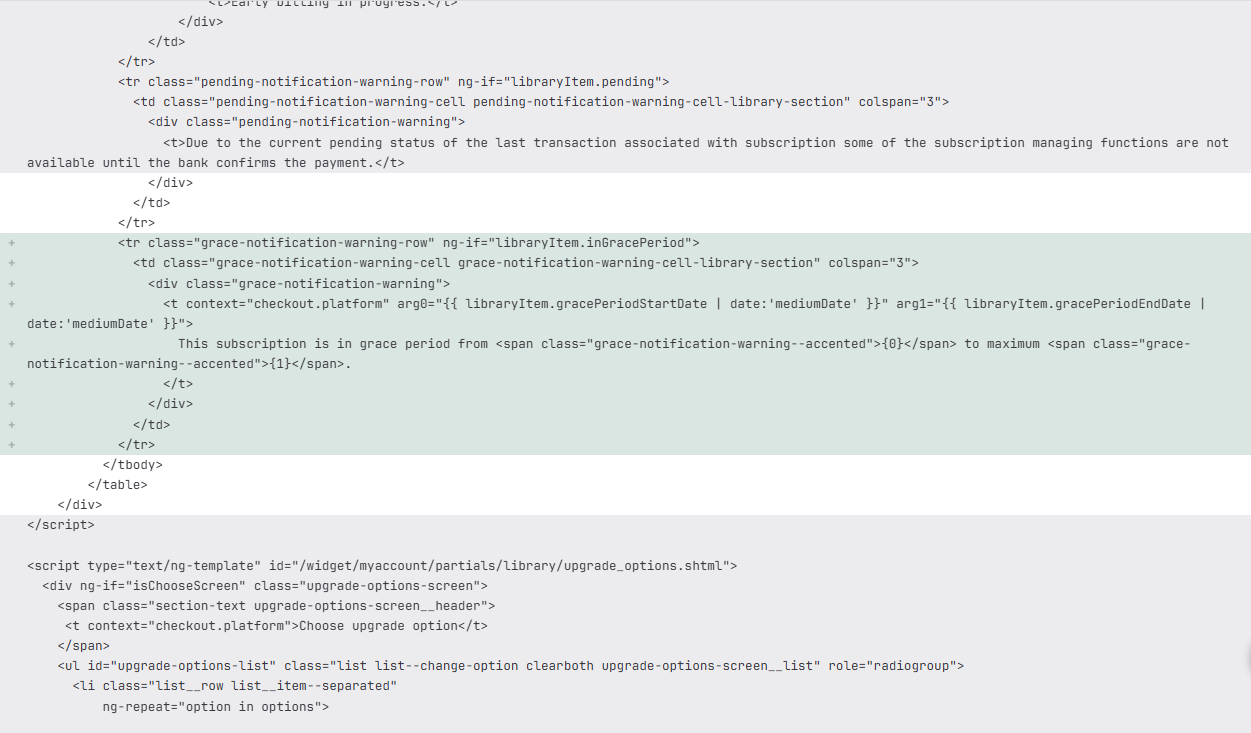
We provide users with information about their grace period status in their My Account. In order for this information to be displayed, please make sure your My Account Library Components template contains the code below:
<tr ng-if="libraryItem.inGracePeriod">
    <td colspan="3">
        <div>
            <t context="checkout.platform" arg0="{{ libraryItem.gracePeriodStartDate | date:'mediumDate' }}" arg1="{{ libraryItem.gracePeriodEndDate | date:'mediumDate' }}">
               This subscription is in grace period from <span>{0}</span> to maximum <span>{1}</span>.
            </t>
        </div>
    </td>
 </tr>
Like this:
If the subscription is in the grace period, only an immediate upgrade is possible. Upgrading with the billing set to occur at the end of the current billing period is not allowed.
If you’d like to review how revenue is calculated for users during their Grace periods, please visit this link.
You can be notified via Webhooks about users that have entered their Grace periods.
To get a grace period for an individual subscription, you can use our API endpoint /publisher/subscription/get as described here and in the response look at the value of payment_renew_grace_period.