
Vocabulary
-
Access period - a timeframe where the user can have access to the client’s website in exchange for an agreement to pay for this period;
-
Billing period - an interval between two billing attempts according to the schedule;
-
Billing schedule - a combination of access periods and cadence of billing attempts associated with it in a dynamic term;
-
Dynamic term - a new term type that is configured to have a number of access periods with potentially different billing periods;
-
Dynamic subscription - is a subscription on a dynamic term that is making a journey according to the billing schedule;
-
Billing - a subscription billing within one access period;
-
Renew - a subscription renewal during which the subscription is moving from one access period to another (or remains on the same period, but starts it from the beginning if the period is configured to repeat a number of times or looped).
Creation of a dynamic term
When dynamic terms are enabled for the application, a client user will be able to see a new option when creating a term.
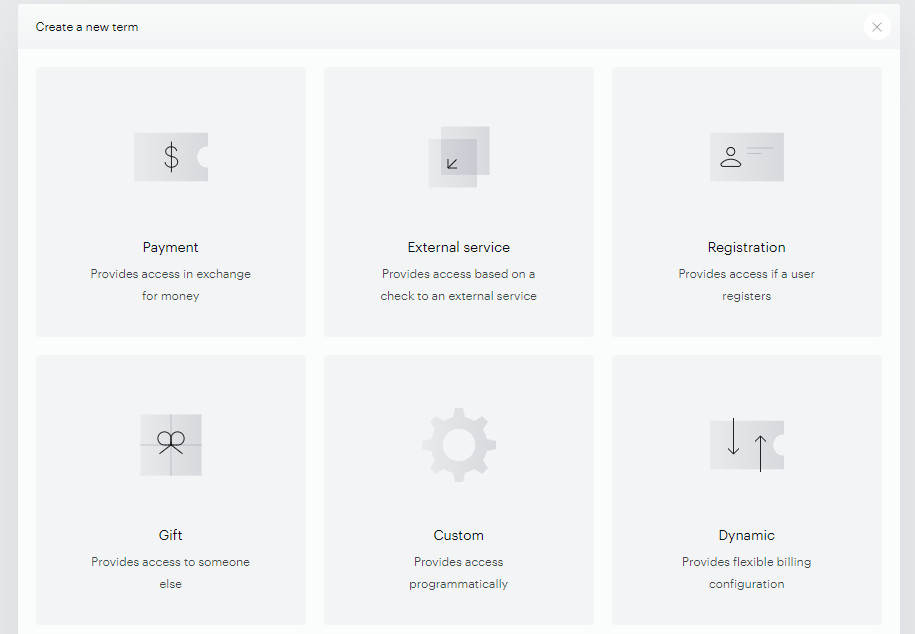
It is required to set up the term’s common parameters at the first step.
-
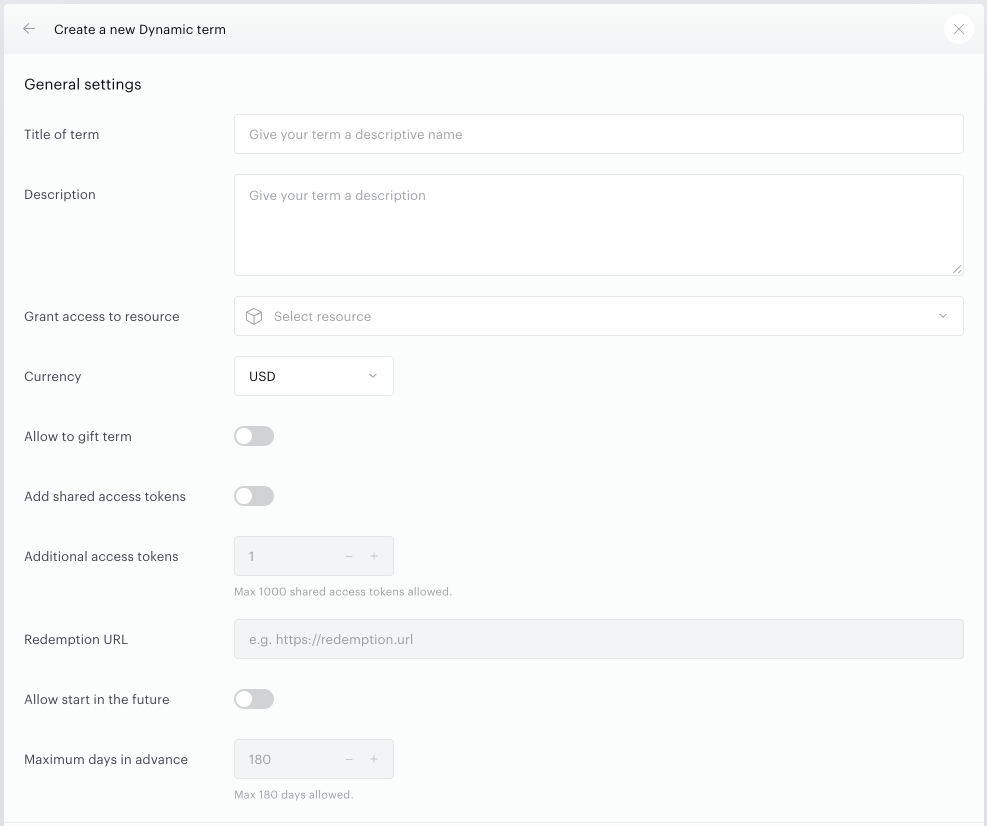
Title of term: Provide a term name of your choosing. This name can be exposed to end users so it should be representative of the service you are offering.
Term names can contain up to 100 characters. If you enter a name longer than 100 characters, the term is still created, but the name is automatically truncated to the first 100 characters.
-
Description: You can provide an optional description for this term specifying what the user may expect if he or she purchases this term. Again, this description can be exposed to end users during purchase if you so choose.
-
Grant Access to Resource: Select the resource you would like to offer in your term by selecting it from the drop-down list or searching for it. See here for more information on how to create resources.
-
Currency: Select a currency.
-
Allow to gift term: Allows configuring a term to be purchased as a gift for someone else.
-
Add shared access tokens: Allows the use of the Shared Subscriptions feature.
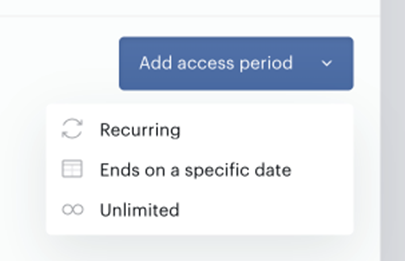
And then add at least one access period. There are a number of access period types available for configuration.
-
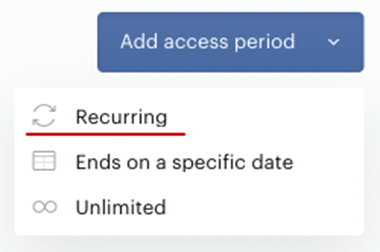
Recurring - is an access period that starts on the day of purchase and renews in a fixed period of time.*
-
Ends on a specific date - is an access period that starts on the day of purchase and ends on a day specified in the calendar.**
-
Unlimited - is an access period that starts on the day of purchase and has no defined end date. With a single-payment billing plan, the unlimited access period functions as a one-time purchase, granting permanent access. With a relative billing plan, the unlimited access period functions like a subscription.
Note:
*If the Access length is shorter than the Billing period, it may lead to an undesired scenario. For example, if the Access length is set for one month it doesn't make sense to set up billings for more than once a month cadence, the next billings inside of this access period will never occur. Configuration with a billing cadence that doesn't exactly match the access length can also lead to an undesired scenario. For example, if the Access length is set for one month and billings for a 4-week cadence, users will be charged the full price of the period upon the initial purchase and once again after 4 weeks. This means that users will pay the full period's price once again after 4 weeks for only a couple of days remaining in the access period. While this configuration is allowed, it may not be desirable for the end user and you should logically validate any dynamic term setup scenario.
**When configuring a subscription with an access end date, it is important to understand how it will behave with respect to the billing period and renewal. In the case of a billing period of one month and a specific access end date, let's say for example you define April 20, 2023, the subscription will attempt to renew on April 20th, regardless of the billing configuration. It is also important to note that if a user purchases this subscription on April 19th, they will be charged the full price for only one day of access. After the subscription has ended, it will not be visible on the offer, and new users will not be able to purchase it.
Please note, that any single billing period — a billing plan, trial, access period — can run for up to 3 years. For more details, see Billing periods and the 3-year guideline.
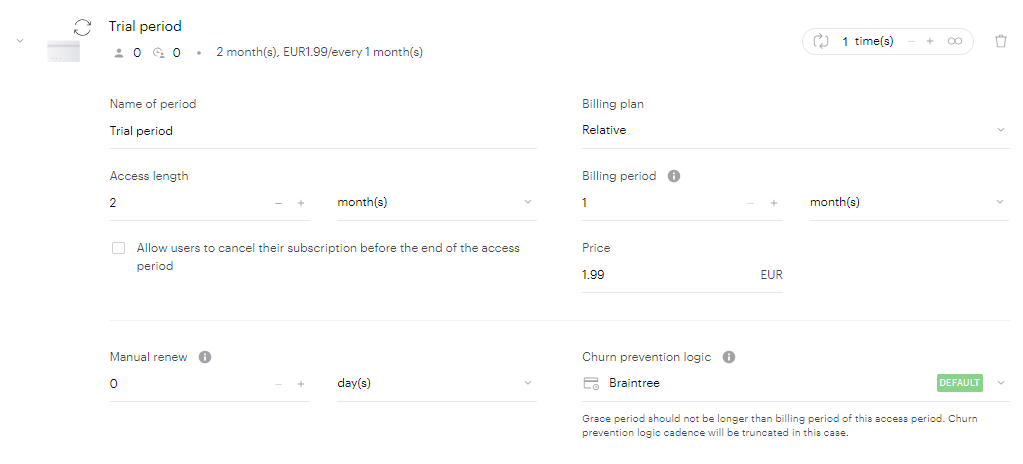
After choosing a type of access period the user will be able to proceed with the billing configuration.
-
Name of period - user-friendly name of the access period for easier identification;
-
Access length - length of the access that the user will receive after converting on a term with a single billing configuration in it;
-
Billing plan - the type of billing cadence for this specific access period. It can also be a number of types:
-
Relative - the system will periodically charge end-users within the current access period every specified period of time;
-
Free - the system will not charge end-users within the current access period (replacement for free trials);
-
Single payment - the system will charge end-users only once (replacement for current one-off terms);
-
[DEPRECATED]* Day of the week - the system will charge end-users every week within the current access period on a specified day of the week;
-
[DEPRECATED]* Day of the month - the system will charge end-users every month within the current access period on a specified day of the month;
-
[DEPRECATED]* Day of the year - the system will charge end-users every year within the current access period on a specified day of the year;
*Deprecated on May 27, 2025. Clients can keep using these billing options if already configured, but they no longer appear when setting up new Dynamic Terms.
-
-
Billing period - the interval between billing attempts within the access period;
-
Price - the billing amount that will be charged for each billing period;
-
Allow users to cancel their subscriptions before the end of the access period - setting that enables cancellation options in the My Account widget for subscriptions that have multiple billings inside the access period (i.e. annual subscriptions billed monthly). Please note: At the application level, the Edit Business setting Allow customers to cancel their own dynamic subscriptions at the end of the billing period must also be enabled for the cancellation option to appear in My Account when this checkbox is enabled at the term level.
-
If the checkbox is not set end users will not be able to cancel their dynamic subscriptions from My Account until the last billing period in the access period.
-
If the checkbox is set end users will be able to cancel their dynamic subscriptions at any moment.
-
This checkbox doesn't limit publisher dashboard cancellation abilities in any way.
-
-
Manual renew - the time period before the next billing date in which end-users can manually bill their subscriptions for the next period of time. This parameter defines the period for each billing, not renew;
-
Churn prevention logic - churn prevention logic that defines grace period length and configuration of renewal attempts and emails sent to end-users upon each payment failure (default application-wide churn prevention logic is auto-selected).
Clients should be careful with renewals on specific days. Because of the improper configuration renewal billing dates may occur outside of the access period and end-users will never be charged.
A number next to the icon ( 

The counter 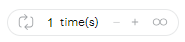
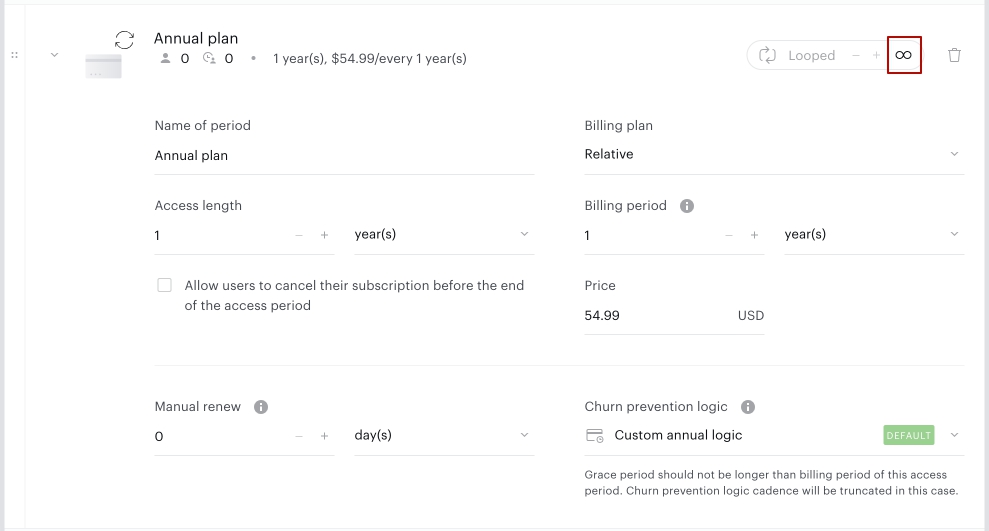
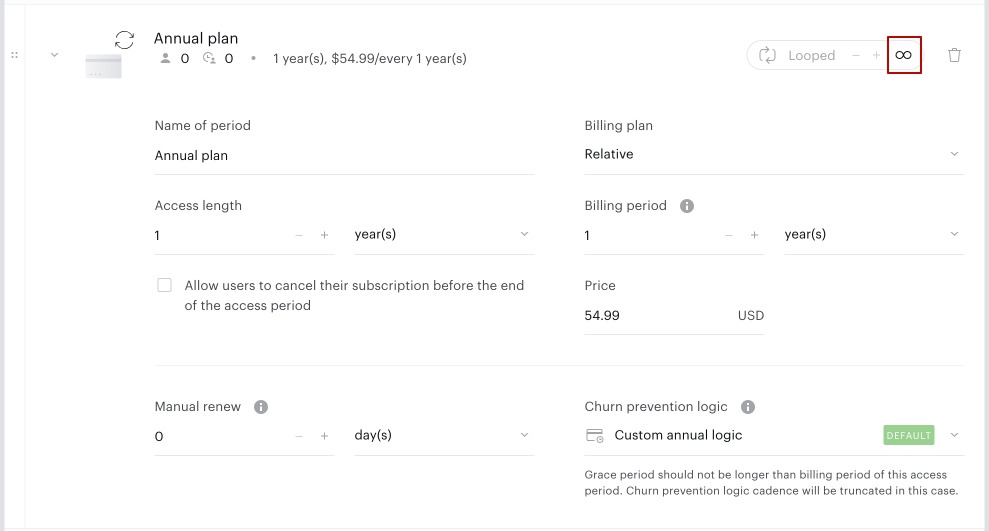
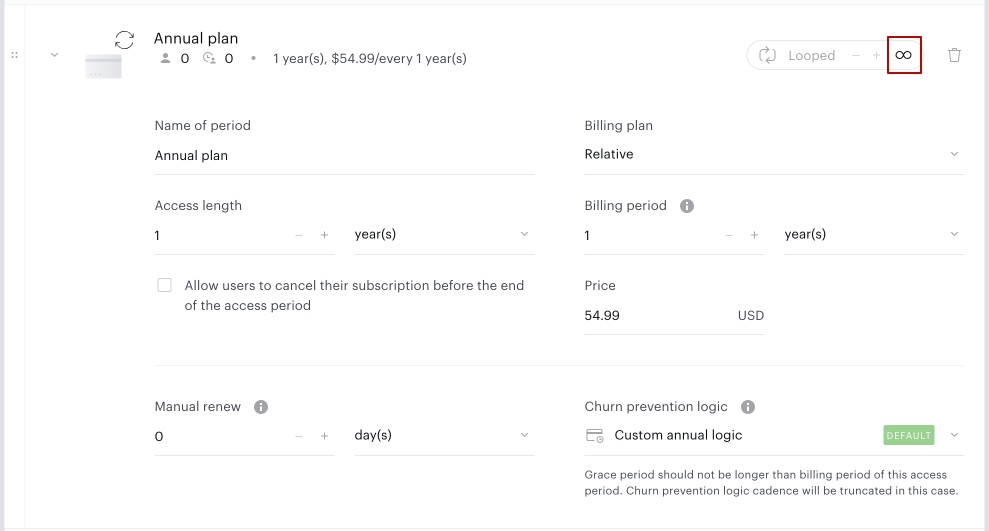
The unlimited symbol (∞) allows you to configure a renewal access period with an unlimited number of iterations, and switch back to a finite number of iterations if needed.
Configurations like

and

will eventually do the same thing - charge the end user 3 times for 14.99€. But in the first case, after the initial purchase will have 2 billings and then renewal on the next access period (with separate emails on billings and on renewals). In the second case, we will have three renewals before end-user goes to the next period and every time end-users will get renewal emails with the price change information, where both prices, old and new, will be the same.
Editing a dynamic term
Add a new access period
It is possible to add access periods to the schedule even when there are conversions and active subscriptions on a dynamic term. The Add access period button is always available and users can add new periods of any type. A newly added period will be added to the end of the schedule and can be then reordered.
Reorder access periods
It is also possible to reorder access periods in the schedule even when there are conversions and active subscriptions on a dynamic term.
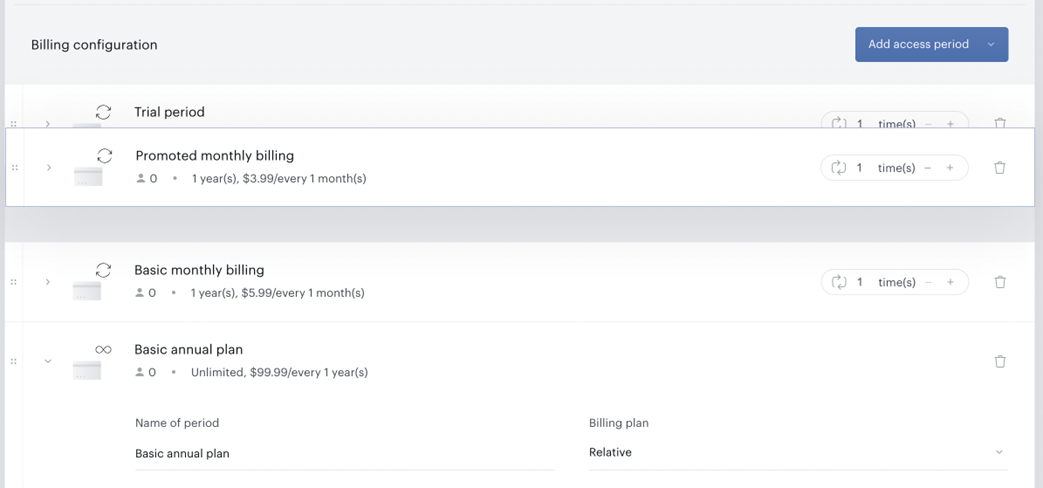
In the example from the screenshot, if the user decides to add a prorated monthly access period between the trial period and the regular monthly period - the system will work in the following way:
-
Subscriptions that are already on the basic monthly period and lower through the schedule will not notice any changes. They already passed the place that was changed.
-
Subscriptions that are currently on a trial period will renew to a newly added period before the monthly basis.
-
Each time a subscription is making a renewal to the next period, the system will look at the up-to-date schedule in the term and calculate the next appropriate access period to renew on.
Convert access period
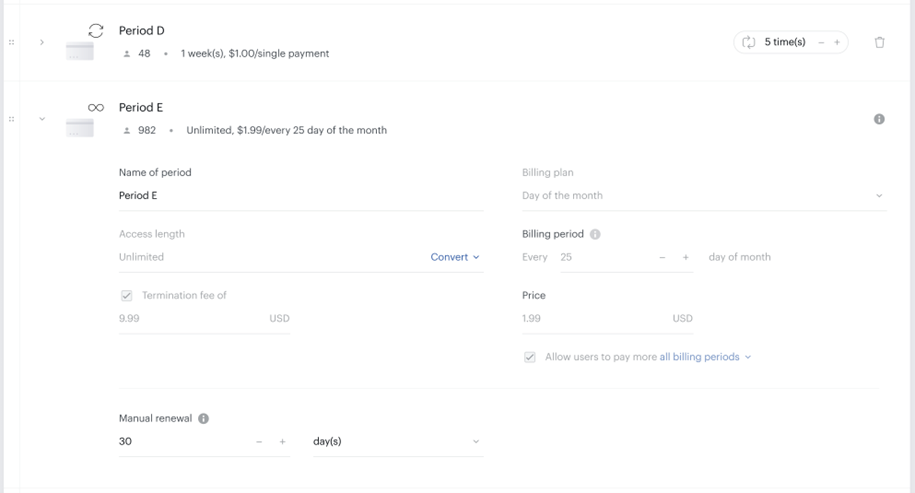
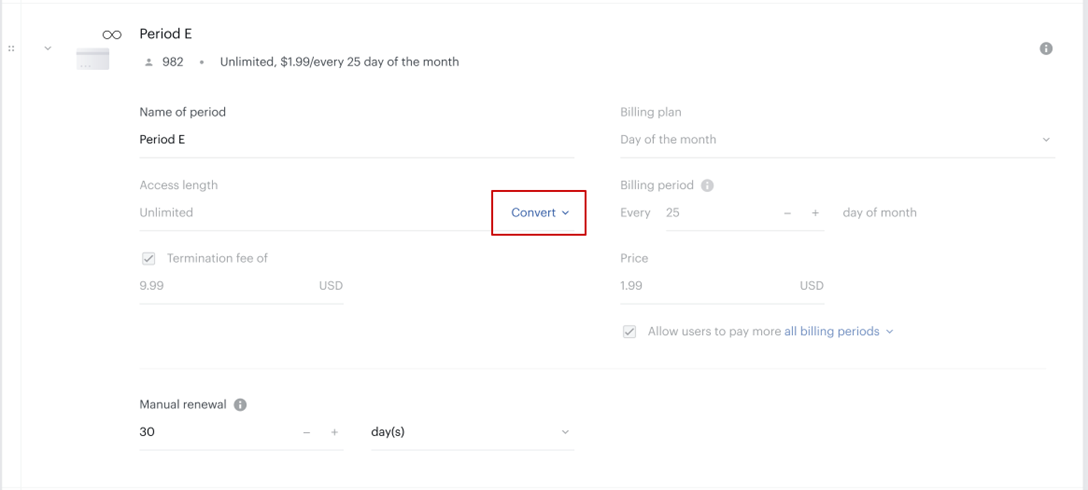
If the term is configured to have an unlimited access period and users are purchasing a single payment access - it is still possible to convert that kind of subscriptions into recurring subscriptions. Client users are able to convert unlimited access periods to other types of access periods and continue building dynamic billing schedules.
Delete access period
Access periods can be easily deleted from dynamic terms even when there are conversions. If there are no active subscriptions on the period that is trying to be deleted, the user will be able to delete it immediately. If there are active subscriptions on a specified access period - the system will first mark it as deleted.
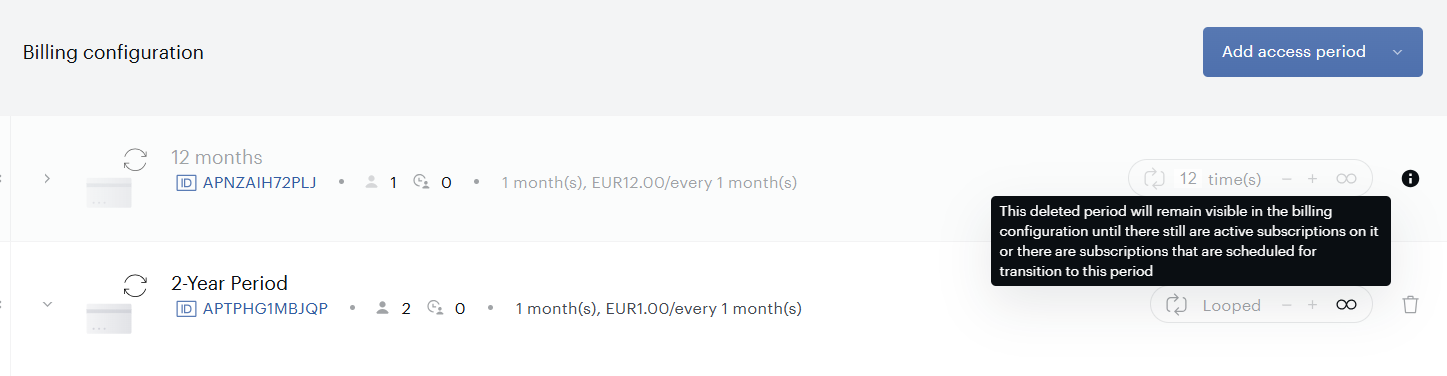
And then stop renewing subscriptions to this period, but keep renewing from this period until the number of subscriptions on this period will become 0. After that, the system will permanently delete the period from the schedule. Even though the period will remain visible in the schedule and will only be marked as deleted for some time - this action cannot be reverted.
Upgrade options
You can configure upgrade options for your dynamic term that will appear for subscribers to this term in their My Account screen. This will allow your users to quickly upgrade their subscriptions in only a few clicks. To learn more about the configuration options for upgrades, please follow this link.
Advanced settings
Show full billing plan on checkout: When enabled, this setting ensures that the checkout page displays the entire billing plan defined for the dynamic term. This means that instead of showing only the first payment cycle (or a summary), the checkout will list all scheduled payment periods, including any trial, introductory, and subsequent periods.
Allow promotions on this term: Checking this box makes your term eligible for all existing promotions and all future promotions (unless said promotions are limited to specific terms).
Force all new subscriptions to be auto-renewing subscriptions: This will prevent users from disabling auto-renewal during the initial purchase, effectively removing the auto-renewal checkbox from the checkout page.
Restrict to first-time customers only: A first-time customer is one who has never converted on any payment terms and did not have any successfully processed transaction. Devices do not matter — it is measured by account history. If users have registered without a payment conversion (e.g. converted on a registration, external or custom term), did have only a verification payment (used in case of free trial/promo purchases to verify the payment method), their payment is pending* or disputed (see here for more information about this payment status), or they've received a refund - they can still purchase terms if you’ve selected this checkbox. The same applies to users that have been granted free access.
*Used for asynchronous payment providers, when we wait for the payment webhook before the payment is either marked as completed or failed.
Detailed history tab
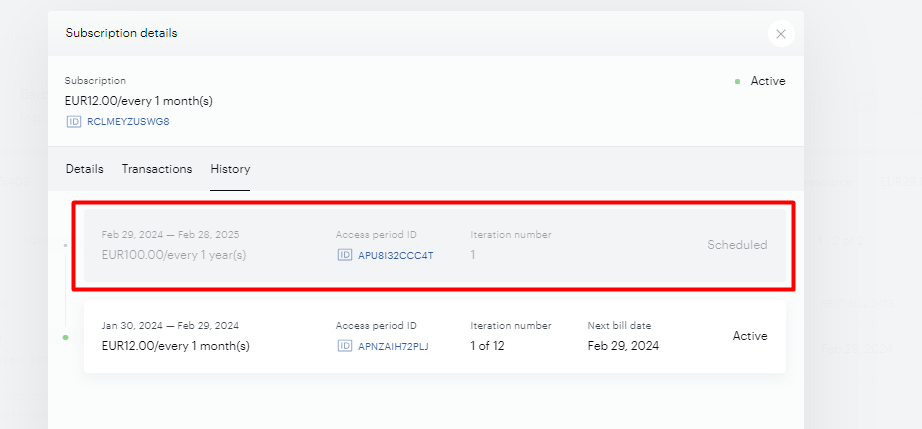
To get better visibility on what exactly was happening with the specific subscription, and what will happen with it in the near future - it is now possible to view detailed history. It is available for each particular user in the User Management section under the Subscription tab.
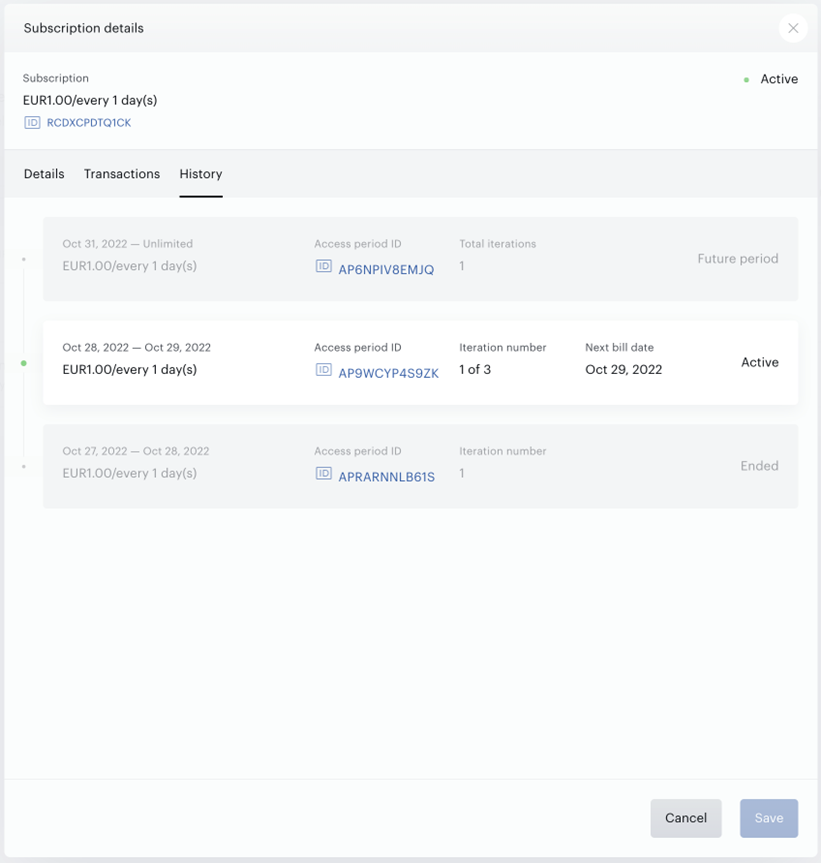
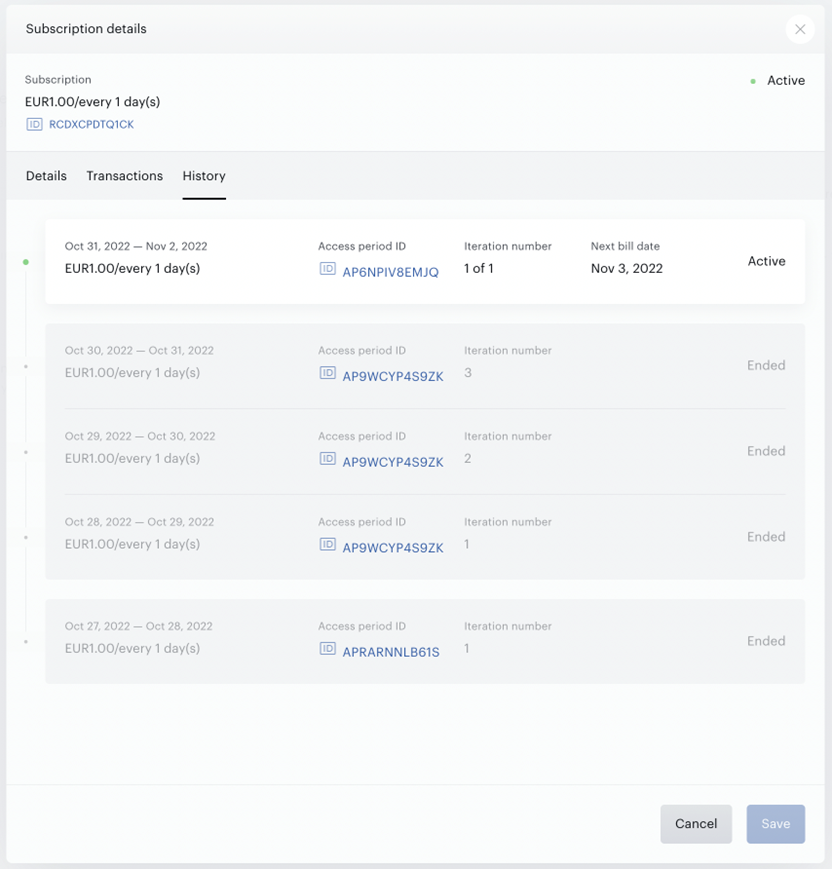
This view shows all past periods as ended and greyed out. All periods are separated from each other, but iterations of the same period are grouped together. The current active period is shown in white and has a next billing date (unless it is an unlimited or looped access period). This view also shows only one future period and it is also greyed out.
The main advantage of this view is that no matter what changes were applied to the term throughout time, this form will show the exact subscription journey and currently configured next period (including all updates made to the term. Updates are synchronized after each billing).
System templates changes
Checkout Components
Ability to show full billing plan on the checkout screen
The Checkout components system template should be updated with the following new component. It can be inserted at the end of the template.
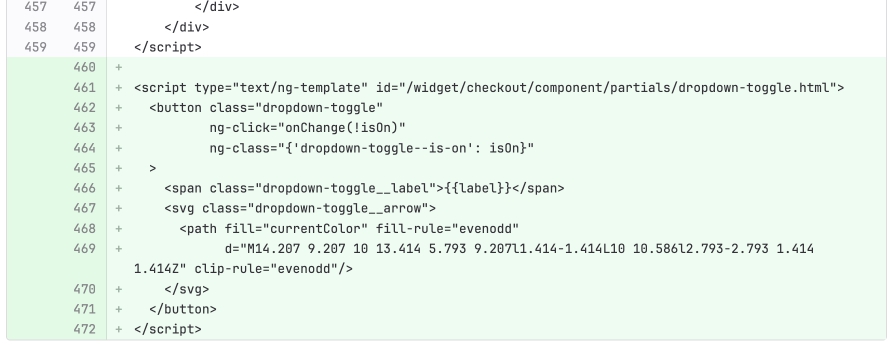
<script type="text/ng-template" id="/widget/checkout/component/partials/dropdown-toggle.html">
  <button class="dropdown-toggle"
          ng-click="onChange(!isOn)"
          ng-class="{'dropdown-toggle--is-on': isOn}"
  >
    <span class="dropdown-toggle__label">{{label}}</span>
    <svg class="dropdown-toggle__arrow">
      <path fill="currentColor" fill-rule="evenodd"
            d="M14.207 9.207 10 13.414 5.793 9.207l1.414-1.414L10 10.586l2.793-2.793 1.414 1.414Z" clip-rule="evenodd"/>
    </svg>
  </button>
</script>
Checkout
In the Checkout template, some code should be partially replace after the div with class class="pay-what-you-want" and inside the div with class class="term-details".
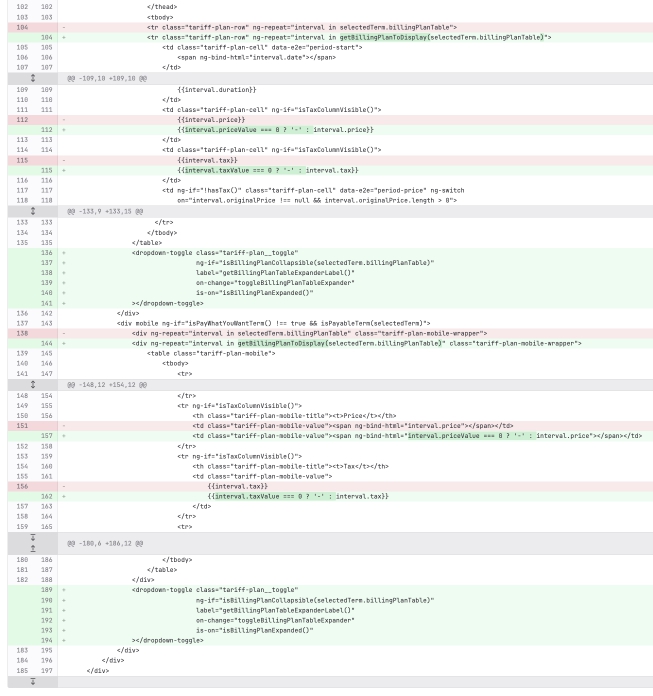
Here's the code example of how it should be after all changes.
<div class="pay-what-you-want" ng-if="isPayWhatYouWantTerm()">
                <span pay-what-you-want-form-component></span>
            </div>
            <div desktop ng-if="isPayWhatYouWantTerm() !== true && isPayableTerm(selectedTerm)">
                <table class="tariff-plan">
                    <thead>
                    <tr ng-if="!isTaxColumnVisible()">
                        <th class="tariff-plan-title starting-title">
                            <t>Starting</t>
                        </th>
                        <th class="tariff-plan-title duration-title">
                            <t>Duration</t>
                        </th>
                        <th class="tariff-plan-title billing-title">
                            <t>Billing</t>
                        </th>
                    </tr>
                    <tr ng-if="isTaxColumnVisible()">
                        <th class="tariff-plan-title">
                            <t>Starting</t>
                        </th>
                        <th class="tariff-plan-title">
                            <t>Duration</t>
                        </th>
                        <th class="tariff-plan-title">
                            <t>Price</t>
                        </th>
                        <th class="tariff-plan-title">
                            <t>Tax</t>
                        </th>
                        <th class="tariff-plan-title">
                            <t>Billing</t>
                        </th>
                    </tr>
                    </thead>
                    <tbody>
                    <tr class="tariff-plan-row" ng-repeat="interval in getBillingPlanToDisplay(selectedTerm.billingPlanTable)">
                        <td class="tariff-plan-cell" data-e2e="period-start">
                            <span ng-bind-html="interval.date"></span>
                        </td>
                        <td class="tariff-plan-cell" data-e2e="period-end">
                          <span class="tariff-plan-cell__duration" ng-bind-html="getDurationHTMLString(interval.duration)"></span>
                        </td>
                        <td class="tariff-plan-cell" ng-if="isTaxColumnVisible()">
                            {{!!interval.priceValue ? interval.price : '-'}}
                        </td>
                        <td class="tariff-plan-cell" ng-if="isTaxColumnVisible()">
                            {{!!interval.taxValue ? interval.tax : '-'}}
                        </td>
                        <td ng-if="!hasTax()" class="tariff-plan-cell" data-e2e="period-price" ng-switch
                            on="interval.originalPrice !== null && interval.originalPrice.length > 0">
                            <div ng-switch-when="true">
                                <span class="original-price">{{interval.originalPrice}}</span>
                                <span class="new-price">{{interval.billing}}</span>
                            </div>
                            <div ng-switch-default="">{{interval.billing}}</div>
                        </td>
                        <td ng-if="hasTax()" class="tariff-plan-cell" ng-switch
                            on="interval.originalPrice !== null && interval.originalPrice.length > 0">
                            <div ng-switch-when="true">
                                <span class="original-price">{{interval.originalPrice}}</span>
                                <span class="new-price">{{interval.totalBilling}}</span>
                            </div>
                            <div ng-switch-default="">{{interval.totalBilling}}</div>
                        </td>
                      </tr>
                    </tbody>
                </table>
                <dropdown-toggle class="tariff-plan__toggle"
                                 ng-if="isBillingPlanCollapsible(selectedTerm.billingPlanTable)"
                                 label="getBillingPlanTableExpanderLabel()"
                                 on-change="toggleBillingPlanTableExpander"
                                 is-on="isBillingPlanExpanded()"
                ></dropdown-toggle>
            </div>
            <div mobile ng-if="isPayWhatYouWantTerm() !== true && isPayableTerm(selectedTerm)">
                <div ng-repeat="interval in getBillingPlanToDisplay(selectedTerm.billingPlanTable)" class="tariff-plan-mobile-wrapper">
                    <table class="tariff-plan-mobile">
                        <tbody>
                            <tr>
                                <th class="tariff-plan-mobile-title"><t>Starting</t></th>
                                <td class="tariff-plan-mobile-value"><span ng-bind-html="interval.date"></span></td>
                            </tr>
                            <tr>
                                <th class="tariff-plan-mobile-title"><t>Duration</t></th>
                                <td class="tariff-plan-mobile-value"><span class="tariff-plan-mobile-value__duration" ng-bind-html="getDurationHTMLString(interval.duration)"></span></td>
                            </tr>
                            <tr ng-if="isTaxColumnVisible()">
                                <th class="tariff-plan-mobile-title"><t>Price</t></th>
                                <td class="tariff-plan-mobile-value"><span ng-bind-html="!!interval.priceValue ? interval.price : '-'"></span></td>
                            </tr>
                            <tr ng-if="isTaxColumnVisible()">
                                <th class="tariff-plan-mobile-title"><t>Tax</t></th>
                                <td class="tariff-plan-mobile-value">
                                    {{!!interval.taxValue ? interval.tax : '-'}}
                                </td>
                            </tr>
                            <tr>
                                <th class="tariff-plan-mobile-title"><t>Billing</t></th>
                                <td class="tariff-plan-mobile-value">
                                    <div ng-if="!hasTax()" ng-switch
                                        on="interval.originalPrice !== null && interval.originalPrice.length > 0">
                                        <div ng-switch-when="true">
                                            <span class="original-price">{{interval.originalPrice}}</span>
                                            <span class="new-price">{{interval.billing}}</span>
                                        </div>
                                        <div ng-switch-default="">{{interval.billing}}</div>
                                    </div>
                                    <div ng-if="hasTax()" ng-switch
                                        on="interval.originalPrice !== null && interval.originalPrice.length > 0">
                                        <div ng-switch-when="true">
                                            <span class="original-price">{{interval.originalPrice}}</span>
                                            <span class="new-price">{{interval.totalBilling}}</span>
                                        </div>
                                        <div ng-switch-default="">{{interval.totalBilling}}</div>
                                    </div>
                                </td>
                            </tr>
                        </tbody>
                    </table>
                </div>
                <dropdown-toggle class="tariff-plan__toggle"
                                 ng-if="isBillingPlanCollapsible(selectedTerm.billingPlanTable)"
                                 label="getBillingPlanTableExpanderLabel()"
                                 on-change="toggleBillingPlanTableExpander"
                                 is-on="isBillingPlanExpanded()"
                ></dropdown-toggle>
            </div>
Confirmation screen
Ability to show full billing plan on the checkout screen
The Confirmation screen template code should also be partially replaced according to this diff. Changes start from the tag inside the block
, and class class="account-head-contentcol".
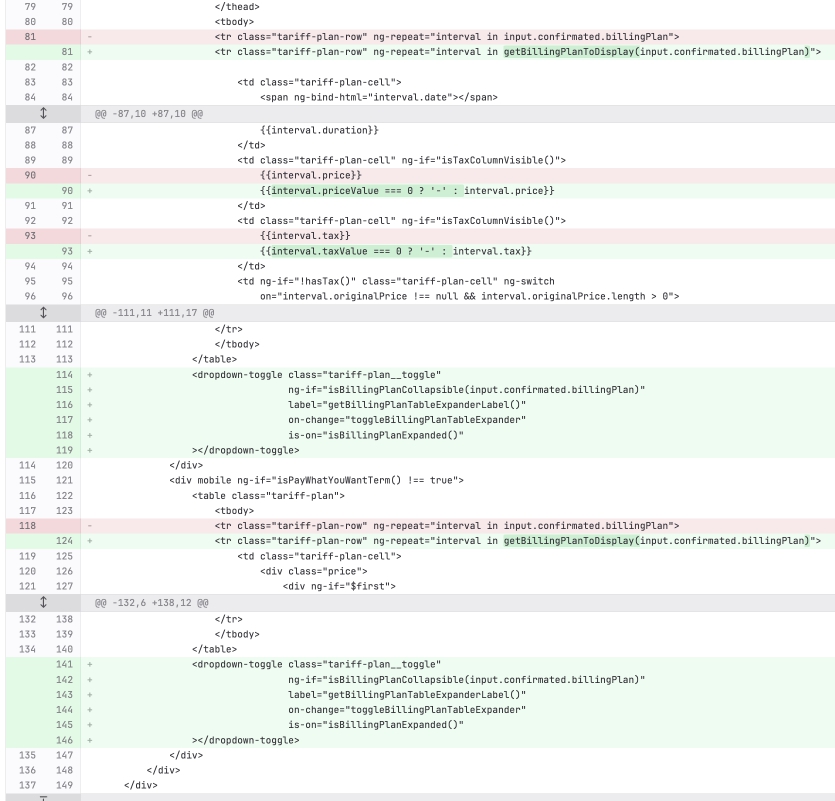
Here's the code example of how it should be after all changes.
<div desktop ng-if="isPayWhatYouWantTerm() !== true">
                <table class="tariff-plan">
                    <thead>
                    <tr ng-if="!isTaxColumnVisible()">
                        <th class="tariff-plan-title starting-title">
                            <t>Starting</t>
                        </th>
                        <th class="tariff-plan-title duration-title">
                            <t>Duration</t>
                        </th>
                        <th class="tariff-plan-title billing-title">
                            <t>Billing</t>
                        </th>
                    </tr>
                    <tr ng-if="isTaxColumnVisible()">
                        <th class="tariff-plan-title">
                            <t>Starting</t>
                        </th>
                        <th class="tariff-plan-title">
                            <t>Duration</t>
                        </th>
                        <th class="tariff-plan-title">
                            <t>Price</t>
                        </th>
                        <th class="tariff-plan-title">
                            <t>Tax</t>
                        </th>
                        <th class="tariff-plan-title">
                            <t>Billing</t>
                        </th>
                    </tr>
                    </thead>
                    <tbody>
                    <tr class="tariff-plan-row" ng-repeat="interval in getBillingPlanToDisplay(input.confirmated.billingPlan)">

                        <td class="tariff-plan-cell">
                            <span ng-bind-html="interval.date"></span>
                        </td>
                        <td class="tariff-plan-cell">
                          <span class="tariff-plan-cell__duration" ng-bind-html="getDurationHTMLString(interval.duration)"></span>
                        </td>
                        <td class="tariff-plan-cell" ng-if="isTaxColumnVisible()">
                            {{!!interval.priceValue ? interval.price : '-'}}
                        </td>
                        <td class="tariff-plan-cell" ng-if="isTaxColumnVisible()">
                            {{!!interval.taxValue ? interval.tax : '-'}}
                        </td>
                        <td ng-if="!hasTax()" class="tariff-plan-cell" ng-switch
                            on="interval.originalPrice !== null && interval.originalPrice.length > 0">
                            <div ng-switch-when="true">
                                <span class="original-price">{{interval.originalPrice}}</span>
                                <span class="new-price">{{interval.billing}}</span>
                            </div>
                            <div ng-switch-default="">{{interval.billing}}</div>
                        </td>
                        <td ng-if="hasTax()" class="tariff-plan-cell" ng-switch
                            on="interval.originalPrice !== null && interval.originalPrice.length > 0">
                            <div ng-switch-when="true">
                                <span class="original-price">{{interval.originalPrice}}</span>
                                <span class="new-price">{{interval.totalBilling}}</span>
                            </div>
                            <div ng-switch-default="">{{interval.totalBilling}}</div>
                        </td>
                    </tr>
                    </tbody>
                </table>
                <dropdown-toggle class="tariff-plan__toggle"
                                 ng-if="isBillingPlanCollapsible(input.confirmated.billingPlan)"
                                 label="getBillingPlanTableExpanderLabel()"
                                 on-change="toggleBillingPlanTableExpander"
                                 is-on="isBillingPlanExpanded()"
                ></dropdown-toggle>
            </div>
            <div mobile ng-if="isPayWhatYouWantTerm() !== true">
                <table class="tariff-plan">
                    <tbody>
                    <tr class="tariff-plan-row" ng-repeat="interval in getBillingPlanToDisplay(input.confirmated.billingPlan)">
                        <td class="tariff-plan-cell">
                            <div class="price">
                                <div ng-if="$first">
                                    <span ng-show="$parent.isTermDiscounted()"  class="original-price">{{$parent.input.originalChargeDisplayAmount}}</span>
                                    <span> <strong>{{interval.billing}}</strong></span>

                                </div>
                                <span ng-if="!$first">{{interval.billing}}</span>
                            </div>
                            <div class="details">
                                <t>Starting</t> <b><span ng-bind-html="interval.date"></span></b>, <span class="details__duration" ng-bind-html="getDurationHTMLString(interval.duration)"></span>
                            </div>
                        </td>
                    </tr>
                    </tbody>
                </table>
                <dropdown-toggle class="tariff-plan__toggle"
                                 ng-if="isBillingPlanCollapsible(input.confirmated.billingPlan)"
                                 label="getBillingPlanTableExpanderLabel()"
                                 on-change="toggleBillingPlanTableExpander"
                                 is-on="isBillingPlanExpanded()"
                ></dropdown-toggle>
            </div>
        </div>
My Account Library Components
Renew options
The My Account Library Components template should be updated with the following code. It can be inserted at any place in the template, but better at the end.
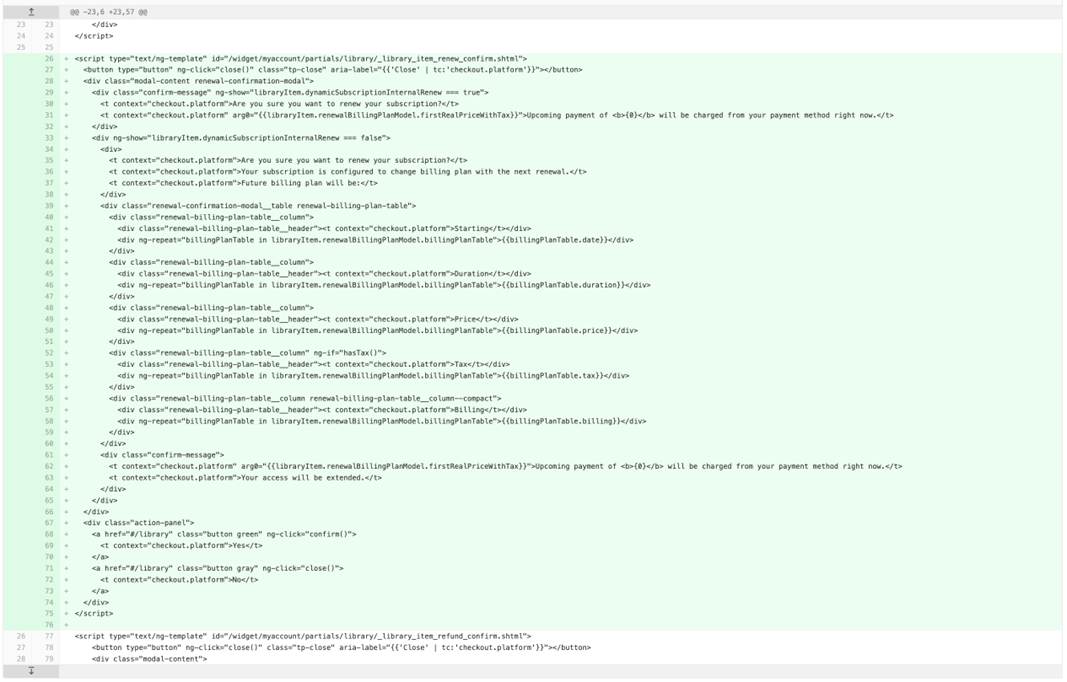
<script type="text/ng-template" id="/widget/myaccount/partials/library/_library_item_renew_confirm.shtml">
  <button type="button" ng-click="close()" class="tp-close" aria-label="{{'Close' | tc:'checkout.platform'}}"></button>
  <div class="modal-content renewal-confirmation-modal">
    <div class="confirm-message" ng-show="libraryItem.dynamicSubscriptionInternalRenew === true">
      <t context="checkout.platform">Are you sure you want to renew your subscription?</t>
      <t context="checkout.platform" arg0="{{libraryItem.renewalBillingPlanModel.firstRealPriceWithTax}}">Upcoming payment of <b>{0}</b> will be charged from your payment method right now.</t>
    </div>
    <div ng-show="libraryItem.dynamicSubscriptionInternalRenew === false">
      <div>
        <t context="checkout.platform">Are you sure you want to renew your subscription?</t>
        <t context="checkout.platform">Your subscription is configured to change billing plan with the next renewal.</t>
        <t context="checkout.platform">Future billing plan will be:</t>
      </div>
      <div class="renewal-confirmation-modal__table renewal-billing-plan-table">
        <div class="renewal-billing-plan-table__column">
          <div class="renewal-billing-plan-table__header"><t context="checkout.platform">Starting</t></div>
          <div ng-repeat="billingPlanTable in libraryItem.renewalBillingPlanModel.billingPlanTable">{{billingPlanTable.date}}</div>
        </div>
        <div class="renewal-billing-plan-table__column">
          <div class="renewal-billing-plan-table__header"><t context="checkout.platform">Duration</t></div>
          <div ng-repeat="billingPlanTable in libraryItem.renewalBillingPlanModel.billingPlanTable">{{billingPlanTable.duration}}</div>
        </div>
        <div class="renewal-billing-plan-table__column">
          <div class="renewal-billing-plan-table__header"><t context="checkout.platform">Price</t></div>
          <div ng-repeat="billingPlanTable in libraryItem.renewalBillingPlanModel.billingPlanTable">{{billingPlanTable.price}}</div>
        </div>
        <div class="renewal-billing-plan-table__column" ng-if="hasTax()">
          <div class="renewal-billing-plan-table__header"><t context="checkout.platform">Tax</t></div>
          <div ng-repeat="billingPlanTable in libraryItem.renewalBillingPlanModel.billingPlanTable">{{billingPlanTable.tax}}</div>
        </div>
        <div class="renewal-billing-plan-table__column renewal-billing-plan-table__column--compact">
          <div class="renewal-billing-plan-table__header"><t context="checkout.platform">Billing</t></div>
          <div ng-repeat="billingPlanTable in libraryItem.renewalBillingPlanModel.billingPlanTable">{{billingPlanTable.billing}}</div>
        </div>
      </div>
      <div class="confirm-message">
        <t context="checkout.platform" arg0="{{libraryItem.renewalBillingPlanModel.firstRealPriceWithTax}}">Upcoming payment of <b>{0}</b> will be charged from your payment method right now.</t>
        <t context="checkout.platform">Your access will be extended.</t>
      </div>
    </div>
  </div>
  <div class="action-panel">
    <a href="#/library" class="button green" ng-click="confirm()">
      <t context="checkout.platform">Yes</t>
    </a>
    <a href="#/library" class="button gray" ng-click="close()">
      <t context="checkout.platform">No</t>
    </a>
  </div>
</script>
Cancelation/resume options
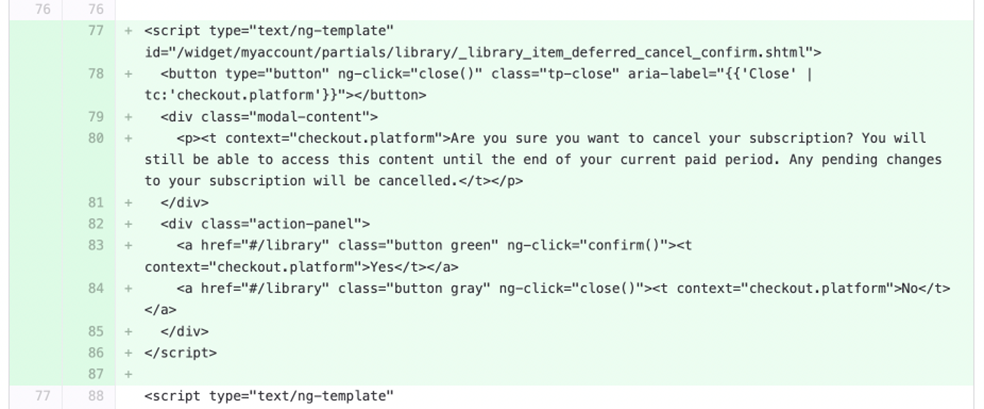
<script type="text/ng-template" id="/widget/myaccount/partials/library/_library_item_deferred_cancel_confirm.shtml">
  <button type="button" ng-click="close()" class="tp-close" aria-label="{{'Close' | tc:'checkout.platform'}}"></button>
  <div class="modal-content">
    <p><t context="checkout.platform">Are you sure you want to cancel your subscription? You will still be able to access this content until the end of your current paid period. Any pending changes to your subscription will be cancelled.</t></p>
  </div>
  <div class="action-panel">
    <a href="#/library" class="button green" ng-click="confirm()"><t context="checkout.platform">Yes</t></a>
    <a href="#/library" class="button gray" ng-click="close()"><t context="checkout.platform">No</t></a>
  </div>
</script>
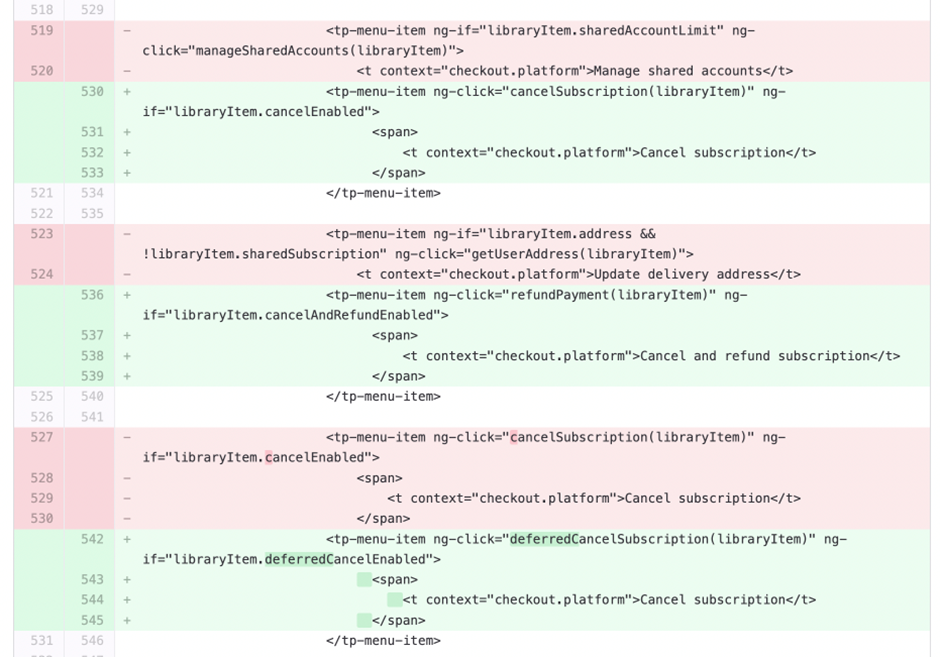
<tp-menu-item ng-click="cancelSubscription(libraryItem)" ng-if="libraryItem.cancelEnabled">
                              <span>
                                  <t context="checkout.platform">Cancel subscription</t>
                              </span>
                        </tp-menu-item>

                        <tp-menu-item ng-click="refundPayment(libraryItem)" ng-if="libraryItem.cancelAndRefundEnabled">
                              <span>
                                  <t context="checkout.platform">Cancel and refund subscription</t>
                              </span>
                        </tp-menu-item>

                        <tp-menu-item ng-click="deferredCancelSubscription(libraryItem)" ng-if="libraryItem.deferredCancelEnabled">
                              <span>
                                  <t context="checkout.platform">Cancel subscription</t>
                              </span>
                        </tp-menu-item>
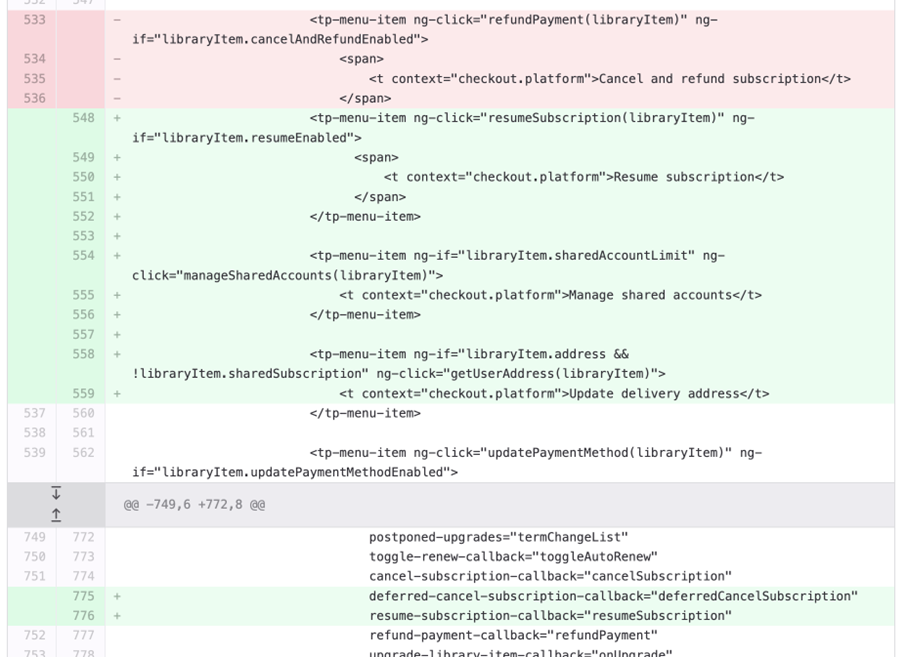
<tp-menu-item ng-click="resumeSubscription(libraryItem)" ng-if="libraryItem.resumeEnabled">
                              <span>
                                  <t context="checkout.platform">Resume subscription</t>
                              </span>
                        </tp-menu-item>

                        <tp-menu-item ng-if="libraryItem.sharedAccountLimit" ng-click="manageSharedAccounts(libraryItem)">
                            <t context="checkout.platform">Manage shared accounts</t>
                        </tp-menu-item>

                        <tp-menu-item ng-if="libraryItem.address && !libraryItem.sharedSubscription" ng-click="getUserAddress(libraryItem)">
                            <t context="checkout.platform">Update delivery address</t>
                        </tp-menu-item>

                    <div class="scrollable-content">
                        <library-table
                                ng-if="$parent.active"
                                collection="activeLibrary"
                                postponed-upgrades="termChangeList"
                                toggle-renew-callback="toggleAutoRenew"
                                cancel-subscription-callback="cancelSubscription"
                                deferred-cancel-subscription-callback="deferredCancelSubscription"
                                resume-subscription-callback="resumeSubscription"
                                refund-payment-callback="refundPayment"
                                upgrade-library-item-callback="onUpgrade"
                                update-payment-method-callback="updatePaymentMethod"
                                get-user-address-callback="getUserAddress"
                                renew-now-callback="renewNow"
                                manage-shared-accounts-callback="manageSharedAccounts"
                                leave-from-parent-subscription-callback="leaveFromParentSubscription"
                                redeem-shared-access-callback="redeemSharedAccess"
                                shared-access-list="sharedAccessList"></library-table>
                    </div>
My Account Help Components
The My Account Help Components template should be updated with the following code. The code from string 231 should be replaced with the code highlighted with the green color.
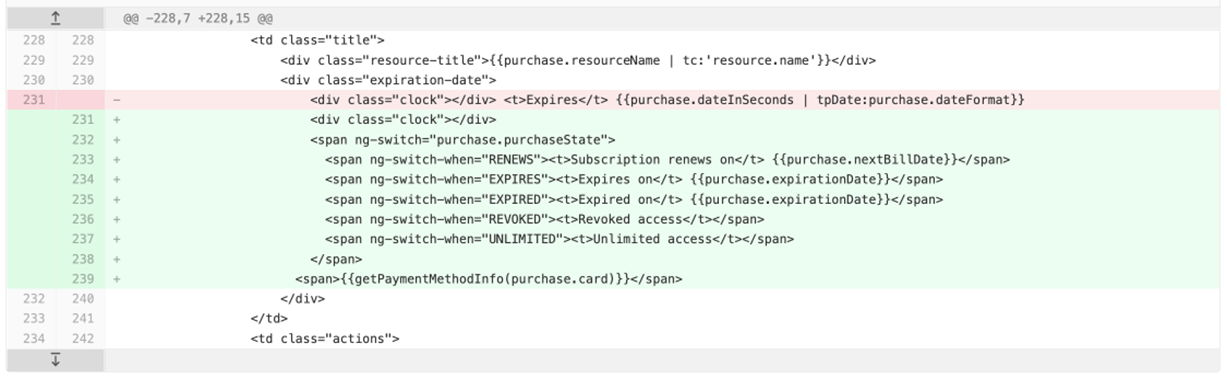
<div class="clock"></div>
<span ng-switch="purchase.purchaseState">
  <span ng-switch-when="RENEWS"><t>Subscription renews on</t> {{purchase.nextBillDate}}</span>
  <span ng-switch-when="EXPIRES"><t>Expires on</t> {{purchase.expirationDate}}</span>
  <span ng-switch-when="EXPIRED"><t>Expired on</t> {{purchase.expirationDate}}</span>
  <span ng-switch-when="REVOKED"><t>Revoked access</t></span>
  <span ng-switch-when="UNLIMITED"><t>Unlimited access</t></span>
</span>
<span>{{getPaymentMethodInfo(purchase.card)}}</span>
Email templates
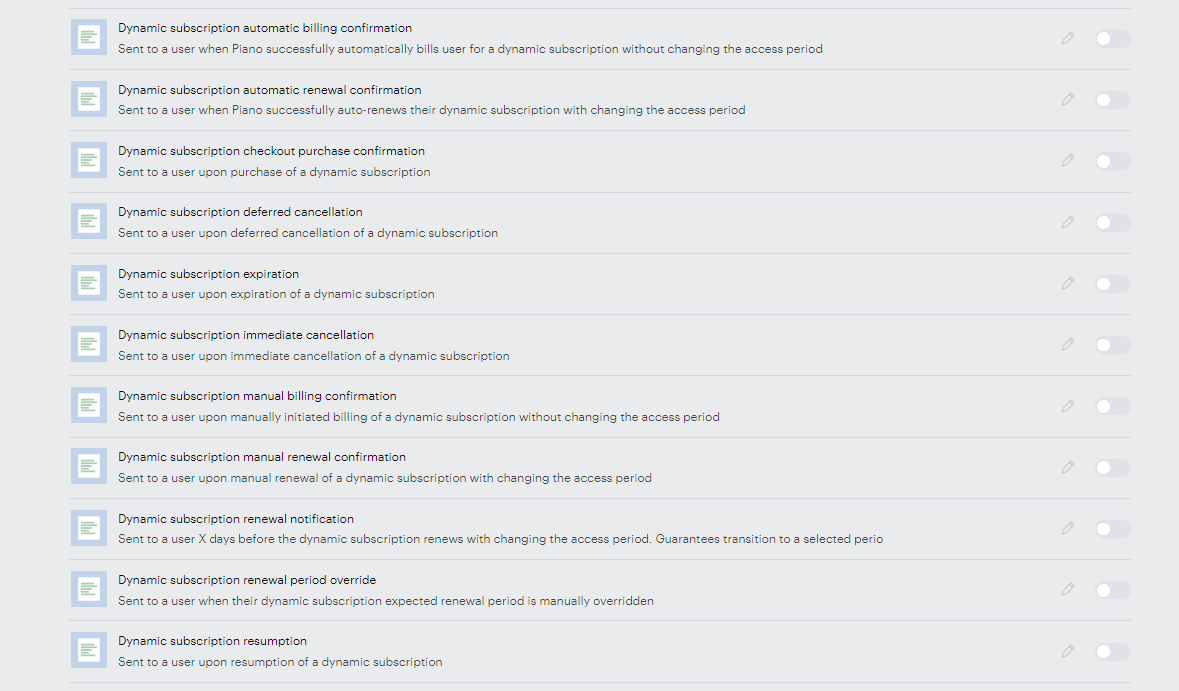
Dynamic terms have a few new email templates that are available both on the app and on the term level.


Cancelation changes
The cancelation logic for dynamic subscriptions was changed in Piano to align with the industry standards.
End-user cancelation
There’s only one cancelation option that is available for the end-user for dynamic subscriptions.
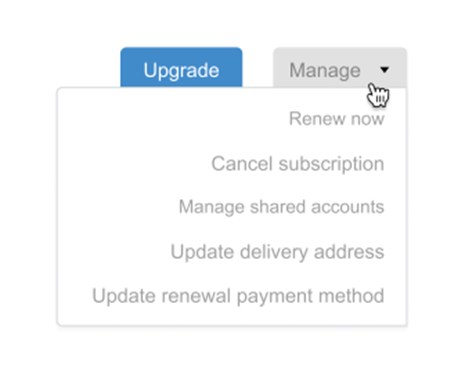
Clicking on the Cancel subscription element disables auto-renewal and initiates a deferred cancellation. The user will keep his access until the end of the paid period and then the subscription will naturally expire. If the end-user wants to cancel immediately or get a refund they should call the client's customer service and ask for that. This is the point where customer service would be able to gather feedback and prevent churn if possible.
Publisher dashboard cancelation
On the other hand, customer service will keep the ability to cancel subscriptions immediately and refund payments.
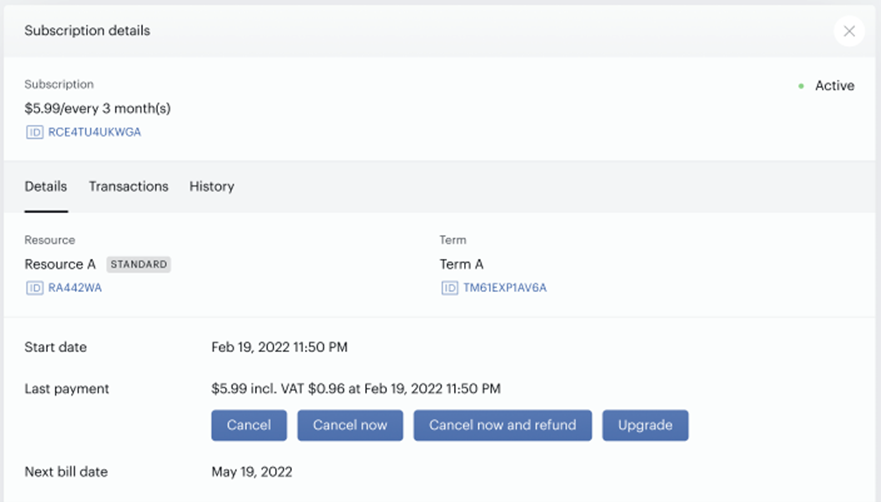
But the cancelation button behavior will change the same way as in My Account.
The option "Cancel now" immediately terminates a subscription as well as the linked access, whereas the option "Cancel" will expire the subscription at the end of the current billing period (i.e. disabling the automatic subscription renewal while the user still retains the current subscription access until the next bill date).
Subscribing user from a Publisher Dashboard
Dynamic terms can now be applied to a user from the apply term wizard in the dashboard the same way it works for payment terms.
Configuration use cases
Simple recurring subscription
Use case: As a client user I would like to configure a simple subscription that will be renewed every month/year.
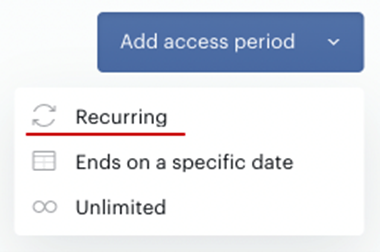
To configure such a simple subscription that is basically replicating the regular payment subscription client user will need to create a recurring access period:
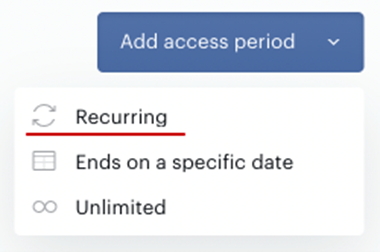
And configure a relative billing plan with the required timeframe between payments. And then loop the period to make it recurring forever until changed.
Recurring subscription with a trial period
Use case: As a client user I would like to configure a subscription that will be renewed every month/year with a trial period of 1 month.
To configure such a term, the client user will need to create a relative access period with a one-year access length and then configure a relative billing plan for it with a billing period of one month.
To configure such a subscription, the client user will need to create two access periods. The first one is a recurring period:
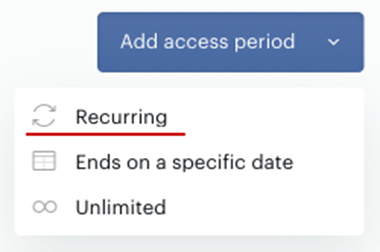
With a relative billing configuration:
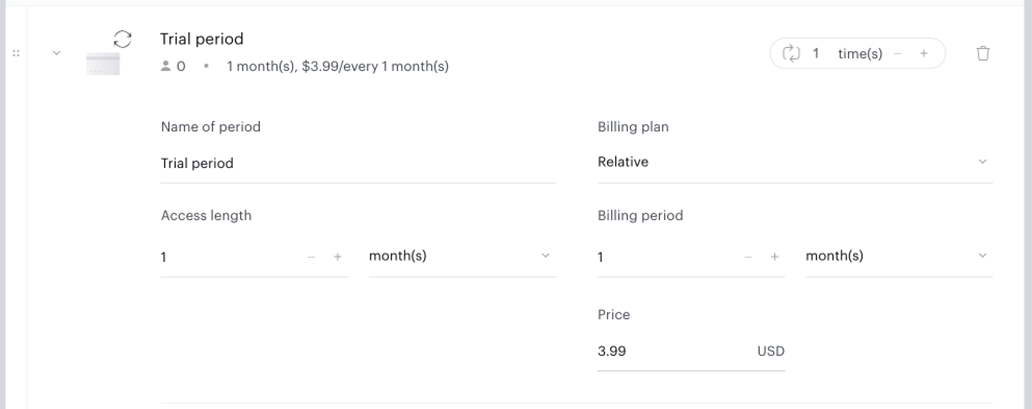
And the second one would be a recurring looped access period:
With a relative billing plan with a required timeframe between payments.
Recurring subscription with a free trial period
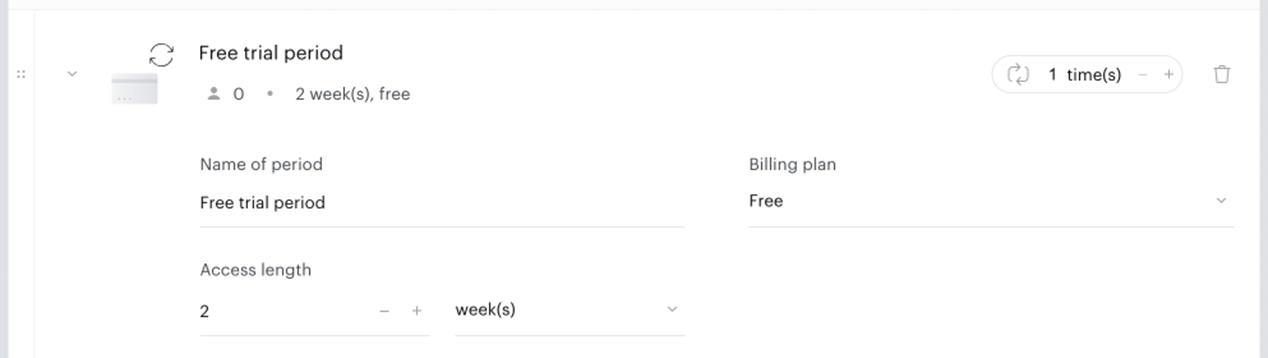
Use case: As a client user I would like to configure a subscription that will be renewed every month/year with a free trial period of 2 weeks.
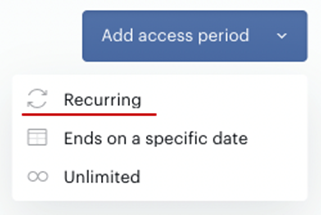
To configure such a subscription, the client user will need to create two access periods. The first one is a recurring period:
With a free billing configuration:
And the second one would be a recurring looped access period:
With a relative billing plan with a required timeframe between payments.
Temporarily adding trial period to the subscription
Use case: As a client user I would like to configure the existing subscription to have a trial period and then remove it again.
To configure such a term, the client user will need to open the existing term and add a new recurring access period.
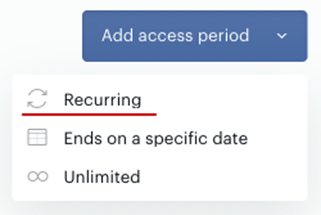
It can be a free trial period - then it has to be a free billing plan. Or it can be a paid trial period where the price will be reduced - then it has to be a relative billing plan.
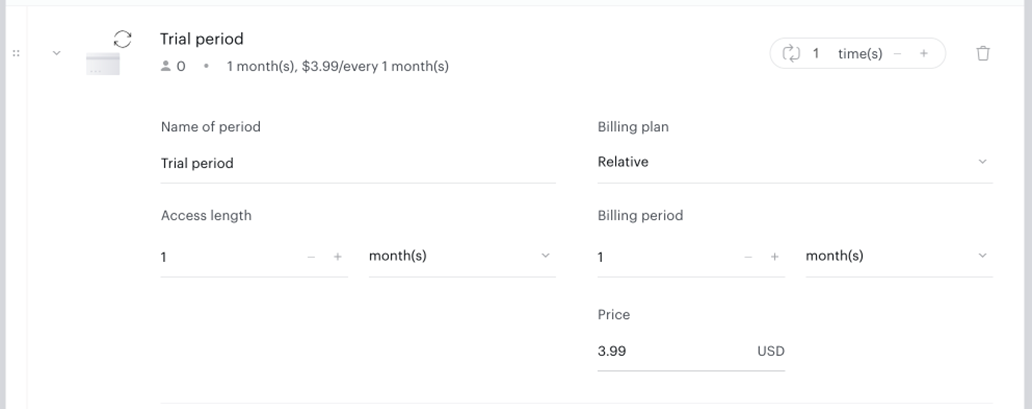
Then the client user will need to move that new period to the top of the schedule and save a term. Starting from that moment all new subscribers will start converting on the trial period, and all existing subscribers will keep renewing according to the schedule without noticing a new period.
Later client user can mark this trial period as deleted and if there are no active subscribers on that period it will be instantly deleted. If there are active subscribers period will be greyed out and marked as deleted. Users who are currently in the period will keep renewing to the next period. New users purchasing the term will bypass the deleted period and subscribe without a trial. Once there will become no active subscribers on the deleted period it will disappear from the schedule.
One-off (single payment) configuration
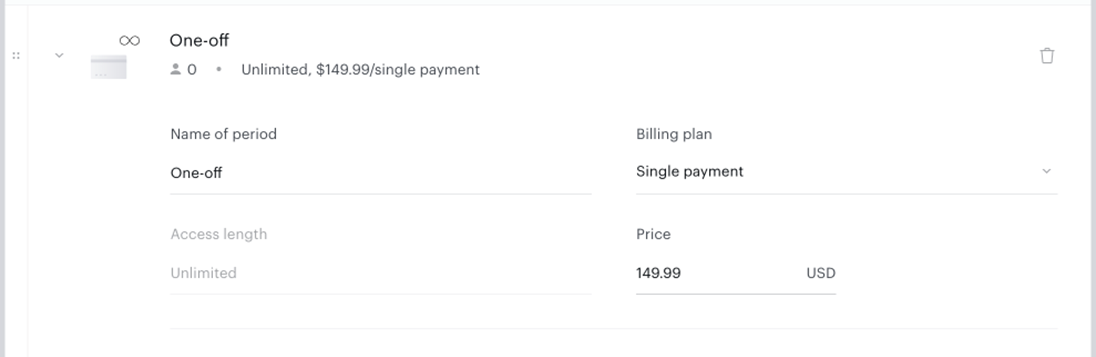
Use case: As a client user I would like to configure a single payment term.
To configure such a term, the client user will need to create an unlimited access period with a single payment billing plan:
Annual term with monthly billing
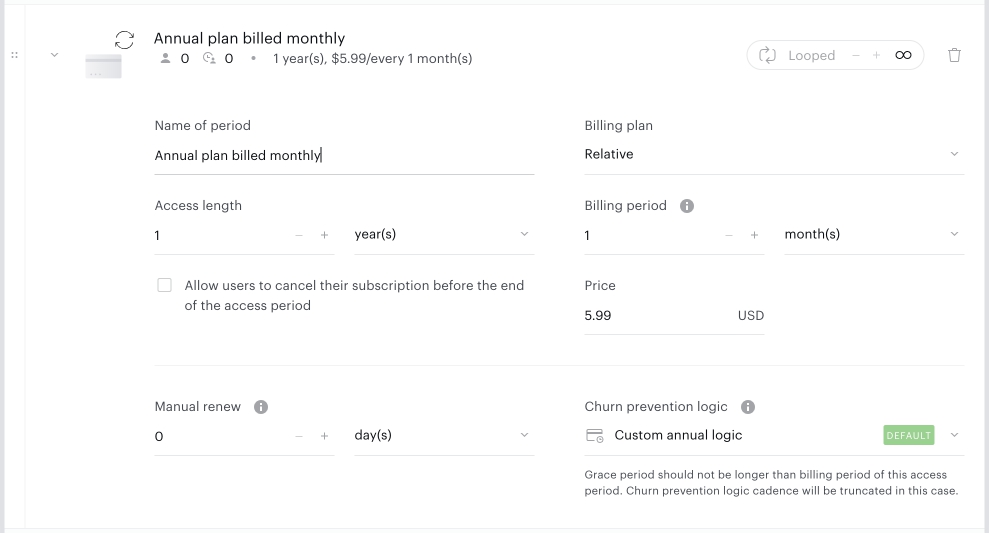
Use case: As a client user I want my subscribers to pay monthly for the annual subscription.
To configure such a term, the client user will need to create a relative access period with a one-year access length and then configure a relative billing plan for it with a billing period of one month:
Important to keep in mind is that if the access and billing schedules don’t match exactly, i.e. monthly access period (that gives 30/31 days of access) is configured with weekly billing (that eventually gives 28 days of access with 4 payments) the system will anyway make renewal at the end of the access period. In this particular case users will be charged 5 times - during the checkout, then upon billing dates inside of the access period on the 7th, 14th, 21st, and 28th days, and then during renewal on the 30th/31st day for the next access period.
Day pass
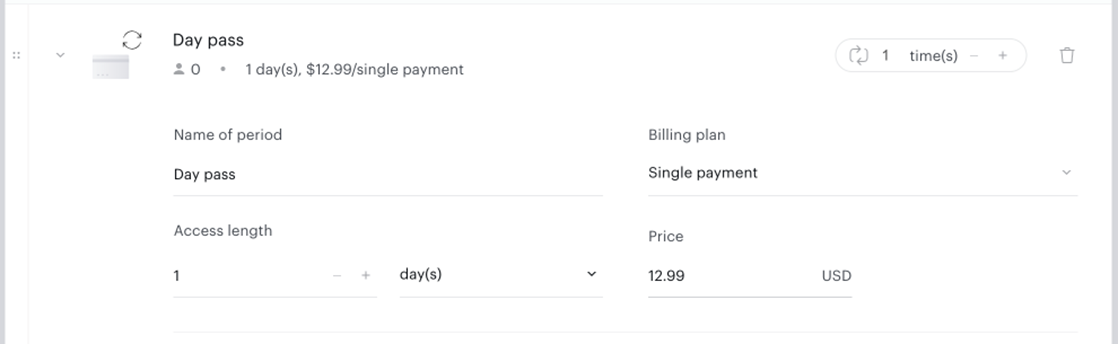
Use case: As a client, I would like to configure a one-day access term.
To configure such a term, the client user will need to create a one-day recurring access period with a single payment billing plan:
Step-up pricing
Use case: As a client, I would like to configure a term that will automatically increase pricing for existing subscribers according to the schedule.
Let's look at the case when the subscription should have a one-month trial period that is billed weekly, then one year of prorated access that is billed monthly, and finally it will switch to annual billing.
In this case, the client will have to configure three different access periods in the term.
-
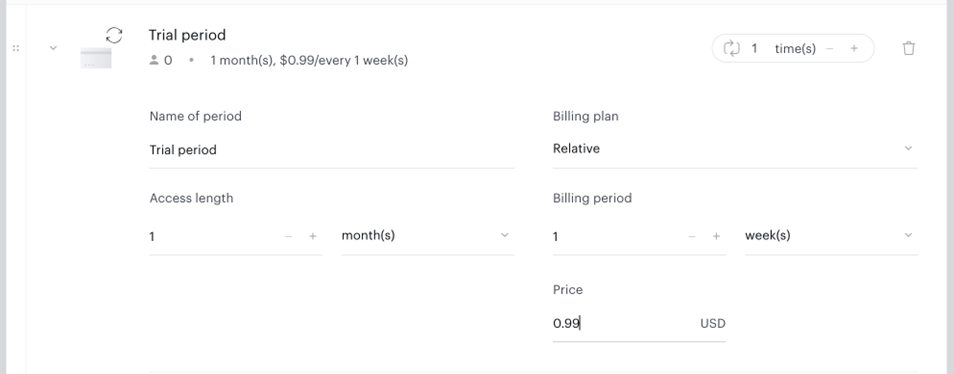
First - a one-month recurring access period with a weekly relative billing.
-
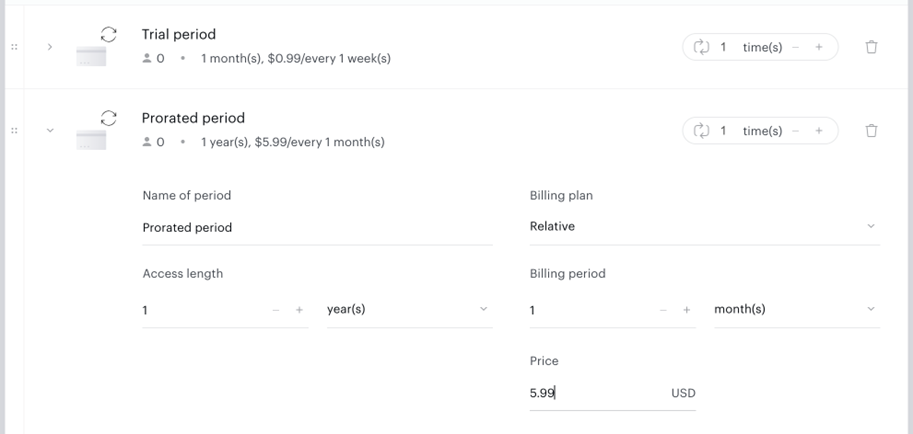
Second - a one-year recurring access period with monthly relative billing.
-
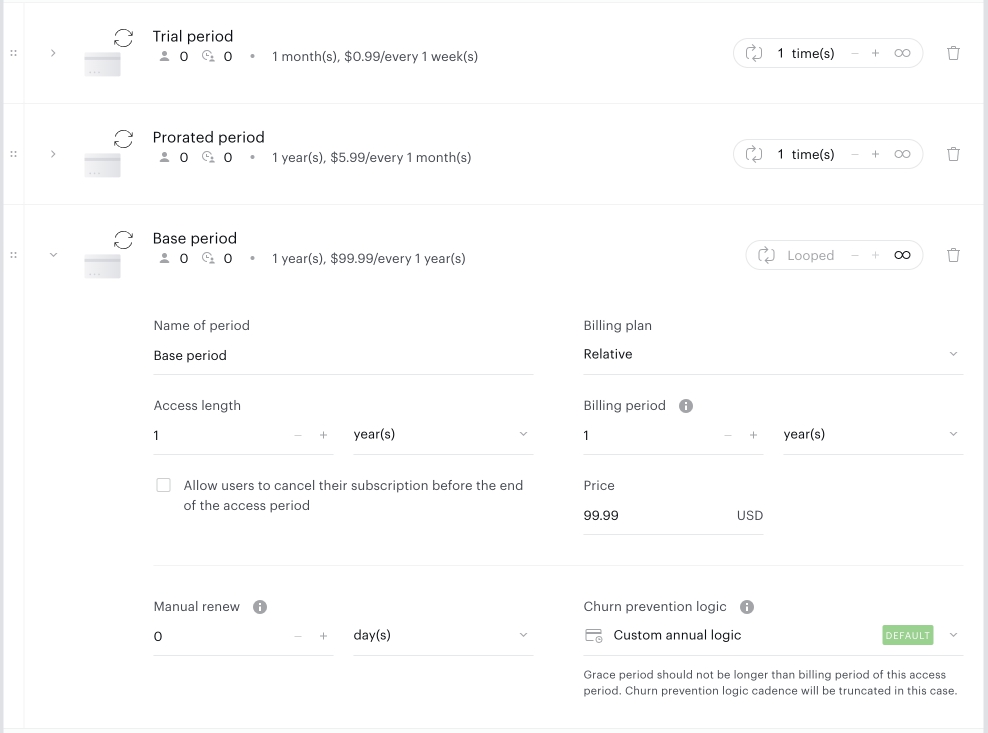
And finally - a one-year recurring access period but with annual relative billing.
Subscriptions starting on a specific date (event-based subscriptions)
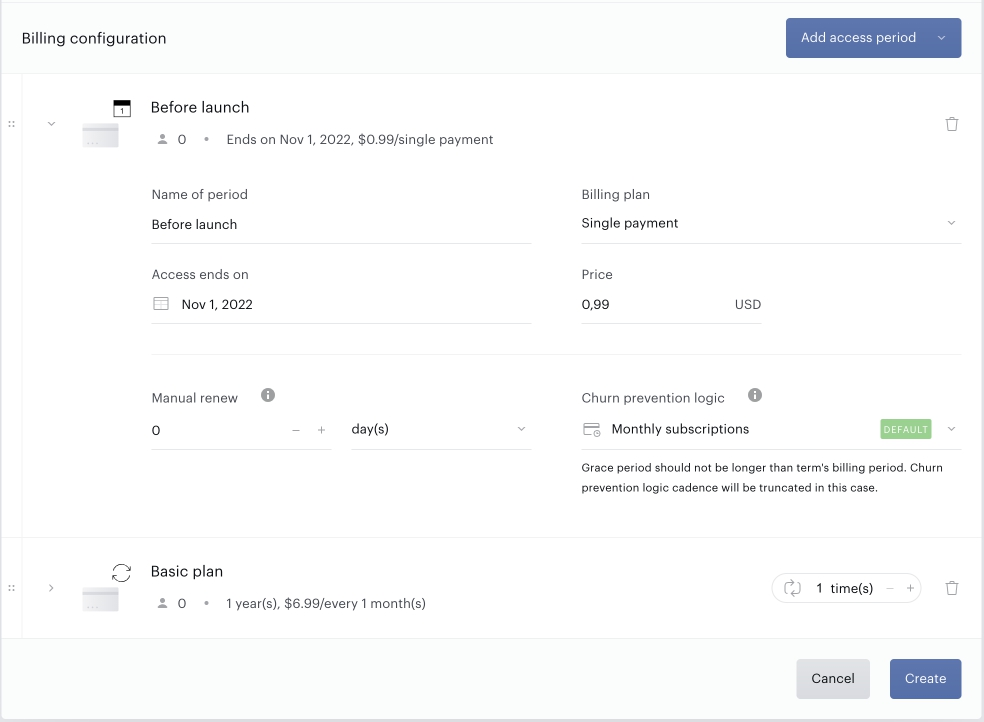
Use case: As a client, I would like to configure my subscription to have a prorated period that ends on a specific date after which the basic plan starts.
To configure such a term, the client user will need to create an access period that ends on a specific date with a single payment or relative (if needed) billing plan:
Convert unlimited access period
Use cases:
-
As a client, I would like to wrap up sales of a specific single payment term and terminate all subscriptions on it and revoke access at some point.
-
As a client, I would like to convert a one-off (single payment) term into a recurring subscription.
To end an ongoing unlimited access period it is required to convert it into a period ending on a specific date for case 1. Or convert into a relative or a period ending on a specific date and add a new period for case 2 and configure a billing cadence.
Increase price for existing subscribers
Use cases:
-
As a client, I would like to increase the price of the period in the middle of the schedule.
-
As a client, I would like to increase the price of the final period of the schedule.
Case 1:
To increase the price of the period in the middle of the schedule a client user will need to open the existing term and add a new recurring access period.
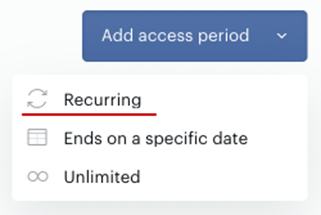
The client user will need to configure a new period and reorder it before the period that he would like to replace.
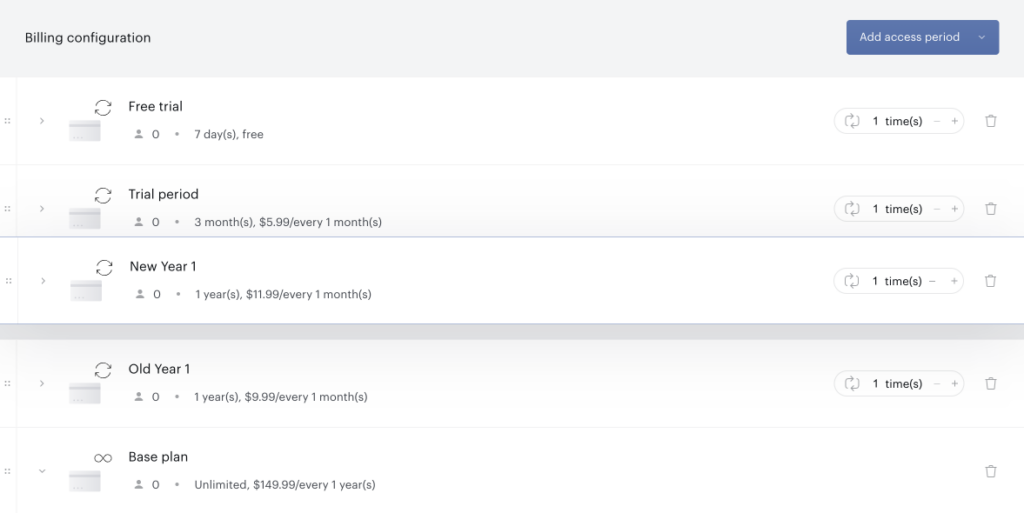
Then the client user will need to mark the period that should be replaced as deleted and save a term. The old period will be greyed out and disabled, but it will remain visible in the schedule until there are active subscribers on this period. Starting from that moment all existing subscribers on the old period will keep renewing according to the schedule without noticing the new period. All users who are currently on the period before the one that was just added will start renewing to the new period. And when renewing further from the new period they will be skipping the old period because it is marked as deleted. Once there are no active subscribers on the old period it will disappear from the schedule.
Case 2:
To increase the price of the final period of the schedule (increase the price for users who are already paying the highest price) a client user will need to open the existing term and add a new recurring access period. Client users will need to leave that new period at the bottom of the schedule and loop it. At the same time unloop the old period, set number of iterations to 1 and mark it as deleted to make sure users on the old period will renew to the new pricing and users who are currently before the old period will start skipping it and renewing directly to the new period.
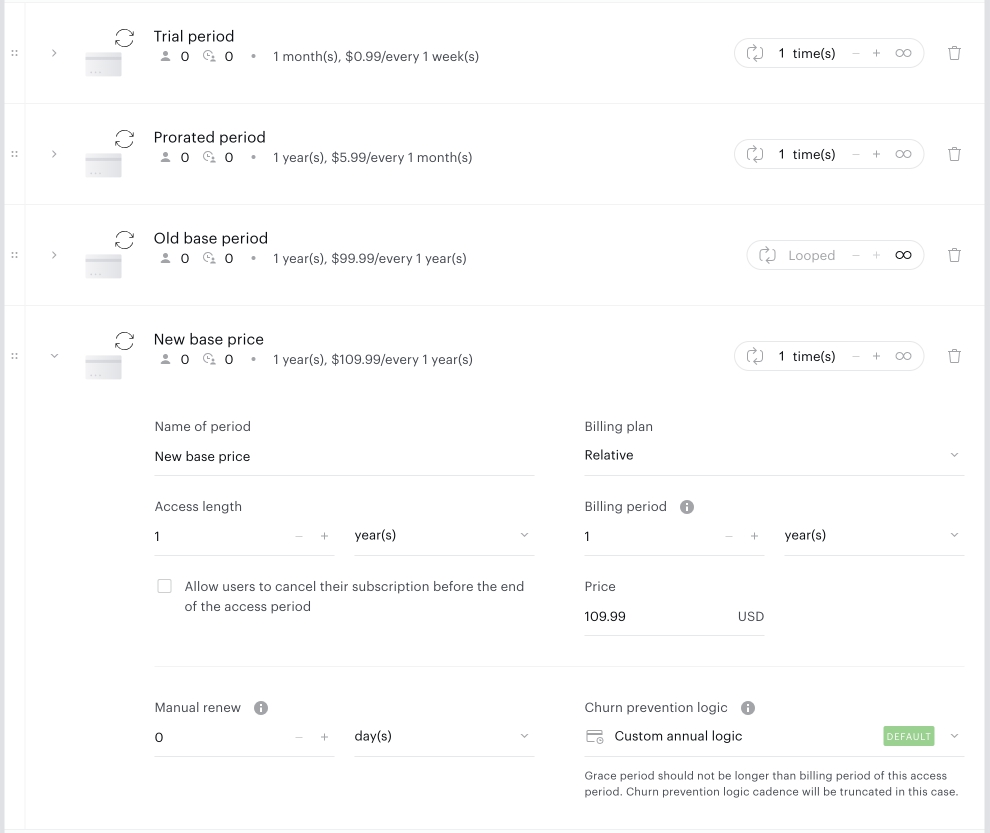
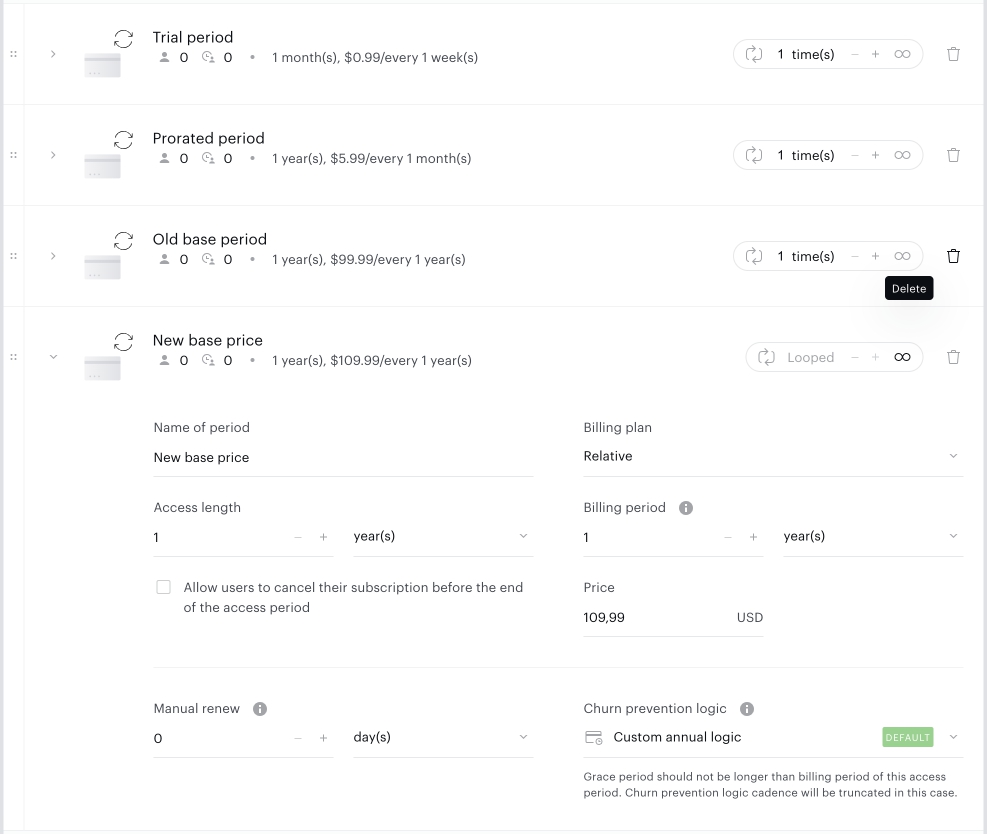
Important! If you leave the old period as looped users will never renew to the new period, because there is already a looped period above it. The old period MUST be unlooped.
Price increases and pending asynchronous payments
Some payment providers confirm payments asynchronously, for example invoice-based providers. With these providers, a renewal is treated as successful as soon as it is initiated, and the subscription moves to its next access period while the payment is still pending.
A pending payment is only checked at the next renewal. At that point the provider will not accept a new charge while the previous payment is still unconfirmed.
If the term has a grace period, this affects which access period the subscriber ends up in. A grace period is technically part of the next access period, which Piano grants in advance. The subscriber is therefore moved into the next access period even though no new payment was taken. After a price increase, that next access period is the new, higher-priced one.
If the grace period ends without the payment being confirmed, the subscription expires with the status Expired with error.
Recommendation: Before you increase a price on a dynamic term, review subscribers who have pending asynchronous payments. Resolving those payments first avoids subscribers being moved into the higher-priced access period while an earlier payment is still unconfirmed.
Renew to a specific period
To renew a user's subscription to a specific access period, users can utilize the "Dynamic Subscription Renewal Period Override" feature. This allows flexibility in scheduling renewals beyond the default billing schedule. When viewing the Subscription details of a user in the Piano dashboard, you can observe the scheduled renewal according to the billing schedule.
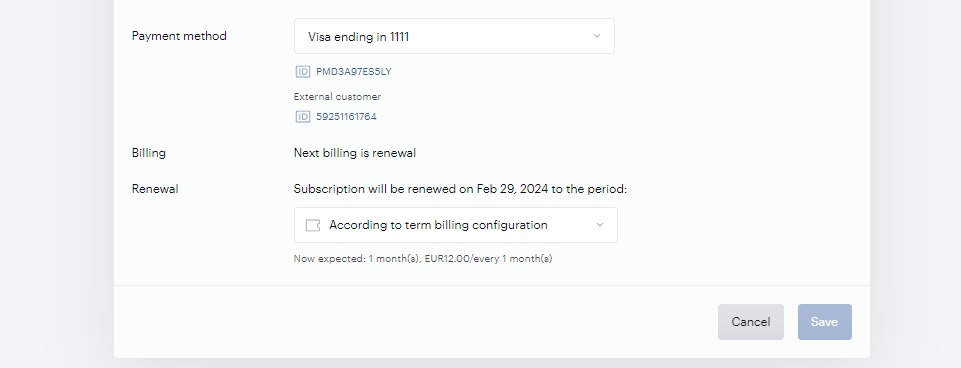
Although the default behavior is to renew according to the next period configured in the term, the dropdown menu provides the option to schedule the renewal for any other access period within the same term. Upon choosing a different period and saving the changes, you can verify the updated renewal details in the Subscription Overview's History tab.
This feature can be initially enabled by toggling on the Dynamic subscription renewal notification email template under Manage → Email Manager.
It is crucial to note that once this email is enabled, the system will commence sending notifications to real users from the following day onward.
Generate a new version of the email template and set the 'X days' parameter to control the number of days before the renewal date when you wish to inform your end-users about impending price changes.
Known limitations
-
Dynamic subscriptions currently don’t support:
-
"Allow to pay more" feature
-
-
Some asynchronous payment providers are not supported:
-
Onet
-
Openpay Cash
-
Easypay - all options (Direct Debit, Multibanco, MBWay, Boleto)
-
PayU India Credit Card
-
PayU India UPI
-
PayU India NetBanking
-
PayU Brazil Boleto
-
PayU Colombia PSE
-
Vipps
-
-
Apple Pay as a payment method is currently not supported for frictionless checkout with Dynamic terms that have a first free period
-
Not all reports currently fully support dynamic subscriptions:
-
Subscription reports show only current period data
-
-
Dynamic subscriptions are treated as if they are always on auto-renewal in the Subscription log report. To determine if a dynamic subscription will actually renew, check the subscription status in the Subscription log (column G). If the status is "Won't renew" or "Canceled" instead of "Active," the subscription will not renew. Additionally, column E will display an end date indicating when the subscription is set to terminate.