Preconditions
-
Enablement of the passive churn prevention feature changes the default renewal cadence of 1 retry attempt every 5 days to 1 retry attempt evey 3 days.
-
Enablement of the passive churn prevention feature changes all existing grace periods configured on a term-level to a unified grace period of 15 days.
-
Enablement of the passive churn prevention feature replaces two existing email templates ‘Subscription renewal failure’ and ‘3DS 2.0 Authentication’ with two new templates with same names that can have multiple active versions (requirement for PSP feature to work). Contents of these templates will be copied upon the feature enablement by the support representative, but it is good to verify that the content is correct.
Test cases
Creation of new custom logic
Steps
-
Create new custom logic as described in the documentation.
Expected results
-
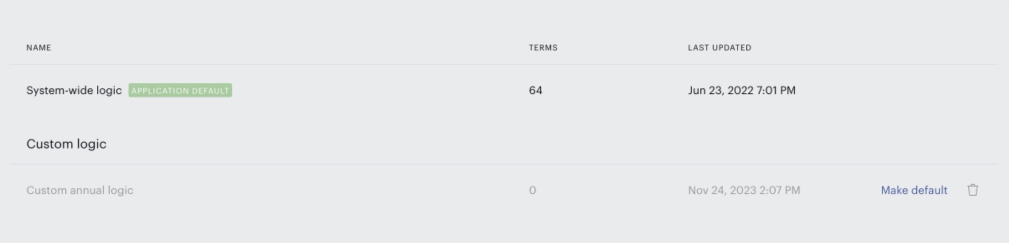
New logic is created.
-
System-wide logic is still selected as the application default logic for all terms.
-
No changes in renewal/retry behavior are made yet.
Switching from system-wide to custom logic
Steps
-
Click on ‘Make default’ near the ‘Custom annual logic’ to switch to it from a system-wide logic.
-
Confirm your action in the confirmation screen.
Expected results
-
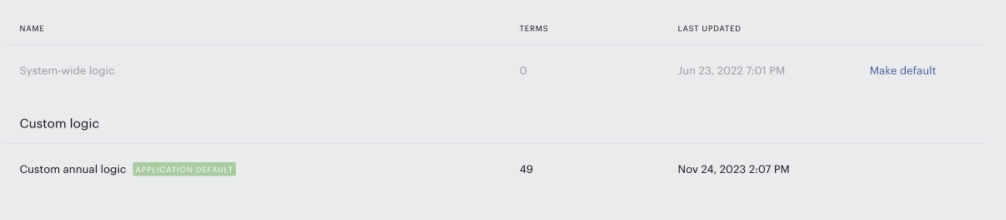
‘Application default’ badge is applied to the ‘Custom annual logic’.
-
All terms moved from system-wide logic to the ‘Custom annual logic’.
-
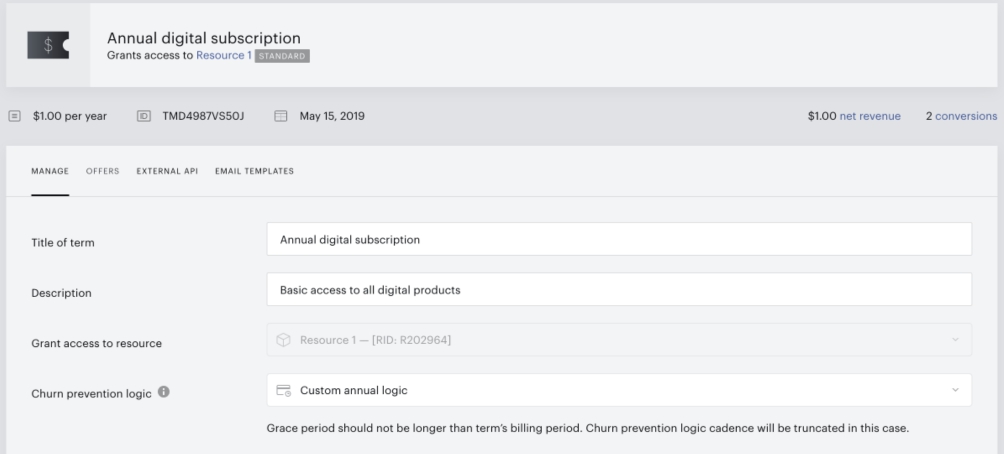
‘Custom annual logic’ is applied as a churn prevention logic for all terms.
-
Grace period for all subscriptions on all terms changed according to the ‘Custom annual logic’
Selecting churn prevention logic on a term level
Steps
-
Create additional ‘Monthly custom logic’ logic as described in the documentation.
-
Open any payment or dynamic term.
-
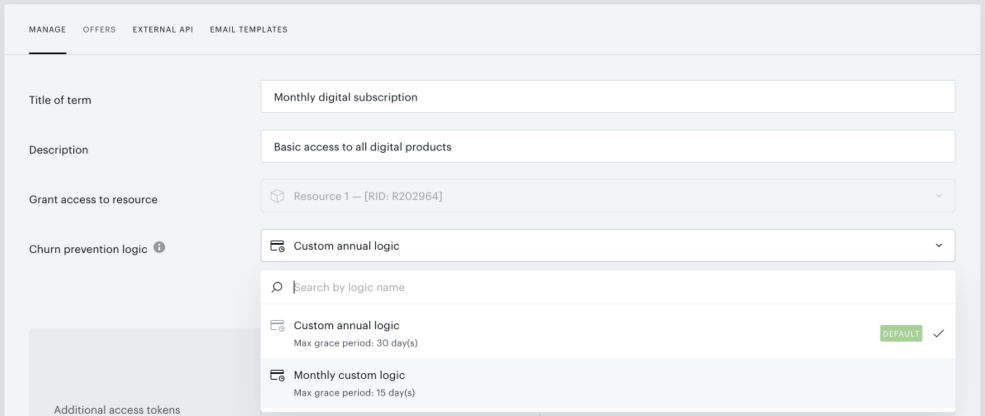
Select ‘Monthly custom logic’ as a logic applied to this term.
-
Save changes.
Expected results
-
New custom logic is applied to the term.
-
Grace period for subscriptions on this term are changed according to the ‘Monthly custom logic’ configuration.
-
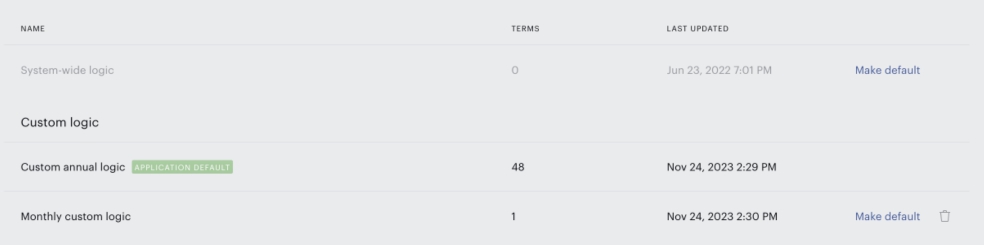
Number of terms linked with the ‘Monthly custom logic’ changed in the churn prevention section.
Applying a logic to multiple terms at once
Steps
-
Create additional ‘Extended annual grace’ logic as described in the documentation.
-
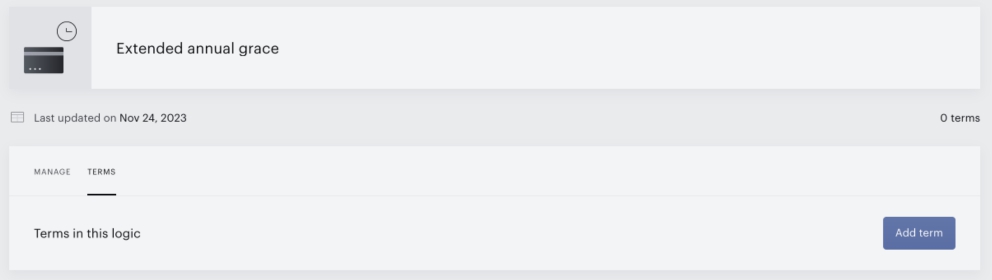
Open this logc and switch to the ‘Terms’ tab.
-
Click on ‘Add term’.
-
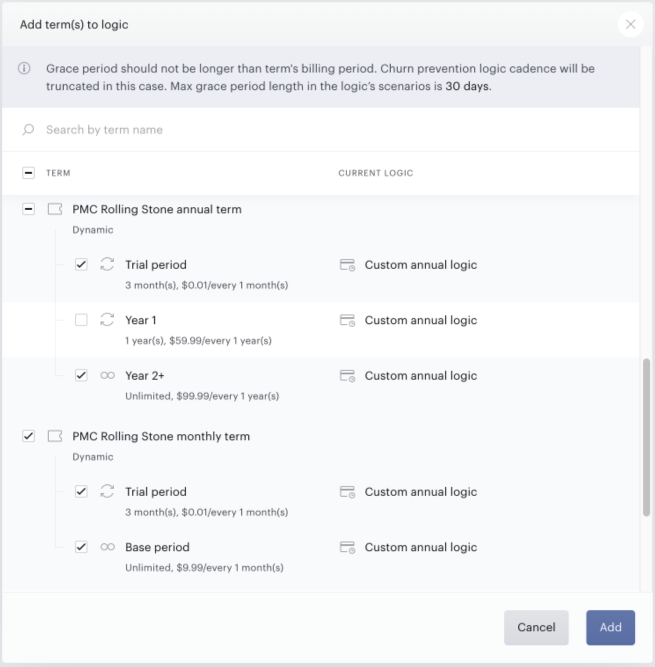
Select whether the new logic should be applied to the whole term or to a specific period of the dynamic term.
-
Click the ‘Add’ button and confirm the action.
Expected results
-
Logic was applied to terms and specific periods.
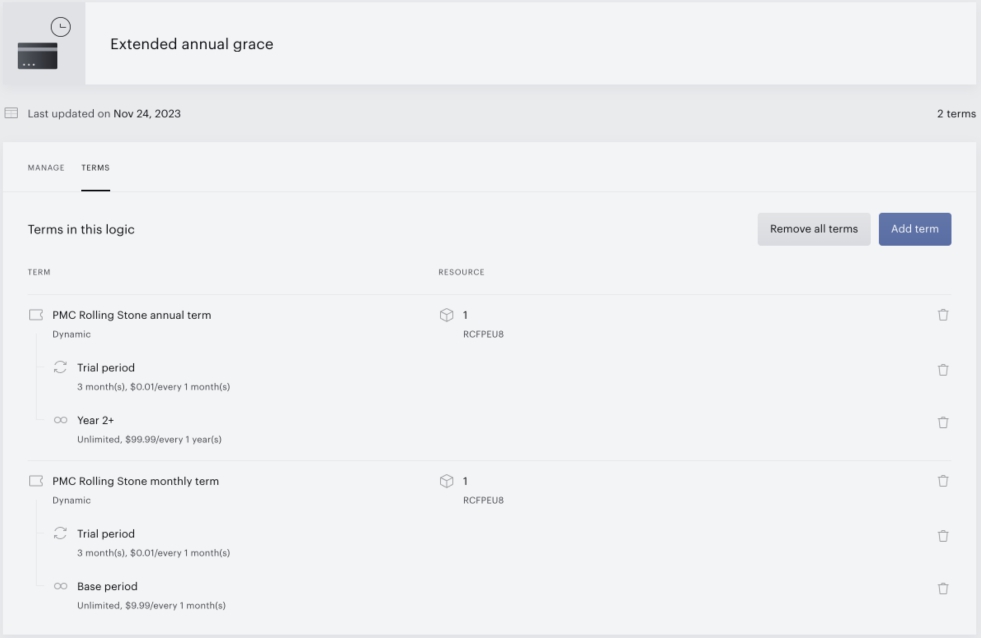
-
Number of terms linked with the logic changed.
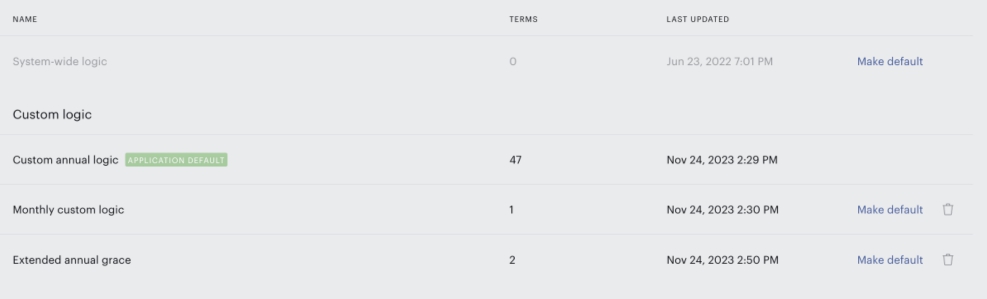
-
You can see on the term level that logic is not applied to unselected periods and applied to selected ones.
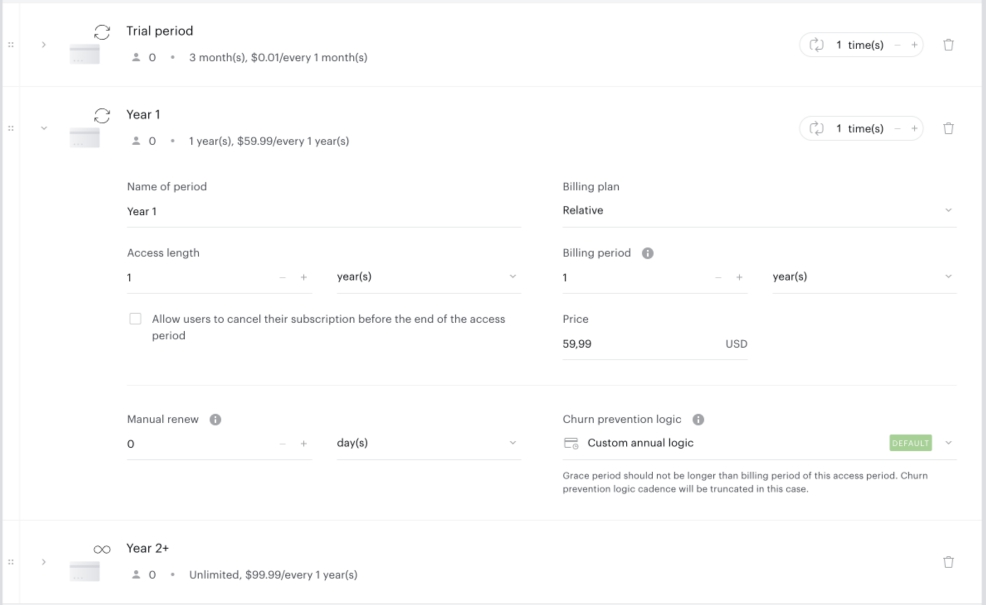
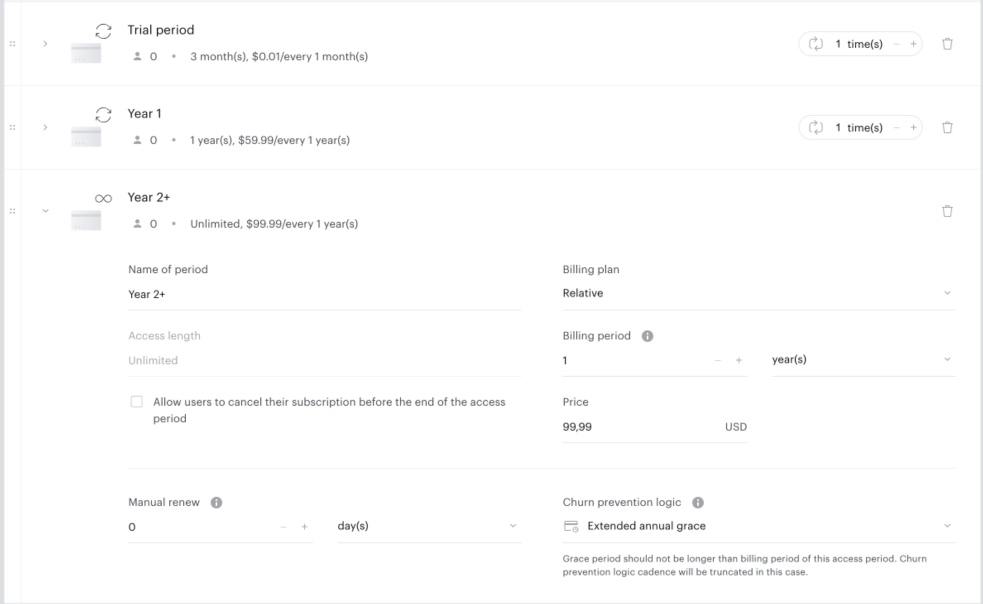
Payment failure testing
Payment failure testing is specific to a payment provider. Testing with payment providers that have a basic level of support doesn’t make a lot of sense, as all error codes will fall under the ‘Everything else’ decline reason and the system will not be able to differentiate them. Also, this test can’t be properly executed in the production environment, as payment providers typically don’t emulate error messages in the live environment. All tests should be executed in sandbox.
During this type of test, we need to validate that the system is acting according to the configuration of the passive churn prevention logic based on the error message received from the payment provider. To emulate a specific error message from the payment provider we need to trigger an automatic renewal with a specific renewal price that will trigger an error response from the payment provider.
Braintree
Here are the mapping error codes to transaction prices for Braintree
|
Decline reason |
Error code |
Error message |
Transaction amount |
|
Successful transaction |
|
|
0.01 - 1999.99 |
|
Suspected fraud |
2014 |
Processor Declined – Fraud Suspected |
2014.00 |
|
2020 |
Violation |
2020.00 |
|
|
2021 |
Security Violation |
2021.00 |
|
|
2085 |
PayPal Payee Blocked Transaction |
2085.00 |
|
|
Insufficient funds |
2001 |
Insufficient Funds |
2001.00 |
|
Expired card |
2004 |
Expired Card |
2004.00 |
|
2022 |
Declined – Updated Cardholder Available |
2022.00 |
|
|
Card is stolen or lost |
2012 |
Processor Declined – Possible Lost Card |
2012.00 |
|
2013 |
Processor Declined – Possible Stolen Card |
2013.00 |
|
|
2047 |
Call Issuer. Pick Up Card |
2047.00 |
|
|
2053 |
Card reported as lost or stolen |
2053.00 |
|
|
Limit exceeded |
2002 |
Limit Exceeded |
2002.00 |
|
2003 |
Cardholder's Activity Limit Exceeded |
2003.00 |
|
|
2048 |
Invalid Amount |
2048.00 |
|
|
2056 |
Transaction amount exceeds the transaction division limit |
2056.00 |
|
|
2086 |
PayPal Transaction Limit Exceeded |
2086.00 |
|
|
Network failure |
2025 |
Set Up Error – Merchant |
2025.00 |
|
2026 |
Invalid Merchant ID |
2026.00 |
|
|
2038 |
Processor Declined |
2038.00 |
|
|
2040 |
Invalid Store |
2040.00 |
|
|
2042 |
Invalid Client ID |
2042.00 |
|
|
2046 |
Declined |
2046.00 |
|
|
2094 |
PayPal payment has already been completed |
2094.00 |
|
|
3000 |
Processor Network Unavailable – Try Again |
3000.00 - 3000.99 |
|
|
3DS failure |
2099 |
Cardholder Authentication Required |
2099.00 |
|
Call issuer |
2043 |
Error – Do Not Retry, Call Issuer |
2043.00 |
|
2044 |
Declined – Call Issuer |
2044.00 |
|
|
Do not honor |
2000 |
Do not honor |
2000.00 |
|
Everything else |
|
Any other error message according to the Braintree documentation |
|
Steps
-
Open the passive churn prevention section of the Subscription Management + Billing dashboard and configure a custom scenario for every decline reason that you would like to test. Make sure you create and assign a separate version of the payment failure template for each scenario because this is how you will be differentiating system behaviour. Copy of each version should be different to make identification easier.
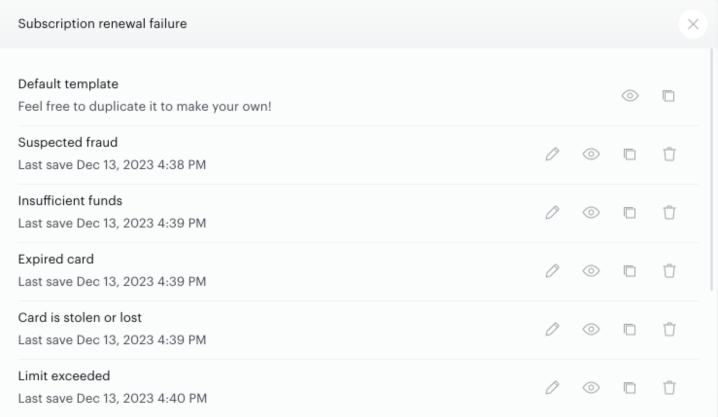
-
Create a term with a trial period, where the trial price will be within the successful range (0.01 - 1999.99) and the base price of the term will be equal to an error code that you would like to trigger.
-
Make sure that the created passive churn prevention logic is assigned for this term.
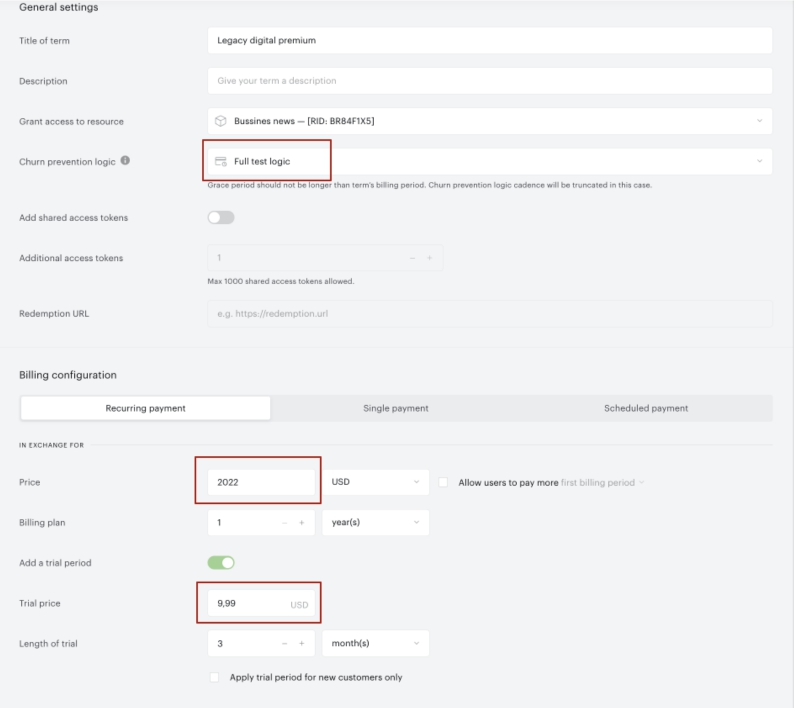
-
Go to the apply term wizard and subscribe new or existing users to that term using the test card data provided by the payment provider. Initial purchase should go fine as the trial price is within the valid price range.
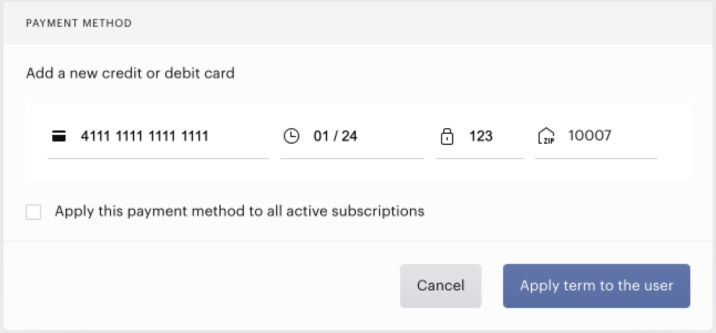
-
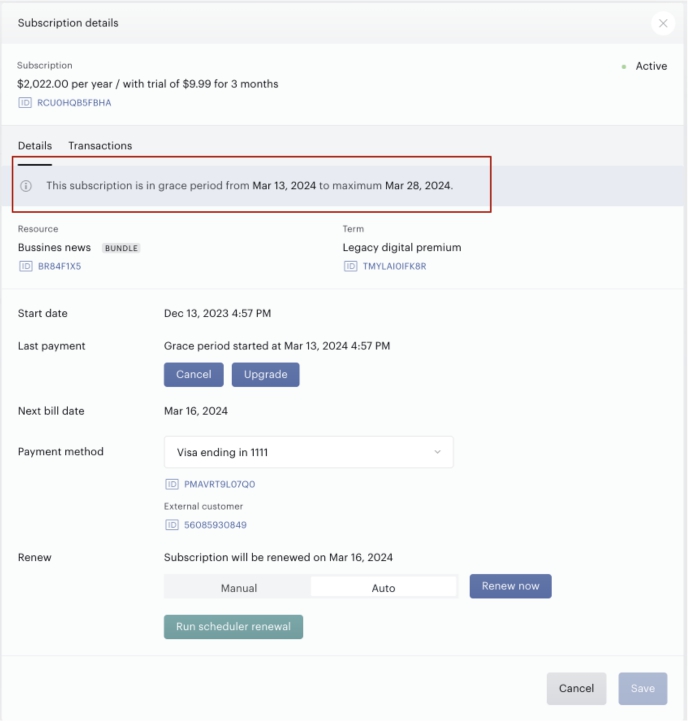
Open this new user details in the user management section and navigate to the subscriptions tab. Open the just created subscription and click on the green ‘Run scheduler renewal’ button to trigger an automatic renew.
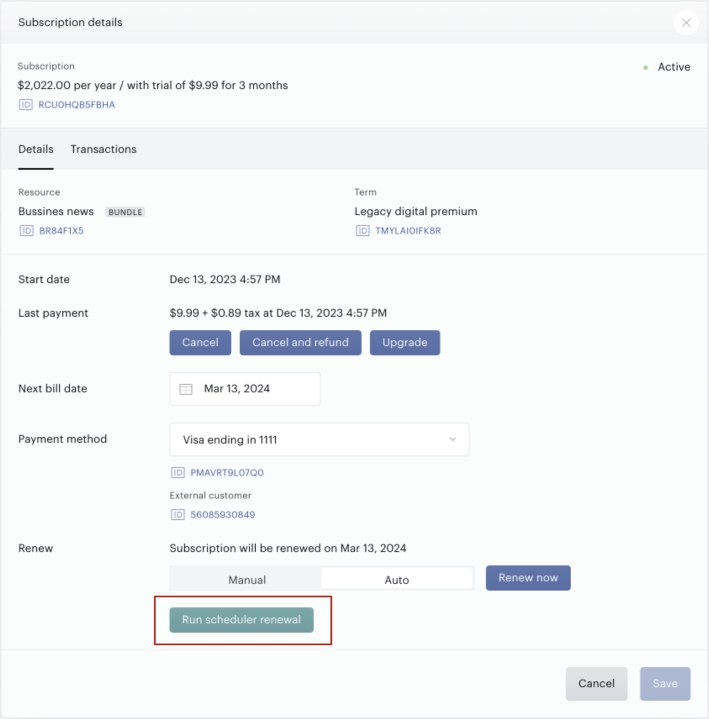
-
Repeat from step 2 for every decline reason/error code you would like to test.
Expected results
-
Subscription details modal will automatically close with the notification about successful renewal (the attempt was successful in this case, but the result was a payment failure). If you open the subscription details again, you should see that this subscription is now in a grace period. The length of the grace period should be equal to the value configured for a specific scenario in the PCP logic.
-
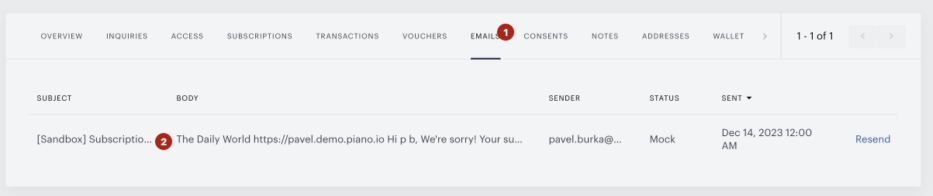
Navigate to the ‘Emails’ tab, you should see that there is an email scheduled to be sent to the end-user with the topic and body that was configured for a specific scenario in the logic.